

- generate initial browsing history
- create natural cookies for websites
- warm up new browser profiles
- prepare profiles for account login or automation
How Cookie Bot works
Cookie Bot visits a list of common websites and simulates basic user interactions. These actions may include:- loading pages
- scrolling through content
- clicking buttons
- loading images
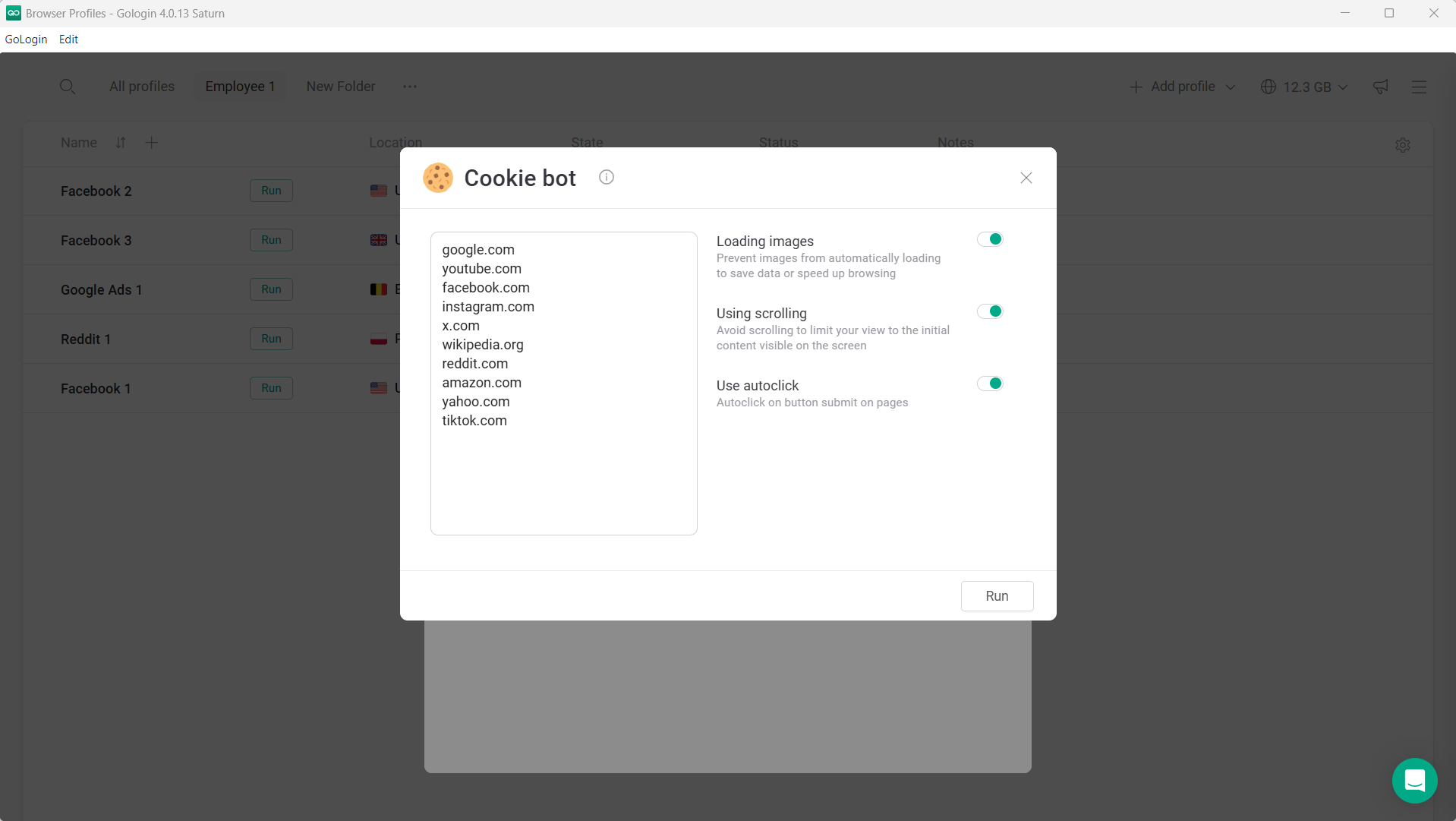
Running Cookie Bot for a profile
To run Cookie Bot for a single profile:
- Go to the Profiles page.
- Click the three dots (⋯) next to the profile.
- Select Automation.
- Review the list of websites that will be visited.
- Adjust optional settings if needed.
- Click Run.
.gif?s=78869e399b846b074efd8bbb64323ccf)
Running Cookie Bot for multiple profiles
Gologin also allows you to run Cookie Bot for several profiles at once. To do this:- Select multiple profiles in the profiles table.
- Choose Automation.
- Configure the settings.
- Click Run.
.gif?s=85571b027c363dbdf2434f3d1936f2d3)
Cookie Bot settings
Cookie Bot includes several options to adjust the simulation behavior.Loading images
Controls whether images are loaded during browsing.Disabling this option can speed up the process and reduce data usage.
Using scrolling
Simulates scrolling on pages to mimic real user behavior.Use autoclick
Automatically clicks certain elements such as buttons or page interactions during browsing.Best practices
For best results:- run Cookie Bot before logging into new accounts
- keep the profile proxy enabled during the process
- avoid running Cookie Bot too frequently on the same profile