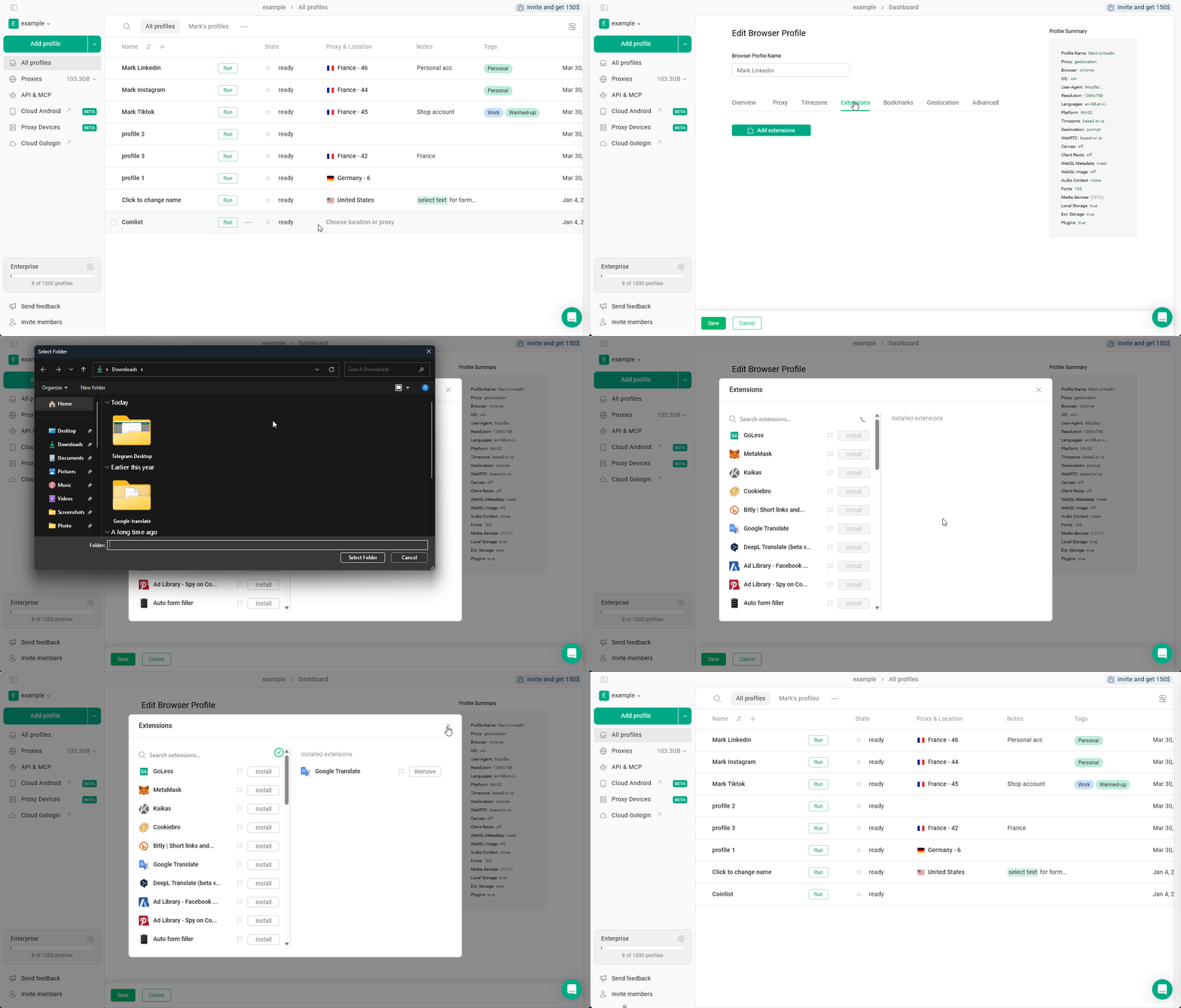
Custom extensions allow you to use private, modified, or locally developed tools inside your Gologin profiles. Unlike public extensions, custom extensions are installed manually using extension files.
Gologin doesn’t support .crx or .zip archives. However, you can convert such files to an unpacked folder, which is supported by Gologin.If you have a .zip archive, just extract it - the resulting folder can be added as a custom extension.In case you have a .crx file:
Rename your extension.crx to extension.zip
Extract it using the 7-zip app or your operating system’s built-in extractor
Make sure the extracted folder contains manifest.json and other extension assets (js, html, icons, etc.).
If you’re unable to add the extension, check for the manifext.json
{"docsConfig":{"theme":"mint","$schema":"https://mintlify.com/docs.json","name":"Gologin documentation","colors":{"primary":"#16A34A","light":"#07C983","dark":"#15803D"},"logo":{"light":"https://mintcdn.com/gologin/oIBjXLT_ZJGRG3X0/logo/light.svg?fit=max\u0026auto=format\u0026n=oIBjXLT_ZJGRG3X0\u0026q=85\u0026s=2dfd2f08c1faaec13410b1cb077108f3","dark":"https://mintcdn.com/gologin/oIBjXLT_ZJGRG3X0/logo/dark.svg?fit=max\u0026auto=format\u0026n=oIBjXLT_ZJGRG3X0\u0026q=85\u0026s=44dab1bd74336d51bcd905ccbc5fb80b"},"favicon":"https://mintcdn.com/gologin/icD2z3poOwslds91/favicon.ico?fit=max\u0026auto=format\u0026n=icD2z3poOwslds91\u0026q=85\u0026s=8697a249f0c70a2256292467a1c08fe6","navbar":{"links":[{"href":"https://gologin.com/blog/","label":"Blog"},{"href":"https://gologin.com/download","label":"Download"}]},"integrations":{"gtm":{"tagId":"GTM-PCVDMBT"},"intercom":{"appId":"izr1nygf"}},"styling":{"latex":false},"navigation":{"pages":[]}},"deployment":{"deploymentMetadataValue":{"subdomain":"gologin","hasAudioNarration":false,"actualSubdomain":"gologin","customDomains":["gologin.com"],"gitSource":{"type":"github","owner":"gologinapp","repo":"docs","deployBranch":"main","contentDirectory":"","isPrivate":false,"mountPath":"","label":""},"chroma":{"liveDeploymentHistoryId":"6adb378f1ada55010579a16f","collectionId":"1737f3f8-24c3-4b80-8cf6-036d27865ae1","schemaVersion":"v3","latestBuiltDeploymentHistoryId":"6adb378f1ada55010579a16f"},"feedback":{"thumbs":true,"issues":true,"edits":true},"entitlements":{"AI_CHAT":{"status":"ENABLED"},"WEB_MCP":{"status":"ENABLED"},"NARRATION":{"status":"ENABLED"}},"buildId":"6adb378f1ada55010579a16f","clientVersion":"0.0.3971","searchFilterCounts":[{"language":"default","tag":"Automation \u0026 API","count":87},{"language":"default","tag":"API Reference","count":72},{"language":"default","tag":"Profiles \u0026 Proxies","count":65},{"language":"default","tag":"Account \u0026 Collaboration","count":31},{"language":"default","tag":"Browser Profiles","count":26},{"language":"default","tag":"Profile","count":24},{"language":"default","tag":"Guides \u0026 Best Practices","count":17},{"language":"default","tag":"Workspace","count":15},{"language":"default","tag":"Proxies","count":14},{"language":"default","tag":"Gologin Proxies","count":9}]},"assistantConfig":{},"basePath":"/docs","hasChatPermissions":false,"hasWebMcpPermissions":true,"toggles":[{"name":"kill-isr","enabled":true,"variant":{"name":"disabled","enabled":false,"feature_enabled":true},"impressionData":false},{"name":"agent-mintlify-slack","enabled":true,"variant":{"name":"disabled","enabled":false,"feature_enabled":true},"impressionData":false},{"name":"editor-v7-file-tree","enabled":true,"variant":{"name":"disabled","enabled":false,"feature_enabled":true},"impressionData":false},{"name":"agent-integrations-settings","enabled":true,"variant":{"name":"disabled","enabled":false,"feature_enabled":true},"impressionData":false},{"name":"automations-pr-grouping","enabled":true,"variant":{"name":"disabled","enabled":false,"feature_enabled":true},"impressionData":false},{"name":"custom-prefix","enabled":true,"variant":{"name":"disabled","enabled":false,"feature_enabled":true},"impressionData":false},{"name":"analytics-v7","enabled":true,"variant":{"name":"disabled","enabled":false,"feature_enabled":true},"impressionData":false},{"name":"user-flows-analytics","enabled":true,"variant":{"name":"disabled","enabled":false,"feature_enabled":true},"impressionData":false},{"name":"no-publish-flow","enabled":true,"variant":{"name":"disabled","enabled":false,"feature_enabled":true},"impressionData":false},{"name":"workos-onboarding","enabled":true,"variant":{"name":"disabled","enabled":false,"feature_enabled":true},"impressionData":false},{"name":"llms-txt-v2","enabled":true,"variant":{"name":"disabled","enabled":false,"feature_enabled":true},"impressionData":false},{"name":"pause-universal-search-reconcile","enabled":true,"variant":{"name":"disabled","enabled":false,"feature_enabled":true},"impressionData":false},{"name":"snapshot-serving-live","enabled":true,"variant":{"name":"disabled","enabled":false,"feature_enabled":true},"impressionData":false},{"name":"stripTemperatureMiddleware","enabled":true,"variant":{"name":"disabled","enabled":false,"feature_enabled":true},"impressionData":false},{"name":"per-site-search-delta","enabled":true,"variant":{"name":"disabled","enabled":false,"feature_enabled":true},"impressionData":false},{"name":"support-platform-pylon-zendesk","enabled":true,"variant":{"name":"disabled","enabled":false,"feature_enabled":true},"impressionData":false},{"name":"snapshot-serving","enabled":true,"variant":{"name":"disabled","enabled":false,"feature_enabled":true},"impressionData":false},{"name":"instant-rollback","enabled":true,"variant":{"name":"disabled","enabled":false,"feature_enabled":true},"impressionData":false},{"name":"granular-notifications-server","enabled":true,"variant":{"name":"disabled","enabled":false,"feature_enabled":true},"impressionData":false},{"name":"granular-notifications","enabled":true,"variant":{"name":"disabled","enabled":false,"feature_enabled":true},"impressionData":false},{"name":"editor-private-page-search","enabled":true,"variant":{"name":"disabled","enabled":false,"feature_enabled":true},"impressionData":false},{"name":"automations-fable","enabled":true,"variant":{"name":"disabled","enabled":false,"feature_enabled":true},"impressionData":false},{"name":"fixed-ai-action-pricing","enabled":true,"variant":{"name":"disabled","enabled":false,"feature_enabled":true},"impressionData":false},{"name":"automation-resolve-merge-conflict","enabled":true,"variant":{"name":"disabled","enabled":false,"feature_enabled":true},"impressionData":false},{"name":"scoped-publishing","enabled":true,"variant":{"name":"disabled","enabled":false,"feature_enabled":true},"impressionData":false},{"name":"mintql","enabled":true,"variant":{"name":"disabled","enabled":false,"feature_enabled":true},"impressionData":false},{"name":"page-level-analytics","enabled":true,"variant":{"name":"disabled","enabled":false,"feature_enabled":true},"impressionData":false},{"name":"editor-version-history-v2","enabled":true,"variant":{"name":"disabled","enabled":false,"feature_enabled":true},"impressionData":false},{"name":"editor-nav-generations","enabled":true,"variant":{"name":"disabled","enabled":false,"feature_enabled":true},"impressionData":false},{"name":"billing-page-v2","enabled":true,"variant":{"name":"disabled","enabled":false,"feature_enabled":true},"impressionData":false},{"name":"workspace-projects","enabled":true,"variant":{"name":"disabled","enabled":false,"feature_enabled":true},"impressionData":false},{"name":"assistant-v5","enabled":true,"variant":{"name":"disabled","enabled":false,"feature_enabled":true},"impressionData":false},{"name":"byok-sep-25","enabled":true,"variant":{"name":"disabled","enabled":false,"feature_enabled":true},"impressionData":false},{"name":"fork-pr-previews","enabled":true,"variant":{"name":"disabled","enabled":false,"feature_enabled":true},"impressionData":false},{"name":"revalidation-jwt","enabled":true,"variant":{"name":"disabled","enabled":false,"feature_enabled":true},"impressionData":false},{"name":"vite-origin","enabled":true,"variant":{"name":"disabled","enabled":false,"feature_enabled":true},"impressionData":false},{"name":"editor-agent-model-picker","enabled":true,"variant":{"name":"disabled","enabled":false,"feature_enabled":true},"impressionData":false},{"name":"billing-updated-9-15","enabled":true,"variant":{"name":"disabled","enabled":false,"feature_enabled":true},"impressionData":false},{"name":"workos-sso-scim","enabled":true,"variant":{"name":"disabled","enabled":false,"feature_enabled":true},"impressionData":false},{"name":"hobby-abuse-scan","enabled":true,"variant":{"name":"disabled","enabled":false,"feature_enabled":true},"impressionData":false},{"name":"dashboard-inbox","enabled":true,"variant":{"name":"disabled","enabled":false,"feature_enabled":true},"impressionData":false},{"name":"workos-signup","enabled":true,"variant":{"name":"disabled","enabled":false,"feature_enabled":true},"impressionData":false},{"name":"workos-enabled","enabled":true,"variant":{"name":"disabled","enabled":false,"feature_enabled":true},"impressionData":false}],"isAtlas":false,"googleFontsInlined":false},"customCss":[],"page":{"pagePath":"browser-profiles/profile-features/browser-extensions/installing-custom-extensions","slug":"/browser-profiles/profile-features/browser-extensions/installing-custom-extensions","pageMetadata":{"title":"Installing custom extensions","description":null,"href":"/browser-profiles/profile-features/browser-extensions/installing-custom-extensions"},"pageType":"default","mdx":{"mdxSource":{"compiledSource":"\"use strict\";const{Fragment:_Fragment,jsx:_jsx,jsxs:_jsxs}=arguments[0];const{useMDXComponents:_provideComponents}=arguments[0];function _createMdxContent(props){const _components={br:`br`,li:`li`,ol:`ol`,p:`p`,strong:`strong`,..._provideComponents(),...props.components},{Frame,Heading,OptimizedImage,Warning}=_components;if(!Frame)_missingMdxReference(`Frame`,true);if(!Heading)_missingMdxReference(`Heading`,true);if(!OptimizedImage)_missingMdxReference(`OptimizedImage`,true);if(!Warning)_missingMdxReference(`Warning`,true);return _jsxs(_Fragment,{children:[_jsxs(_components.p,{children:[_jsx(_components.strong,{children:`Custom extensions`}),` allow you to use private, modified, or locally developed tools inside your Gologin profiles. Unlike public extensions, custom extensions are installed manually using extension files.`]}),`\n`,_jsx(Heading,{level:`2`,id:`ensuring-your-extension-is-compatible`,children:`Ensuring your extension is compatible`}),`\n`,_jsxs(_components.p,{children:[_jsx(_components.strong,{children:`Gologin doesn’t support .crx or .zip archives.`}),` However, you can convert such files to an `,_jsx(_components.strong,{children:`unpacked folder`}),`, which is supported by Gologin.`]}),`\n`,_jsxs(_components.p,{children:[`If you have a `,_jsx(_components.strong,{children:`.zip`}),` archive, just extract it - the resulting folder can be added as a custom extension.`]}),`\n`,_jsxs(_components.p,{children:[`In case you have a `,_jsx(_components.strong,{children:`.crx`}),` file:`]}),`\n`,_jsxs(_components.ol,{children:[`\n`,_jsx(_components.li,{children:`Rename your extension.crx to extension.zip`}),`\n`,_jsx(_components.li,{children:`Extract it using the 7-zip app or your operating system’s built-in extractor`}),`\n`]}),`\n`,_jsx(Warning,{children:_jsxs(_components.p,{children:[`Make sure the extracted folder contains `,_jsx(_components.strong,{children:`manifest.json`}),` and other extension assets (js, html, icons, etc.). `,_jsx(_components.br,{}),`\n`,`If you’re unable to add the extension, check for the manifext.json`]})}),`\n`,_jsx(Heading,{level:`2`,id:`installing-an-unpacked-extension`,children:`Installing an unpacked extension`}),`\n`,_jsxs(_components.p,{children:[`Gologin supports extensions as `,_jsx(_components.strong,{children:`unpacked folders`}),`. To install such an extension:`]}),`\n`,_jsxs(_components.ol,{children:[`\n`,_jsxs(_components.li,{children:[_jsx(_components.strong,{children:`Click 3 dots on the profile`}),` you want to install the extension on, then click `,_jsx(_components.strong,{children:`Settings`})]}),`\n`,_jsxs(_components.li,{children:[`Navigate to the `,_jsx(_components.strong,{children:`Extensions`}),` tab and click `,_jsx(_components.strong,{children:`Add extensions`})]}),`\n`,_jsxs(_components.li,{children:[`Click the `,_jsx(_components.strong,{children:`Upload custom extension`}),` button`]}),`\n`,_jsxs(_components.li,{children:[`Open the folder that contains the extension and click `,_jsx(_components.strong,{children:`Select folder`})]}),`\n`,_jsxs(_components.li,{children:[`Hit `,_jsx(_components.strong,{children:`Save`}),` to apply the changes`]}),`\n`]}),`\n`,_jsx(Frame,{children:_jsx(OptimizedImage,{src:`https://mintcdn.com/gologin/6kF7sWPQSzoBdOq6/images/installing_custom_extension.gif?s=75a43136374797d95faa68d990c78b04`,alt:`Installing Custom Extension`,\"data-og-width\":`1391`,width:`1391`,\"data-og-height\":`793`,height:`793`,\"data-path\":`images/installing_custom_extension.gif`,\"data-optimize\":`true`,\"data-opv\":`3`})})]})}function MDXContent(props={}){const{wrapper:MDXLayout}={..._provideComponents(),...props.components};return MDXLayout?_jsx(MDXLayout,{...props,children:_jsx(_createMdxContent,{...props})}):_createMdxContent(props)}return{default:MDXContent};function _missingMdxReference(id,component){throw new Error(`Expected `+(component?`component`:`object`)+\" `\"+id+\"` to be defined: you likely forgot to import, pass, or provide it.\")}","frontmatter":{},"scope":{"config":{},"pageMetadata":{"title":"Installing custom extensions","description":null,"href":"/browser-profiles/profile-features/browser-extensions/installing-custom-extensions"}}},"mdxSourceWithNoJs":null},"mdxExtracts":{"tableOfContents":[{"title":"Ensuring your extension is compatible","slug":"ensuring-your-extension-is-compatible","depth":2,"children":[]},{"title":"Installing an unpacked extension","slug":"installing-an-unpacked-extension","depth":2,"children":[]}],"codeExamples":{}},"jsLinks":[],"subdomain":"gologin","siteName":"Gologin documentation","title":"Installing custom extensions - Gologin documentation","navMaps":{"firstHrefInVersion":{},"firstHrefInLanguage":{}},"lastModified":"2026-08-25T06:16:41.301Z","originalFileLocation":"browser-profiles/profile-features/browser-extensions/installing-custom-extensions.mdx"},"headHtml":"\u003cscript data-mint-head>(function(){var d=document.documentElement,p=null;if(!p){try{p=localStorage.getItem(\"isDarkMode\")}catch(e){}if(p==='true')p='dark';else if(p==='false')p='light';if(p!=='light'\u0026\u0026p!=='dark'\u0026\u0026p!=='system')p=\"system\"}var r=p==='system'?(matchMedia(\"(prefers-color-scheme: dark)\").matches?'dark':'light'):p;d.classList.remove(r==='dark'?'light':'dark');d.classList.add(r);d.setAttribute(\"data-theme-preference\",p)})();\u003c/script>\u003cmeta data-mint-head name=\"application-name\" content=\"Gologin documentation\">\u003cmeta data-mint-head name=\"generator\" content=\"Mintlify\">\u003clink data-mint-head rel=\"icon\" type=\"image/png\" sizes=\"192x192\" href=\"/docs/mintlify-assets/_mintlify/favicons/gologin/FYA6AfVSrFQZ-Gyr/_generated/favicon/android-chrome-192x192.png\" media=\"(prefers-color-scheme: light)\">\u003clink data-mint-head rel=\"apple-touch-icon\" type=\"image/png\" sizes=\"180x180\" href=\"/docs/mintlify-assets/_mintlify/favicons/gologin/FYA6AfVSrFQZ-Gyr/_generated/favicon/apple-touch-icon.png\">\u003clink data-mint-head rel=\"icon\" type=\"image/png\" sizes=\"16x16\" href=\"/docs/mintlify-assets/_mintlify/favicons/gologin/FYA6AfVSrFQZ-Gyr/_generated/favicon/favicon-16x16.png\" media=\"(prefers-color-scheme: light)\">\u003clink data-mint-head rel=\"icon\" type=\"image/png\" sizes=\"32x32\" href=\"/docs/mintlify-assets/_mintlify/favicons/gologin/FYA6AfVSrFQZ-Gyr/_generated/favicon/favicon-32x32.png\" media=\"(prefers-color-scheme: light)\">\u003clink data-mint-head rel=\"shortcut icon\" type=\"image/x-icon\" href=\"/docs/mintlify-assets/_mintlify/favicons/gologin/FYA6AfVSrFQZ-Gyr/_generated/favicon/favicon.ico\" media=\"(prefers-color-scheme: light)\">\u003clink data-mint-head rel=\"icon\" type=\"image/png\" sizes=\"192x192\" href=\"/docs/mintlify-assets/_mintlify/favicons/gologin/FYA6AfVSrFQZ-Gyr/_generated/favicon-dark/android-chrome-192x192.png\" media=\"(prefers-color-scheme: dark)\">\u003clink data-mint-head rel=\"icon\" type=\"image/png\" sizes=\"16x16\" href=\"/docs/mintlify-assets/_mintlify/favicons/gologin/FYA6AfVSrFQZ-Gyr/_generated/favicon-dark/favicon-16x16.png\" media=\"(prefers-color-scheme: dark)\">\u003clink data-mint-head rel=\"icon\" type=\"image/png\" sizes=\"32x32\" href=\"/docs/mintlify-assets/_mintlify/favicons/gologin/FYA6AfVSrFQZ-Gyr/_generated/favicon-dark/favicon-32x32.png\" media=\"(prefers-color-scheme: dark)\">\u003clink data-mint-head rel=\"shortcut icon\" type=\"image/x-icon\" href=\"/docs/mintlify-assets/_mintlify/favicons/gologin/FYA6AfVSrFQZ-Gyr/_generated/favicon-dark/favicon.ico\" media=\"(prefers-color-scheme: dark)\">\u003cmeta data-mint-head property=\"og:title\" content=\"Installing custom extensions - Gologin documentation\">\u003cmeta data-mint-head property=\"og:site_name\" content=\"Gologin documentation\">\u003cmeta data-mint-head property=\"og:url\" content=\"https://gologin.com/docs/browser-profiles/profile-features/browser-extensions/installing-custom-extensions\">\u003cmeta data-mint-head property=\"og:type\" content=\"website\">\u003cmeta data-mint-head property=\"og:image\" content=\"https://gologin.mintlify.app/_mintlify/api/og/v2?division=Browser+Extensions\u0026amp;title=Installing+custom+extensions\u0026amp;theme=e7cd443fb78cf0bc8fbb7d88\u0026amp;signature=138251d4a074c09048b04dda1400e192207e37b455a2dd09d90dce66c8f60316\">\u003cmeta data-mint-head property=\"og:image:width\" content=\"1200\">\u003cmeta data-mint-head property=\"og:image:height\" content=\"630\">\u003cmeta data-mint-head name=\"twitter:card\" content=\"summary_large_image\">\u003cmeta data-mint-head name=\"twitter:title\" content=\"Installing custom extensions - Gologin documentation\">\u003cmeta data-mint-head name=\"twitter:image\" content=\"https://gologin.mintlify.app/_mintlify/api/og/v2?division=Browser+Extensions\u0026amp;title=Installing+custom+extensions\u0026amp;theme=e7cd443fb78cf0bc8fbb7d88\u0026amp;signature=138251d4a074c09048b04dda1400e192207e37b455a2dd09d90dce66c8f60316\">\u003cmeta data-mint-head name=\"twitter:image:width\" content=\"1200\">\u003cmeta data-mint-head name=\"twitter:image:height\" content=\"630\">\u003cmeta data-mint-head name=\"msapplication-config\" content=\"/docs/mintlify-assets/_mintlify/favicons/gologin/FYA6AfVSrFQZ-Gyr/_generated/favicon/browserconfig.xml\">\u003cmeta data-mint-head name=\"apple-mobile-web-app-title\" content=\"Gologin documentation\">\u003cmeta data-mint-head name=\"msapplication-TileColor\" content=\"#16A34A\">\u003clink data-mint-head rel=\"canonical\" href=\"https://gologin.com/docs/browser-profiles/profile-features/browser-extensions/installing-custom-extensions\">\u003clink data-mint-head rel=\"alternate\" type=\"application/xml\" href=\"/docs/sitemap.xml\">\u003clink data-mint-head rel=\"alternate\" type=\"text/markdown\" href=\"/docs/browser-profiles/profile-features/browser-extensions/installing-custom-extensions.md\">\u003cscript data-mint-head type=\"application/ld+json\">{\"@context\":\"https://schema.org\",\"@graph\":[{\"@type\":\"Organization\",\"@id\":\"https://gologin.com/#organization\",\"name\":\"Gologin documentation\",\"url\":\"https://gologin.com\",\"logo\":{\"@type\":\"ImageObject\",\"url\":\"https://mintcdn.com/gologin/oIBjXLT_ZJGRG3X0/logo/light.svg?fit=max\u0026auto=format\u0026n=oIBjXLT_ZJGRG3X0\u0026q=85\u0026s=2dfd2f08c1faaec13410b1cb077108f3\"}},{\"@type\":\"WebSite\",\"@id\":\"https://gologin.com/docs#website\",\"name\":\"Gologin documentation\",\"url\":\"https://gologin.com/docs\",\"publisher\":{\"@id\":\"https://gologin.com/#organization\"}},{\"@type\":\"WebPage\",\"@id\":\"https://gologin.com/docs/browser-profiles/profile-features/browser-extensions/installing-custom-extensions#webpage\",\"url\":\"https://gologin.com/docs/browser-profiles/profile-features/browser-extensions/installing-custom-extensions\",\"name\":\"Installing custom extensions\",\"dateModified\":\"2026-08-25T06:16:41.301Z\",\"isPartOf\":{\"@id\":\"https://gologin.com/docs#website\"},\"breadcrumb\":{\"@id\":\"https://gologin.com/docs/browser-profiles/profile-features/browser-extensions/installing-custom-extensions#breadcrumb\"}},{\"@type\":\"BreadcrumbList\",\"@id\":\"https://gologin.com/docs/browser-profiles/profile-features/browser-extensions/installing-custom-extensions#breadcrumb\",\"itemListElement\":[{\"@type\":\"ListItem\",\"position\":1,\"name\":\"Browser Profiles\",\"item\":\"https://gologin.com/docs/what-is-a-browser-profile\"},{\"@type\":\"ListItem\",\"position\":2,\"name\":\"Browser Extensions\",\"item\":\"https://gologin.com/docs/browser-profiles/profile-features/browser-extensions/browser-extensions\"},{\"@type\":\"ListItem\",\"position\":3,\"name\":\"Installing custom extensions\",\"item\":\"https://gologin.com/docs/browser-profiles/profile-features/browser-extensions/installing-custom-extensions\"}]},{\"@type\":[\"Article\",\"TechArticle\"],\"@id\":\"https://gologin.com/docs/browser-profiles/profile-features/browser-extensions/installing-custom-extensions#article\",\"headline\":\"Installing custom extensions\",\"name\":\"Installing custom extensions\",\"url\":\"https://gologin.com/docs/browser-profiles/profile-features/browser-extensions/installing-custom-extensions\",\"mainEntityOfPage\":{\"@id\":\"https://gologin.com/docs/browser-profiles/profile-features/browser-extensions/installing-custom-extensions#webpage\"},\"dateModified\":\"2026-08-25T06:16:41.301Z\",\"publisher\":{\"@id\":\"https://gologin.com/#organization\"},\"isPartOf\":{\"@id\":\"https://gologin.com/docs#website\"}}]}\u003c/script>\u003cscript data-mint-head type=\"application/ld+json\">{\"@context\":\"https://schema.org\",\"@type\":\"WebSite\",\"name\":\"Gologin documentation\",\"creator\":{\"@type\":\"Organization\",\"name\":\"Mintlify\",\"url\":\"https://mintlify.com\"}}\u003c/script>","siteName":"Gologin documentation","nav":{"global":null,"tabs":[{"tab":"Getting Started","pages":[{"title":"Getting Started","href":"/getting-started/introduction/what-is-gologin-and-who-its-for"}]},{"tab":"Profiles \u0026 Proxies","groups":[{"group":"Browser Profiles","icon":"window-flip","pages":[{"group":"Overview","expanded":true,"pages":[{"title":"What is a browser profile","href":"/what-is-a-browser-profile"},{"title":"Orbita browser","href":"/orbita-browser"}]},{"group":"Profile Management","expanded":true,"pages":[{"title":"Creating profiles","href":"/browser-profiles/profile-management/creating-and-launching-profiles"},{"title":"Editing profiles","href":"/browser-profiles/profile-management/editing-profiles"},{"title":"Cloning profiles","href":"/browser-profiles/profile-management/cloning-profiles"},{"title":"Bulk actions","href":"/browser-profiles/profile-management/bulk-actions"}]},{"group":"Profile Organization","pages":[{"title":"Folders","href":"/browser-profiles/profile-management/folders"},{"title":"Profile fields","href":"/browser-profiles/profile-management/add-more-info-columns"},{"title":"Notes, Tags and Status","href":"/browser-profiles/profile-management/notes-and-tags"},{"title":"Profile arrangement","href":"/browser-profiles/profile-management/profile-sorting"},{"title":"Profile search","href":"/browser-profiles/profile-management/profile-search"}]},{"group":"Profile Settings","pages":[{"title":"Profile settings","href":"/profile-parameters"},{"title":"Advanced profile settings","href":"/general/account-and-billing/advanced-profile-settings"},{"title":"Default profile settings","href":"/default-profile-settings"},{"title":"Updating your browser profile","href":"/updating-your-browser-profile"}]},{"group":"Browser Cookies","pages":[{"title":"What are browser cookies","href":"/browser-profiles/profile-features/browser-cookies/what-are-browser-cookies"},{"title":"Cookies import and export","href":"/browser-profiles/profile-features/browser-cookies/cookies-import-and-export"}]},{"group":"Browser Extensions","pages":[{"title":"Browser extensions overview","href":"/browser-profiles/profile-features/browser-extensions/browser-extensions"},{"title":"Adding browser extensions to profiles","description":null,"href":"/browser-profiles/profile-features/browser-extensions/adding-browser-extensions"},{"title":"Installing custom extensions","href":"/browser-profiles/profile-features/browser-extensions/installing-custom-extensions"}]},{"group":"Profile Sync \u0026 Recovery","pages":[{"title":"Profile synchronization","description":null,"href":"/browser-profiles/profile-management/profile-synchronization"},{"title":"Restore browser sessions","href":"/browser-profiles/profile-management/restore-browser-sessions"},{"title":"Restore deleted profiles","href":"/browser-profiles/profile-management/restore-deleted-profiles"}]},{"group":"Profile Export \u0026 Import","pages":[{"title":"Export \u0026 Import overview","href":"/export-and-import-overview"},{"title":"Profile Export \u0026 Import","href":"/profile-export-and-import"}]},{"title":"FAQ: Profiles","href":"/faq-profile-managment"}]},{"group":"Profile Features","icon":"aperture","pages":[{"title":"Cookie Bot","href":"/browser-profiles/profile-features/cookie-bot"},{"title":"Run with Sync","href":"/browser-profiles/profile-features/run-with-sync"},{"title":"Human Typing Simulation","href":"/human-typing-simulation"},{"title":"Proxy Devices","href":"/proxy-devices-overview"},{"title":"Run in Cloud","hidden":true,"href":"/browser-profiles/profile-features/browser-cookies/run-in-cloud"}]},{"group":"Proxies","icon":"network-wired","pages":[{"group":"Proxy Basics","pages":[{"title":"What is a Proxy","href":"/proxy/introduction/what-is-a-proxy"},{"title":"Residential, Mobile or Datacenter","href":"/residential-mobile-or-datacenter"},{"title":"Private vs Shared","href":"/private-vs-shared"},{"title":"Proxy Protocols","href":"/proxy-protocols"},{"title":"Static vs Rotating proxies","href":"/static-vs-dynamic-proxies"},{"title":"Best Proxy for Your Case","href":"/proxy/introduction/best-proxy-for-your-case"},{"title":"Why not use VPN for profiles?","href":"/proxy/introduction/vpn-vs-proxy"}]},{"group":"Proxy Management","expanded":true,"pages":[{"title":"Built-in Proxy Manager","href":"/proxy/proxy-management/proxy-manager/overview"},{"title":"Adding and managing proxies","href":"/proxy/proxy-management/adding-proxies"},{"title":"Navigation","href":"/proxy/proxy-management/proxy-manager/navigation"},{"title":"Proxies Page","href":"/proxy/proxy-management/proxy-manager/proxies-page"},{"title":"Proxy Archive","href":"/proxy/proxy-management/proxy-manager/proxy-archive"},{"title":"Proxy testing and troubleshooting","hidden":true,"href":"/proxy/proxy-management/proxy-testing-and-troubleshooting"}]},{"title":"Recommended proxy providers","url":"https://gologin.com/best-proxy-server-services/","href":"/proxy/proxy-management/recommended-proxy-providers"},{"title":"FAQ: Proxies","href":"/proxy/proxy-management/faq-proxies"}]},{"group":"Gologin Proxies","icon":"g","pages":[{"group":"Gologin Proxy Basics","pages":[{"title":"What are Gologin Proxies","href":"/proxy/gologin-proxies/what-are-gologin-proxies"},{"title":"How Gologin proxies work ","href":"/proxy/gologin-proxies/how-gologin-proxies-work-and-what-they-offer"},{"title":"Gologin vs 3rd-party proxies","href":"/proxy/proxy-management/gologin-vs-3rd-party-proxies"},{"title":"How much proxy traffic do I need?","href":"/proxy/gologin-proxies/how-much-proxy-traffic-do-i-need"}]},{"group":"Managing Gologin Proxies","expanded":true,"pages":[{"title":"Purchasing Gologin Proxies","href":"/proxy/gologin-proxies/purchasing-gologin-proxies"},{"title":"Adding your first proxy","href":"/proxy/gologin-proxies/gologin-proxy-management/adding-your-first-proxy"},{"title":"Gologin proxy navigation","href":"/proxy/gologin-proxies/gologin-proxy-management/gologin-proxy-settings"},{"title":"Website compatibility checker","href":"/proxy/gologin-proxies/website-compatibility-checker"}]},{"title":"FAQ: Gologin proxies","href":"/proxy/gologin-proxies/faq-gologin-proxies"}]},{"group":"Fingerprints","icon":"user-alien","pages":[{"title":"How browser fingerprints work","href":"/how-browser-fingerprints-work"},{"title":"Profile fingerprint settings","href":"/profile-fingerprint-settings"},{"title":"What’s safe to change","href":"/whats-safe-to-change"}]},{"group":"Android Anti-Detect","hidden":true,"pages":[{"title":"Overview","href":"/overview"},{"title":"Mobile vs Desktop","href":"/mobile-vs-desktop"},{"title":"Use Cases","href":"/use-cases"},{"title":"Limitations","href":"/limitations"}]},{"group":"Gologin Web app","icon":"cloud","pages":[{"title":"Overview","href":"/gologin-web-overview"},{"title":"Key things to note","href":"/key-things-to-note"},{"title":"Downloading and uploading files","href":"/downloading-and-uploading-files"},{"title":"FAQ: Web app \u0026 Cloud browser","href":"/faq-web-app-and-cloud-browser"},{"title":"Upgrading Cloud Browser limits","hidden":true,"href":"/upgrading-cloud-browser-limits"}]},{"group":"Gologin Android app","icon":"mobile","pages":[{"title":"Overview \u0026 Setup","href":"/gologin-android-overview"},{"title":"Creating and managing profiles","href":"/creating-and-managing-profiles"},{"title":"Account and app settings","href":"/account-and-app-settings"},{"title":"User-Agent on Android","href":"/user-agent-on-android"},{"title":"FAQ: Android","href":"/faq"}]}]},{"tab":"Account \u0026 Collaboration","pages":[{"title":"Account \u0026 Collaboration","href":"/general/team-collaboration/how-you-can-share-access"}]},{"tab":"Guides \u0026 Best Practices","pages":[{"title":"Guides \u0026 Best Practices","href":"/best-practices-overview"}]},{"tab":"Automation \u0026 API","pages":[{"title":"Automation \u0026 API","href":"/api-reference/introduction/quickstart"}]},{"tab":"Cloud Browser","pages":[{"title":"Cloud Browser","href":"/api-reference/cloud-browser/what-is-gologin-cloud-browser"}]},{"tab":"AI \u0026 Agents","pages":[{"title":"AI \u0026 Agents","href":"/ai/overview"}]}]},"title":"Installing custom extensions - Gologin documentation","buildId":"dpl_GvhK4qVXq51DpfYJLCtPpYNN4YHN","deploymentId":"dpl_GvhK4qVXq51DpfYJLCtPpYNN4YHN","dynamics":["07c022d89b","a74be98ba7"],"chunks":["Frame-5VlDM5Io.js","DynamicMarkdown-DO1Fz7ar.js","zoom-image-lightbox-uyuQJRFs.js","lightbox-handle-r17bVUz3.js"]}