Gologin Android Interface overview
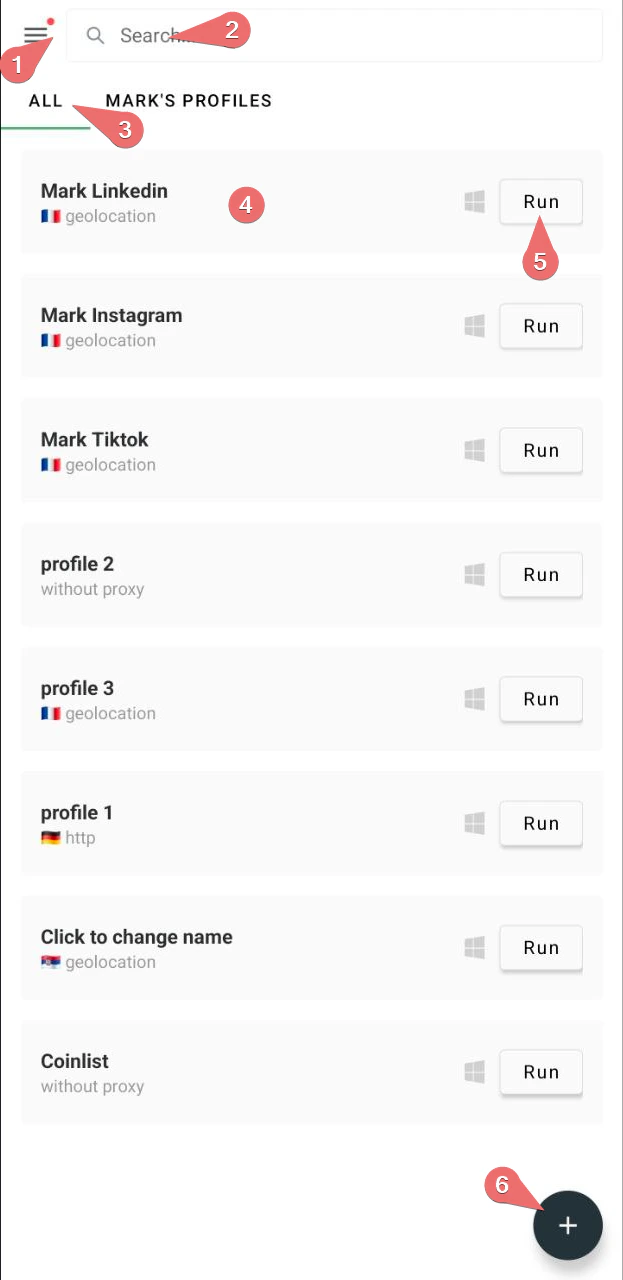
After login, you’ll see your profile list. Profile lists from Gologin Desktop, Web, and Android are synced, so you will have to your desktop profiles as well. Key elements:- Settings menu
- Profile search bar
- Folder list
- Profile cards
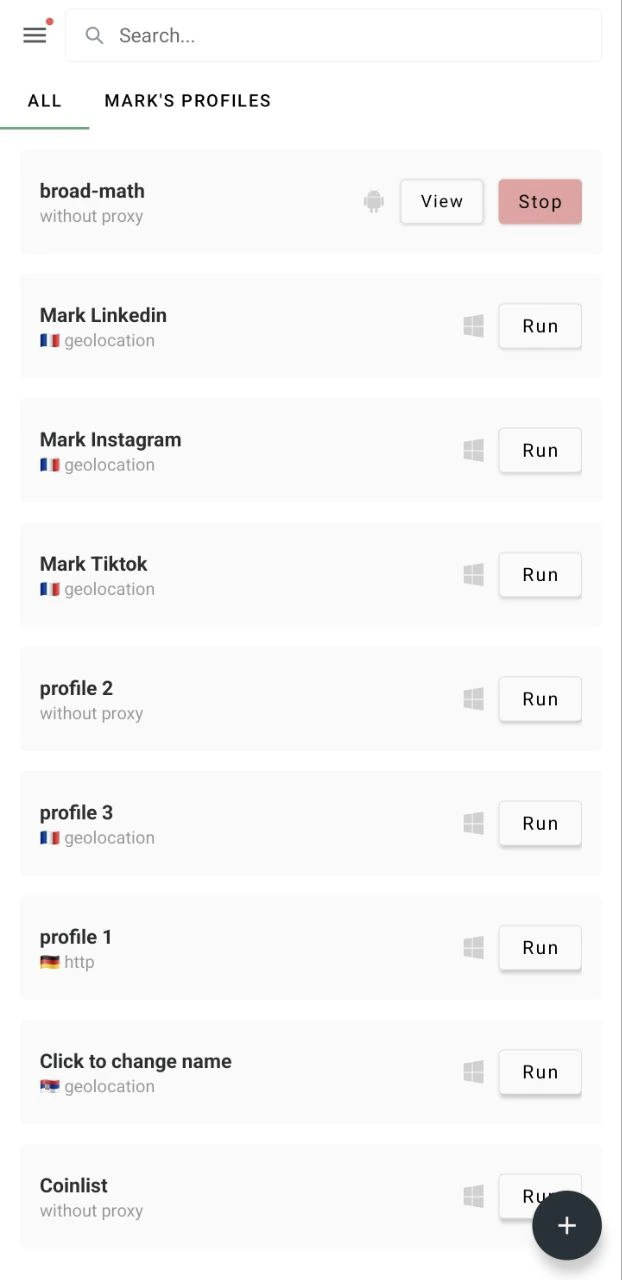
- Run/Stop buttons on profiles
- + button to create new profiles
Creating profiles
To create a new profile, just click the + button at the bottom of the screen. You’ll see the profile parameters. It’s recommended to leave all the settings by default and just choose a proxy from Gologin or add your own from a third-party provider.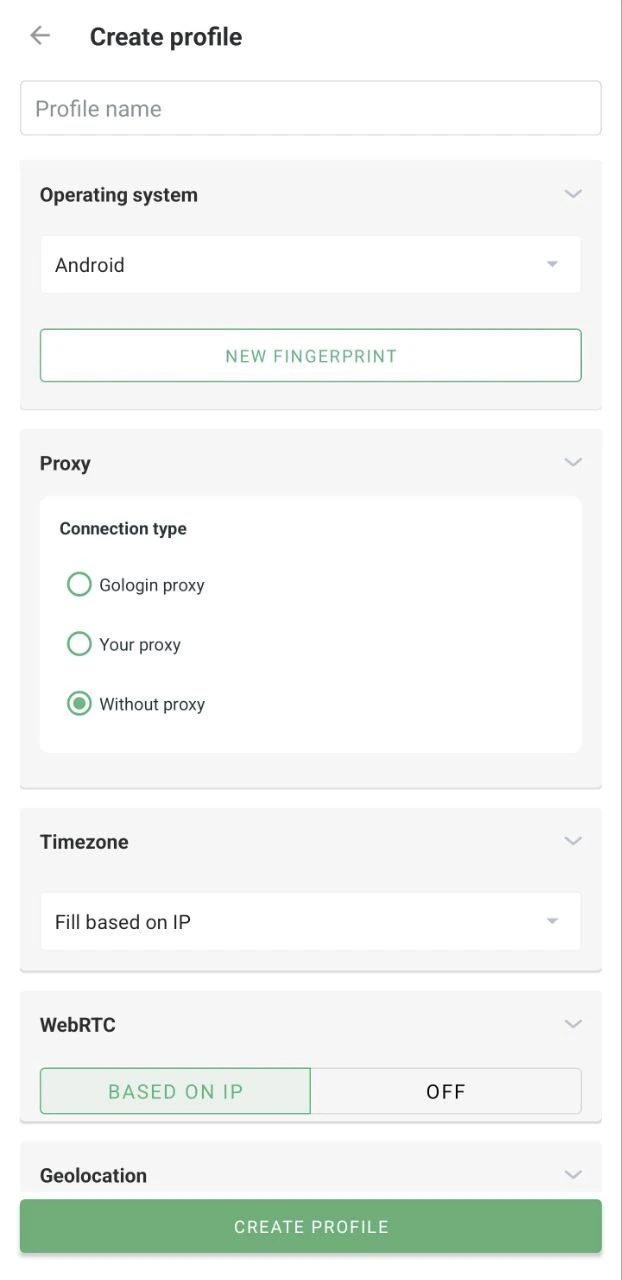
Using profiles correctly
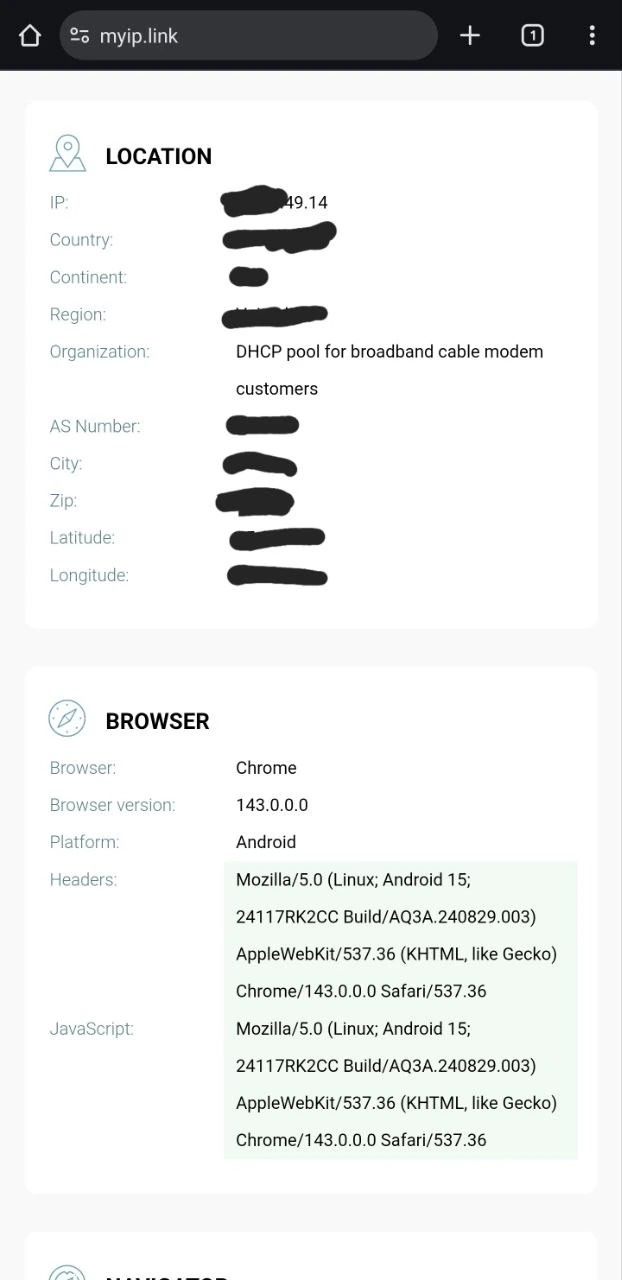
To use your new profile, locate it on the main page and click Run. After you’re done working with the profile, do not swipe away in your phone task manager to close the profile. Instead, return to the Gologin app and click Stop so that some of the profile data is retained.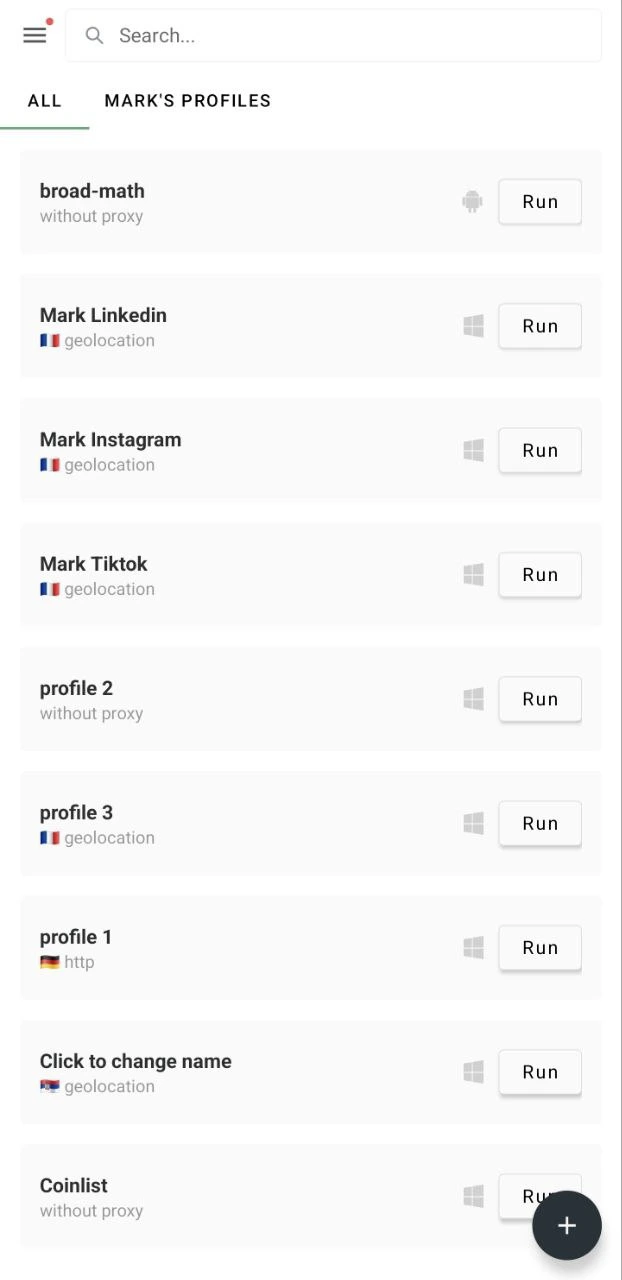
Profile actions and settings
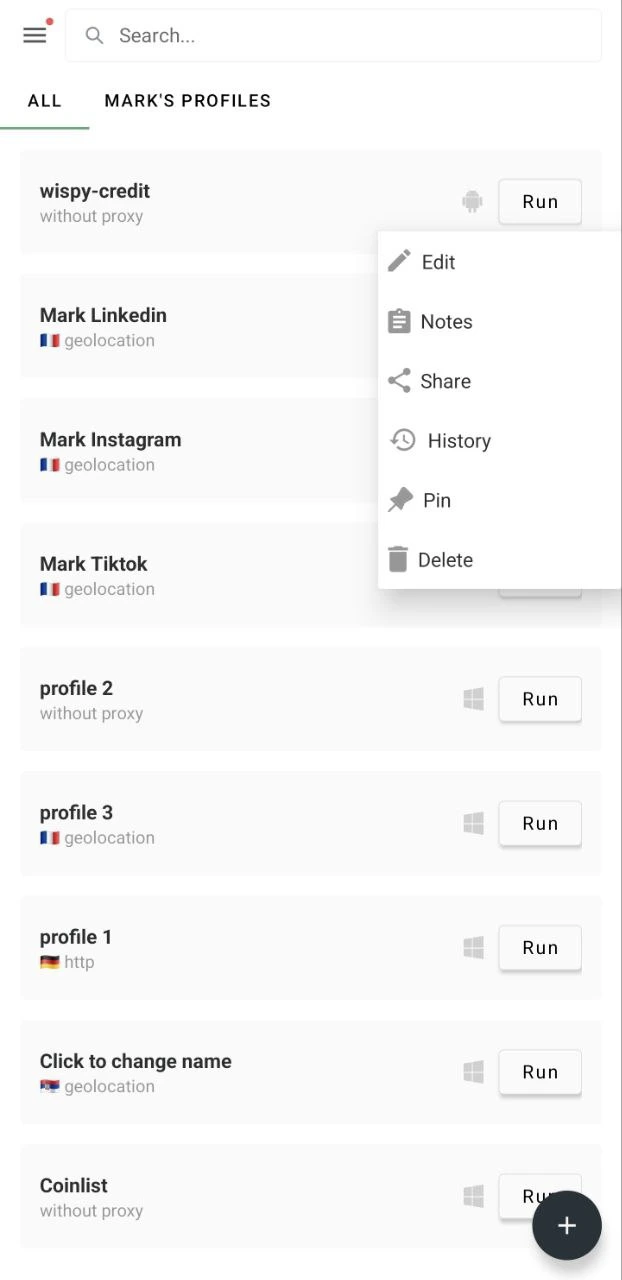
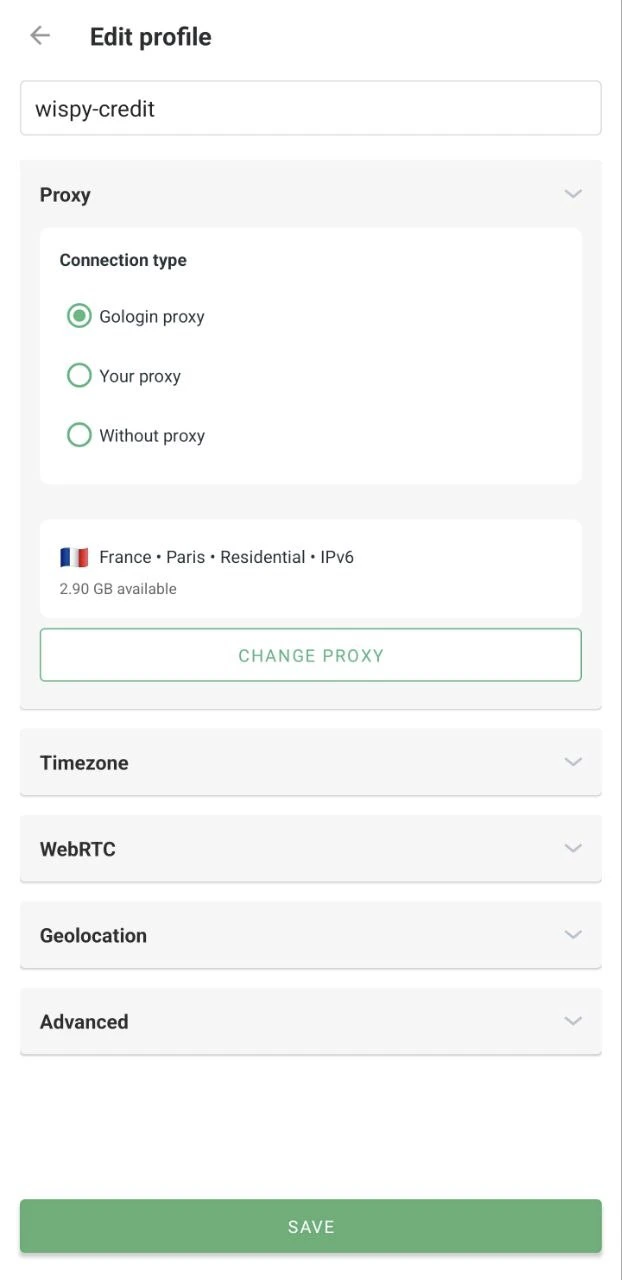
To change the profile settings, long-press on a profile to see the settings menu.- Edit - to change the profile settings
- Notes - editing profile notes
- Share - to share the profile
- History - to check the profile sessions history
- Pin - to pin the profile to the top of the profile page
- Delete - to remove the profile completely