Set the profile OS to Linux
Gologin Cloud browsers run on Linux-based servers. For the best results, the OS set in your browser profile should match the server OS - which means Linux profiles work best when launched in the cloud. When you create profiles in the web app, Linux is selected as the OS by default, so you do not need to change anything. If you are launching cloud browser profiles that were created on the desktop app, be mindful of this limitation. This does not always cause visible issues, but if a website is behaving unexpectedly, the profile OS is the first thing to check.The browser may look and behave differently
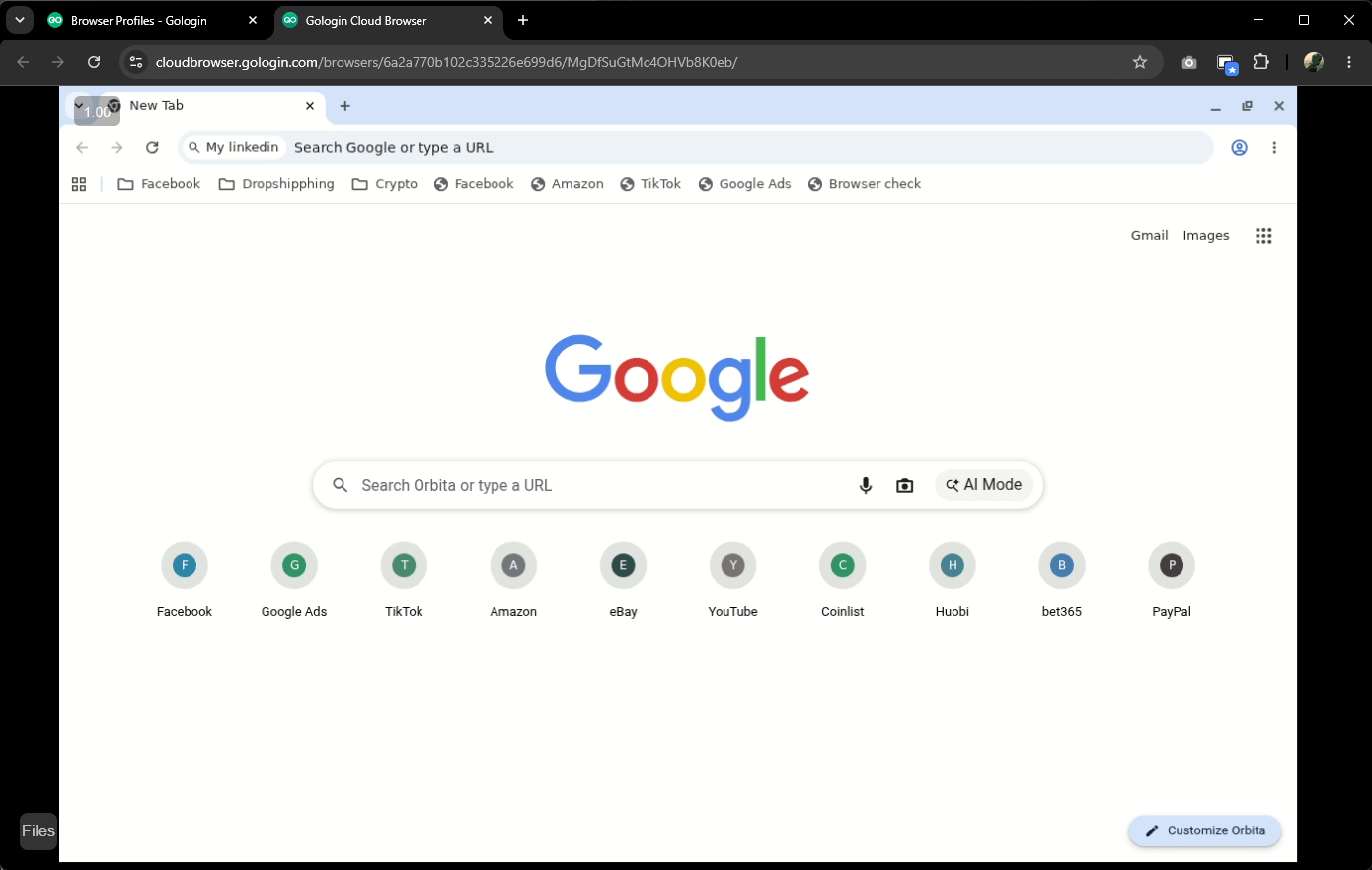
When you run a profile in the cloud, what you see in your browser tab is a live video feed of a browser running on Gologin servers - not a local browser window. Because of this, you may notice:- Black bars on the sides of the browser window
- Resolution that does not look quite right
- A slight delay between your actions and what appears on screen
File downloading and uploading process difference
When you run a profile in the cloud, the browser is not running on your computer - it runs on a remote server. Because of this, downloading and uploading files works a bit differently. You can read more about how it works here.Cloud profiles keep running until stopped
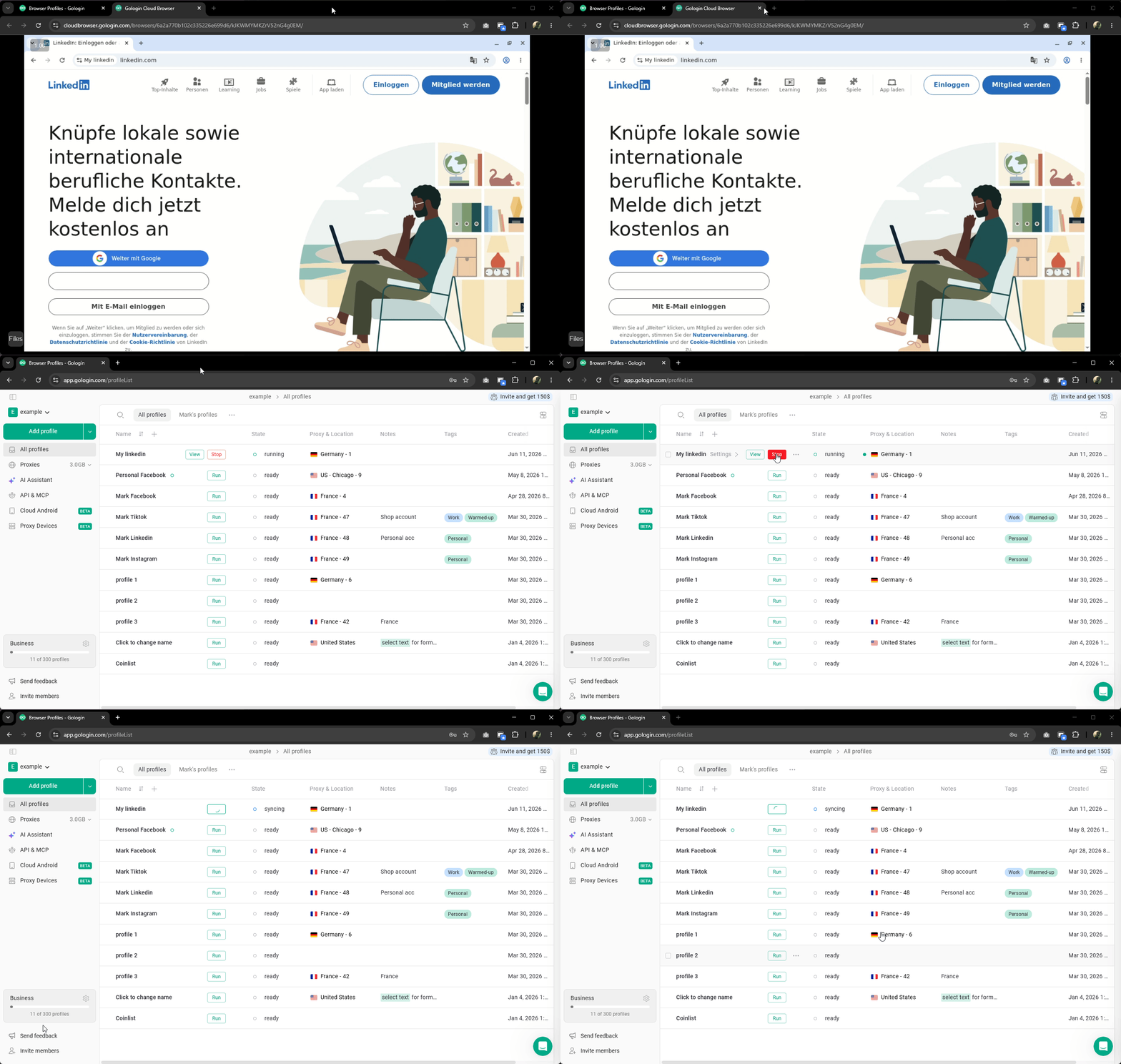
Closing the browser tab does not stop a cloud profile. The profile will keep running on Gologin servers until one of the following happens:- You click Stop it manually from the All Profiles page
- It times out after 15 minutes of inactivity