

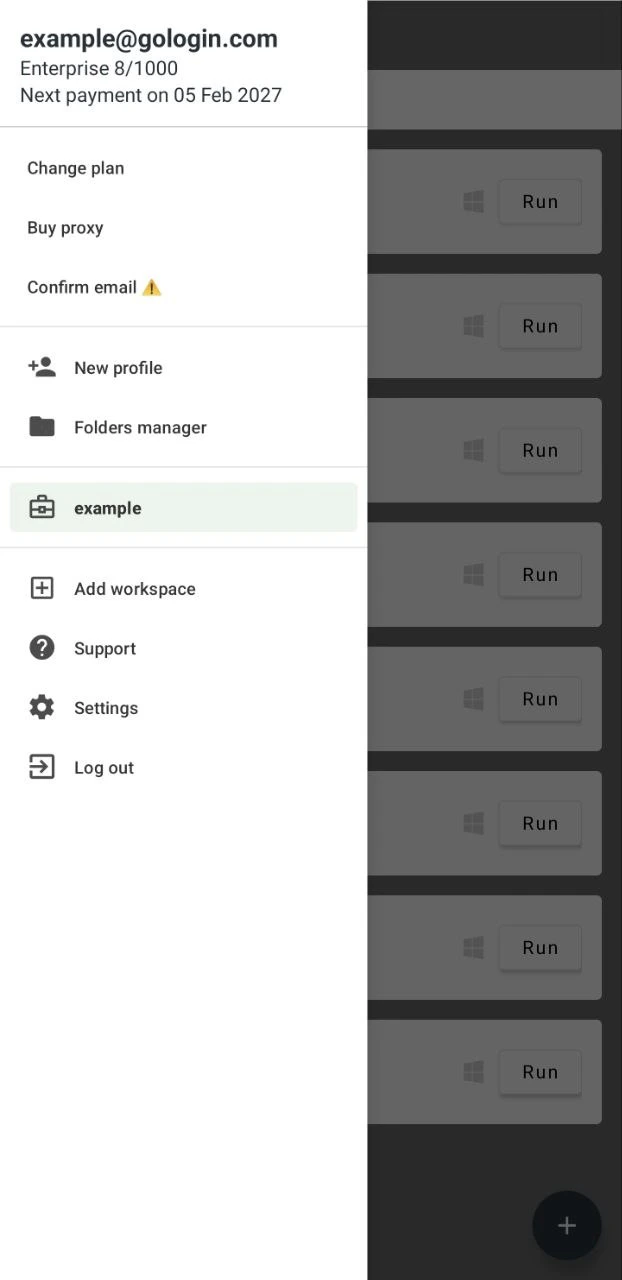
- Info on your current account and subscription
- the Change plan button
- Buy proxy - for purchasing Gologin proxies
- New profile - creates a new Android profile
- Folders manager - creating, deleting or rearranging your folders
- Workspace list - here you will see the names of your current workspaces
- Add workspace - to add a new one
- Support - reach out if you have any questions or issues!
- Settings - other Gologin account settings
- Log out - logs you out of the account
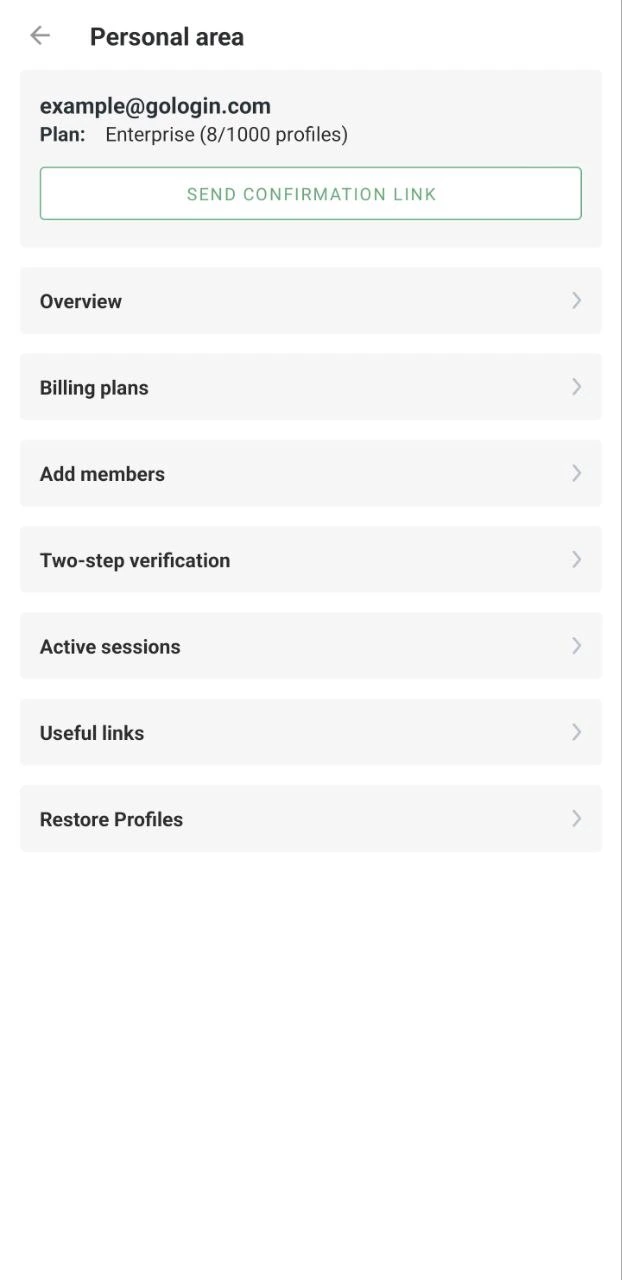
- Overview - to change your email or the current plan
- Billing plans - informs you about the payment history, lets you input the promo code and purchase a new plan
- Add members - for adding new team members to your workspace (Business plan tier and higher).
- Two-step verification - set up 2FA to enter by one-time codes
- Active sessions - to check and terminate other active sessions for your account
- Useful links - links to our YouTube channel, blogs and support
- Restore profiles - for restoring deleted profiles