

How to use bulk actions
- Select multiple profiles using checkboxes
- The bulk action panel will appear at the top
- Choose the action you want to apply
When to use bulk actions
Bulk actions are most useful when you need to:- Launch multiple profiles for daily work or warm-up
- Update settings in batches
- Organize profiles across folders and projects
- Manage access for team members
- Maintain or refresh fingerprints at scale
What you can do with bulk actions
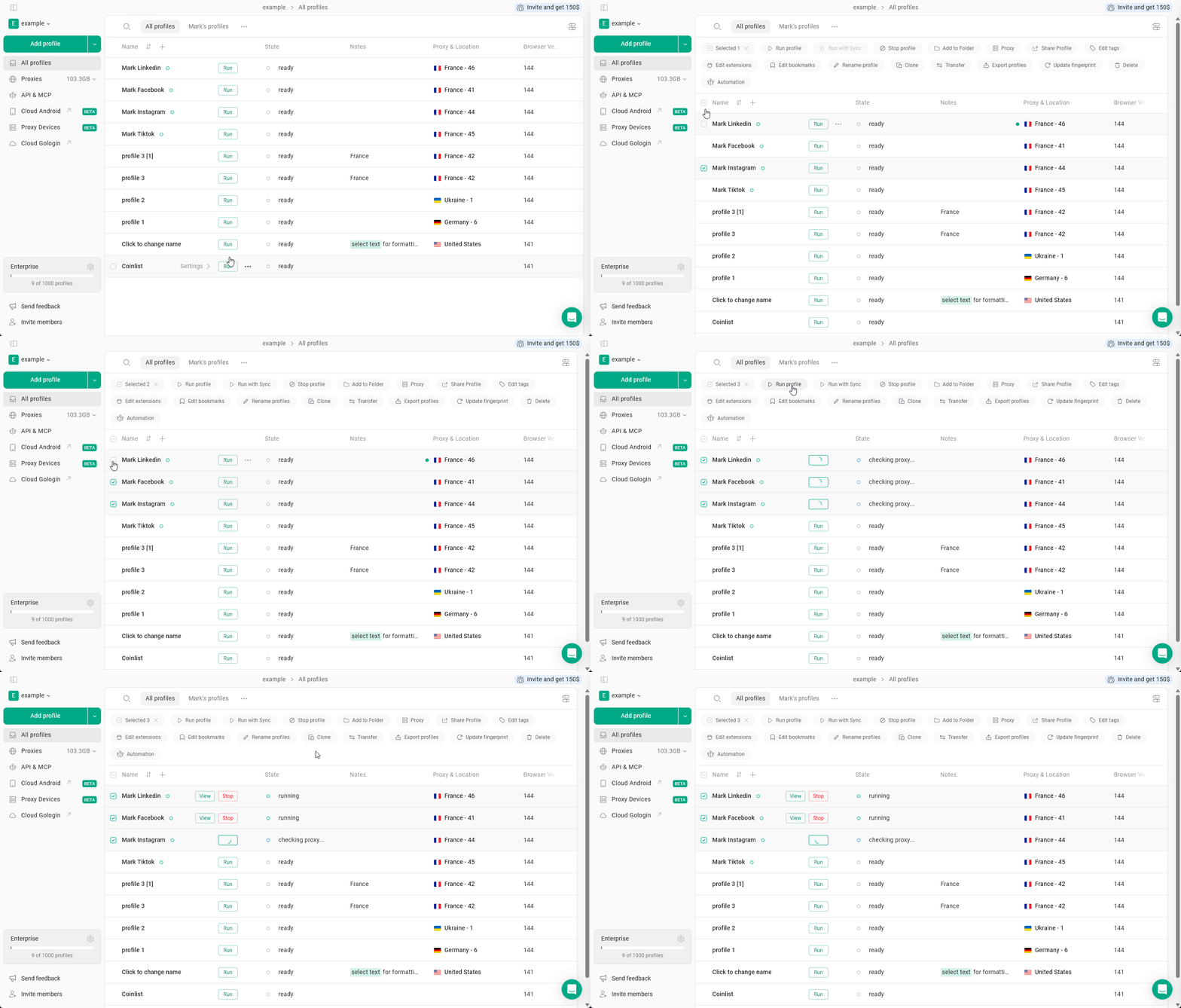
Run profiles
Select the profiles and click Run profile to launch all selected profiles. Use this to start multiple accounts for daily work or warm-up sessions.Running too many profiles at once may affect performance depending on your system.
Run profiles with sync
Select the profiles and click Run with Sync to launch them with synchronization enabled.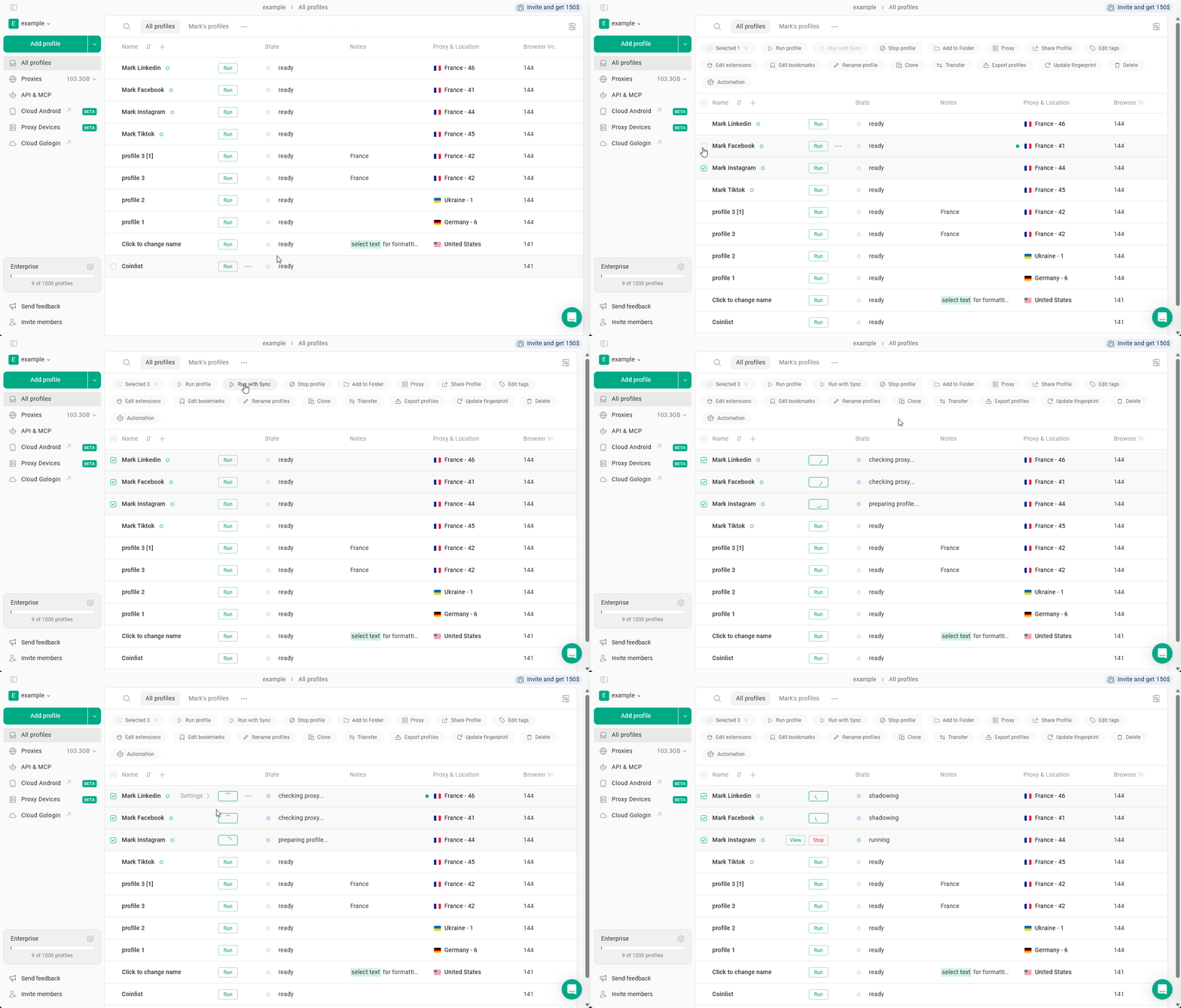
Stop profiles
Select the running profiles and click Stop profile to close them.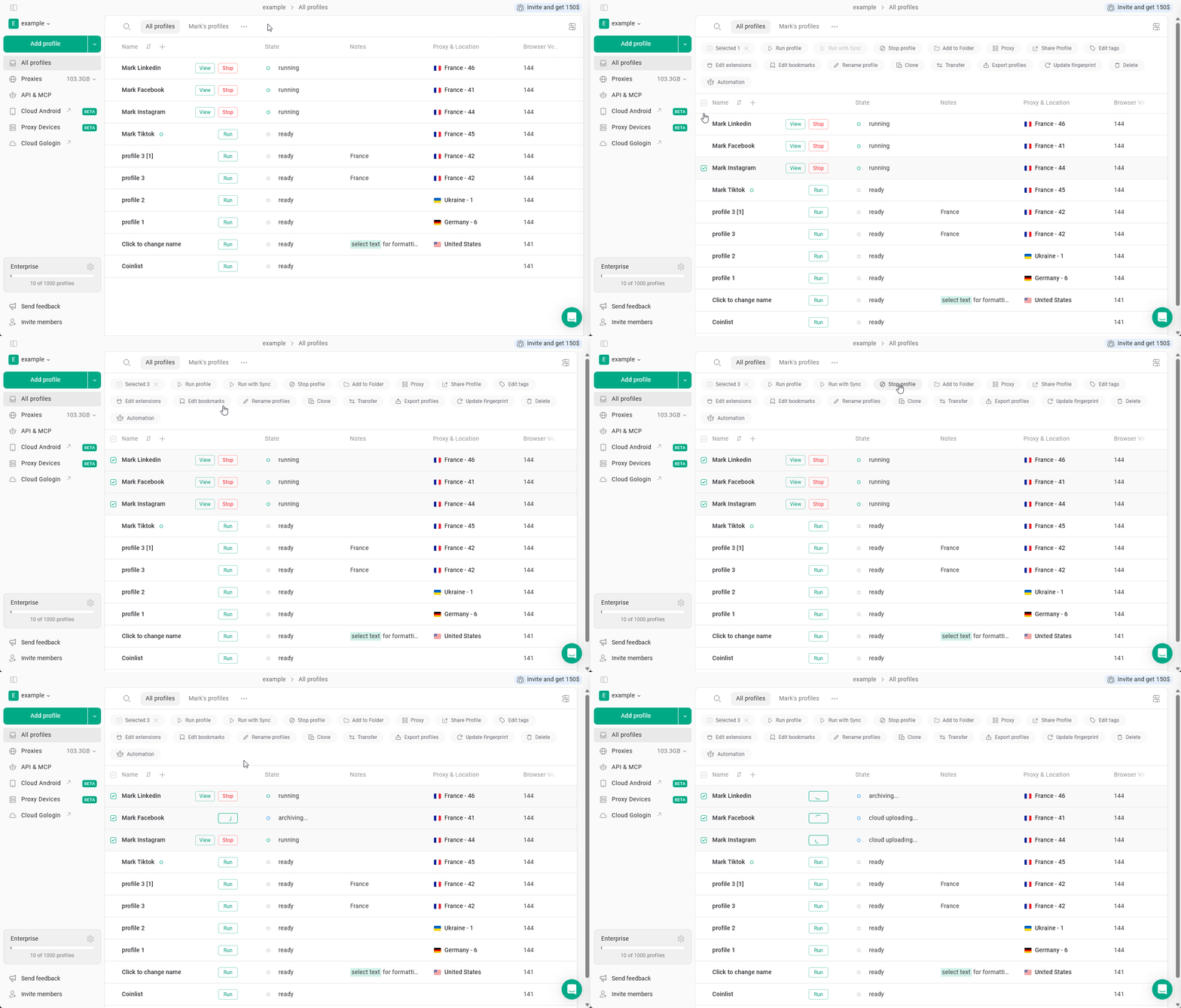
Add profiles to a folder
Select the profiles, click Add to Folder, and choose the target folder.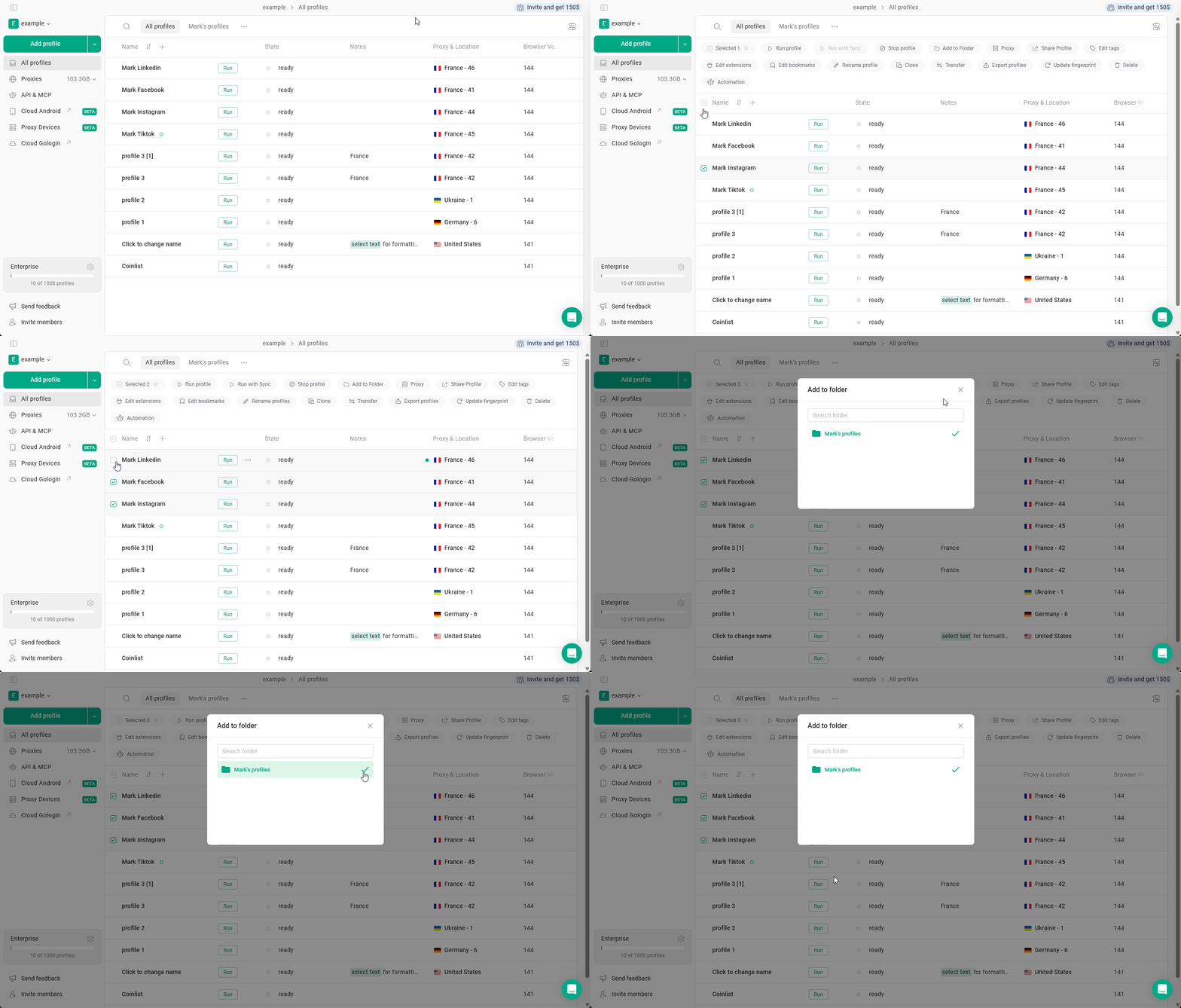
Assign or change proxies
Select the profiles, click Proxy, and add or update proxy settings for all selected profiles. Make sure proxy location matches profile settings (country, timezone).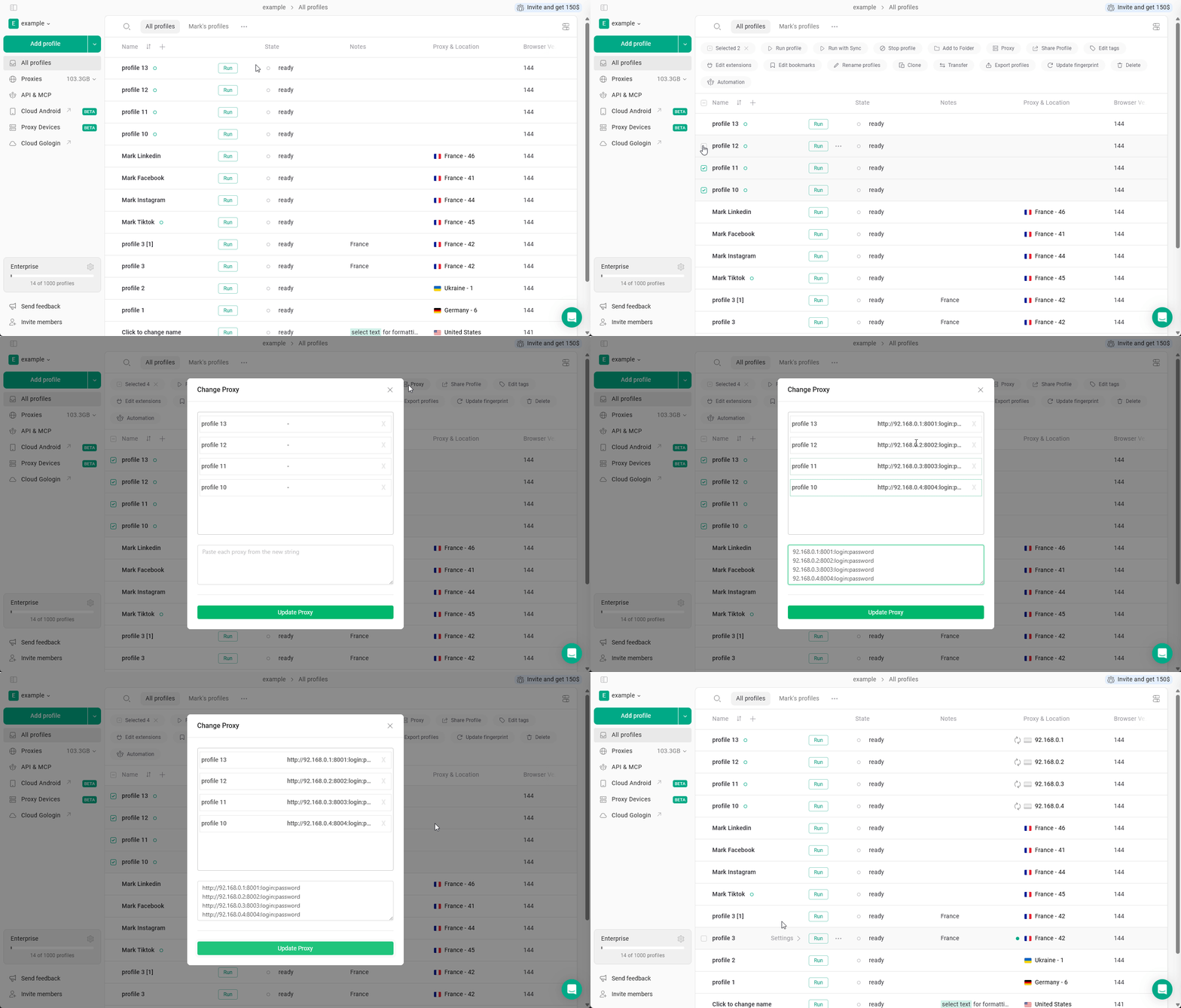
Share profiles
Select the profiles, click Share Profile, and assign access to another user.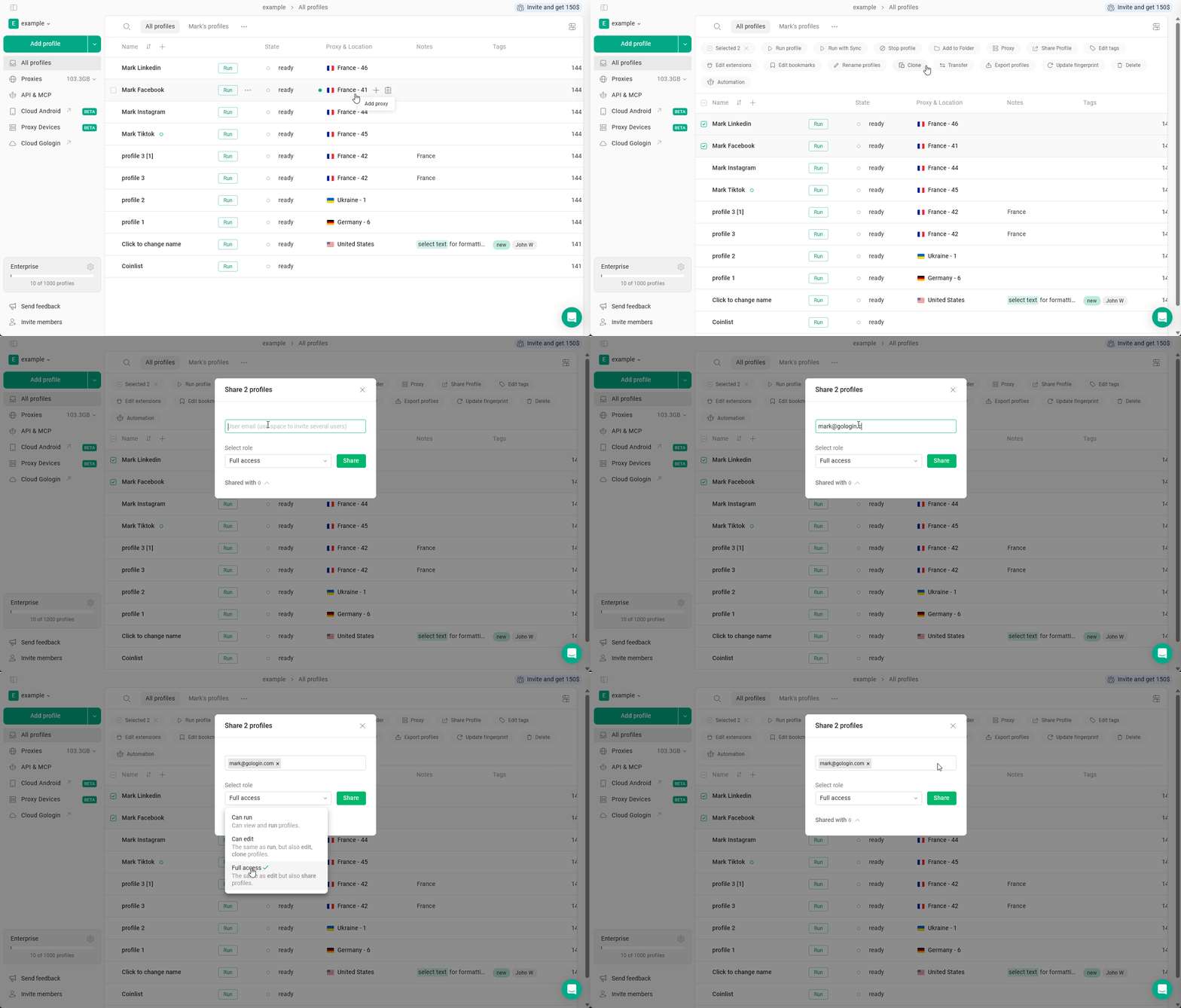
Edit tags
Select the profiles, click Edit tags, and update tags for all selected profiles. Use tags to quickly filter and manage enormous sets of profiles.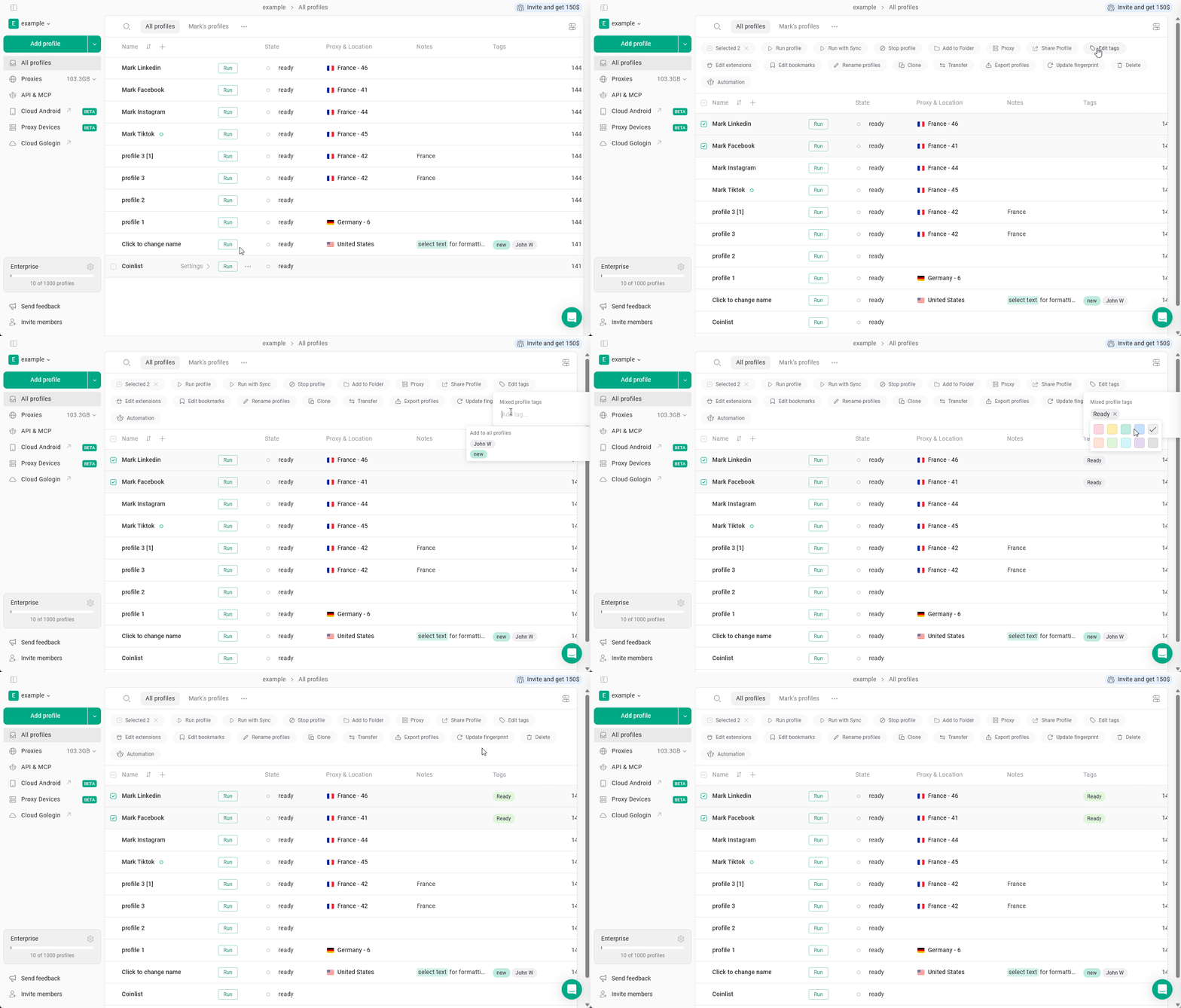
Edit extensions
Select the profiles, click Edit extensions to manage extensions across the selected profiles.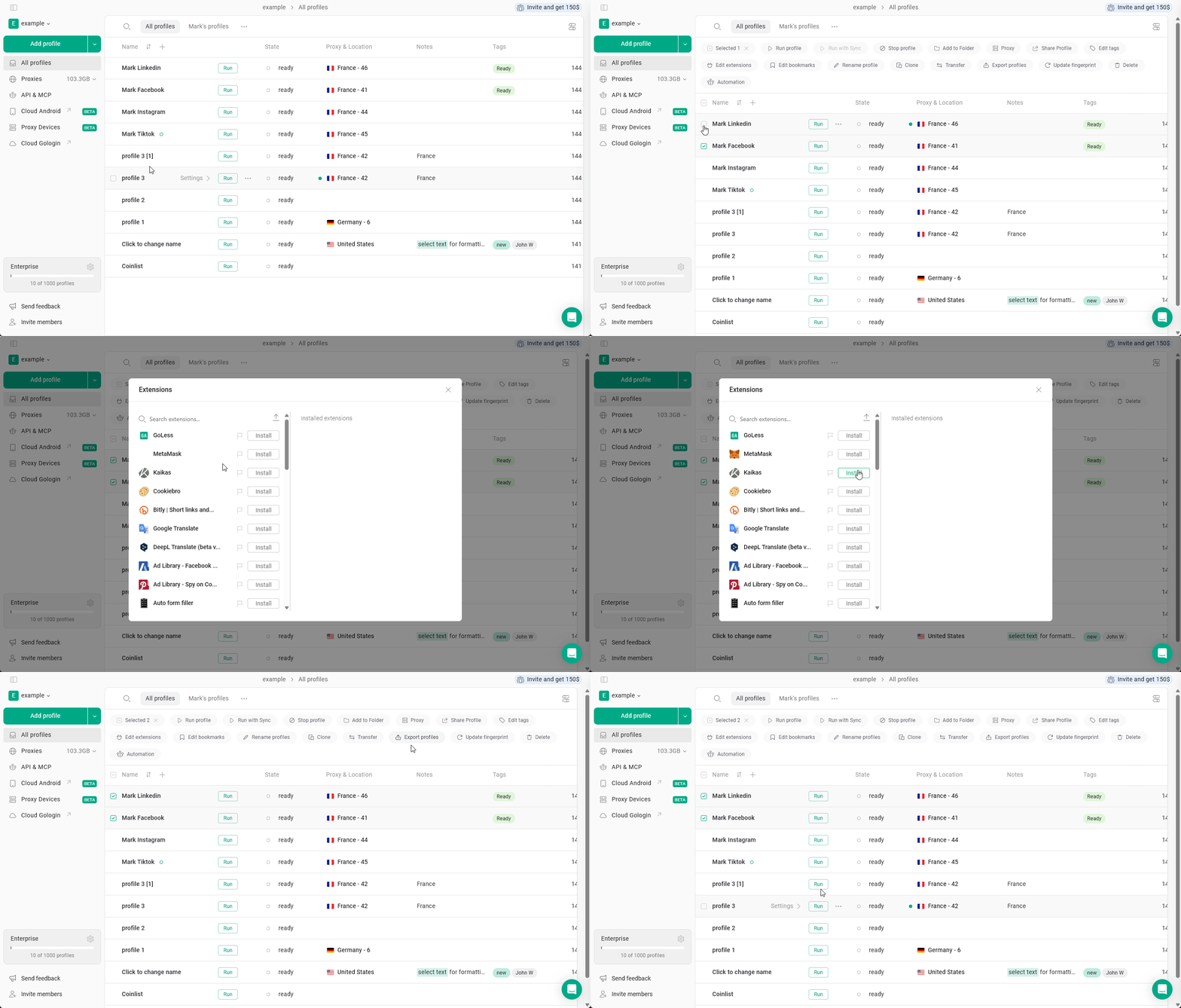
Edit bookmarks
Select the profiles and click Edit bookmarks to update bookmarks.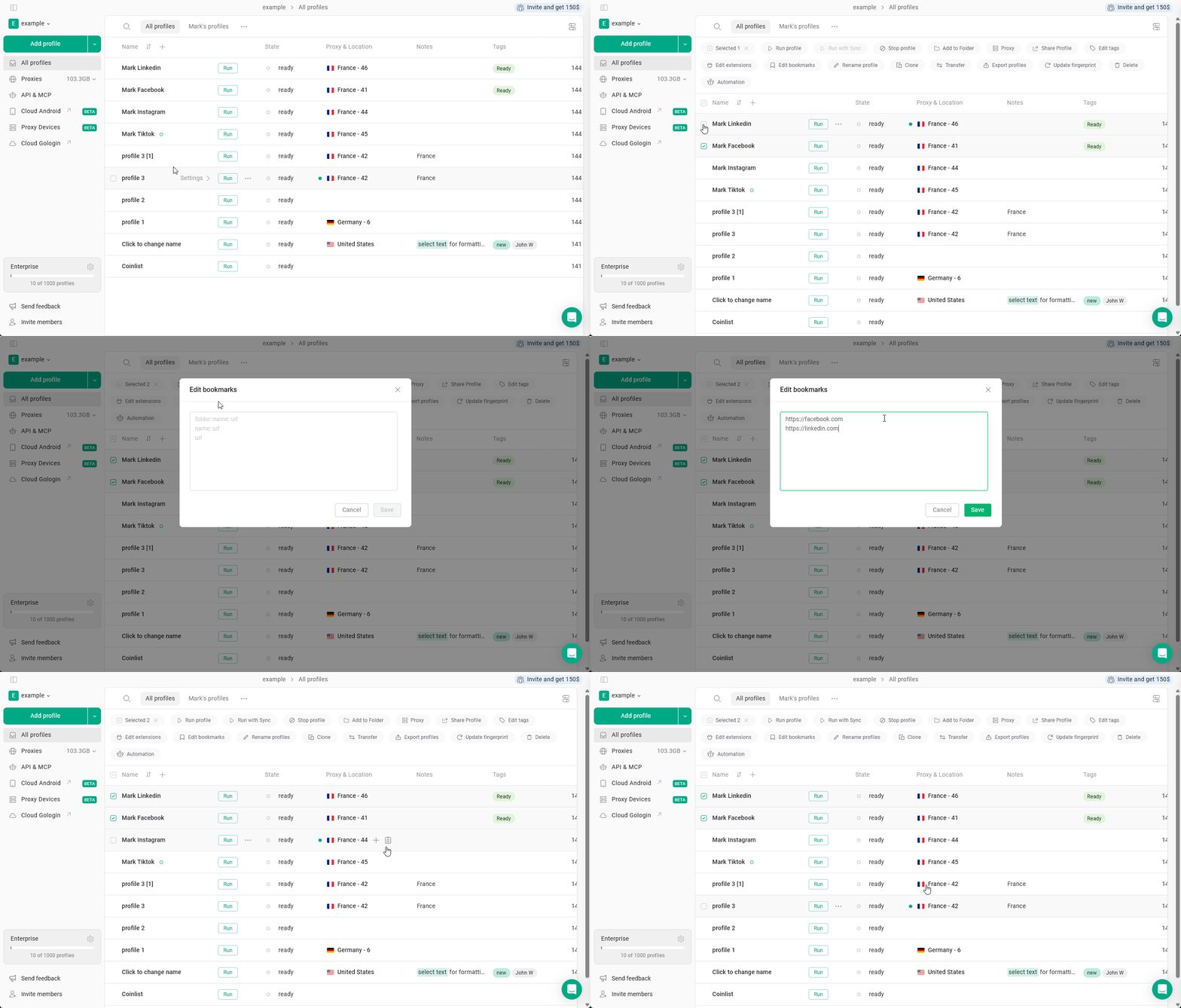
Rename profiles
Select the profiles and click Rename profiles to rename them in bulk.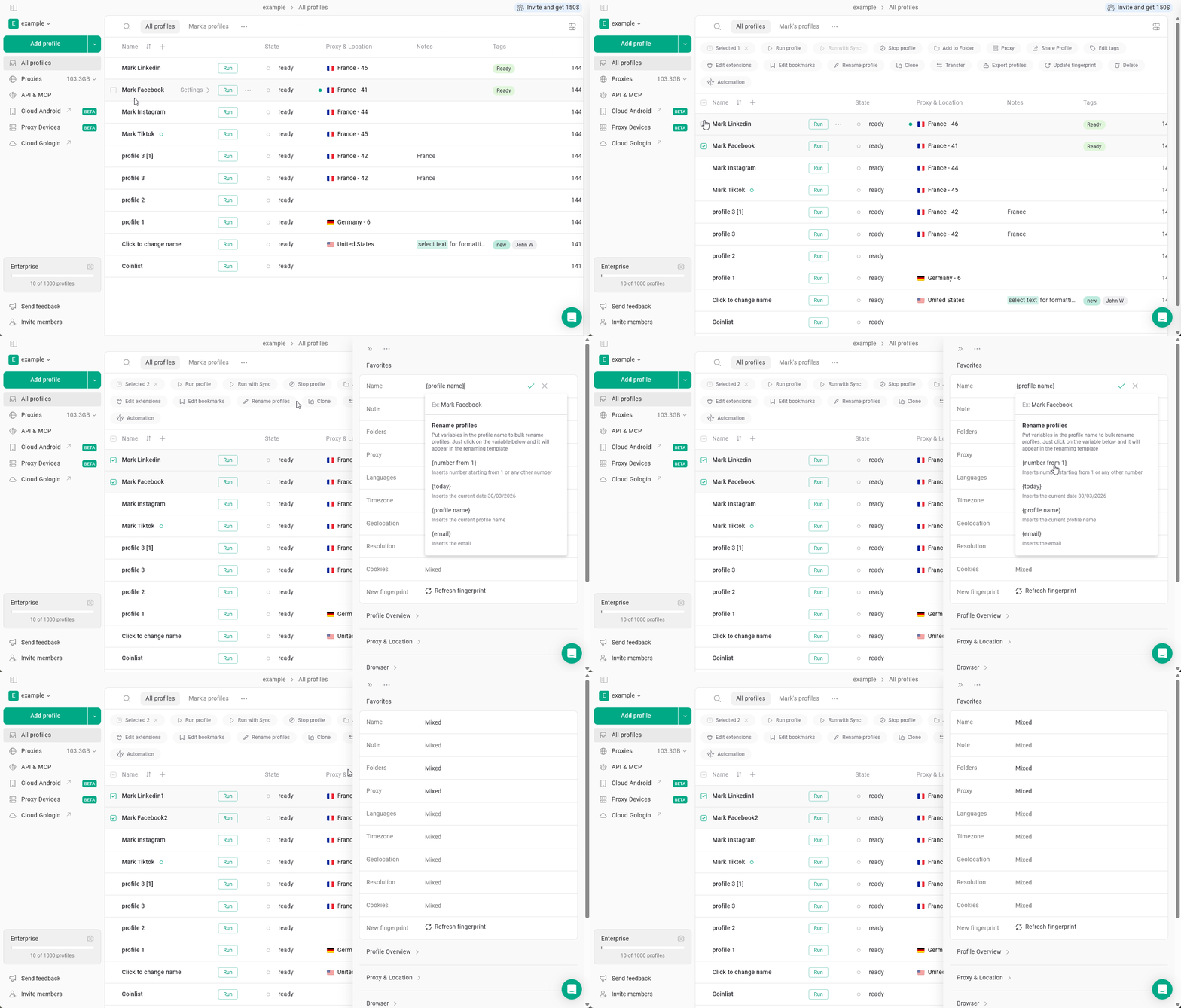
Clone profiles
Select the profiles and click Clone to create copies of them.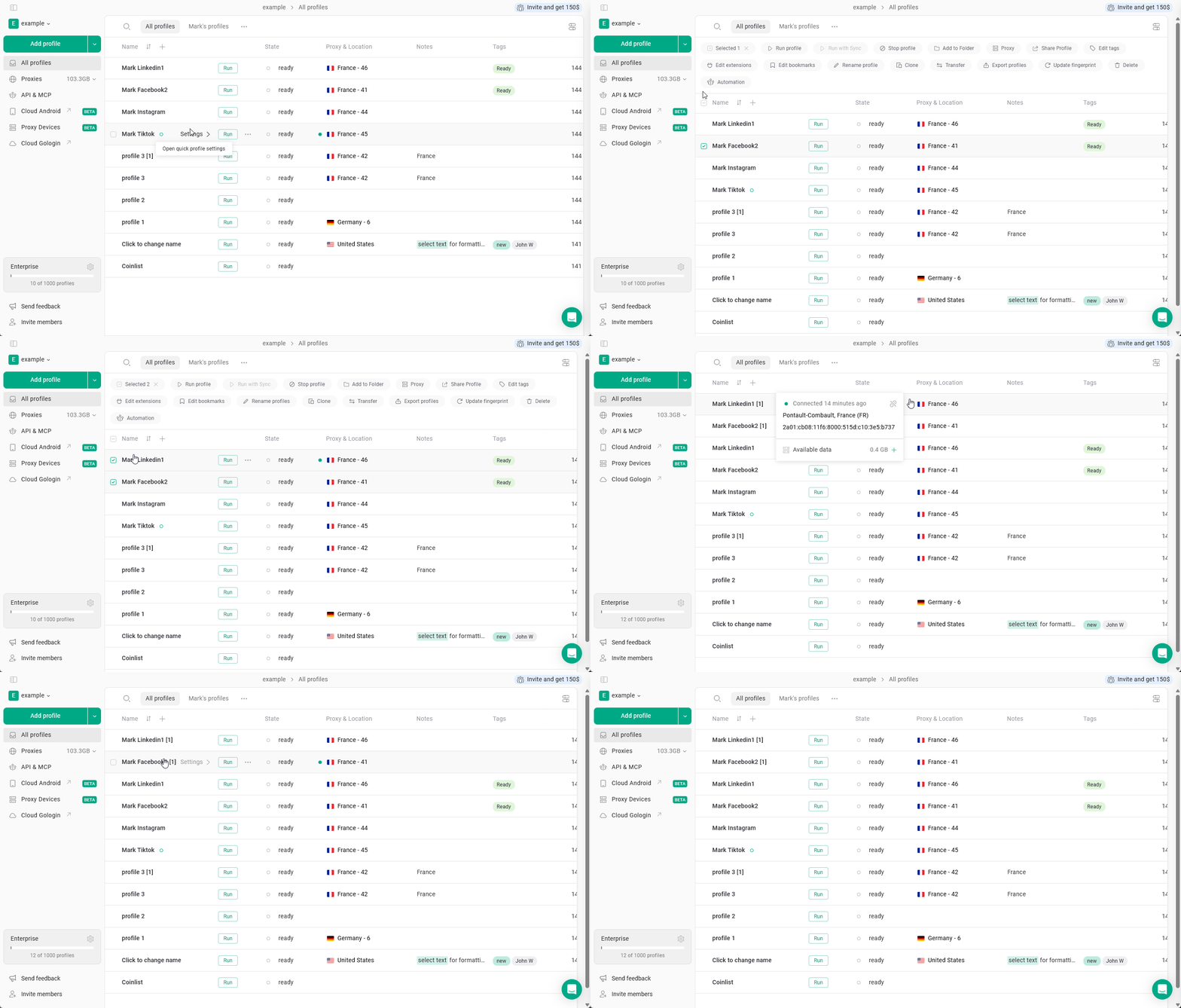
Transfer profiles
Select the profiles and click Transfer to move them to another workspace or user, if available in your setup.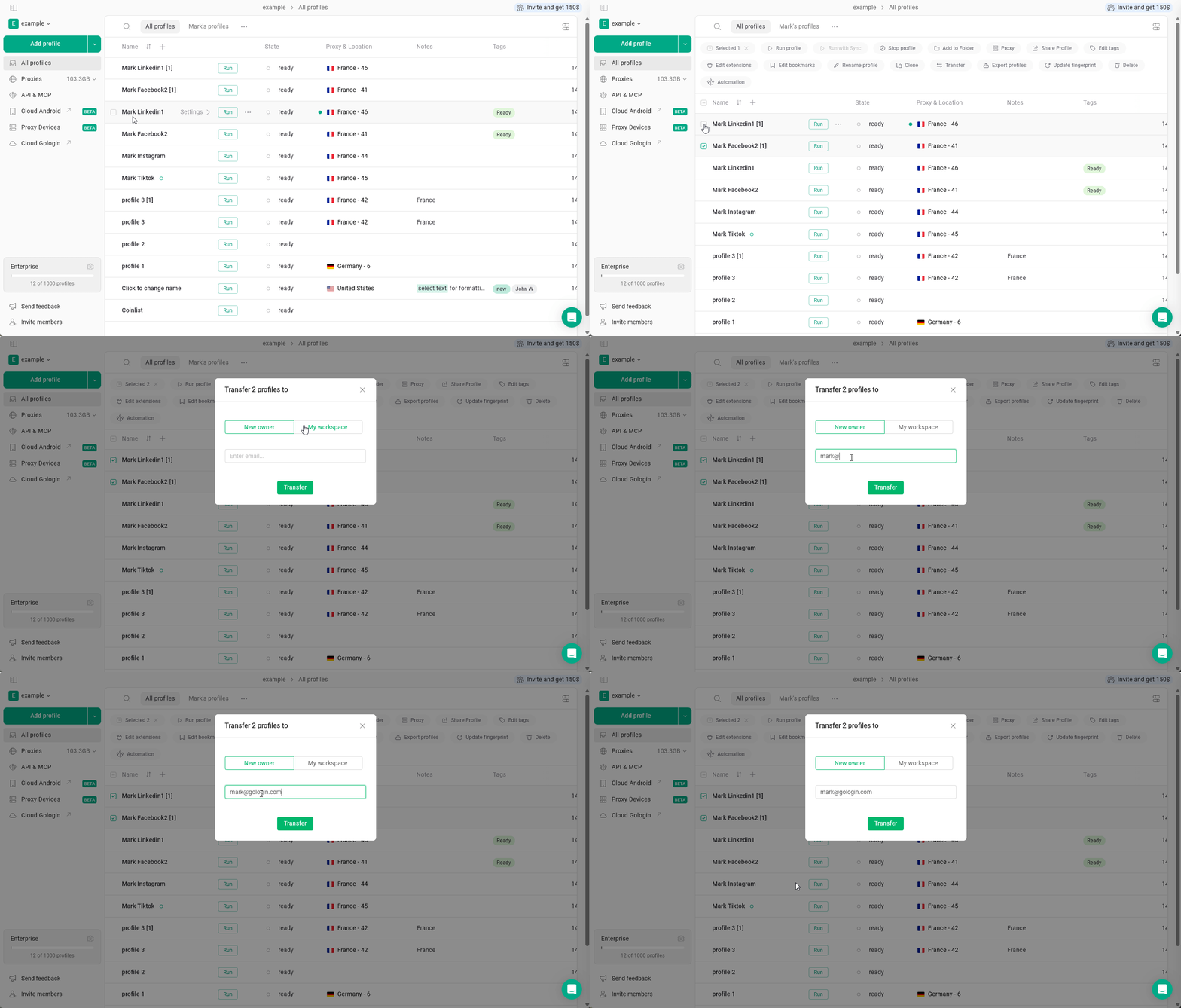
Export profiles
Select the profiles and click Export profiles to export them.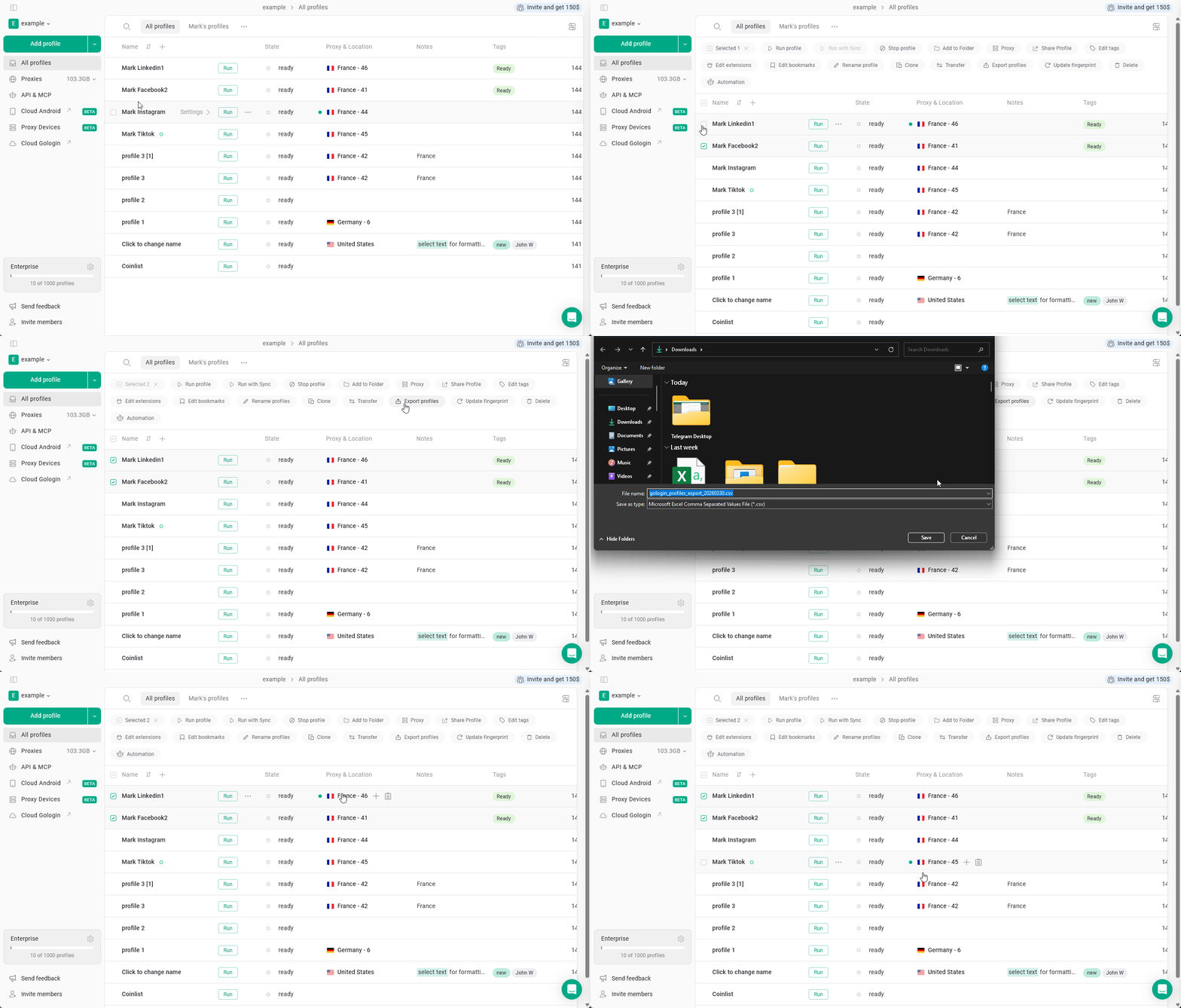
Update fingerprint
Select the profiles and click Update fingerprint to refresh fingerprint settings.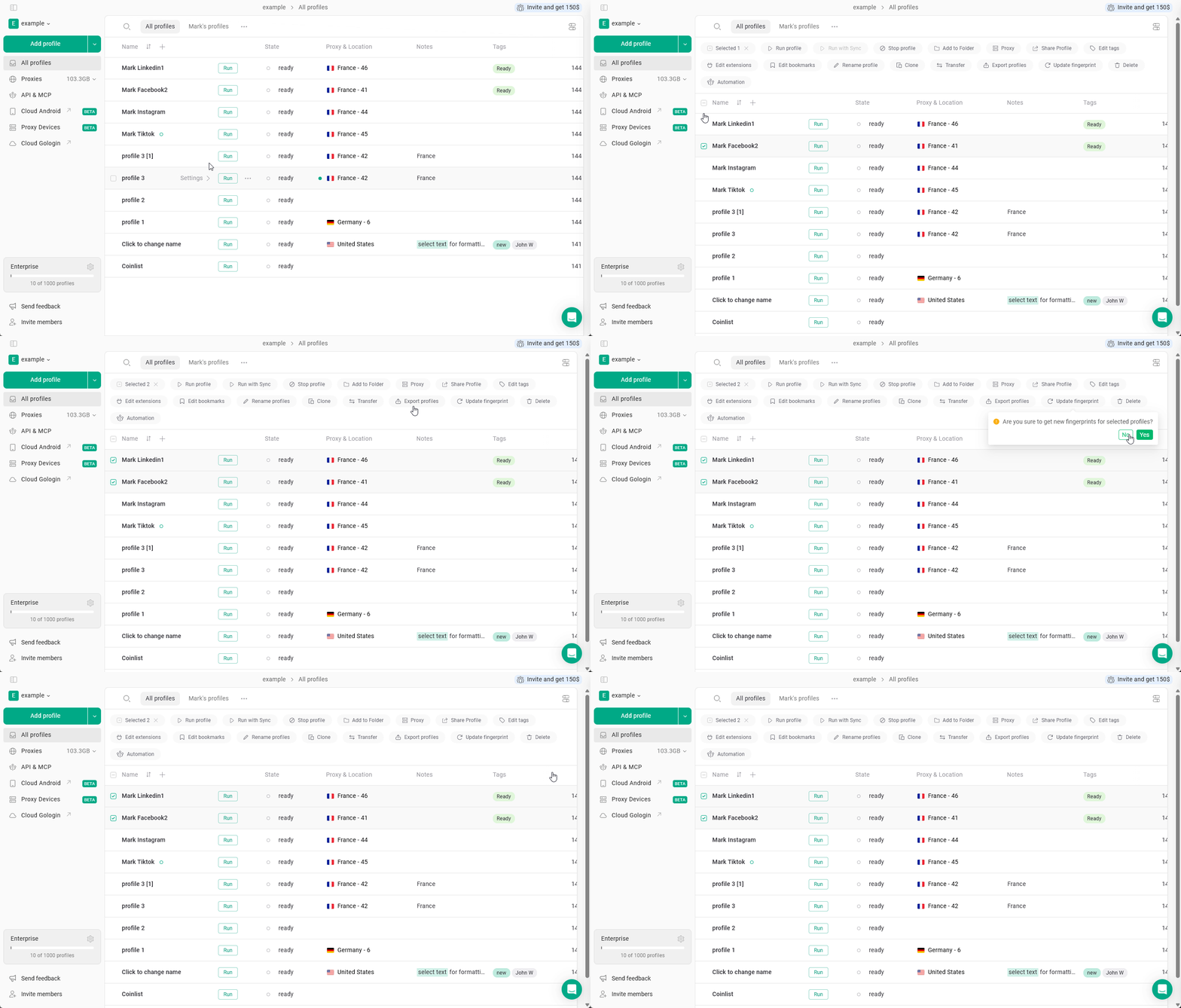
Delete profiles
Select the profiles and click Delete to remove them.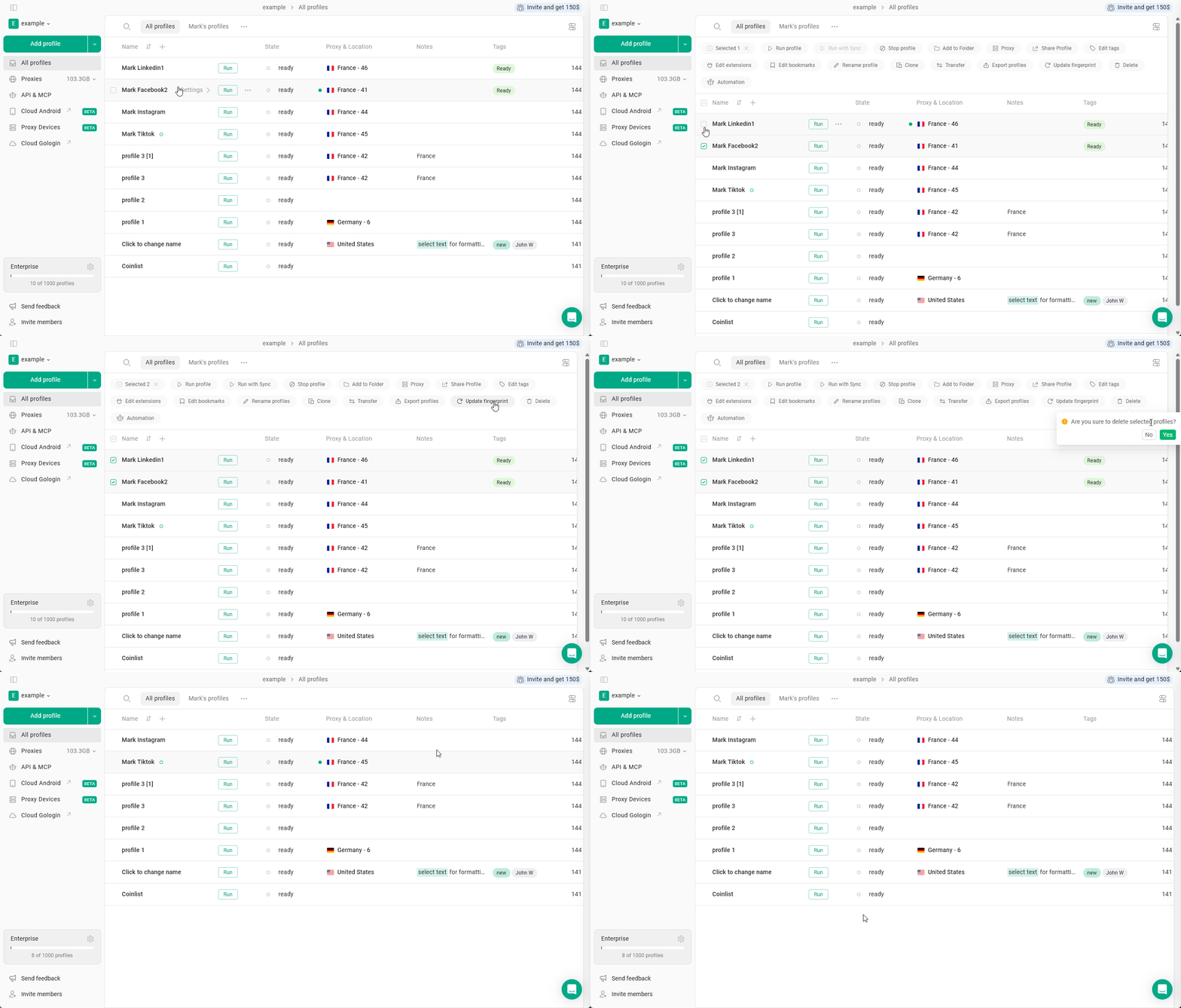
Use automation
Select the profiles and click Automation to apply automation-related actions.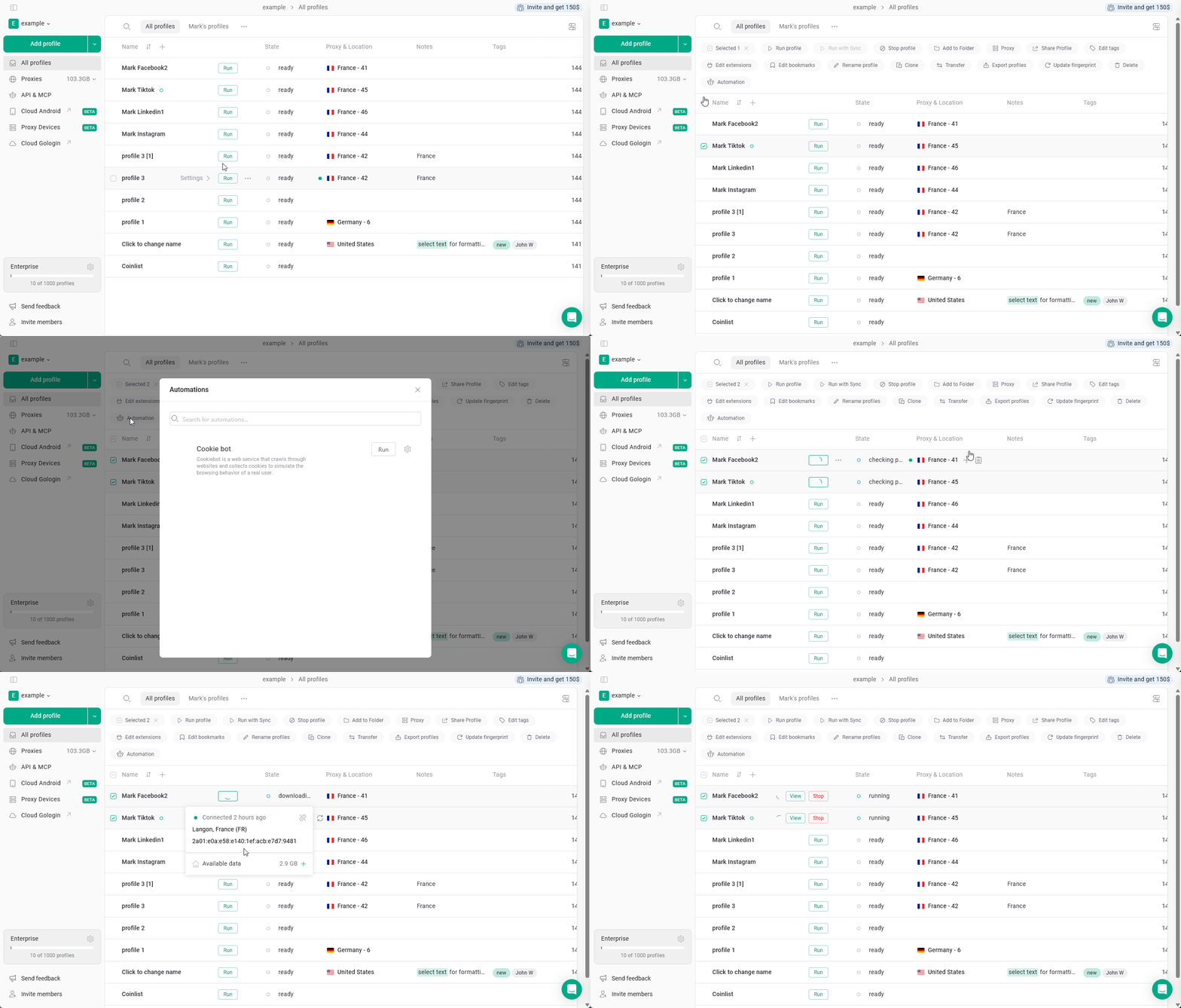
Bulk actions affect all selected profiles at once.
Before applying any action, make sure the correct profiles are selected, especially when using Delete, Transfer, or Update fingerprint.
Before applying any action, make sure the correct profiles are selected, especially when using Delete, Transfer, or Update fingerprint.
See also
- Run with Sync — launch multiple profiles and mirror actions across all of them
- Creating profiles
- Sharing profiles