Overview
A browser profile is a generated set of browser parameters, that the browser uses to mimic a unique physical device and user. Each profile acts as a distinct digital persona, offering a unique fingerprint and customizable settings.
There are three ways to create new profiles.
Quick profiles
This is the way to quickly add a new profile according to the default settings. Suits the most use cases.
To create a quick profile:
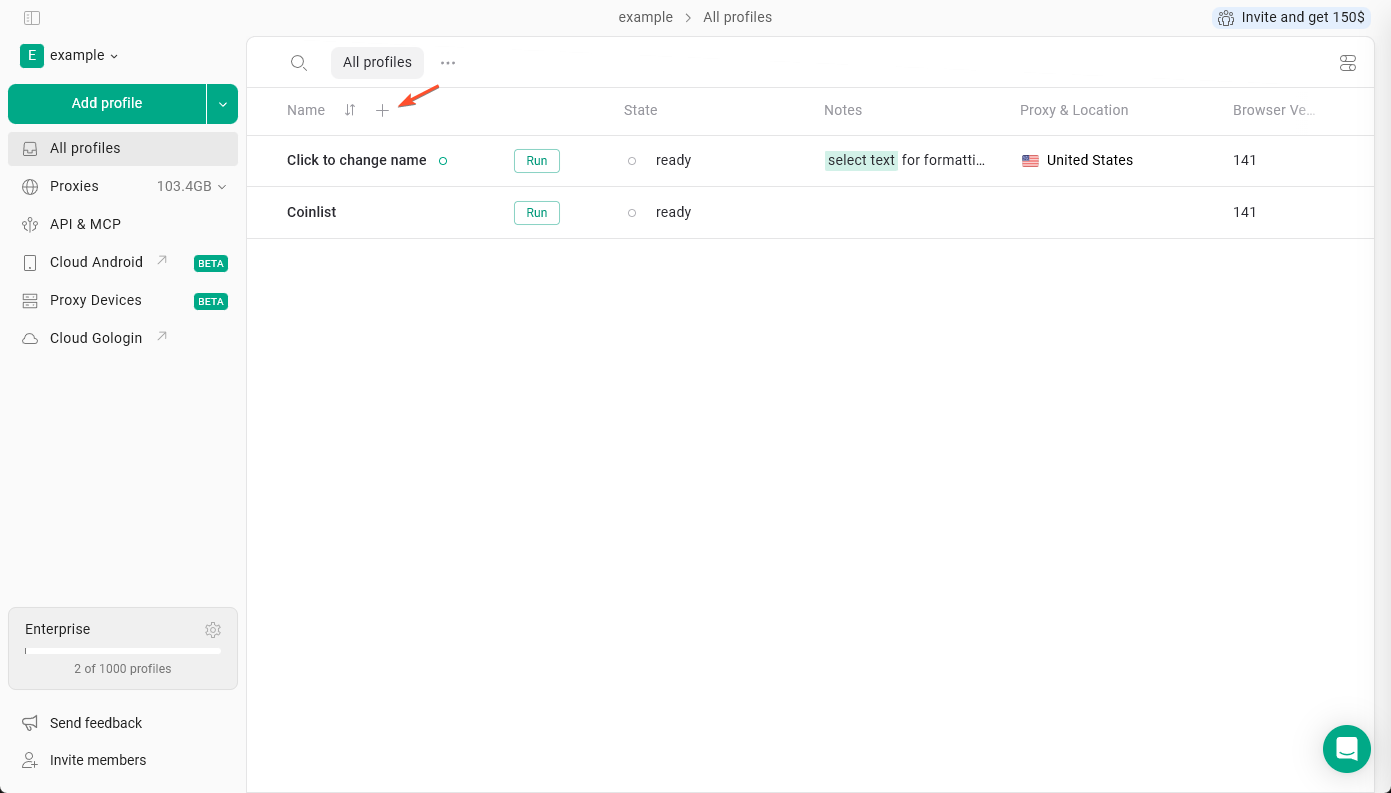
- Go to the All profiles tab
- Click the + button in the profiles list
Custom profiles
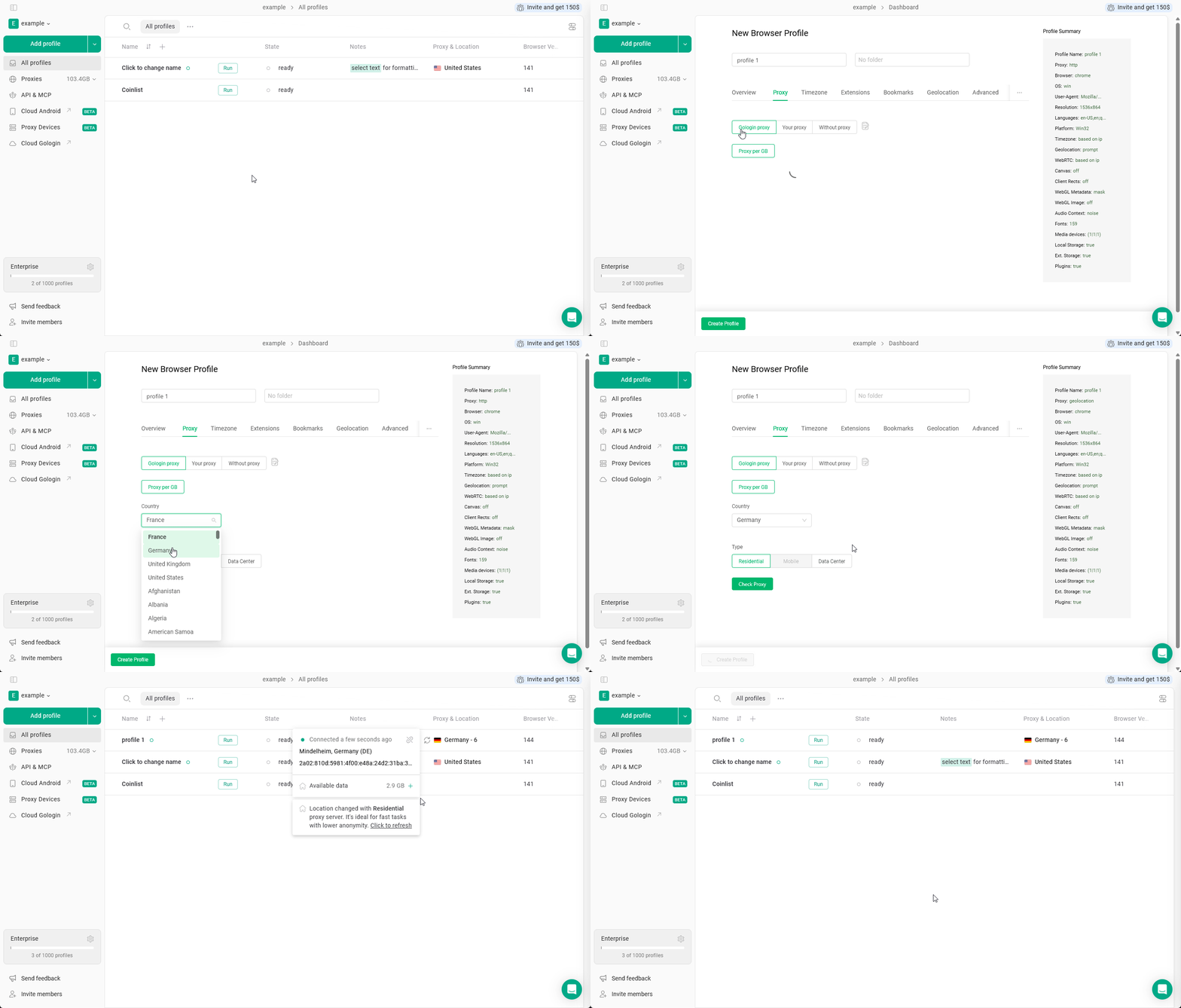
Use it in case you need to tweak some settings. Before the profile is created, you get to choose various parameters like the operating system, proxies or other advanced settings.
To add a profile this way:
- Click Add profile
- Configure the profile settings
- Click Create Profile
You can then edit the profile settings and just click the Create Profile button to save them and create a profile.
Bulk profiles
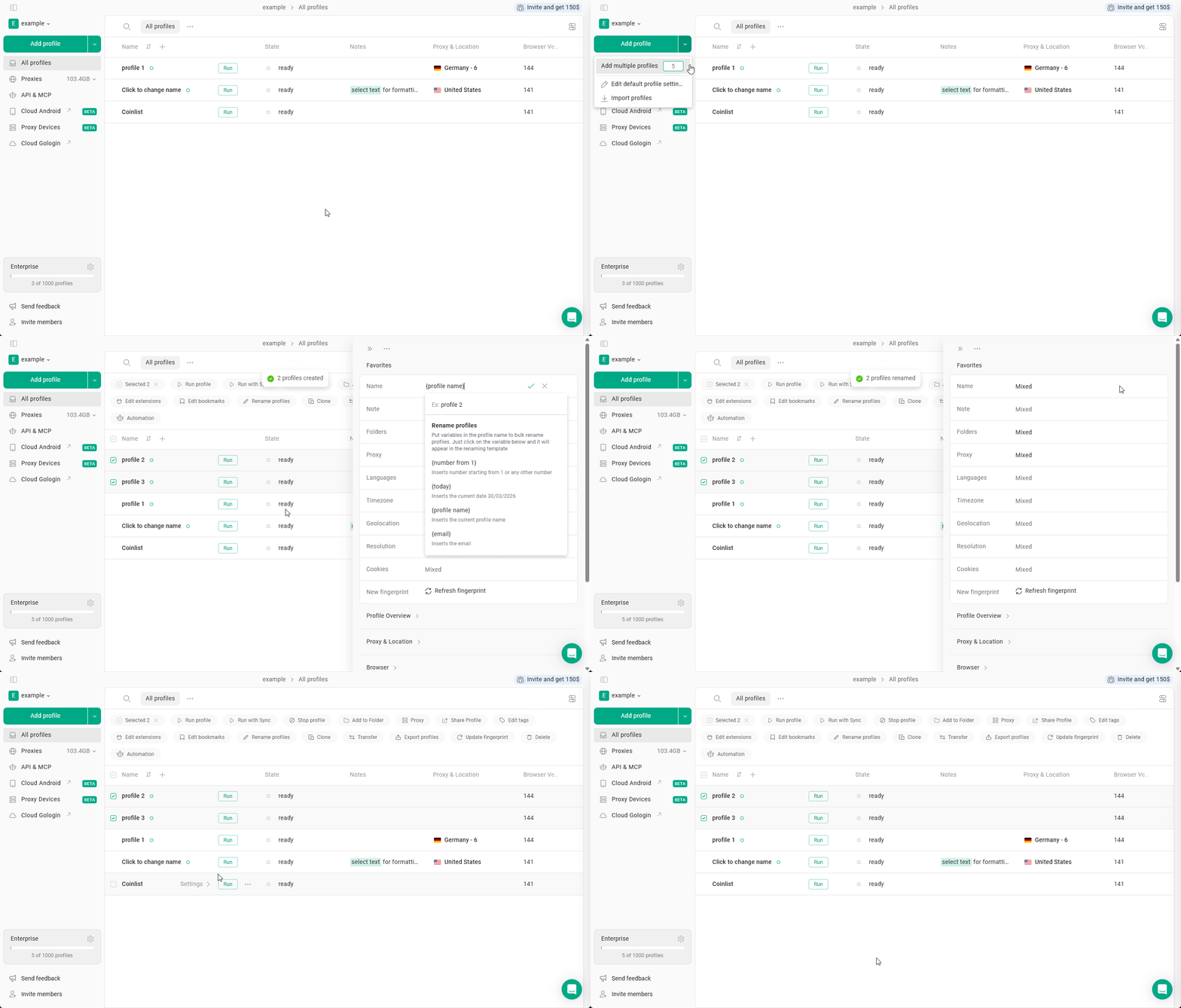
You can also create up to 30 profiles at once. Most of the settings will be by default, some of them you will get to change right after the profile creation.
- Click the arrow next to Add profile
- Choose the number of profiles to create (up to 30)
- Click Add multiple profiles
As soon as the profiles are created, you can change some parameters in the new window
Launching a profile
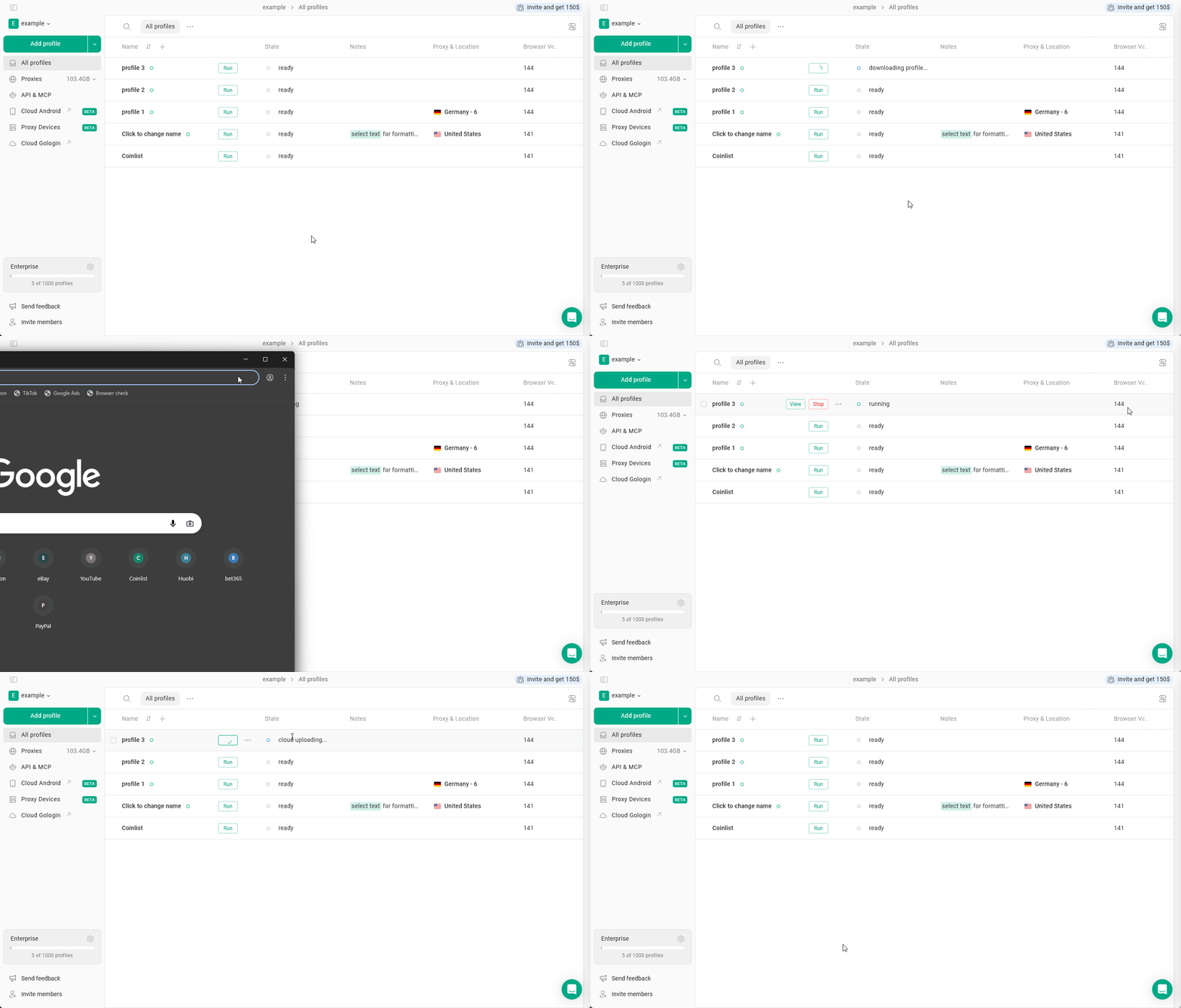
To launch a profile, just click Run on the profile. It will launch the new browser window with your unique profile parameters.
To stop a profile when it’s launched, close the browser with X as you close any other window or hit Stop on the profile.
Wait for the ready profile state before closing the Gologin app, as it is important to wait for the profile data to sync with the servers. A failed uploading process may result in the data loss!
See also