


However, juggling even five or fewer accounts can be challenging in the Discord app. According to Discord’s terms of service, you are allowed to have as many free Discord accounts as you want, but each account must have a separate email address and phone number. While multiple accounts are permitted, abusive behavior can result in bans. For example, you cannot easily share your account with someone else or make notes related to this or that account.
Many users manage multiple Discord accounts to participate in various online communities, such as those focused on gaming, teamwork, or community management.
In this guide, we will review different methods of dealing with multiple Discord accounts (+a promised most convenient one). Read on to choose the way that works best for you.
TL;DR: If you don’t want to read the article, watch this video guide instead:
How to run multiple accounts right in Discord
Discord rules don’t explicitly prohibit multiple accounts. You just need one email or phone number per Discord account.
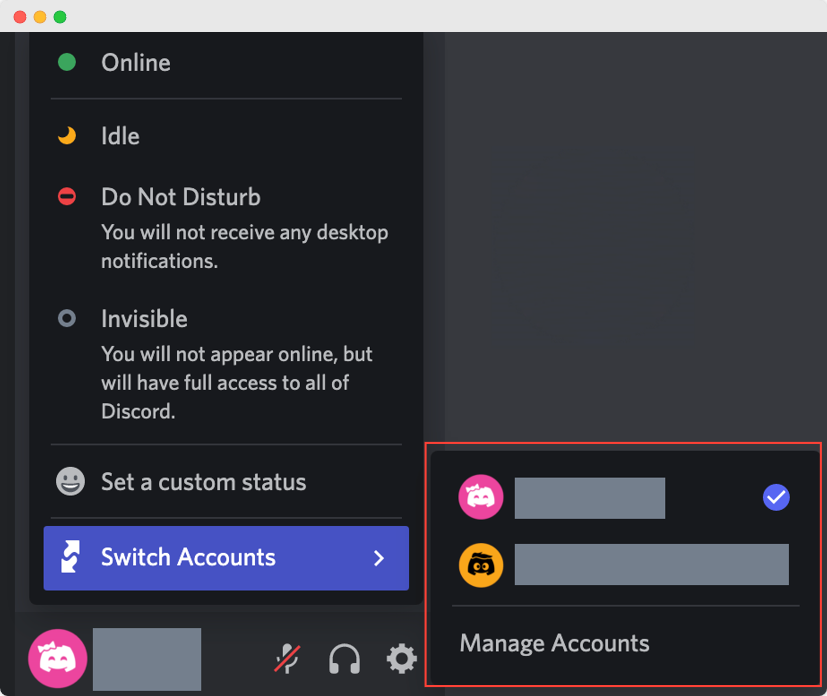
Discord even has an Account Switcher feature. It allows users to switch between up to five accounts on desktop devices. Many users manage different accounts by combining the desktop app with browser sessions for greater flexibility. As of 2026, native account switching is inconsistent or unavailable on mobile, so you still have to log in and out of the Discord mobile app.
To access Discord’s Account Switcher, click on your avatar image at the bottom left corner of your Discord app and select “Switch Accounts”. That will instantly get you to the secondary account.
What will be new on platform in 2026?
In 2026, Discord is doubling down on built‑in safety, privacy, and compliance features that matter a lot when you juggle multiple accounts for work, communities, or client projects. New global “teen‑by‑default” and expanded age‑assurance tools tighten what younger users can see and share, relying on on‑device processing for selfie/ID verification and quick deletion of sensitive data, which makes it easier for brands and communities to stay compliant while still letting team members switch between work and personal identities on the same machine without overexposing minors to risky content.
Alongside this, Discord is rolling out stricter policy updates and region‑specific ID checks (for example, in the UK) that influence how many accounts you realistically want tied to a single legal identity and phone/ID footprint, something multi‑account power users and agencies now have to factor into their operational setup.
Ways to manage 5+ Discord accounts
Log in and out, again and again
This method of managing multiple Discord accounts is straightforward, but lacks convenience.
You have to manually enter your credentials each time and keep all login details at hand. What’s more, you are likely to miss urgent messages and notifications from other accounts because you are only logged into one account at a time.
You can also perform Discord login in multiple browser windows. However, creating separate browser profiles in Chrome, Edge, or Firefox allows you to log into different Discord accounts within the same browser, keeping sessions isolated and organized. This approach is especially useful when creating a new Discord account, as each browser profile can be dedicated to a separate account. But now imagine searching for the right browser window among dozens of same-looking windows. Irritating, isn’t it? Furthermore, each time you start a new session, you will have to log in.
Create multiple Chrome profiles for each Discord account
You can create several Google accounts and log into Discord from each one. But you have to remember what account is linked to what Discord profile, what its status is, and other details. It adds up to a lot of manual work if you manage multiple Discord accounts.
Use a browser and the Discord desktop app
Download and install the Discord app from the official website. Next, log into your account. Then, go to the Discord website and click “Open Discord in your browser.” Choose a browser and log in to multiple accounts.
Using these two Discord versions, you can comfortably manage up to 10 Discord accounts.
Use Discord Canary and PTB
Another option to manage multiple Discord accounts is to install Discord Canary (Alpha version) or Discord PTB (Public Test Build or Beta) in addition to the main Discord app.
Visit the official Discord website to download these apps on your computer and access them through separate accounts. Remember that the testing version is designed to detect and fix bugs, so it may not be as stable and convenient as the production-ready version.
Using the main app + Discord versions for testing, you can switch between 15 accounts.
Clone apps on mobile devices
Android and iOS devices support app cloning. As the name suggests, such software allows you to have a copy of the Discord app. You can install several cloning apps to manage accounts. Even though different apps have different user interfaces, they have similar workflows.
You open the cloning app and add the app you want to clone (Discord). Next, you open the Discord app within the cloning app and can log in to your other 5 Discord accounts.
The disadvantages? Many cloning apps run in the background, consuming additional system resources and draining your battery faster. They may also have security issues. So, think twice before downloading such apps to avoid hacking.
Note that a lot of people face different issues and even bans of their accounts that used to work before cloning the app. We do not recommend this method: use it at your own risk.
Buy multiple physical devices
Using multiple devices is a method for managing different Discord accounts. For example, you can install various browsers and use different cloning apps at the same time.
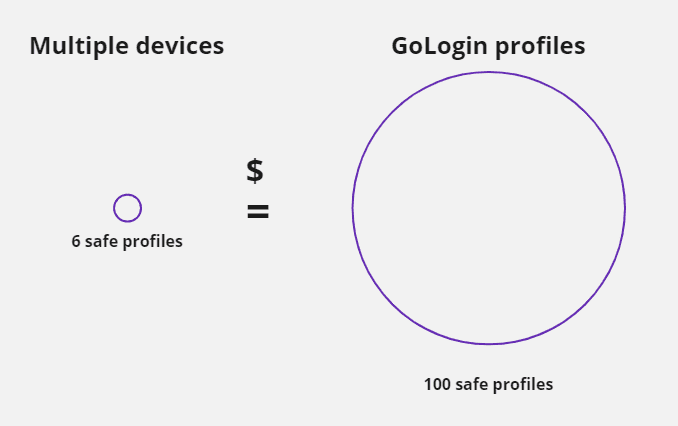
While using multiple devices can help manage different Discord accounts, it can become expensive and cumbersome as the number of accounts increases. This method doesn’t add convenience to the process and becomes less cost-effective as you add more accounts. Because 6 devices x $50 (the minimum for a working smartphone) = $300. That is more than the multi-accounting browser’s cheapest annual plan of $294 for 100 accounts. Read on to learn about this method to organize your Discord accounts.
Use a multi-accounting browser
Basically, a multi-accounting browser functions like a regular browser. The difference is that managing multiple Discord accounts with such a browser is easy and convenient – you have all your accounts in one clean window. It is possible to manage 50, 500, or even 5000 accounts without headaches in a clear SMM panel that allows you to login straight from there.
To organize a smooth workflow with multiple accounts in a multi-accounting browser, you can:
- Name each account
- Group them into folders
- Add tags and notes
- Filter profiles by various variables
- Share profiles with remote team members. You and your team members never log out of the accounts, so you don’t have to deal with endless passwords, 2-factor authentications, and login tokens.
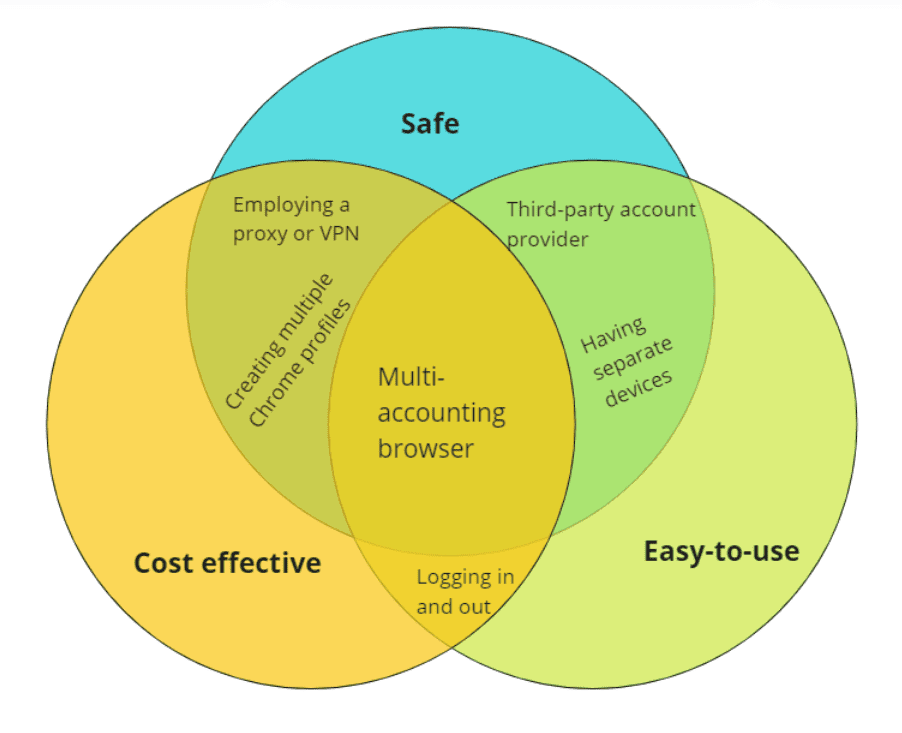
Aside from convenience, using a multi-accounting browser makes you completely private. Multi-accounting browsers create unique digital fingerprints for each account.
A digital fingerprint is an ID code that consists of all possible information about your location, operation system, installed plugins, time zone, and many other things related to your device.
Though Discord bans are rare, your accounts’ privacy is still important if a work downtime may damage your work and business. To learn how multi-accounting browsers work, let’s explore Gologin.
Multiple discord accounts on mobile
Managing multiple Discord accounts on a mobile device can be challenging, but it’s possible with the right approach. Using tools like Gologin can help you efficiently run multiple accounts by creating separate browser profiles. These profiles isolate each account, preventing any crossover or detection issues.
You can switch between accounts seamlessly, maintain unique settings, and ensure your activities remain independent. This method is especially useful for community managers, gamers, or anyone needing to juggle multiple identities on Discord
How to run multiple Discord accounts with Gologin
Downloading and registering
Download Gologin app from official website. The app is available for all major OS versions.
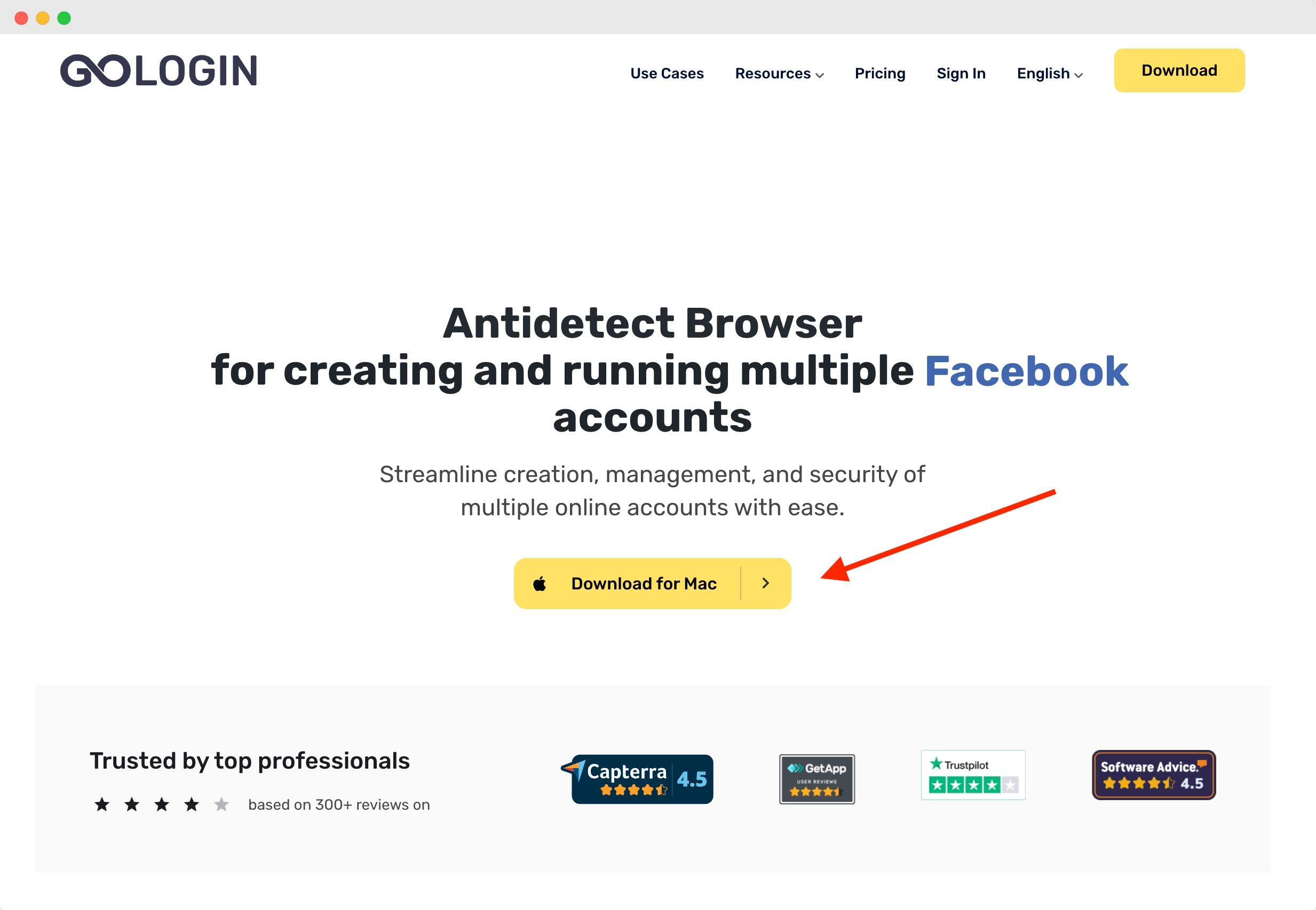
After you install, register an account with Google or e-mail. There will be a short quiz for marketing research.
A free 7-day trial of all features starts automatically after you sign up.
Creating a browser profile and assigning a proxy
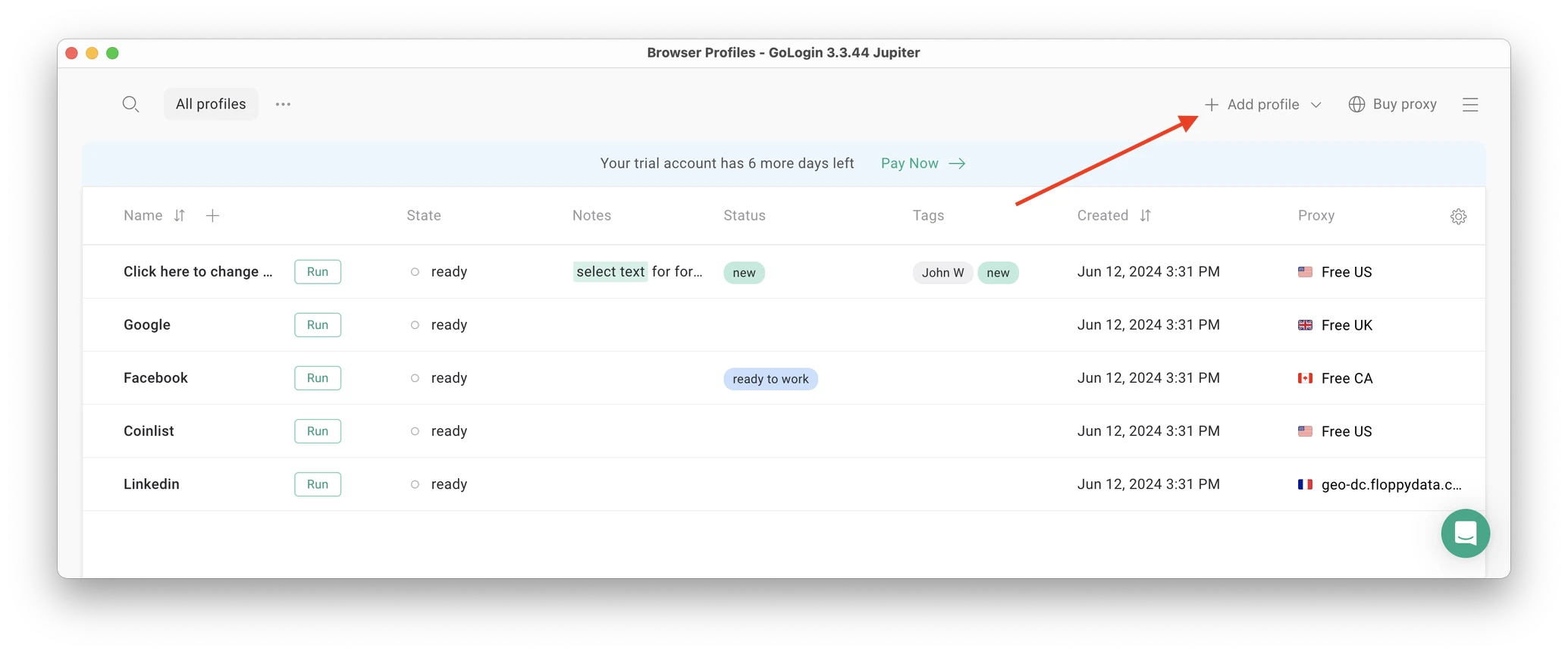
Your default main screen (table of profiles) will contain a few pre-made browser profiles. These are isolated browser sessions that will allow you to run multiple accounts on any website.
Let’s create a new one, assign a proxy and connect a Discord account.
First, click Add Profile on top right. You will get into profile creation screen.
Here’s a visual guide on profile creation and choosing a proxy:
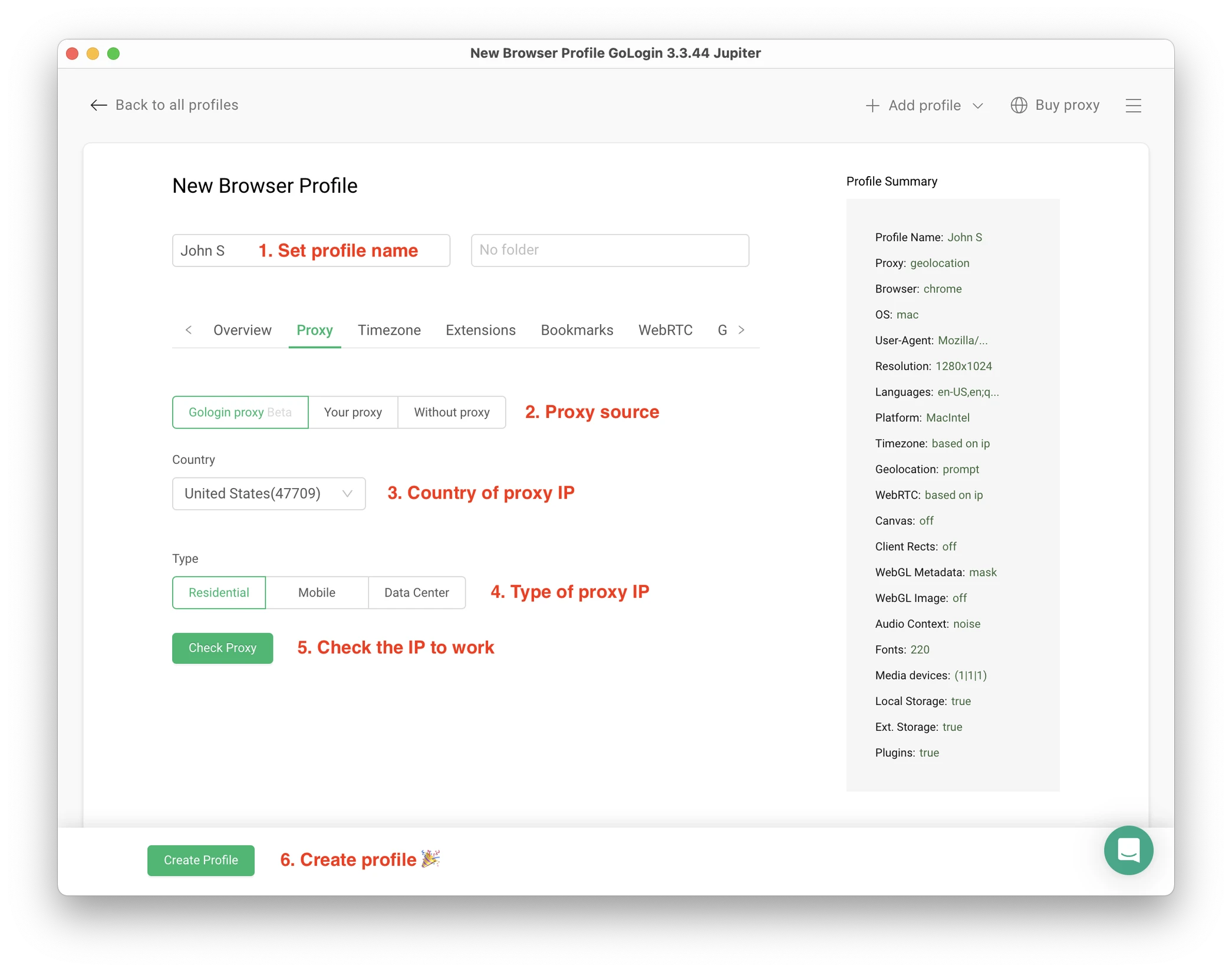
Here, you only need to set up the built-in proxy: all other profile settings are automatic. Let’s move!
1. Set your profile name. You can do this later as well.
2. Choose built-in Gologin proxy. Built-in proxies are paid per gigabyte, but you’ll get some free traffic to test them. Third party proxies can also be used here with no restrictions.
3. Pick country from the dropdown list.
4. Choose Residential proxy type. Residential IP address is a most common connection like you have at home or office.
5. Click Check Proxy to see your new IP details. Afterwards, click Create Profile. This will return you to the table of profiles. You’re good to go!
3 Top Tips On Using Proxies Safely
- It’s critical to give each of your browser profiles a separate IP address. Do not run several profiles on same IP address or without proxy: this will get them detected.
- If you are familiar with how proxies work, feel free to use third party proxies as well. Multiple IPs can be pasted in bulk into Gologin with just one click. Choose and buy proxies from our list of trusted providers.
- Free proxies you find at random websites can be dangerous. Being used and abused by infinite amount of users, free proxies often collect your data and tend to fail when you least expect it.
Running the profiles
Click on the Run button at your new browser profile.
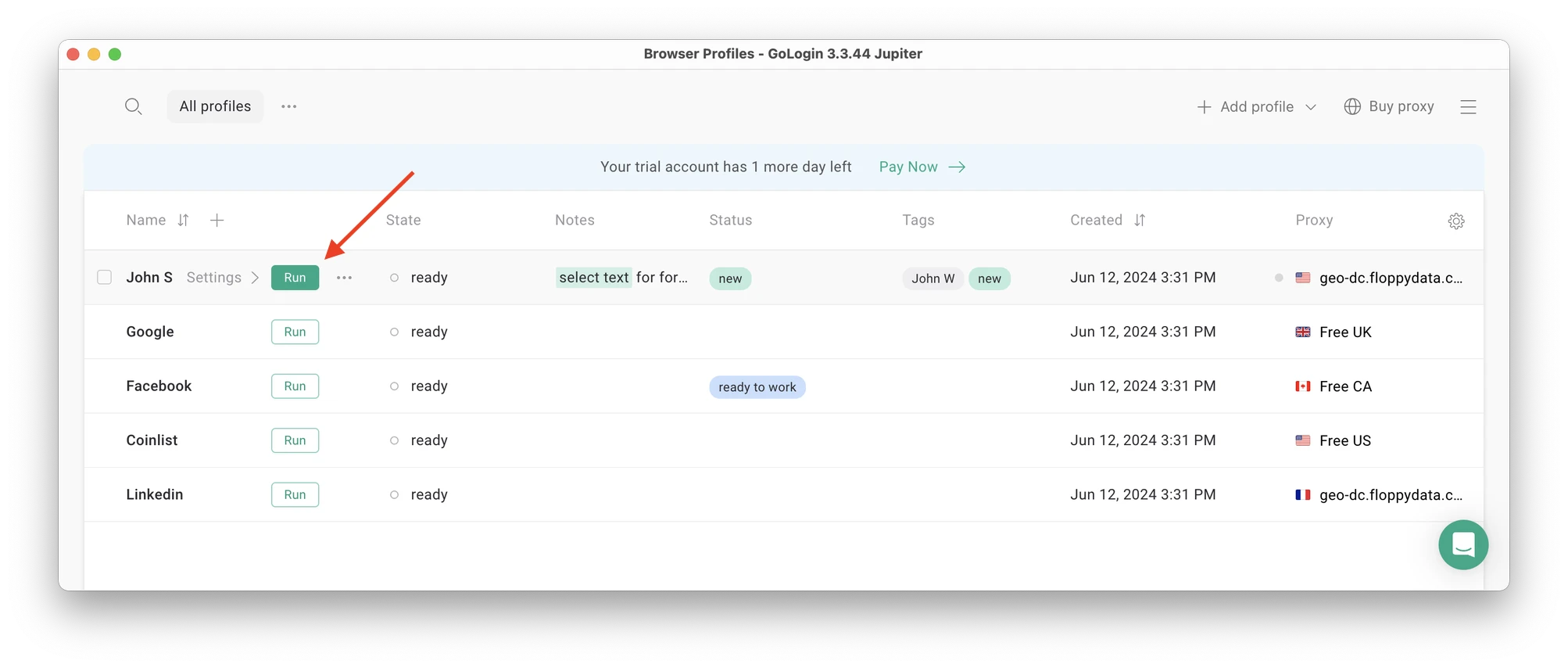 A new browser window will open, which is where you work with the accounts. You can use it like regular Chrome (i.e. tabs, bookmarks, extensions and history), but this session is completely isolated from your device and other profiles.
Connecting a Discord account to a Gologin profile
In this new window, login into your existing Discord account (or create a new one) – just like you would do in your regular browser.
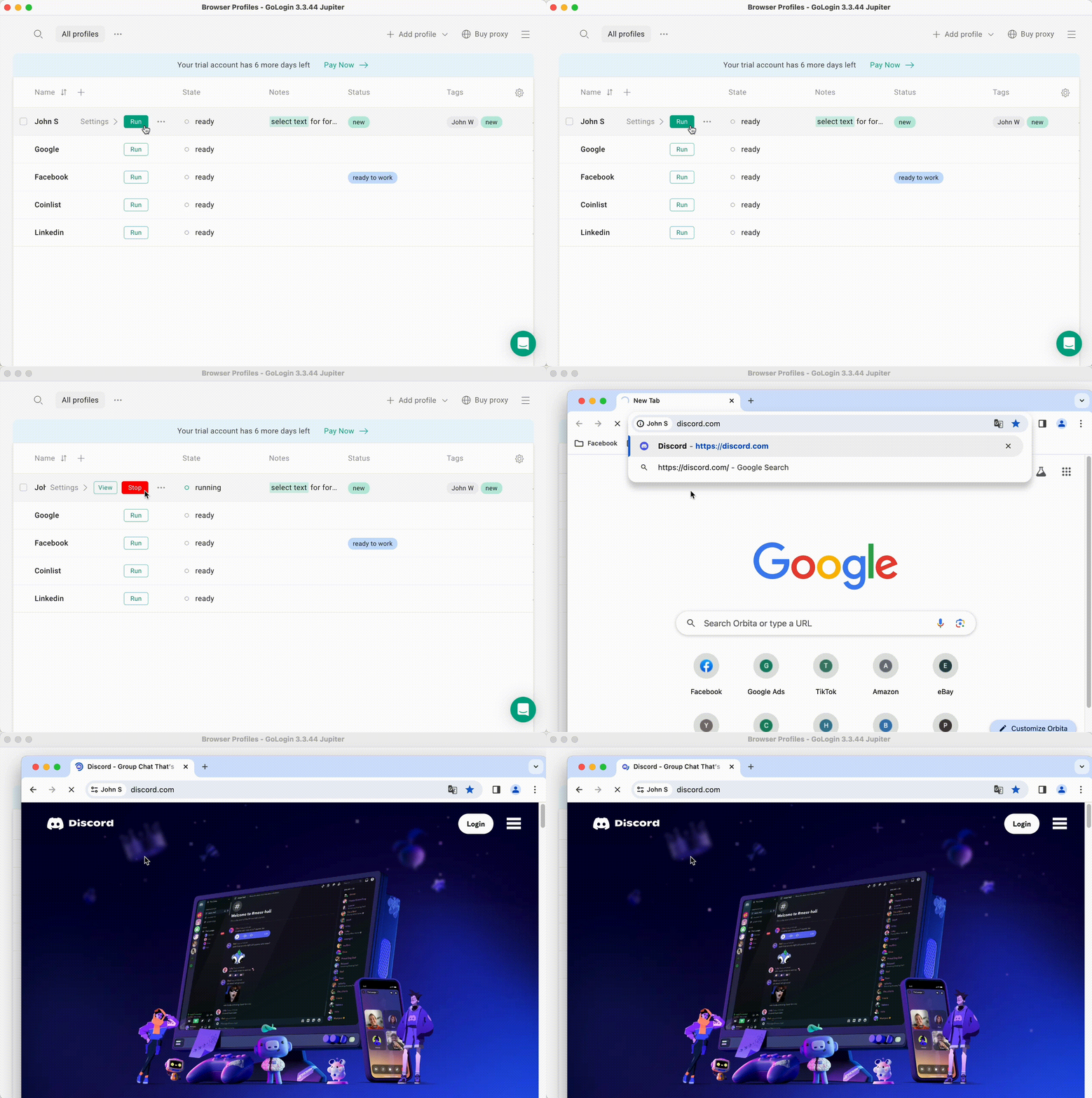
After you log in, your Discord account can be always run from a Gologin profile. You won’t need to re-enter your credentials.
Running multiple accounts
Next, create as many browser profiles as you need to operate multiple social media accounts. Remember each profile IP needs to be different. Best advice here to not mix the proxy IPs is to rename them after your browser profile name.
When you use a social account in a Gologin profile, you won’t have to enter passwords or 2FA codes. That’s because the session will pause and continue from a safe cloud server. To websites, each profile is a separate authentic device.
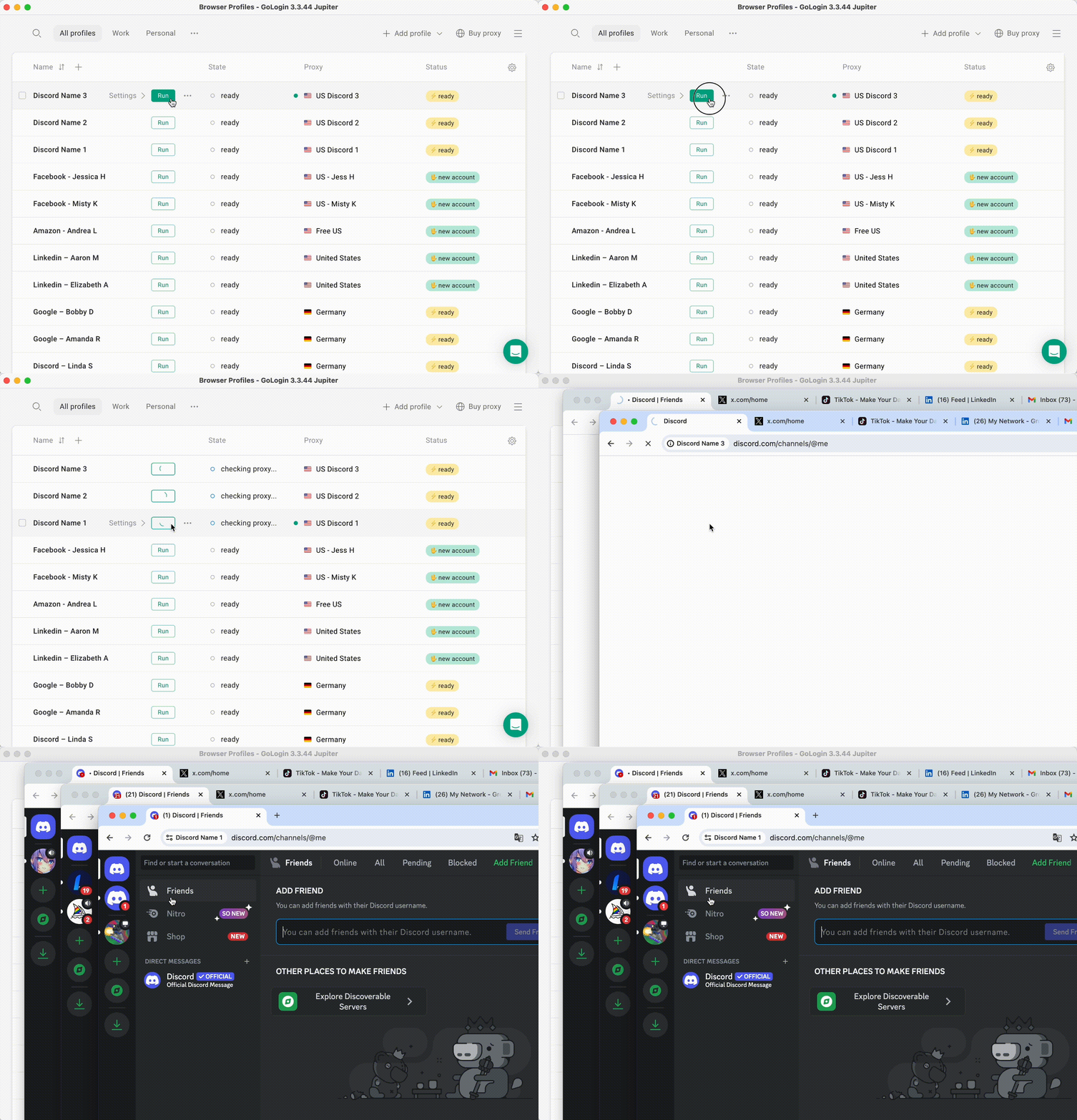 Running multiple profiles at the same time: sessions simply continue and the accounts do not get suspended.
You can freely run multiple Gologin profiles at the same time with no problem. The amount of windows open simultaneously is not limited, depending only on your hardware.
Stopping the profiles
After working in your accounts, click Stop on your profile.
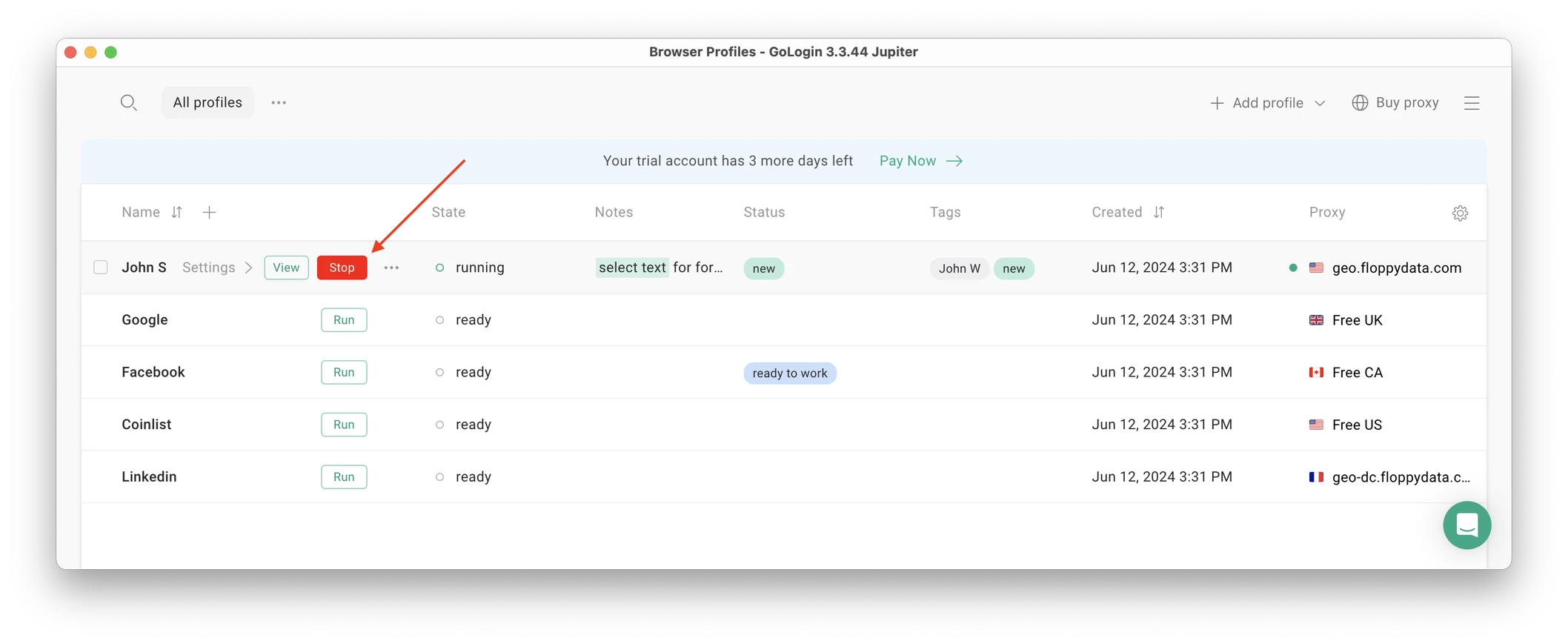 Stopping the profile will close the window, and the session will upload to the safe cloud server.
When you restart this profile next time you need to work, the browser session will continue exactly from where you left. This is extremely comfortable and saves tons of daily work time for marketers and managers.
Gologin works well even on platforms with strict business account policy, such as Facebook and LinkedIn.
Customizing the account panel
As a unified account panel, Gologin is a completely customizable space. Here’s what you can do to get a clear multiple account overview:
- Group your profiles by adding a Folder. Profiles and Folders can be shared with your team members with different admin rights.
- Add or remove columns on Profile Table and swap them around to see only what you want to see. For example, you can leave on Proxy and Last Launch to control when you last visited the account.
- Use tags, notes and profile statuses to organize work in a better way, especially if you work with remote employees.
- Use a dark theme instead of system one.
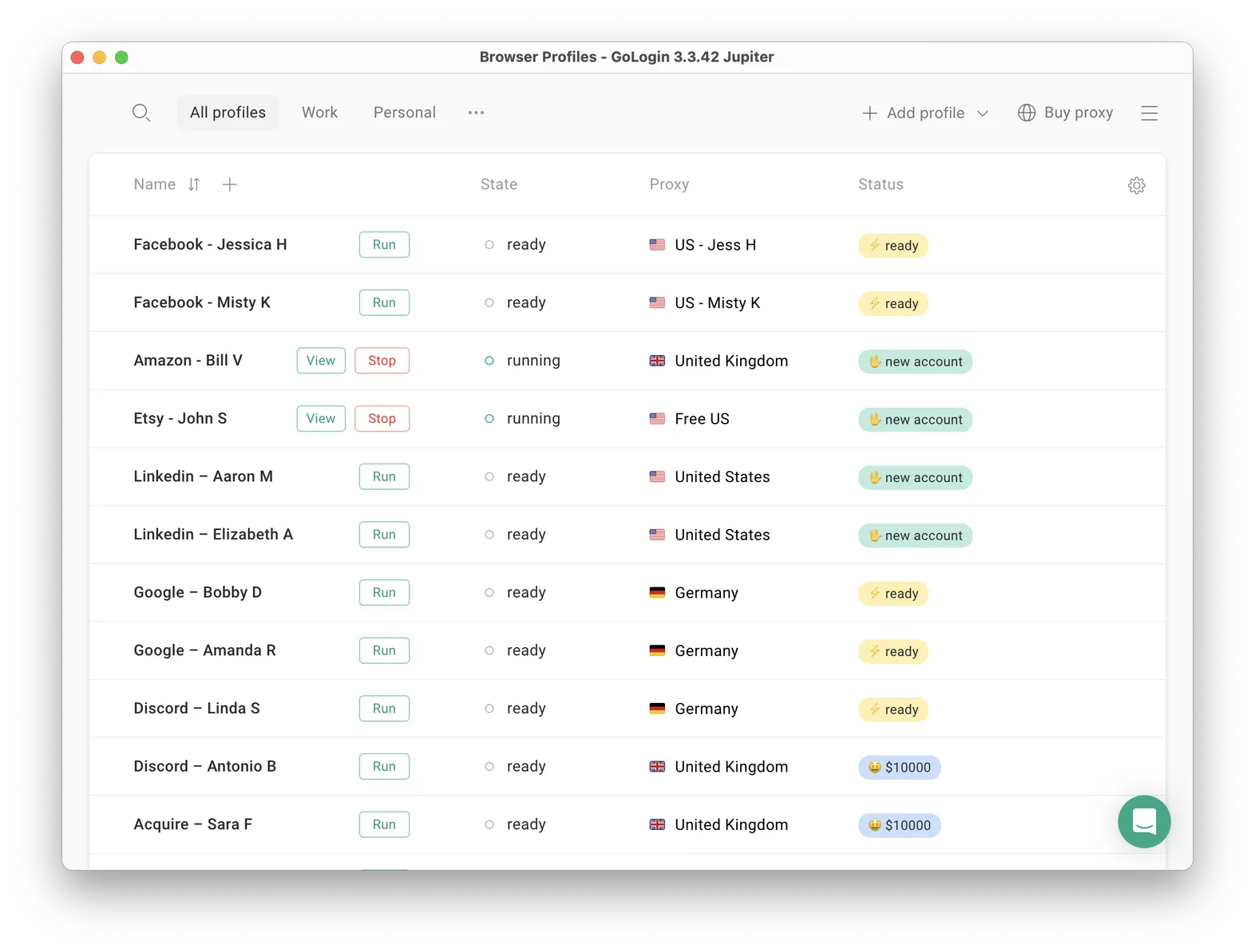 A typical Gologin setup of a marketing agency: profiles are named after clients social media and marketplace accounts.
That’s it! Try using Gologin profiles for any social platform, marketplace or any other website. The profiles can be logged in from any location and device or shared with your partners.
During the 7-day free trial, Gologin does not limit the use of paid features, so you can test the paid functionality.

Security considerations when managing multiple Discord accounts
When you manage multiple Discord accounts—whether for personal use, community management, or business—it’s essential to prioritize security. Handling several accounts seamlessly can expose you to unique risks, from account bans to data breaches, especially if you’re not careful with your login details or how you separate accounts. Here are some key security considerations to keep your Discord accounts safe and your workflow efficient:
- Use unique login details for each account: Never use the same email or password across multiple Discord accounts. This not only helps prevent unauthorized access but also reduces the risk of all your accounts being compromised if one set of credentials is leaked.
- Enable two-factor authentication (2FA): Protect every account with 2FA. This extra step ensures that even if someone gets your password, they can’t access your account without the verification code sent to your device.
- Secure password management: Rely on a trusted password manager to generate and store strong, unique passwords for each Discord account. Avoid reusing passwords or opting for easy-to-guess combinations.
- Keep accounts isolated: Use separate browser profiles, devices, or even operating systems for each Discord account. This helps prevent similar behavior patterns from being detected and minimizes the risk of account bans due to cross-account activity.
- Leverage proxies and anti-detect browsers: If you’re running multiple Discord accounts, especially for business or community management, consider using a multi accounting browser with built-in proxy support. Assigning a different IP address to each account helps maintain unique digital fingerprints and reduces detection issues.
- Monitor account activity regularly: Stay vigilant by checking your account activity, login history, and message logs. If you notice anything suspicious, act quickly to secure your accounts and notify Discord support if needed.
- Be cautious with cloning apps: While apps like Parallel Space can let you run multiple Discord accounts on mobile, they may introduce security vulnerabilities or even lead to account bans. These cloning apps can sometimes fail to maintain unique settings or digital fingerprints, making detection by Discord more likely.
- Understand Discord’s terms of service: Always familiarize yourself with Discord’s official guidelines regarding multiple accounts. Violating these terms—such as using the same email for several accounts or engaging in spammy behavior—can result in account bans or other penalties.
- Choose the right tools for community management: If you’re managing multiple communities or need to switch between several accounts seamlessly, opt for a dedicated multi accounting browser or Discord management tool. These solutions help you maintain unique settings for each account, streamline your workflow, and reduce the risk of detection or bans.
By following these best practices, you can manage multiple Discord accounts securely and efficiently—whether you’re using the Discord desktop app, mobile device, or a multi accounting browser. Remember, the key to managing multiple discord accounts successfully is to keep each account isolated, use strong and unique login details, and always stay up to date with Discord’s terms and security recommendations. This way, you’ll protect your online presence and avoid unnecessary account bans or detection issues.
 How to switch accounts on Discord mobile?
As of April 2025, there is no account switcher for Discord Mobile. Users cannot seamlessly switch accounts on mobile whereas logging out is possible on desktop.
That said, there are still ways to manage multiple Discord accounts on mobile:
1. Accessing Discord via Mobile Web Browser:
You can log into a mobile browser at discord.com/login. As a result, you can log into an alternate account without affecting the one logged in on the mobile app. Hence, by using the web version along with the app, you are able to manage two accounts at the same time.
2. App Cloning:
These methods, such as Parallel Space, allow you to make a duplicate of the Discord app on your device. Doing this enables each clone to be logged into a separate account, making it easier to switch accounts without logging out. However, be careful of using third party cloning apps, as they may pose a security risk or breach Verdansk terms of service.
3. Using Gologin:
Gologin, (setup method is described above) a more sophisticated method, utilizes an anti-detect browser designed for managing multiple accounts. Gologin offers users the ability to create distinct browsing profiles complete with individual digital fingerprints and proxy settings, enabling them to segregate their online identities.
This configuration allows you to operate multiple Discord accounts at the same time without fear of being detected or banned. It is helpful for people that need to manage several accounts, whether it be for business, community management, or other reasons.
Wrapping up
For up to 5 personal accounts, the Discord app will be enough.
If you need just account switching for up to 10 accounts, you can go with some of the alternative ways.
In case you need to organize and share your multiple Discord accounts with a straightforward solution, it’s worth giving Gologin’s multi-accounting browser a try. It is a great alternative to best SMM panels that also allows to quickly and safely login to all accounts without passwords.
Frequently asked questions
How many accounts can I have on Discord?
Discord allows you to have as many accounts as you want, as long as each account uses a separate email address and phone number. However, the built-in Account Switcher feature lets you switch seamlessly between up to five accounts within the Discord app. If you need to manage more than five accounts, you can use other methods such as Discord Canary, PTB (Public Test Build), or different browsers to access additional accounts. For example, you can have accounts for personal and work use or multiple accounts for Steam and other gaming platforms.
Can people tell I have two Discord accounts?
No, Discord doesn’t show other users that you switch between two or more accounts. You’re less likely to arouse suspicion about having multiple accounts unless other users notice similar behavior patterns across your different accounts.
Can I make two Discord accounts with the same email?
No, you cannot. Discord only allows one account per email. This measure aims to prevent people from making multiple spam accounts.
Is running multiple Discord accounts legal?
Yes, Discord’s rules do not specifically prohibit the use of multiple accounts. According to Discord’s terms, having multiple accounts is allowed, but if you engage in abusive behavior or violate the terms of service, your account can get suspended. We recommend using Gologin to save time on logging in and optimize your workflow with a clear work overview in one window.
References:
- Moffitt K. et al. Discord forensics: The logs keep growing //2021 ieee 11th annual computing and communication workshop and conference (ccwc). – IEEE, 2021. – С. 0993-0999.
- Gupta K., Varol C., Zhou B. Digital forensic analysis of discord on google chrome //Forensic Science International: Digital Investigation. – 2023. – Т. 44. – С. 301479.
- Davis M., McInnes B., Ahmed I. Forensic investigation of instant messaging services on linux OS: Discord and Slack as case studies //Forensic Science International: Digital Investigation. – 2022. – Т. 42. – С. 301401.
- Heinrich E., Thomas H., Kahu E. R. An exploration of course and cohort communication spaces in Discord, Teams, and Moodle //Australasian Journal of Educational Technology. – 2022. – Т. 38. – №. 6. – С. 107-120.
Read other posts about multiple accounting:
Can You Have Multiple Snapchat Accounts?
Can You Have Multiple WhatsApp Accounts On One Device?
How to Run Multiple Coinbase Accounts?
Manage Multiple Gmail Accounts
How To Run Multiple Telegram Accounts?
Can I Have Multiple Bluesky Accounts?
How To Run Multiple Etsy Shops?
Can You Have Multiple Airbnb Accounts?
Can You Have Multiple PrizePicks Accounts?
Can You Have 2 FanDuel Accounts?
Multiple Zillow Agent Login
Can I Run Multiple Craigslist Login?
Multiple Google Ads Accounts
Manage Multiple Google Accounts
Can I Run Multiple TikTok Accounts?
How to Run Multiple Amazon Seller Accounts?
How to Run Multiple Ebay Accounts?
Can I Run Multiple Twitter X Accounts?
Managing multiple Reddit accounts
Create and Manage Multiple Facebook Accounts
Manage Multiple Social Media Accounts
How to have multiple instagram accounts?
Can I Run LinkedIn Multiple Accounts?