

While Telegram, a cloud-based messaging app, allows running three Telegram accounts, power users like marketers, freelancers, and community managers often need to manage more Telegram accounts at once and with better freedom.
Telegram officially allows users to add and switch between up to three accounts (each with a unique phone number) on a single mobile or desktop app. For power users like marketers or community managers who need to bypass this limit, the guide recommends using Gologin. This tool allows you to run unlimited Telegram Web sessions by isolating each account in a unique browser profile with its own digital fingerprint and IP address, preventing account linking and missed notifications.
The good news is that there’s a way to bypass the limit safely. In this guide, you’ll learn:
- How to run multiple Telegram accounts the official way
- The biggest problems with account switching and the solution to run unlimited Telegram accounts from one device using Gologin
So let’s begin.

Can You Have Multiple Telegram Accounts on One Device?
Telegram has been letting people run multiple Telegram accounts on the same phone since way back in 2017, allowing users to manage multiple accounts on the same device, including one phone or tablet.
You can add up to three accounts, each with a unique phone number, and switch between them as needed.
Then in 2020, Telegram decided desktop users shouldn’t miss out either.
So it launched support for up to three Telegram accounts for desktop, too.
But what if three isn’t enough? Some users need to create multiple Telegram accounts for different purposes, such as work and personal use, and may require more than three accounts. No worries, even then, there are ways to run and use Telegram multiple accounts beyond the official limit. These methods help users manage more than one account, separate Telegram accounts, and different accounts efficiently.
We’ll get to that, but first, let’s show you how to set up multiple accounts on mobile and desktop, the official way.
How to Run Multiple Telegram Accounts on Mobile and Desktop
The process for adding and running multiple Telegram accounts is almost the same for mobile (Android or iOS) and desktop users.
How to Run Multiple Telegram Accounts on Desktop
Simply carry out the following steps in the Telegram desktop app:
- Open Telegram with your personal account logged in.
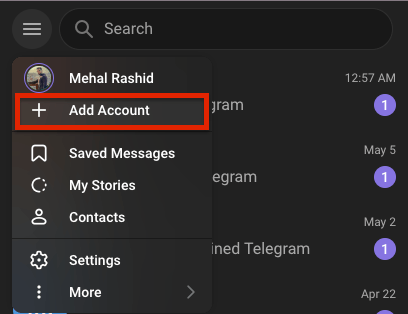
- Tap the hamburger menu (three horizontal lines) on the top left.
- Click “Add Account”
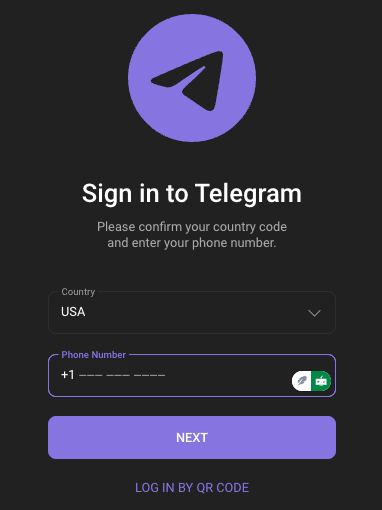
- Select your country and enter a unique phone number not in use by any Telegram account.
- Check or uncheck the “Sync Contacts” button based on your preference.
- Click the “Next” button and move to the next step. The next page will ask you to enter the verification code sent to the phone number you just entered.\
- Wait for the verification code and enter it quickly.\
- Enter a name for your new Telegram account, and your second account is set.\
- Repeat the steps to add your third account.
The Telegram desktop app allows you to add up to three accounts, but only one account can be active per instance. This means you can have multiple accounts added, but you can use only one account at a time in the desktop app.
To switch between your multiple Telegram accounts, go to the same hamburger menu, press the drop-down, and select the account you want to switch to.
Alternatively, you can use the web version (Telegram Web) to manage additional accounts. Open Telegram Web in different browsers or browser profiles to keep each account separate. Logging in to the web version often involves scanning a QR code for authentication. Using different browsers or browser profiles helps you avoid linking your accounts and makes it easy to manage more than one account simultaneously.
How to Run Multiple Telegram Accounts on Mobile (Android and IOS)
To add multiple Telegram accounts on your iOS or Android phone, follow these simple steps:
- Open your Telegram mobile app and go to the settings menu.\
- Tap on the “Edit” button in the top right corner.
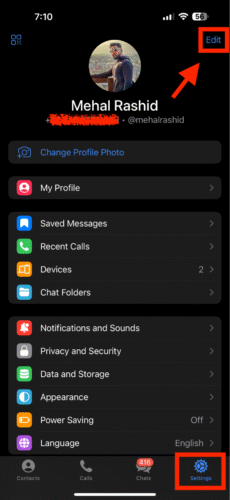
3. Now, tap on “Add Another Account.”
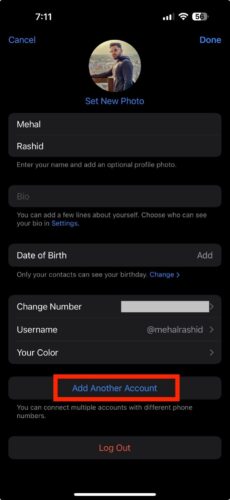
4. Select your country and enter a unique phone number not in use by any Telegram account.
- Check or uncheck the “Sync Contacts” button based on your preference.
5. Click the “Continue” button to move to the next step. The next screen will ask you to enter the verification code sent to the phone number you just entered.
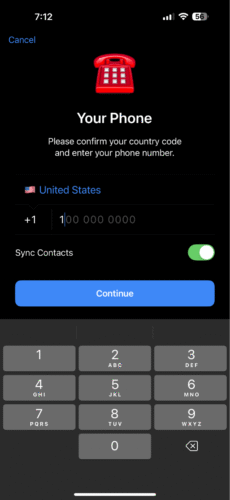
- Wait for the verification code and enter it quickly.
- Enter a name for your new Telegram account, and your second account is set.
- Repeat the steps to add your third account.
On an Android phone, you can also use an app cloner to create multiple instances of the same app, allowing you to manage even more Telegram accounts on one device. After adding your accounts, you can easily switch accounts within the same app through the menu. Remember to turn notifications on or off for each account to avoid missing important messages or getting unnecessary interruptions.
How to Manage More than 3 Telegram Accounts? Use Gologin
Okay, so Telegram lets you juggle up to three accounts on mobile and desktop. Cool! But you can only use one at a time. That means you’re stuck playing musical chairs with your profiles, and let’s be real, that gets old fast.
This can also lead to account confusion. Ever sent a personal meme from your personal account to a contact on your business account? If you haven’t, it won’t be long before you commit such a blunder.
Then there’s slower response time. Believe me, switching back and forth takes forever.
And if quick replies matter (like in customer service or group chats), this setup just doesn’t cut it.
Oh, and notifications? Telegram only highlights messages received from the currently active account, so you might miss notifications from your other accounts. This can result in missed notifications and overlooked messages, reducing your responsiveness and operational efficiency. They’ll pile up from all accounts unless you mute some, which kinda defeats the purpose.
To make things easier, some users try managing accounts on multiple devices or by opening multiple windows or instances of Telegram. While this can help with accessibility and organization, it may introduce security risks like data leakage or increased exposure to threats—and can still lead to missed notifications if you’re not actively monitoring every account.
Now, what if three accounts aren’t enough? Maybe you’re handling a bunch of projects, communities, or secret identities (no judgment). Telegram won’t let you add more than three, officially, at least.
One way to bypass this restriction could be buying a new device every three accounts. But that’s impractical, and to be honest, most of us have no budget for that.
So what’s the fix? GoLogin. It’s your pass for managing unlimited Telegram accounts from one device without Telegram ever catching on.
Here’s how to set up and run multiple Telegram accounts using Gologin:
Step 1: Get Started with GoLogin
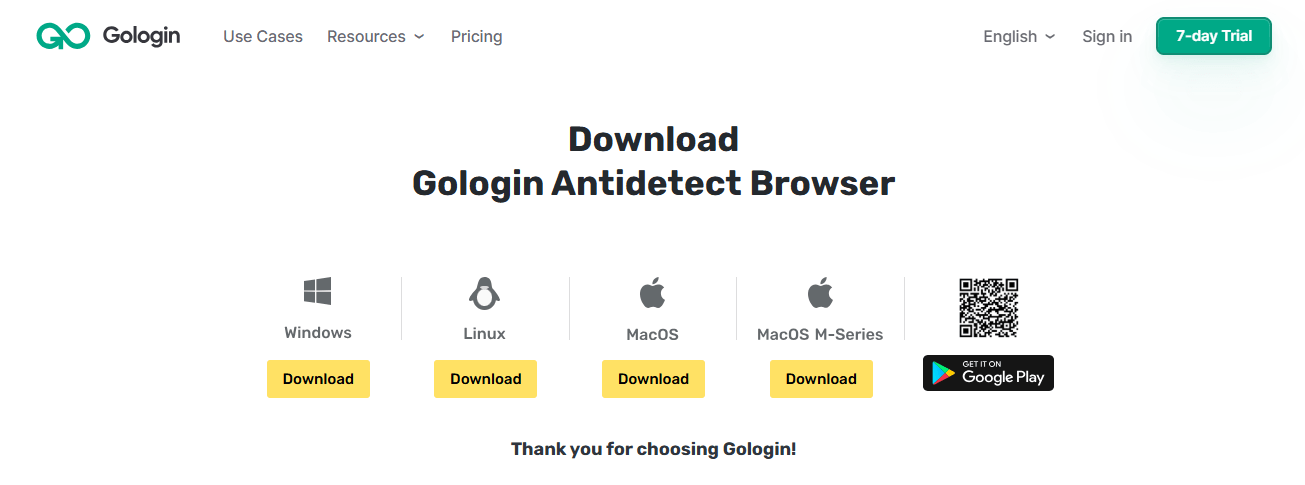
- Download GoLogin for Windows, Mac, or Linux from the official website.
- Sign up with Google or email.
- Answer a quick survey (takes two seconds)
Congrats! You’ve got a free 7-day trial to test every Gologin feature.
Step 2: Create Your First Secure Profile
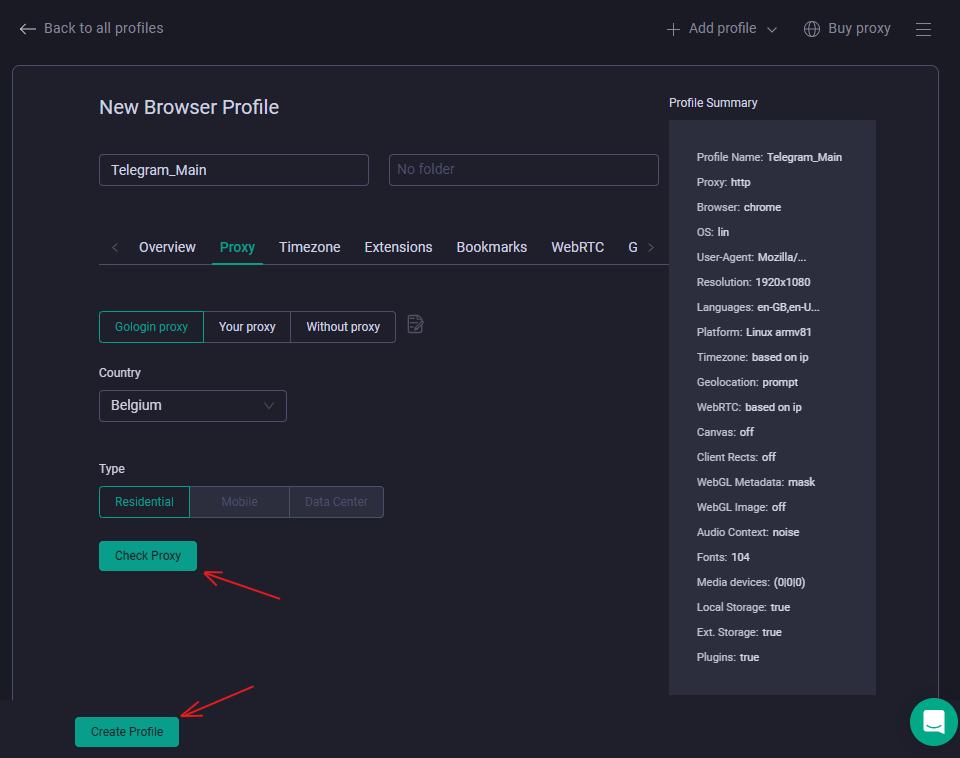
Before you create and log in to a Telegram account, you need to make a GoLogin profile for each Telegram account.
Each profile in GoLogin gets a unique browser fingerprint, so Telegram thinks it’s a totally different device.
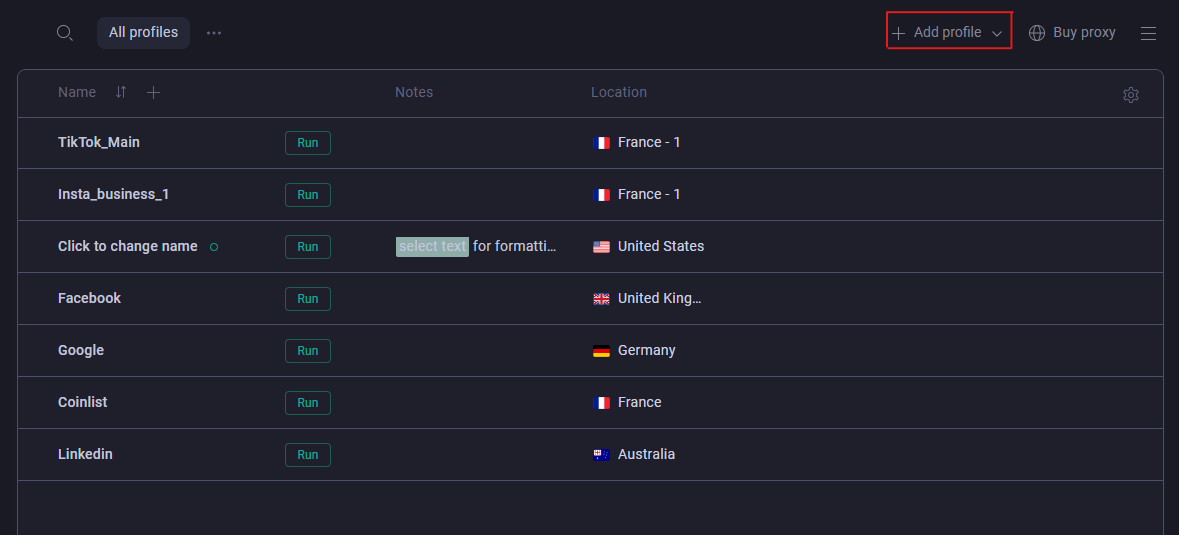
- Click “Add Profile“
- Name it something obvious like “Telegram_Main”,
- Enable a proxy (pick a country),
- Hit “Check Proxy” to make sure it works.
- Then hit “Create Profile.“
You have created your first Gologin profile.
Step 3: Log In Safely Every Time
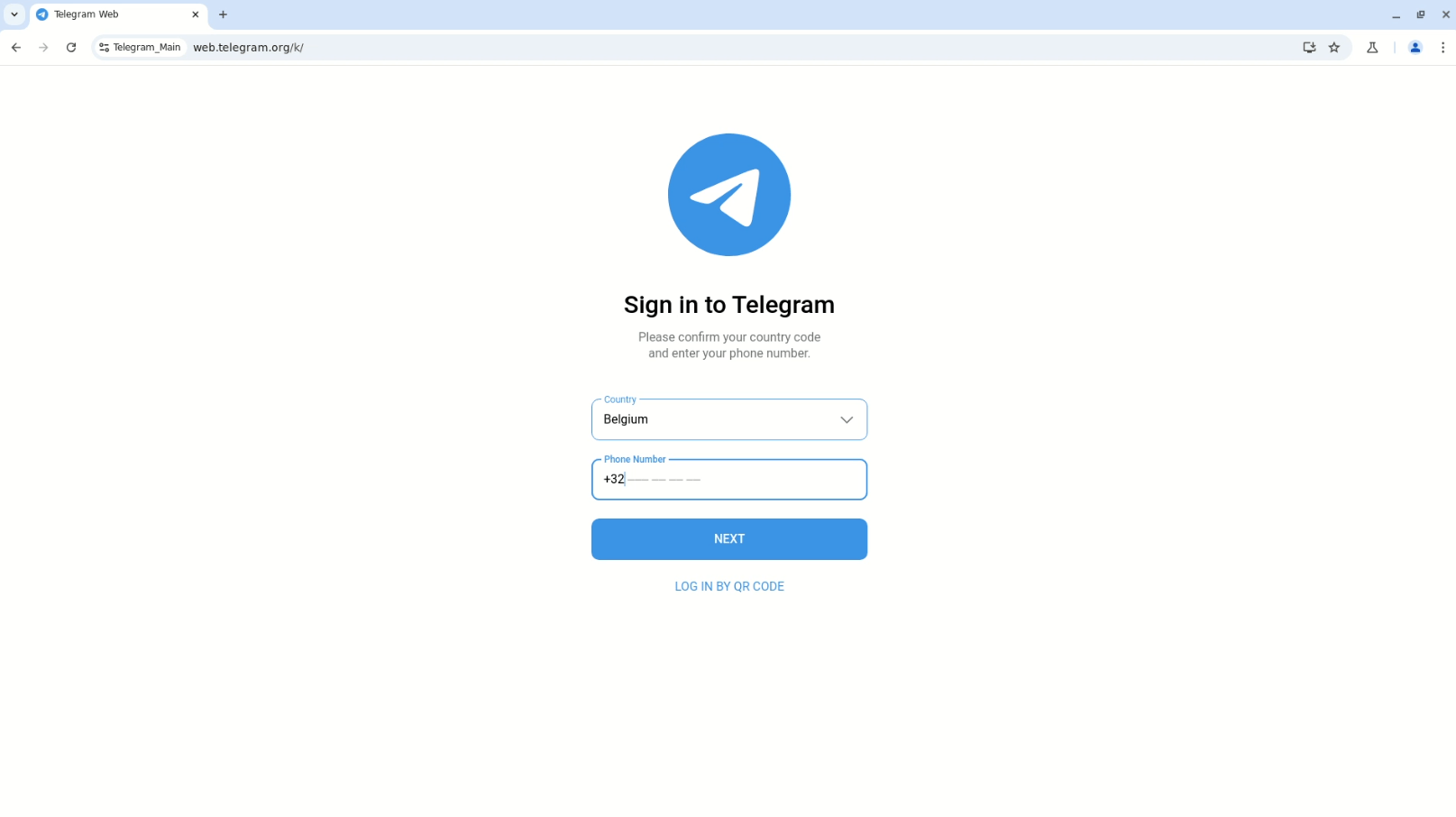
- Click “Run” on the profile you just created. A secure browser opens.
- Search Telegram and log in to a Telegram account like normal. When logging into a new account, you will need to enter the sms code sent to your phone number to verify the account during the login process.
- Save your session, and you’ll never have to type your password again.

To switch between your multiple Telegram accounts, go to the same hamburger menu, press the drop-down, and select the account you want to switch to.
Step 4: Scale Up Without the Headache
Need more accounts? Repeat the steps: Make a Gologin profile, run it, and log in to a new Telegram profile within it.
Here are some tips to follow:
- Use different proxy IPs for each one.
- Name them clearly (e.g., “Telegram_MainAccount” or “Telegram_ClientChats”).
- Run as many profiles as your device can handle without melting.
- Use separate accounts for different purposes, such as a dedicated work account, managing clients, and keeping professional communication organized.
Since GoLogin makes each account look legit, Telegram won’t link them.
So grab the free trial and stop the account-switching hassle.
Your sanity (and productivity) will thank you.
To safely warm up the account, you must follow these rules:
1. Use one proxy for each profile in Gologin. If two accounts have the same IP proxy, there is a high risk that the account will be banned.
2. For a cold start, it is usually best to use mobile proxies, but as soon as the account is “warmed up” and the card is linked, switch to a static residential proxy from the same city where the account is registered.
3. Warming up accounts before advertising:
New accounts must behave like real people for at least 7–14 days: likes, comments, adding friends (if personal), posts.
Running ads on a “cold” account = almost 100% ban.
4. Payment details:
One card/one bank = one account. Ideally, virtual cards from different banks.
5. Behavioral patterns:
Do not switch between profiles more than once every 15–20 minutes (especially when logging in for the first time). Avoid identical patterns of behavior (for example, all accounts log in at 9:00 a.m. and immediately like the same post).
6. Checking the Gologin profile before launch:
Before working with an account, run the profile through iphey.com. All parameters must be “green”: no real IP leaks, WebRTC, Canvas/WebGL are consistent.
Using Cloud Phones for Account Management
Managing multiple Telegram accounts can quickly become overwhelming, especially if you’re trying to keep personal chats separate from work or other activities. That’s where cloud phones come in a modern solution for anyone who needs to manage multiple Telegram accounts efficiently and securely from a single device.
Cloud phones are essentially virtual smartphones that run in the cloud, allowing you to create and manage multiple Telegram accounts without juggling multiple physical devices. Each cloud phone profile acts like a real mobile phone, complete with its own unique phone number and app installations. This means you can set up multiple profiles, install the Telegram app on each one, and easily switch between different Telegram accounts all from one device.
Getting started is simple: download a cloud phone app like GeeLark, create a new cloud phone profile, and assign a unique phone number to each profile. Once you install Telegram on each profile, you can manage multiple accounts seamlessly. This setup is perfect for keeping personal chats separate from business conversations, reducing account confusion, and ensuring you never send a message from the wrong account.
One of the biggest advantages of using cloud phones to manage multiple Telegram accounts is the ability to stay organized. You can create as many profiles as you need, each dedicated to a specific purpose personal, work, clients, or community management. With notification settings for each profile, you can control how and when you receive alerts, so you never miss important messages or get overwhelmed by constant notifications.
Cloud phones also offer enhanced security. By isolating each Telegram account in its own cloud phone profile, you reduce the risk of bans and data breaches. Plus, since everything is managed from a single device, you don’t have to worry about carrying multiple phones or losing track of your accounts.
For power users, cloud phones provide features like synchronized control, making it easy to perform repetitive tasks across many Telegram accounts. Whether you’re managing multiple social media accounts, handling client communications, or just keeping your personal messages organized, cloud phones give you the flexibility and control you need.
In summary, cloud phones are a powerful tool for anyone looking to manage multiple Telegram accounts. They help you keep personal chats separate, avoid account confusion, and stay organized all while maintaining a high level of security. If you’re ready to take your Telegram account management to the next level, cloud phones are definitely worth considering.

FAQs
How do I switch between accounts on Telegram?
On mobile, open the side menu and tap your current account name. You’ll see all your added accounts listed. Just tap the one you want to switch to. On the desktop, click your profile picture or hamburger menu (three horizontal lines) in the bottom left, then select the account you need.
Can I use same number for 2 Telegram accounts?
No, you cannot use the same number for 2 Telegram accounts. Telegram requires a unique phone number for each account. You can’t register the same number twice.
How many Telegram accounts can I run on one device?
Officially, Telegram allows up to three accounts per device (mobile or desktop). If you need more, you’ll need a tool like GoLogin to bypass this limit.
How can I safely manage more than three Telegram accounts on one device?
By default Telegram caps at 3 accounts per device, 4 with Premium. To run more, you can use an antidetect browser like Gologin. Gologin creates a separate, isolated browser profile for each Telegram session, each with its own fingerprint and proxy, so Telegram sees each account as if it’s on a different device. It’s your pass for managing unlimited Telegram accounts from one device, allowing you to create and use dozens of accounts safely without them getting linked.
Can I have multiple Telegram accounts with same phone number?
No. Telegram allows only one account per phone number. Each Telegram account must be registered and verified with a unique phone number, and you cannot create or run multiple accounts using the same number.
If you need multiple Telegram accounts for business or personal reasons, the right approach would be to use the Gologin browser and different phone numbers and manage each account sequentially to avoid security issues.
Read other posts about multiple accounting:
Can You Have Multiple Snapchat Accounts?
Can You Have Multiple WhatsApp Accounts On One Device?
How to Run Multiple Coinbase Accounts?
Manage Multiple Gmail Accounts
Can I Have Multiple Bluesky Accounts?
How To Run Multiple Etsy Shops?
Can You Have Multiple Airbnb Accounts?
Can You Have Multiple PrizePicks Accounts?
Can You Have 2 FanDuel Accounts?
Multiple Zillow Agent Login
Can I Run Multiple Craigslist Login?
Multiple Google Ads Accounts
Manage Multiple Google Accounts
Can I Run Multiple TikTok Accounts?
How to Run Multiple Amazon Seller Accounts?
How to Run Multiple Ebay Accounts?
Can I Run Multiple Twitter X Accounts?
Managing multiple Reddit accounts
Best Way to Run Multiple Discord Accounts
Create and Manage Multiple Facebook Accounts
Manage Multiple Social Media Accounts
How to have multiple instagram accounts?