How to Make an Instagram Bot That Posts and Replies to DMs
Try Gologin for free
Running an Instagram shop often means answering the same product questions while trying to keep your page updated. Keeping up with these messages can be stressful and time-consuming, leaving little time to post new arrivals.
Instagram’s official API supports posting and message replies for eligible Business and Creator accounts. But it comes with permissions, review requirements, and limits that may not fit every team’s setup.
In this guide, we’ll make a small Instagram bot for a demo store selling candles, skincare, and accessories. Using Gologin Cloud Browser and Playwright, it will reply to simple customer inquiries and publish an image with a caption. We’ll also add checks that help prevent duplicate actions and stop the bot when an account needs attention.
TL;DR
- Instagram’s official API is the supported route for eligible professional accounts, but app permissions, review requirements, messaging windows, and publishing quotas affect what you can build.
- Browser automation works through Instagram’s interface and can reuse saved login sessions. Using a separate browser profile and proxy for each account helps keep sessions apart.
- Gologin Cloud Browser lets Playwright control a remote browser, so you don’t need to install Chromium locally.
- Our bot replies to common product questions and publishes images with captions.
- The bot checks for completed actions to avoid duplicate replies or posts. It also pauses when login challenges or restrictions appear.
What can you automate on Instagram?
Instagram automation can help with routine work such as publishing posts, scheduling content, replying to comments and DMs, and checking account performance. The important distinction is what you’re automating and whether you have permission to do it.
Supported automation vs. unauthorized activity
Publishing content that you own to your own eligible professional account and replying to customers who contacted your shop are legitimate use cases for Instagram’s approved APIs. For example, a store can publish an approved product image or answer an incoming question about its collection.
That doesn’t mean every bot is allowed. Fake likes and followers, bulk unsolicited DMs, coordinated engagement, account impersonation, and attempts to work around access restrictions can violate Instagram’s rules. Owning an account does not, by itself, authorize automated access through its website.
Terms of Service, robots.txt, and personal data
Before running an automation, check Instagram’s Terms of Use and robots.txt. Publicly available content isn’t necessarily free to collect through automated tools, so make sure your workflow follows Instagram’s access rules.
Keep customer messages private, store tokens locally, and only retain the data your workflow needs. The examples below are for an account and test conversations you are authorized to manage. For a production integration, prefer the official API where it supports your use case.
What this Instagram bot will do
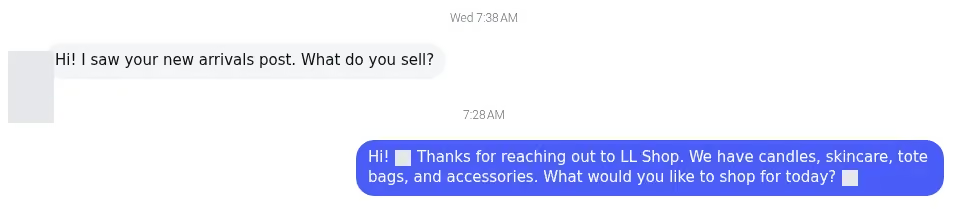
This bot will answer questions such as “What do you sell?” and “Can I see your collection?” It checks recent conversations for unanswered inquiries and sends a prepared reply.
The reply lists the shop’s product categories and asks what the customer would like to browse. Questions about prices, delivery, refunds, or specific stock are left for a person.
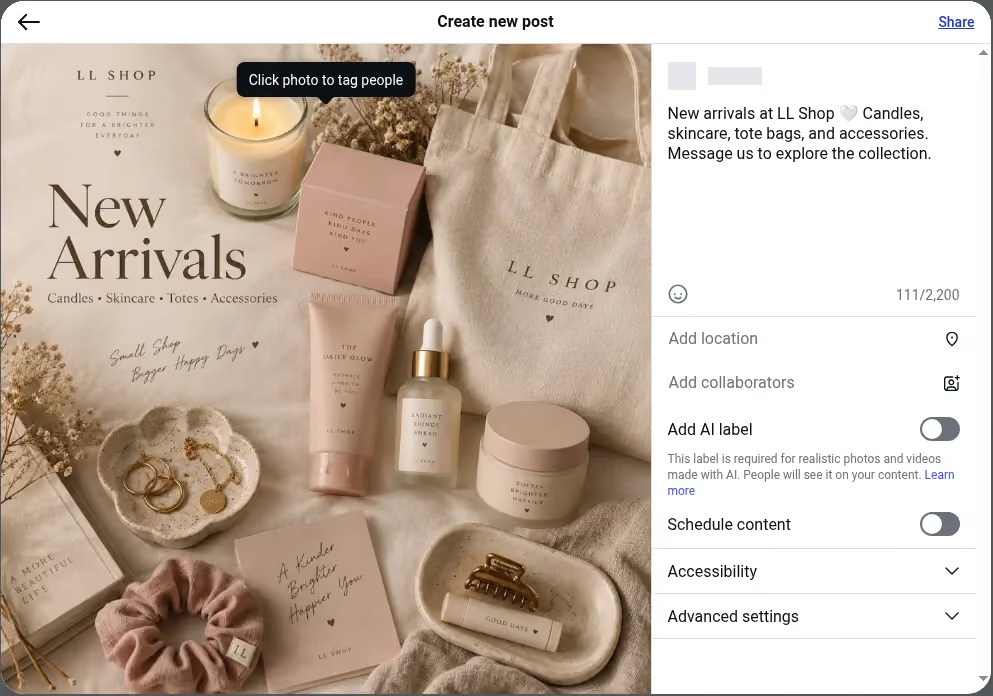
The posting task uploads a picture and adds a caption. It runs separately from the messaging task, allowing you to test and publish content without triggering message replies.
For this guide, we’ll keep things simple with one image post and one customer reply. You can later expand the workflow to handle scheduled posts or multiple uploads.
Instagram API vs. browser automation
Both Instagram’s official API and browser automation can handle tasks like publishing posts and replying to messages. The difference is how they work.
The official API sends requests to documented endpoints using access tokens and approved permissions. Browser automation, on the other hand, clicks and types through Instagram’s web interface using an existing login session.
| Requirement | Official API | Browser automation |
|---|---|---|
| Account access | Eligible Business and Creator accounts with the required permissions | Uses a saved browser login, but remains subject to Instagram’s rules |
| Publishing | Supported publishing endpoints and a rolling 24-hour quota | Uses the website’s post composer and Share button |
| Message replies | Supported messaging endpoints, generally within 24 hours of the customer’s latest message | Opens conversations and sends replies through the inbox |
| Setup | App, tokens, permissions, and potentially App Review | Saved profile and browser-control script |
| Maintenance | API versions, permissions, and quota changes | Website layout, labels, and internal data can change unexpectedly |
There are some API restrictions worth knowing before choosing an approach:
- Professional accounts only. Instagram’s professional APIs are built for Business and Creator accounts, not ordinary personal accounts.
- App Review. As Meta explains, a test app can use certain permissions for accounts it owns or manages, but serving accounts outside that scope generally requires Advanced Access and App Review.
- A messaging window. Under Meta’s messaging policy, the standard window for automated replies is generally 24 hours after a customer’s latest message.
- A publishing quota. API publishing has a rolling 24-hour limit and Meta’s publishing guide refers to 100 API-published posts.
Why Instagram bots run into problems with multiple accounts
A bot might work fine with one Instagram account but start running into problems when managing several accounts. This often happens when the accounts share the same browser environment, making it easier for Instagram to identify connections between them.
Shared cookies, browser fingerprints, and IP addresses
Instagram can use signals such as browser fingerprints, IP addresses, and cookies to identify connections between accounts. When multiple accounts share these signals, Instagram may associate their activity, potentially leading to additional verification checks or restrictions.
Sharing the same browser profile can also cause login sessions to overlap, making it difficult for a bot to identify which account it is controlling. Similarly, using the same IP address across multiple accounts or frequently changing proxy locations can create inconsistencies that trigger security checks.
How Gologin Cloud Browser keeps accounts separate
A better approach is to create a separate Gologin Cloud Browser profile for each Instagram account. Each profile maintains its own cookies, browser fingerprint, and saved login session, preventing accounts from sharing the same browser state.
You can also assign a separate proxy configuration to each profile and keep its location consistent between sessions. This reduces login conflicts and makes it easier to manage multiple Instagram accounts independently.
While separate profiles do not guarantee that Instagram cannot associate accounts, they provide a more consistent and isolated environment for managing automation workflows. You can learn more in our guide to managing multiple Instagram accounts.
How to build an Instagram bot with a persistent cloud browser
1. Set up a browser profile and proxy
Start by creating a browser profile in Gologin Cloud Browser for the Instagram account you want the bot to manage.

Give the profile an easy-to-recognize name, then open its Proxy settings and choose the connection you want it to use. You can select a Gologin proxy or add your own.
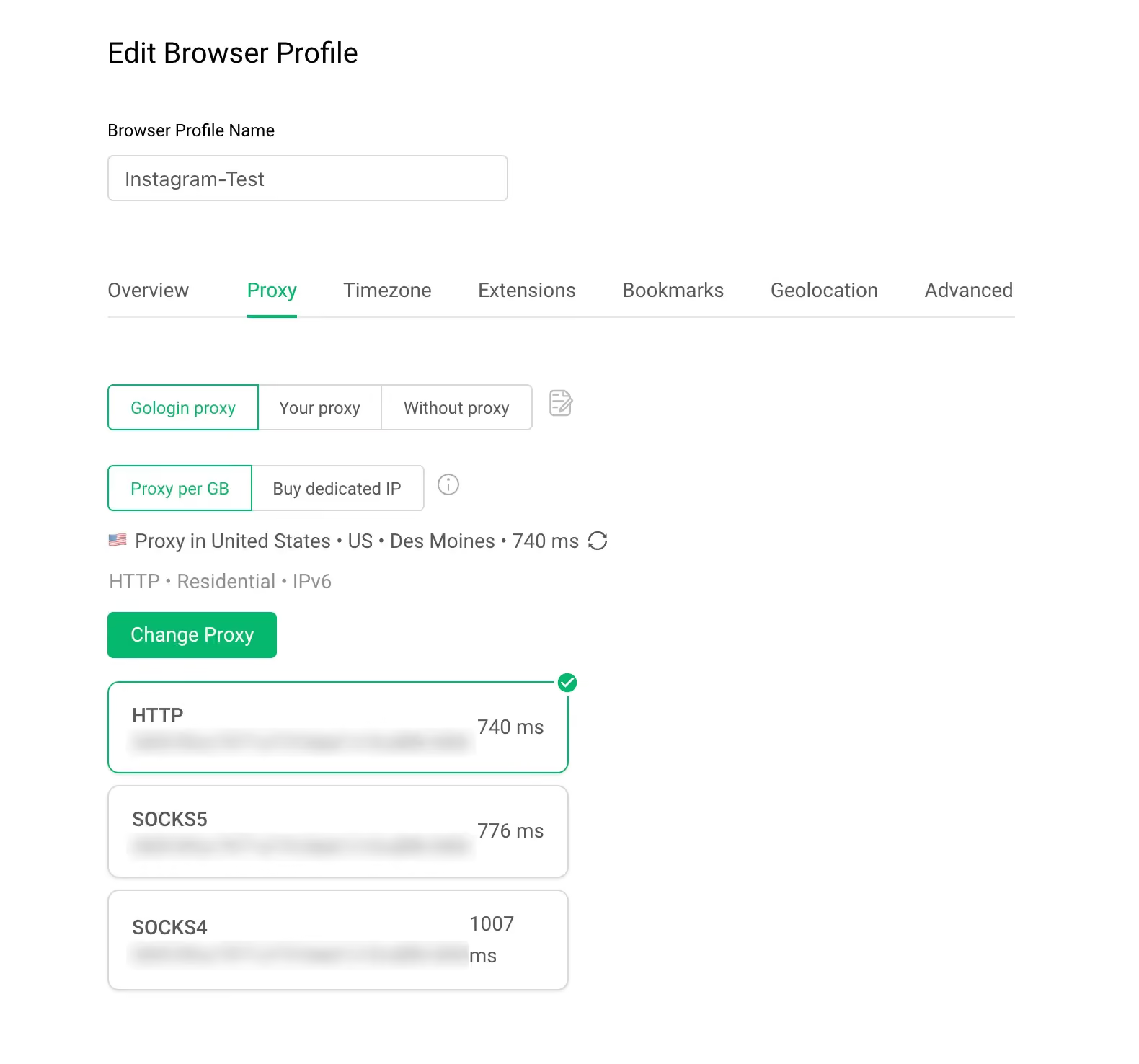
Choose a stable proxy location that matches the account’s normal operating region. For example, if an account is normally managed from the UK, use a UK-based connection instead of switching between countries on every run. Check that the proxy works and keep its configuration consistent.
2. Log in and save the session
Open the profile and log in to Instagram normally. Complete any two-factor authentication or account checks yourself.
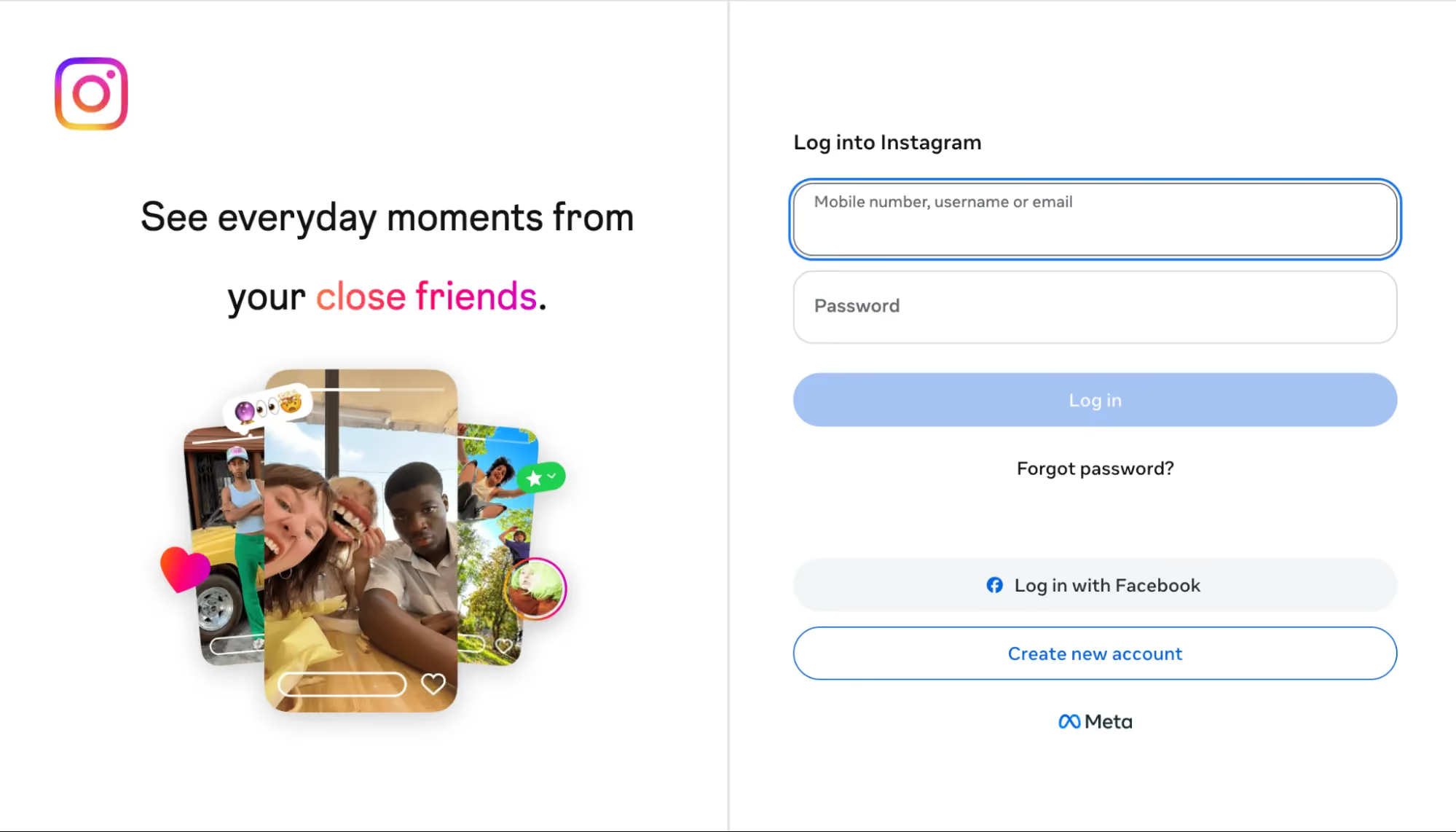
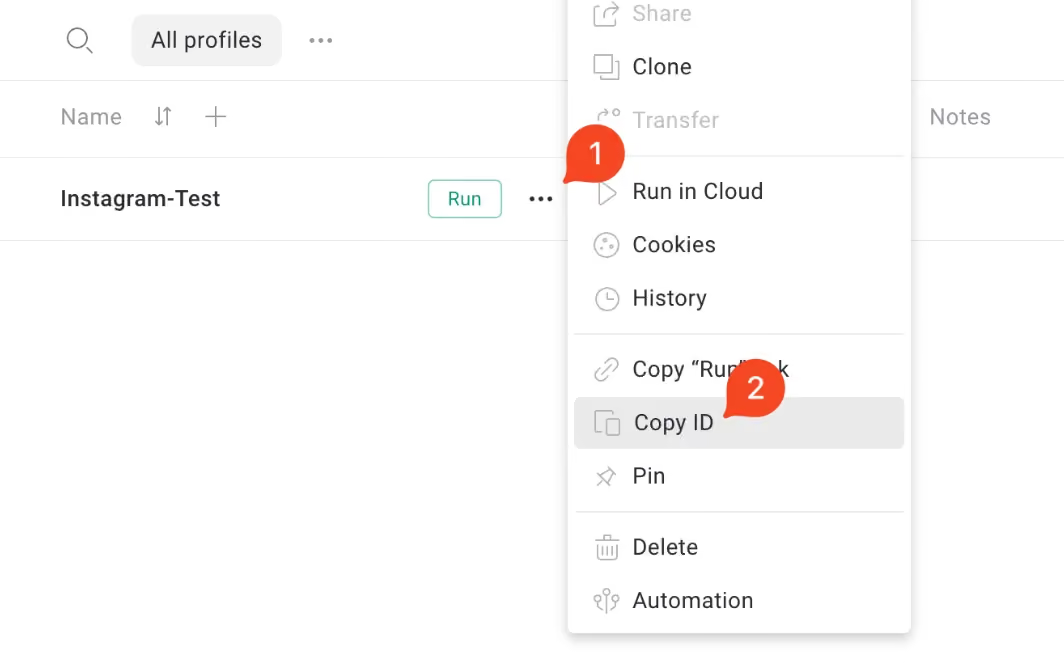
When you’re signed in, stop the browser profile and wait until its status changes back to ready. Open it once more to confirm Instagram remembers the login. Then copy the Profile ID from the profile menu.
You’ll also need an API token from API & MCP in the Gologin dashboard.
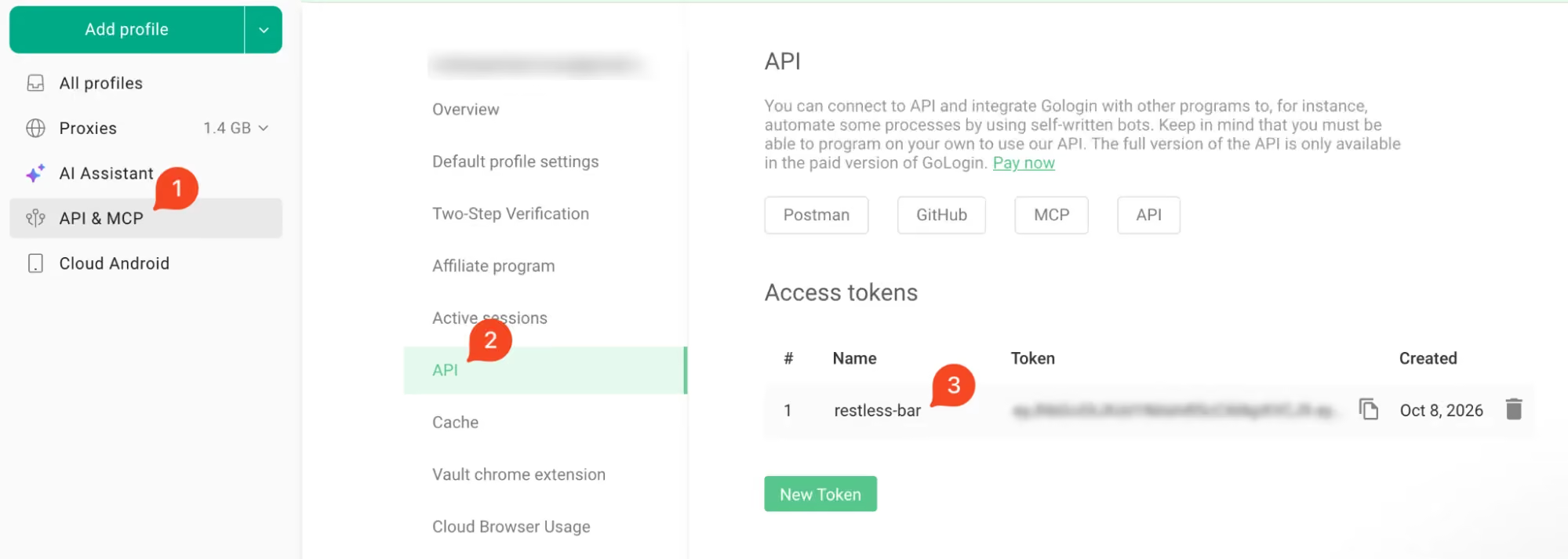
Copy the token and keep it private as you will need it later in this workflow.
3. Connect Playwright to the saved profile
Install Node.js 22 or newer, then create a project folder and install Playwright Core:
mkdir instagram-bot-demo
cd instagram-bot-demo
npm init -y
npm install playwright-core@1.63.0
The browser runs in the cloud, so you do not need a local Chromium download. Your Node.js script will connect to the saved profile you created earlier.
Create a .env file in the same folder:
GL_TOKEN=your_api_token
GL_PROFILE_ID=your_saved_profile_id
IG_USERNAME=your_account_username
IG_DAILY_REPLY_LIMIT=5
IG_DAILY_POST_LIMIT=1
IG_COOLDOWN_HOURS=24
Use the shop’s Instagram username without @, not its display name. Add .env, node_modules/ and artifacts/ to .gitignore so credentials and run records aren’t published with your code.
Now create inreply.mjs and add the following code.
Add the browser connection
The connection function starts the cloud session, then connects Playwright to the same saved profile:
async function connect(token, profileId) {
  const endpoint = new URL('wss://cloudbrowser.gologin.com/connect');
  endpoint.search = new URLSearchParams({ token, profile: profileId }).toString();
  const start = new URL(endpoint);
  start.protocol = 'https:';

  for (let attempt = 1; attempt <= 3; attempt++) {
    try {
      const response = await fetch(start, {
        signal: AbortSignal.timeout(60_000)
      });
      if (!response.ok) {
        throw new Error(`Cloud startup HTTP ${response.status}.`);
      }
      return await chromium.connectOverCDP(endpoint.toString(), {
        timeout: 60_000
      });
    } catch (error) {
      if (attempt === 3 || !/\b503\b/.test(error.message)) throw error;
      await delay(5_000);
    }
  }
}
URLSearchParams puts the token and profile ID into the connection URL without hardcoding either value. Do not print that URL in logs or screenshots.
The function allows three startup attempts for a provider 503 response, with five seconds between attempts. These retries only apply to starting the browser. Sending a reply or sharing a post is not automatically retried.
4. Set the reply rules and prevent duplicates
The demo uses LL Shop, an account selling candles, skincare, tote bags, and accessories. Change the reply, caption, and matching rules to fit the account you manage:
export const REPLY = 'Hi! 👋 Thanks for reaching out to LL Shop. We have candles, skincare, tote bags, and accessories. What would you like to shop for today? 🤍';

export const CAPTION = 'New arrivals at LL Shop 🤍 Candles, skincare, tote bags, and accessories. Message us to explore the collection.';
RULES recognises a few ways customers ask about the collection, such as “What do you sell?” and “Can I see your catalogue?” REVIEW excludes questions about prices, delivery, refunds, and requests not to reply.
This is a fixed-answer bot. It should only answer questions that the prepared response covers, so it does not need an AI service to recognise those phrases.
Give each action its own identifier
export const hash = value =>
  createHash('sha256').update(value).digest('hex');

export const replyKey = (shop, thread, message) =>
  `reply:${hash(shop + ':' + thread)}:${hash(message)}`;

export const postKey = (shop, image, caption) =>
  `post:${hash(shop + ':' + hash(image) + ':' + caption)}`;
The script uses shop as its internal account identifier. A reply key includes the account, conversation, and incoming message ID, not just the message’s wording. Two people can therefore ask the same question without one being mistaken for a duplicate. A post key includes the account, image contents, and caption.
chooseInquiry() skips group chats, empty conversations, and conversations where the latest message came from the account. It checks the latest incoming messages for a matching question and leaves unsupported content for manual review.
A confirmed action is skipped. An earlier action with an uncertain outcome also stops another send until someone checks what happened.
Save those records between runs
async function saveState(path, state) {
  await writeFile(`${path}.tmp`, JSON.stringify(state, null, 2), {
    mode: 0o600,
    flush: true
  });
  await rename(`${path}.tmp`, path);
}
saveState() writes to a temporary file before replacing the previous version. The script saves an action as pending before clicking Send or Share, then marks it confirmed after checking the result.
Keep the same saved profile and artifacts/inreply-state.json between runs so the duplicate keys remain consistent. A missing file means this is the first run; a damaged file stops the bot instead of silently forgetting previous actions.
Limit actions across the day
The .env settings cap this example at five reply attempts and one post attempt per account per UTC calendar day. The script also defaults to one reply per run. These are local demo limits, not Instagram-approved allowances.
Before a live action, reserveAction() checks the account’s daily total, adds a pending record, and saves it before the click:
export async function reserveAction(ctx, key, kind) {
  const { state, statePath, account, shop, limits, assertActive } = ctx;
  assertActive();
  if (state.entries[key]) {
    throw new Error('Action already reserved; review before retrying.');
  }
  if (dailyUsed(state, account, shop, kind) >= limits[kind]) {
    throw new Error(`Local daily ${kind} limit reached. Wait for the next UTC day.`);
  }
  state.entries[key] = {
    status: 'pending', account, shop, kind,
    createdAt: new Date().toISOString()
  };
  await saveState(statePath, state);
}
dailyUsed() counts the saved entries for that account, action type, and UTC date. Pending attempts count too, because a failed verification does not prove that Instagram rejected the action. Restarting the script does not reset the daily count.
Keep the same state file and run one instance at a time. Separate copies on different computers do not share a counter or lock, and actions you take manually are not counted by this script.
5. Read the inbox and reply to a customer
Before reading messages, the script checks the account and the page. checkPage() stops when it recognises a login request, checkpoint, two-factor prompt, suspension, or restriction message such as “Try again later.” The complete script also observes Instagram HTTP 429 responses and records them for review.
Posting mode opens the expected profile and checks for its Edit profile control. Messaging mode checks the account heading in the inbox and the account identity in the conversation data. The profile checks include the expected username in both the URL and the comparison:
const response = await page.goto(
  `https://www.instagram.com/${username}/`,
  { waitUntil: 'domcontentloaded' }
);
if (response?.status() >= 400) {
  throw new Error(`Instagram returned HTTP ${response.status()}.`);
}
// openShop() also checks the page and waits for Edit profile.
if (new URL(page.url()).pathname !== `/${username}/`) {
  throw new Error('Unexpected account.');
}
Read and check recent conversations
recentThreads() collects up to five recent displayed conversations. It does not rely on unread badges, because opening a message is not the same as answering it. Opening a conversation may mark it as read, even during a preview run.
readThread() observes the conversation data Instagram loads in the browser. normalizeThread() checks the account and message IDs, sorts messages from newest to oldest, and identifies which messages came from the account. If those details are missing, the script stops rather than guessing whether a question has already been answered.
This part depends on Instagram’s internal website data and English interface labels, which can change. The bot sends through the website’s Send button, not through a separate messaging API request.
Add pauses and type the reply gradually
Instead of entering a whole message with fill(), the script uses Playwright’s pressSequentially() to type one character at a time and adds short, random pauses between steps:
export async function pause(min = 800, max = 1800) {
  await delay(randomInt(min, max + 1));
}

export async function typeSlowly(locator, text) {
  await locator.click();
  for (const character of text) {
    await locator.pressSequentially(character, {
      delay: randomInt(45, 121)
    });
  }
}
randomInt comes from Node.js’s node:crypto module, and delay is the promise-based timer imported from node:timers/promises. Typing pauses vary from 45 to 120 milliseconds per character; the pauses between steps default to 800–1,800 milliseconds.
The same helper is used for the post caption. These pauses reduce rapid bursts of interaction and give the interface time between steps. Note that this does not guarantee that an account will avoid restrictions.
Send once, then check the conversation again
When sending is enabled, the bot reloads the conversation before composing the reply. If a customer or account operator has added a message, it skips that conversation rather than replying from an outdated view.
The key part of the sending workflow is:
await typeSlowly(composer, REPLY);
await pause();
const sendButton = page.getByRole('button', { name: 'Send', exact: true });
await sendButton.waitFor();
await checkPage(page);
assertActive();
await reserveAction(ctx, choice.key, 'reply');
assertActive();
await sendButton.click();
After the click, the bot reopens the conversation and looks for a new outgoing message with the expected text and a new message ID. Only then does it save the action as confirmed.
The important order is: check the limit, save pending, click Send, reopen the conversation, then save confirmed. If the reply may have gone through but verification fails, the pending record prevents an automatic resend.
6. Upload and verify a post
The posting workflow uses CAPTION from Step 4. publishPhoto() first checks whether the same image and caption already have a saved record. It then opens the composer, uploads one JPEG, and moves through Crop and Edit.
The image is sent as file contents, so it does not need to exist on the remote browser’s filesystem:
await (await chooser).setFiles({
  name: basename(photo),
  mimeType: 'image/jpeg',
  buffer: image
});
The caption is entered gradually using the same typing helper as replies:
await typeSlowly(
  dialog.getByRole('textbox', { name: 'Add a caption...', exact: true }),
  CAPTION
);
await pause();
Preview mode stops before Share, although the image has already been uploaded into Instagram’s composer. When publishing is enabled, the bot checks the daily post limit, records the pending action, and clicks Share once.
verifyPublishedPost() then compares the profile’s post links with those recorded before publishing. It expects one new link, opens it, and checks the caption:
if (newPosts.length !== 1 ||
  !/^\/(?:[a-z0-9._]+\/)?p\/[A-Za-z0-9_-]+\//.test(newPosts[0])) {
  throw new Error('Uncertain post outcome. Inspect the profile; do not repost.');
}
await page.goto(`https://www.instagram.com${newPosts[0]}`, {
  waitUntil: 'domcontentloaded'
});
await page.getByText(CAPTION, { exact: true }).waitFor();
This avoids treating the Share click alone as proof of success. If there is no clear result, the bot stops for review instead of posting the same content again.
7. Bring the workflow together
run() reads the credentials and expected username, loads the saved records, and checks whether an earlier action or account warning still needs attention. The username validation accepts one to 30 lowercase letters, digits, periods, or underscores:
if (!token || !/^[a-f0-9]{24}/i.test(profileId ?? '') || !/^[a-z0-9._]{1,30}$/.test(username)) {
  throw new Error('Check token, profile ID and expected account username.');
}
The script creates a local lock so another run in the same project cannot start at the same time. It then connects to the saved browser context, preserving its cookies and login state, and selects either the reply or posting task.
The full script also checks for interruption before actions, blocks unnecessary media downloads in DM mode, and saves a JSON report for each run. On exit, it closes the tab and connection, asks Gologin to stop the cloud profile, and checks that the profile has returned to ready.
8. Run the bot and check the results
The script is complete. For the demo, a customer sent LL Shop this question about its products:

Start with a preview run:
node --env-file=.env inreply.mjsThe script checks up to five recent displayed conversations for a matching unanswered question. It does not send a reply without --send, although opening a thread may mark it as read. Check the JSON report first, then enable one reply:
node --env-file=.env inreply.mjs --sendThe bot rechecks the conversation before composing the reply and reopens it after sending to verify the result. For the LL Shop demo, the prepared reply answers a question about the account’s product collection.
To create a post, save your approved JPEG as sample_photo.jpeg in the project folder. The caption is already set by CAPTION:
node --env-file=.env inreply.mjs --postThe bot uploads the JPEG to Instagram’s composer, moves through Crop and Edit, and fills in the caption. Preview mode stops before Share. The screenshot shows this stage of the test:
When you’re ready to publish, run:
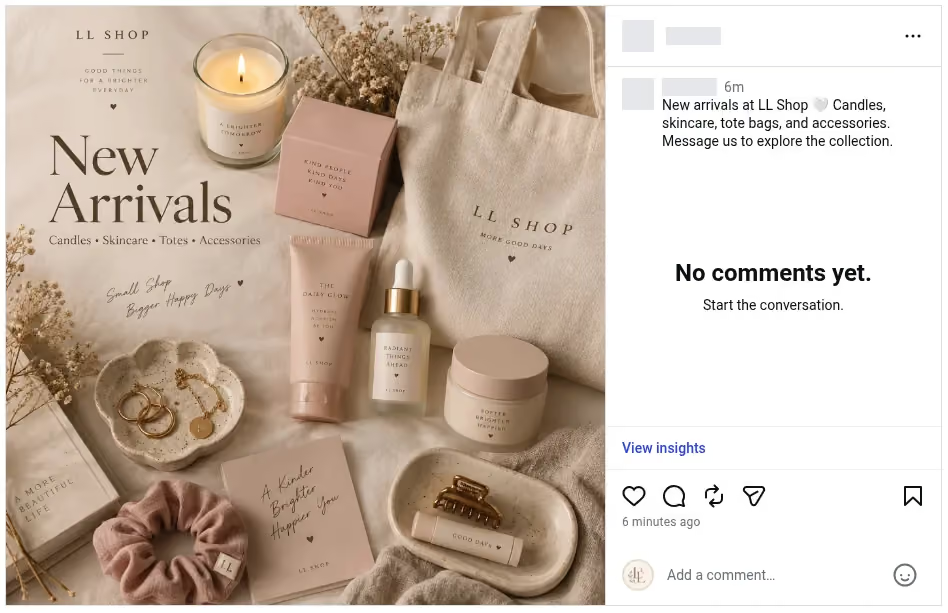
node --env-file=.env inreply.mjs --post --sendThe bot clicks Share once, then checks the account for the new post and its caption. The published image appeared on the demo shop’s profile:
Note: You can find the complete script in this Gist.
9. Use the bot with another account
To use the same workflow with a different account, create its own saved browser profile and a stable proxy matched to its normal operating region. Add the account’s details to .env.second:
GL_TOKEN=your_api_token
GL_PROFILE_ID=your_second_profile_id
IG_USERNAME=your_second_account_username
IG_DAILY_REPLY_LIMIT=5
IG_DAILY_POST_LIMIT=1
IG_COOLDOWN_HOURS=24
Start with a preview run:
node --env-file=.env.second inreply.mjsThe bot uses the new profile and username without needing a different script. Run profiles one at a time and verify the account before enabling replies or posts. Daily limits and health history are tracked per account, so keep the shared state file rather than creating fresh copies to reset them.
How to monitor your bot and account health
Once your bot is running, it’s important to keep an eye on its activity. This helps you catch login problems, failed actions, or account restrictions before running another task.
Detect login challenges, action blocks, and rate limits
After each run, check the JSON report to see whether the bot completed its task and stopped the browser session properly.
The bot stops when it encounters login challenges, certain account warnings, or unexpected changes to Instagram’s interface. However, not every failed run means Instagram has restricted the account. Sometimes the problem is simply a browser connection or a busy cloud profile.
The script also limits how many replies it sends per run and avoids retrying messages or posts automatically. In DM mode, it skips loading unnecessary images and videos to reduce bandwidth usage.
Check Account Status and investigate suspected shadowbans
If an account starts showing warnings or its reach drops unexpectedly, check Account Status in Instagram’s settings. Professional accounts can also review their recommendation eligibility to see whether their content can appear in recommendations.
A drop in views or engagement doesn’t automatically mean the account has been shadowbanned. Check for account warnings and compare recent performance before drawing conclusions.
Pause affected accounts before restarting
If a reply or post cannot be confirmed, check Instagram manually before running the bot again. This helps prevent sending the same message twice or publishing duplicate content.
The bot also keeps a record of pending actions and prevents overlapping runs within the same project. If the cloud browser doesn’t stop properly, it keeps the local lock in place until the issue is reviewed.
Conclusion
In this guide, we built a simple Instagram bot that replies to customer inquiries and publishes an image with a caption using a saved browser profile. We also tested the results and covered how to prevent duplicate actions.
Try Gologin Cloud Browser to set up your first persistent profiles.
Frequently asked questions
Is it allowed to build an Instagram bot?
Yes, Instagram supports automation through its official APIs. However, automated browser activity must also follow Instagram’s Terms of Service, even when you’re managing your own account.
Can an Instagram bot publish posts?
Yes. Instagram bots can publish posts through supported APIs or automated browser workflows.
Can Instagram detect bots?
Yes. Instagram can detect and restrict automated activity. Using separate browser profiles, proxies, or delays does not guarantee protection from blocks or account restrictions.
Can an Instagram bot reply to DMs?
Yes. Our bot checks existing conversations for common product questions and sends a prepared reply. It leaves unrelated messages for manual review rather than replying to everything.
Does an Instagram bot need AI?
No. You can build a simple Instagram bot using predefined rules and responses. Our example uses text patterns to recognise common customer questions without an AI model.
Can one bot manage multiple Instagram accounts?
Yes. You can reuse the same bot with different browser profiles, provided each account has its own saved session and configuration. Test each account separately before enabling automated actions.