


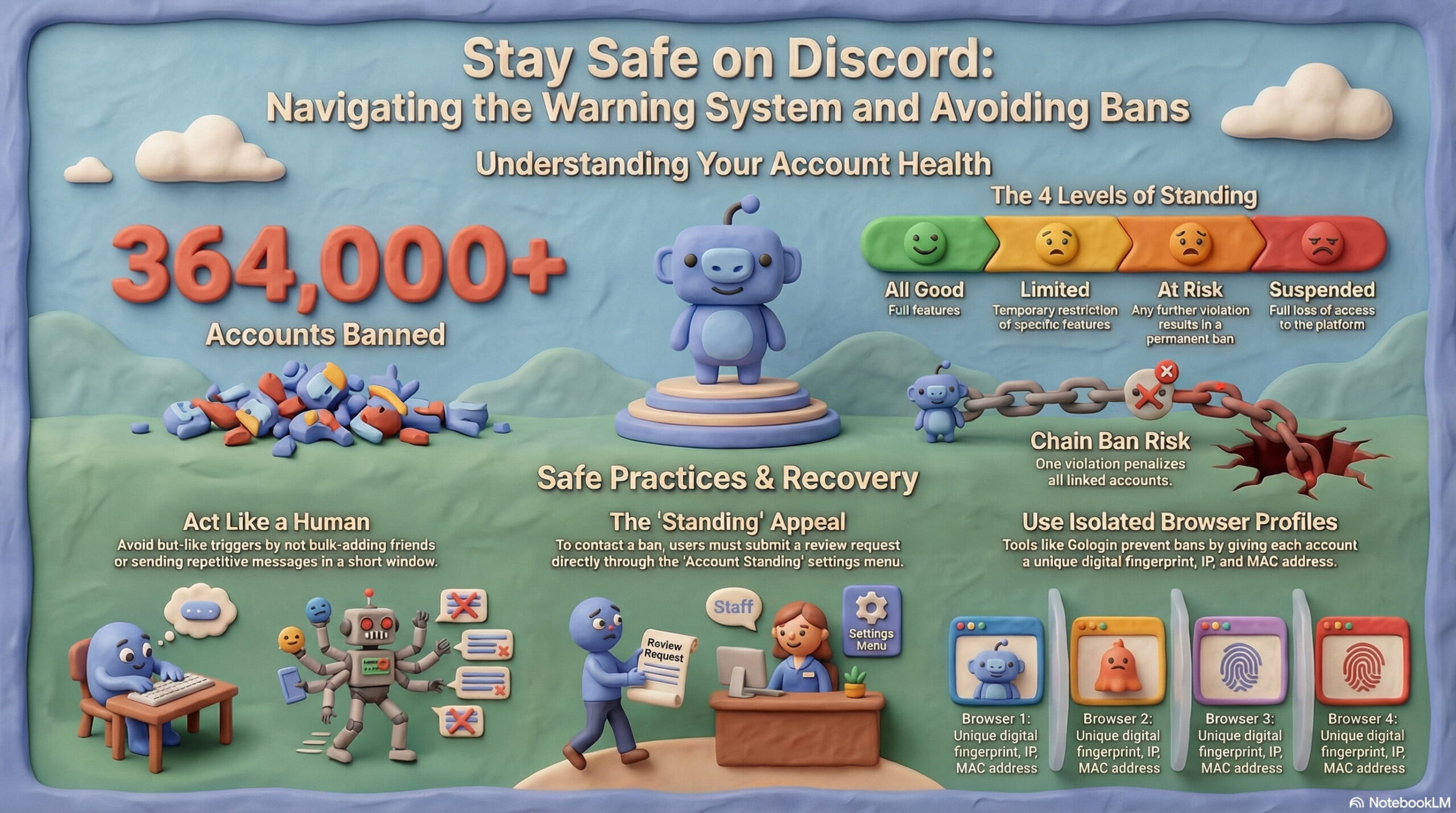
During the first quarter of 2024, Discord banned more than 364,000 accounts for policy violations, according to the Discord Transparency Report, 2024, and this trend continues into 2026.
Getting banned is frustrating, and I totally get it.
After all, you lose access to your servers, your friends list, your DMs, and sometimes even communities you’ve spent years building. And most of us don’t even see it coming until it’s already happened.
This guide is for anyone who’s been banned by Discord, even if it was just one account. This guide is also for you if you’re just worried about getting banned.
We’ll walk through Discord’s warning system, the most common ban triggers, the ban appeal process, and Gologin’s solution to managing multiple Discord accounts safely.
Discord bans are often triggered by automated systems detecting “bot-like” behavior, spam, or Terms of Service (ToS) violations. Because Discord uses IP and device fingerprinting, a ban on one account can lead to the “shadowbanning” or immediate suspension of any new accounts created on the same device.
The guide explains how to identify the cause of a ban, how to file an appeal, and how to use antidetect browsers like Gologin to manage multiple accounts safely by isolating their digital identities.
Let’s start from the basics.
A Look into The Discord Warning System
Discord has a whole system in place to warn you before eventually taking down your account. It is called the Discord Warning System.
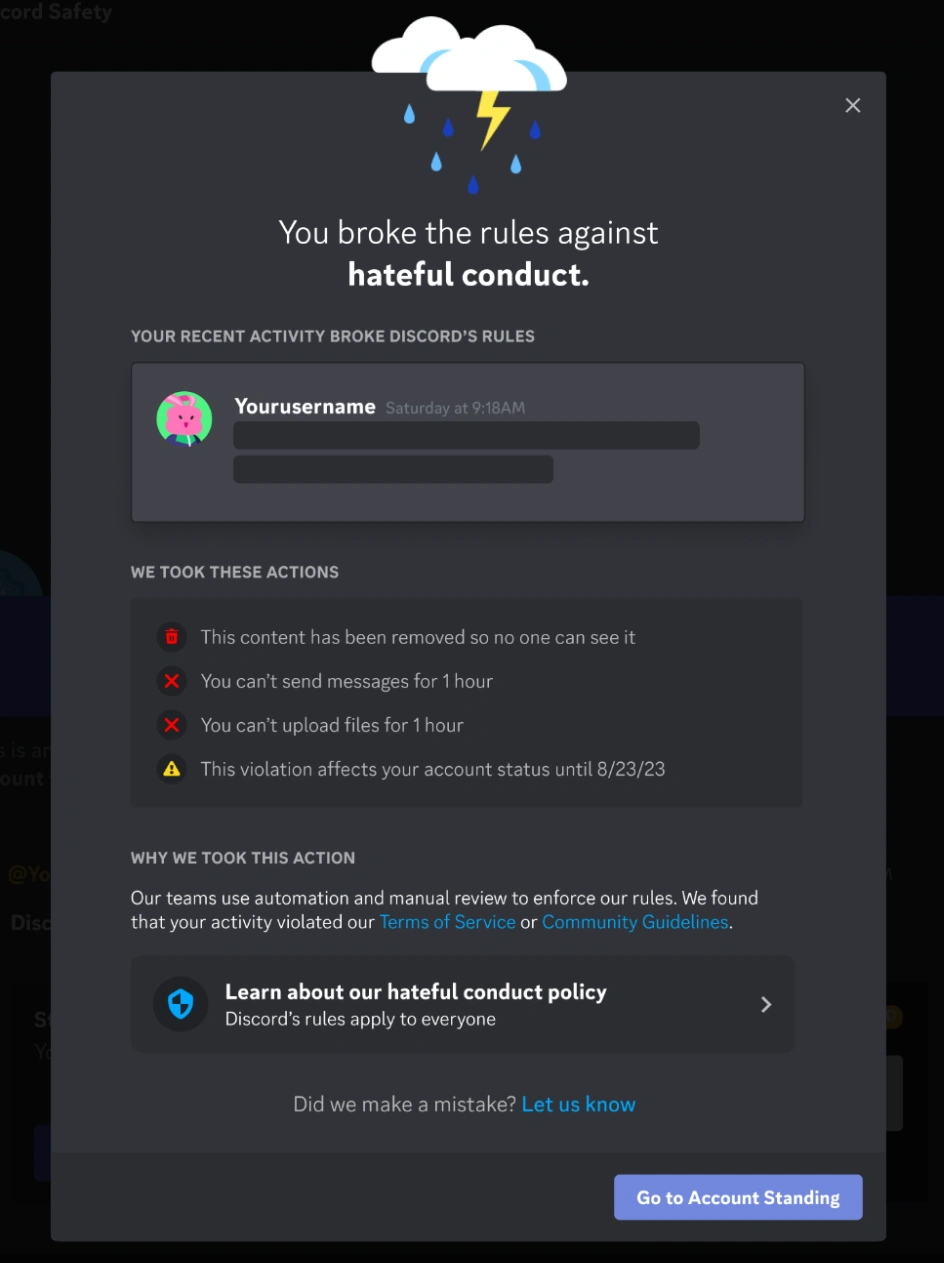
Through this system, Discord sends you a warning and also explains why exactly you’re getting that warning. The warning message also includes information about the action they’ve taken and where your account now stands because of what you did.
Now, the first thing to understand is that there’s a difference between a warning and a violation. Discord makes a distinction between the two and assigns them different weights.
- A warning by Discord is basically a heads-up. You might get one just for being in a server that broke the rules, even if you personally didn’t do anything wrong. You receive warnings as a system DM. The message explains what happened and points you toward the relevant guidelines. Also, warnings don’t affect your account standing.
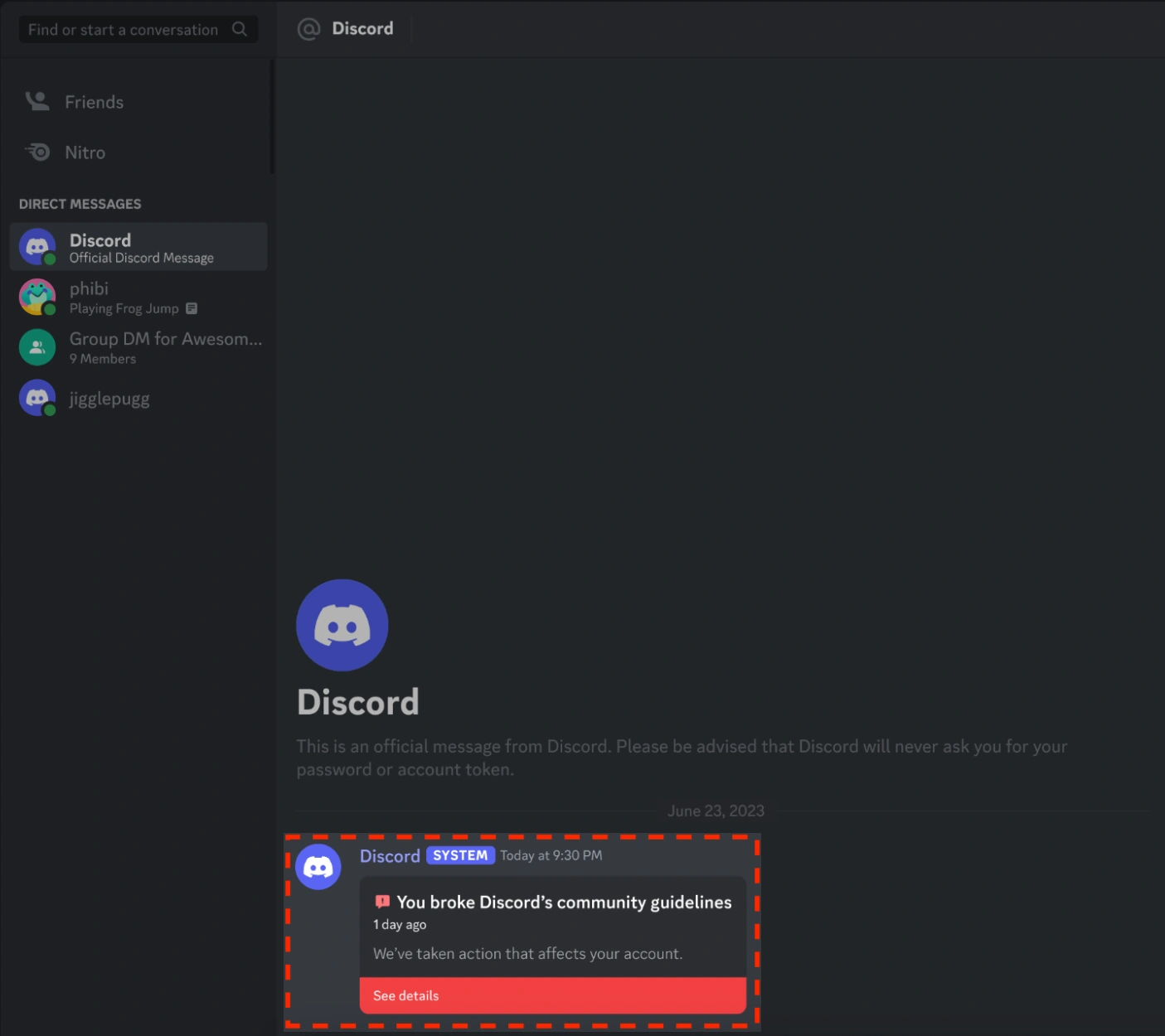
- Violations happen when you directly break Discord’s rules. The violation message that you receive also mentions the same things. It mentions which policy you violated, what content triggered it, and what action Discord took on your account. And yes, these do affect your account’s standing.
What is Account Standing
Now you may ask, what’s this account standing that we keep bringing up? To put it simply, account standing means your account’s health or status, i.e., how close your account is to being suspended or banned.
In the Discord app, go to User Settings > My Account > Standing and you’ll see where your account currently stands.
You’ll see a bar with five slots. Those five slots are the five account standings. Your account might be in one of the initial few standings if you haven’t violated any rules.
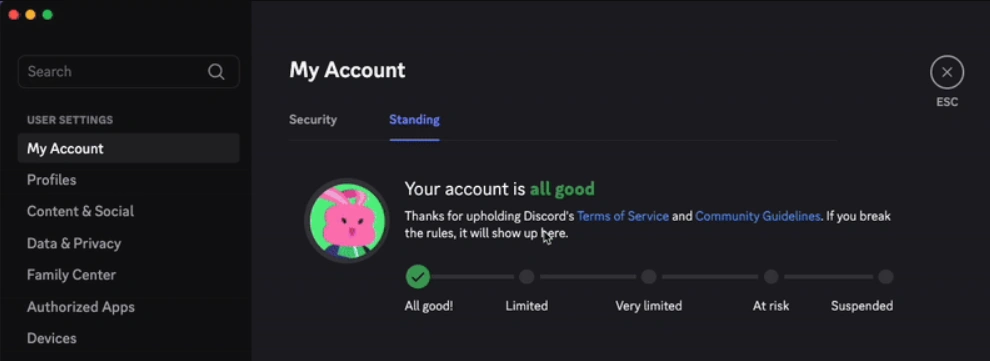
The five account standings are:
- All good: No active violations, full access to all features
- Limited: One active violation, due to which some features are temporarily restricted
- Very limited: One or multiple violations, and more features are locked for longer
- At risk: Any further violation could result in a permanent ban
- Suspended: You have committed enough violations to be off the platform
One thing worth knowing is that Discord doesn’t give you a fixed number of allowed violations before suspending you.
Every violation bears a unique weight depending on its severity. You can very well get suspended straight away for one violation only because it was of a very serious nature. Or you may get suspended after committing multiple minor violations.
Common Triggers for Discord Bans and Suspensions
The only way to avoid suspensions (aka bans) is, well, not to break any rules, especially the important ones. But for that, you must be aware of all 27 Discord community guidelines and the Discord Terms of Service, which very few of us bothered to read when creating an account.
So here’s a filtered-down version of the key Discord violations that you must not commit.
1. Posting Prohibited Content
The Discord community guidelines page we just linked above lists several kinds of content that you are prohibited from posting.
For instance, you must not share pirated files, adult content in public channels or servers that aren’t age-restricted, anything related to violent extremism, content that endangers minors, etc.
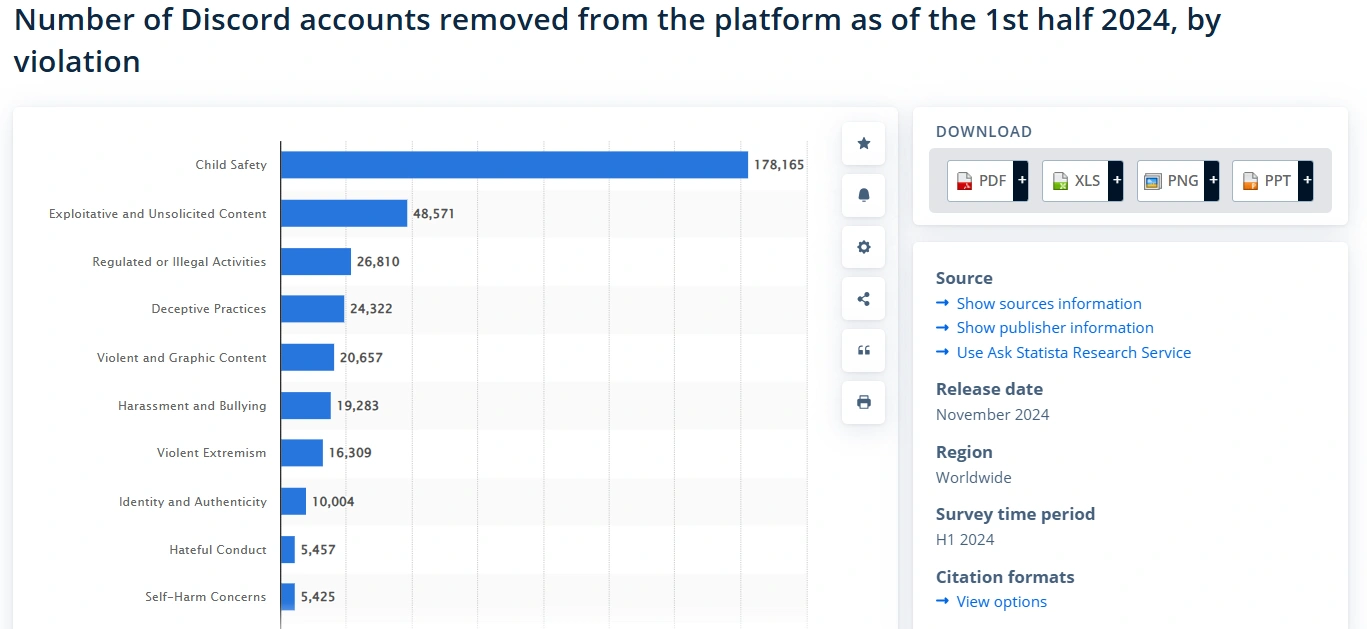
Child safety violations, in particular, are treated extremely harshly by Discord. A survey from 2024 found that in just the fourth quarter of 2024, Discord banned 178,165 accounts over child safety issues alone.
2. Spammy or Bot-Like Behavior
In addition to monitoring individual content, Discord’s systems can also monitor a user’s behavior over a span of time. The system mainly looks for clues of automated or abnormal behavior.
To the system, you’re engaging in automated or abnormal behavior if you perform the likes of the following activity:
- Sending a ton of DMs in a short window
- Bulk-adding people
- Repeatedly inviting people to servers
- Sending the same message over and over
The rule of thumb is not to take actions on Discord faster than a real human reasonably could. Otherwise, Discord is going to think you’re either using some automated means (e.g., unauthorized bots or self-botting scripts) or repeating an action with ill intent.
3. Being in the Wrong Server
Discord also takes action against violative servers. When this happens, the members of those servers may also suffer some consequences simply for being a server member.
You personally might not have participated in anything wrong that was going on in the server. You were just there, even without ever speaking.
To avoid surprises like these, it’s worth doing a regular cleanup of servers you’ve drifted away from or forgotten about. Also, avoid joining servers dedicated to wrongful activities.
4. Suspicious Login Activity
Your account may also get suspended if you log into it from a different location than usual in a short period of time. This is called impossible travel, and almost all platforms have measures to deal with it.
However, direct suspensions are rare in response to suspicious login. Most of the time, the system will log you out of your account because to it an impossible travel login means your account is compromised.
So this is actually an account security measure. Discord isn’t just protecting itself, but also you.
However, sometimes, it can be a false positive.
5. Using Unauthorized Third-Party Tools
Plugins and scripts that Discord hasn’t approved are also a common ban trigger. Discord sees them as potential security threats or signs of platform manipulation.
You can learn more about actions you must not commit as a developer on Discord in the Discord Developer Terms of Service and our Discord Developer Policy.
6. Getting Reported by Other Users
Discord doesn’t always need hard evidence against you to punish you. If enough people report your account, it can trigger a review of your account.
What’s worse is that reports are anonymous. You won’t be able to tell who reported you or for what reason exactly.

It could be due to a joke that someone took the wrong way, or a disagreement with a moderator who called on others to mass-report you out of spite. You might not believe it, but cases like these are very common on Discord.
7. Automated Systems Getting It Wrong
Sometimes, suspensions are outright mistakes on the part of Discord’s automated security systems.
The systems use AI, and AI makes mistakes.
A rising number of users have reported being randomly banned. A post on the Discord community says that most people get these false bans for being underage. You could be a 25-year-old guy using Discord for years, but one day you wake up to a ban message citing you’re underage.
The post says this could be due to Discord’s AI not being able to read the context of messages. A sarcastic joke where someone typed “lol I’m 12” can get people banned.
Accounts banned for no reason are more deserving of being reinstated.
However, that would require appealing the ban, which we’ll get into next.
What to Do if Your Account is Already Banned?
Getting banned on any platform is a very unpleasant experience.
The platform’s appeal process is your only hope in that situation. The platform’s support team may or may not respond to your appeal in the desired way. But you should always try because you never know.
Here’s what to do when Discord bans you.
Step 1: Figure Out What Kind of Ban You’re Dealing With
How you should appeal the ban depends on the type of ban you’re facing.
The ban could be any of the following three types:
- Temporary suspension: In a temporary suspension, your account is frozen but preserved. This type of suspension can last anywhere from a few hours up to a year. Eventually, once the suspension expires, you’re supposed to get back access to your account automatically.
- Permanent suspension: If the ban message mentions permanent suspension, your account is gone. The platform still gives you a grace period to appeal, but permanent ban cases rarely have positive outcomes.

- Feature-limited: If you commit a violation and your account standing is anywhere between Limited and At risk, you can still log in, but cannot use certain features (sending DMs, joining new servers, sending friend requests, etc). This isn’t a permanent situation. Those actions become unrestricted after some time, depending on the specific violation. Most violations expire after 90 days.
To know which one of these bans you’re facing, head to the User Settings > My Account > Standing. There you’ll find a summary of any violations performed by your account and the penalty imposed by Discord in return.
You can appeal these violations in the app by selecting the specific violation you want to contest and clicking “Let us know” to begin the review process.
If your account was suspended, you’re also told on this page whether it’s just a suspension (which means it is temporary) or a permanent suspension.
Step 2: Gather Your Information Before Appealing
To add weight to your appeal, make sure you add the following essentials to it:
- Your Discord username and account ID
- The email address registered to the account
- Screenshots of recent activity or anything that might support your case
- An explanation of what you think happened, especially if you believe you were falsely reported
Step 3: Submit Your Appeal
Discord admits that it can mistakenly issue violation notices and suspensions. That’s why it gives users a chance to ask for a review.
To request a review of a violation, open that violation notice in the Standing window and click Let us know. That is a link to Discord’s webform for appealing violations and penalties.
Upload the essentials to this form and write the appeal message.
Discord also says it prioritizes review requests pertaining to cases of permanent suspensions. But it still tries to respond to every request.
If you’re facing a suspension, you will appeal through Discord’s support form. To do that, first sign in to your Discord Support account in Discord’s Support portal.
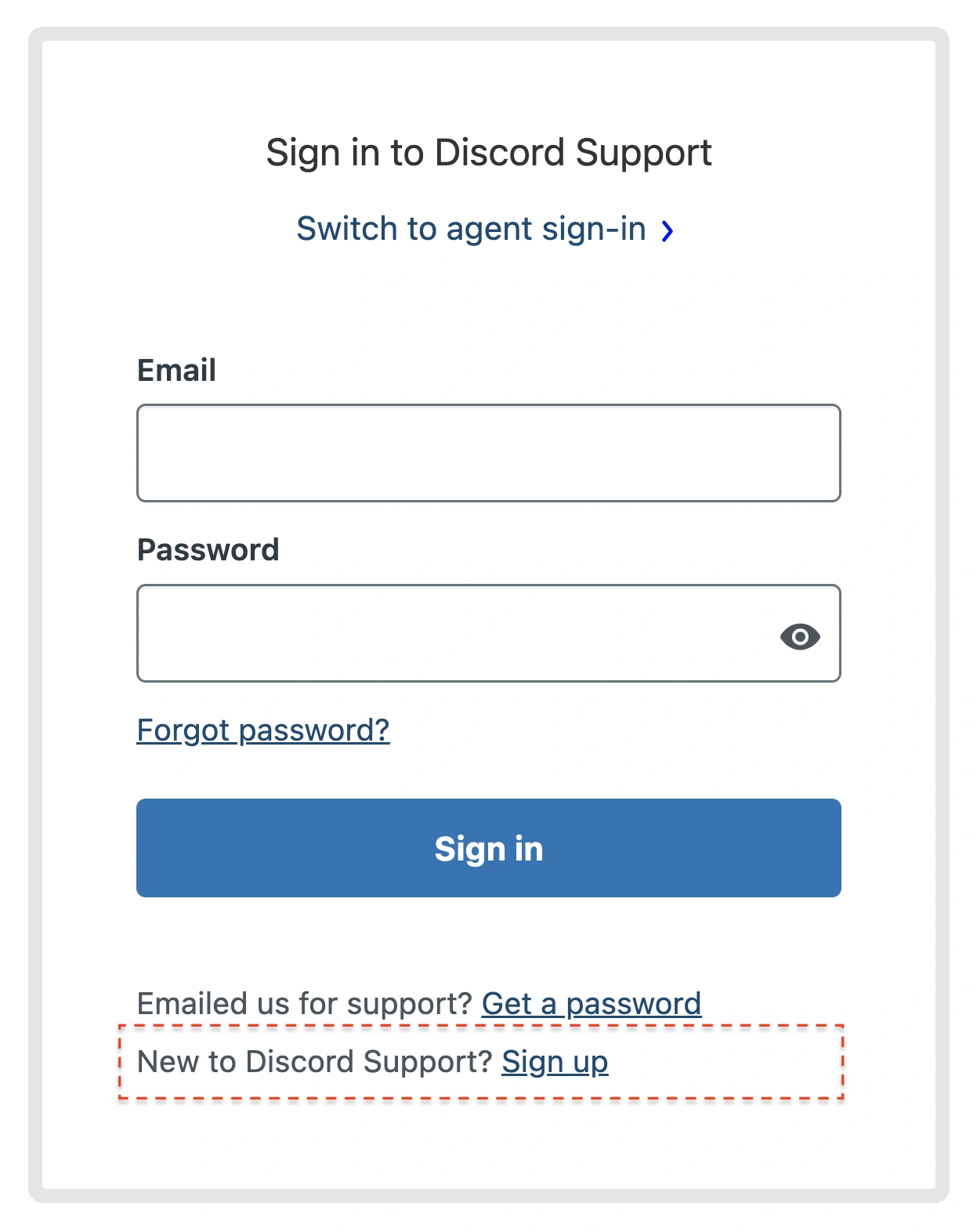
If you have never done this before, that means you don’t have a Discord Support account. In that case, click the sign-up link on the Discord Support sign-in page.
Once you have activated this account, you can submit a ticket.
You can open different kinds of tickets depending on your issue. To appeal a suspension, select Help & Support under What can we help you with?
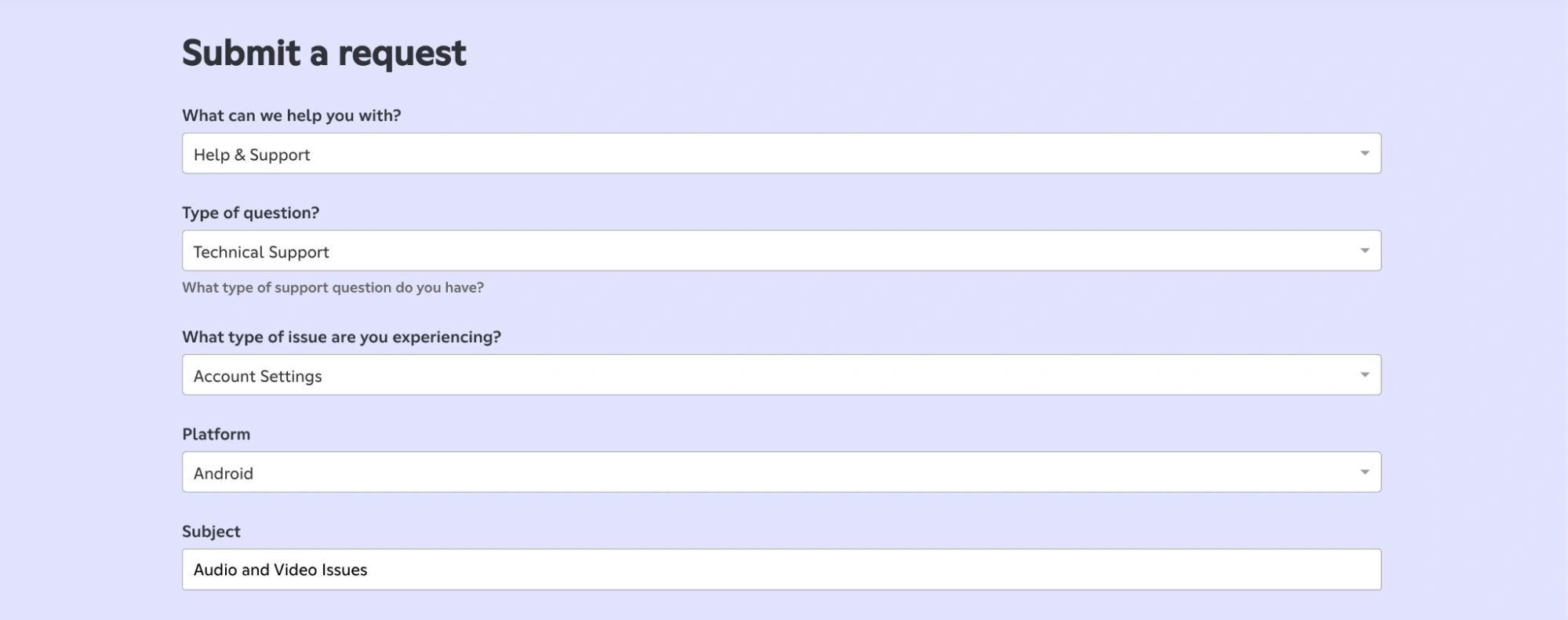
Next, complete the request form. Most of the form fields will have a dropdown menu. So filling those fields won’t be an issue.
But be careful with the fields you have to fill by yourself. These will be the Subject and Description fields in most cases.
In the subject field, you have to briefly describe your issue. Then expand on your issue in the Description field. Make sure you provide the following information:
- What happened and when
- Steps you’ve already tried
- Any error messages you received
The form will also allow you to attach files. Use this option to attach screenshots or any file related to your issue.
Having filled the form and reviewed all information, click Submit. You’ll receive a confirmation email with your ticket number, which you can use to track the status of your request.
Keep checking your inbox associated with your Support account for updates on your case. Or you can just check the Requests or My Activities tab in the Support account.
The Risks of Traditional Multi-Account Management
There’s a particular case of account suspensions that none of the online guides discuss.
This type of account suspension comes from managing multiple Discord accounts, especially in an official way.
Discord offers an account switcher on its desktop app that lets you switch up to five accounts. But this very feature that Discord gave you for convenience can put all your accounts at risk of suspension.
How is that so?
If you violate their Terms of Service using one account, and you’re logged into other accounts at the same time through the account switcher, those accounts may also face the consequences of violations made by the original account.
Discord can determine which accounts belong to you by looking at the accounts you’ve added to the built-in account switcher and impose the same penalty across all of them.
Discord explicitly mentions this in the Account Switcher FAQs.
So use this feature carefully.
But the risk of account linking follows you even if you manage your separate accounts on different browser profiles or switch IPs with a VPN.
Discord can see that you’re still using the same device to manage all those accounts. Or it can tell they all belong to you from browser cookies.
If nothing gives it away, your uniform behavioral patterns across your accounts will.
So then how can you keep your accounts safe if one of them gets suspended?
Use an anti-detect browser like Gologin.
Gologin is Your Safest Bet to Avoid Discord Bans While Using Multiple Accounts
Gologin is an anti-detect browser made specifically for safe multi-accounting.
It is like any regular browser in look and feel, but under the hood, you can control things that you cannot on regular browsers.
Gologin lets you create multiple browser profiles and log in to all your accounts inside them.
The platforms you log in to can never link them together because each browser profile mimics an entirely separate device.
Each browser profile you create on Gologin is an isolated environment. It has its own browser fingerprints, cookies, settings, IP address, MAC address, and more.
So chain bans are never a possibility when you use Gologin. On top of that, there’s also no limit on how many Discord accounts you can manage simultaneously. The Discord accounts switcher has a limit of five accounts. On Gologin, you can create as many browser profiles as the number of Discord accounts you have.
Gologin is also your only option for creating a Discord account if you get IP-banned.
Step-by-Step Guide: Managing Multiple Discord Accounts with Gologin
Here is a step-by-step guide to setting up multiple Discord accounts via Gologin and avoid account linking:
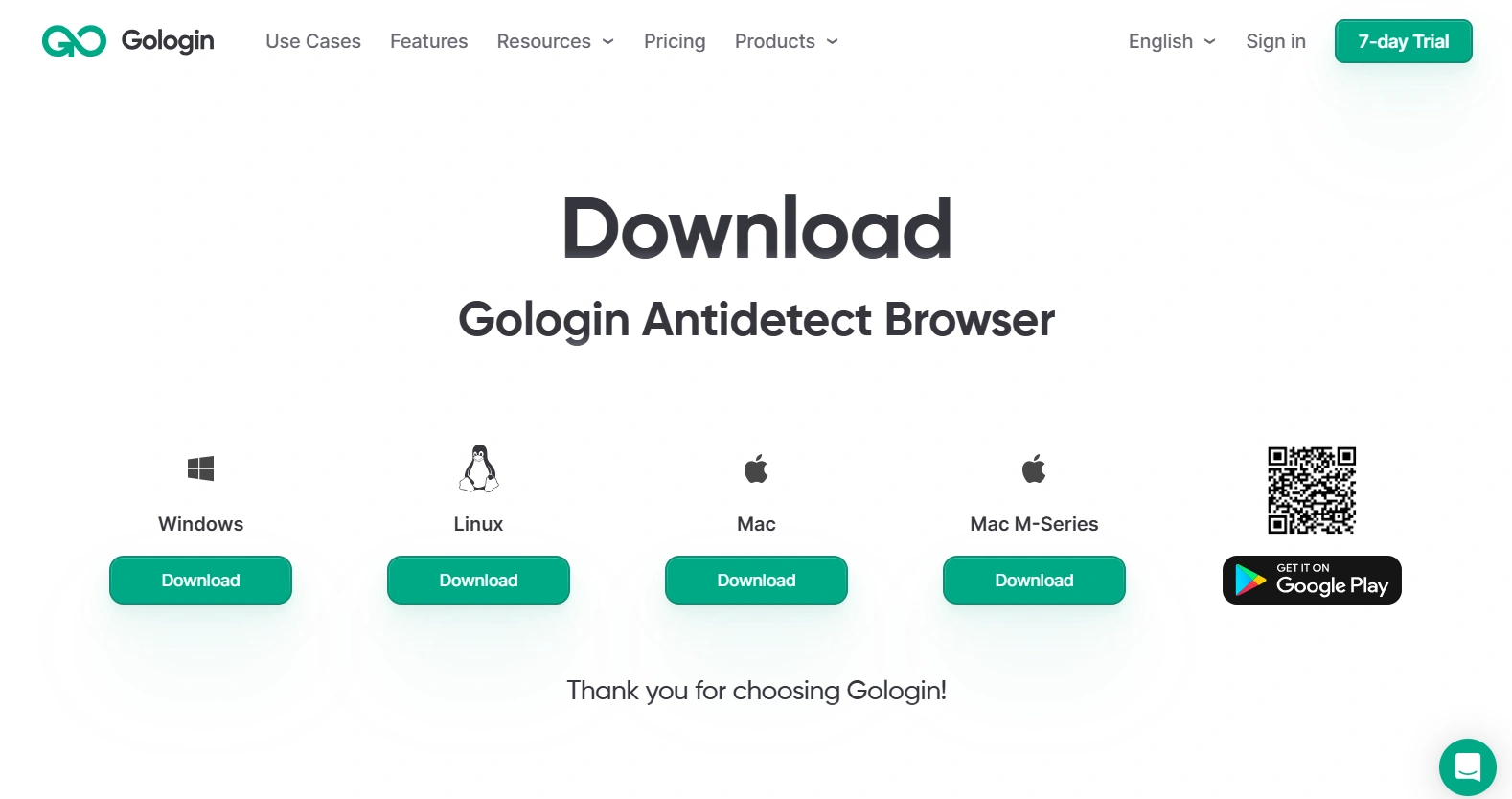
1. Download the Gologin App: Sign-up on Gologin website and install the desktop app.
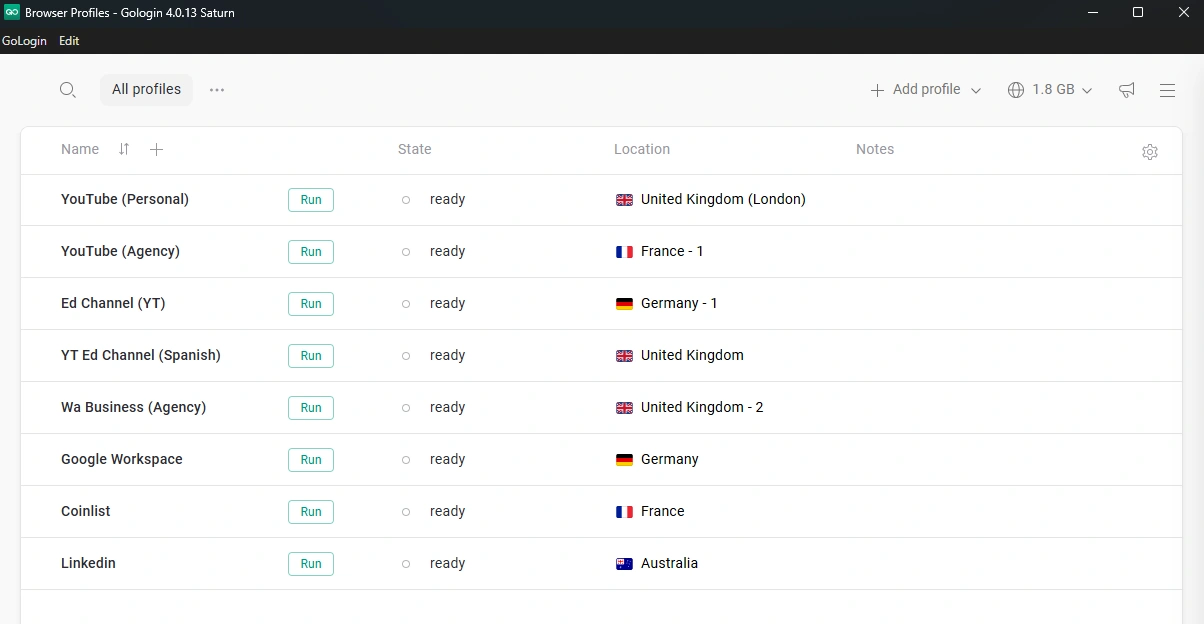
2. Create a New Browser Profile: Open the Gologin browser and log in. You can manage your browser profiles from the dashboard. Create a new profile from here. Give it a useful name and select your IP location.
3. Launch the Profile and Log in to Discord: Run the profile you created. It will act as a unique device with its own IP, MAC address, and location. Head over to Discord and log in or sign-up. Now, Gologin profile IP and fingerprint are tied to this account.
4. Create More Gologin Browser Profiles: Repeat step #3. Create a new profile, assign it a different proxy this time to change the IP address. Go to Discord and login to a different account. Now, you’ve got multiple isolated browser profiles, each with a specific account.
5. Sharing Gologin Profiles With Team: You can share your browser sessions with your team. When you share your Gologin profile, the cookies, and storage is also synced for them. So, Discord thinks it’s the same device IP and fingerprint even when it’s being accessed from another device. You can now collaborate using this Gologin profile or even invite more people to use and manage accounts.
Sign up today and try Gologin free for 7 days. Download now and keep your profiles running smoothly!
FAQ
What does a banned Discord account look like?
A banned Discord account usually appears as a suspended account inside Discord’s current warning system. Instead of normal access, the user may only be able to open the Account Standing page, where Discord shows the violation details, the type of penalty, and whether the suspension is temporary or permanent. Discord also sends a system DM about violations, and for the most serious cases it may direct the user to check their email for more information.
How to tell if a Discord account is banned?
The easiest way to tell is to open User Settings → My Account → Standing. If the account shows Permanent suspension, the account has been banned. If it shows a temporary suspension, Discord will usually display the violation and the suspension duration there as well. Discord’s official system also sends violation notices by system DM, so checking both the app and the email tied to the account helps confirm the action.
How to recover a suspended Discord account?
To recover a suspended Discord account, submit an appeal through User Settings → My Account → Standing, open the violation, and choose Let us know to request a review. If Discord decides the action was issued in error, it removes the violation and restores the account standing. Temporary suspensions can also expire on their own, while permanent suspensions do not expire and must be appealed during Discord’s appeal window.
How to delete a suspended Discord account?
If you still have enough access to use Discord’s normal account removal settings, you can try the standard delete flow from User Settings → My Account → Delete Account. If you cannot start deletion inside the app or cannot access the account properly, Discord says to contact Support for help. And if the account has already been deleted because it was banned, disabled, or otherwise actioned by Discord, it cannot be restored; the formal option left is an appeal.