This guide explains how to export and import profiles in Gologin and when to use each method.
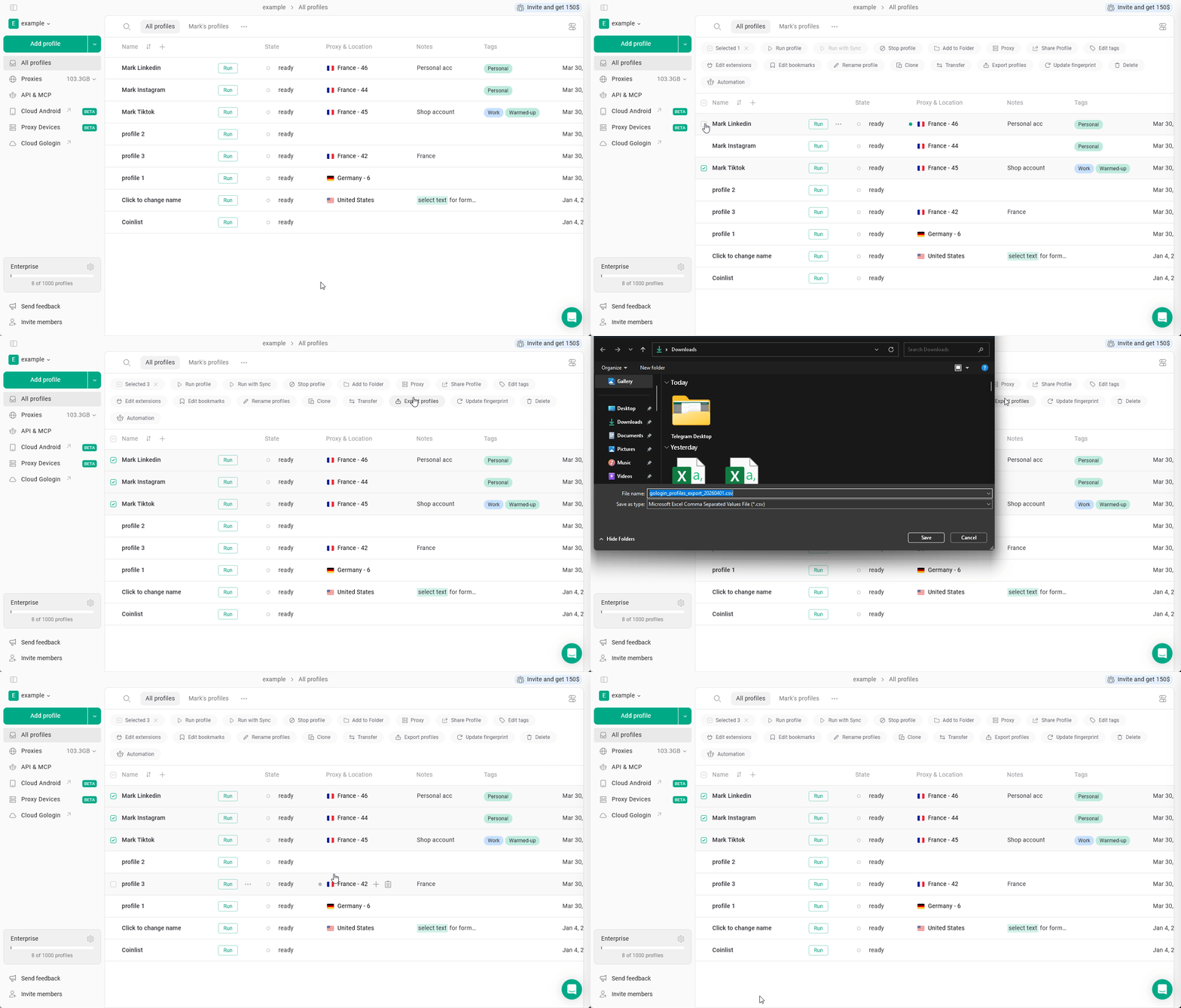
Gologin supports profile import and export via CSV files.
How to export profiles
- Select one or more profiles from the All profiles page
- Click Export profiles
- Save the CSV file
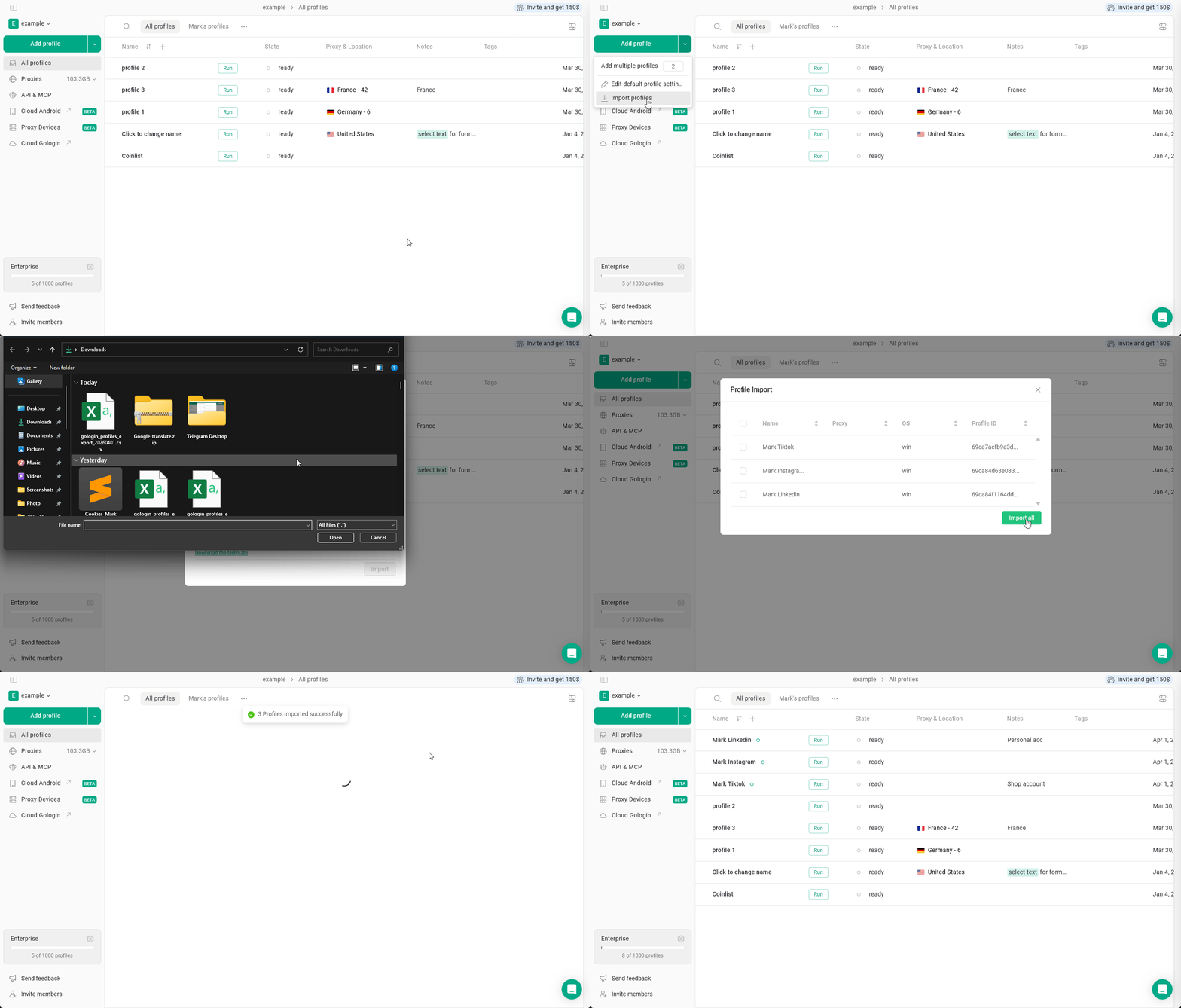
How to import profiles
Profiles can be imported from the workspace menu.
- Click on the arrow next to the Add profile button in the left menu
- Click Import profiles
- Upload a CSV file or paste CSV data
- Click Import
If imported profiles are present in your All profiles list, they will just get updated.
Duplicates will not be created.