

Default profile fields
By default, you may see fields like:- State – current profile status (e.g. ready, running)
- Proxy & Location – assigned proxy
- Notes – additional information you’ve added
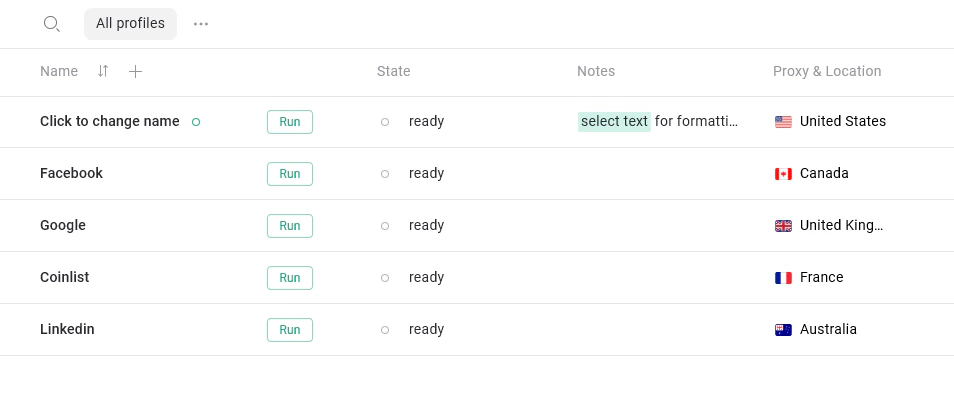
Customizing profile fields visibility
You can show or hide any fields depending on what you need. To open field settings:- Go to All profiles
- Click the column settings icon in the top-right corner of the table (as shown below)
- The Column Settings panel will open
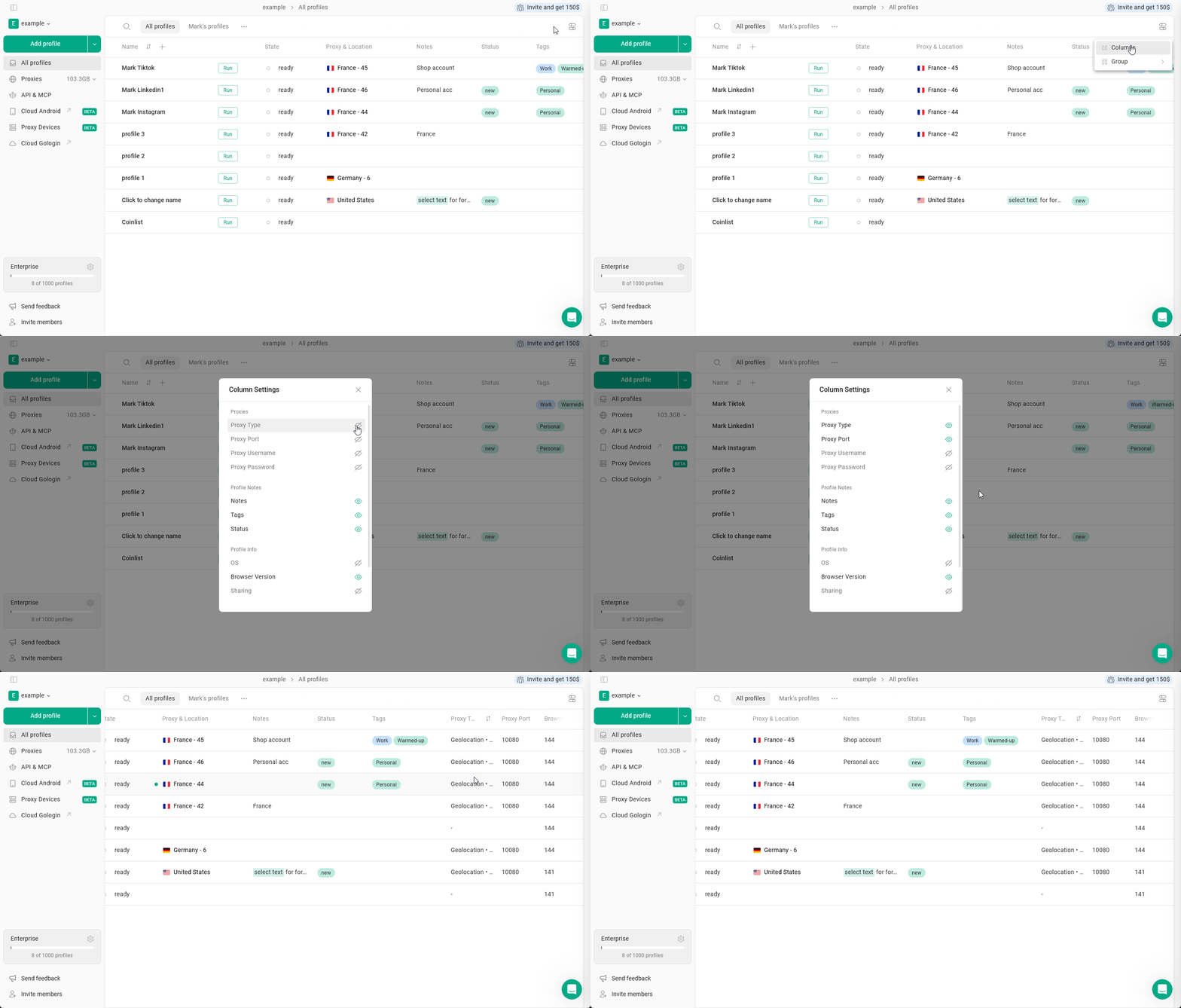
- Proxies - useful when working with different proxy configurations
- Proxy Type - HTTPS, SOCKS or Gologin proxy (geolocation)
- Proxy Port
- Proxy Username
- Proxy Password
- Profile Notes - mark, note or categorize profiles
- Notes - keep track of account details, reminders, etc
- Tags - helps to categorize and filter profiles by account type, platform or project
- Status - usually used to display the workflow state
- Profile info - helpful for technical management and team workflows
- OS - operating system set in the profile
- Browser Version - profile’s browser version
- Sharing - number of users with access to the profile
- Date & Time - useful for tracking activity and identifying stale or unused profiles
- Last update – when the profile was last modified
- Last launch – last time the profile was started
- Created – when the profile was created
Rearranging columns
You can also move columns between each other and resize them. To move the profile fields column, just hold it and drag across other columns. To resize the column, hover over the column name and drag the vertical column divider.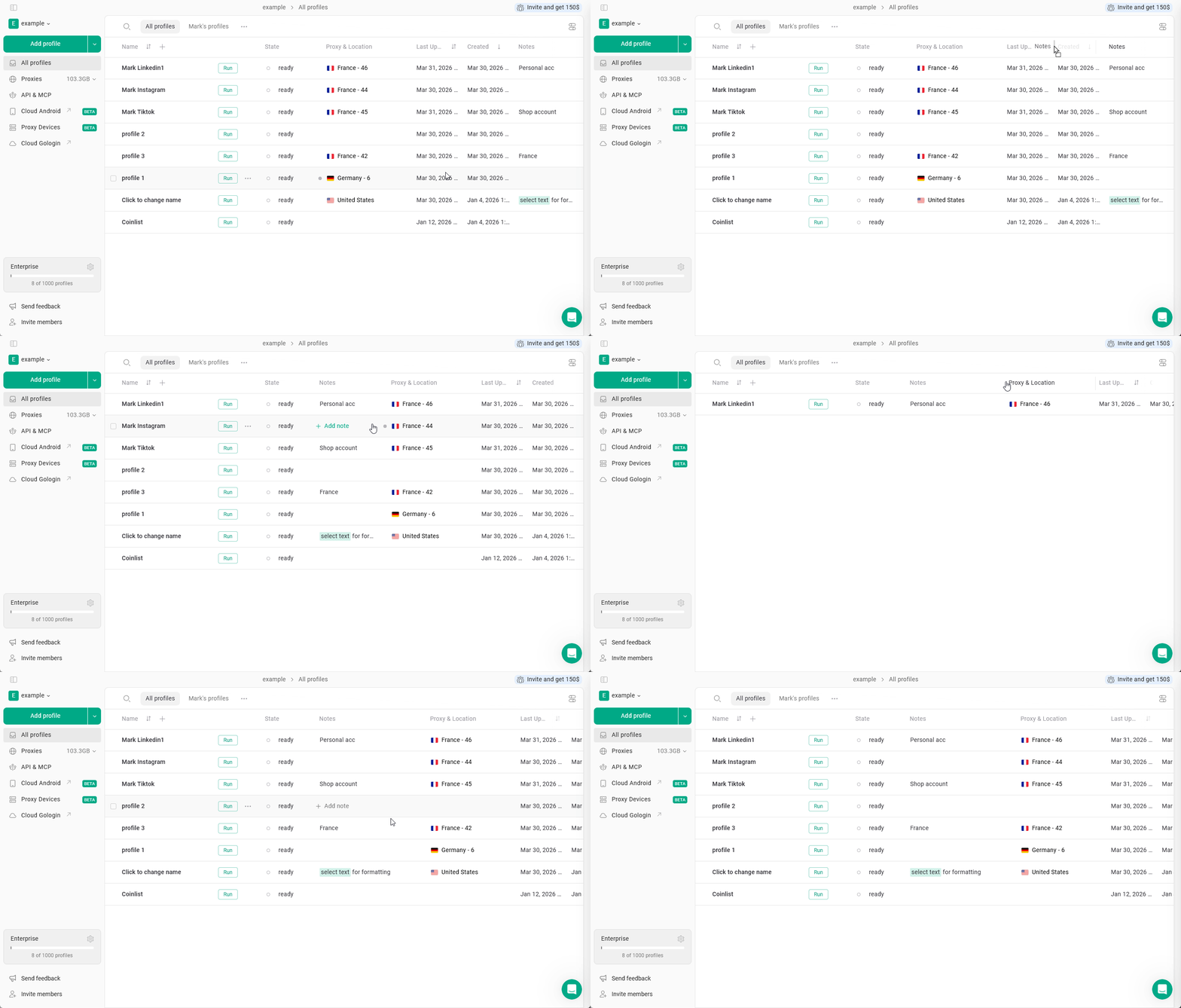
Tips
- Use Tags and Status for better organization
- Enable Last launch to track inactive profiles and profile sorting