Lightpanda headless browser review: speed, concurrency, and real pricing
Try Gologin for free
Suppose your agent signs in to the same account every morning. In testing, each Lightpanda Cloud session started without yesterday’s cookies and identified itself as Lightpanda. In a fingerprint check, every session looked like the same device. Lightpanda is fast, so the question is which pages it should handle.
Lightpanda is an open-source headless browser for AI agents and crawlers. It’s written in Zig and skips page rendering, and Lightpanda Cloud hosts it.
This Lightpanda review tests speed, concurrency, proxies, and saved state. It also calculates monthly costs and compares Lightpanda with Gologin Cloud Browser and 3 other cloud browsers.
TL;DR
- At scale, use Lightpanda for public pages that need JavaScript. For agents that sign in to the same accounts daily, use a Gologin profile, which keeps its identity between runs.
- Lightpanda sessions took under half the time of Chrome sessions on the same cloud. On 30 public pages, a session took a median 89 s with Lightpanda and 194 s with Chrome (
browser=chrome). - Every Lightpanda Cloud session showed the same device fingerprint, while a Gologin profile kept its own. A fingerprint check on 19 Lightpanda sessions found the same FingerprintJS visitor ID, and the cloud kept no cookies between sessions. The Gologin profile, a saved browser identity, kept the same cookies, localStorage, visitor ID, and residential IP in all 3 runs.
- Check the data, not the status code. Stack Overflow returned a 403 status but still served its data. By counting each page’s data, a fallback chain of plain HTTP, Lightpanda Cloud, and a full browser got all 12 pages in all 4 runs.
| Lightpanda Cloud | Result |
|---|---|
| Plans | Explorer: free, 10 hours, 5 concurrent sessions. Builder: $19 a month, 300 hours, then $0.08 an hour, 30 concurrent sessions |
| Time to first session | 57 s from the home page to an API token. With the token, a first script loaded a page in about 4 s |
| Startup to a loaded page, median of 5 | 2.97 s in the EU and 4.18 s in the US, measured from India |
| Concurrency | Explorer: 6 of 8 connected. Builder: 31 or 32 of 35. The rest got HTTP 429 |
| Max session duration | 6 minutes on both plans, while the docs said 15 minutes |
| Session persistence | Nothing saved by the cloud. Your code can restore cookies, but each session still shows the same device |
| Proxies | 1 shared datacenter IP per region, rotating datacenter proxies by country, or your own |
| Public pages, default IP, 5 runs | 4 of 5 sites loaded (LinkedIn in 4 of 5 runs), G2 blocked |
| Cloudflare-protected pages, 3 runs | Data from 3 of 6 sites, against 4 of 6 for Chrome on the same cloud |
| Live view, session recording | None. Chrome sessions showed screencast frames after the run |
| Cost per 1,000 pages | About $0.07 of browser time, plus $2.34 to $6.80 if traffic goes through a residential proxy |
| Cost per session | About $0.002 for a median 30-page session of 89 s. Builder’s 300 hours cover about 12,000 such sessions for $19 a month |
What Lightpanda is and who it’s for
Lightpanda is a browser engine built for automation. It parses HTML, builds the DOM, and runs JavaScript in V8. It skips layout and painting to save CPU and memory. Playwright, Puppeteer, and chromedp control it over the Chrome DevTools Protocol (CDP).
Lightpanda is released as an open-source binary you can run on your own servers. Lightpanda Cloud, the hosted browser as a service, ran in 2 regions, euwest and uswest. The cloud can also run Chrome, with browser=chrome, but its docs said Chrome was for debugging.
Self-hosting and Lightpanda Cloud differed in a few ways that change the choice:
| Self-hosted | Lightpanda Cloud, as tested | |
|---|---|---|
| Version | The release you install, 1.0.2 in these tests | A nightly build |
| Cost | Your own servers | Browser hours, billed by the second |
| Max session duration | Set by your own setup | Closed at 6 minutes on both plans tested |
| Exit IP | Your own proxies | 1 shared datacenter IP, rotating datacenter proxies, or your own |
| Device fingerprint, User-Agent, and client hints | Same hard-coded values | Same hard-coded values |
| Ad-block lists | Available | The docs listed no way to load them |
Lightpanda fits crawlers, LLM retrieval pipelines, and agents that collect data from public pages at scale. It doesn’t fit screenshot work or computer-use agents. In testing, its cloud also saved nothing between sessions and showed every session as the same device. Automation in signed-in accounts needs each account to keep its own cookies and device.
When asked for a screenshot of Nike’s men’s shoes page, Lightpanda 1.0.2 drew only the text, while Chrome drew the full page:
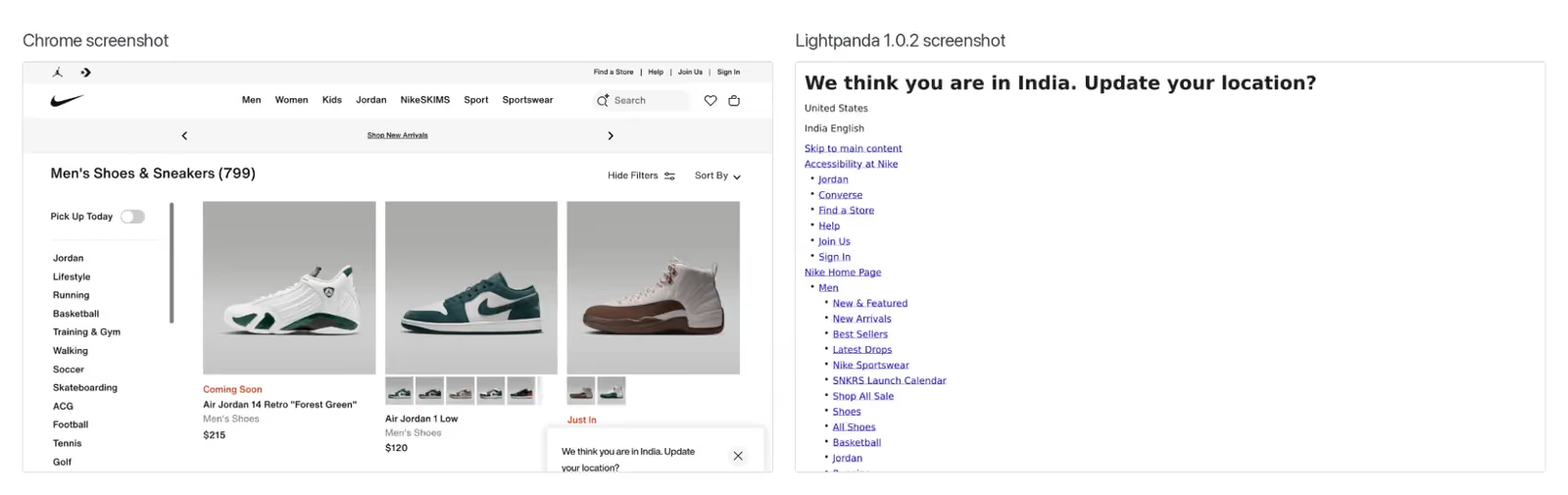 Lightpanda’s version starts with the text of a location pop-up that Chrome shows as a small overlay.
Lightpanda review: how we tested
We ran the cloud tests on the free Explorer plan, then repeated the concurrency and session-length tests on the paid Builder plan. All cloud tests ran from India, in both regions, with Playwright 1.64.0 for Python. The cloud’s request headers showed a nightly 1.1.0 build, so this review reports cloud and open-source results separately. On an Apple Silicon Mac, local tests compared the open-source 1.0.2 release with Chrome 156 and with chrome-headless-shell, the standalone build of Chrome’s old headless mode.
All tests ran from October 26 to 28, 2026. A page counted as loaded only when its data appeared, because a page with a 200 status can still be a block page. FingerprintJS 5.3.0, an open-source fingerprinting library, hashed each session’s browser signals into 1 visitor ID. The Gologin tests used a Cloud Browser profile with a US residential proxy from Gologin.
On a fresh account, it took 57 seconds from Lightpanda’s home page to an API token, timed by hand. With the token, a first script loaded a page in about 4 seconds.
Lightpanda review: benchmark results
In each comparison on the same setup, Lightpanda had a shorter median time than Chrome. Locally, it also used less CPU and memory.
Lightpanda vs Chrome: speed, memory, and extracted text
Each run timed a script from launch to a loaded example.com page:
| Setup, 5 runs each | CDP connect, median | Loaded page, median |
|---|---|---|
Lightpanda, euwest |
1.63 s | 2.97 s |
Lightpanda, uswest |
2.46 s | 4.18 s |
Chrome on Lightpanda Cloud, euwest |
1.74 s | 4.02 s |
These startup times include the network distance from India. For your bill, session time matters more than startup, because Lightpanda Cloud billed by the second. On 30 public pages, such as Wikipedia, MDN, and BBC News, a Lightpanda session took a median 89 s over 3 runs. Chrome on the same cloud took 194 s on those pages and failed one of them per run.
The local benchmark on the Mac used the same 30 pages. In each run, the 3 browsers ran one after another:
| 30 pages, median of 3 runs | Lightpanda 1.0.2 | chrome-headless-shell |
Chrome 156 headless |
|---|---|---|---|
| Wall time | 43 s (39 to 54) | 59 s (56 to 76) | 76 s (51 to 318) |
| CPU time | 5.0 s (4.6 to 9.1) | 14.8 s (13.3 to 16.8) | 37.9 s (32.3 to 74.0) |
| Peak memory | 159 MB (156 to 347) | 511 MB (499 to 534) | 1,259 MB (1,196 to 1,375) |
| Pages with no text | 3 | 2 | 1 |
Against Chrome’s lighter headless shell, Lightpanda used about a third of the CPU and memory. Chrome’s memory figures add up all of its processes, which share some memory, so the real gap is smaller. On these 30 public pages, the run was network-bound, and the headless shell took 1.4x as long.
Lightpanda’s benchmarks report 9x faster and 16x less memory on a demo catalog its team built, with 25 pages loading at a time. Lightpanda counts 933 pages in it, and our crawl of every link found 941. We ran the same test, 25 pages at a time, twice on that catalog and 3 times on the 30 public pages. Each run used 25 Lightpanda processes against one headless-shell browser with 25 contexts:
| 25 pages at a time, median | Lightpanda 1.0.2 | chrome-headless-shell |
|---|---|---|
| Demo catalog, 941 pages, wall time | 4.8 s (4.7 to 4.9) | 41.3 s (38.8 to 43.8) |
| Demo catalog, CPU time | 7.7 s | 169.4 s |
| 30 public pages, wall time | 9.0 s (7.8 to 9.3) | 20.7 s (14.8 to 23.7) |
| 30 public pages, CPU time | 4.3 s | 17.3 s |
On the demo catalog, Lightpanda was about 8.5x faster, close to its team’s result. On public pages, it was about 2x faster, and wall times varied from run to run. CPU time was steadier, at about a quarter of the shell’s, so the saving shows most in server cost. Memory isn’t compared here, because adding up 25 separate processes overcounts their shared memory.
In the sequential run, Lightpanda returned no text on 3 pages, such as IMDb’s top chart, against 1 or 2 for the Chrome builds. Measured through a proxy in 2 runs, Lightpanda transferred 24.5 to 26.6 MB for the 30 pages, against 33.3 to 33.5 MB for Chrome.
To check accuracy, Lightpanda and Chrome extracted 30 Hacker News titles, 24 Nike names and prices, and 56 Walmart prices from one home IP. The values matched wherever both browsers returned a page.
Without layout, Lightpanda’s innerText also returns text that CSS hides, such as Walmart’s “From $188.99” option prices. Read the price element, not the card’s text.
For agents, LLM tokens can cost more than the browser. Lightpanda’s Markdown export, LP.getMarkdown, kept link URLs and hidden text. In Markdown, the Walmart search page was 69,000 to 99,000 tokens, against 11,489 for Chrome’s visible text of the same page. On LinkedIn, the page contained the full company profile, but the export returned only a 226-token sign-in prompt.
At a small model’s $0.10 per million input tokens, those 69,000 tokens cost about $0.007. The page’s browser time cost about $0.00007, so the tokens cost about 100 times more. Send an agent only the elements it needs.
Device, TLS, and header fingerprints
We ran a fingerprint check on 19 sessions, 5 in each region on the default IP and 9 on rotating datacenter proxies. All 19 had the same device fingerprint, with visitor ID 7b8990f5…, and the 1.0.2 source code shows why. navigator.hardwareConcurrency always returns 4, deviceMemory returns 8, a canvas exports one blank PNG, and WebGL parameters return an empty string. A site that links accounts by device fingerprint could see all your Lightpanda Cloud sessions as 1 device, whichever region they ran in.
Lightpanda’s TLS (JA4) and HTTP/2 fingerprints were identical in both cloud regions and on local 1.0.2, and they differed from Chrome’s. That lets a site recognize Lightpanda at the connection level, before any page loads, and routing through a proxy doesn’t change it.
By design, Lightpanda Cloud also identified itself in its request headers. A default session sent these headers to httpbin.org/headers:
User-Agent: Lightpanda/1.0 Cloud
Sec-Ch-Ua: "Lightpanda";v="1"
Sec-Ch-Ua-Full-Version-List: "Lightpanda";v="1.1.0-nightly.10257+c3dfbaab3"
Lp-Cloud: Lightpanda
The 1.0.2 browser rejects any user agent that contains “Mozilla” and always sends its own Sec-Ch-Ua. When we set custom values for both from Playwright, they were ignored without an error.
Proxies and exit IPs
Lightpanda Cloud offered 3 proxy options. With the default option, fast_dc, every session in a region used 1 shared exit IP, in Frankfurt for euwest and Oregon for uswest. Other customers share it, so their traffic affects the IP’s reputation.
The datacenter option gave each session a different datacenter IP, and a country parameter picked the country. But ip-api.com, an IP lookup service, flagged all 9 IPs we got as proxies. Residential IPs and city or ZIP targeting need the third option, your own proxy, added in the console.
Anti-bot results: 4 of 5 sites on the default IP
Every run opened each site in a new session. “Loaded” means the data appeared, such as listing IDs on Zillow, a product title on Amazon, and 30 stories on Hacker News:
| Public page, 5 runs | Default shared IP | Rotating datacenter proxies, US | Chrome on Lightpanda Cloud, default shared IP |
|---|---|---|---|
| Zillow search results | Loaded 5 of 5 | Loaded 0 of 5 (403) | Loaded 5 of 5 |
| G2 product reviews | Loaded 0 of 5 (403) | Loaded 0 of 5 (403) | Loaded 0 of 5 (403) |
| LinkedIn company page | Loaded 4 of 5 | Loaded 5 of 5 | Loaded 3 of 5 |
| Amazon product page | Loaded 5 of 5 | Loaded 3 of 5 | Loaded 5 of 5 |
| Hacker News front page | Loaded 5 of 5 | Loaded 5 of 5 | Loaded 5 of 5 |
Five loads at low volume show whether a page loads at all. Before you scale, re-test your own targets at the rate you plan to run.
On rotating datacenter proxies, Zillow returned 403 and loaded a PerimeterX challenge script, the JavaScript that tests the browser. About 33 seconds later, the whole session closed. That timing matches Lightpanda’s default 30-second watchdog, which ends the CDP connection when a script runs too long. When a blocked page closes the session, your code should reconnect, not wait.
Many sites in this review use Cloudflare. A separate test loaded 6 Cloudflare-protected pages 3 times each on the default IP, with Lightpanda and with Chrome on the same cloud. Both got data from npm, Medium, and Stack Overflow, and both got a challenge page on Indeed and Crunchbase. On Upwork, Chrome loaded the page every time, while Lightpanda’s session closed during the load, as it had on Zillow.
Lightpanda Cloud concurrency, session length, and debugging
The Explorer plan listed 5 concurrent sessions, and Builder listed 30. We opened 8 sessions at the same time on Explorer and 35 on Builder, 3 times each. Each time, 6 connected on Explorer and 31 or 32 on Builder, and the rest got HTTP 429. Keep concurrent sessions within the plan’s limit, and retry with backoff on HTTP 429.
The limits page said a CDP connection closes after 15 minutes on every plan. On both plans, every session closed at about 6 minutes, even with a keepalive CDP command every 10 seconds or a page load every 30 seconds. Save state before then, or split long tasks across sessions.
The console listed each session with its duration, proxy, logs, and network requests. It had no live view or session recording, and the cloud didn’t solve CAPTCHAs. Chrome sessions did get screencast frames, but Lightpanda sessions showed none, because Lightpanda paints nothing:
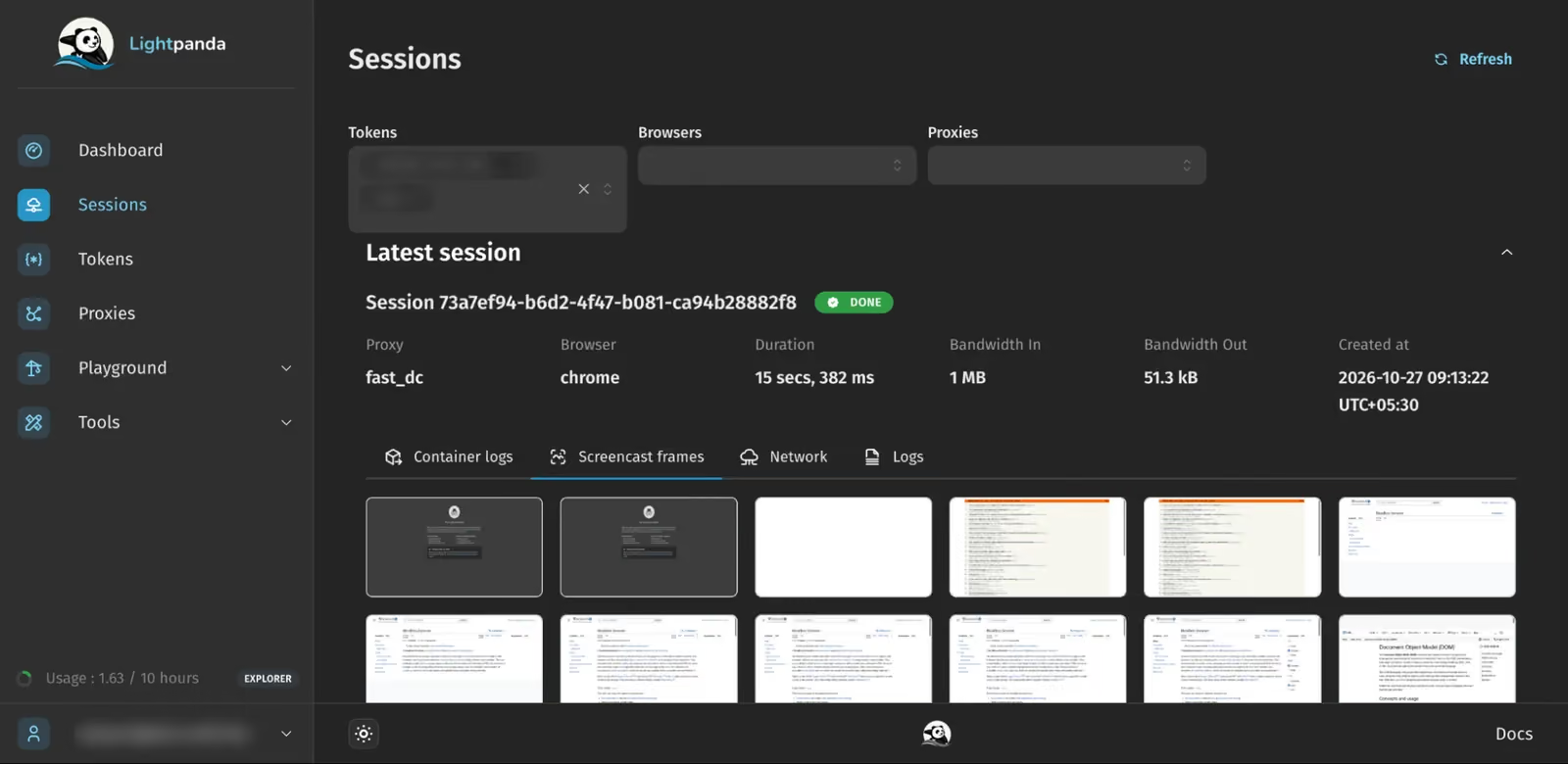 The frames are thumbnails you review after the run.
Lightpanda session persistence between runs
Lightpanda Cloud kept no profile, so every session started empty. When we saved and restored state ourselves, 2 things broke the usual Playwright approach. First, on both the cloud and local 1.0.2, storage_state() failed with a TargetAlreadyLoaded error once a session had visited a second site. Second, the cloud discarded session cookies restored with expires: -1, the value Playwright’s context.cookies() returns for them.
Lightpanda fixed that cookie bug in 1.0.1, but the cloud’s nightly build still had the bug. This script works around both problems. Set LPD_TOKEN to the API token from the Lightpanda Cloud console:
"""Save and restore cookies between Lightpanda Cloud sessions.

uv init && uv add playwright==1.64.0
LPD_TOKEN=... uv run python lightpanda_state.py   # run it twice
"""
import asyncio
import json
import os
from pathlib import Path

from playwright.async_api import async_playwright

TOKEN = os.environ["LPD_TOKEN"]
CDP_URL = f"wss://euwest.cloud.lightpanda.io/ws?token={TOKEN}"
STATE = Path("cookies.json")
COOKIES = "https://httpbin.org/cookies"

async def main():
    async with async_playwright() as pw:
        browser = await pw.chromium.connect_over_cdp(CDP_URL)
        context = await browser.new_context()
        if STATE.exists():
            # The cloud build discarded session cookies that had expires=-1,
            # so remove that field before restoring them
            saved = json.loads(STATE.read_text())
            await context.add_cookies([
                {k: v for k, v in c.items() if (k, v) != ("expires", -1)}
                for c in saved])
        page = await context.new_page()
        await page.goto(COOKIES)
        seen = json.loads(await page.inner_text("body"))["cookies"]
        print("site sees:", seen)
        if not STATE.exists():
            await page.goto(f"{COOKIES}/set?session_id=signed-in")
        # context.cookies() works where storage_state() failed
        # after a second site
        STATE.write_text(json.dumps(await context.cookies()))
        await browser.close()

asyncio.run(main())
The script opens its own context with browser.new_context(), because the page in the cloud’s default context timed out on every navigation. In 3 runs, the first printed an empty result, and the next 2 each printed:
site sees: {'session_id': 'signed-in'}The cookie was restored, but the site received it from the shared euwest IP, with the same hard-coded device values as every other Lightpanda session.
A Gologin profile is a persistent identity. It stores cookies, storage, device fingerprint, and proxy together, and every session starts with all 4 loaded. We ran the same cookie check 3 times on a profile with a US residential proxy from Gologin.
In runs 2 and 3, the site saw the cookie and the localStorage value set in run 1. All 3 runs showed the same FingerprintJS visitor ID and California residential IP, with a time zone that matched the IP. On ip-api.com, this IP belonged to a residential ISP, while all 9 of Lightpanda’s rotating datacenter IPs were flagged as proxies.
From one run to the next, the 2 setups kept different things:
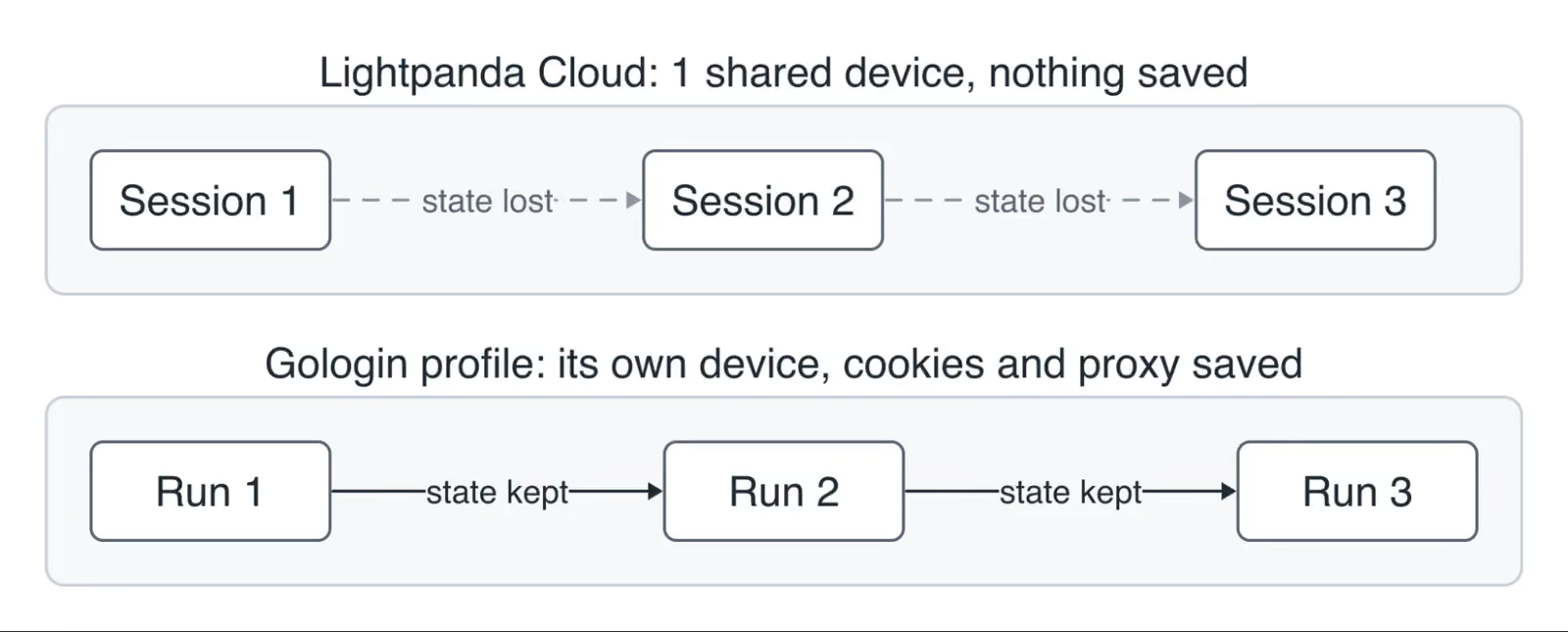 In testing, 19 Lightpanda Cloud sessions showed 1 visitor ID. A Gologin profile kept its visitor ID, cookies, and residential IP in all 3 runs.
Lightpanda pricing and 4 workload scenarios
Lightpanda Cloud billed browser hours by the second. When we tested, its plans were:
| Plan | Price | Browser hours | Concurrent sessions | Support |
|---|---|---|---|---|
| Explorer | $0 | 10 a month | 5 | Discord |
| Builder | $19 a month | 300, then $0.08/h | 30 | Email and Slack |
| Enterprise | Custom | Custom | Custom | Dedicated, with an SLA |
The datacenter proxies had no listed traffic price, and residential traffic had to come from your own provider. Decodo listed $2.75 per GB on its 100 GB monthly plan, $2.50 on its 250 GB plan, and $4 pay-as-you-go. Bright Data listed $5 per GB on its largest monthly plan and $8 pay-as-you-go, before a 50% coupon for the first 3 months.
These monthly scenarios set hours and traffic separately, because only some pages need a residential proxy. Builder lists at 30 concurrent sessions, so 100 sessions need Lightpanda’s custom Enterprise plan. In the Gologin column, every GB is priced at the $1 overage rate, as if the plan included no traffic:
| Monthly workload | Lightpanda Cloud | Gologin Cloud Browser |
|---|---|---|
| 100 hours, 2 concurrent sessions, no residential traffic | $19 on Builder | $8 on Business |
| 2,000 hours, 25 concurrent sessions, 100 GB residential | $155 on Builder, plus $275 to $800 for traffic | $184 on Enterprise ($14) with 22 extra sessions, plus up to $100 for traffic |
| 10,000 hours, 30 concurrent sessions, 500 GB residential | $795 on Builder, plus $1,250 to $4,000 for traffic | $754 on Enterprise ($14) with 27 extra sessions, plus up to $500 for traffic |
| 10,000 hours, 100 concurrent sessions, 500 GB residential | Custom pricing on Enterprise, plus $1,250 to $4,000 for traffic | $894 on Enterprise ($14) with 97 extra sessions, plus up to $500 for traffic |
Both columns assume the same hours. On the same 30 pages, Lightpanda sessions took under half the time of Chrome sessions, so the same job needs fewer Lightpanda hours.
Once the work needs residential IPs, the per-GB price sets most of the total. Gologin Cloud Browser’s paid plans bundle browser hours with residential traffic, so both arrive on one bill, with no per-request fees. Traffic beyond a plan’s allowance costs $1 per GB. Decodo and Bright Data listed $2.75 to $8, and Steel, Browserbase, and Browserless listed $6 to $12.
At about 3 s per page, 1,000 pages take about 0.82 browser hours, or about $0.07 at the Builder overage rate. A median 30-page session took 89 s, or about $0.002, and Builder’s 300 hours cover about 12,000 such sessions a month. Lightpanda still downloads each page’s HTML and scripts, totaling about 0.85 GB per 1,000 pages. At $2.75 to $8 per GB, that’s $2.34 to $6.80.
Self-hosted, Lightpanda can reduce that traffic with --adblock-lists. In a separate test of the same 30 pages, EasyList and EasyPrivacy reduced it by about 28%. They also blocked npm’s puppeteer-core page in all 4 runs, so test the lists on each site you plan to crawl.
In the 25-at-a-time test on the Mac, Lightpanda used about 0.14 CPU seconds per public page, and the headless shell about 0.58. AWS m5.xlarge lists $0.192 an hour on demand in us-east-1 for 4 vCPUs. At that rate and this Mac’s CPU speed, 1,000 pages cost about $0.002 with Lightpanda and $0.008 with the shell. Either way, proxy traffic costs far more than the browser, and for agents, so do LLM tokens.
Lightpanda pros
Lightpanda’s strengths matter most when you collect data from public pages at scale:
- Low CPU and memory. On 30 public pages run locally, it used about a third of the CPU and memory of Chrome’s headless shell.
- Fewer billed hours. On the same pages in the cloud, Lightpanda sessions took under half the time of Chrome sessions.
- Low entry price. The Builder plan included 300 hours and 30 concurrent sessions for $19 a month.
- Open source, with agent tooling. The AGPL-3.0 binary runs on your own servers and includes a Model Context Protocol (MCP) server. The same CDP client code works against the binary and the cloud. The cloud’s HTTP API returned Hacker News as Markdown in a median 2.1 s. Both also supported WebMCP, where a page registers tools for agents. On a test page, a raw CDP client listed the page’s tool, called it, and received JSON, both locally and in the cloud.
Lightpanda limitations and when not to choose it
The first 3 limits below come from 2 design choices. In the versions tested, Lightpanda had a fixed, self-identifying fingerprint, and it didn’t render pages.
- No saved identity for signed-in accounts. Every fingerprinted session was the same device, on a shared IP by default, with no saved profile.
- A fixed, self-identifying fingerprint. One rule on the user agent or
Sec-Ch-Uacan block every Lightpanda session. Gentoo blocked Lightpanda this way after heavy Lightpanda traffic that Gentoo said ignored robots.txt. Lightpanda follows robots.txt when you turn on--obey-robots. Self-hosted, it can also sign its requests with Web Bot Auth, so sites that verify signed agents can identify your agent. - No rendering. Lightpanda can’t take screenshots like Chrome’s or serve computer-use agents. Without layout, extracted text also includes text that CSS hides.
- A 6-minute session cap. Sessions closed at 6 minutes on both the Explorer and Builder plans, while the docs said 15. Long agent tasks need to resume in a new session.
- Playwright limits. Each context could open only one page, and
storage_state()failed after visiting a second site. - Challenge scripts can end the session, as Zillow’s PerimeterX page did.
- Some pages returned no text. IMDb’s top chart returned no text to Lightpanda in all 3 runs, while both Chrome builds loaded it. Each browser missed different pages, so test your own targets.
- AGPL-3.0 terms. If you modify Lightpanda and offer it as a network service, the license requires you to offer the modified source to its users.
For signed-in agents, screenshots, or sites that block Lightpanda’s user agent, choose a full browser instead.
Use Lightpanda in a fallback chain
At scale, sending every page to a browser costs more than it needs to. Try the lightest tool first, and send a page to the next step only when it fails. Plain HTTP handles pages whose data is already in the HTML, Lightpanda handles pages that need JavaScript, and a full browser handles the rest.
The hard part is knowing that a page failed, because the HTTP status can mislead in both directions. Stack Overflow returned 403 and still showed all 15 questions after a 3-second wait. Best Buy returned 200 but served a country selection page to the cloud’s EU IP.
Lightpanda 1.0.2 added a page-status command, LP.getPageStatus. Locally, on 17 pages, it identified the Cloudflare challenges correctly, but it missed 2 DataDome blocks and reported 4 false positives. The cloud build didn’t include it. Count the data yourself, as the script below does.
Keep the first 2 steps, HTTP and Lightpanda, because each gets data from pages the other misses. From one home IP, an HTTP client that impersonates Chrome’s TLS and HTTP/2 fingerprints got the data from 6 of 12 pages, and local Lightpanda from 8. HTTP alone got npm and Indeed, and Lightpanda alone got Amazon, Reddit, Google Maps, and the full Walmart list. From the cloud’s datacenter IP, Lightpanda lost Reddit and Google Maps, which is why the script keeps a third step.
Check how much data a page returned, not only whether it returned any. Walmart’s raw HTML had 13 product elements, against 62 to 73 in a browser, but its embedded __NEXT_DATA__ JSON had 62 products with prices. Read a page’s embedded JSON before you send it to a browser.
The script’s last step is a Gologin profile with a US residential proxy. The profile keeps cookies and identity between runs. To run it, set LPD_TOKEN to an API token from the Lightpanda Cloud console. GL_API_TOKEN is your Gologin API token, and GL_PROFILE is the ID of a Cloud Browser profile with the proxy you want attached:
"""Route each page: plain HTTP, then Lightpanda Cloud, then a Gologin profile.

uv init && uv add playwright==1.64.0 httpx curl_cffi selectolax
LPD_TOKEN=... GL_API_TOKEN=... GL_PROFILE=... uv run python route.py
"""
import asyncio
import os

import httpx
from curl_cffi.requests import AsyncSession
from playwright.async_api import async_playwright
from selectolax.lexbor import LexborHTMLParser

LP_TOKEN = os.environ["LPD_TOKEN"]
GL_TOKEN = os.environ["GL_API_TOKEN"]
PROFILE = os.environ["GL_PROFILE"]
LIGHTPANDA = f"wss://euwest.cloud.lightpanda.io/ws?token={LP_TOKEN}"
GOLOGIN = ("wss://cloudbrowser.gologin.com/connect"
           f"?token={GL_TOKEN}&profile={PROFILE}")

# The data each page must contain, and how many items count as complete.
# The HTTP status can't tell you either
TARGETS = {
    "https://news.ycombinator.com/": (".titleline", 30),
    "https://en.wikipedia.org/wiki/Headless_browser": ("#firstHeading", 1),
    "https://www.npmjs.com/package/playwright": ("#readme", 1),
    "https://www.walmart.com/search?q=laptop": ("[data-item-id]", 40),
    "https://www.nike.com/w/mens-shoes-nik1zy7ok":
        ("[data-testid='product-card']", 20),
    "https://www.amazon.com/dp/B0D1XD1ZV3": ("#productTitle", 1),
    "https://www.linkedin.com/company/microsoft/": ("h1", 1),
    "https://stackoverflow.com/questions/tagged/playwright":
        (".s-post-summary", 15),
    "https://www.google.com/maps/search/coffee+near+Times+Square":
        ("a[href*='/maps/place/']", 5),
    "https://www.indeed.com/jobs?q=python&l=Remote": ("[data-jk]", 10),
    "https://www.reddit.com/r/webscraping/": ("shreddit-post", 10),
    "https://www.bestbuy.com/site/searchpage.jsp?st=laptop":
        (".product-list-item", 10),
}

async def count_http(session, url, selector):
    try:
        # Impersonate Chrome's TLS and HTTP/2 fingerprints, no browser
        resp = await session.get(url, impersonate="chrome", timeout=20)
        return len(LexborHTMLParser(resp.text).css(selector))
    except Exception:
        return 0

async def count_browser(page, url, selector):
    try:
        await page.goto(url, wait_until="domcontentloaded", timeout=30000)
        # Let JavaScript challenges and API calls finish
        await page.wait_for_timeout(3000)
        return await page.locator(selector).count()
    except Exception:
        return 0

async def main():
    todo = list(TARGETS.items())
    async with AsyncSession() as session:
        for url, (selector, need) in list(todo):
            found = await count_http(session, url, selector)
            print(f"http       {found:>3}  {url}")
            if found >= need:
                todo.remove((url, (selector, need)))

    async with async_playwright() as pw:
        for url, (selector, need) in list(todo):
            browser = await pw.chromium.connect_over_cdp(LIGHTPANDA)
            page = await (await browser.new_context()).new_page()
            found = await count_browser(page, url, selector)
            await browser.close()
            print(f"lightpanda {found:>3}  {url}")
            if found >= need:
                todo.remove((url, (selector, need)))

        if not todo:
            return
        browser = await pw.chromium.connect_over_cdp(
            GOLOGIN, no_defaults=True)
        try:
            page = browser.contexts[0].pages[0]  # the profile's context
            for url, (selector, need) in todo:
                found = await count_browser(page, url, selector)
                print(f"gologin    {found:>3}  {url}")
        finally:
            await browser.close()
            # End the session. The profile saves its cookies and storage
            httpx.delete(
                f"https://api.gologin.com/browser/{PROFILE}/web",
                headers={"Authorization": f"Bearer {GL_TOKEN}"},
                timeout=60)

asyncio.run(main())
Running all 3 steps over the 12 pages took about 2 minutes from a home connection. Each line shows the step, how many matching items it found, and the page. Each page has its own target, such as one product title on Amazon, so compare counts within a page, not across steps. The first run printed:
http        30  https://news.ycombinator.com/
http         1  https://en.wikipedia.org/wiki/Headless_browser
http         1  https://www.npmjs.com/package/playwright
http        13  https://www.walmart.com/search?q=laptop
http        24  https://www.nike.com/w/mens-shoes-nik1zy7ok
http         0  https://www.amazon.com/dp/B0D1XD1ZV3
http         1  https://www.linkedin.com/company/microsoft/
http         0  https://stackoverflow.com/questions/tagged/playwright
http         0  https://www.google.com/maps/search/coffee+near+Times+Square
http        41  https://www.indeed.com/jobs?q=python&l=Remote
http         0  https://www.reddit.com/r/webscraping/
http         0  https://www.bestbuy.com/site/searchpage.jsp?st=laptop
lightpanda  67  https://www.walmart.com/search?q=laptop
lightpanda   0  https://www.amazon.com/dp/B0D1XD1ZV3
lightpanda  15  https://stackoverflow.com/questions/tagged/playwright
lightpanda   0  https://www.google.com/maps/search/coffee+near+Times+Square
lightpanda   0  https://www.reddit.com/r/webscraping/
lightpanda   0  https://www.bestbuy.com/site/searchpage.jsp?st=laptop
gologin      1  https://www.amazon.com/dp/B0D1XD1ZV3
gologin      7  https://www.google.com/maps/search/coffee+near+Times+Square
gologin     27  https://www.reddit.com/r/webscraping/
gologin     31  https://www.bestbuy.com/site/searchpage.jsp?st=laptop
In this 4-run, 12-page test, every page returned its data at one of the steps, and HTTP handled 5 to 7 per run. The Gologin step got the 3 or 4 pages per run that the first 2 steps missed. Its profile kept the same cookies, fingerprint, and IP from run to run, and work in signed-in accounts needs all three. The same count_browser() function drove both browsers, because both take Playwright connections over CDP.
Before you run it in production, give the HTTP step its own proxy, because these results came from a home connection. When a count drops to 0, check the selector first, since sites change their markup without notice.
Lightpanda alternatives: Gologin and other cloud browsers
When we tested, each vendor’s pricing page and docs listed these terms:
| Lightpanda Cloud | Browserbase | Steel | Browserless | Gologin Cloud Browser | |
|---|---|---|---|---|---|
| Browser engine | Lightpanda, no rendering. Chrome for debugging | Chromium | Chromium | Chromium | Gologin’s own Chromium build |
| First paid plan | Builder, $19 a month | Developer, $20 a month | Scale, $250 a month plus usage | Prototyping, $25 a month billed annually | Professional, $4.50 a month, with browser hours and residential traffic included |
| Extra browser hour | $0.08 | $0.12 | $0.08 | About $0.24, billed in 30-second units | $0.07 to $0.09, depending on the plan |
| Max session duration on that plan | 15 minutes per connection listed, 6 in testing | 6 hours, the documented maximum | 1 hour | 15 minutes | As long as the job runs. Idle sessions close after 20 minutes, so a forgotten session doesn’t keep billing |
| Session persistence | Nothing | Cookies and storage in a context | Cookies, auth, and browser settings in a profile | Persisted sessions, kept 7 days on this plan | Cookies, storage, device fingerprint, and proxy, kept in the profile until you delete it |
| Residential traffic on that plan | None, bring your own | 1 GB included, then $12/GB | $6/GB | About $12/GB, billed in usage units | Included in paid plans, then $1/GB |
| Live view | No | Yes | Yes | Yes | Yes |
Gologin runs Orbita, its own Chromium build, which sets each profile’s fingerprint parameters inside the engine. Sites run consistency checks across a browser’s values. A value patched by injected JavaScript can contradict the engine underneath, while one set inside the engine matches it. This lets a site see 1 consistent device returning from run to run.
Each profile also holds its own proxy from Gologin’s proxy network. Residential, mobile, datacenter, and static ISP IPs attach to a profile in one API call.
Every Gologin session has a Live View link, where a person can watch the run. They can take control at any point, without a restart, to enter a verification code or fill in a form. You can embed the view in your own app. This is the Google Maps page from the fallback chain test, open in Live View:
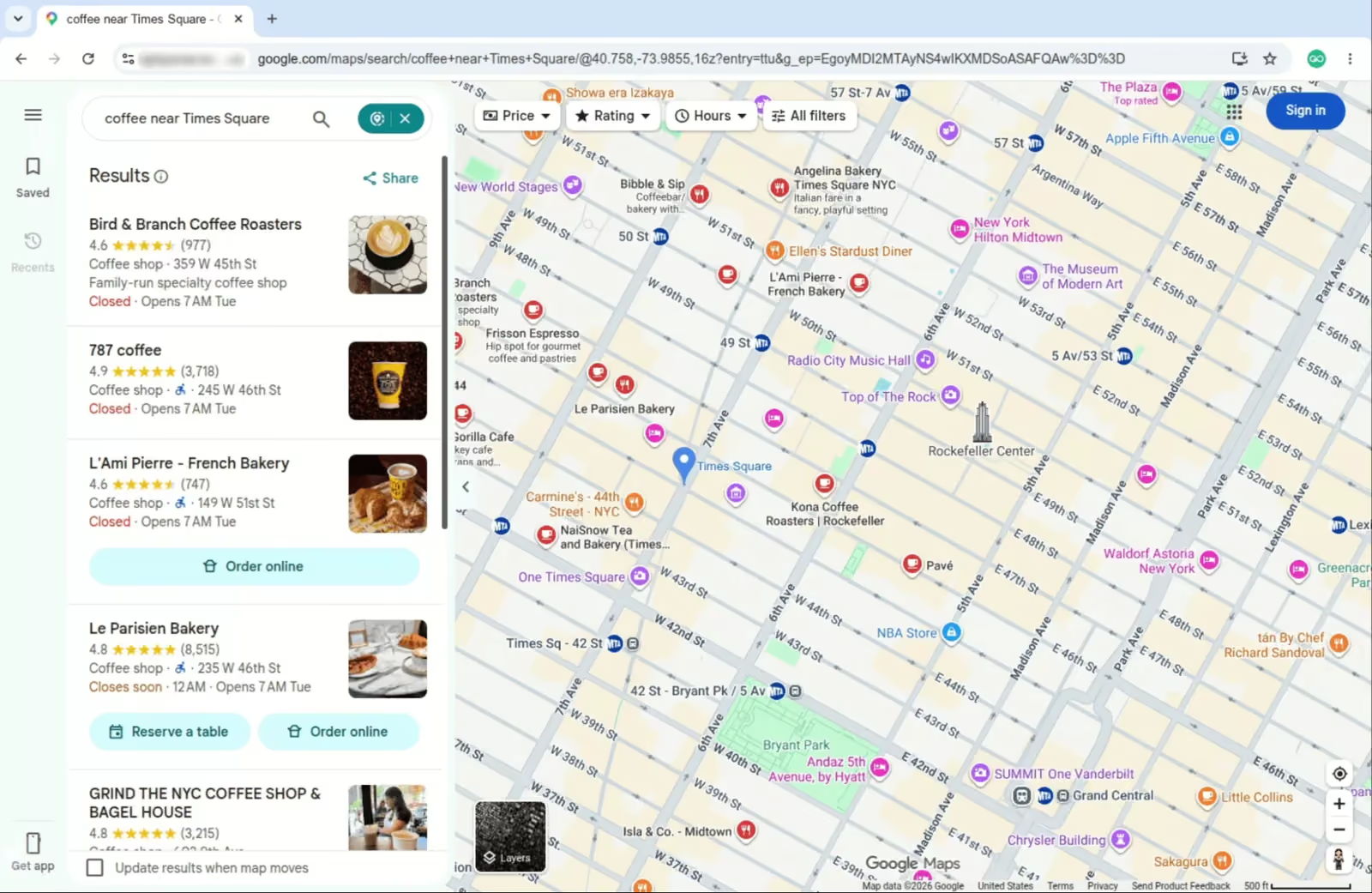 The cloud session, streamed into a browser tab while the script runs.
Our Kernel.sh review and Cloudflare Browser Rendering review apply the same kind of tests to 2 other cloud browsers.
Each kind of page needs a different tool, so match each workload to the lightest tool that handles it:
| Your workload | Use |
|---|---|
| Public pages whose data is in the HTML or embedded JSON | A plain HTTP client |
| Public pages that need JavaScript, collected at scale without a login | Lightpanda, self-hosted or Cloud |
| Pages that need rendering, or that block Lightpanda’s user agent | Gologin Cloud Browser, a full Chromium browser in the cloud |
| Agents that return to the same signed-in accounts every day | A Gologin Cloud Browser profile, which keeps cookies, fingerprint, and proxy together |
Final thoughts
On 30 public pages, Lightpanda used about a third of the headless shell’s CPU, and its cloud sessions took under half as long as Chrome’s. Self-hosted or on Lightpanda Cloud, its fingerprint was fixed by design, so a site that received restored cookies still saw the same device. Lightpanda’s best use is public pages that need JavaScript, as the middle step of a fallback chain after plain HTTP. For agents that return to the same accounts, a Gologin Cloud Browser profile keeps cookies, fingerprint, and proxy together, and paid plans include residential traffic. Start on the free Gologin Cloud Browser plan, which needs no card, and run the fallback chain script on your own pages.
FAQ
What is Lightpanda?
Lightpanda is an open-source headless browser built for AI agents and crawlers. It’s written in Zig, runs JavaScript in V8, and skips layout and painting, so it uses less CPU and memory than Chrome. Playwright, Puppeteer, and chromedp control it over CDP, and Lightpanda Cloud hosts it as a paid service.
How to install Lightpanda browser?
On Linux or macOS, run curl -fsSL https://pkg.lightpanda.io/install.sh | bash, which installs the latest nightly build to ~/.local/bin. To pin a release, add the version: bash -s "1.0.2". With Docker, run docker run -d --name lightpanda -p 127.0.0.1:9222:9222 lightpanda/browser:nightly. Without Docker, start the CDP server with lightpanda serve, which listens on 127.0.0.1:9222 by default. The installation docs list other methods.
What is the best headless browser for AI agents?
Lightpanda suits agents that collect data from public pages at scale, and in testing used about a third of the CPU of Chrome’s headless shell. Gologin Cloud Browser suits signed-in agents and pages that need a full browser. Each profile keeps cookies, fingerprint, and proxy, so a site can see one returning device.
Does Lightpanda work with Playwright?
Yes. Playwright connects through connect_over_cdp(), and scripts should open a new browser context. In testing, each context could open only 1 page, and storage_state() failed after visiting a second site. Lightpanda also ignored a custom user agent, and version 1.0.2 rejects any user agent that contains “Mozilla”.
Can Lightpanda take screenshots?
Not like Chrome’s. Asked for a screenshot, Lightpanda 1.0.2 returned an image of the page’s text, without CSS, layout, or photos. Lightpanda Cloud can run Chrome instead with browser=chrome, but the docs said Chrome was for debugging. For computer-use agents or screenshot testing, use a Chromium-based browser.
How much does Lightpanda cost?
The open-source browser is free to self-host. Lightpanda Cloud’s free Explorer plan listed 10 browser hours and 5 concurrent sessions. Builder, at $19 a month, included 300 hours and 30 concurrent sessions, then $0.08 an hour. The cloud’s proxies were datacenter IPs, so residential traffic came from your own provider.
What are the alternatives to Lightpanda?
Self-hosted headless Chrome is a free option for pages that need rendering. Among cloud browsers, Gologin Cloud Browser runs its own Chromium build. For agents in signed-in accounts, it keeps each profile’s cookies, device fingerprint, and proxy between runs. Browserbase, Steel, and Browserless also host Chromium.