Steel Tech Expert Review 2026: Steel Browser Speed, Antibot Tests and Pricing
Try Gologin for free
Steel is an open-source browser API and managed cloud-browser platform built for AI agents and web-automation software.
I tested Steel’s speed, antibot performance, CAPTCHA solving, login persistence, and concurrency using scripts I ran on the free plan, plus the $10 paid balance Steel requires for its CAPTCHA solver and proxies. I also reviewed its pricing structure and credit system, and worked out what Steel costs in two realistic scenarios.
You’ll also see how Steel compares to other cloud browsers, especially Gologin, on the same tests.
Let’s start with an overview of Steel before getting into the detailed review.
TL;DR
| What I Tested/Reviewed | Result |
|---|---|
| Median startup latency | 3,687 ms |
| Median page load time | 580 ms |
| Antibot pass rate | 3 out of 5 sites on the free plan with default US datacenter IP |
| CAPTCHA solving | Needs a $10 paid balance even on the free plan. After the deposit, it solved 1 of 4 challenges: reCAPTCHA v2 in 25.4 s. Turnstile, Zillow (PerimeterX), and G2 (DataDome) failed. |
| Residential proxy (bring your own) | Zillow’s CAPTCHA kept appearing. Also blocked by G2’s DataDome CAPTCHA |
| Session persistence | Passed. Still logged in 27 days later |
| Concurrent sessions | 10 on the free plan |
| Max session length | 15 minutes on the free plan |
| Proxy cost | $10/GB on Launch plan, $6/GB on Scale plan. Using built-in proxies requires at least $10 in paid balance on the free plan |
| Cheapest paid plan | $250/month + usage (Launch is $0/month plus usage) |
What is Steel
Steel or Steel.dev is a managed cloud-browser platform that allows developers to launch headless Chromium browser sessions through Puppeteer, Playwright, Selenium, raw Chrome DevTools Protocol (CDP) commands, or agent frameworks.
In Steel, a session is an isolated Chromium instance that clients connect to through Steel’s Sessions API and then control through scripts written in the above-mentioned frameworks.
Steel’s founders launched it in December 2024 as a product they wish they had had when they were building AI apps that used the web.
In their launch post on Hacker News, one of the founders shares that when they were building AI apps for the web, 80% of their development time would go into maintaining the browser infrastructure. They mention the following challenges:
- Keeping browser pools healthy
- Managing cookies and session state
- Rotating proxies
- Solving CAPTCHAs
- Cleaning up processes
These challenges led them to build Steel, so AI devs could build apps without worrying about maintaining the browser infrastructure.
Today, Steel has expanded from a simple sessions API. It has added APIs for handling credentials, file upload and download, extensions, and CAPTCHAs. There are also features like the mobile mode, session viewer and live view, Agent Traces observability, residential proxies with rotation, and a lot more.
While Steel’s main product is Steel Cloud, you can also host Steel locally. But this self-hosted deployment comes with many limitations. You can only run one session at a time, and you don’t get access to APIs for handling CAPTCHAs, credentials, or files. You also get limited fingerprint protection and bring-your-own proxies only.
In contrast, Steel Cloud offers all of these and a concurrency of 10 to 1000+ based on your subscription.
How I Tested Steel’s Features
Steel usage is charged in credits.
The free Steel plan gives you $30 worth of credits, which was more than enough to run my tests.
Here’s what tests I ran on Steel:
- Startup speed: This test gives you an idea of the typical startup speed of a Steel session. I ran 5 sessions back-to-back and separately measured the time for resource provision, CDP connect, and the sum of these two intervals.
- Antibot test: This test loads the same 5 websites in 5 default Steel sessions. The aim of this test is to check whether a basic Steel session operating on a free plan gets stopped by websites or passes through without a challenge.
- Auto CAPTCHA solving: The websites that denied access with a CAPTCHA in the antibot test were loaded in this test, but this time, Steel’s auto CAPTCHA solving feature was enabled. According to the pricing page, CAPTCHA solving comes with the free plan.
- Login persistence: Steel also offers the session persistence feature on the free plan. To test whether it actually works, I loaded Hacker News and logged into an account, then closed the session. Then I launched a new session to check whether the account was still logged in.
- Maximum concurrent sessions: The max concurrency of Steel’s free plan is 10 sessions. This test verifies whether Steel actually allows opening 10 sessions in parallel.
Note: All these tests were run on Steel’s free Launch plan. The CAPTCHA solver and Steel’s own proxies were tested after adding the required $10 paid balance.
Steel Testing Results
Startup Benchmark
Steel creates a session first with an API call and then connects your script to it. This allowed me to record the time for both separately. Let’s refer to the session creation time as provision and script connection time as CDP connect.
The startup time of a session is derived from summing the provision and CDP connect times of a session.
The script opens and closes a session 5 times and records these time intervals for each session. Each session would load the example.com website and record that time as well.
Being a lightweight website, example.com doesn’t tend to influence the provision or CDP connection times.
So I wrote and ran the script.
import Steel from "steel-sdk";
import { chromium } from "playwright-core";

const STEEL_API_KEY = "YOUR_STEEL_API_KEY";
const RUNS = 5;

const client = new Steel({ steelAPIKey: STEEL_API_KEY });
const results = [];

for (let i = 1; i <= RUNS; i++) {
  let session, browser;

  try {
    const t0 = Date.now();
    session = await client.sessions.create({ timeout: 120000 });
    const t1 = Date.now();

    browser = await chromium.connectOverCDP(
      `wss://connect.steel.dev?apiKey=${STEEL_API_KEY}&sessionId=${session.id}`
    );
    const t2 = Date.now();

    const provision = t1 - t0;
    const cdpConnect = t2 - t1;
    const startup = t2 - t0;

    results.push({ provision, cdpConnect, startup });
    console.log(
      `run ${i} | provision ${provision} ms | cdp connect ${cdpConnect} ms | startup ${startup} ms`
    );
  } finally {
    if (browser) await browser.close();
    if (session) await client.sessions.release(session.id);
  }
}

const median = (nums) => {
  const s = [...nums].sort((a, b) => a - b);
  const mid = Math.floor(s.length / 2);
  return s.length % 2 ? s[mid] : (s[mid - 1] + s[mid]) / 2;
};

console.log("\n=== MEDIANS ===");
console.log(`provision    ${median(results.map((r) => r.provision))} ms`);
console.log(`cdp connect  ${median(results.map((r) => r.cdpConnect))} ms`);
console.log(`startup      ${median(results.map((r) => r.startup))} ms`);
And here’s how much time the sessions took.
| Run | Provision | CDP connect | Startup total | example.com |
|---|---|---|---|---|
| 1 | 964 ms | 2,192 ms | 3,156 ms | 496 ms |
| 2 | 1,022 ms | 2,811 ms | 3,833 ms | 580 ms |
| 3 | 980 ms | 1,868 ms | 2,848 ms | 438 ms |
| 4 | 1,127 ms | 2,560 ms | 3,687 ms | 616 ms |
| 5 | 977 ms | 3,137 ms | 4,114 ms | 818 ms |
The median times from each column are:
- Provision: 980 ms (0.98 s)
- CDP connect: 2,560 ms (2.56 s)
- Startup total: 3,687 ms (3.69 s)
- Example.com: 580 ms (0.58 s)
Each of these is the median of its own column, so provision and CDP connect do not add up to the startup total. Within any single run they do.
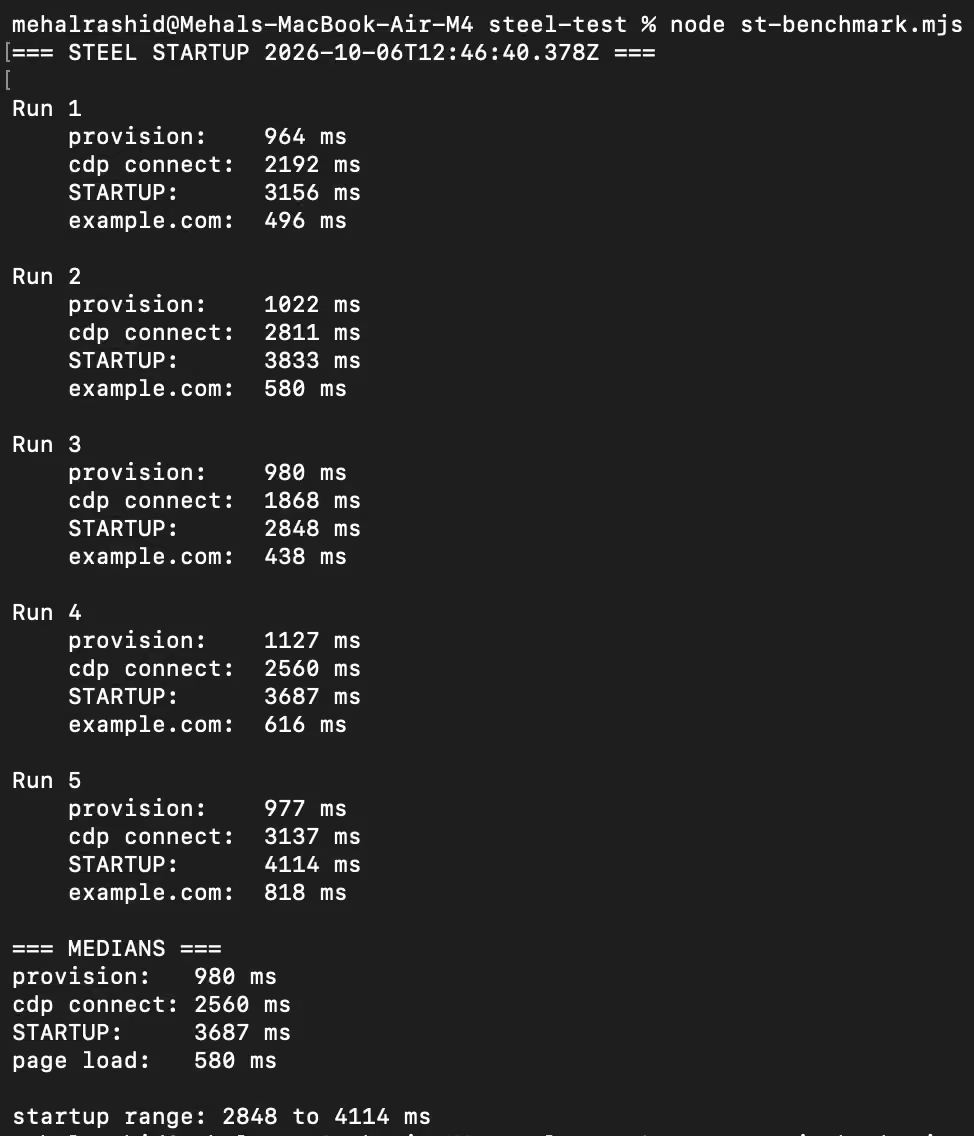
These numbers show that Steel is fast and consistent at session creation. It creates a session within 964 ms to 1,127 ms.
Most of the time goes into connecting your script to a session over CDP. The median CDP connect time of all sessions was 2,560 ms (2.56 s), which is about 70% of the median total startup time of 3,687 ms (3.69 s).
CDP connect time also varied significantly between the sessions. The minimum CDP time was 1,868 ms, and the maximum was 3,137 ms.
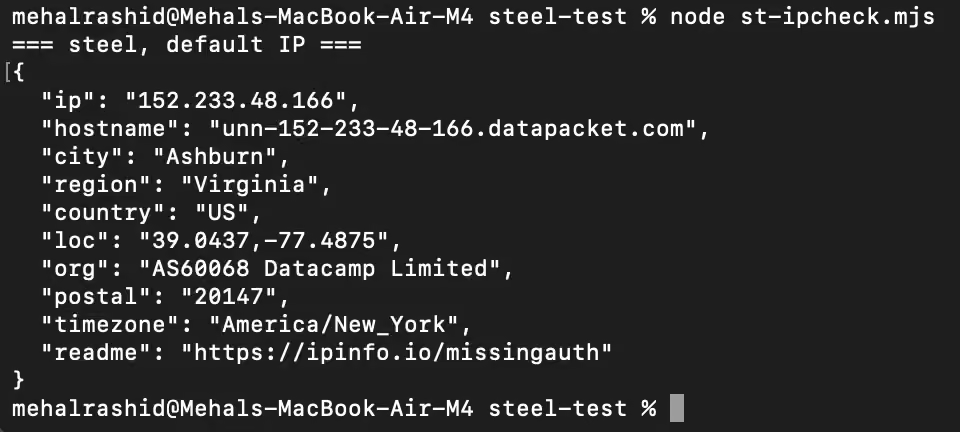
Since I had not configured a proxy in my settings, Steel had automatically assigned an IP in Ashburn, Virginia, on the US East Coast, registered to Datacamp Limited. Steel’s documentation says that it runs browsers in one region only, us-east. So every time you run a Steel session, expect an IP from the US East Coast region only.
The terminal screenshot below shows the exit IP of one of the Steel sessions:
Antibot Test
The antibot test opened and closed five sessions and loaded the following five websites in every session:
- Zillow
- G2
- Amazon
- news.ycombinator.com (Hacker News)
So, a total of 25 attempts were made at these websites collectively
The script was made to record the HTTP status codes and screenshots of each website in all sessions. A website was given a pass after only verifying through the screenshot. I didn’t trust the status code on its own.
import Steel from "steel-sdk";
import { chromium } from "playwright-core";
import fs from "node:fs";

const STEEL_API_KEY = "YOUR_STEEL_API_KEY";
const SESSIONS = 5;

const SITES = [
  "https://www.zillow.com",
  "https://www.g2.com",
  "https://www.linkedin.com",
  "https://www.amazon.com",
  "https://news.ycombinator.com",
];

const client = new Steel({ steelAPIKey: STEEL_API_KEY });
fs.mkdirSync("shots", { recursive: true });

for (let s = 1; s <= SESSIONS; s++) {
  console.log(`\n===== SESSION ${s} =====`);
  let session, browser;

  try {
    session = await client.sessions.create({ timeout: 120000 });
    browser = await chromium.connectOverCDP(
      `wss://connect.steel.dev?apiKey=${STEEL_API_KEY}&sessionId=${session.id}`
    );

    const context = browser.contexts()[0];
    const page = context.pages()[0] || (await context.newPage());

    for (const url of SITES) {
      const host = new URL(url).hostname.replace(/\./g, "_");

      try {
        const res = await page.goto(url, {
          waitUntil: "domcontentloaded",
          timeout: 45000,
        });
        await page.waitForTimeout(4000);

        const status = res ? res.status() : "no response";
        const title = await page.title();

        await page.screenshot({ path: `shots/s${s}_${host}.png` });
        console.log(`${host} | HTTP ${status} | ${title}`);
      } catch (err) {
        console.log(`${host} | FAILED | ${err.message}`);
      }
    }
  } finally {
    if (browser) await browser.close();
    if (session) await client.sessions.release(session.id);
  }
}
Have a look at how the 25 attempts went before I go into details:
| Website | Session 1 | Session 2 | Session 3 | Session 4 | Session 5 |
|---|---|---|---|---|---|
| Zillow.com | ❌ | ❌ | ❌ | ❌ | ❌ |
| G2.com | ❌ | ❌ | ❌ | ❌ | ❌ |
| Linkedin.com | ✅ | ✅ | ✅ | ✅ | ✅ |
| Amazon.com | ✅ | ✅ | ✅ | ✅ | ✅ |
| news.ycombinator.com (Hacker News) | ✅ | ✅ | ✅ | ✅ | ✅ |
Here’s the terminal screenshot showing the status code returned by each website:
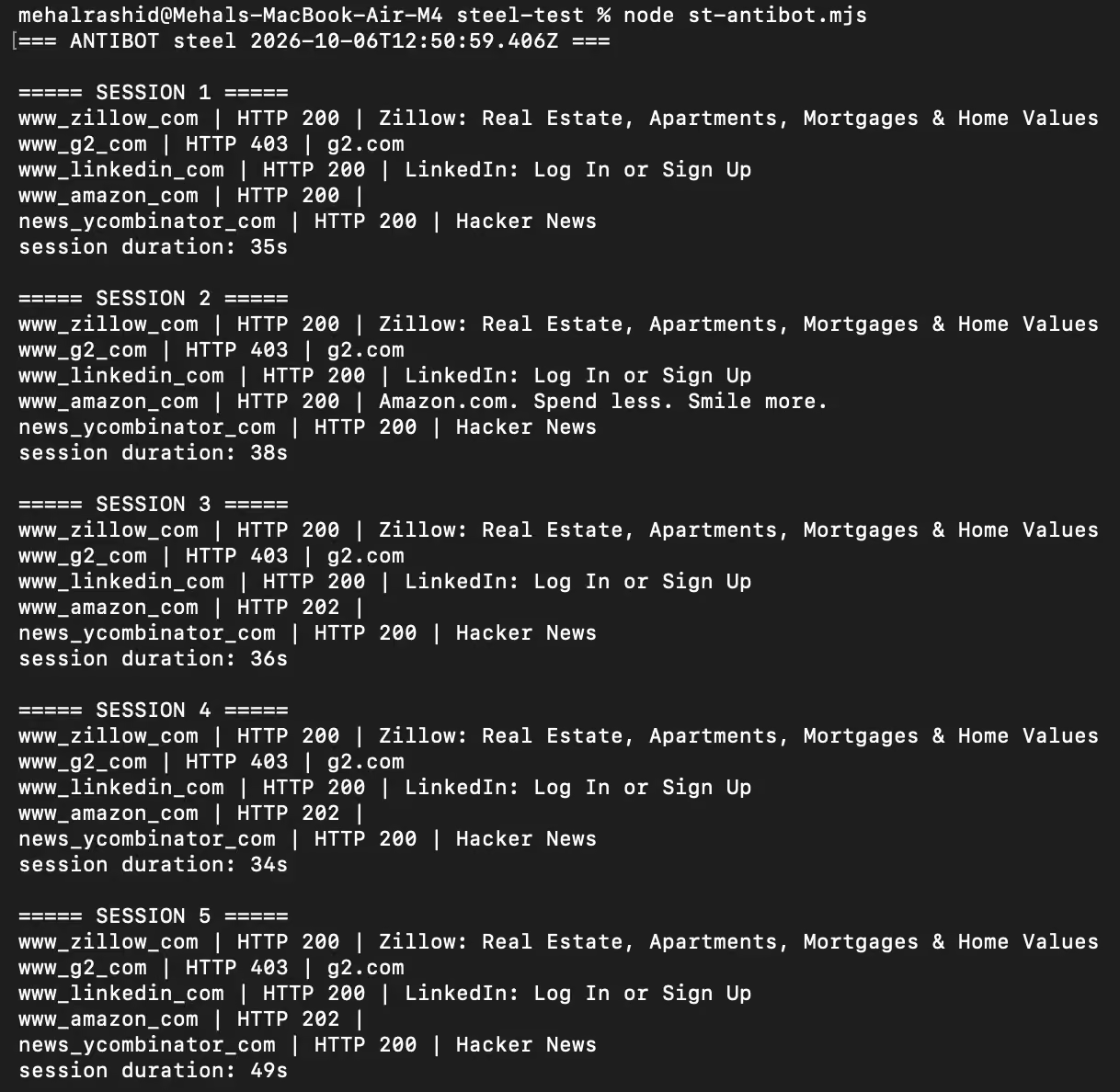
As you saw in the table, three of the five sites loaded without any trouble. Those three websites were LinkedIn, Amazon, and Hacker News.
Zillow and G2 were the ones that failed every time.
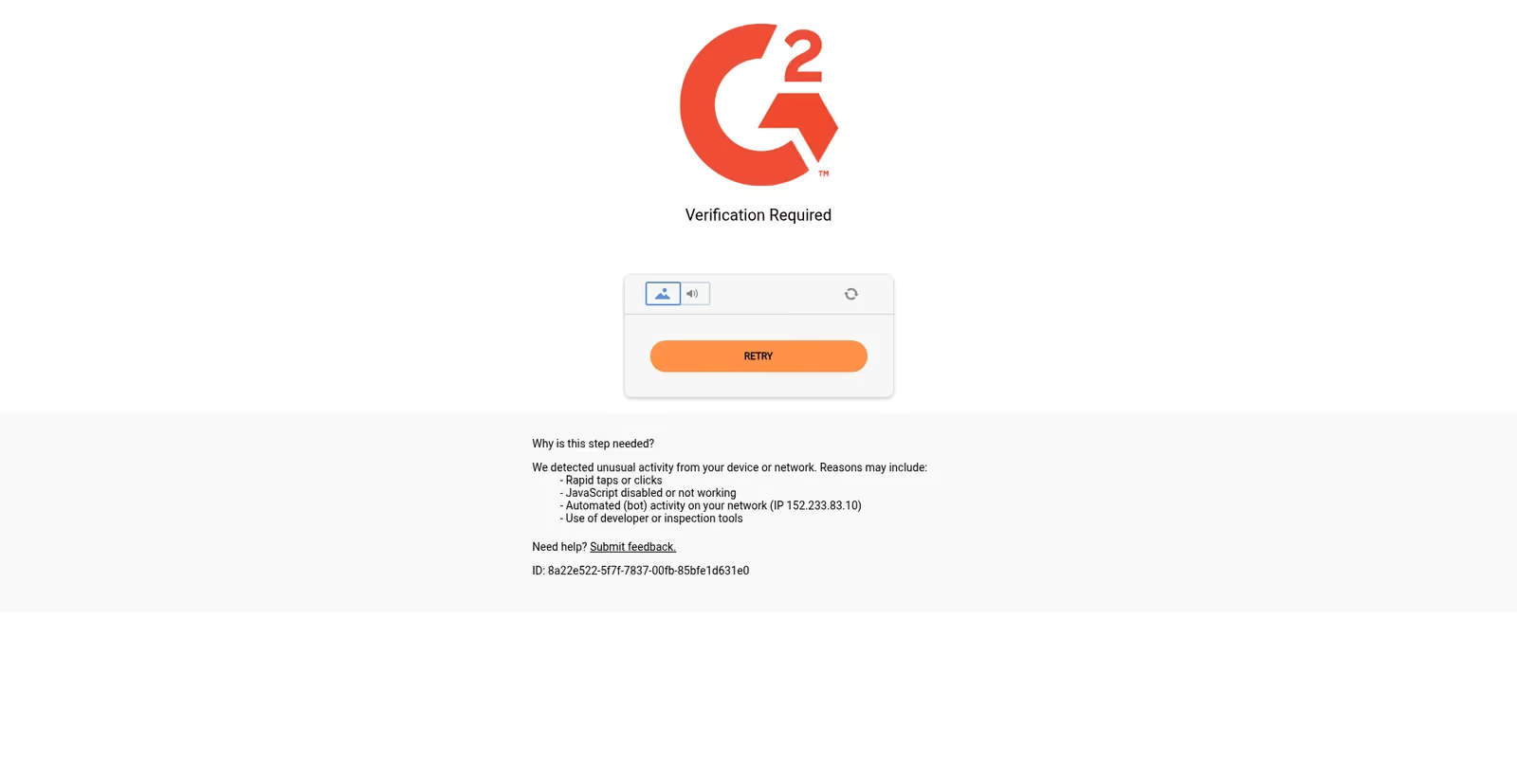
G2 blocked Steel outright with an HTTP 403 in every session. When a website returns HTTP 403, you’re certainly blocked, and there’s no need to verify manually, but I’m still attaching the screenshot:
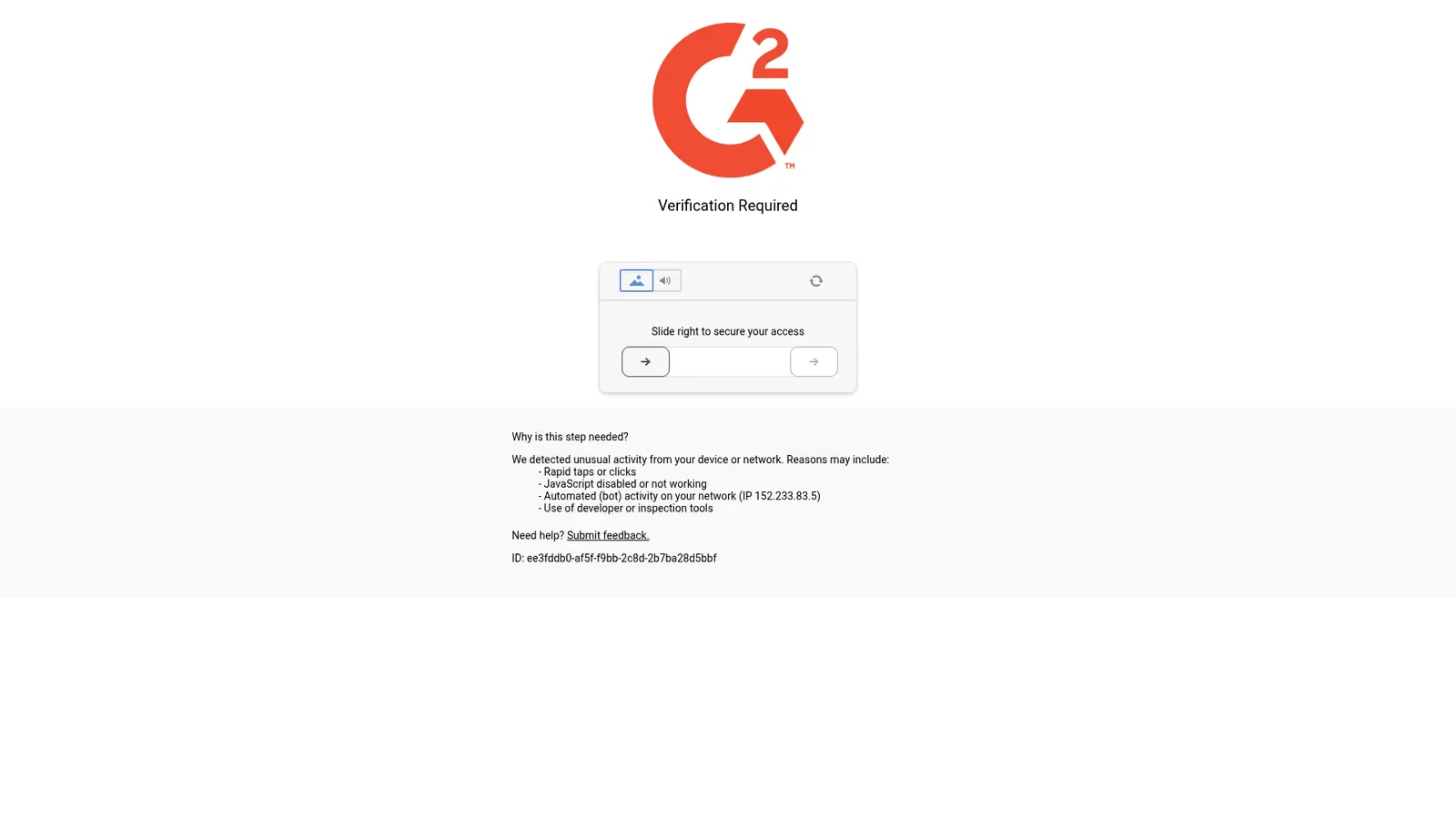
What you’re seeing in the screenshot is an antibot challenge that needs to be solved to gain access. G2 even lists “Automated (bot) activity on your network” as one of the reasons for the antibot challenge.
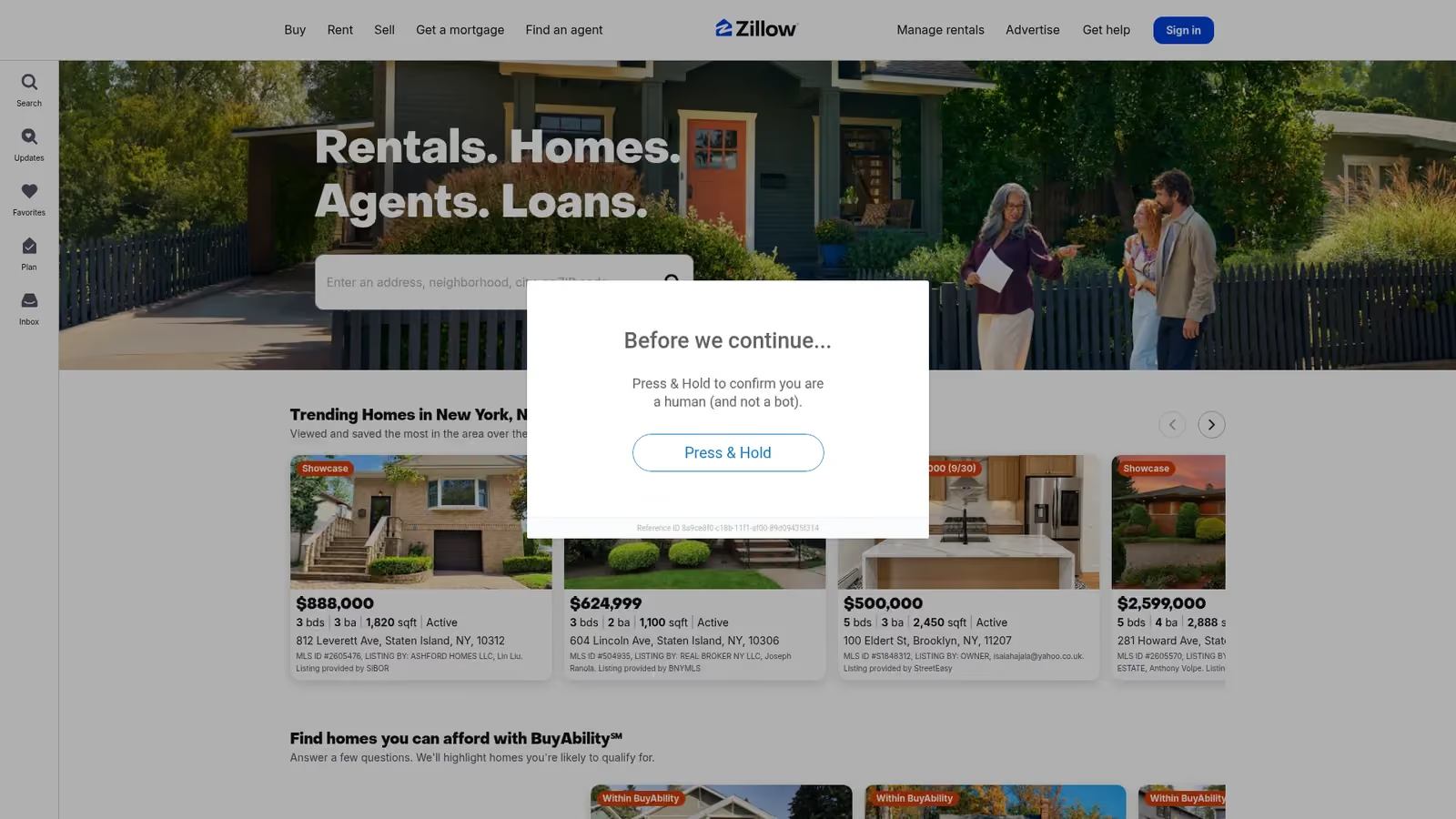
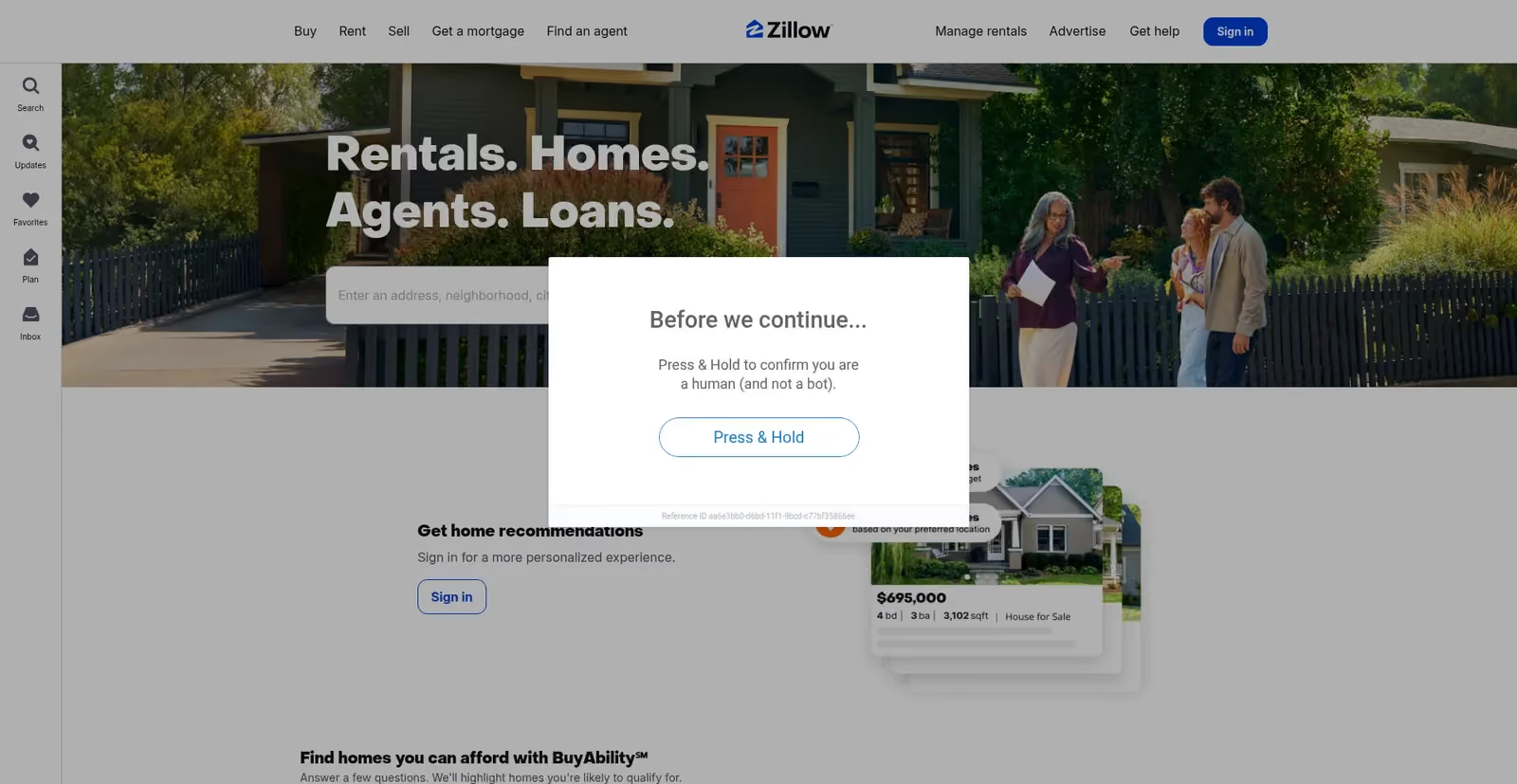
Zillow also blocked all five requests but didn’t make it apparent from the status code. It returned HTTP 200 in all requests, which normally indicates a successful request. But when I checked the screenshots, there was an anti-bot challenge on top of a fully loaded Zillow homepage.
Have a look at the screenshot from one of the sessions:
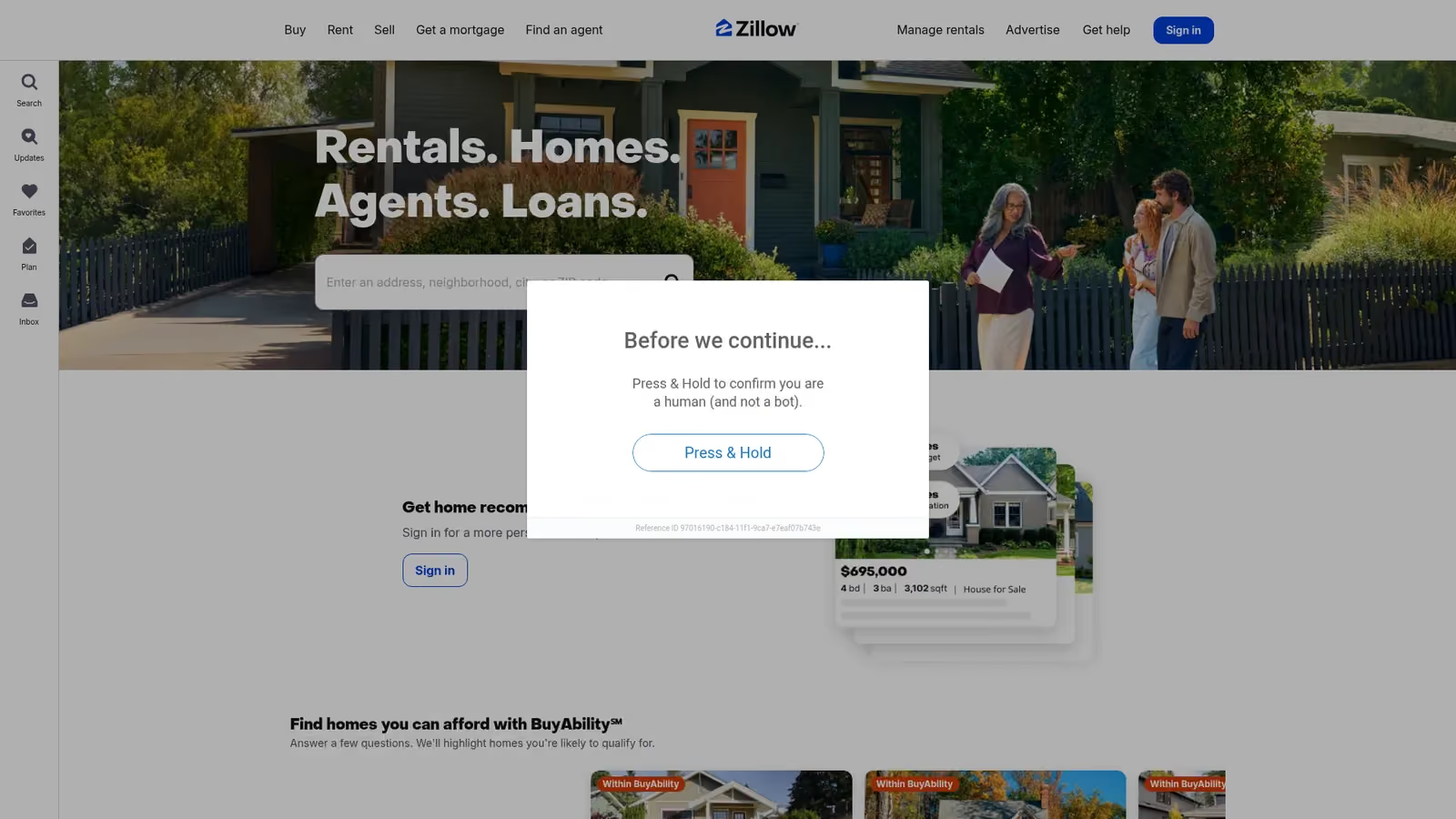
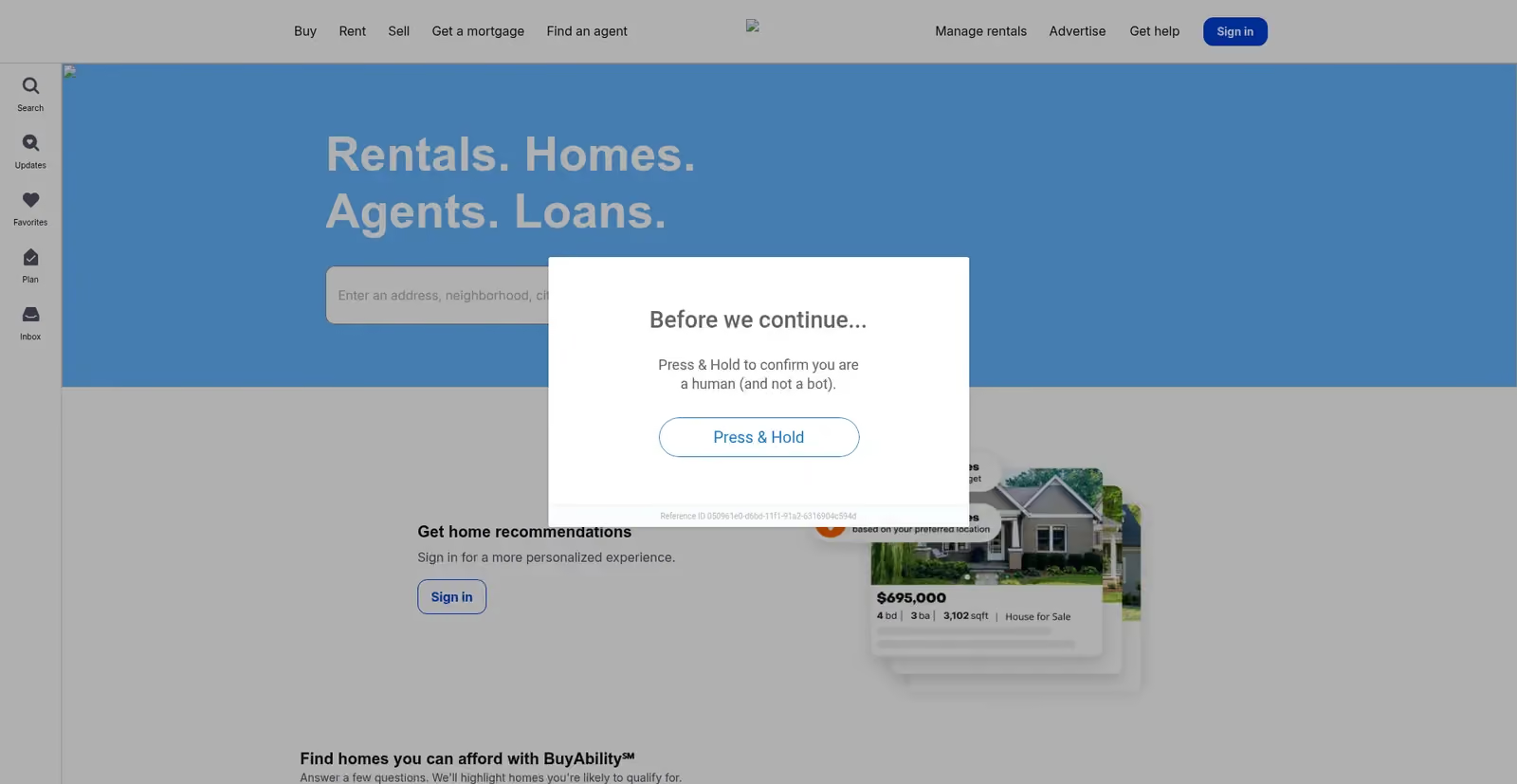
The screenshot shows a PerimeterX “Press & Hold to confirm you are a human” prompt popped up on a normal Zillow homepage.
This is exactly why I screenshot every page instead of trusting the status code. If I had only logged status codes and titles, I would have scored Zillow as a pass in all sessions.
Here, you should also remember that all these sessions were carrying data center IPs, which commonly get blocked by most websites for their low trust score.
In the next test, I tried to get past the antibot challenges by enabling Steel’s auto CAPTCHA solving and built-in residential proxies.
Verdict: Steel got through 3 of 5 sites on its default datacenter IP. The two failed sites denied entry in all five sessions with antibot challenges.
Auto CAPTCHA Solving
Steel offers auto CAPTCHA solving and built-in residential proxies as part of the free plan. The CAPTCHA solving is meant to consume $3 per 1,000 solves.
Both of these features aren’t enabled by default. I tested them both to try to get past Zillow and G2.
First, I only tried the auto CAPTCHA solving.
The CAPTCHA solver documentation page makes it clear that the feature can handle the following CAPTCHA types currently:
- reCAPTCHA v2
- reCAPTCHA v3
- Turnstile
- Image-to-text
- Slider
- Widely used challenge types
The page also states that it doesn’t solve CAPTCHAs from DataDome, Imperva, Amazon WAF, and FunCAPTCHA. It can only detect and log them currently.
The feature is enabled by adding solveCaptcha=true to your script.
My script was supposed to load the following four sites and solve their CAPTCHAs:
- Google reCAPTCHA demo
- Cloudflare Turnstile demo
- Zillow
- G2
But when I ran the script, Steel refused my request for the CAPTCHA solver at session creation with a 403 error citing the following message:
- “Launch requires at least $10 in paid balance to use CAPTCHA solving or Steel proxies. Add credits, bring your own proxy via ‘proxyUrl’, or upgrade to Scale.”
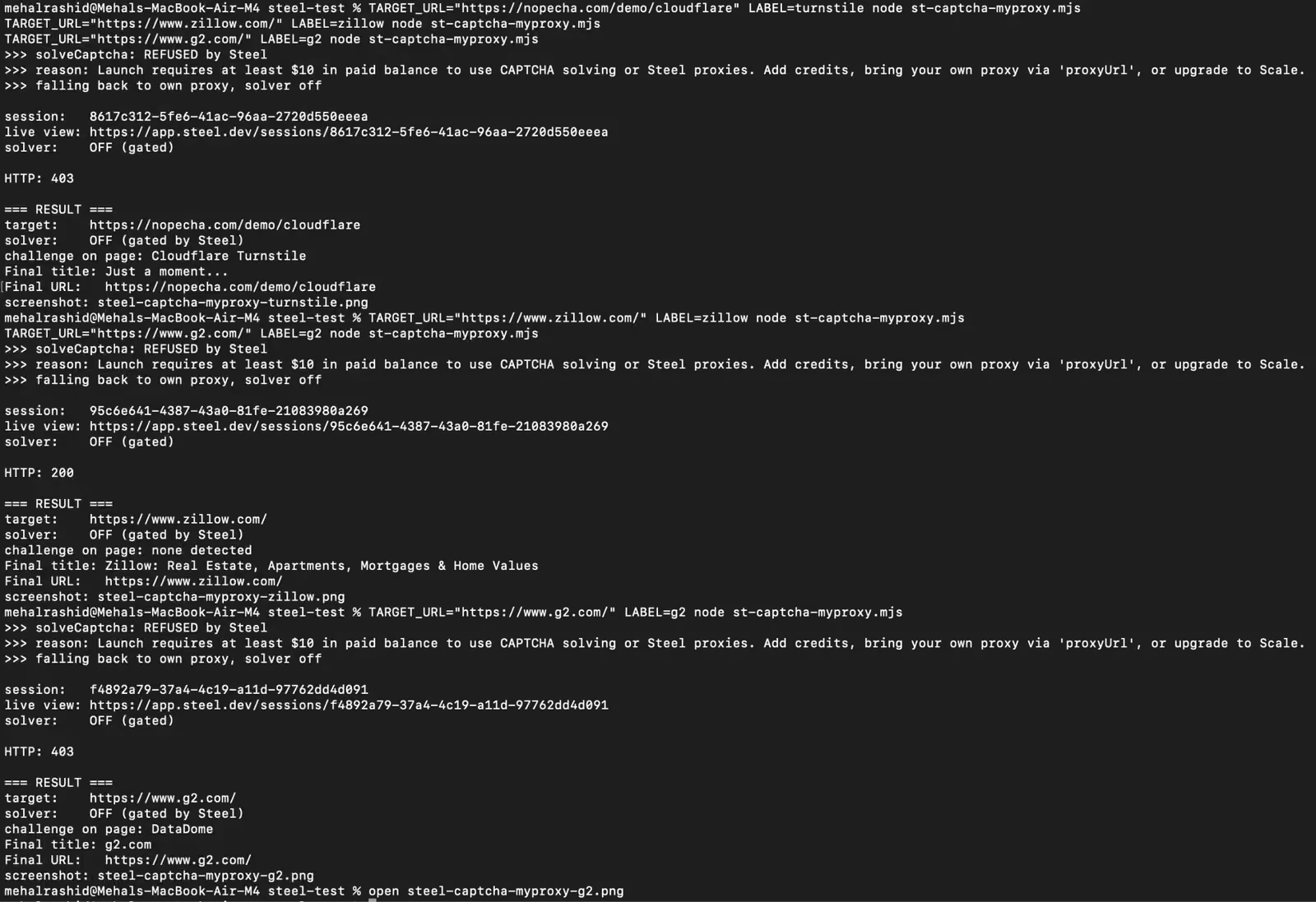
The CAPTCHA solver is listed as a feature under the free Launch plan, and the plan also comes with $30 of free credits. I assumed those credits would cover CAPTCHA solving.
I did a little more reading into Steel’s documentation pages and found the following note deeper down the pricing page:
- “Verify your Launch account with a $10 deposit:** To use CAPTCHA solving or Steel-provided proxies on Launch, verify your account by adding $10 in paid balance. Free credits do not count.”
So the auto CAPTCHA solver was never meant to work on the free plan without buying $10 worth of paid credits first.
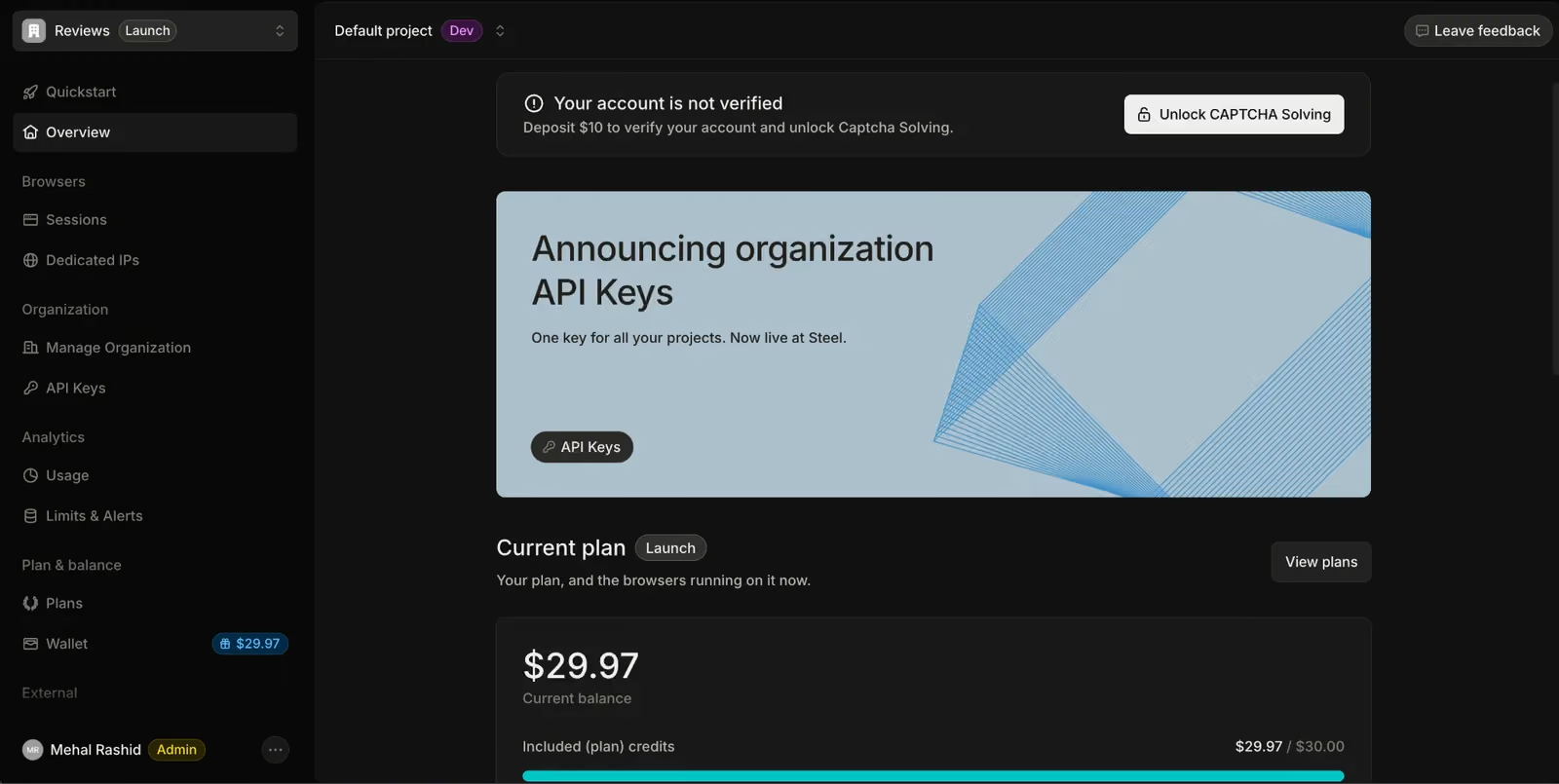
Before adding $10 paid credits to my account to test CAPTCHA solving, I checked whether bringing my own proxy would get around it. I created three sessions: one with the solver on and a US residential proxy of mine attached, one with the solver on and no proxy, and one with the solver off and the proxy attached.

Only the third one was created. Both sessions with solveCaptcha set to true were refused with the same 403, whether a proxy was attached or not.
So the restriction is on the CAPTCHA solver itself, not on which IP you use. Your own proxy replaces Steel’s proxies, but it does nothing for the solver. On Launch, the only ways in are the $10 paid balance or the Scale plan.
Verdict: On free credits alone, the CAPTCHA solver can’t be used at all. I added the $10 paid balance and tested it below.
The error message also states that Steel’s built-in proxies cannot be used on the free plan either without paid credits.
However, Steel suggests that you can bring your own proxies. So I did that and attached a US residential proxy before running the script again. I also switched off the CAPTCHA solver.
Here’s how each site reacted:
| Target | HTTP | Challenge on the page |
|---|---|---|
| Zillow | 200 | PerimeterX “Press & Hold to confirm you are a human” |
| G2 | 403 | DataDome |
With the solver off and a US residential proxy attached, Zillow again loaded the website, hence the 200 status code, but there was the same antibot challenge: PerimeterX “Press & Hold to confirm you are a human”. This shows Steel couldn’t get past Zillow even with a US residential proxy enabled.
G2 was also the same. It returned a 403 and the DataDome challenge, which shows that G2 assesses requests based on their fingerprint, not just IP.
Auto CAPTCHA Solving After Adding the $10 Paid Balance
I went ahead and added a $10 balance to the Steel account as required to enable CAPTCHA solving and to test how it performs

I then wrote a script to test its solver. It loaded one target per session with solveCaptcha set to true, polled for a solve token, and screenshotted the final page.
| Target | Challenge | Outcome | Time |
|---|---|---|---|
| Google demo | reCAPTCHA v2 | Solved | 25,364 ms |
| NopeCHA demo | Cloudflare Turnstile | Solve failed | 91,010 ms |
| Zillow | PerimeterX Press & Hold | Challenge still appeared | 92,962 ms |
| G2 | DataDome | 403, challenge still appeared | 92,190 ms |
The results of auto CAPTCHA were not what I expected since only one of the four targets was solved.
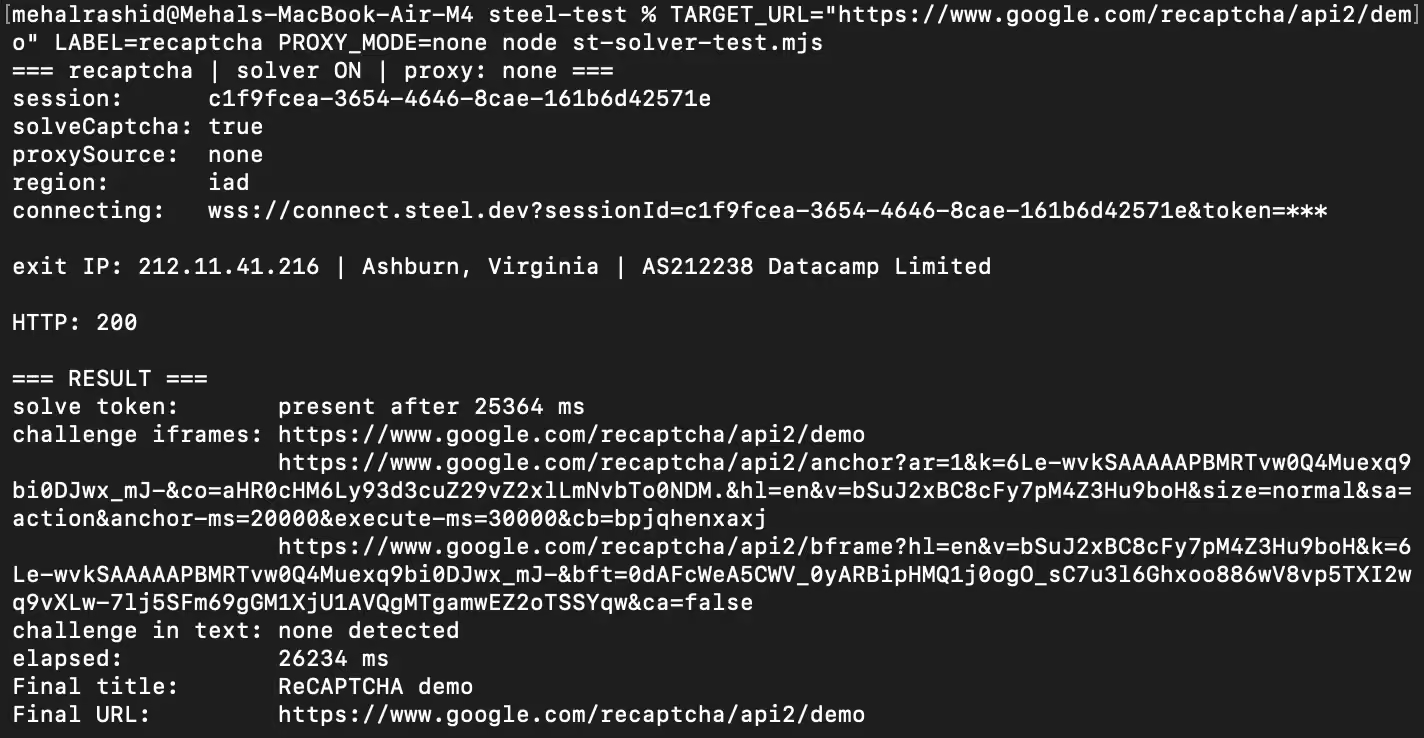
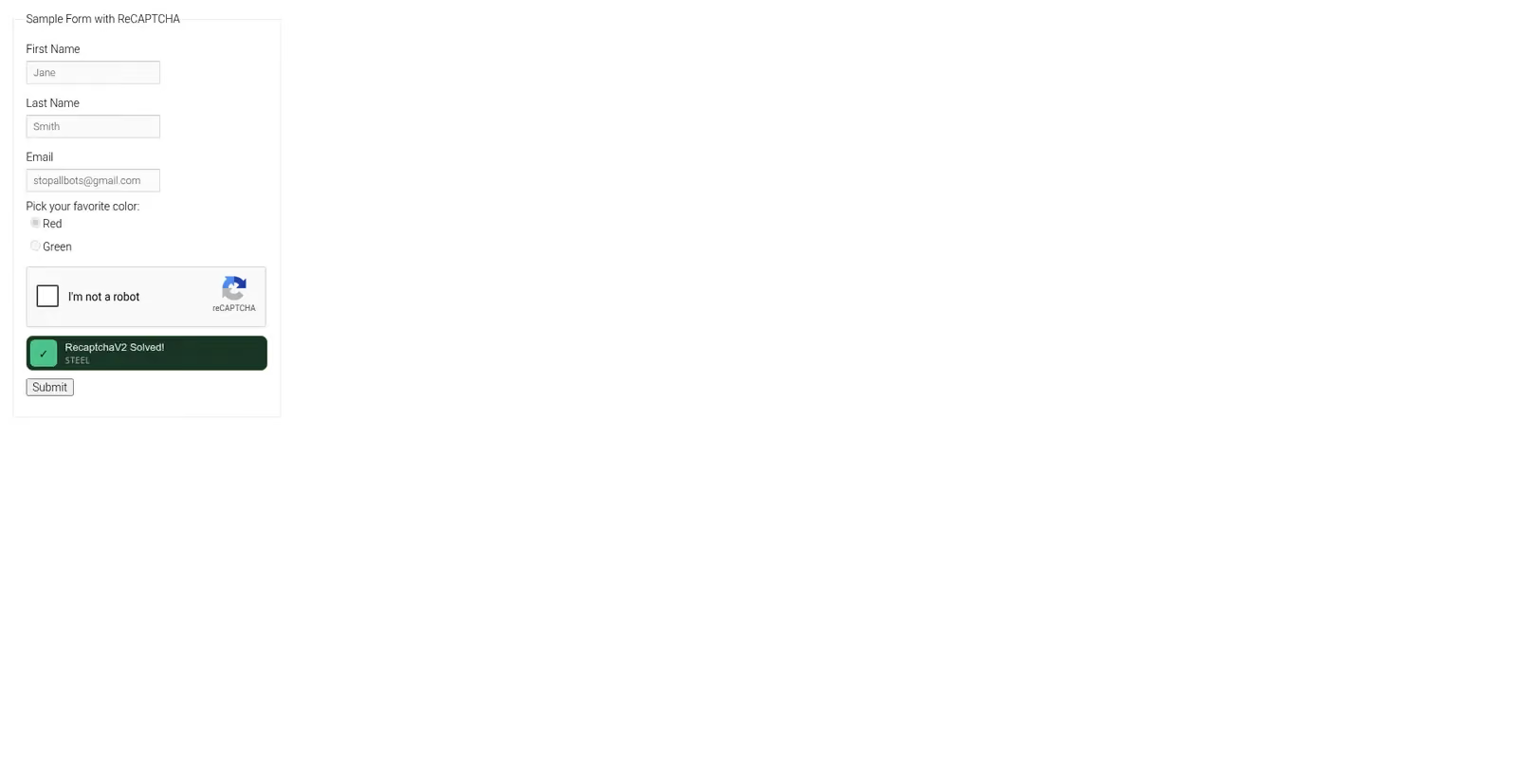
Steel only managed to clear the reCAPTCHA v2 demo in 25.4 seconds and confirmed it on the page itself.
Turnstile was the biggest setback of them all since Steel’s documentation lists Turnstile as a supported type, but the solver tried and gave up. As a matter of fact, Steel’s own overlay is what reported the failure.
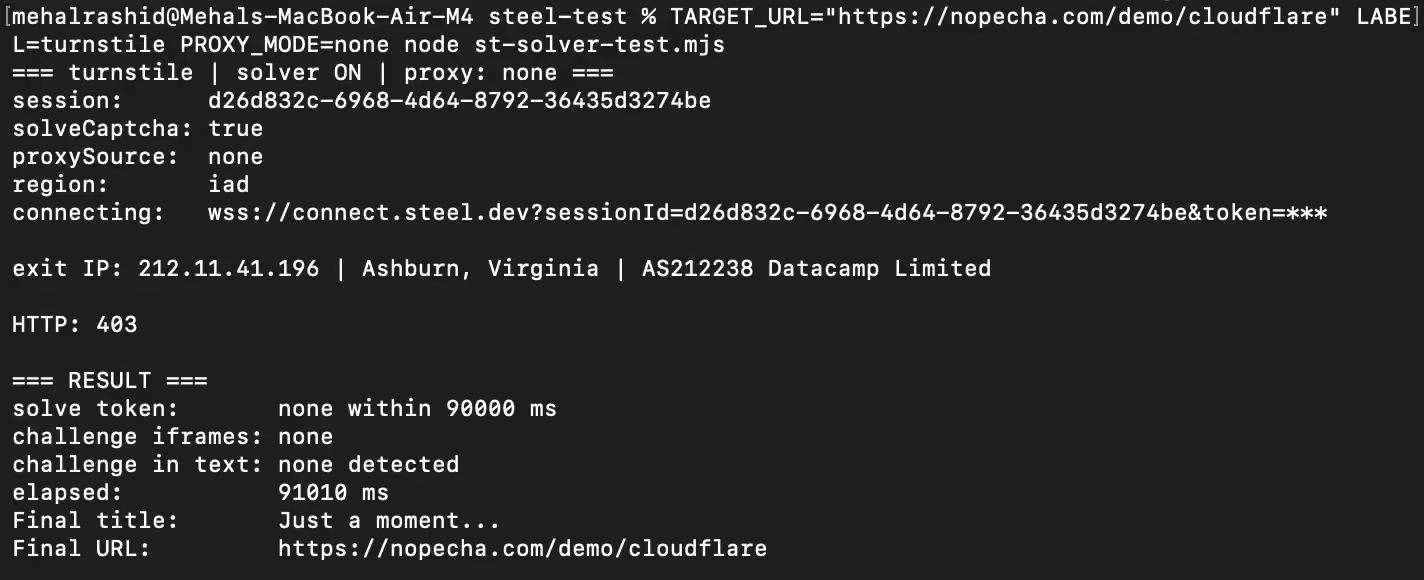
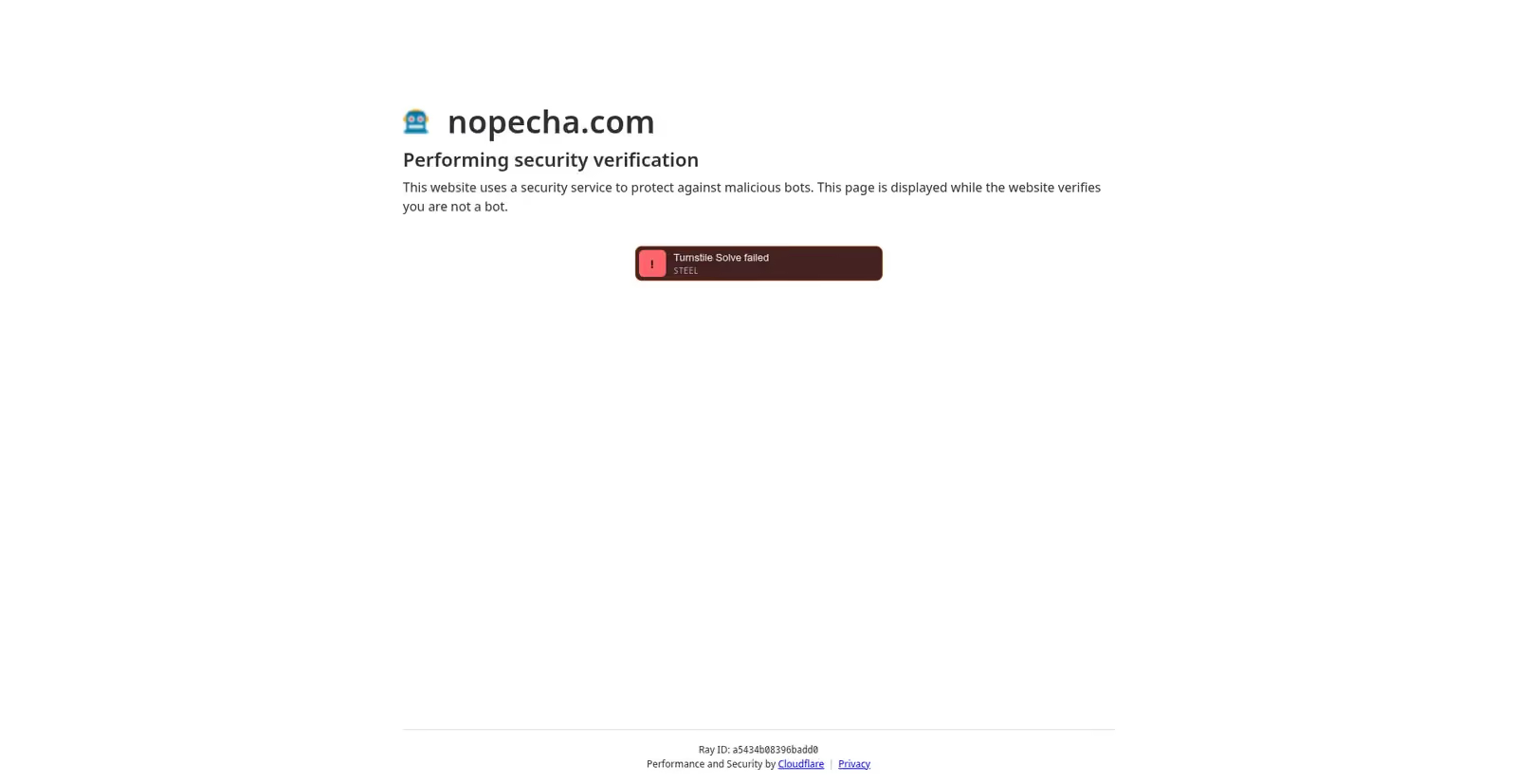
Zillow and G2 behaved exactly as they did without the solver.
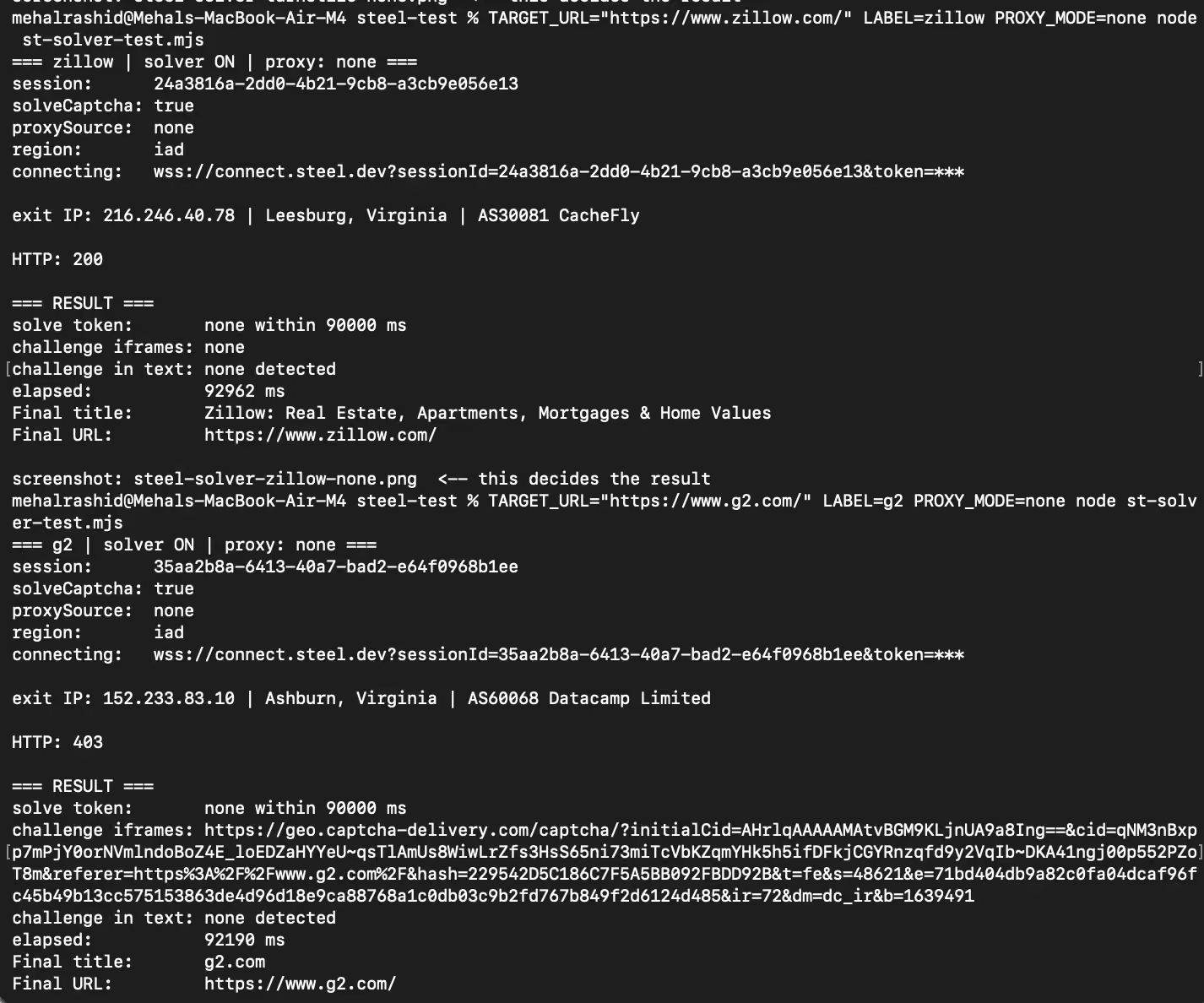
Zillow returned HTTP 200 and still showed the Press & Hold prompt.
G2 returned a 403 with a DataDome challenge, which Steel’s docs already say the solver doesn’t handle.
I also re-ran Zillow on Steel’s own residential proxy, which the paid balance unlocks. The session exited from an AT&T IP in Bakersfield, California, so the proxy was working, but the Press & Hold prompt appeared regardless.
Verdict: Steel’s solver cleared 1 of the 4 challenges I tested. Turnstile is listed as supported, but even that did not work.
Live View and Session Recording
You can get live view and session recordings for each session you run in Steel. So I used the CAPTCHA runs above to check what you actually get.
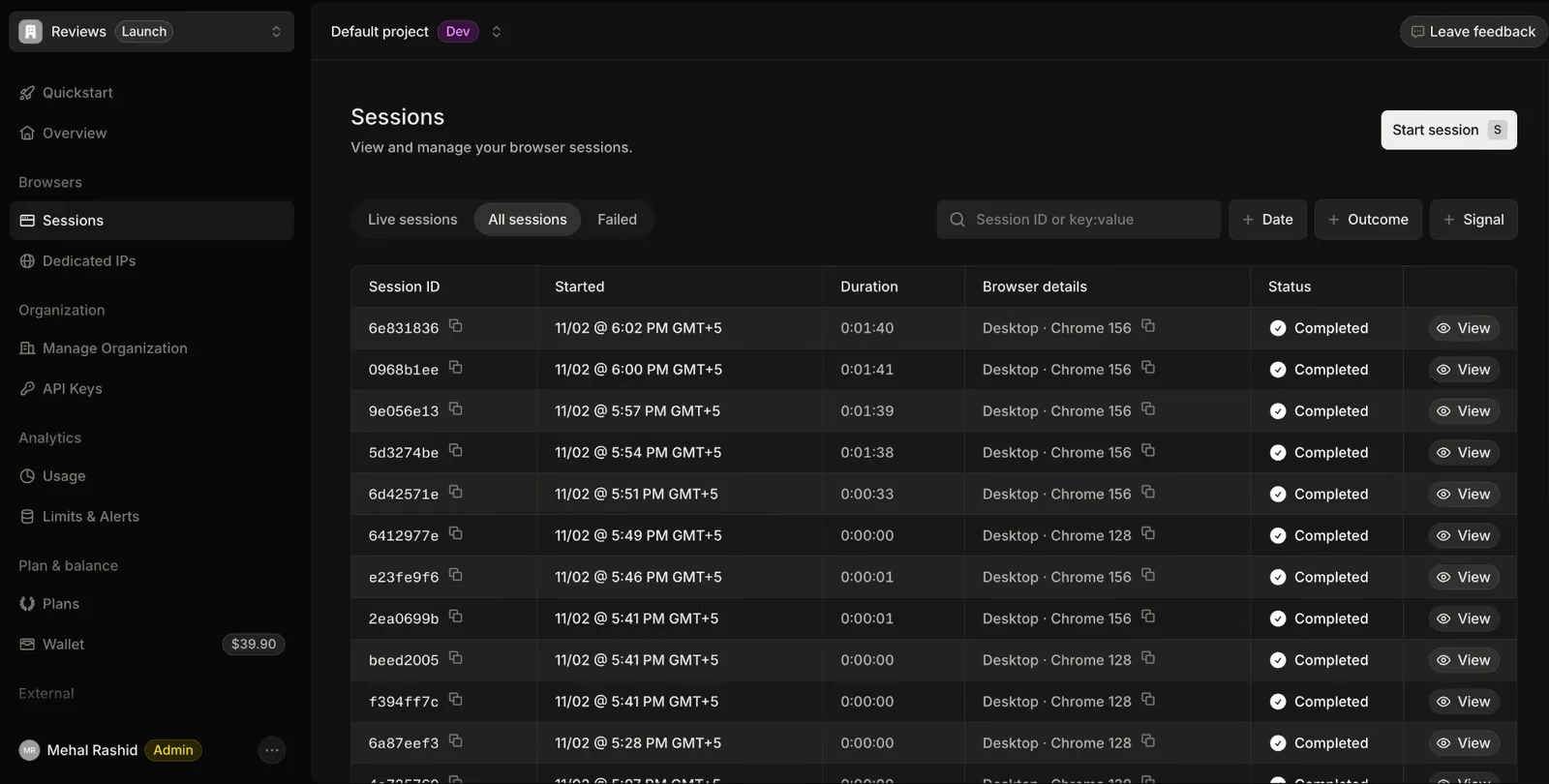
For starters, the session list shows each run with its duration, Chrome version, and status, and filters by date, outcome, or signal.
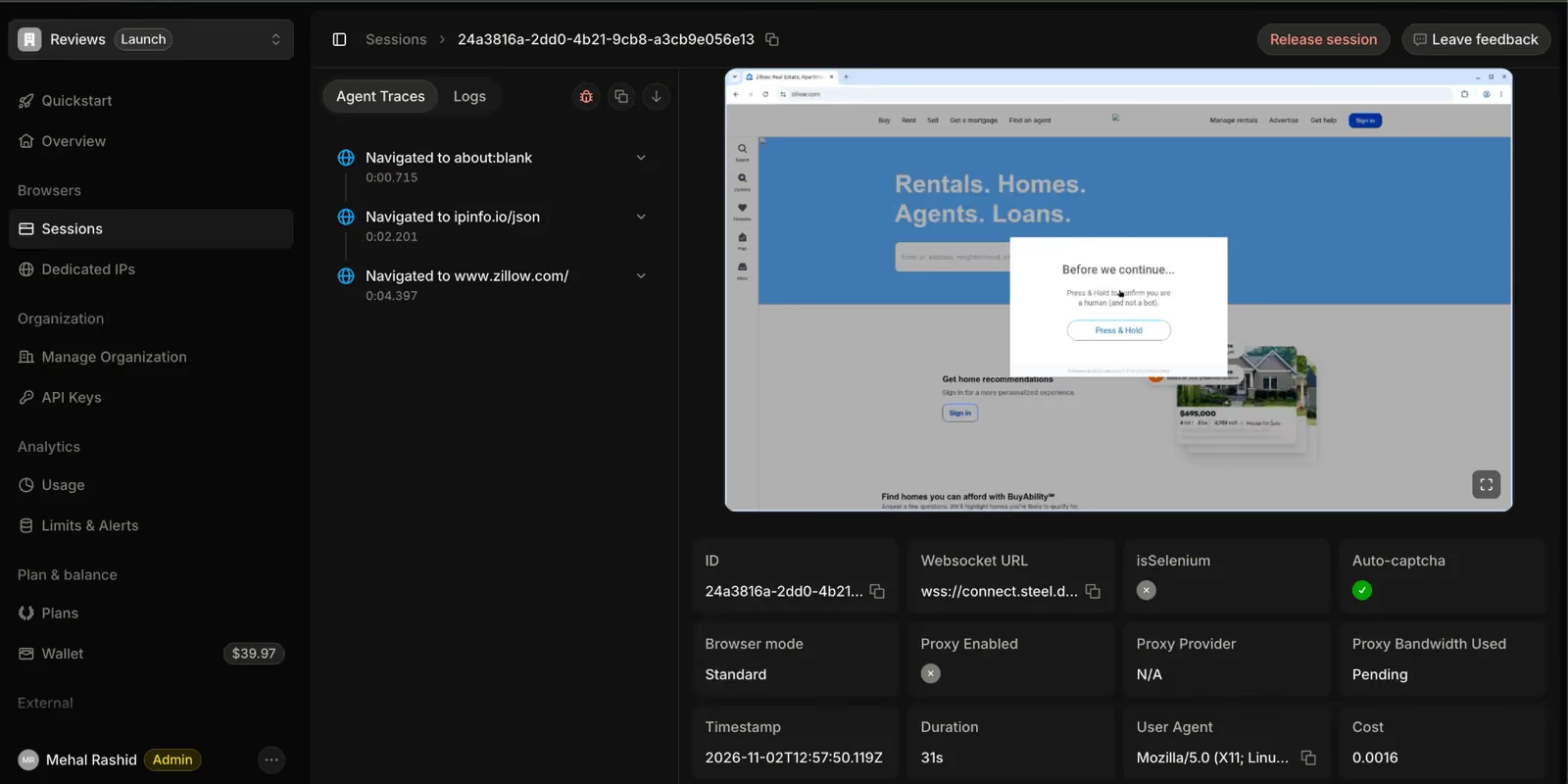
When you open a live session, Steel shows the browser you can click into, a Release session button, and an Agent Traces panel that timestamps every navigation. In the run below, you can see my cursor on the page and the three navigations my script made.
When you finish a session, you can access it again as replays you can scrub through and speed up. Also, Steel labels the outcome of the session itself. The Zillow run on its own residential proxy is tagged “Bot blocked”, which matches what I scored from the screenshot.
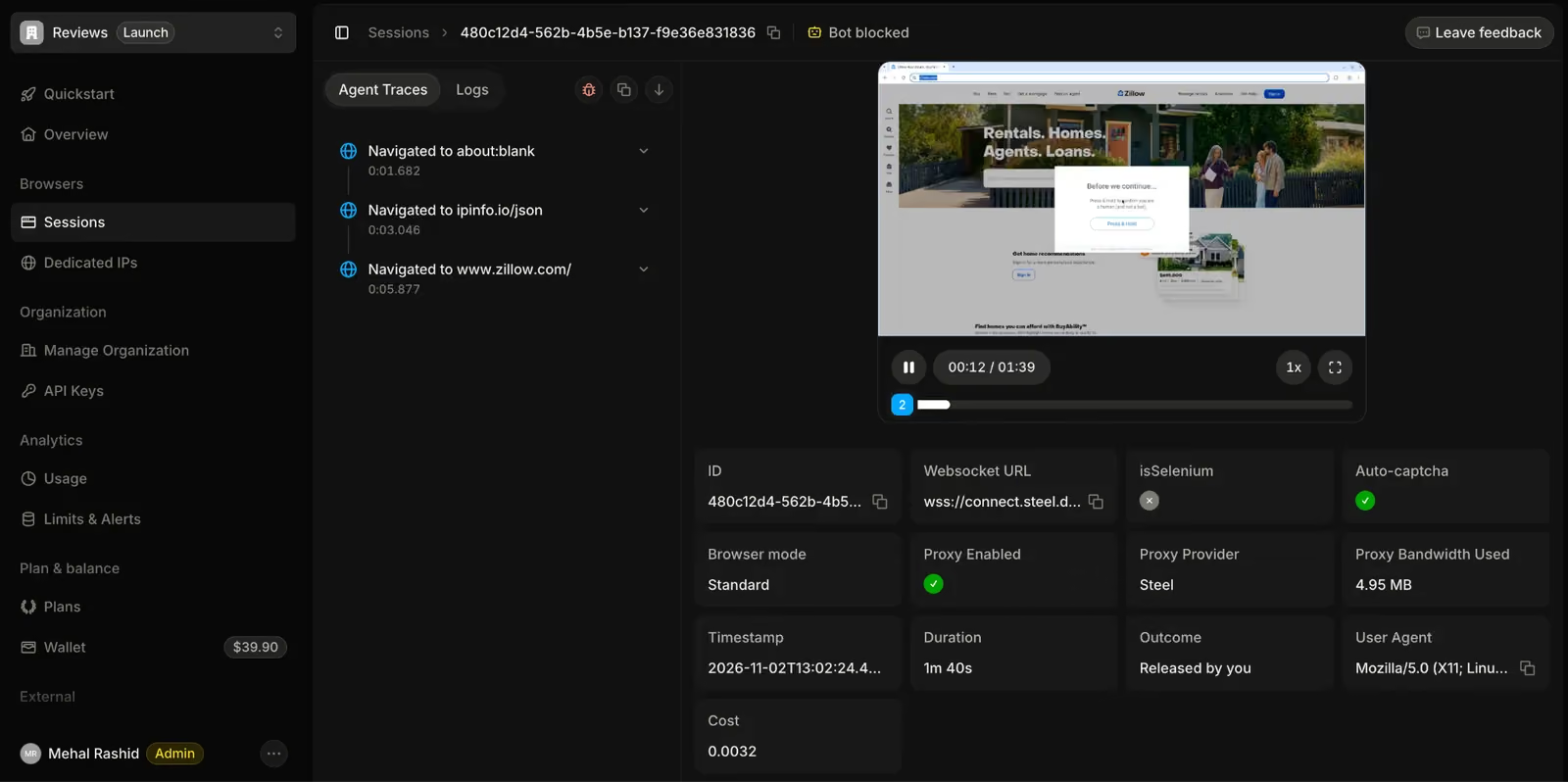
On the same panel, you can see cost per session as well. The 31-second datacenter run cost $0.0016 and the 1 minute 40 second proxy run cost $0.0032, with its 4.95 MB of proxy bandwidth billed separately.
And yes, both features work on the free plan. Launch keeps the recordings for 7 days.
Proxy Geo-Targeting
Steel’s managed residential proxies support geo-targeting by country and US state.
The docs list over 200 countries by two-letter code and also advertise city-level targeting, but the API rejected every city value I tried, including the LOS_ANGELES example from Steel’s own documentation.
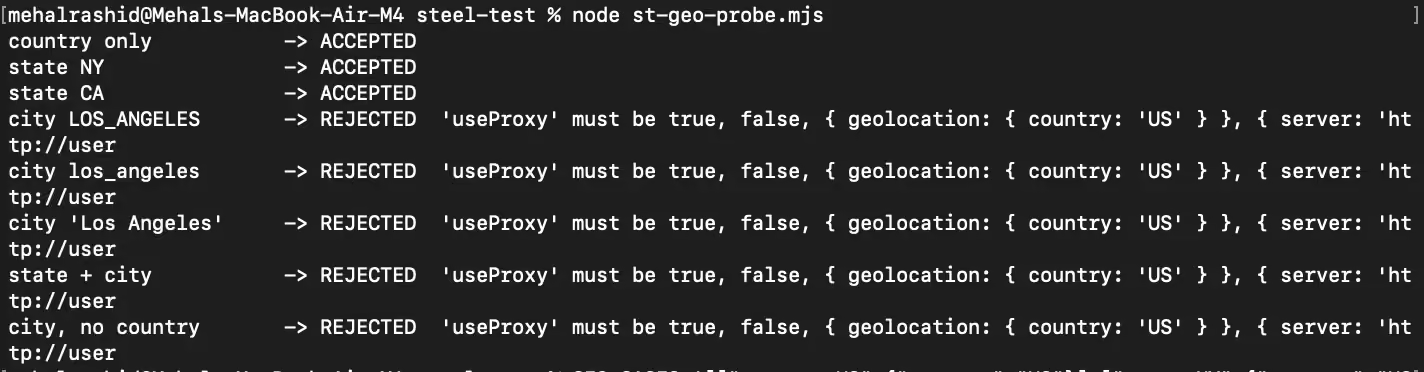
The error was a schema rejection rather than a plan limit, so city targeting looks like it isn’t wired up rather than being reserved for a higher plan. There’s no ZIP-level targeting.
| What I requested | Result | Exit IP |
|---|---|---|
| country: “US” | Accepted | Memphis, Tennessee, Comcast |
| country: “US”, second run | Accepted | Bakersfield, California, AT&T |
| country: “US”, state: “NY” | Accepted | Vestal, New York, Charter |
| city: “LOS_ANGELES” | Rejected | n/a |
Country-level targeting rotates anywhere in the US, and the state request was honored. Every exit IP belonged to a consumer ISP, so the pool is genuinely residential rather than datacenter ranges under a different name.
However, proxy bandwidth is billed separately from browser time, at $10/GB on Launch and $6/GB on Scale. On Launch, the proxies need the same $10 account verification as the CAPTCHA solver.
Login Persistence
Steel offers two ways to stay logged in between sessions.
- Profiles: When you log in to an account, Steel saves the browser state, such as cookies and local storage, to a Profile. The next time, you simply add the Profile ID to the session script.
- Copy cookies manually: Request the cookies and local storage of a session with a session context call and paste the returned object into the next session’s script.
I used the Profiles method because that is how I tested Hyperbrowser and Browserless as well. You can try both ways as it shouldn’t make a difference.
The Profiles method requires you to set persistProfile to true in the first session. I wrote the script to automatically sign in to a throwaway Hacker News account and let the session close. This script was successful. The Hacker News account was logged in.
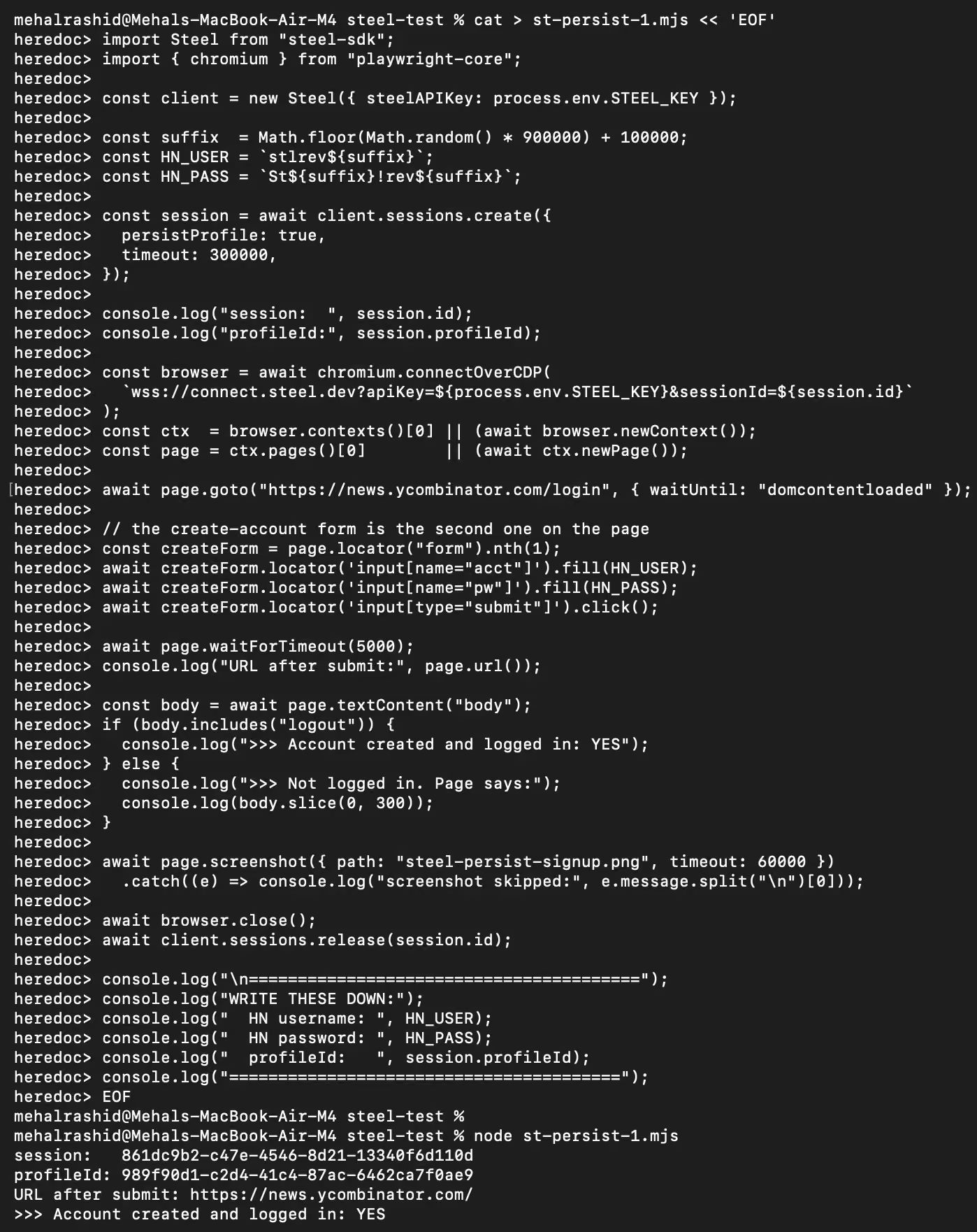
Thirty minutes later, I opened a new session with that profile ID attached and loaded Hacker News.
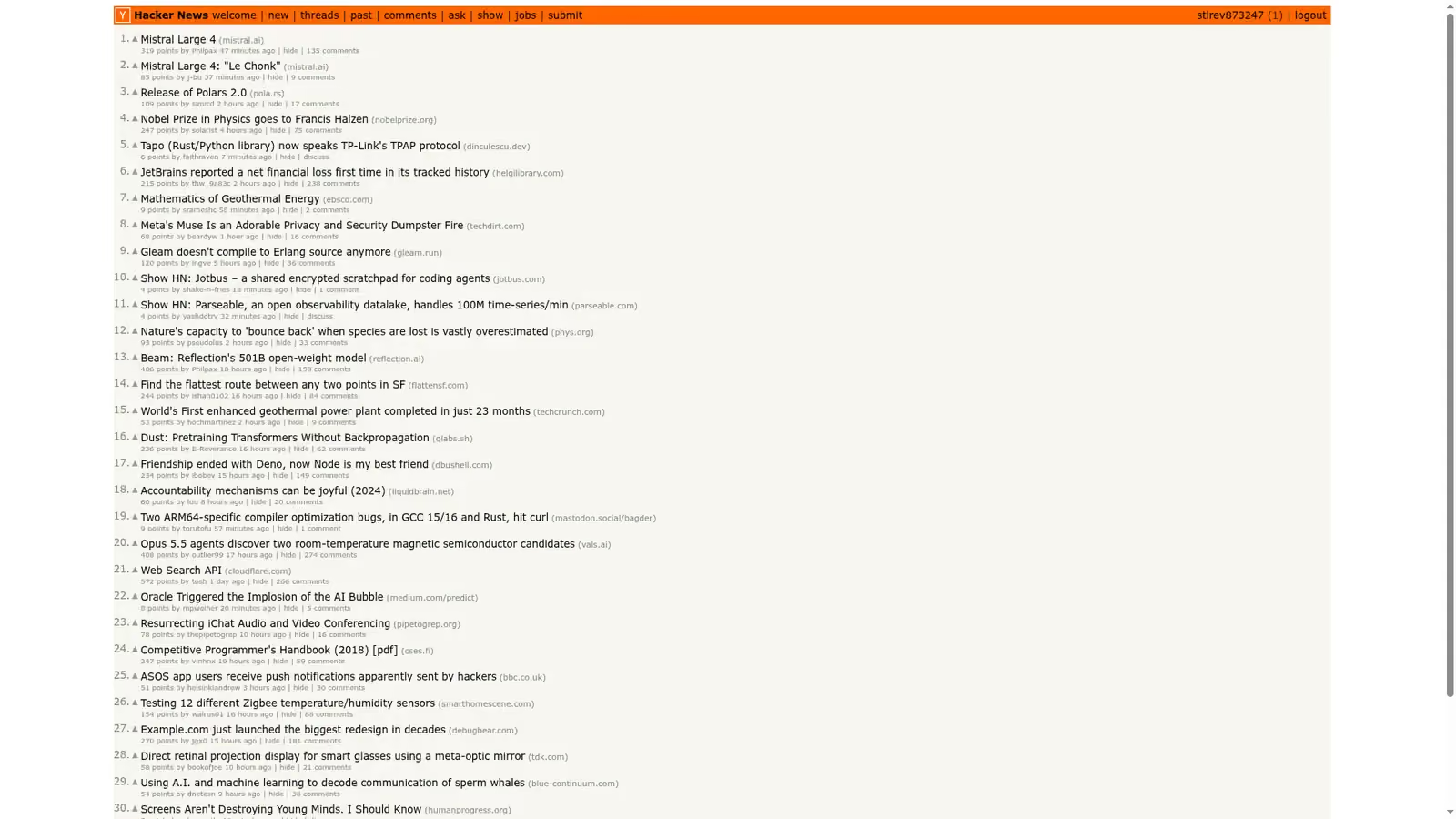
The Hacker News account was still logged in, as the terminal screenshot shows:

I came back to this profile on 2 November, 27 days after it was created on 6 October. It was still listed with a status of READY.
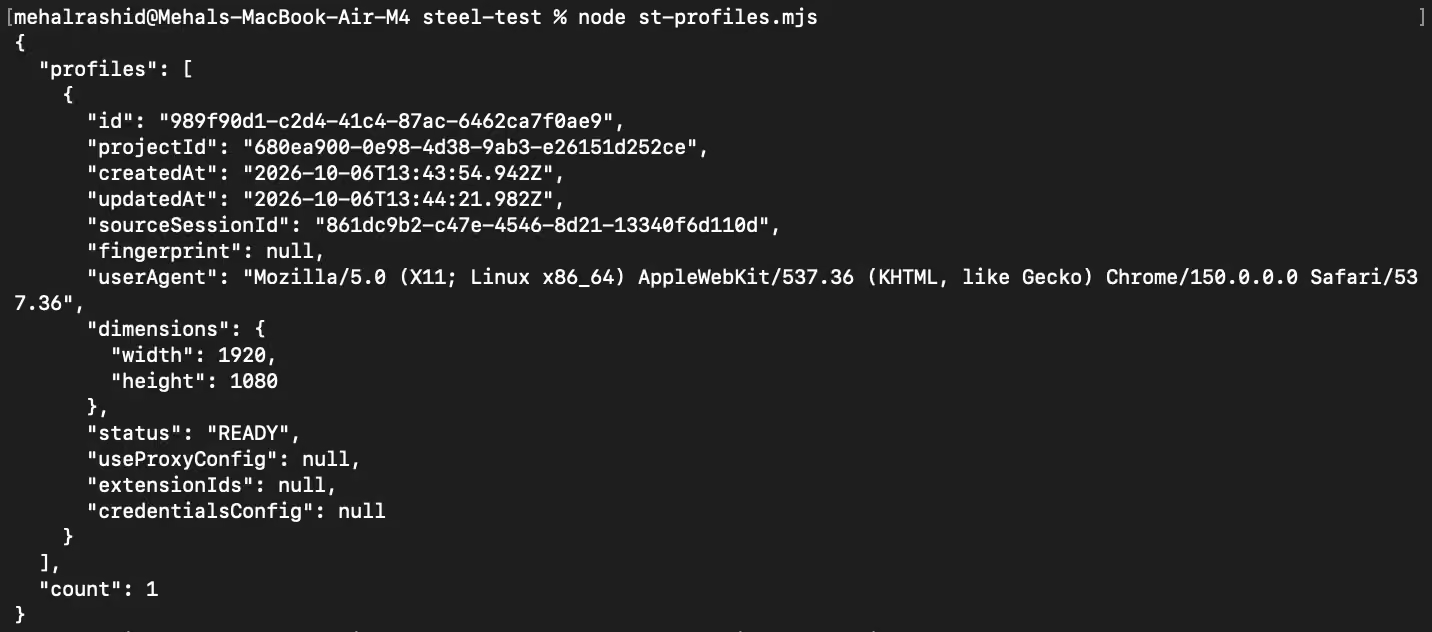
So I opened a new session with that profile ID and loaded Hacker News. The account was still logged in, with its session cookie intact.
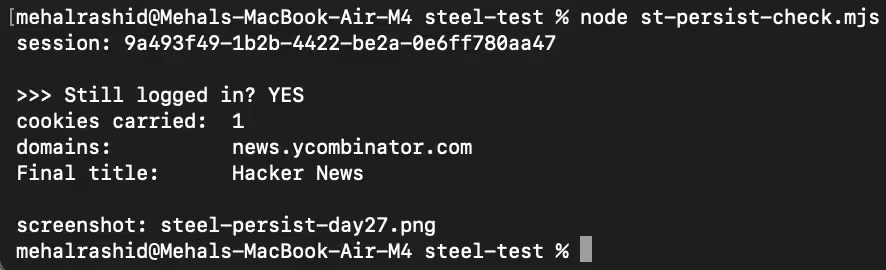
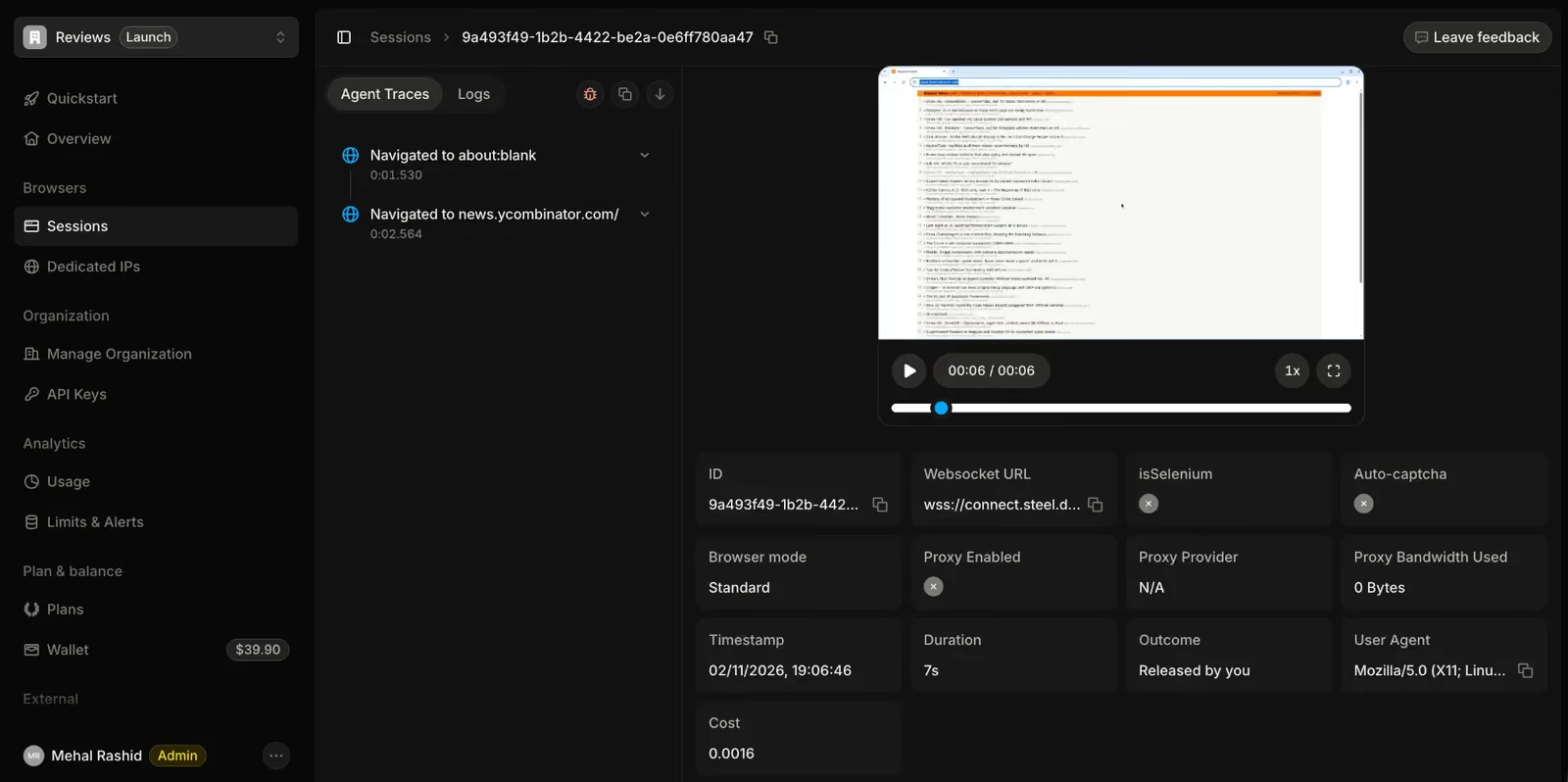
Here you should know that the 7 days of data retention on the Launch plan covers session data and recordings. Profiles have their own limit, and Steel’s docs say a profile is deleted only after 30 days unused. So 27 days are inside that window, with three days to spare.
Verdict: Steel’s persistent sessions feature works fine on the free plan.
Concurrency
In the context of cloud browsers like Steel, concurrency refers to the number of browser sessions you can run at the same time.
According to Steel, its free plan allows 10 concurrent browser sessions.
The paid plans allow you to run 100 to 1000+ concurrent sessions.
I wanted to test the free plan claim. Can you actually run 10 sessions simultaneously? And what happens if you try to run more than that?
The script I wrote tries to open 14 sessions at once. For every session that loads successfully, the script prints an OK message next to the session number.
The terminal screenshot below shows the script and how Steel reacted to it:
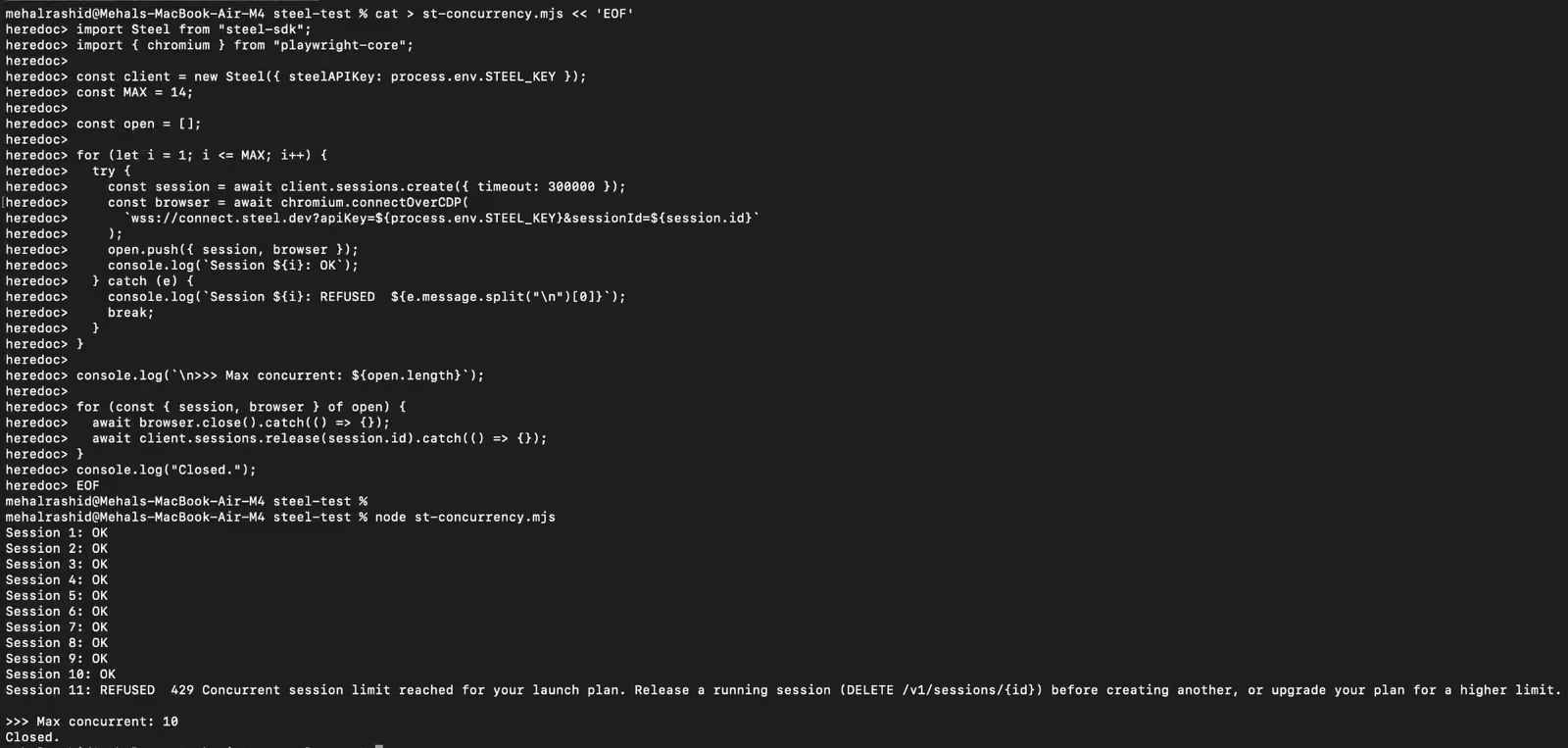
As the screenshot shows, Steel loaded 10 sessions and refused the 11th one, raising a 429 error and citing the following error message:
- Concurrent session limit reached for your launch plan.
Verdict: Steel’s free plan has a concurrency of 10.
How Much Does Steel Cost
Steel offers a free plan.
This plan gives you access to a bunch of features. However, the core usage, such as running a session, is billed in credits.
The free plan gives you $30 worth of credits for free. But these credits expire after 90 days and don’t renew. So the free plan is not free forever. After 90 days you need to buy paid credits to keep running sessions.
To continue using the free plan after 3 months or once your free credits expire, you have the option to buy credits separately. These are called paid credits, and features such as built-in residential proxies and CAPTCHA solver also require paid credits. They don’t work on free credits.
If you want to unlock more features such as higher concurrency or longer data retention, you will have to upgrade to paid plans.
Here’s a comparison of the free and two paid plans along with their price:
| Item | Launch | Scale | Enterprise |
|---|---|---|---|
| Plan fee (USD/month) | $0 | $250 | Custom |
| Included credits | $30, one-time (90 days) | $100 per month | Custom |
| Browser hours | $0.10/hour | $0.08/hour | Custom |
| Proxy bandwidth | $10/GB | $6/GB | Custom |
| CAPTCHA solves | $3 per 1,000 solves | $1 per 1,000 | Custom |
| Browser Tools calls | $5 per 1,000 | $5 per 1,000 | Custom |
| Concurrent sessions | 10 | 100 | 1,000+ |
| Max session length | 15 minutes | 1 hour | 24 hours |
| Requests per minute | 60 | 600 | Custom |
| Data retention | 7 days | 14 days | Custom |
| Advanced browser fingerprinting | - | - | Included |
The rate at which features use credits also drops in the paid plans.
What Steel Would Cost in a Real Scenario
Steel charges session time by the minute.
But in a real-life scenario, you won’t be simply running a session. You will also be using proxies, the CAPTCHA solver, and other browser tools. All these features use the same credit pool.
So how do you estimate usage credits for actual usage? I lay out two realistic scenarios to make it simple.
Both examples below assume your 90 days of free credits are already gone, so the credits in your account are a paid balance.
Steel also bills browser time by the minute and rounds up. Its dashboard reports cost per session, which confirms it. A 7-second session and a 31-second session both billed $0.0016, which is one minute at $0.10 an hour, and a 1 minute 40 second session billed $0.0032, which is two.
Scenario 1
Suppose you are a solo developer on the Launch plan, past your 90 days of free credits and running on a paid balance. You run a price-tracking AI agent across 3,000 sessions a month, and each of those has the following average usage:
- 4 minutes 20 seconds of usage time
- 2 MB proxy traffic
- CAPTCHA solving in about 1 in 5 sessions
- 2,000 quick /scrape calls for pages that don’t need a full session
Cost calculation
Measure the total browser time by multiplying total sessions by average session time, i.e., 3,000 sessions × 5 billed minutes. That gives you a total browser time of 250 hours.
Sessions on the Launch plan consume $0.10 credits an hour. So 250 hours will cost you $25 in credits.
2 MB proxy traffic x 3,000 sessions make up roughly 6 GB. At a rate of $10/GB on the Launch plan, 6 GB of proxy usage will cost you $60 in credits.
CAPTCHA solving is billed at $3 per 1,000 CAPTCHAs. Steel doesn’t make it clear whether it charges successful solves only or solving attempts. In our scenario, a CAPTCHA solve occurred 1 in 5 sessions. That is 600 attempts, which, at $3/1K solves, would be $1.80.
Lastly, Browser Tools calls are billed at $5 for every 1,000 calls. So 2,000 calls from our scenario will cost $10 in credits.
Total: $25 + $60 + $1.80 + $10 = $96.80
$96.80 a month on a plan with no monthly fee is a lot. Proxy usage turns out to be the most expensive in this equation.
Scenario 2
In this scenario, you are a small team subscribed to the Scale plan. Your job is running logged-in agents that fill out forms and manage accounts. Here’s a breakdown of your usage in a month:
- 60 agents working simultaneously
- 1,800 sessions a month
- 40 minutes per session
- 20 dedicated IPs
- 12 GB of proxy traffic
- 8,000 CAPTCHA solves
- 10,000 Browser Tools calls
Cost calculation
- Total browser time: 1,800 sessions × 40 minutes = 1,200 hours $0.08 × 1,200 = $96 credits
- Proxy traffic: 12 GB × $6 = $72 credits
- CAPTCHA solving: 8,000 solves × $1/1,000 solves = $8 credits
- Browser Tools calls: 10,000 calls × $5/1,000 calls = $50 credits
20 dedicated IPs were also part of the mix, but Steel lists them separately from metered usage. The rate for dedicated IPs is a flat $5 per IP per month. So 20 IPs will add $100 to your total monthly bill.
Total: $96 + $72 + $8 + $50 = $226 credits.
But the Scale plan only offers $100 credits per month. So you’ll have to buy $126 worth of credits on top of the price of the Scale plan, which is $250.
The total will become:
- $250 Scale plan fee + $126 paid usage credits + $100 for 20 dedicated IPs = $476 a month
The takeaway is that usage, not the plan fee, decides the bill. In this scenario, metered usage and dedicated IPs add $226 on top of the $250 plan fee.
Pros & Cons of Steel
These pros and cons surfaced in my review of the Steel platform:
| Pros | Cons |
|---|---|
| Both cloud and self-hosting options available | Free credits on the free plan are one-time and expire after 90 days |
| Works with Puppeteer, Playwright, Selenium, raw CDP, and major AI agent frameworks | CAPTCHA solver and built-in proxies need a $10 paid balance on the free plan |
| Profiles kept me logged in for 27 days on the free plan | Platforms like Zillow deny access to basic Steel sessions with datacenter IPs and residential proxies |
| 10 concurrent sessions on the free plan | G2 denies access to Steel even when residential proxies are used. This indicates that Steel’s default fingerprinting is not trusted by strict websites. |
| You can use your own proxies on the free plan | Advanced browser fingerprinting unlocks in enterprise plan only |
| The CAPTCHA solver solved 1 of 4 challenges in my test, failed on Turnstile, and doesn’t handle DataDome, Imperva, Amazon WAF, or FunCAPTCHA | |
| Connecting your script over CDP is slow and varies widely | |
| Browsers run only in the us-east region | |
| Steep jump from $0 to $250/month with no middle plan |
How Steel Compares to Other Cloud Browsers
Here’s how Steel compares to some of the competitors:
| Cloud Browser | Entry price | Concurrent at entry | Included hours | Proxy model | Proxy per GB |
|---|---|---|---|---|---|
| Steel | $0 + usage (Launch, $30 one-time credit); $250/mo Scale (includes $100 credits) | 10 on Launch, 100 on Scale | None. Credit model, $0.10/browser hour (Launch), $0.08 (Scale) | Metered separately | $10/GB Launch, $6/GB Scale |
| Browserless | $35/mo ($25/mo billed annually) | 5 (10 on annual billing) | 20,000 units ≈ 167 hrs, shared with proxy and CAPTCHA | Metered in the same unit pool | Residential 6 units/MB ≈ $12.29/GB; datacenter 2 units/MB ≈ $4.10/GB (at overage rate of the Prototyping plan) |
| Hyperbrowser | $30 | 25 | 300 hrs if every credit goes to browser time (100 credits per hr) | Proxy usage billed from credits | $10 (10,000 credits) |
| Browserbase | $20 | 25 | 100 | Billed separately | $12 |
| Gologin | $4.50 | 1 | 100 | Residential and mobile proxies included in rate | Included ($1/GB extra) |
| Scrapfly | $30/mo (Discovery) | 5 | None. 200,000 credits, priced per request | Credits per request, not bandwidth | Not billed by GB. Residential = 25 credits/request vs 1 for datacenter |
The Best Steel Alternative: Gologin Cloud Browser (Tested Side by Side)
| Test | Steel | Gologin Cloud Browser |
|---|---|---|
| Plan tested | Free | Professional |
| Date tested | 6 to 9 October 2026, profile re-checked 2 November 2026 | Startup 28 Sep - 1 Oct 2026, datacenter antibot re-test 9 Oct 2026, long session 15 Oct 2026 |
| Median startup latency | 3,687 ms | 3,177 ms (without proxy) and 1,760 ms (with proxy) |
| example.com load | 580 ms | 483 ms (without proxy), 360 ms (with proxy) |
| Antibot test with a datacenter IP | 3 of 5 sites (15 of 25 attempts) | 4 of 5 sites (20 of 25 attempts) |
| Antibot test with a residential IP | Couldn’t pass Zillow and G2 | 4 of 5 sites (20 of 25 attempts) |
| Login persistence | Passed | Passed |
| Concurrent sessions | 10 on Launch (free), 100 on Scale ($250/month) | 1 on Professional ($4.50/month), +$2/month per extra session |
| Entry paid price | $250/month | $4.50/month |
| Proxy usage | Billed at different rates depending on the plan | Residential IPs included in hourly rate |
| Live view with takeover | Yes | Yes |
Note: Gologin’s startup figures come from the same run I used in my Hyperbrowser and Browserless reviews, measured between 28 September and 1 October 2026. The Gologin antibot results on the default datacenter IP come from a re-test on 9 October 2026 using a fresh profile, and the results with a US residential proxy come from an earlier run. The Gologin long-session test was run on 15 October 2026. Steel’s core benchmarks are from 6 to 9 October 2026. The paid CAPTCHA, proxy geo-targeting, and profile checks were run later, with the profile re-checked on 2 November 2026.
Why Consider a Steel Alternative?
Some of those reasons you may want to look for Steel alternatives are:
- Plain sessions on the free plan got past only 3 of 5 sites. Zillow and G2 denied access with antibot challenges.
- The auto CAPTCHA solver and built-in residential proxies are listed on the free plan, but you cannot use them until you add at least $10 in paid balance to your account.
- The CAPTCHA solver cleared only 1 of 4 challenges in my test. It failed on Turnstile, which Steel lists as supported, and it doesn’t handle DataDome, Imperva, Amazon WAF, or FunCAPTCHA.
- Residential proxy traffic costs $10/GB on the Launch plan. In my first pricing scenario, proxies made up $60 of a $96.80 monthly bill.
- The free plan stops being free after 90 days when the free credits expire and don’t renew. You have to buy paid credits to continue using the free plan.
- The free plan allows 15-minute sessions only.
- Steel sessions run only in the us-east region.
Here’s why Gologin can be a better option for you:
Gologin Wins on Startup Speed, Antibot Results, Proxy Costs, and Session Time
I performed the same startup and antibot tests on two configurations of Gologin:
- Gologin Professional with no proxy attached, so the profile runs on Gologin’s default datacenter IP
- Gologin Professional with a US residential proxy attached
Here’s how Gologin performed in the two tests:
Startup Latency
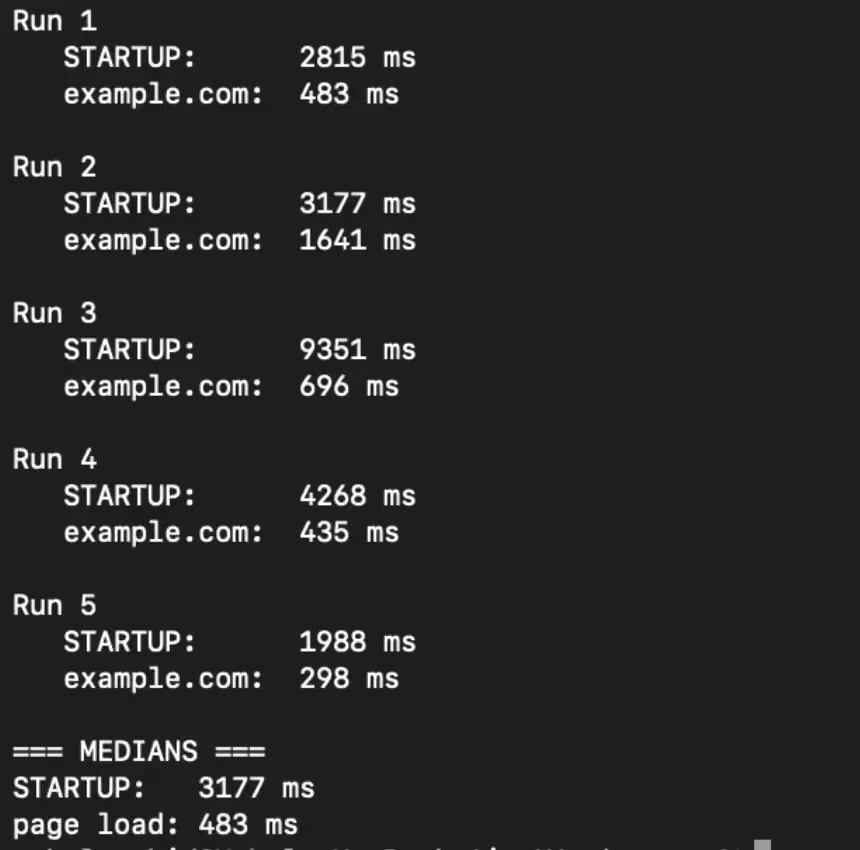
Without a proxy, Gologin’s median startup was about 510 ms faster than Steel’s. But the startup speed was much less consistent between the sessions. One of its five runs took 9.35 seconds, while Steel’s slowest session took 4.11 seconds.
The screenshot below shows the startup and page load time taken by each of the 5 Gologin sessions:
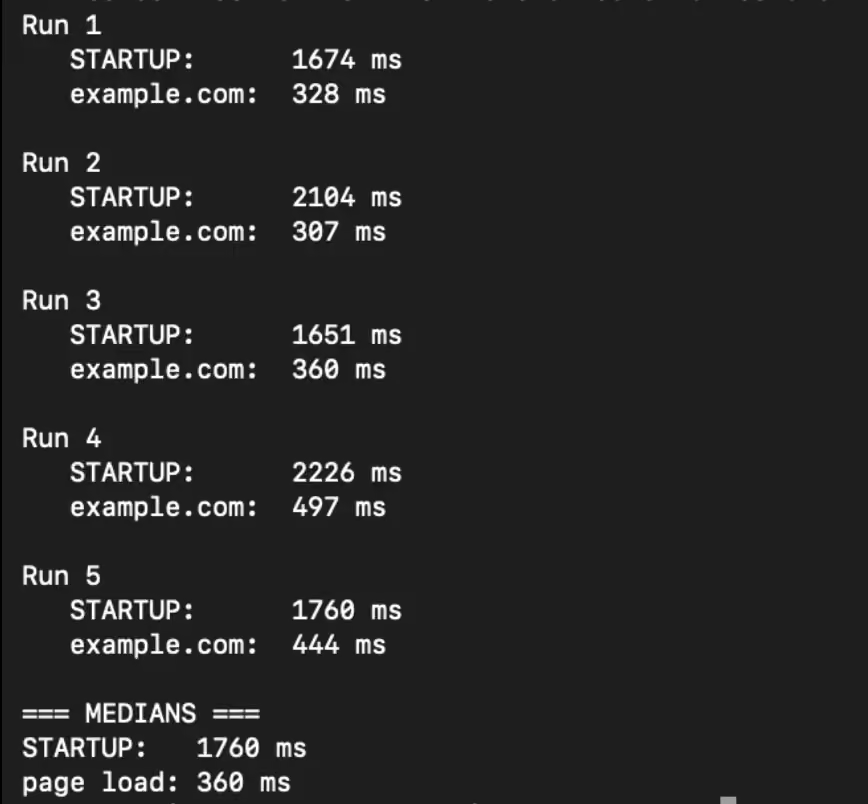
On the same Professional plan, I plugged in a US residential proxy.
This time, Gologin started about 1,927 ms faster than Steel.
The terminal screenshot below shows the startup time for each session:
Here’s a comparison of startup times between Steel, Gologin without a proxy, and Gologin with a residential proxy:
| Setup | Median startup | Range | Median page load (example.com) |
|---|---|---|---|
| Steel free (default US datacenter IP) | 3,687 ms | 2,848 to 4,114 ms | 580 ms |
| Gologin Professional, no proxy (Hetzner datacenter IP) | 3,177 ms | 1,988 to 9,351 ms | 483 ms |
| Gologin with a US residential proxy | 1,760 ms | 1,651 to 2,226 ms | 360 ms |
Notice that Gologin also loaded example.com faster than Steel in both configurations.
Antibot Results
Gologin also had a higher antibot pass rate compared to Steel.
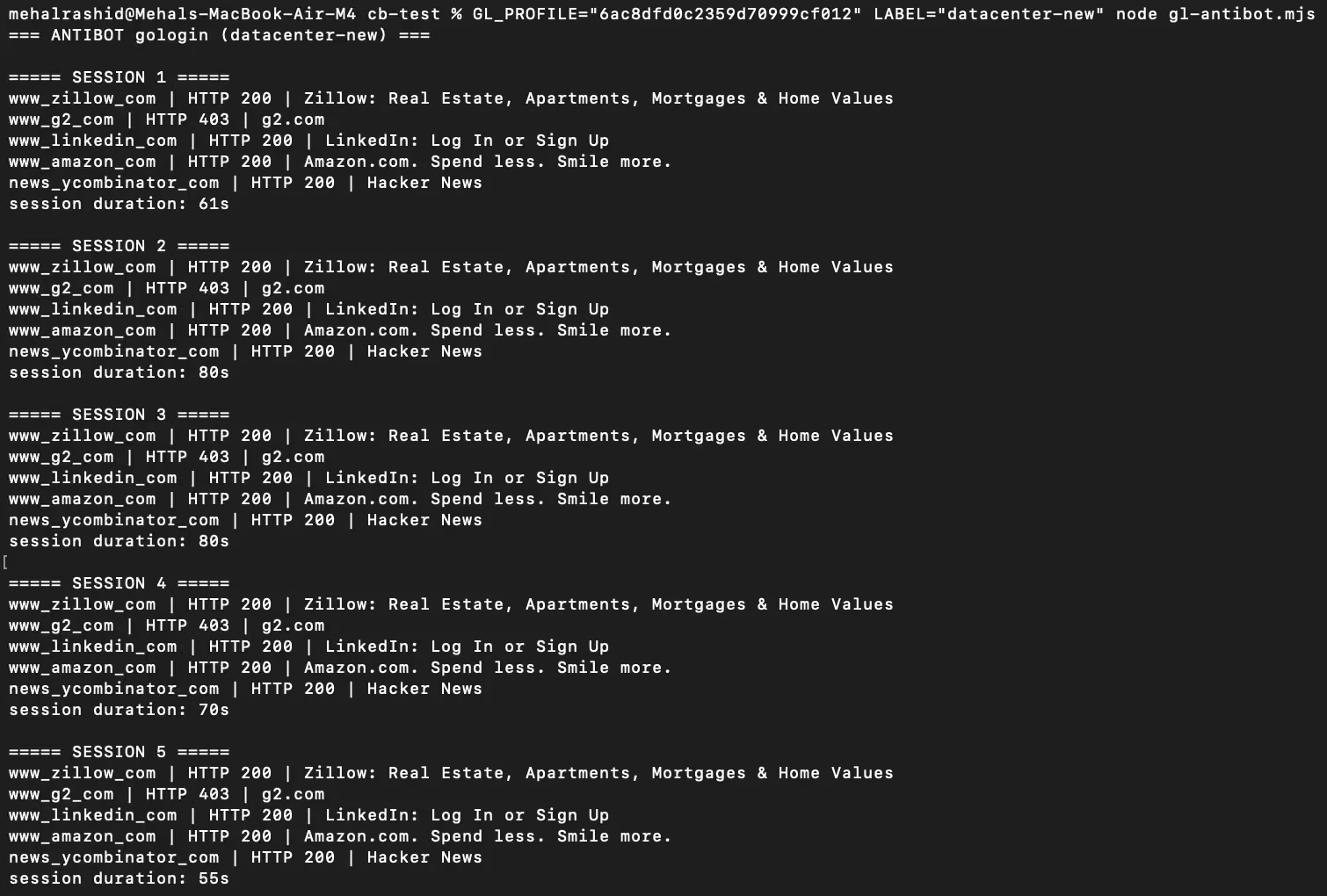
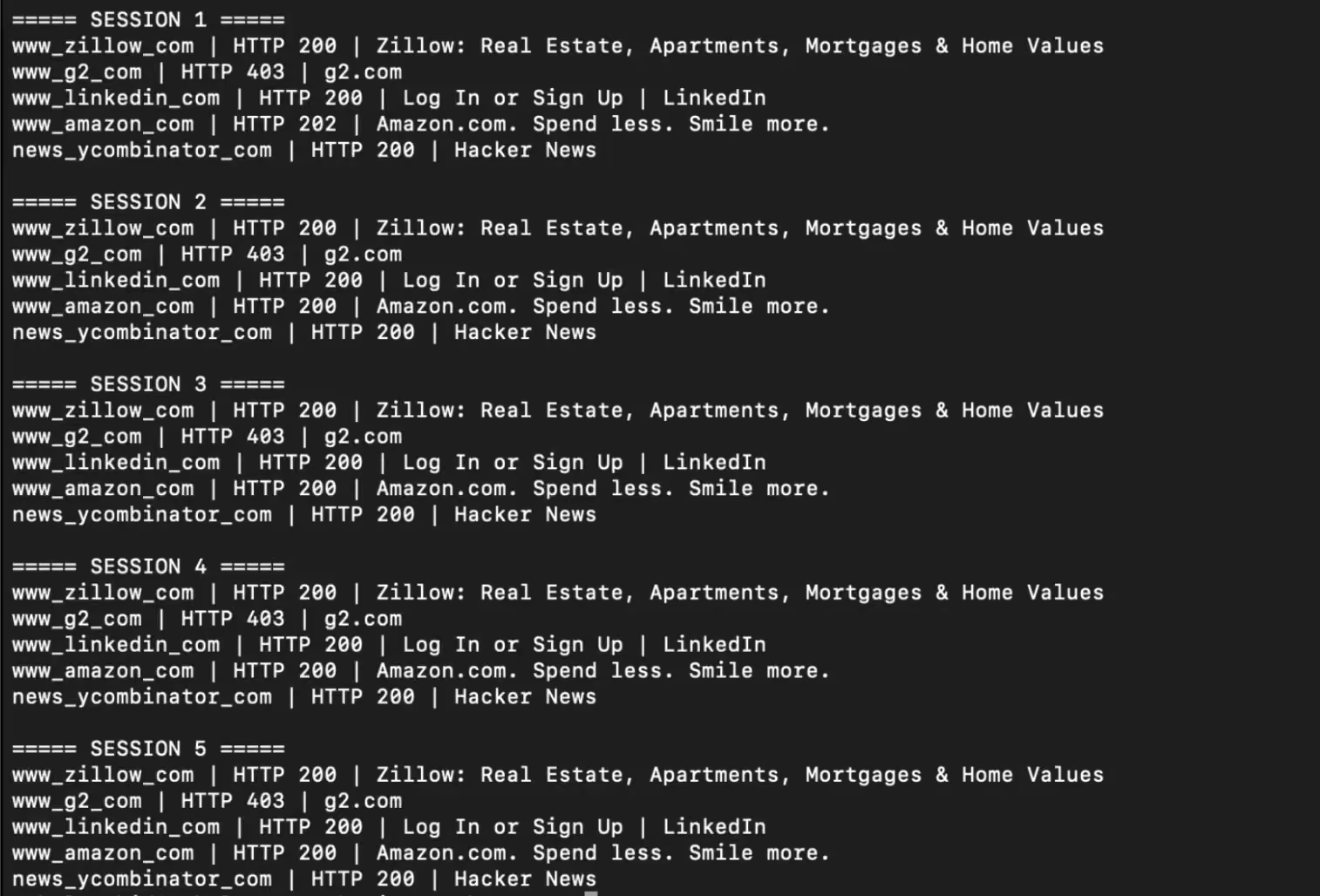
Both Gologin configurations (with and without proxy) loaded 4 out of 5 websites.
The biggest difference was Zillow. It loaded in both Gologin configurations without requiring extra steps. In contrast, Steel drew Zillow’s Press & Hold challenge in the plain session, and it kept appearing even after I attached my own US residential proxy.
G2 blocked every configuration of both tools, though.
| Site | Steel (free plan) | Gologin (default Hetzner datacenter) | Gologin (US residential proxy) |
|---|---|---|---|
| Zillow | Antibot challenge in all 5 sessions even with proxy enabled | Loaded 5 of 5 | Loaded 5 of 5 |
| G2 | 403 in all 5 sessions even with proxy enabled | 403 in all 5 sessions | 403 in all 5 sessions |
| Loaded 5 of 5 | Loaded 5 of 5 | Loaded 5 of 5 | |
| Amazon | Loaded 5 of 5 | Loaded 5 of 5 | Loaded 5 of 5 |
| Hacker News | Loaded 5 of 5 | Loaded 5 of 5 | Loaded 5 of 5 |
| Score | 3 of 5 | 4 of 5 | 4 of 5 |
Terminal screenshot of Gologin without a residential proxy:
Terminal screenshot of Gologin with a residential proxy:
Session Length and Profile Persistence
Steel caps a single session at 15 minutes on Launch and one hour on Scale. Only Enterprise goes up to 24 hours, and that one is custom priced.
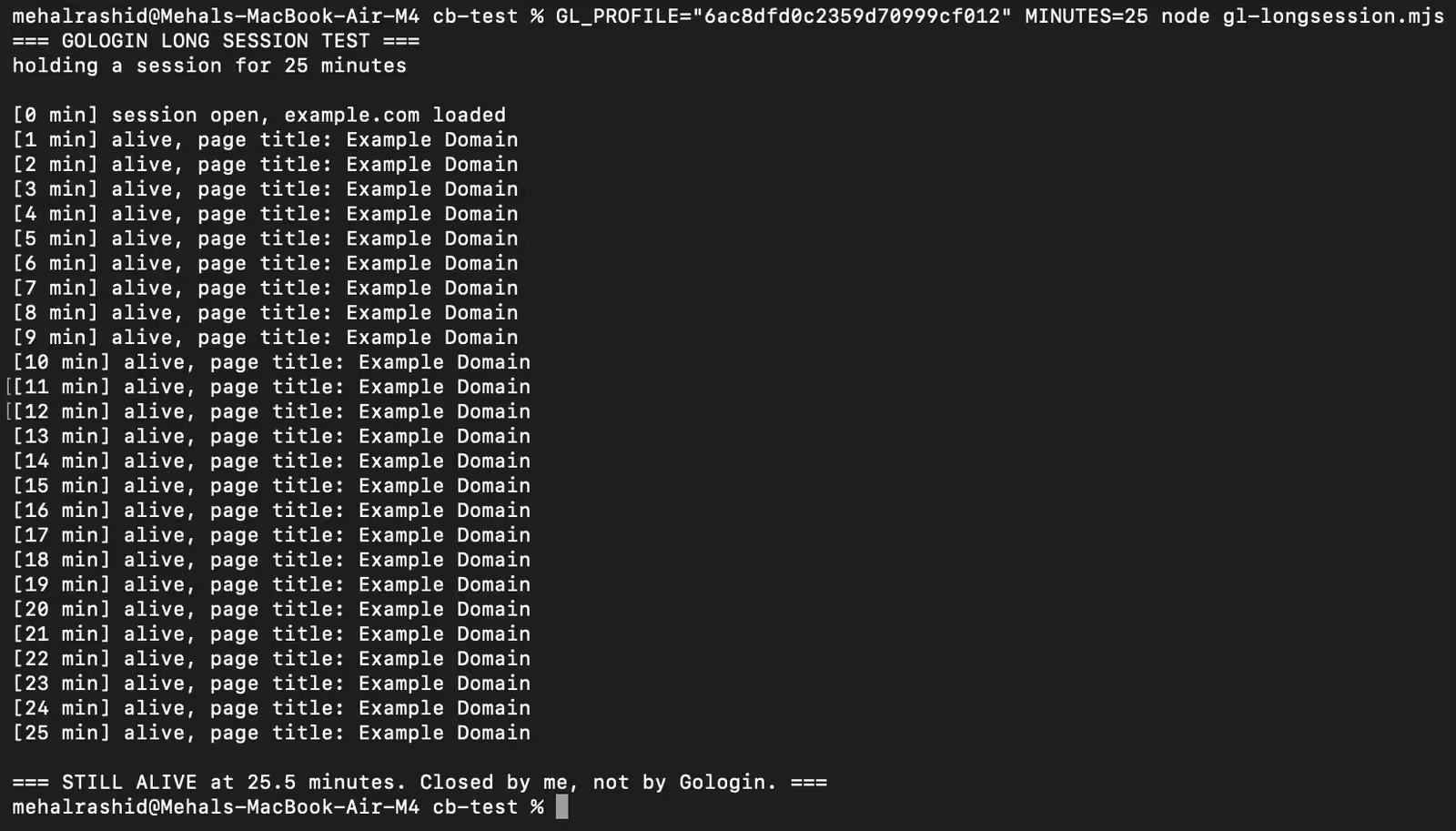
But Gologin doesn’t cap session length at all. A cloud browser session runs for as long as you keep it running.
I used the same script here that I ran against Steel, keeping the page busy with activity every ten seconds. It stayed up for 25.5 minutes and was still going when I stopped it myself. The session ended because my script finished, not because Gologin cut it off. That same run would have been cut off at the 15-minute mark on Steel’s free plan.
Profiles last indefinitely too in Gologin. A profile stays in your account until you delete it, and it keeps its cookies and logins.
To see what that looks like in practice, I opened a profile in my account that I had last used ten months ago.
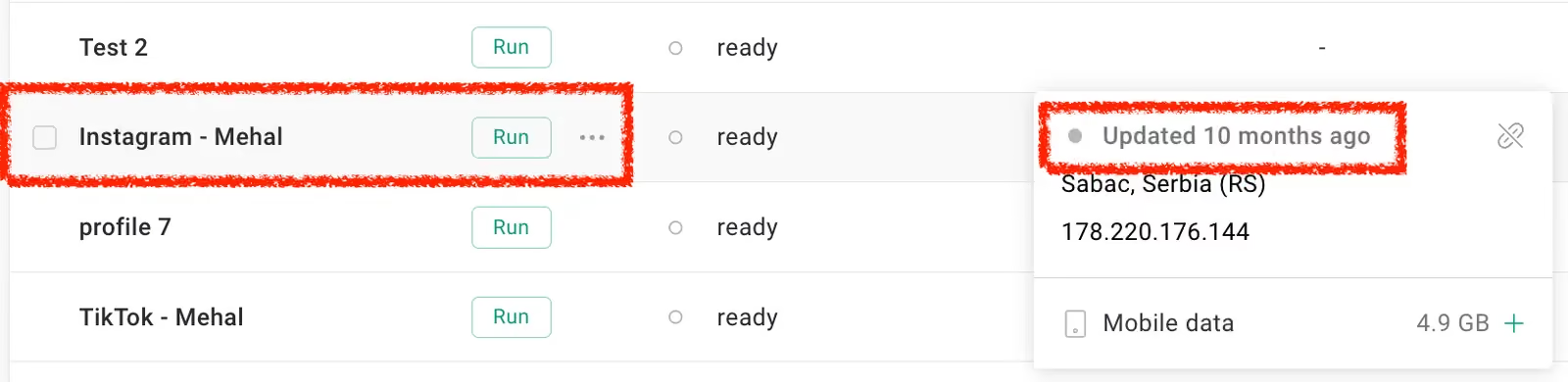
It launched without any issue and still had its cookies, including an active Instagram session.

Which One Should You Choose: Steel vs Gologin
The main reason to pick Steel is if you want to control a real browser solely through automation. Steel allows developers to launch browser sessions and control them from code.
Developers can run as many as 10 sessions in parallel on Steel’s free plan and 100 on Scale.
The platform also fits into the tools developers already use. You can drive sessions with Puppeteer, Playwright, Selenium, or raw CDP, and plug them into agent frameworks like Browser Use, Stagehand, and the OpenAI and Claude computer-use models. The core browser is open source, so you can self-host it if you’d rather not depend on Steel Cloud.
But there are a lot of areas that Steel doesn’t cover or lags behind. If those areas apply to you, a tool like Gologin is the best Steel alternative.
Gologin’s browser fingerprints got it past Zillow on a bare datacenter IP, where Steel hit a CAPTCHA even with a residential proxy and its paid solver. G2 blocked both tools.
Gologin also includes residential and mobile proxies in its plan rate, with extra traffic at $1/GB. On Steel’s free plan, the same traffic costs $10/GB and is the biggest line on your bill.
Moreover, Gologin doesn’t put a limit on session length. Every session is also persistent by default with no extra setup. In contrast, Steel caps free-plan sessions at 15 minutes and its profiles are deleted after 30 days without use.
You also have the freedom to control the sessions either fully by yourself, through code, or in a hybrid way.
Try Gologin Cloud Browser for free today.
FAQs
Is Steel free?
Yes, Steel has a free Launch plan with no monthly fee. It gives you $30 in usage credits, which expire after 90 days and don’t renew. The plan allows 10 concurrent sessions, and each session can run for a maximum of 15 minutes. The free plan keeps session data for 7 days before erasing it.
Is Steel’s auto CAPTCHA solver available for free?
While Steel’s auto CAPTCHA solver comes with the free plan, you cannot use it with the free credits. You need to buy at least $10 worth of credits to use the feature. Even then, it solved only 1 of the 4 challenges in my test (reCAPTCHA v2).
What are credits in Steel?
Credits are the dollar balance Steel uses to meter usage of the various activities you perform. Every billable action draws from the same pool of credits. The rate at which an activity consumes credits depends on your plan.