Scrapfly Tech Expert Review 2026: Cloud Browser Speed, Concurrency and Real Pricing
Try Gologin for free
Scrapfly’s Cloud Browser gives developers remote browser sessions that they can drive with Puppeteer, Playwright, Selenium, or AI agent frameworks.
I put it through the same tests I have used for the other cloud browsers in this series, i.e., startup speed, antibot pass rate, CAPTCHA solving, session persistence, and concurrency. All of them were run on the free plan. I also looked at how its credit system works.
At the end, you’ll see how Scrapfly stacks up against Gologin on the same tests.
But first, let’s get an overview of Scrapfly.
TL;DR
| What I Tested/Reviewed | Result |
|---|---|
| Median startup latency | 2,324 ms on the default datacenter pool |
| Median page load time | 928 ms |
| Antibot pass rate | 5 out of 5 sites (23 of 25 attempts) on the free plan with the default US datacenter IP |
| CAPTCHA solving | Couldn’t be tested properly because the free quota ran out |
| Session persistence | Passed in my test, but state lasts only while the session is alive |
| Concurrent sessions | 5 on the free plan |
| Max session length | 15 minutes by default, 30 minutes at most |
| Free credits | 1,000 API credits per month on free plan |
| Proxy cost | Residential $6.05 to $7.99/GB, datacenter $0.74 to $1.08/GB depending on plan |
| Cheapest paid plan | $30/month (includes 200,000 credits) |
What is Scrapfly?
Scrapfly is a web data collection platform for developers that started out as just a web scraping API but added other APIs and a cloud browser later on.
The cloud browser is of the nature that directly competes with the likes of Steel and Kernel, which I have reviewed before in this series.
Scrapfly’s cloud browser allows developers to launch browser sessions over a WebSocket connection using CDP and then control the sessions with Puppeteer, Playwright, Selenium, Stagehand, and other AI agent frameworks.
Scrapfly’s browser engine isn’t plain Chromium. The platform has its own patched fork of Chromium, called Scrapium. It has another engine called Curlium for sites that don’t demand a full browser and HTTP-level scraping does the job. By default, Scrapfly selects between these two engines automatically for each target. But you can also specify when to use them.
To start a session, you build a WebSocket URL with your API key and a few parameters, and the browser is assigned to you the moment your script connects to that URL.
The parameters you can set at this stage include the following:
- Configure a datacenter or residential proxy pool
- Select an OS fingerprint of Linux, Windows, macOS, Android, and iPhone.
- Choose a proxy country
- Select the browser brand from Chrome, Edge, Brave, or Opera
Scrapfly also supports session persistence. However, the way this feature works is different from Steel or Kernel. I have covered the details later on in the testing of this feature.
Moreover, Scrapfly has an auto CAPTCHA solver that can handle CAPTCHA challenges of several types. You are billed for solved CAPTCHAs only. Failed attempts don’t accrue any cost.
The usage of this feature and other Scrapfly features, including browser time, is billed in API credits. The credit billing rates for different features are given in the pricing section below.
Now let’s see how I tested it.
How I Tested Scrapfly
Scrapfly gives you 1,000 API credits and 5 concurrent sessions upon signing up for free.
I ran all my tests using these free credits.
Here’s what I tested about Scrapfly and how:
-
Startup speed: In this test, my script opened 5 browser sessions one after another without any proxy and loaded example.com every time. Since Scrapfly assigns the browser at the same moment your script connects, I was able to directly record the total time from connecting to having a usable session. The page load time was recorded separately.
-
Antibot test: This test also opened 5 sessions one after another, but this time, each session had to load 5 websites. I recorded the HTTP status code and page title of every attempt and checked the screenshots as well.
-
Automatic CAPTCHA solving: Scrapfly’s CAPTCHA solver is available on the free plan. This test runs the solver on Zillow and then on G2 and CAPTCHA demo sites.
-
Session persistence: Scrapfly’s persistent sessions work only within the session timeout duration, which is 30 minutes at max. And the session must stay running in the background to be able to resume. I checked this feature by setting a timeout of 30 minutes (1,800 seconds), disconnecting (not closing), and then reconnecting after 60 seconds.
-
Concurrency: Scrapfly clearly mentions a concurrency of 5 for its free plan. My script verifies that claim by opening 7 sessions at once.
Note: All Scrapfly tests ran on the free plan on 15 October 2026, from macOS, using Playwright over CDP against Scrapfly’s WebSocket endpoint. Gologin’s startup figures come from the same run I used in my Hyperbrowser, Browserless, Steel, and Kernel reviews, measured between 28 September and 1 October 2026. Gologin’s antibot results on the default datacenter IP come from a re-test on 9 October, and the results with a US residential proxy come from an earlier run. The Gologin long-session test was run on 15 October. Every antibot result in this article was scored from screenshots, not status codes.
Scrapfly Testing Results
Startup Speed
As I mentioned earlier, Scrapfly connects your script to the WebSocket URL, and the browser gets assigned during that same connection. There are no two steps involved, as I observed in the review of Hyperbrowser, Kernel, and Steel, where provisioning and CDP connection were separate stages.
So I was able to record one startup figure per session along with the time it took for the sample page to load, i.e., example.com. This website was chosen because of its lightweight nature.
Since the goal of this test is to record the session startup time, not page load time, I didn’t want a heavier website to skew the startup time.
import { chromium } from "playwright-core";

const KEY = "YOUR_SCRAPFLY_API_KEY";
const RUNS = 5;

const url = (target) =>
  `wss://browser.scrapfly.io?api_key=${KEY}` +
  `&proxy_pool=datacenter&os=linux&country=us` +
  `&target_url=${encodeURIComponent(target)}`;

const startup = [], loads = [];

console.log("=== SCRAPFLY STARTUP (datacenter) ===\n");

for (let i = 1; i <= RUNS; i++) {
  let browser;
  try {
    const t0 = Date.now();
    browser = await chromium.connectOverCDP(url("https://example.com"));
    const ctx  = browser.contexts()[0] || (await browser.newContext());
    const page = ctx.pages()[0]        || (await ctx.newPage());
    const t1 = Date.now();

    await page.goto("https://example.com", { waitUntil: "domcontentloaded" });
    const t2 = Date.now();

    startup.push(t1 - t0);
    loads.push(t2 - t1);

    console.log(`Run ${i}`);
    console.log(`    STARTUP:      ${t1 - t0} ms`);
    console.log(`    example.com:  ${t2 - t1} ms\n`);
  } catch (e) {
    console.log(`Run ${i}: FAILED ${e.message.split("\n")[0]}\n`);
  } finally {
    if (browser) await browser.close().catch(() => {});
  }
}

const median = (a) => {
  const s = [...a].sort((x, y) => x - y);
  return s.length ? s[Math.floor(s.length / 2)] : "n/a";
};

console.log("=== MEDIANS ===");
console.log(`STARTUP:   ${median(startup)} ms`);
console.log(`page load: ${median(loads)} ms`);
console.log(`\nstartup range: ${Math.min(...startup)} to ${Math.max(...startup)} ms`);
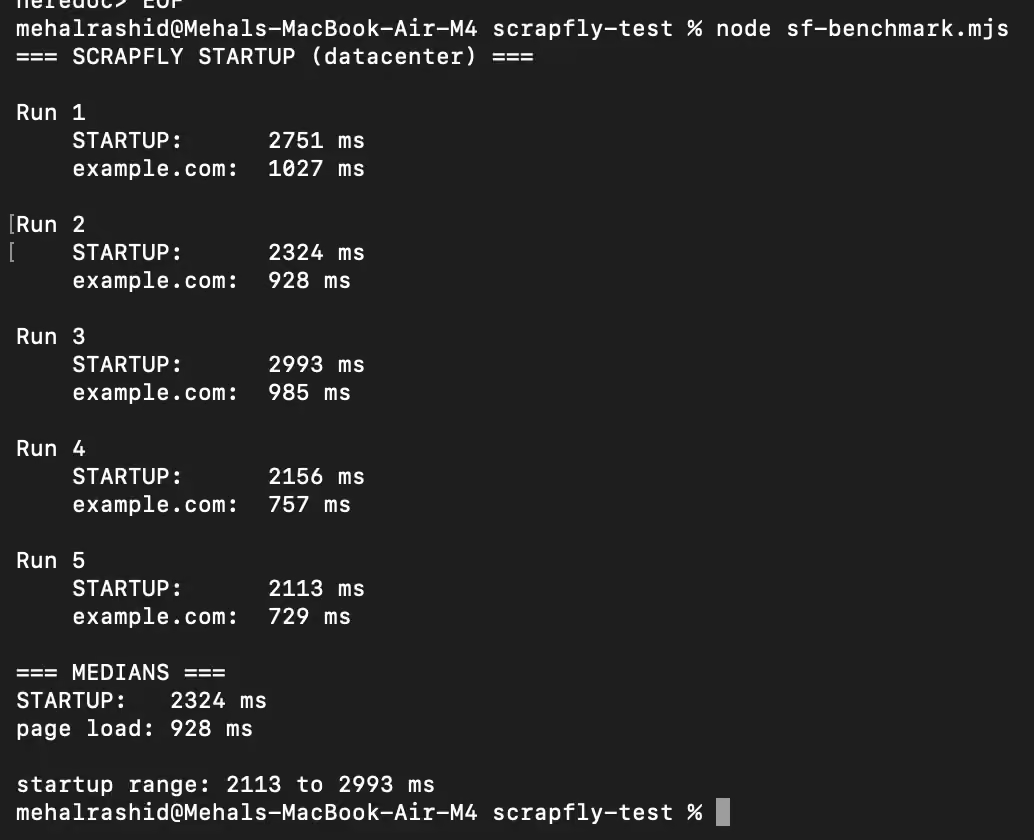
The script opened and closed 5 sessions back to back and recorded the following times:
| Run | Startup total | example.com |
|---|---|---|
| 1 | 2,751 ms | 1,027 ms |
| 2 | 2,324 ms | 928 ms |
| 3 | 2,993 ms | 985 ms |
| 4 | 2,156 ms | 757 ms |
| 5 | 2,113 ms | 729 ms |
| Median | 2,324 ms | 928 ms |
The median startup time came out to 2,324 ms, which equals 2.32 seconds. The startup time was quite consistent from one session to the next. The first three sessions took slightly longer than the last two sessions, though. The page load time also has this pattern. This can mean that Scrapfly sessions may start slightly slower after a period of no use.
The terminal screenshot below shows the startup and page load time of all five runs:
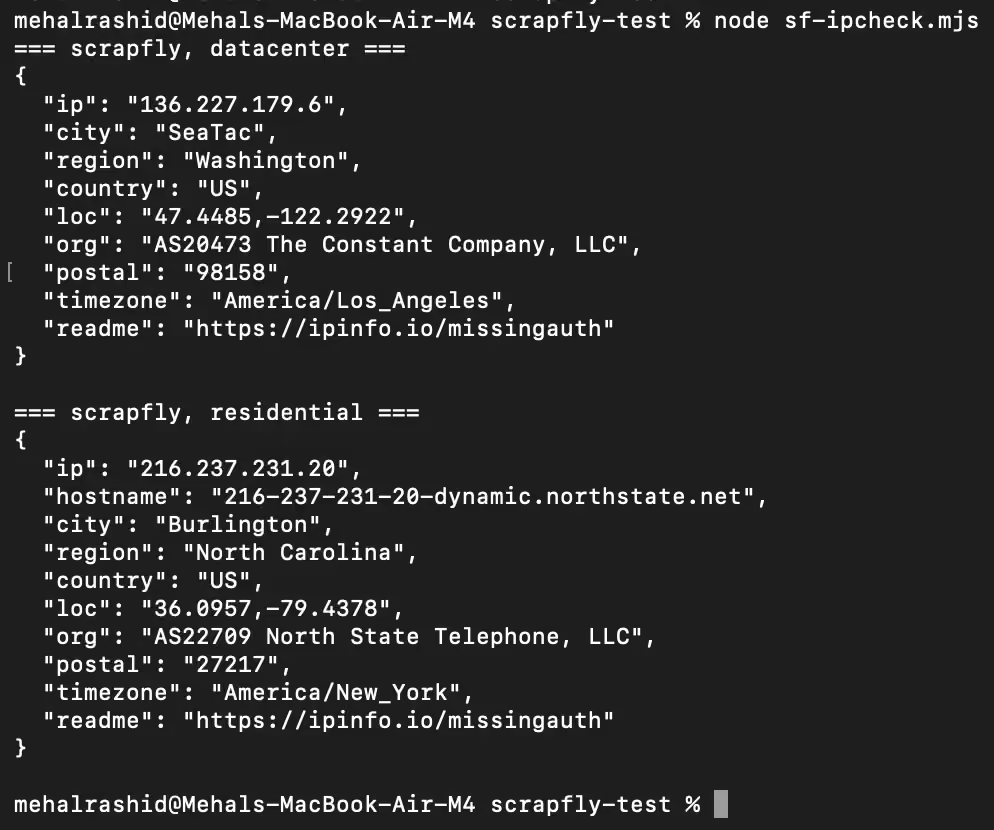
I had not assigned any proxy to these sessions. But Scrapfly sends all of the browser’s traffic through its datacenter proxy infrastructure by default.
The screenshot below shows the datacenter IP of one of the sessions:
Verdict: Scrapfly session startup time is fairly fast, but cold starts can take slightly longer.
Antibot Test
This test loaded 5 sessions and loaded the same five websites every time:
- Zillow
- G2
- Amazon
- Hacker News (news.ycombinator.com)
These sessions were run without a custom or residential proxy. So, they carried Scrapfly’s default datacenter proxy.
A total of 25 attempts were made at the listed websites combined. As usual, the script recorded the HTTP status code and page title of every attempt. But I didn’t give a site a pass based on this data alone. I also checked the screenshot of the rendered pages to verify which pages loaded successfully.
Scrapfly also offers anti-bot protection, but the free plan doesn’t come with it. So this test shows what a basic Scrapfly session can do on its own fingerprinting and a datacenter IP.
import { chromium } from "playwright-core";

const KEY = "YOUR_SCRAPFLY_API_KEY";
const ROUNDS = Number(process.env.ROUNDS || 5);

const SITES = [
  "https://www.zillow.com/",
  "https://www.g2.com/",
  "https://www.linkedin.com/",
  "https://www.amazon.com/",
  "https://news.ycombinator.com/",
];

const url = (target) =>
  `wss://browser.scrapfly.io?api_key=${KEY}` +
  `&proxy_pool=datacenter&os=linux&country=us` +
  `&target_url=${encodeURIComponent(target)}`;

console.log("=== ANTIBOT scrapfly (datacenter) ===\n");

for (let r = 1; r <= ROUNDS; r++) {
  console.log(`===== ROUND ${r} =====`);
  const started = Date.now();
  let browser;

  try {
    browser = await chromium.connectOverCDP(url("https://example.com"));
    const ctx = browser.contexts()[0] || (await browser.newContext());

    for (const site of SITES) {
      const label = new URL(site).hostname.replace(/\./g, "_");
      const page = await ctx.newPage();
      try {
        const res = await page.goto(site, {
          waitUntil: "domcontentloaded",
          timeout: 45000,
        });
        const status = res ? res.status() : "no response";
        const title  = await page.title();
        console.log(`${label} | HTTP ${status} | ${title}`);
        await page.screenshot({ path: `sf-datacenter-r${r}-${label}.png` });
      } catch (e) {
        console.log(`${label} | ERROR | ${e.message.split("\n")[0]}`);
      }
      await page.close();
    }

    await browser.close();
  } catch (e) {
    console.log(`ROUND ${r} FAILED: ${e.message.split("\n")[0]}`);
  }

  console.log(`round duration: ${Math.round((Date.now() - started) / 1000)}s\n`);
}
Note: The above script logs the status code and the title, along with the screenshots of every page too.
Here’s how the 25 attempts turned out:
| Website | Round 1 | Round 2 | Round 3 | Round 4 | Round 5 |
|---|---|---|---|---|---|
| Zillow.com | ✅ | ✅ | ✅ | ✅ | ✅ |
| G2.com | ✅ | ✅ | ❌ | ✅ | ✅ |
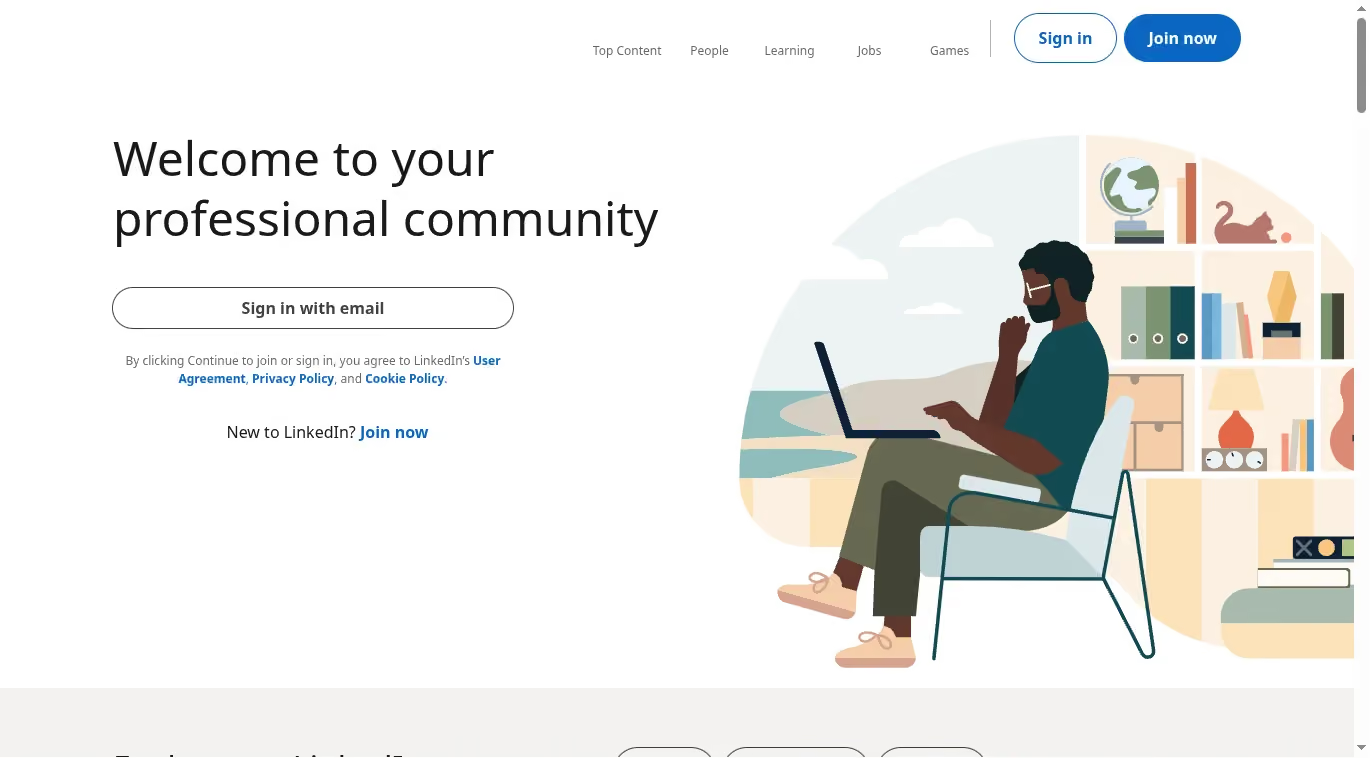
| Linkedin.com | ✅ | ✅ | ✅ | ✅ | ✅ |
| Amazon.com | ✅ | ✅ | ✅ | ❌ | ✅ |
| news.ycombinator.com (Hacker News) | ✅ | ✅ | ✅ | ✅ | ✅ |
The terminal screenshot below shows the status code and page title returned by each website in all five rounds:
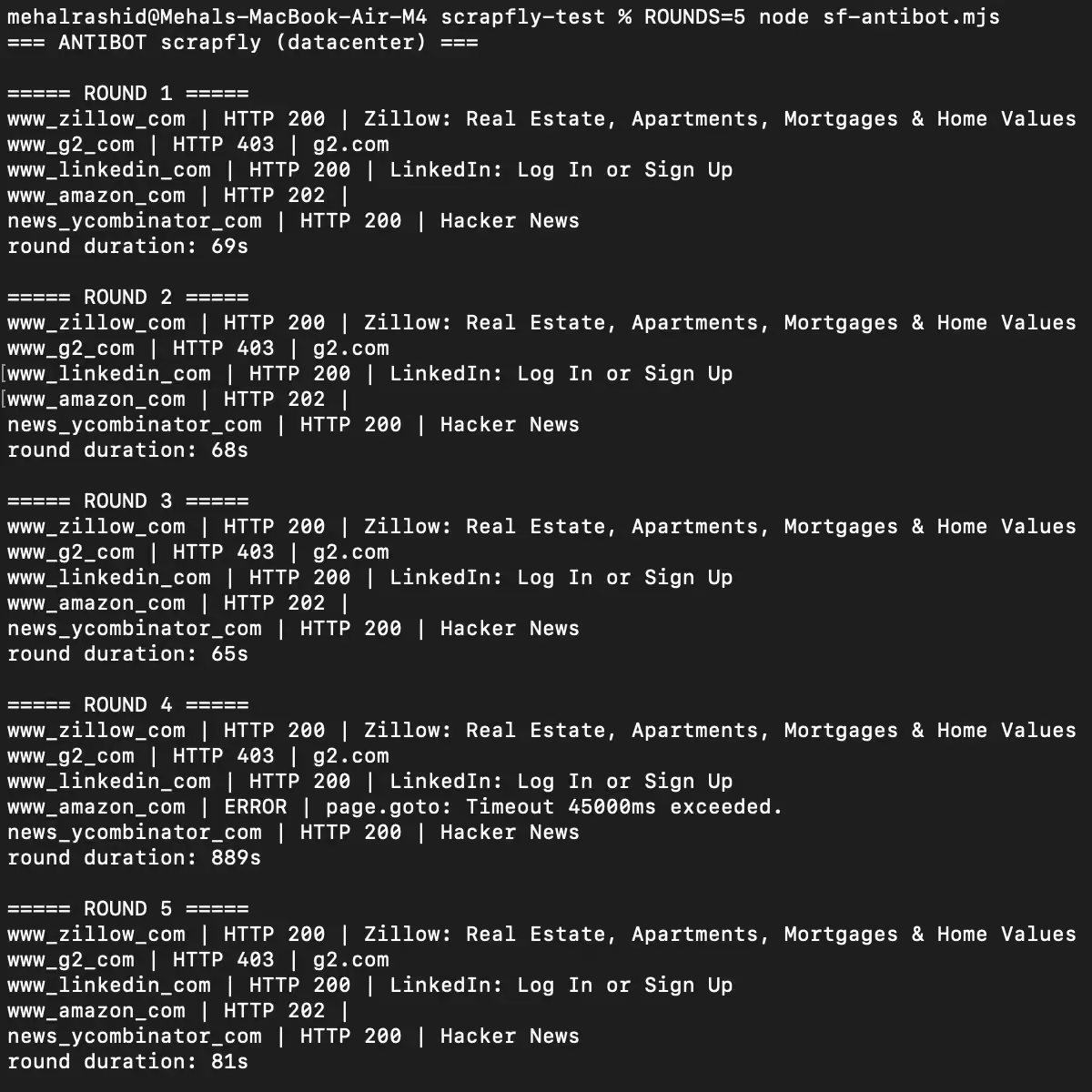
The surprise was G2. Every other platform in this series has been blocked by G2’s DataDome protection, and Scrapfly’s terminal output says the same: HTTP 403 in all five rounds, with “g2.com” as the page title.
But when I checked the screenshots, I found that G2’s page was successfully loaded in the majority of the sessions.
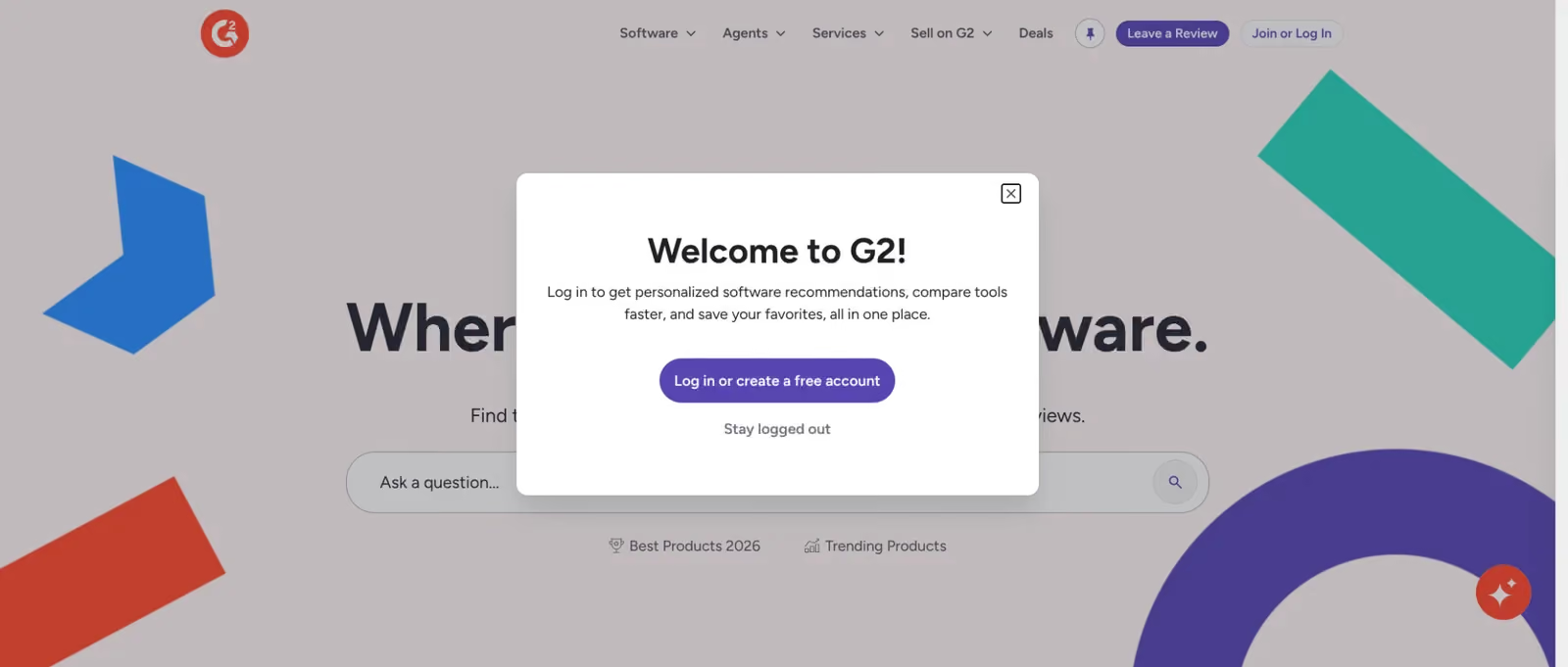
In four of the five rounds, G2’s real homepage rendered, including navigation, search, product sections, and all. Only round 3 came back blank.

G2 returns a 403 on the first response and then the page resolves and loads anyway, which is DataDome’s interstitial clearing before the screenshot is taken.
If I had scored this on status codes, I would have marked G2 as a fail in all five rounds, the same as every other platform in this series. The screenshots are the only reason I didn’t.
Amazon loaded in 4 out of 5 sessions.
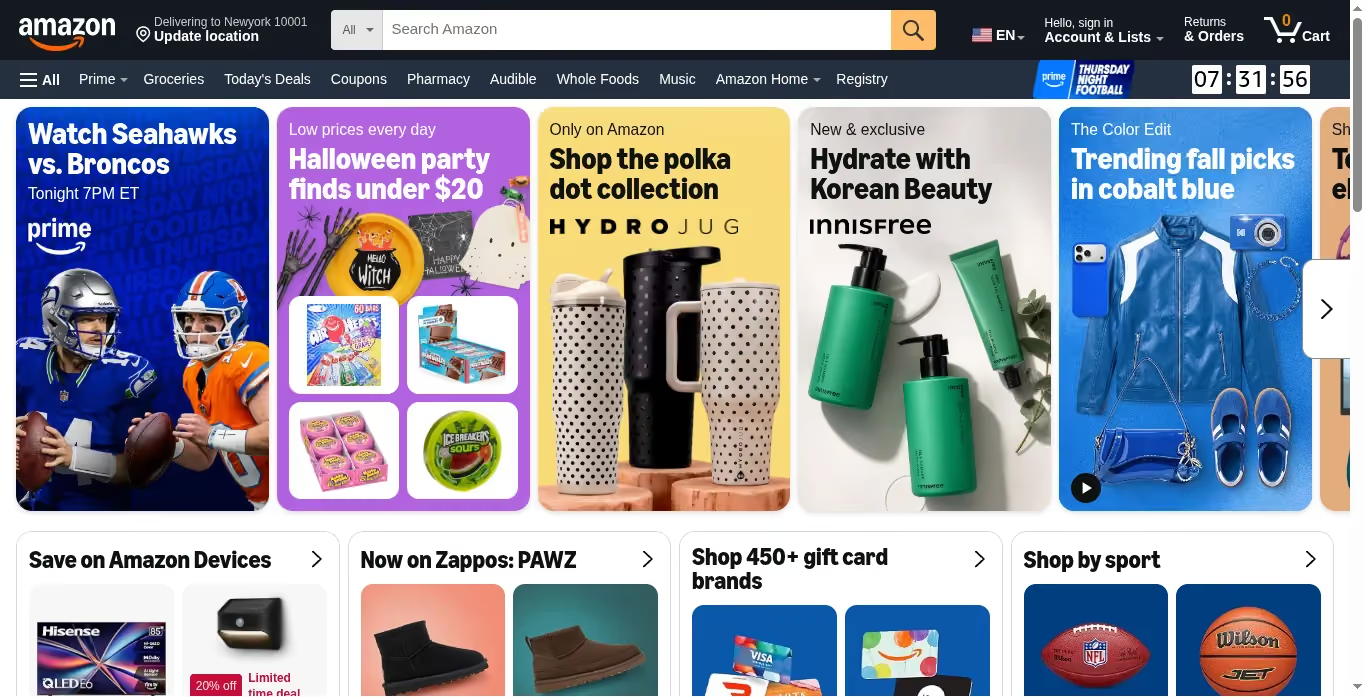
It failed in one session because the script had reached the 45-second timeout set for each page. Another odd thing about this session was that it took a total of 889 seconds to complete, which is almost 15 minutes.
The other four rounds finished in 65 to 81 seconds.
This cannot be because of Amazon alone because it took somewhere over 45 seconds, not more than that. The session was stuck for a long time somewhere else as well.
Such random behavior can put a strain on your bill, as Scrapfly charges session time at 1 credit per 30 seconds.
Verdict: Scrapfly got through 5 of 5 sites (23 of 25 attempts) on the free plan’s datacenter pool. It’s the only platform in this series to load G2, and it did so without anti-bot protection, which the free plan doesn’t include.
Automatic CAPTCHA Solving
You can switch on Scrapfly’s built-in CAPTCHA solver by adding solve_captcha=true to the WebSocket URL.
import { chromium } from "playwright-core";

const KEY    = "YOUR_SCRAPFLY_API_KEY";
const TARGET = process.env.TARGET_URL;
const LABEL  = process.env.LABEL || "target";
const POOL   = process.env.POOL || "residential";
const WAIT   = Number(process.env.WAIT_MS || 90000);

if (!TARGET) { console.log("Set TARGET_URL"); process.exit(1); }

const browser = await chromium.connectOverCDP(
  `wss://browser.scrapfly.io?api_key=${KEY}` +
  `&proxy_pool=${POOL}&os=linux&country=us` +
  `&solve_captcha=true&timeout=300` +
  `&target_url=${encodeURIComponent(TARGET)}`
);

const ctx  = browser.contexts()[0] || (await browser.newContext());
const page = ctx.pages()[0]        || (await ctx.newPage());

// Scrapfly reports solver activity over its own CDP namespace
const events = [];
const cdp = await ctx.newCDPSession(page);
for (const ev of ["captchaDetected", "captchaSolvingStarted", "captchaSolved", "captchaError"]) {
  cdp.on(`Antibot.${ev}`, (e) => {
    events.push({ ev, ...e });
    console.log(`[antibot] ${ev} | ${JSON.stringify(e).slice(0, 300)}`);
  });
}

const started = Date.now();
const res = await page.goto(TARGET, { waitUntil: "domcontentloaded", timeout: 60000 });
console.log(`HTTP: ${res ? res.status() : "no response"}\n`);

while (Date.now() - started < WAIT) {
  if (events.some((e) => e.ev === "captchaSolved" || e.ev === "captchaError")) break;
  await new Promise((r) => setTimeout(r, 2000));
}

const elapsed = Date.now() - started;

let solved = null;
try { solved = await cdp.send("Antibot.getSolvedCaptchas"); } catch {}

console.log("\n=== RESULT ===");
console.log(`target: ${TARGET}  (pool: ${POOL})`);
console.log(`events seen: ${events.length}`);
for (const e of events) {
  console.log(`  ${e.ev} | ${e.captchaType ?? e.type ?? "?"} | ${e.errorMessage ?? ""}`);
}
if (solved) console.log("getSolvedCaptchas:", JSON.stringify(solved).slice(0, 500));
console.log(`elapsed: ${elapsed} ms`);
console.log(`Final title: ${await page.title()}`);
console.log(`Final URL:   ${page.url()}`);

await page.screenshot({ path: `sf-captcha-${LABEL}.png` }).catch(() => {});
console.log(`screenshot: sf-captcha-${LABEL}.png`);

await browser.close();
I loaded Zillow in a session using residential proxies and the CAPTCHA solver enabled.
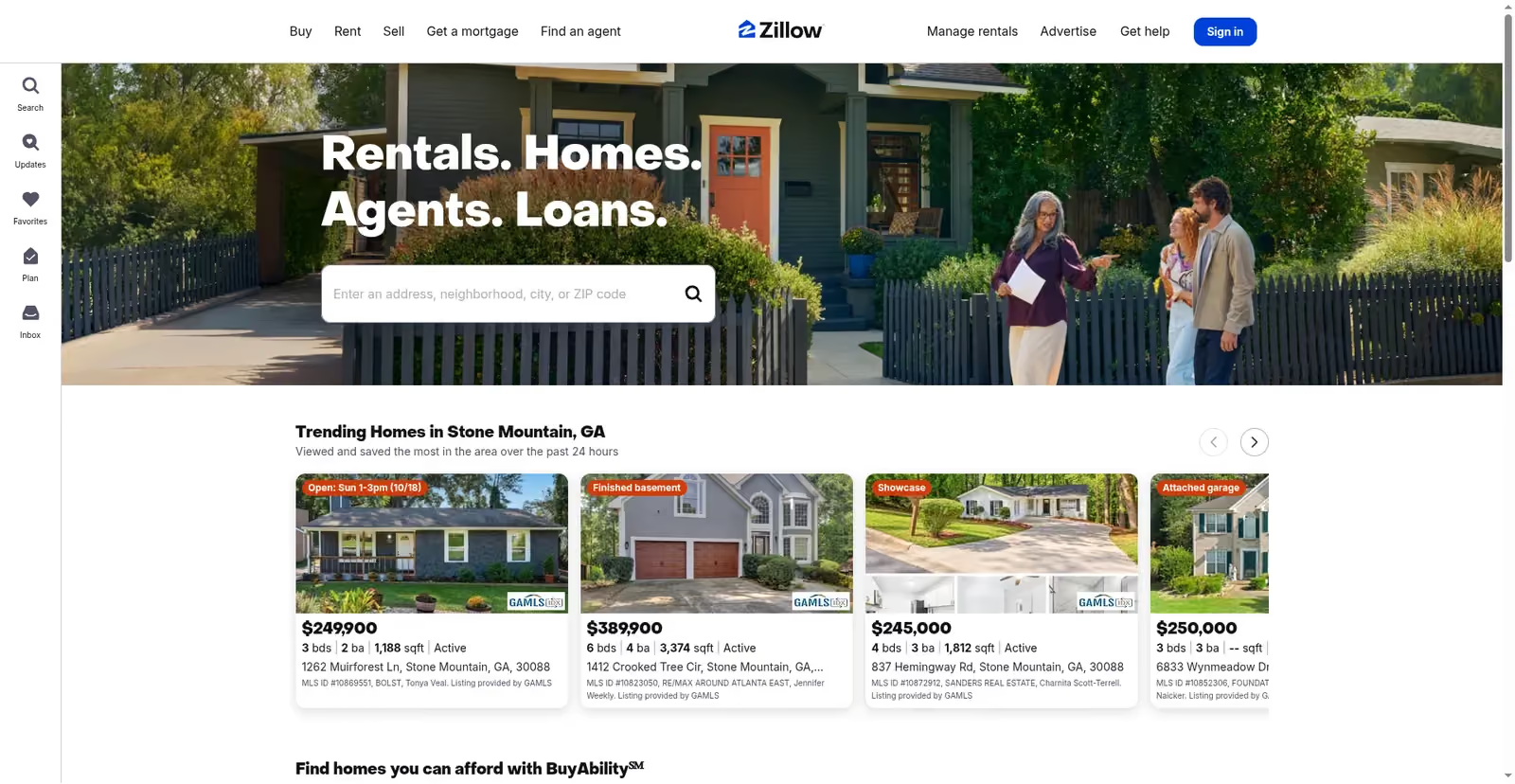
TARGET_URL="https://www.zillow.com/" LABEL=zillow node sf-captcha.mjsHowever, Zillow loaded fine without presenting a CAPTCHA, so there was nothing for the solver to work on.
Have a look at the terminal screenshot of the Zillow run:
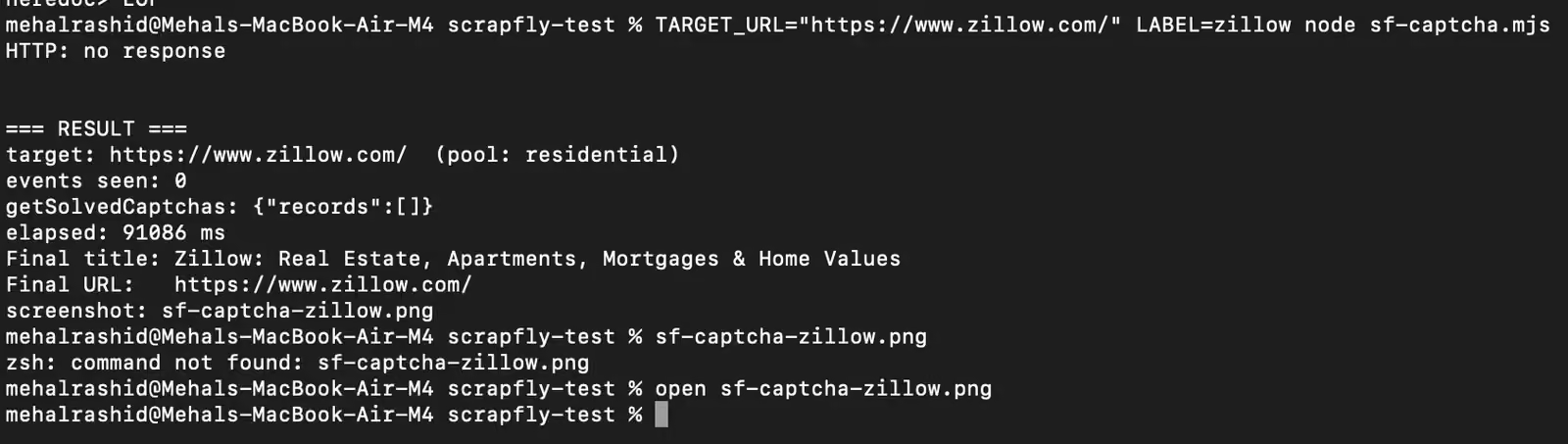
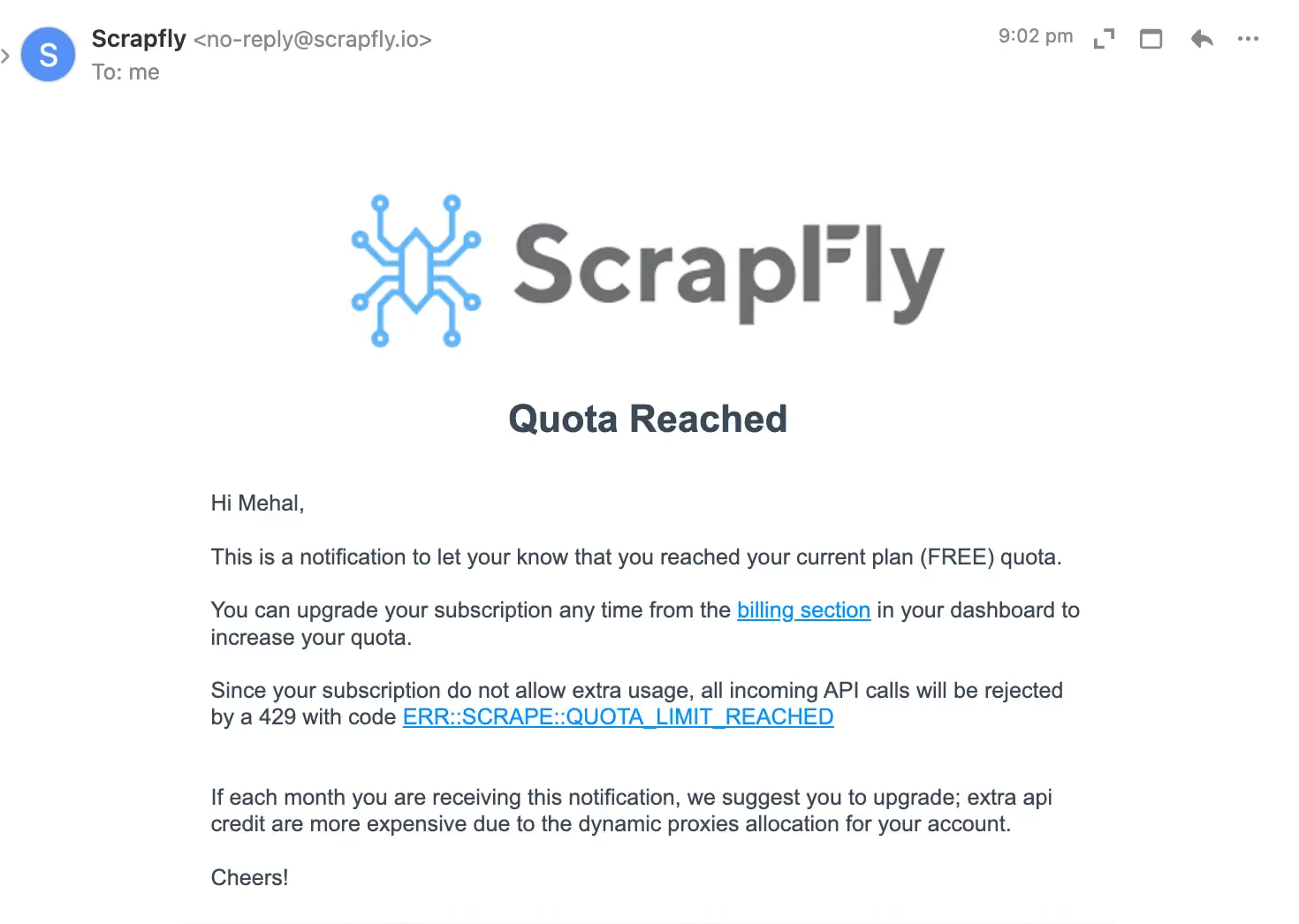
Right after this run, Scrapfly emailed me that I had reached my free plan quota. So I couldn’t test the CAPTCHA solver on other sites G2 or the CAPTCHA demo ones.
Here’s the email Scrapfly sent me after the quota ran out:
While I couldn’t test the CAPTCHA solver properly, we still have Scrapfly’s documentation about the capabilities of the solver and other details.
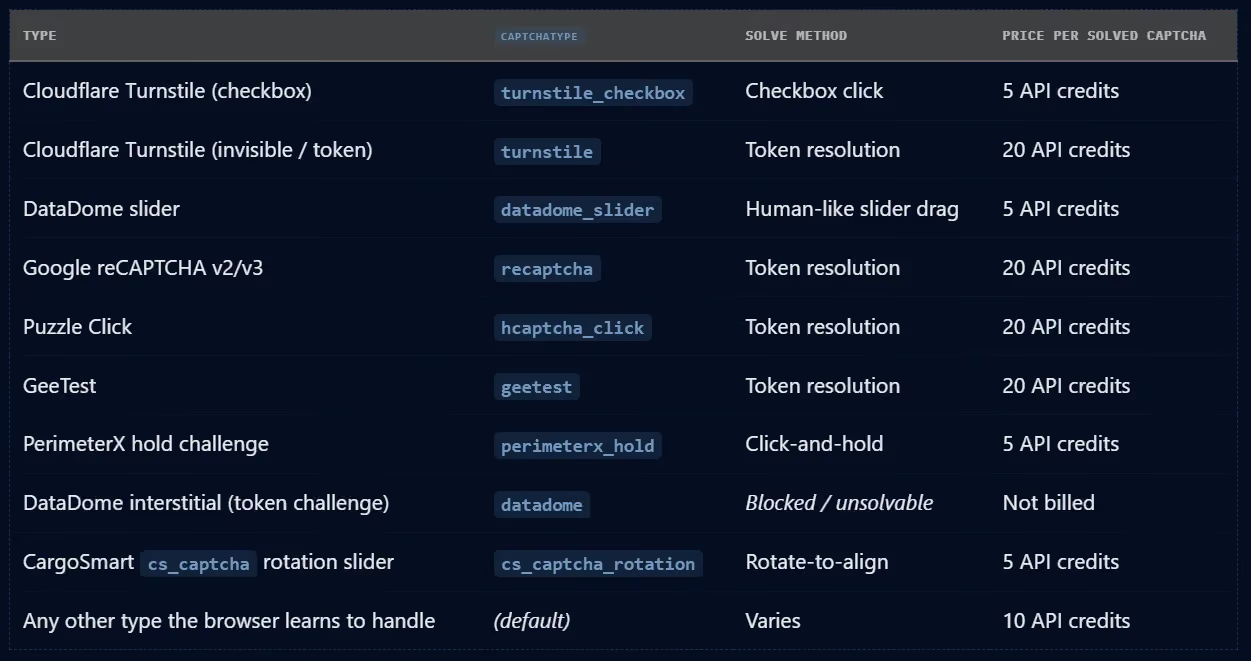
The CAPTCHA solver can handle a wide variety of challenge types (see the documentation screenshot below). You are billed for successful solves only. The solver charges a different amount of API credits based on the challenge type.
[source]
Verdict: I couldn’t properly test Scrapfly’s CAPTCHA solver because the free quota ran out after I loaded the first target site, which didn’t present a CAPTCHA.
Session Persistence
Scrapfly calls its persistence feature Session Resume.
The Session Resume feature works differently from the session persistence features of the other platforms I have reviewed.
Scrapfly needs you to keep the browser session running in the background and just disconnect from it. Only then can you resume your session by reconnecting later with the session ID. If you close a session, you lose all your progress.
Another catch is that you must reconnect within 15 or 30 minutes because that’s the maximum duration of a Scrapfly session.
So if you need to stay logged into accounts for days or weeks, Scrapfly’s persistence feature isn’t capable of doing that. You might have to export the cookies yourself and load them into every new session manually.
To test this feature, I set the timeout to 1,800 seconds in my script to get the maximum time.
Here’s what the script does step by step:
- Open a session with a random session ID and auto_close set to false
- Load example.com and save a unique marker in the page’s local storage
- Disconnect from the session
- Wait 60 seconds
- Reconnect with the same session ID and read the local storage again
The screenshot below shows the script and its outcome:
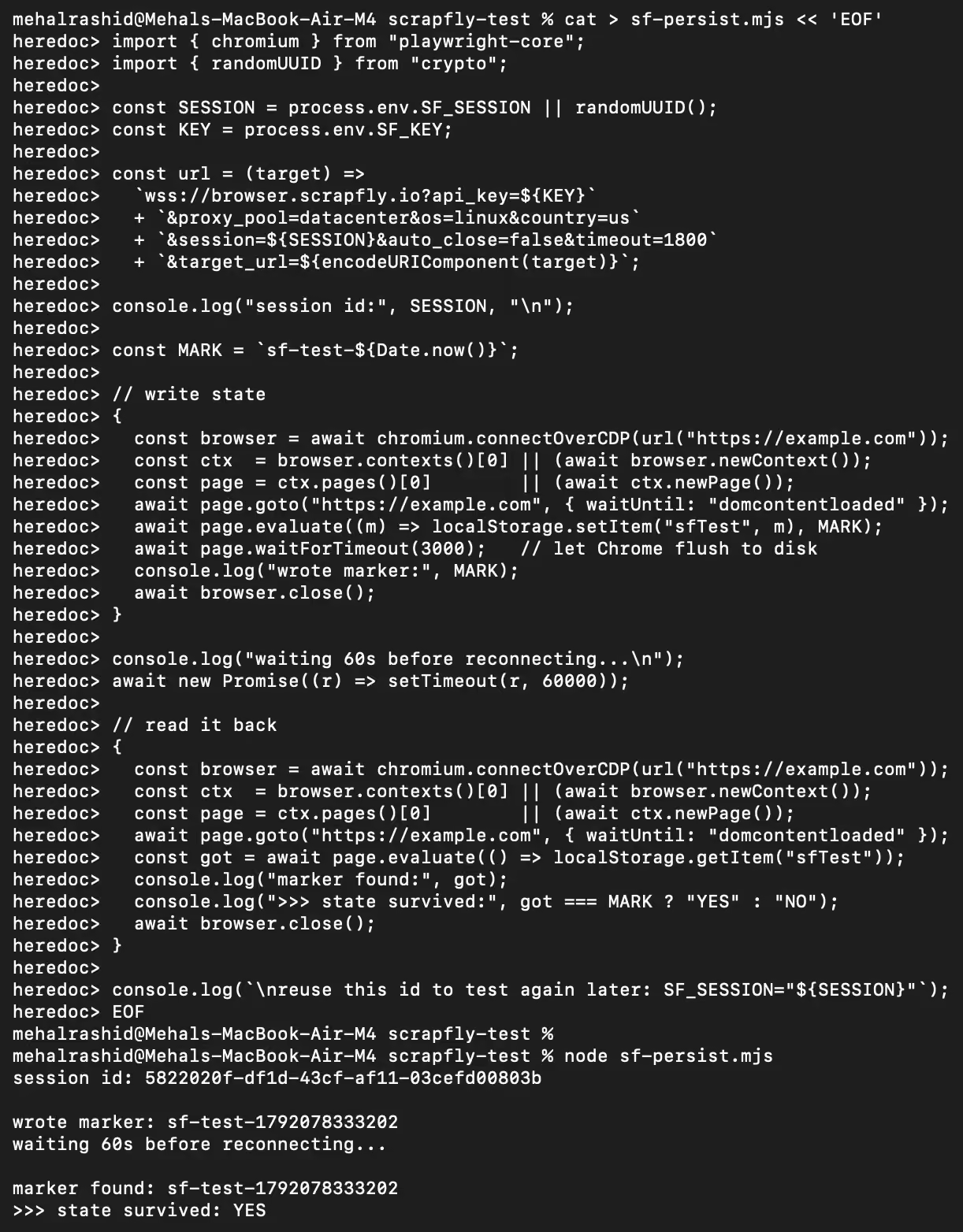
As you can see, the script printed state survived: YES, which indicates that the marker I had saved was still there when the script reconnected to the session.
Verdict: Scrapfly’s Session Resume works on the free plan, but the state only lasts as long as the session, which is 30 minutes at most.
Concurrency
According to Scrapfly, the free plan allows 5 concurrent sessions.
My script tried to open 7 sessions one after another while keeping all of them open. The script printed OK for every session that opened successfully.
The screenshot below shows the script and how Scrapfly responded to it:
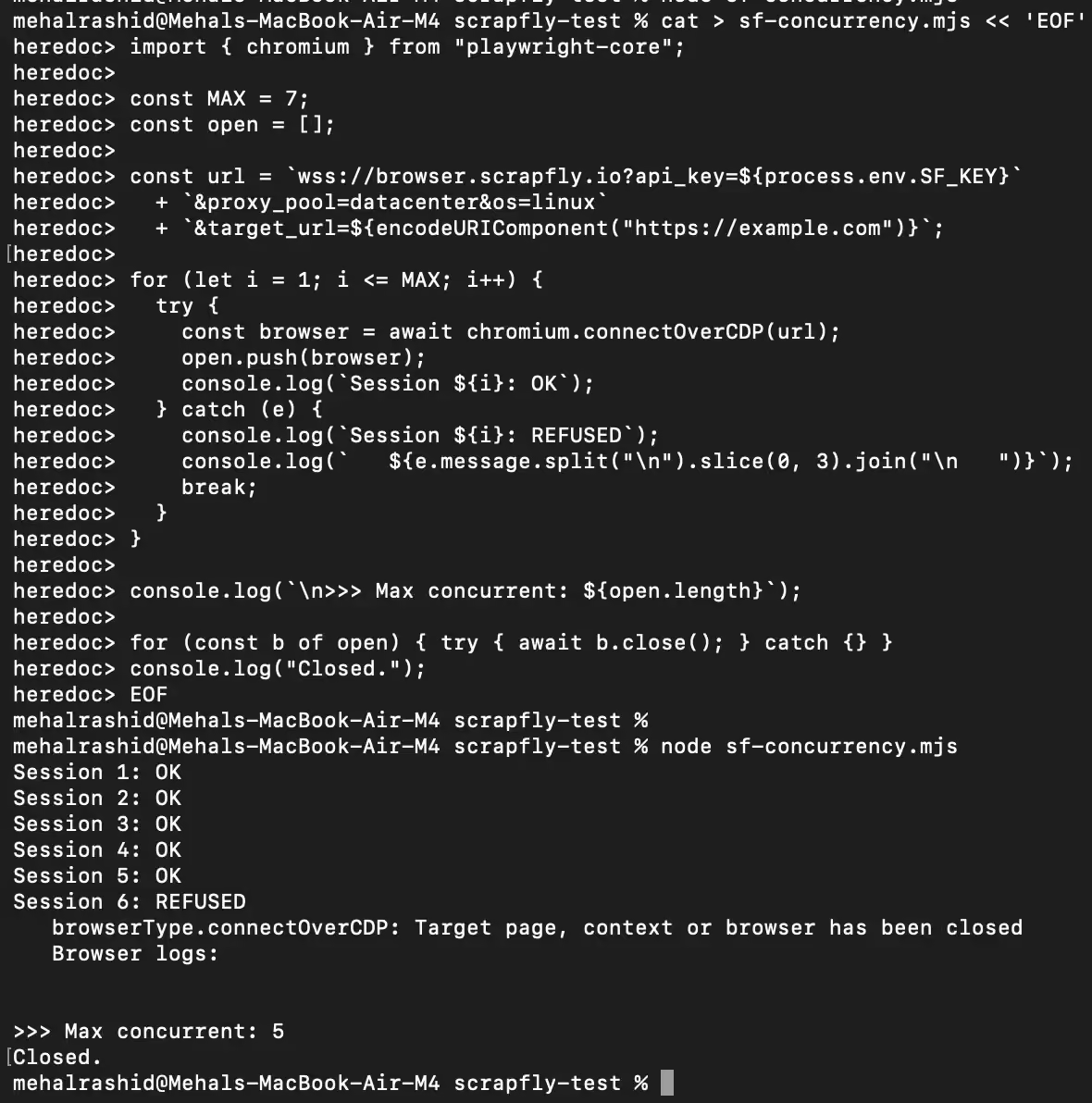
Scrapfly managed to successfully open the first 5 sessions and rejected the 6th one. Hence, the concurrency is exactly as advertised in the free plan.
One thing I didn’t like about Scrapfly is that the error message doesn’t give the exact reason the 6th session was refused, i.e., because we reached the concurrency limit. Instead, it complained that the target page, context, or browser was closed, which doesn’t explain anything.
Verdict: Scrapfly’s free plan allows 5 concurrent sessions.
How Much Does Scrapfly Cost
All services provided by Scrapfly are paid in API credits. And this includes all Scrapfly products, not just the Cloud Browser. They all draw from the same monthly quota of credits within your chosen plan.
There are five total available plans offered by Scrapfly. Here is the comparison between the five plans based on the numbers found on Scrapfly’s dashboard and Cloud Browser billing documentation:
| Item | Free | Discovery | Pro | Startup | Enterprise |
|---|---|---|---|---|---|
| Plan fee (USD/month) | $0 | $30 | $100 | $250 | $500 |
| API credits | 1,000 | 200,000 | 1,000,000 | 2,500,000 | 5,500,000 |
| Concurrent sessions | 5 | 5 | 20 | 50 | 100 |
| Projects | 1 | 2 | 5 | 15 | 50 |
| Anti-bot protection | No | Yes | Yes | Yes | Yes |
| Pay-as-you-go credits | Not available | Not available | $3.50 per 10k | $2.00 per 10k | $1.20 per 10k |
| Browser time | 1 credit/30 s | ≈ $0.018/hour | ≈ $0.012/hour | ≈ $0.012/hour | ≈ $0.011/hour |
| Datacenter bandwidth | 7 credits/MB | 7 credits/MB ($1.08/GB) | 10 credits/MB ($1.02/GB) | 8 credits/MB ($0.82/GB) | 8 credits/MB ($0.74/GB) |
| Residential bandwidth | 52 credits/MB | 52 credits/MB ($7.99/GB) | 78 credits/MB ($7.99/GB) | 65 credits/MB ($6.66/GB) | 65 credits/MB ($6.05/GB) |
The free plan is called free forever. And judging by the quota email I got, which suggests upgrading if you receive it every month, the 1,000 credits seem to reset every month.
Moreover, every session in Scrapfly Cloud Browser service is charged based on time spent and bytes used. Time is charged in 30-second blocks at 1 credit per block, always rounded up to the next block. A 45-second session bills 2 credits.
Bandwidth usage starts charging credits per MB from the very first byte. The same rounding rule applies here as well, i.e., bandwidth is rounded up to the nearest whole MB.
Any session bills at least 5 credits. That’s a floor, and not an extra charge, so a short session with light bandwidth costs 5 credits rather than its actual usage.
What Scrapfly Would Cost in a Real Scenario
Browser time, bandwidth and CAPTCHA solves all come out of the same credit pool. Browser time is cheap. Bandwidth isn’t, and the proxy pool you pick decides your bill more than anything else does. Both scenarios below assume your 1,000 free credits are gone.
Scenario 1
Let’s say you are a solo developer on the Discovery plan at $30 a month, who is running a price-tracking agent across 3,000 sessions a month. Each session uses:
- 4 minutes 20 seconds of browser time
- 2 MB of traffic
- A CAPTCHA in about 1 in 5 sessions
The cost calculation would look something like this.
4 minutes 20 seconds is 9 blocks of 30 seconds, so 9 credits a session, or 27,000 credits a month. Datacenter bandwidth on Discovery is 7 credits per MB, so 2 MB a session is 14 credits, or 42,000 credits.
The 600 CAPTCHA solves cost 20 credits each for a reCAPTCHA or Turnstile token, so 12,000 credits.
Total: 81,000 credits, about $12.15 worth against a $30 plan. Discovery gives you 200,000, so you’re nowhere near the ceiling.
Now switch that traffic to residential. At 52 credits per MB, the same 2 MB becomes 104 credits per session, and your month jumps to 351,000 credits. That’s well past Discovery’s 200,000, and Discovery can’t buy extra credits, so your agent just stops.
The Pro plan, which is priced at $100, will fix that problem of yours. Residential has 78 credits per MB, which puts the month at 507,000 of the 1,000,000 included.
The work and session count were the same, and all that changed was the proxy pool, and it took you from $30 to $100.
Scenario 2
If you are a small team running logged-in agents that fill out forms and manage accounts, here’s what your month would look like:
- 60 agents working simultaneously
- 1,800 sessions
- 30 minutes of browser time per session, Scrapfly’s maximum session length
- 12 GB of residential traffic
- 8,000 CAPTCHA solves
- Browser time: 30 minutes is 60 blocks, so 60 credits per session, or 108,000 credits
- Bandwidth: 12 GB at 65 credits per MB on Startup is 798,720 credits
- CAPTCHA: 8,000 solves at 20 credits is 160,000 credits
Total: about 1,066,720 credits
That is well inside the Startup plan’s 2,500,000. But Startup only allows 50 concurrent sessions, and you need 60, so the plan that fits your credits doesn’t fit your agents. So you end up on Enterprise at $500 a month using about a fifth of the credits it gives you.
What you should know is that on Scrapfly, the concurrency ceiling sets your bill before the credits do. You pay $500 for 60 parallel sessions and leave four-fifths of your allowance on the table.
Pros & Cons of Scrapfly
| Pros | Cons |
|---|---|
| Browser time is very cheap, from about $0.011 to $0.018 per hour on paid plans | 1,000 free credits run out very quickly |
| Median startup of 2,324 ms with a tight range | Anti-bot protection isn’t available on the free plan |
| CAPTCHA solver claims support for several CAPTCHA types and doesn’t charge for failed attempts | Median example.com load of 928 ms, the slowest in this series so far |
| Free plan allows you to use the built-in datacenter and residential proxy pool | Session persistence feature requires keeping the session running in the background, so you keep losing credits for simply keeping the session alive. |
| Image, font, and stylesheet stubbing and caching help cut bandwidth costs | Residential bandwidth is expensive at $6.05 to $7.99 per GB |
| Works with Puppeteer, Playwright, Selenium, Browser Use, and Stagehand | Sessions can’t run longer than 30 minutes |
| Session state only survives while the session is alive, so there are no long-term profiles | |
| Free and Discovery plans can’t buy extra credits, so work stops when credits run out |
How Scrapfly Compares to Other Cloud Browsers
| Cloud Browser | Entry price | Concurrent at entry | Included hours | Proxy model | Proxy per GB |
|---|---|---|---|---|---|
| Scrapfly | $30/mo (Discovery) | 5 | 200,000 credits ≈ 1,667 hrs if no bandwidth is used | Bandwidth billed from the same credit pool | Datacenter $1.08/GB, residential $7.99/GB (Discovery plan) |
| Kernel | $30/mo | 10 | $10 credits ≈ 20.8 headful hrs or 166.7 headless hrs | Included in plan, no separate proxy charges | No per-GB charge (no cap on proxy use on Hobbyist) |
| Steel | $0 + usage (Launch, $30 one-time credit); $250/mo Scale | 10 on Launch, 100 on Scale | None. Credit model, $0.10/browser hour (Launch), $0.08 (Scale) | Metered separately | $10/GB Launch, $6/GB Scale |
| Browserless | $35/mo | 5 | 20,000 units ≈ 167 hrs, shared with proxy and CAPTCHA | Metered in the same unit pool | Residential 6 units/MB ≈ $12.29/GB; datacenter 2 units/MB ≈ $4.10/GB (at overage rate of the Prototyping plan) |
| Hyperbrowser | $30/mo | 25 | 300 hrs if every credit goes to browser time (100 credits per hr) | Proxy usage billed from credits | $10 (10,000 credits) |
| Browserbase | $20/mo | 25 | 100 | Billed separately | $12 |
| Gologin | $4.50/mo | 1 | 100 | Residential and mobile proxies included in rate | Included ($1/GB extra) |
The Best Scrapfly Alternative: Gologin Cloud Browser (Tested Side by Side)
| Test | Scrapfly | Gologin Cloud Browser |
|---|---|---|
| Plan tested | Free | Professional |
| Date tested | 15 October 2026 | Startup: 28 Sept to 1 Oct 2026 Datacenter antibot re-test: 9 Oct 2026 Long session: 15 Oct 2026 |
| Median startup latency | 2,324 ms (datacenter) | 3,177 ms (without proxy) and 1,760 ms (with proxy) |
| example.com load | 928 ms | 483 ms (without proxy) and 360 ms (with proxy) |
| Antibot test with a datacenter IP | 5 of 5 sites (23 of 25 attempts) | 4 of 5 sites (20 of 25 attempts) |
| Antibot test with a residential IP | Not completed (free quota ran out) | 4 of 5 sites (20 of 25 attempts) |
| Session persistence | Passed, but state lasts only while the session is alive | Passed, sessions are persistent by default |
| Max session length | 30 minutes | No cap (a 25.5-minute test session was still alive when I closed it) |
| Concurrent sessions | 5 on Free and Discovery ($30/month) | 1 (on Professional plan) + $2 for each extra concurrent session |
| Entry paid price | $30/month | $4.50/month |
| Proxy usage | Residential bandwidth at $6.05 to $7.99/GB depending on plan | Residential IPs included in hourly rate ($1/GB extra) |
| Live view with takeover | Yes (5 credits extra per session) | Yes |
Gologin’s startup figures come from the same run I used in my Hyperbrowser, Browserless, Steel and Kernel reviews, measured between 28 September and 1 October 2026. The antibot results on the default datacenter IP come from a re-test on 9 October, and the results with a US residential proxy come from an earlier run. The long-session test was run on 15 October. All of Scrapfly’s figures are from 15th October 2026.
Why Consider a Scrapfly Alternative
Some of the reasons you may want to look for a Scrapfly alternative are:
- The page load time is slow.
- The free plan doesn’t come with anti-bot protection, and its 1,000 credits run out quickly.
- Residential proxy bandwidth costs between $6.05 and $7.99 per GB.
- A session can’t run longer than 30 minutes, and whatever you saved in it is gone once it ends.
- The Session Resume feature requires the session to keep running in the background, which keeps the credits meter running.
- The Free and Discovery plans don’t let you buy extra credits, so when the monthly credits run out, you cannot do further work.
Here’s how Gologin does better in these areas:
Gologin Wins on Page Load Speed, Proxy Costs, and Session Length
I ran the same startup and antibot tests on two configurations of Gologin:
- Gologin professional plan without proxies, so the sessions carried the default datacenter IP assigned by the system.
- Gologin Professional plan, where I attached a US residential proxy to the session.
The screenshot below shows the exit IPs of both Gologin configurations:
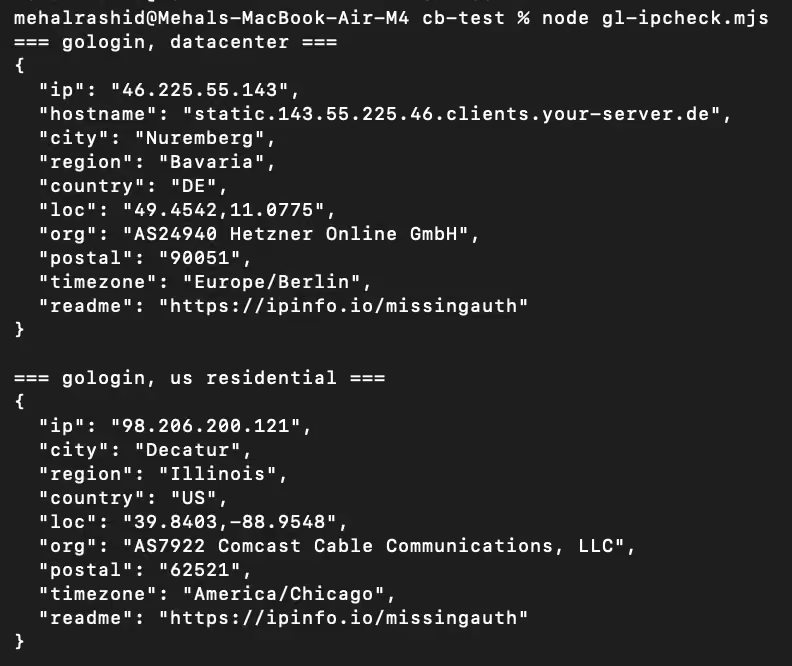
Now let’s see how these Gologin configurations performed against Scrapfly on the same tests.
Startup Latency and Page Load
Without a proxy, Gologin was slower than Scrapfly to start a session. Its median of 3,177 ms was 853 ms behind Scrapfly’s 2,324 ms. It was also much less consistent, as one of its five runs took 9,351 ms.
The screenshot below shows the startup and page load time of each Gologin session without a proxy:
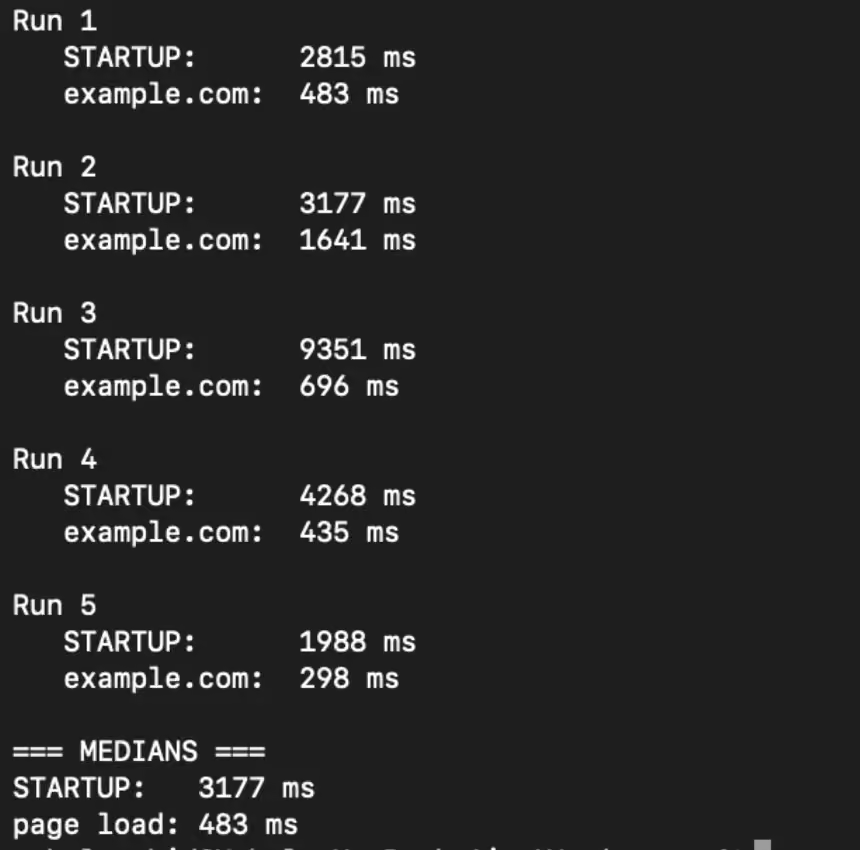
Once I attached the US residential proxy, Gologin’s median startup dropped to 1,760 ms, which is 564 ms faster than Scrapfly. All five sessions started between 1,651 ms and 2,226 ms, so the speeds were tightly grouped this time.
Here’s the terminal screenshot of the Gologin sessions with a residential proxy:
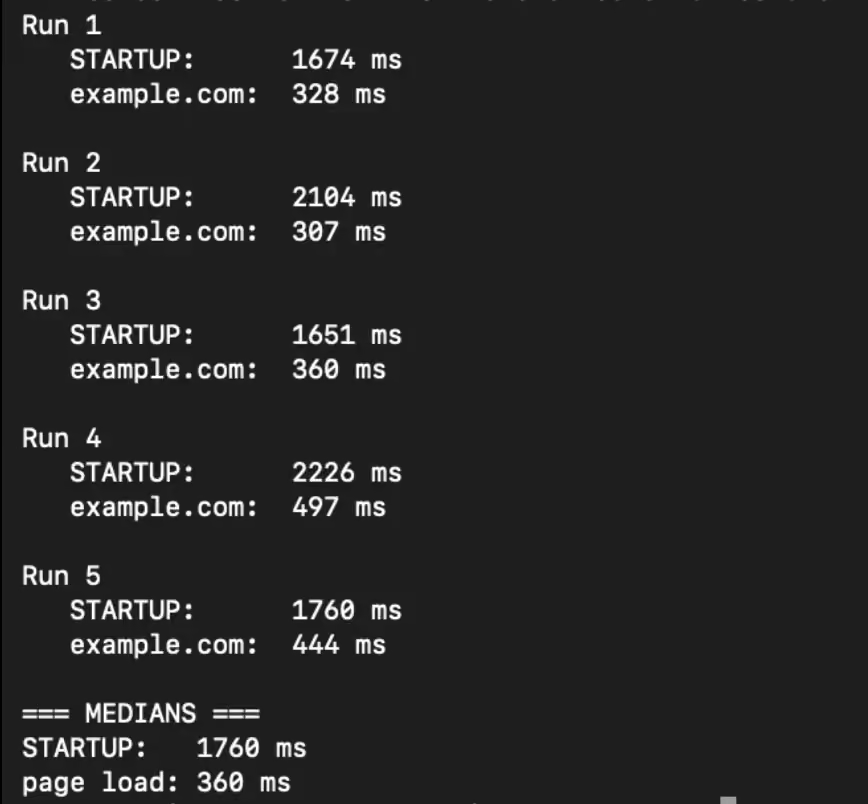
Gologin’s page load speed is also faster than Scrapfly in both configurations, and by a big margin.
The Gologin setup on a datacenter IP loaded the page 445 ms quicker than Scrapfly did on a datacenter IP. The second Gologin configuration with a residential proxy was 568 ms faster than Scrapfly.
| Setup | Median startup | Range | Median page load (example.com) |
|---|---|---|---|
| Scrapfly free (US datacenter) | 2,324 ms | 2,113 to 2,993 ms | 928 ms |
| Gologin (Hetzner datacenter) | 3,177 ms | 1,988 to 9,351 ms | 483 ms |
| Gologin with a US residential proxy | 1,760 ms | 1,651 to 2,226 ms | 360 ms |
Antibot Pass Rate
Gologin loaded Zillow fine in both configurations, which has been a tough site for previous platforms I have reviewed.
| Site | Scrapfly (US datacenter) | Gologin (default Hetzner datacenter) | Gologin (US residential proxy) |
|---|---|---|---|
| Zillow | Loaded 5 of 5 | Loaded 5 of 5 | Loaded 5 of 5 |
| G2 | Loaded 4 of 5 (HTTP 403 throughout, blank page in one round) | 403 in all 5 sessions | 403 in all 5 sessions |
| Loaded 5 of 5 | Loaded 5 of 5 | Loaded 5 of 5 | |
| Amazon | Loaded 4 of 5 | Loaded 5 of 5 | Loaded 5 of 5 |
| Hacker News | Loaded 5 of 5 | Loaded 5 of 5 | Loaded 5 of 5 |
| Score | 5 of 5 | 4 of 5 | 4 of 5 |
This is the one test where Scrapfly beat Gologin. Gologin returned a 403 on G2 in every session in both configurations, and the screenshots confirm the block page. Scrapfly’s 403 resolved into the real site four times out of five.
Terminal screenshot of Gologin in the antibot test:
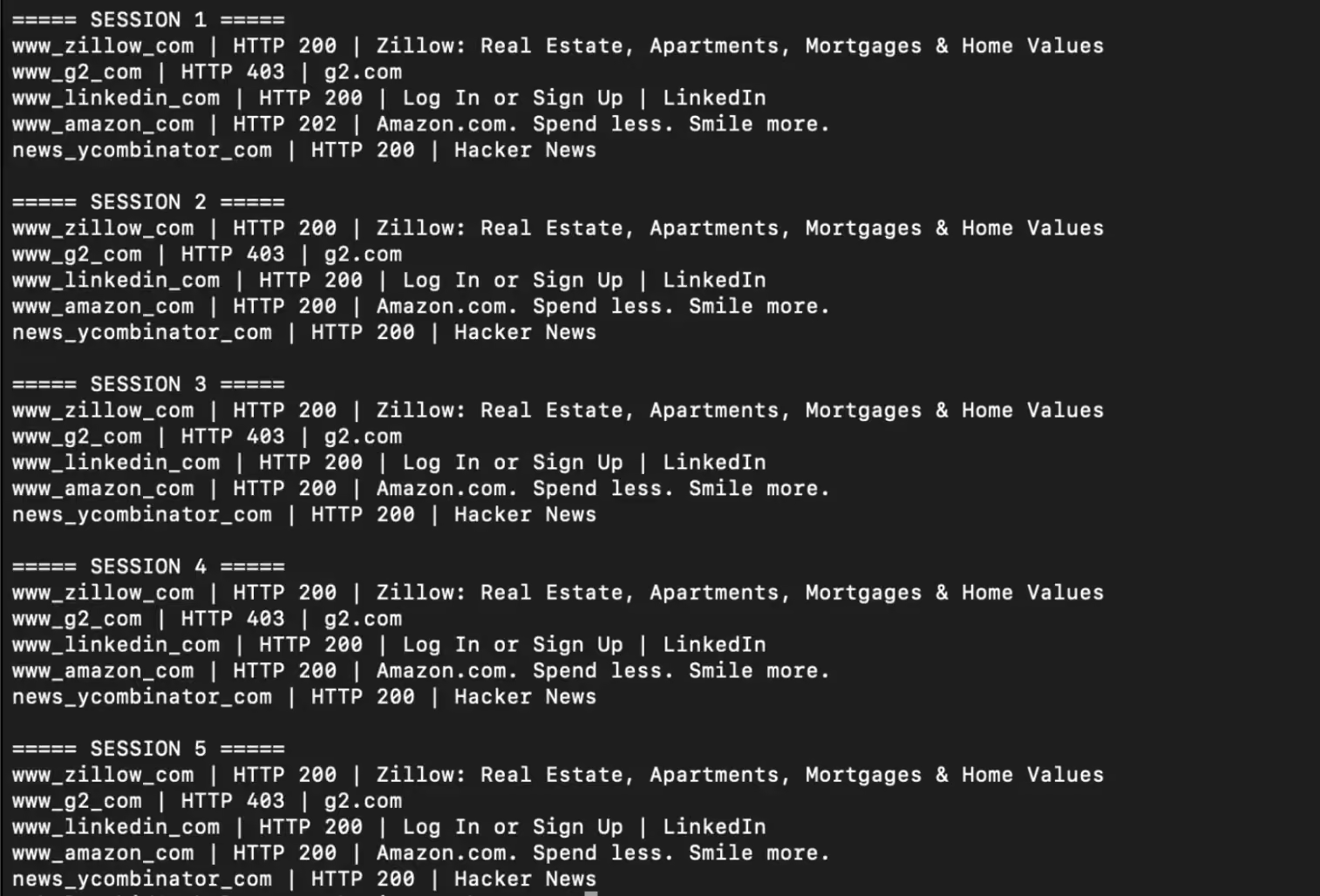
It’s also worth remembering that Gologin got these results on a datacenter IP from Germany. Scrapfly’s session had a US IP, which should normally make things easier on US websites.
Proxy Costs
As you saw in the pricing section, Scrapfly’s browser time is cheap, but its bandwidth isn’t. Residential traffic costs $7.99 per GB on the Discovery and Pro plans, $6.66 on the $250 Startup plan, and $6.05 only on the $500 Enterprise plan.
Gologin includes residential and mobile proxies in its plan rate, and any extra traffic costs $1 per GB.
The entry price follows the same pattern. Gologin’s starter plan costs $4.50 a month with 100 browser hours included. Scrapfly’s cheapest paid plan costs $30 a month, and if your work needs residential proxies, a big chunk of your credits allowance will go into bandwidth rather than browser time.
Session Length and Persistence
Scrapfly sessions end after 15 minutes by default, and you can only push that to 30 minutes. When a session ends, everything stored in it, e.g., cookies, login state, local storage, etc., disappears with it.
Gologin doesn’t put a cap on session length. In my test, I held a single Gologin session open for 25 minutes and checked on it every minute. It was still alive at the 25.5-minute mark, and the session only ended because I closed it myself. That is past Scrapfly’s 15-minute default, though still within its 30-minute maximum.
The terminal screenshot below shows the session staying alive minute by minute:
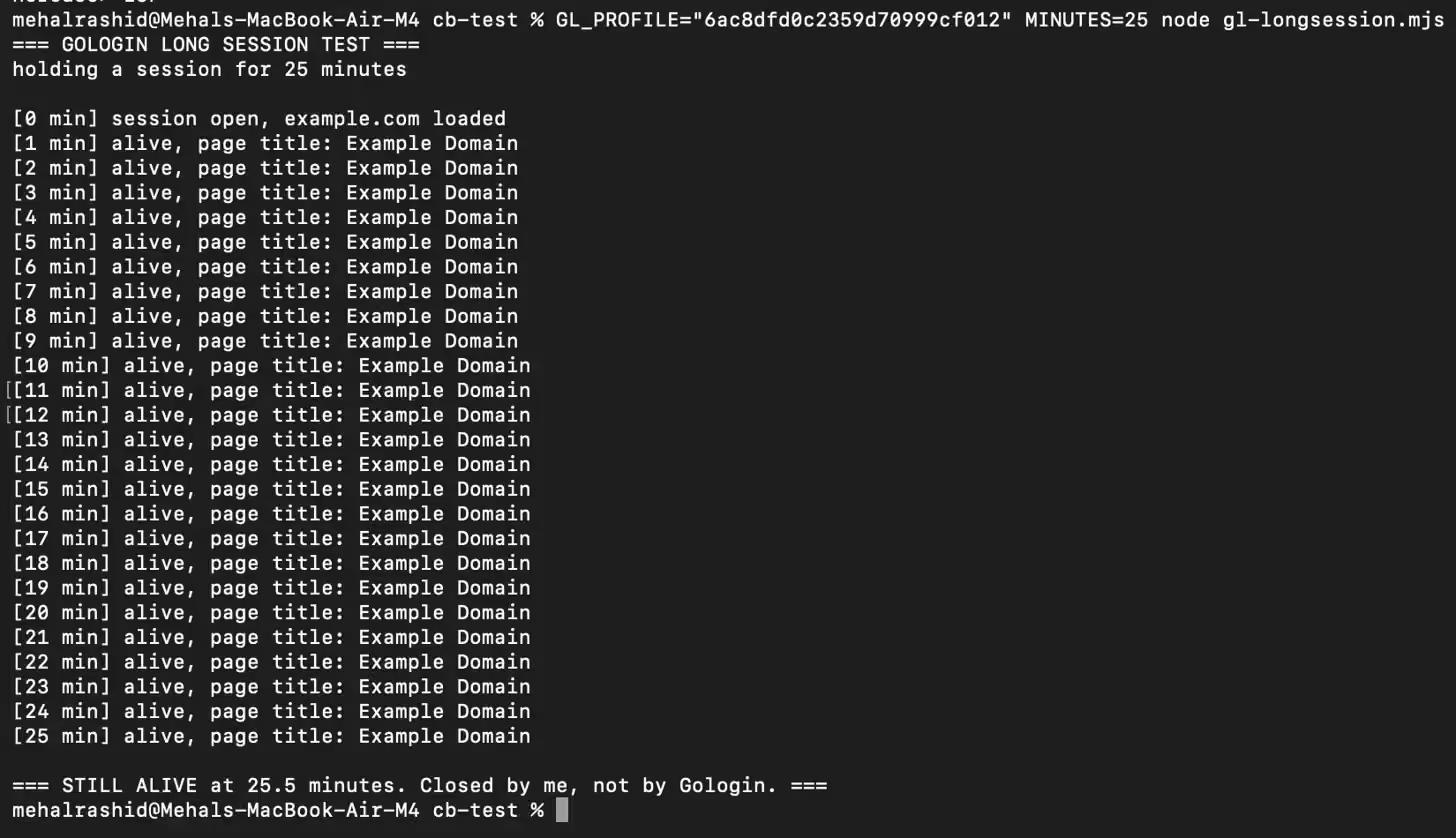
Gologin sessions are also tied to browser profiles, so they’re persistent by default. You don’t need to pass session IDs or set parameters like auto_close to false to keep your login state. It stays saved in the profile and is there the next time you open it, whether that’s 30 minutes later or a month later.
Which One Should You Choose: Scrapfly vs Gologin
Scrapfly is a good fit for short scraping jobs on light pages over datacenter proxies. Browser time costs less than 2 cents an hour, and features like image and font stubbing can keep your bandwidth low. The free plan lets you run 5 sessions in parallel, and you get plenty of fingerprint options, i.e., Linux, Windows, macOS, Android and iOS, along with Chrome, Edge, Brave and Opera browser brands.
But if your work is a little different from that, Scrapfly starts feeling limited.
Scrapfly loaded pages the slowest of all the platforms I’ve tested so far. Its residential bandwidth can make up almost your entire credit bill, and its sessions can’t last longer than 30 minutes. If any of these areas matter to you, you are better off with Gologin.
Gologin loaded 4 of 5 websites in both of its configurations, one fewer than Scrapfly because of G2, but it loaded pages much faster than Scrapfly. With a residential proxy attached, it also started sessions faster.
It’s cheaper too. Gologin’s entry plan costs $4.50 a month and includes residential and mobile proxies in its rate, with extra traffic at $1 per GB. On Scrapfly, the same residential traffic costs $6.05 to $7.99 per GB.
Moreover, Gologin doesn’t cap your session length, and every session is persistent by default through its profile. That makes it a much better choice for agents that stay logged into accounts or work on long tasks.
You also have the freedom to control Gologin sessions fully by yourself, through code, or in a hybrid way.
Try Gologin Cloud Browser today.
FAQs
Is Scrapfly free?
Yes. Scrapfly has a free plan with 1,000 API credits a month and 5 concurrent sessions. The free plan doesn’t include anti-bot protection, and it can’t buy extra credits, so your work stops when the credits run out. In my test, the quota ran out right after the first CAPTCHA solver run.
How much does Scrapfly cost?
Paid plans start at $30 a month for Discovery with 200,000 API credits, then $100 for Pro, $250 for Startup and $500 for Enterprise. Browser time costs 1 credit per 30 seconds, and bandwidth is billed per MB from the same credit pool. Residential traffic works out to $6.05 to $7.99 per GB, depending on the plan.
How long can a Scrapfly session run?
A Scrapfly session runs for 15 minutes by default, and you can raise that to 30 minutes at most. Session Resume lets you reconnect to a running session, but the state is gone once the session ends.
What is the best Scrapfly alternative?
Gologin Cloud Browser is a strong alternative for long or logged-in work. It starts at $4.50 a month, includes residential and mobile proxies in its rate, has no cap on session length and keeps every session in a persistent profile. In my tests, it also loaded pages faster than Scrapfly.