

Hyperbrowser allows you to deploy browser sessions automatically and control them with AI agents.
In this Hyperbrowser tech expert review, I tested Hyperbrowser’s speed, anti-bot performance, login persistence, and concurrency using Playwright scripts. I also reviewed their pricing structure and credits system. You’ll also see how Hyperbrowser compares to other cloud browsers, especially Gologin.
Let’s start with an overview of Hyperbrowser before getting into the detailed review.
TL;DR
| What I measured | Result |
| Startup latency (median) | 2,706 ms |
| Time to provision a browser vs connecting CDP | 550 ms to provision, 1,970 ms to connect CDP (medians of each stage, so they do not sum to the total) |
| Antibot bypass rate | 3 out of 5 sites, free plan, default US datacenter IP |
| Cold start | Provisioning took about 1,050 ms in the first two runs, then about 550 ms |
| Concurrent sessions | 1 on free plan, 25 on Startup plan, 100 on Scale plan, 1,000+ on Enterprise plan |
| Session persistence | Passed in my test |
| Proxy targeting | Country (100+), US state and city level targeting also available but cannot be used together |
| Proxy cost | $10/GB, paid plans only |
| CAPTCHA solving | Paid plans only |
| Cheapest paid plan | $30/month |
All Hyperbrowser benchmarks in this review were run between 28th September and 1st October 2026 on the free plan. The Gologin comparison tests at the end were also run between 28th September and 1st October 2026 on the Gologin free and pro plan. Startup latency was measured with playwright-core connecting over CDP, with no SDK in the path. Test scripts are included below so you can run the tests yourself.
What is Hyperbrowser
Hyperbrowser is a cloud browser platform that lets AI agents and developers automate browser tasks through APIs and SDKs.
A developer can launch fleets of headless browser sessions through the Hyperbrowser API with the help of AI agents or automation scripts.
The platform supports standard automation frameworks such as Puppeteer, Playwright, Selenium, etc.
It also supports a variety of third-party AI agents while also offering its own.
The third-party AI agents include:
- Browser Use
- Claude Computer Use
- OpenAI CUA
- Gemini Computer Use
- Meta Computer Use
- Grok Computer Use
- Jev Computer Use
Hyperbrowser’s own AI agent is called HyperAgent. It adds AI capabilities to Playwright so developers can describe automation tasks in plain English.
Much of Hyperbrowser’s marketing concerns getting past bot defenses.
Features such as automatic CAPTCHA solving, residential proxy rotation, stealth mode, and so on are also the type that you’ll need to get past behavioral analysis and bot-detection systems deployed by websites.
You can deploy over 1000+ browser sessions in parallel, depending on the Hyperbrowser plan you purchase. The free plan, which I used in this Hyperbrowser review, allows just one session at a time.
How I Tested Hyperbrowser Features
I tested Hyperbrowser using its free plan, which lets you run 1 session at a time and keeps 7 days of data.
Basic stealth mode is also included in the free plan. However, proxy usage and auto CAPTCHA solving are locked behind a paid plan.
I wrote Playwright scripts to connect to Hyperbrowser over CDP and test the following:
- Startup latency: I created a Hyperbrowser account and let it stay cold for an hour. Then I ran a script that would create 5 sessions, one after another, and open example.com in those sessions. I recorded the provisioning time and CDP connect time of the five runs.
- Anti-bot bypass rate: In this test, I ran a session five times and loaded five websites each time, namely, Zillow, G2, LinkedIn, Amazon, and Hacker News. For each website, it was noted how many times out of five it loaded normally.
- Session persistence: Session persistence in cloud browser refers to a browser’s ability to keep you logged in to a website across sessions. Hyperbrowser offers this feature on the free plan. I ran an automated session and logged into a throwaway Hacker News account by hand before closing the session. After 20 minutes, I ran the session again and checked whether I was still logged in.
- Concurrency test: While Hyperbrowser explicitly states that it allows 1 concurrent session on the free plan, I still wanted to test its limit. I wrote a script that would open 8 Hyperbrowser sessions at once and record whether each session opened fine or got rejected.
    import { Hyperbrowser } from "@hyperbrowser/sdk";
    import { chromium } from "playwright-core";

    const client = new Hyperbrowser({ apiKey: "YOUR_API_KEY" });

    // Ask Hyperbrowser for a browser
    const session = await client.sessions.create();

    // Attach Playwright to it over CDP
    const browser = await chromium.connectOverCDP(session.wsEndpoint);
    const context = browser.contexts()[0];
    const page = context.pages()[0] || (await context.newPage());

    await page.goto("https://example.com", { waitUntil: "domcontentloaded" });
    console.log(await page.title());

    // Always stop the session, or it keeps burning credits
    await browser.close();
    await client.sessions.stop(session.id);
Hyperbrowser Testing Results
Hyperbrowser Startup Latency
Hyperbrowser’s onboarding is a quick process.
You can sign up using your Google account or provide an email and a password. A mobile number isn’t required for signing up, unlike Browserbase.
To test the startup speed of Hyperbrowser sessions, I simply needed to run a session with a sample website multiple times.
I couldn’t find such a script in Hyperbrowser’s template library. By checking the template library, I also realized that Hyperbrowser’s templates aren’t ready-to-use. The template link sends you to GitHub, and you’re on your own after that.
Since what I was looking for wasn’t in this library, I wrote my own script using Playwright and ran it from the terminal using Hyperbrowser’s API.
    import { Hyperbrowser } from "@hyperbrowser/sdk";
    import { chromium } from "playwright-core";
    import fs from "fs";

    const client = new Hyperbrowser({ apiKey: "YOUR_API_KEY" });
    const RUNS = 5;

    const log = (l) => {
      console.log(l);
      fs.appendFileSync("results-hb-startup.txt", l + "\n");
    };

    const median = (a) => {
      const s = [...a].sort((x, y) => x - y);
      const m = Math.floor(s.length / 2);
      return s.length % 2 ? s[m] : (s[m - 1] + s[m]) / 2;
    };

    const prov = [], conn = [], start = [], load = [];
    log("=== HYPERBROWSER STARTUP " + new Date().toISOString() + " ===");

    for (let i = 1; i <= RUNS; i++) {
      const t0 = Date.now();
      const session = await client.sessions.create();
      const t1 = Date.now();                       // provisioning done

      const browser = await chromium.connectOverCDP(session.wsEndpoint);
      const t2 = Date.now();                       // CDP connected

      const ctx = browser.contexts()[0];
      const page = ctx.pages()[0] || (await ctx.newPage());
      await page.goto("https://example.com", { waitUntil: "domcontentloaded" });
      const t3 = Date.now();                       // page loaded

      prov.push(t1 - t0);
      conn.push(t2 - t1);
      start.push(t2 - t0);
      load.push(t3 - t2);

      log(`Run i session={session.id}`);
      log(`   provision:    ${t1 - t0} ms`);
      log(`   CDP connect: ${t2 - t1} ms`);
      log(`   STARTUP:      ${t2 - t0} ms`);
      log(`   example.com: ${t3 - t2} ms\n`);

      await browser.close();
      await client.sessions.stop(session.id);
      await new Promise((r) => setTimeout(r, 3000));   // 3-second gap
    }

    log("=== MEDIANS ===");
    log(`provision:    ${median(prov)} ms`);
    log(`CDP connect: ${median(conn)} ms`);
    log(`STARTUP:      ${median(start)} ms`);
    log(`page load:    ${median(load)} ms`);
The sample website I chose was example.com because it is lightweight and wouldn’t have much influence on the session startup time, which is what I actually wanted to measure.
My script opens a session 5 times with a 3-second gap in between and prints the time for 4 different stages of a session:
- Provisioning: This number reports how long Hyperbrowser took to assign a browser for a session.
- CDP connect: This is how long it took my script to connect to the browser for each session.
- Total startup: The sum of Provisioning time and CDP connect. This is the number we are after.
- Page load: How much time it took for the website to load each time.
All these numbers were recorded in milliseconds.
The screenshot below shows these numbers for all five sessions:
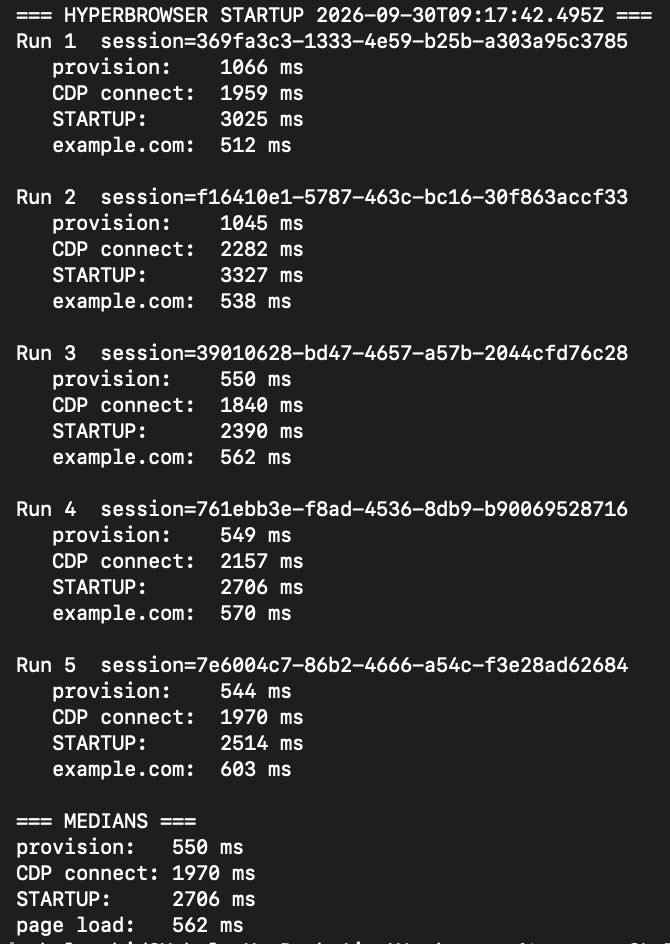
Here’s a more readable view of the numbers:
| Run | Provision | CDP connect | Startup total |
| 1 | 1066 ms | 1959 ms | 3025 ms |
| 2 | 1045 ms | 2282 ms | 3327 ms |
| 3 | 550 ms | 1840 ms | 2390 ms |
| 4 | 549 ms | 2157 ms | 2706 ms |
| 5 | 544 ms | 1970 ms | 2514 ms |
At the bottom of the screenshot, the medians of all four types of time durations are listed:
- Provision: 550 ms
- CDP connect: 1970 ms
- Startup: 2706 ms
- Page load: 562 ms
So the median startup time was 2706 ms across the five sessions. In terms of seconds, this equals 2.7 seconds.
More than two-thirds of these 2.7 seconds were spent in the CDP connection, which hovered around the 2-second mark across all five sessions.
Provisioning took a little over 1 second in the first two sessions, then dropped to about half a second in the remaining sessions.

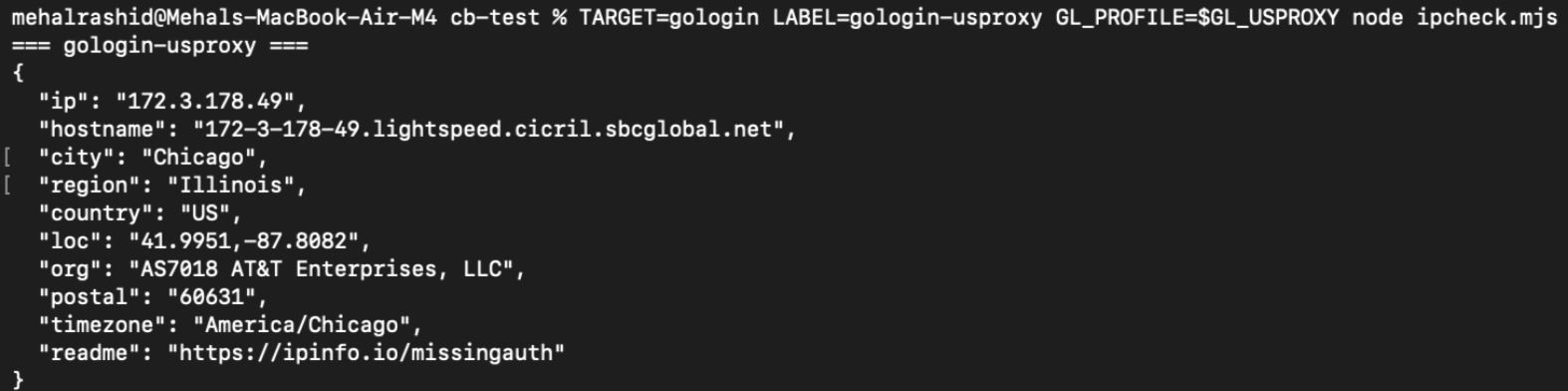
All these sessions were run using the free Hyperbrowser plan, which doesn’t allow custom IP usage. But they were still assigned a US data center IP by default. The screenshot below shows the recorded exit IP of a Hyperbrowser session:
Antibot Bypass Test
To test Hyperbrowser’s anti-bot bypass rate, I wrote a Playwright script that would open a session five times and load the following five websites each time:
- Zillow
- G2
- Amazon
- Hacker News (news.ycombinator.com)
    import { Hyperbrowser } from "@hyperbrowser/sdk";
    import { chromium } from "playwright-core";
    import fs from "fs";

    const client = new Hyperbrowser({ apiKey: "YOUR_API_KEY" });
    const SESSIONS = 5;

    const SITES = [
      "https://www.zillow.com/",
      "https://www.g2.com/",
      "https://www.linkedin.com/",
      "https://www.amazon.com/",
      "https://news.ycombinator.com/",
    ];

    const log = (l) => {
      console.log(l);
      fs.appendFileSync("results-hb-antibot.txt", l + "\n");
    };

    fs.mkdirSync("shots/hyperbrowser", { recursive: true });
    log("=== ANTIBOT HYPERBROWSER " + new Date().toISOString() + " ===");

    for (let s = 1; s <= SESSIONS; s++) {
      log(`\n===== SESSION ${s} =====`);

      let session, browser;
      try {
        session = await client.sessions.create();
        browser = await chromium.connectOverCDP(session.wsEndpoint);
        log(`live view: ${session.liveUrl}`);
      } catch (e) {
        log(`SESSION ${s} | CONNECT FAILED | ${e.message.split("\n")[0]}`);
        continue;
      }

      const ctx = browser.contexts()[0] || (await browser.newContext());

      for (const site of SITES) {
        const name = new URL(site).hostname.replace(/\W/g, "_");
        let page;
        try {
          page = await ctx.newPage();
          const resp = await page.goto(site, {
            waitUntil: "domcontentloaded",
            timeout: 45000,          // 45 seconds before the tab gives up
          });
          await page.waitForTimeout(3000);
          log(`${name} | HTTP ${resp ? resp.status() : "n/a"} | ${await page.title()}`);
          await page.screenshot({ path: `shots/hyperbrowser/s${s}_${name}.png` });
        } catch (e) {
          log(`${name} | FAILED | ${e.message.split("\n")[0]}`);
        }
        try { if (page) await page.close(); } catch {}
        await new Promise((r) => setTimeout(r, 1500));    // 1.5-second gap between sites
      }

      try { await browser.close(); } catch {}
      try { await client.sessions.stop(session.id); } catch {}
      await new Promise((r) => setTimeout(r, 3000));
    }
The script was programmed to print the status code returned by each website. But you cannot judge whether a page loaded successfully simply by looking at the status code. That’s because even a page that presents a challenge returns HTTP 200, the status code that indicates a successful request.
Therefore, I also checked the recording of these sessions through the Hyperbrowser dashboard to confirm whether these websites successfully loaded.
The screenshot below shows the status code returned by each website in each of the five sessions:

After checking the recording of the sessions, here’s a table showing how many times out of 5 the websites loaded successfully:
| Website | Session 1 | Session 2 | Session 3 | Session 4 | Session 5 |
| Zillow.com | ✅ | ❌ | ✅ | ❌ | ❌ |
| G2.com | ❌ | ❌ | ❌ | ❌ | ❌ |
| Linkedin.com | ✅ | ✅ | ✅ | ✅ | ✅ |
| Amazon.com | ✅ | ✅ | ✅ | ✅ | ✅ |
| news.ycombinator.com (Hacker News) | ✅ | ✅ | ✅ | ✅ | ✅ |
✅ The page loaded fine (HTTP 200 or HTTP 202)
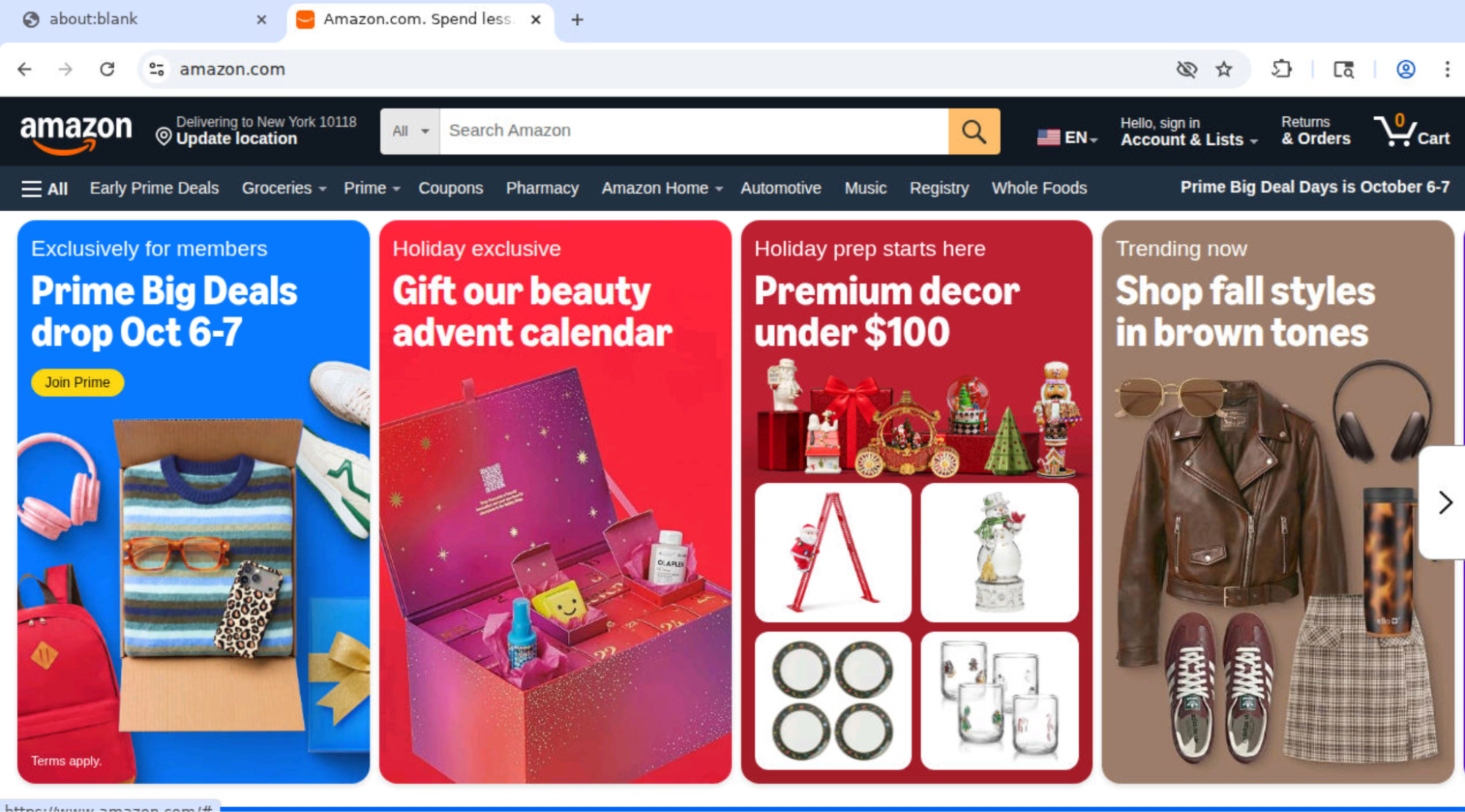
❌ The page blocked access or presented a challenge to solve (HTTP 403)
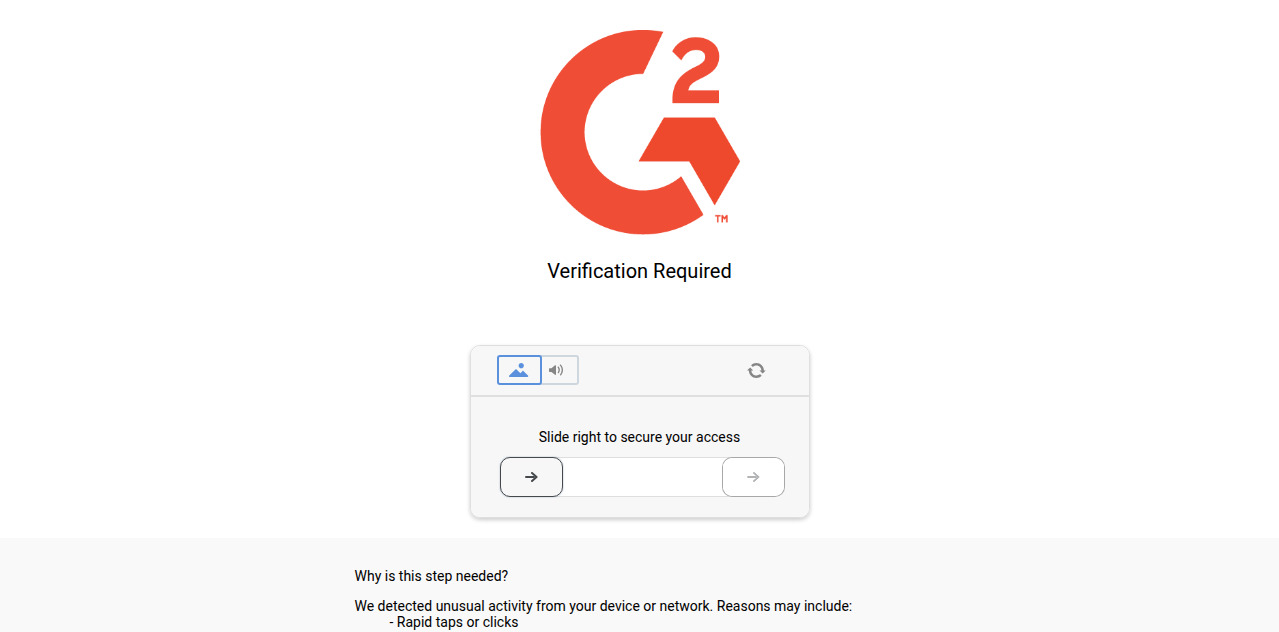
Hyperbrowser antibot bypass rate: 3 out of 5. Out of 25 requests that were made in total, 17 succeeded, and 8 were rejected. A site was counted as a pass if it opened 4 times out of 5.
Hyperbrowser stealth browser infrastructure consistently failed against G2’s antibot architecture. G2 denied access to all Hyperbrowser requests with a 403 status code.
Zillow also denied access 3 out of 5 times, which is why I counted it as a failure in the overall antibot bypass rate.
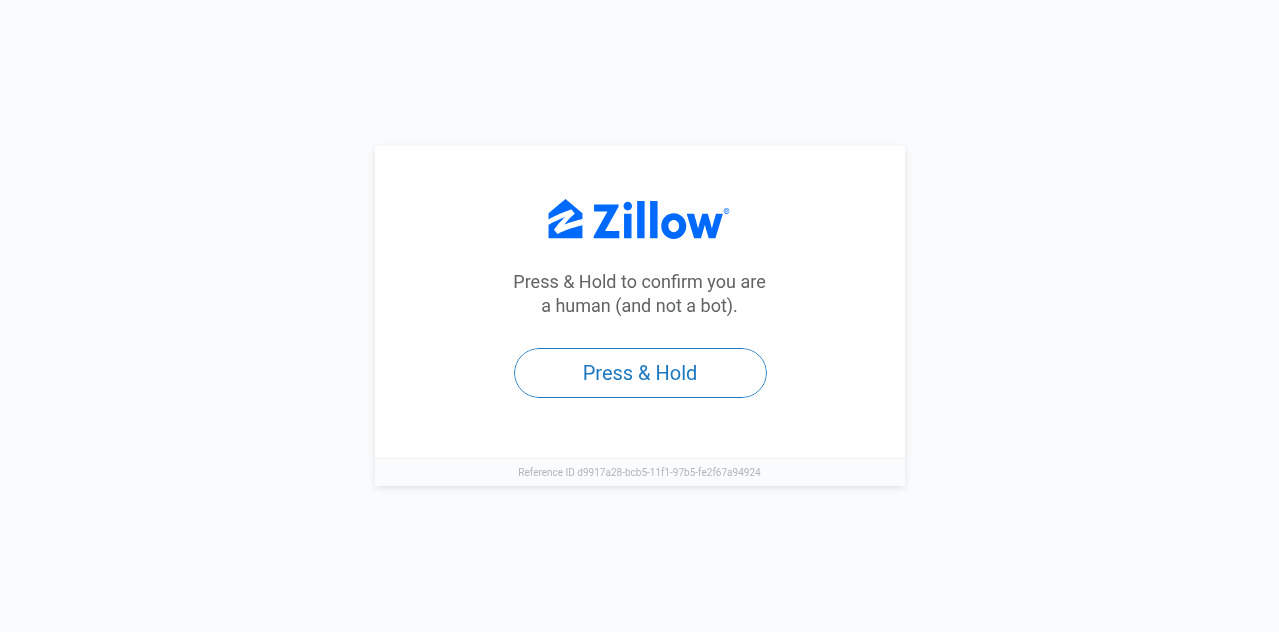
So the takeaway is that Hyperbrowser’s free plan isn’t highly trusted by some websites. The antibot bypass rate of the paid plans may be higher than that if there are premium proxies at play.
And this shouldn’t come as a surprise. Hyperbrowser itself states that the free plan comes with basic stealth mode and no auto CAPTCHA solving or proxy usage.
And you have previously seen that Hyperbrowser sessions carry a data center IP when you’re on the free plan. So one likely culprit leading to failed requests can be the data center IP, not the basic stealth mode or the absence of auto CAPTCHA solving.
Websites maintain a list of data center IPs, which is how G2 and Zillow were likely able to block Hyperbrowser’s requests.
Login Persistence Test
In Hyperbrowser, when you want to stay logged in to an account across sessions, you have to set the persistChanges parameter to true in your scripts.
Without this parameter or with the parameter set to false, the sessions load in read-only mode. The changes you made during a session aren’t saved, and the next session starts with fresh user data.
I wanted to test whether this feature works. Luckily, this feature is available in the free plan.
I wrote two scripts.
The first script opened news.ycombinator.com (Hacker News), and I used the live view feature to manually create an account on that website and log in to it. The persistChanges parameter was set to true in this session, so the login credentials get stored, and I don’t have to log in the next time.
    import { Hyperbrowser } from "@hyperbrowser/sdk";
    import { chromium } from "playwright-core";

    const client = new Hyperbrowser({ apiKey: "YOUR_API_KEY" });

    // Create a profile to hold the session state
    const profile = await client.profiles.create({ name: "persistence-test" });
    console.log(">>> PROFILE ID:", profile.id);

    // persistChanges: true is what writes the session back to the profile
    const session = await client.sessions.create({
      profile: { id: profile.id, persistChanges: true },
    });
    console.log(">>> LIVE VIEW:", session.liveUrl);

    const browser = await chromium.connectOverCDP(session.wsEndpoint);
    const ctx = browser.contexts()[0];
    const page = ctx.pages()[0] || (await ctx.newPage());

    await page.goto("https://news.ycombinator.com/login", {
      waitUntil: "domcontentloaded",
    });

    // Holds the session open so you can sign in by hand in the live view
    console.log(">>> 4 minutes to log in manually.");
    await page.waitForTimeout(240000);

    await browser.close();
    await client.sessions.stop(session.id);
    console.log("Profile saved.");
The screenshot below shows the snippet from the video recording of that session when I entered the account credentials:
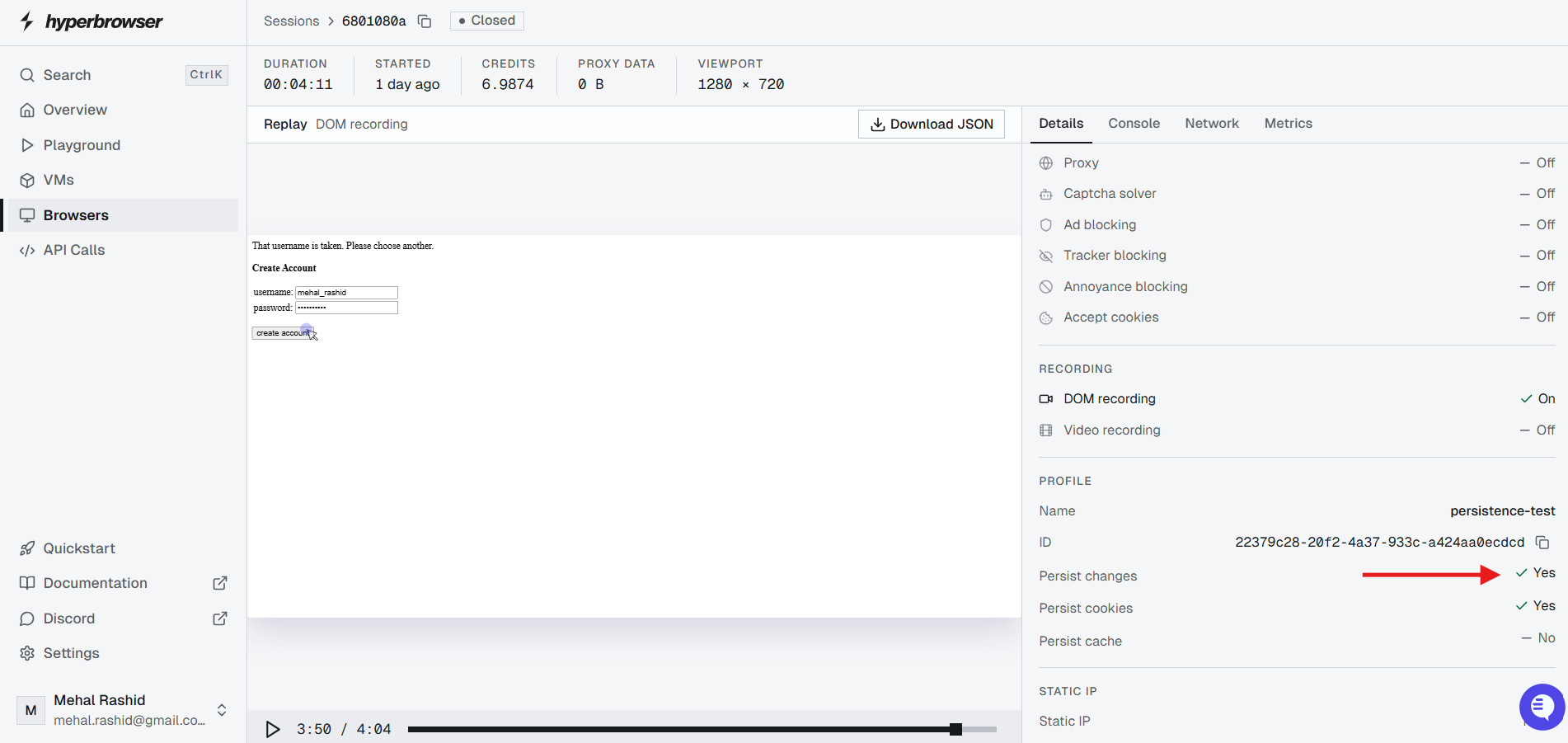
When you use the persistChanges parameter flag in Hyperbrowser, your changes are saved to a profile. Whenever you have to continue from where you left off, you simply include the profile ID in the session script.
It’s up to you whether you want to set persistChanges to true or false after the first time. Set it to true if you want the changes made during a session to be saved to it (e.g., logging out). Otherwise, set it to false or don’t include it at all.
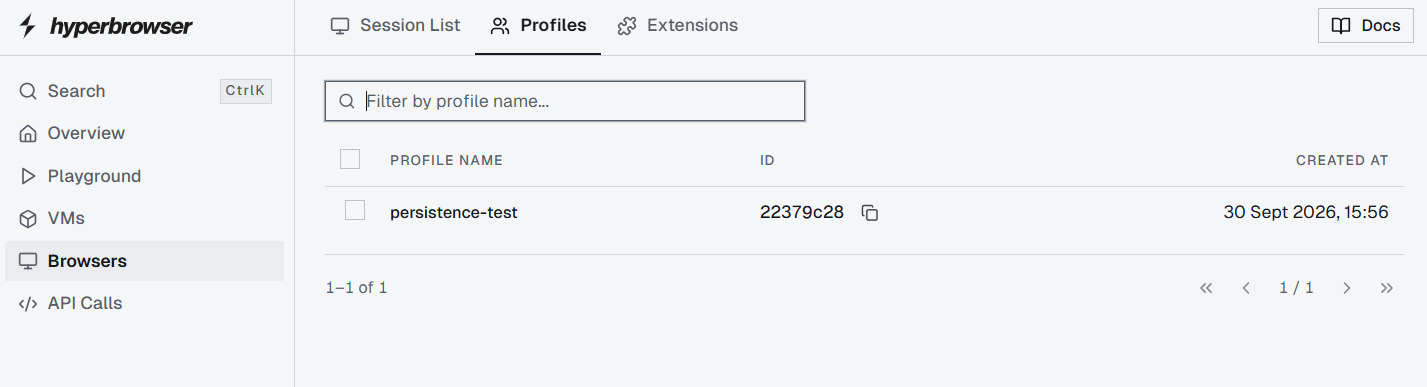
I didn’t include the persistChanges parameter in the second script at all. Only the profile ID was included. The new session started, and I was still logged into my Hacker News account.
    import { Hyperbrowser } from "@hyperbrowser/sdk";
    import { chromium } from "playwright-core";

    const client = new Hyperbrowser({ apiKey: "YOUR_API_KEY" });

    // Profile ID only. No persistChanges, so the profile loads read-only.
    const session = await client.sessions.create({
      profile: { id: "YOUR_PROFILE_ID" },
    });

    const browser = await chromium.connectOverCDP(session.wsEndpoint);
    const ctx = browser.contexts()[0];
    const page = ctx.pages()[0] || (await ctx.newPage());

    await page.goto("https://news.ycombinator.com/", {
      waitUntil: "domcontentloaded",
    });
    await page.waitForTimeout(3000);

    // Hacker News shows a "logout" link only when signed in
    const body = await page.textContent("body");
    console.log(">>> Still logged in?", body.includes("logout") ? "YES" : "NO");

    await browser.close();
    await client.sessions.stop(session.id);
The screenshot below shows that the session started with the account still logged in:
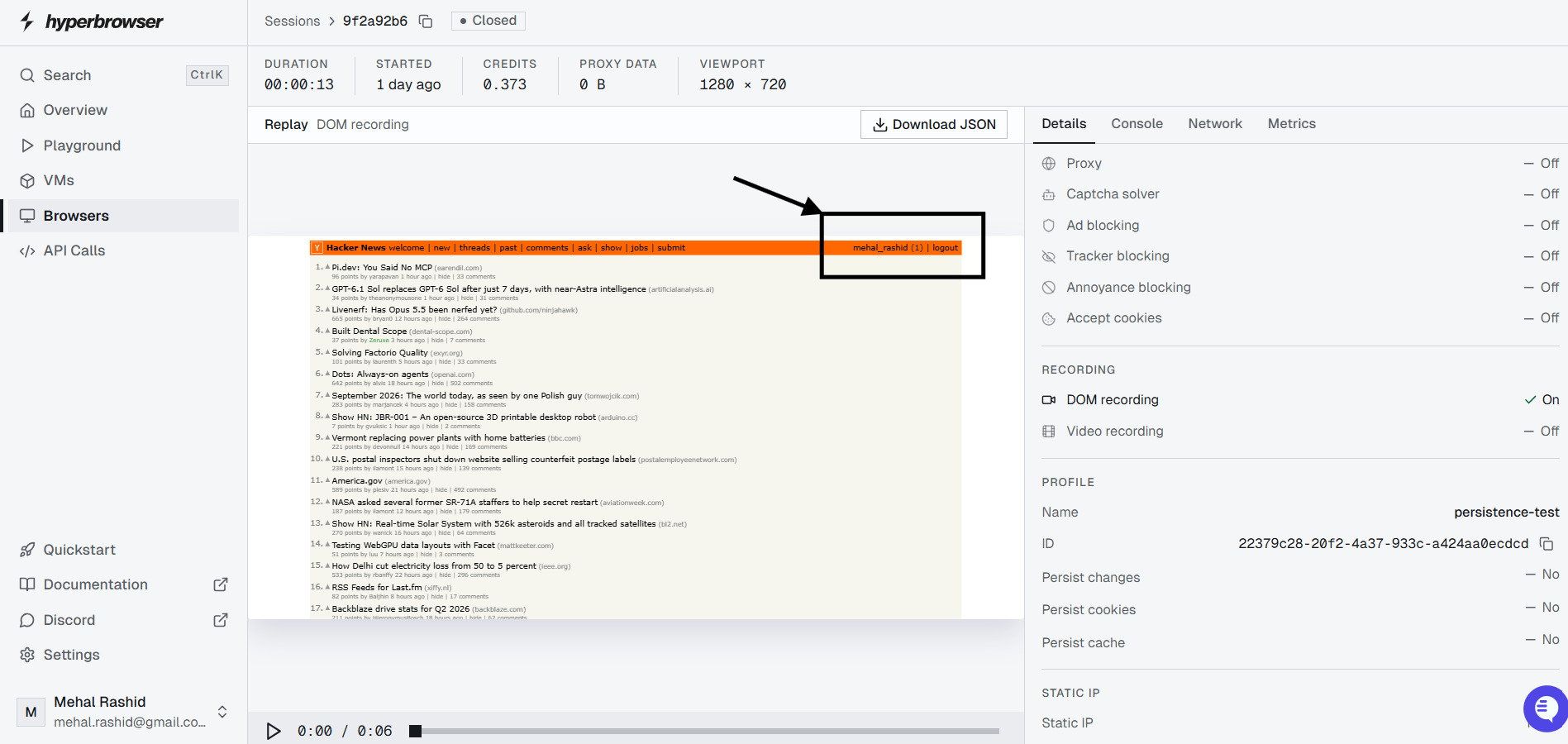
The screenshot above also shows the profile name and ID that were plugged into this session.
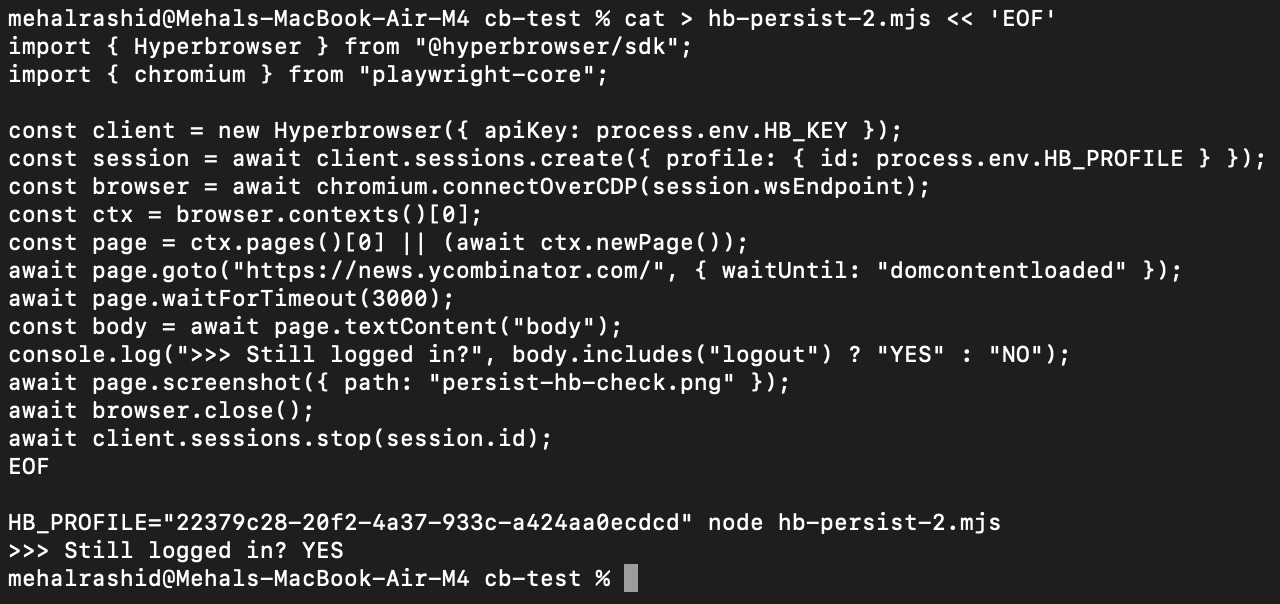
Verdict: Hyperbrowser passed the login persistence test. It can keep you logged in across sessions.
The screenshot below shows the second script and the success result when the script was run in the terminal:
Concurrency Test
In simple terms, concurrency refers to the number of sessions you can run simultaneously.
Hyperbrowser clearly states that its free plan allows 1 concurrent browser.
But I wanted to see if I can cross that limit in practice. So I wrote a script that would ask Hyperbrowser to create a new browser session 8 times. It keeps every session open and doesn’t close them between attempts.
If a session is created, the script prints Session N: OK. If Hyperbrowser refuses, it prints Session N: REFUSED along with the first line of the error and stops the loop.
The script terminates by printing the number of sessions it managed to open at once. That number will let us know the real concurrency limit of Hyperbrowser. The script also closes all opened sessions so no extra credits are wasted.
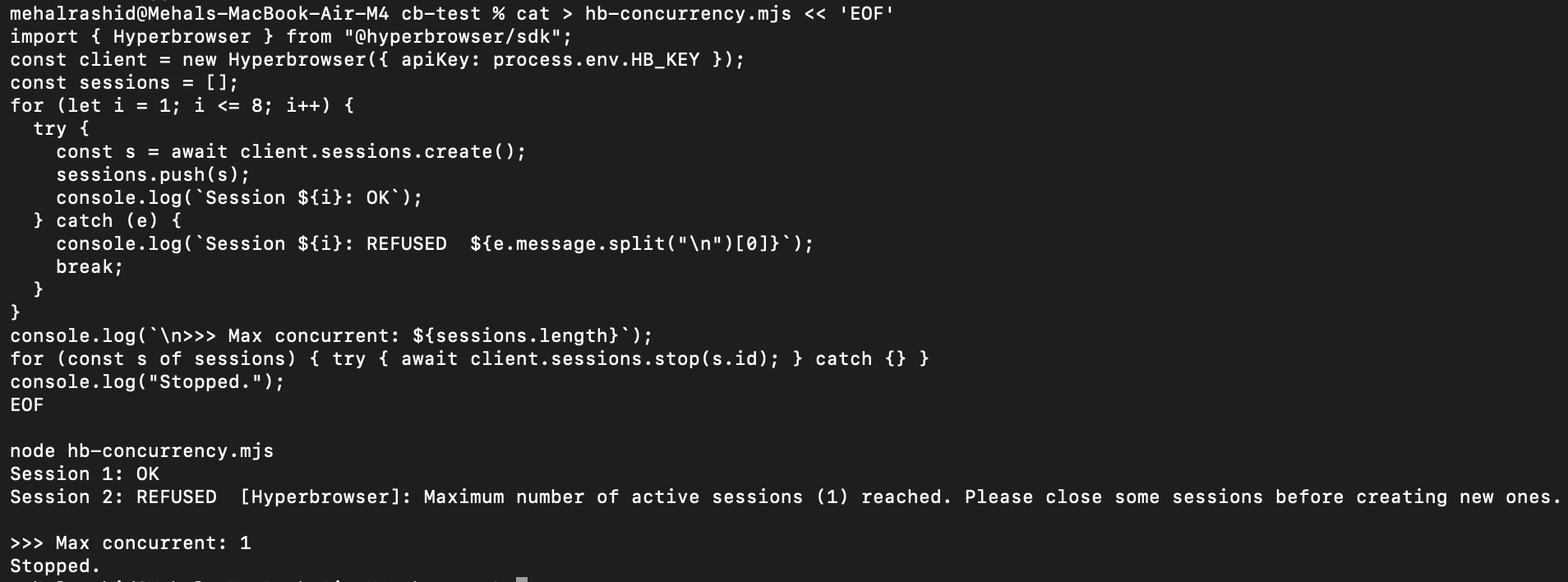
Here’s how the script performed:
- The first session opened successfully, and
Session 1: OKwas printed. - The second session was rejected by Hyperbrowser, citing the following error as the reason:
Maximum number of active sessions (1) reached. Please close some sessions before creating new ones.
So that’s our answer, confirmed by the platform itself. Hyperbrowser really allows one concurrent session on its free plan.
The paid plans have higher concurrency limits. For instance, the two basic plans unlock 25 and 100 concurrent browsers, respectively. And the Enterprise plan allows you to run over 1000 concurrent browsers.
Hyperbrowser Pricing
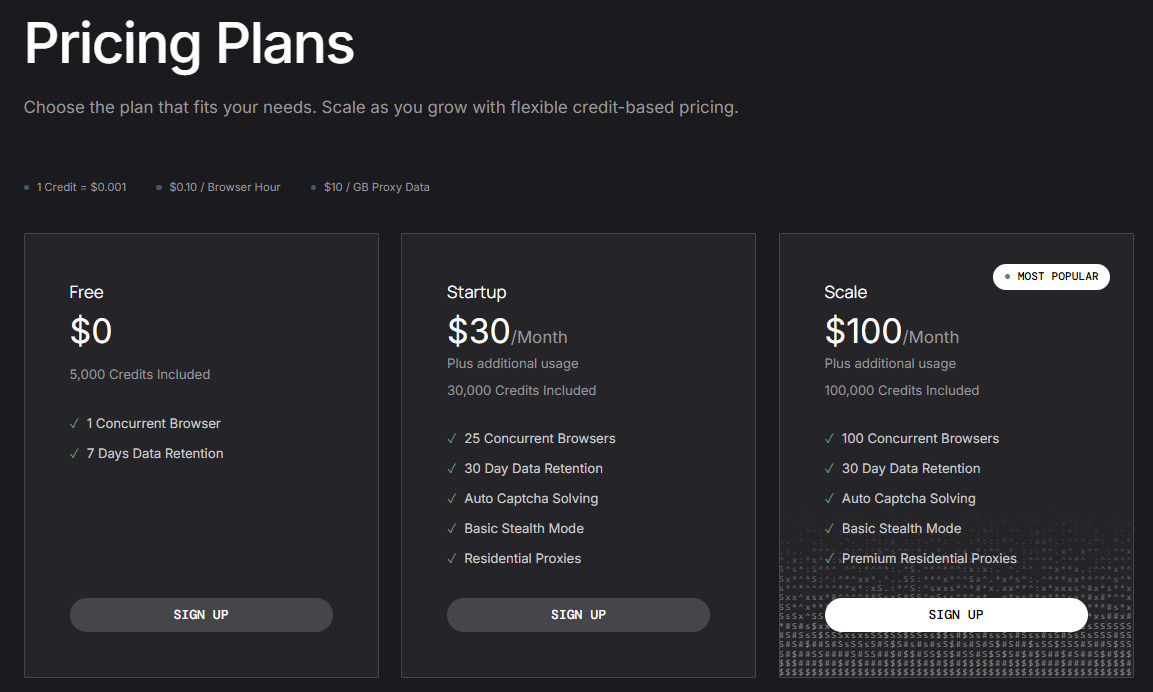
The free Hyperbrowser plan provides 5,000 credits a month, and you are allowed a single concurrent browser.
Every task you perform on Hyperbrowser is metered in credits since it’s a credit-based pricing cloud browser. And one credit is worth $0.001.
Credits are billed per second when you’re using the browser. For instance, one hour costs $0.10. In other words, one hour will cost you 100 credits.
So with 5,000 credits, you can afford 50 hours of browser time in a month.
The paid plans give you more monthly credits and a higher concurrency cap. Here’s a summary of Hyperbrowser pricing structure:
| Plans | Free | Startup | Scale | Enterprise |
| Price | $0/month | $30/month | $100/month | Custom |
| Monthly credits | 5,000 | 30,000 | 100,000 | Unlimited |
| Concurrent browsers | 1 | 25 | 100 | 1,000+ |
| Data retention | 7 days | 30 days | 30 days | 180+ days |
| Auto CAPTCHA solving | – | Yes | Yes | Yes |
| Proxy usage | – | Yes | Yes | Premium residential proxies |
| Stealth mode | Basic | Basic | Basic | Ultra |
| Extras | – | – | – | HIPAA/SOC 2, dedicated support, custom limits, bring-your-own proxies |
If you’re on a paid plan and running low on credits, you can buy them separately. Extra credits come at a rate of $1 per 1000 credits. The cheapest credits bundle starts at $10 and includes 10,000 credits. These credits expire after 12 months.
You cannot buy them on a free plan.
Residential proxy traffic also consumes credits at a rate of 10,000 per GB (i.e., $10/GB).
A few things don’t consume credits, though. For example, Static IPs don’t consume credits because they have their own monthly subscription. The starter is 5 static IPs for $50.
Speaking of proxies, Hyperbrowser supports country, state, and city-level proxy targeting. Country-level targeting covers 100+ countries. But state- and city-level targeting is limited to the US only. Plus, you cannot use state- and city-level targeting at the same time in a session. They are mutually exclusive features.
You can also configure your own proxies inside Hyperbrowser sessions but only on the Enterprise plan. On the two basic paid plans, you are forced to use built-in proxies.
What Hyperbrowser Actually Costs at Scale?
The per-credit pricing structure seems easy to plan your workload around, but it’s quite the opposite when you really get down to business. To make it easier for you to plan and choose, here are two realistic Hyperbrowser setups and their costs once you take proxy traffic into account as well.
- Scenario 1: Small project, 25 concurrent browsers, 100 browser hours, 5 GB of proxy traffic
The Startup plan costs $30 and allows you to have 25 concurrent browsers and includes 30,000 credits.
Now, if you notice, browser time is 100 hours at 100 credits each, so 10,000 credits, and proxy traffic is 5 GB at 10,000 credits each, so 50,000 credits.
That is 60,000 credits against 30,000 included. The 30,000 credit shortfall will cost you $30 in extra bundles, so the actual cost will be $60 a month if you fully use 100 hours and 5 GB proxy traffic.
Notice that proxy traffic is 50,000 of those 60,000 credits. Your browsers cost $10 worth of credits, and your bandwidth costs $50.
- Scenario 2: Scaling fleet with the need of 100 concurrent browsers, 500 browser hours, 20 GB of proxy traffic
The Scale plan costs $100, and it is the plan that allows you to have 100 concurrent browsers and comes with 100,000 credits.
Browser time is 500 hours, so 50,000 credits. Proxy traffic is 20 GB, so 200,000 credits.
That totals 250,000 credits against only 100,000, which is included. There’s a gap of 150,000 credits that will cost you $150, so the total will be $250 a month instead of $100 if you use the plan’s full potential.
Again, proxy traffic is 200,000 of the 250,000 credits. You are paying $100 for the plan and $150 for bandwidth.
Both the scenarios I discussed give you the same lesson, which is that the plan price is not the price you’ll end up paying if you’re using the plan to its full potential. On any workload that moves real data, proxy traffic drives your cost, and Hyperbrowser’s pricing page leaves you to work that out yourself.
Pros & Cons of Hyperbrowser
These pros and cons surfaced during my testing and review of Hyperbrowser:
| Pros | Cons |
| Provisioning time is short (~550 ms) | Connecting to the browser takes around two-thirds of the total startup time. |
| Sessions are recorded by default. You can access video recording, console logs, network logs, and metrics of each session. | Templates aren’t ready to use. They have to be accessed from GitHub. |
| Live view allows you to intervene and perform manual actions in automated sessions. | A low anti-bot bypass rate of 3 of 5 websites in my testing |
| Login persistence feature is available for free and works as expected. | You cannot bring your own proxies unless you buy the enterprise plan. The two basic paid plans don’t offer that feature. |
| Sessions can be stopped from code. | Stealth mode stays basic even in the paid plans. Ultra stealth mode unlocks only in the enterprise plan. |
| The free plan includes 5,000 credits, which allows about 50 browser hours per month. | 1 GB of proxy consumes the same amount of credits as 100 browser hours. So proxy usage is expensive. |
| Proxies cover 100+ countries. | State and city targeting is US-only, and you can’t combine the two in a session. |
| Static IPs are available as an add-on. | |
| Works with Playwright, Puppeteer, and Selenium, supports several third-party AI agent frameworks, and has its own agent, HyperAgent. |
How Hyperbrowser Compares to Other Cloud Browsers
Every cloud browser in this table except for Gologin meters proxy bandwidth as a separate line, at $6 to $12 per GB.
They also measure it in four incompatible units:
- Hyperbrowser in credits
- Browserless in units
- Steel and Browserbase in gigabytes
- And Scrapfly per request
| Cloud Browser | Entry price | Concurrent at entry | Included hours | Proxy model | Proxy per GB |
| Hyperbrowser | $30 (30,000 credits included) | 25 | 300 hrs if every credit goes to browser time (100 credits per hr) | Residential proxies and their usage is billed from credits | $10 (10,000 credits) |
| Browserbase | $20 | 25 | 100 | Billed separately | $12 |
| Gologin | $4.50 | 1 | 100 | Residential and mobile proxies included in rate | Included ($1/GB extra) |
| Browserless | $25/mo (billed annually) | 10 | 20,000 units ≈ 167 hrs, shared with proxy and CAPTCHA | Metered in the same unit pool | Residential 6 units/MB ≈ $12.29/GB; datacenter 2 units/MB ≈ $4.10/GB |
| Steel | $0 + usage (Launch), $30 one-time credit | 10 | None. Credit model, $0.10/browser hour | Metered separately | $10/GB Launch, $6/GB Scale |
| Scrapfly | $30/mo (Discovery) | 5 | None. 200,000 credits, priced per request | Credits per request, not bandwidth | Not billed by GB. Residential = 25 credits/request vs 1 for datacenter |
The Best Hyperbrowser Alternative: Gologin Cloud Browser (Tested Side by Side)
| Test | Hyperbrowser | Gologin Cloud Browser |
| Plan tested | Free | Free & Professional |
| Date tested | From 28th September till 1st October 2026 | From 28th September till 1st October 2026 |
| Median startup latency | 2706 ms | 3177 (without proxy) and 1760 ms (with proxy). Please see the note below. |
| example.com load | 562 ms | 360 ms |
| Anti-bot bypass test with a datacenter IP | 3 of 5 sites (17 of 25 attempts) | 3 of 4 sites (15 of 20 attempts) |
| Anti-bot bypass test with a residential IP | Not available on free plan | 4 of 5 sites (20 of 25 attempts) |
| Login persistence | Passed | Passed |
| Concurrent sessions | 1 (on free plan) | 1 (on free plan) |
| Entry paid price | $30/month | $4.50/month |
| Included browser hours | 50 | 100 |
| Browser hour overage | $0.10 or 100 credits | $0.09 |
| Proxy usage | Billed from credit balance at a rate of 10,000 credits per GB | Residential IPs included in hourly rate |
| Live view with takeover | Yes | Yes |
Note on startup: On Hyperbrowser, a separate API call starts the browser and a second call connects to it, so I was able to record both these time intervals. In contrast, Gologin covers both time intervals in a single call, so 1760 ms is the combined figure.
Why Consider a Hyperbrowser Alternative?
Hyperbrowser gives you the following reasons to look for an alternative:
- Proxy bandwidth is highly expensive. One GB costs 10,000 credits.
- CDP connection took a median of 1.97 seconds and made up about 73% of the 2.7-second startup.
- Stealth mode stays basic on both the Startup and Scale plans. Only the Enterprise plan unlocks Ultra stealth mode.
- You cannot use your own proxies unless you’re on the Enterprise plan.
- The basic paid plan starts at $30.
Gologin Wins With Affordable Residential Proxies Usage and Entry Plans
I performed the same Startup and Anti-Bot bypass tests on Gologin.
Since I had access to a paid Gologin plan along with the free one, I could test it with and without a proxy.
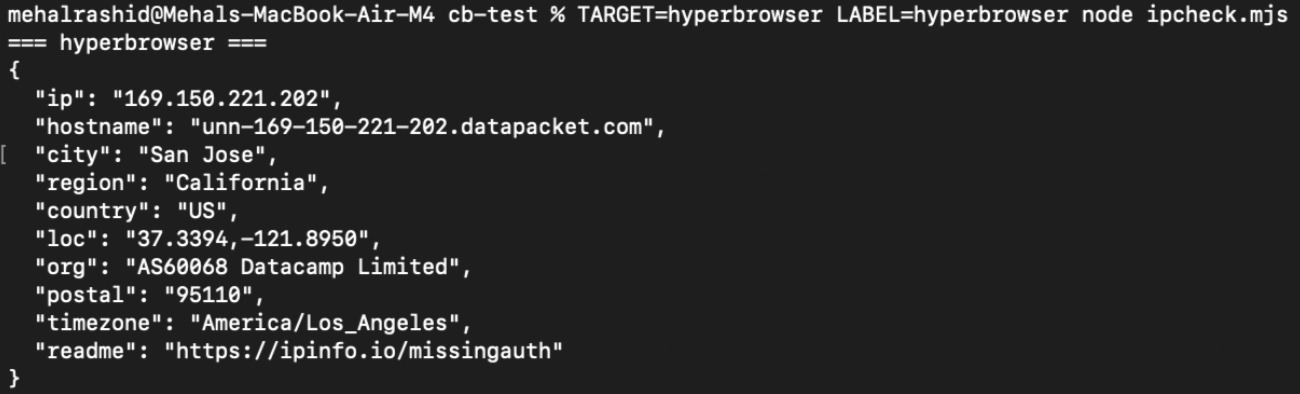
In the tests on free Gologin plan without a proxy, Gologin automatically assigned a Hetzner data center IP based in Helsinki to the sessions.
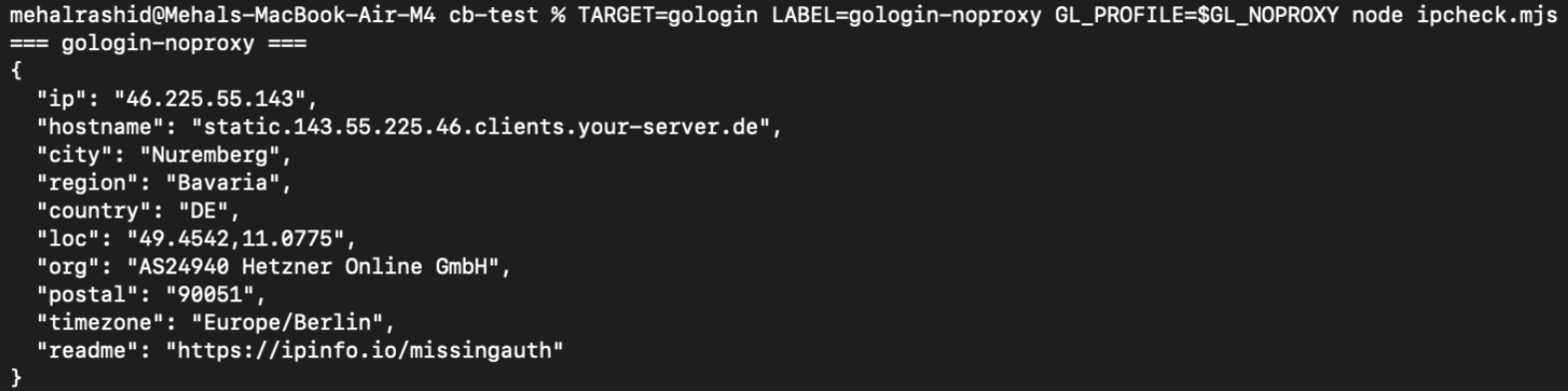
In the tests with a proxy, I used a US residential proxy.
Startup Latency
Here’s the startup time taken by Gologin sessions compared against Hyperbrowser:
| Setup | Median startup | Range | Median page load (example.com) |
| Hyperbrowser free (US datacenter IP) | 2,706 ms | 2,390 to 3,327 ms | 562 ms |
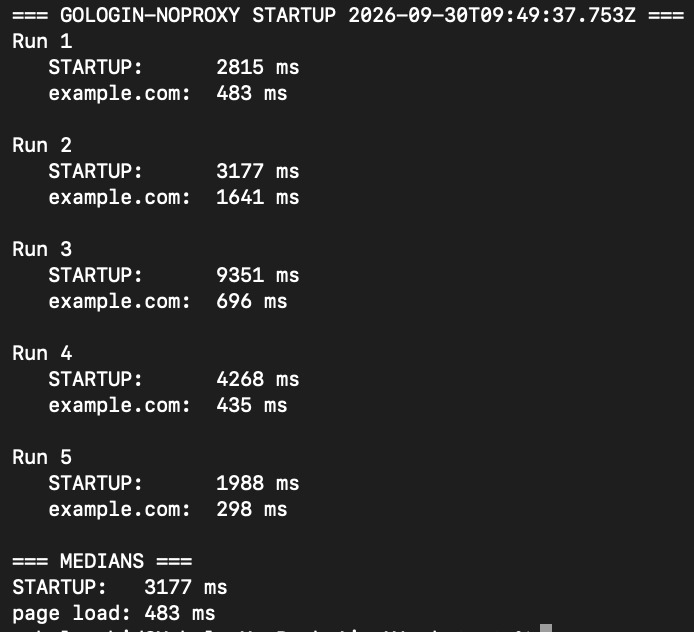
| Gologin free (Hetzner datacenter) | 3,177 ms | 1,988 to 9,351 ms | 483 ms |
| Gologin with a US residential proxy | 1,760 ms | 1,651 to 2,226 ms | 360 ms |
As I have mentioned earlier, Gologin creates a session and then connects to it in a single call, so its single figure is the equivalent of Hyperbrowser’s provisioning plus CDP connect.
Regarding the results, when Gologin is plugged in with a US residential proxy, it is about 950 ms faster than Hyperbrowser.
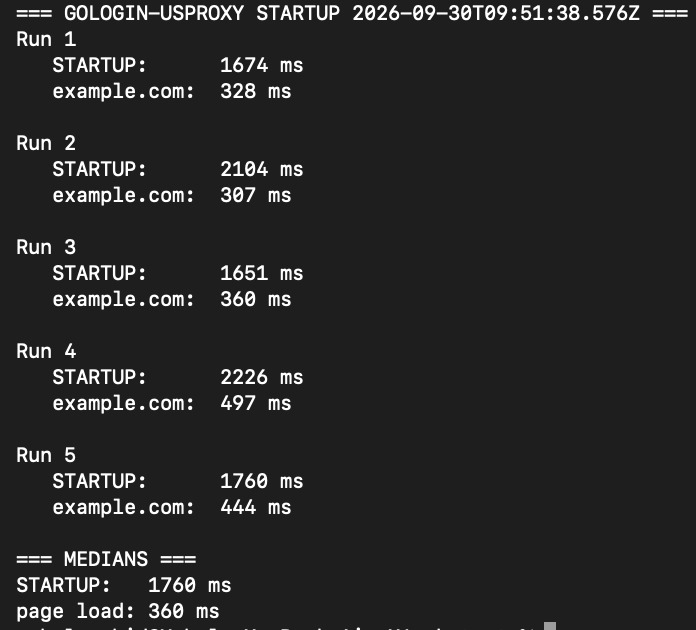
But when Gologin is on equal footing with the Hyperbrowser free plan, i.e., no proxy is assigned, its startup is a little slower than Hyperbrowser.
Anti-bot Bypass Test
Gologin also behaved differently in the antibot bypass test depending on whether a proxy was used or not.
But in both configurations, it had a higher bypass rate than Hyperbrowser.
Without a proxy, Gologin loaded Zillow in all five sessions, while Hyperbrowser’s datacenter IP got through only twice.
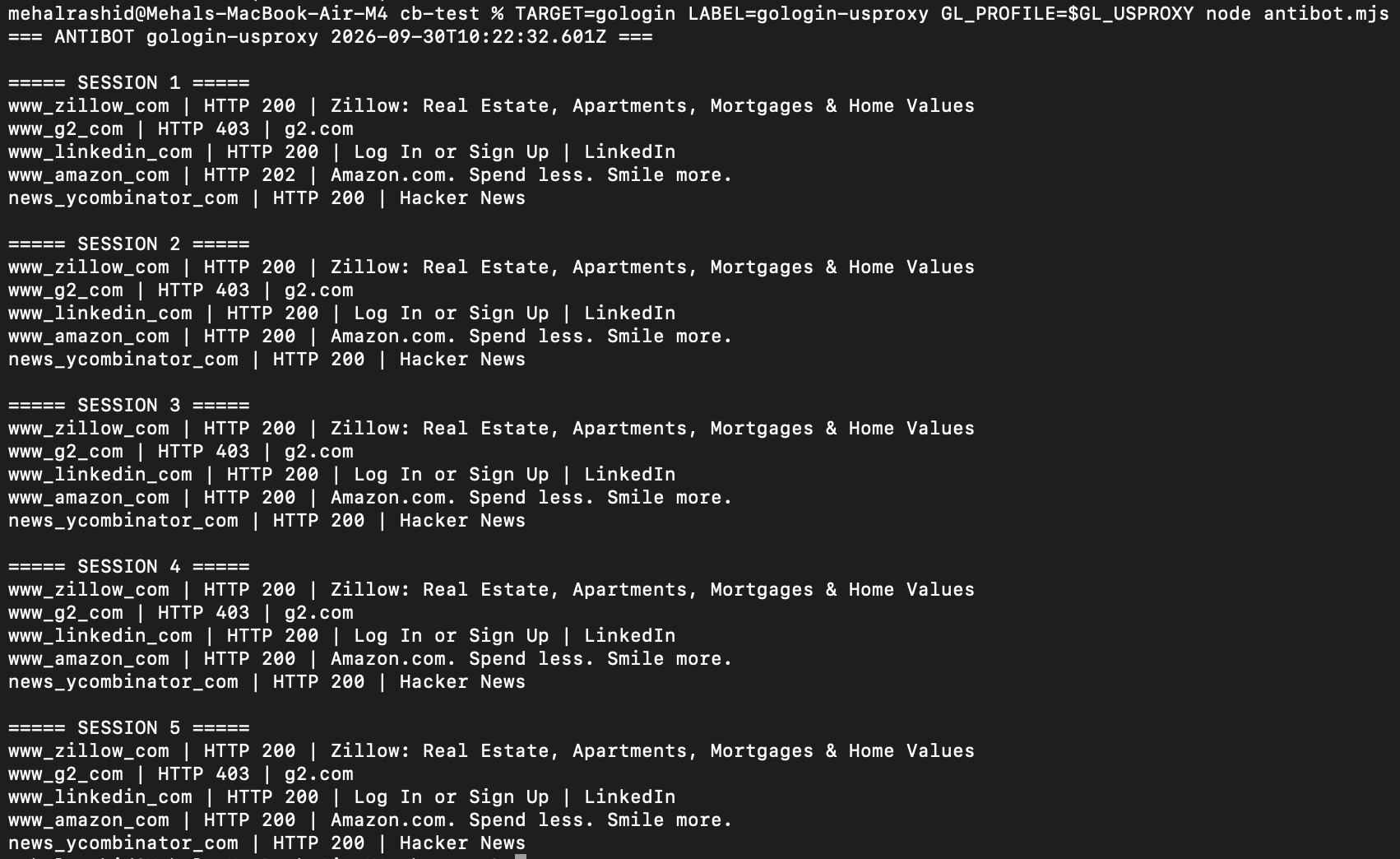
However, on the no-proxy Gologin profile, the LinkedIn tab crashed in all five sessions. Since a crash is not a block, I left LinkedIn out of that score and am reporting it as a stability issue. This didn’t happen on the residential proxy profile, though. LinkedIn loaded in all 5 Gologin sessions without hassle.
The only website that blocked Hyperbrowser and the two Gologin configurations was G2. So it’s safe to treat G2 as a hard site for cloud browsers in general.
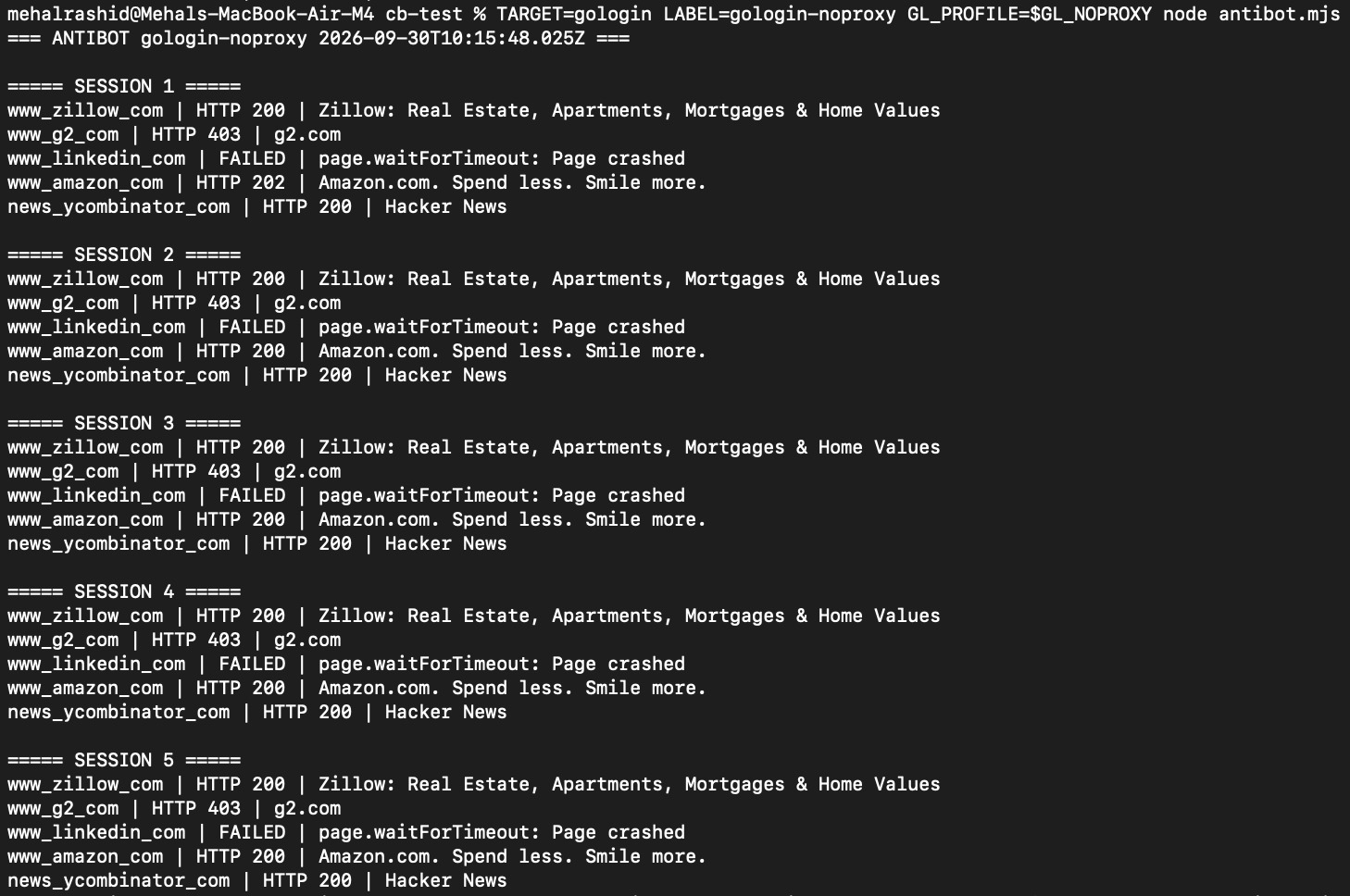
| Site | Hyperbrowser (Default datacenter proxy) | Gologin (Default Hetzner datacenter proxy) | Gologin (US residential proxy) |
| Zillow | Loaded 2 out of 5 | Loaded 5 of 5 | Loaded 5 of 5 |
| G2 | 403 in all 5 sessions | 403 in all 5 sessions | 403 in all 5 sessions |
| Loaded 5 of 5 | Browser crashed in all 5, so not scored | Loaded 5 of 5 | |
| Amazon | Loaded 5 of 5 | Loaded 5 of 5 | Loaded 5 of 5 |
| Hacker News | Loaded 5 of 5 | Loaded 5 of 5 | Loaded 5 of 5 |
| Score | 3 of 5 | 3 of 4 | 4 of 5 |
In a nutshell, on a like-for-like datacenter IP comparison, Hyperbrowser and Gologin performed somewhat similarly. Gologin had a better bypass rate against Zillow, and Hyperbrowser had better stability.
However, Gologin, with a residential proxy, dominated Hyperbrowser with its 4 out of 5 antibot bypass rate.
Which One You Should Choose: Hyperbrowser vs Gologin?
Hyperbrowser is a better pick if you want to deploy fleets of AI agents across dozens of browsers at once.
Hyperbrowser’s basic paid plan allows 25 concurrent browsers compared to just 1 concurrent browser in Gologin’s basic plan.
The biggest tradeoff with Hyperbrowser is its high proxy usage rate.
On the other hand, Gologin is a better fit if you want strong antibot bypass, serverless browser automation, and dynamic web scraping workflows that you’ll be returning to day after day. Gologin is known for having strong fingerprinting in the industry.
Gologin is also a better fit for its clean residential proxies that also load sessions faster than Hyperbrowser.
In short, if your problem is how many browsers you can run at once, Hyperbrowser is the better fit. If your problem is bypassing sites and being recognized across sessions, Gologin is the better fit.
Try Gologin Cloud Browser for free today.
FAQs
Is Hyperbrowser free?
Yes, Hyperbrowser offers a free plan. It gives you 5,000 credits a month, which is about 50 browser hours. You can run 1 concurrent session, and your data (recordings, session data, etc.) is retained for 7 days.
How does Hyperbrowser pricing and credit system work?
In Hyperbrowser, all tasks are metered in credits. 1 credit is worth $0.001.
- Browser time costs 100 credits per hour ($0.10) and is billed per second.
- Residential proxy traffic costs 10,000 credits per GB ($10).
Does Hyperbrowser support residential proxies?
Yes, Hyperbrowser supports residential proxies but only on paid plans. The free plan assigns data center IPs to your sessions.
Is there a Hyperbrowser alternative that keeps sessions logged in?
Yes, Gologin Cloud Browser is a Hyperbrowser alternative that keeps sessions logged in, and it’s much more affordable than Hyperbrowser. Hyperbrowser can also do it through the persistChanges parameter, which passed my test. But the difference is what each one brings back. Hyperbrowser saves cookies and storage into a profile. But Gologin saves the cookies along with the same fingerprint and the same residential IP, so the site sees a device it already knows rather than a familiar cookie arriving from somewhere new.
Hyperbrowser vs Gologin Cloud Browser: what is the difference?
Hyperbrowser’s $30 plan runs 25 concurrent browsers against 1 on Gologin’s $4.50 plan, so Hyperbrowser clearly wins on scale. On matched datacenter IPs, both products got through 3 sites in my testing. With a US residential proxy, Gologin reached 4 of 5 and started in 1,760 ms against Hyperbrowser’s 2,706 ms. Gologin also includes residential IPs in its hourly rate, while Hyperbrowser bills proxy traffic at 10,000 credits per GB.
Hyperbrowser Works Best When the Browser Is Disposable
By now, you must have realized that Hyperbrowser is built for work where the browser gets thrown away after every run.
So if you’re running many agents across public pages, 25 concurrent browsers on the entry plan is decent, especially with provisioning as quick as 550 ms.
But the moment your automation has to remember who it is, things do not stay the same:
- 1 GB of proxy traffic costs you the same as 100 browser hours
- Stealth mode stays basic until the Enterprise plan (whose price is not publicly available)
- And you can’t bring your own IPs below that tier either
So if your browser has to stay logged in, keep the same fingerprint, and come back from the same IP next week, that’s what Gologin Cloud Browser is built for.