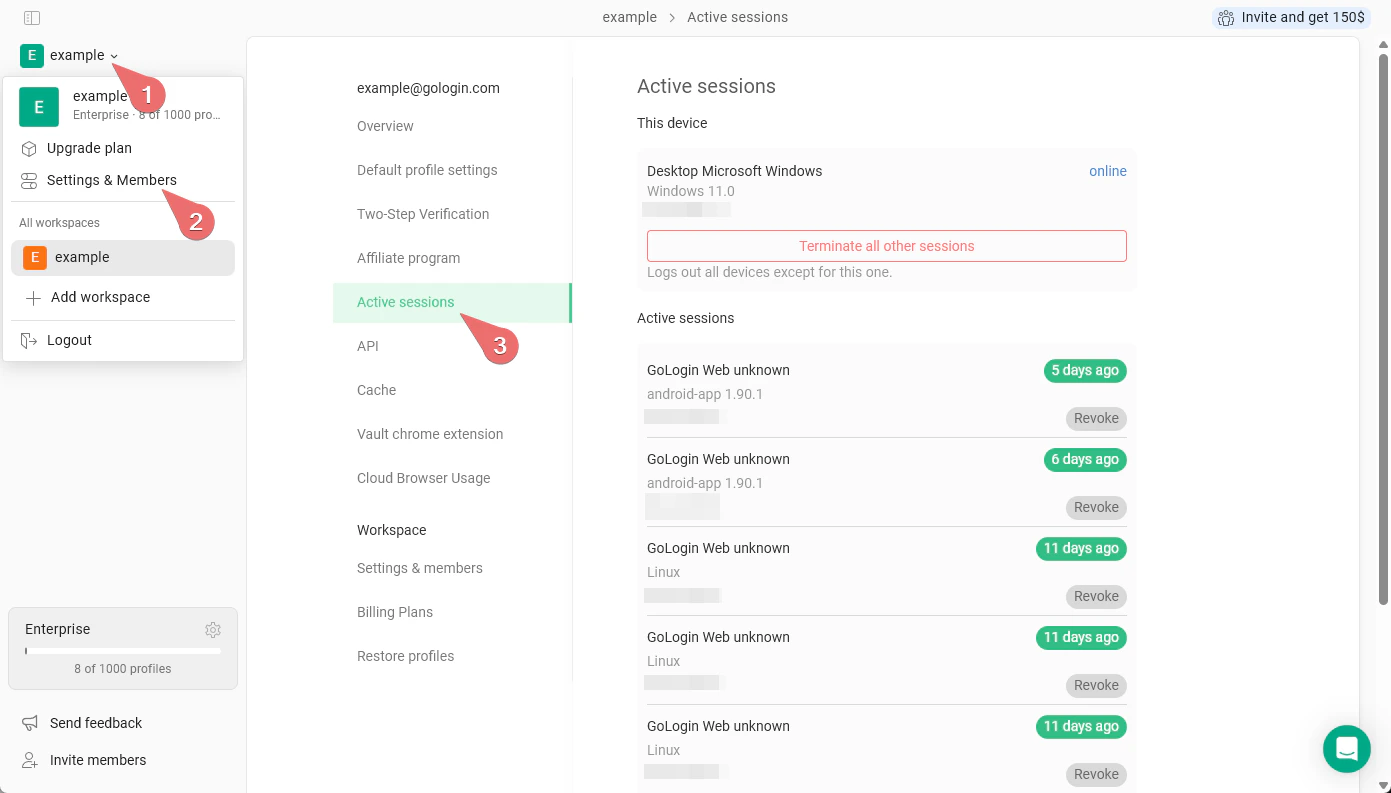
The Active Sessions page gives you a complete view of every device and location currently logged into your GoLogin account. Use it to monitor account access, investigate suspicious logins, and revoke sessions you don’t recognize - all from one place.
This DeviceAt the top of the page, GoLogin highlights the session you’re currently using and marks it as online. Your current IP address is displayed beneath the device name.This section also contains the Terminate all other sessions button.Active Sessions ListBelow your current device, all other active sessions are listed. Each entry shows:
Field
Description
Device / Platform
The platform used to log in (e.g., GoLogin Web, Android app, Linux).
App version
The GoLogin client version at the time of login.
IP address
The IP address associated with that session.
Last active
How long ago the session was last used.
Revoke button
A per-session button to immediately log out that specific session.
Terminate All Other SessionsClick the Terminate all other sessions button to instantly log out every device except the one you’re currently using. This is the fastest way to lock down your account if you suspect unauthorized access.Revoke a Single SessionEach session in the list has its own Revoke button. Use this to log out a specific device without affecting any others. This is useful when you recognize most sessions but want to remove one unfamiliar entry.