

Why update a profile
Websites regularly update their requirements and may expect newer browser versions. Updating your profile may be needed if you notice:- websites not loading or displaying incorrectly
- login or session issues
- features not working as expected
- warnings about outdated browser versions
When to update
You do not need to update profiles regularly. Update only when:- something stops working
- a platform requires a newer browser version
- you are creating a new profile
How to update safely in Gologin
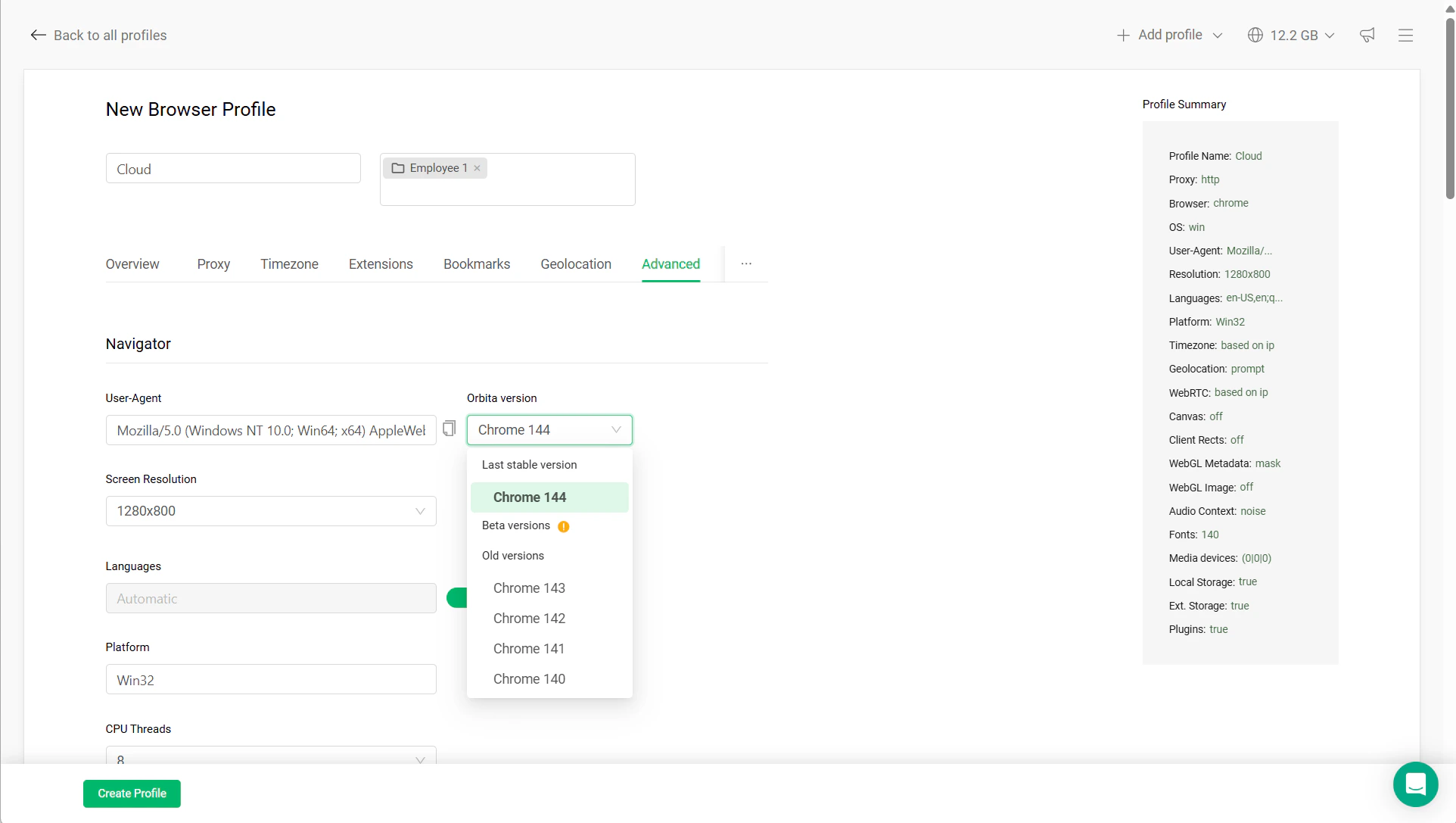
You can update the browser version in the profile settings:- Open your profile Settings
- Go to the Advanced tab
- Find Orbita version
- Select a newer version from the dropdown
- Do not change other settings
- Launch the profile and test it
Safe vs risky updates
Safe updates:- updating browser version only
- small version jumps
- updating before active use
- changing multiple settings at once
- updating together with proxy or location changes
- updating heavily used or sensitive profiles (ads, crypto) without testing
Best practices
- Keep active profiles stable
- Update only when necessary
- Test after updating
- Avoid beta versions unless needed