Overview
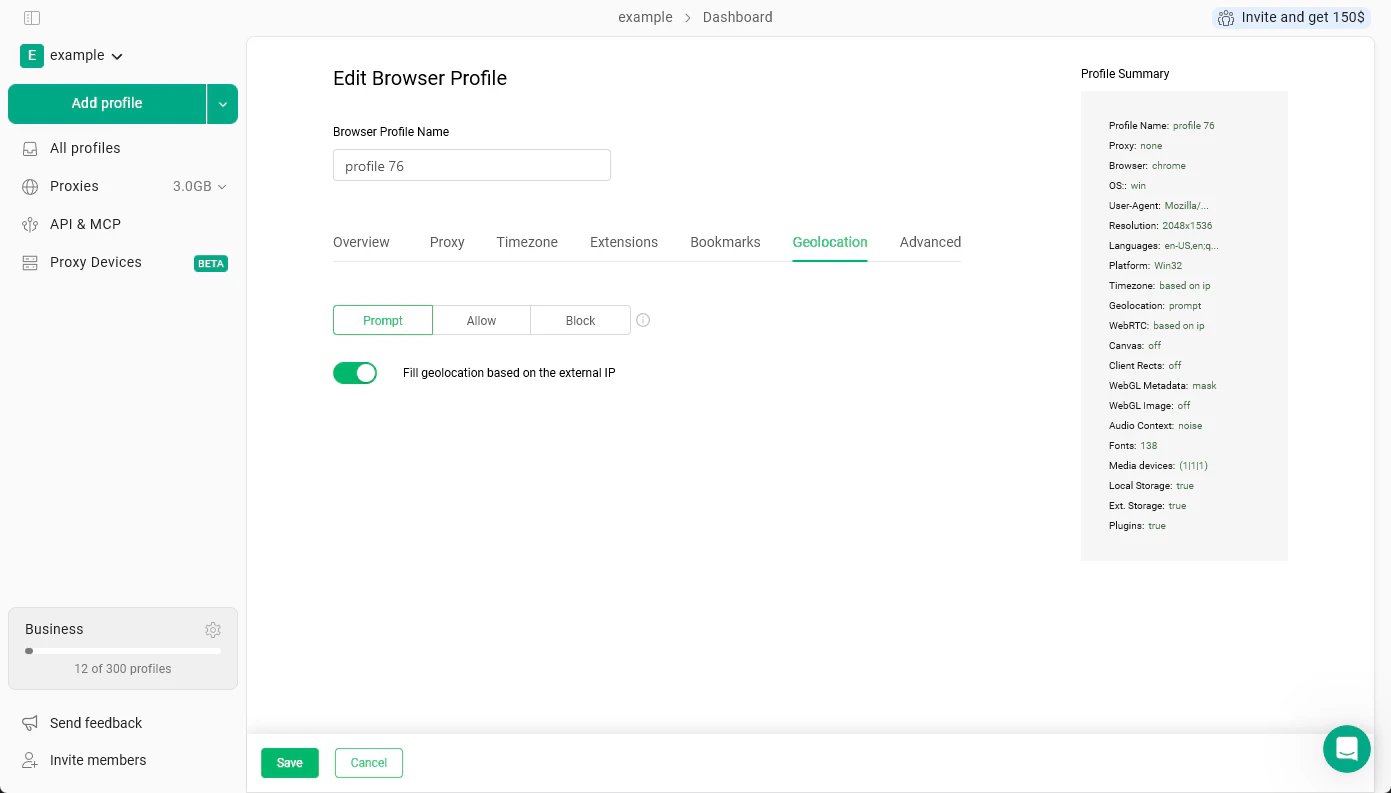
This tab is where you set the operating system the profile will appear to run on and generate its core fingerprint. Operating system - Choose between Windows 10, Windows 11, Mac Intel, Mac ARM, Linux, and Android. This determines the OS the profile reports to every website it visits. New Fingerprint - Clicking this generates a fresh set of fingerprint values for the profile - things like screen resolution, fonts, graphics details, and other signals websites use to identify browsers. Use this if you want to reset the profile’s identity. It does not change the OS, erase cookies or other browser data. The Profile Summary panel on the right updates as you make changes and gives you a quick overview of the profile’s current fingerprint.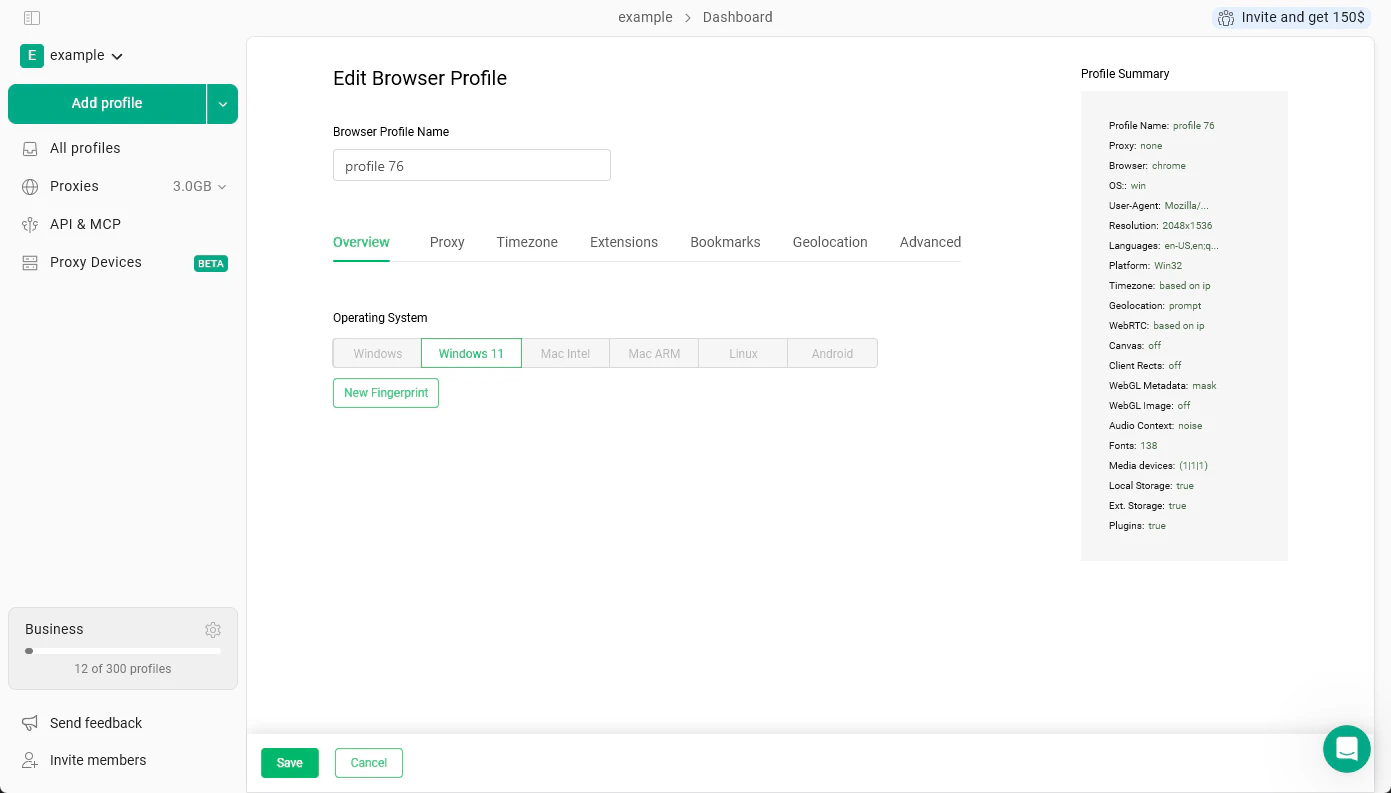
Proxy
This tab controls which proxy the profile uses when browsing.- Gologin proxy - Use a proxy from Gologin’s built-in proxy service.
- Your proxy - Paste in your own proxy from an external provider.
- Without proxy - The profile uses your real internet connection. The IP address visible to websites will be your actual IP.
Timezone
This tab sets the timezone the profile reports to websites. By default, the toggle Fill timezone based on the external IP is on, which means the profile automatically uses the timezone that matches its proxy’s location. This keeps the profile internally consistent - a profile with a US proxy will report a US timezone, which is what a real user in that location would have.It’s recommended to leave this on auto and not change it manually. If the timezone doesn’t match the proxy location, it can look suspicious to websites. Only change this if you have a specific reason to.
Extensions
This tab is where you install browser extensions into the profile. Each profile manages its own extensions separately - adding one here doesn’t affect any other profile. Click Add extensions to browse and install extensions for this profile. For a full walkthrough of how extensions work in Gologin profiles, see Extensions.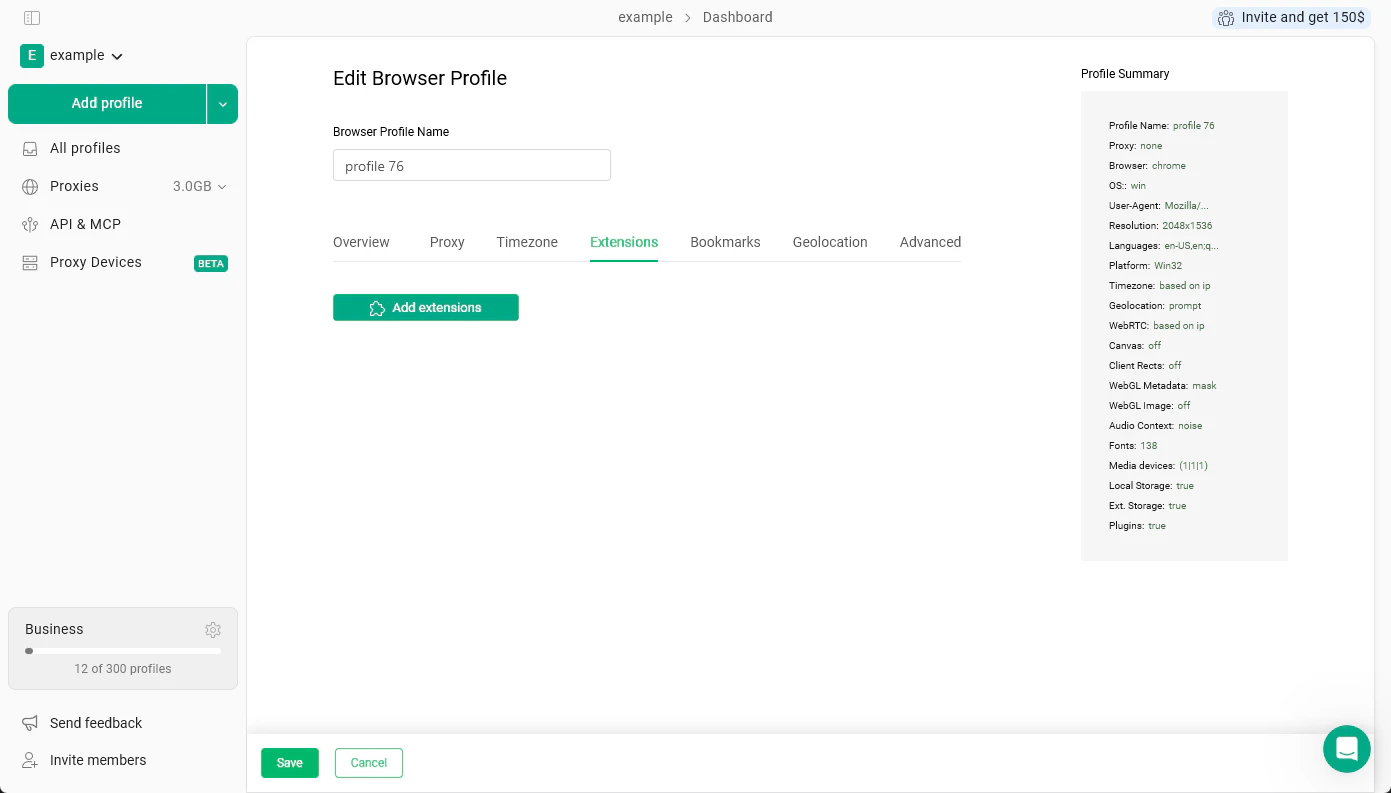
Bookmarks
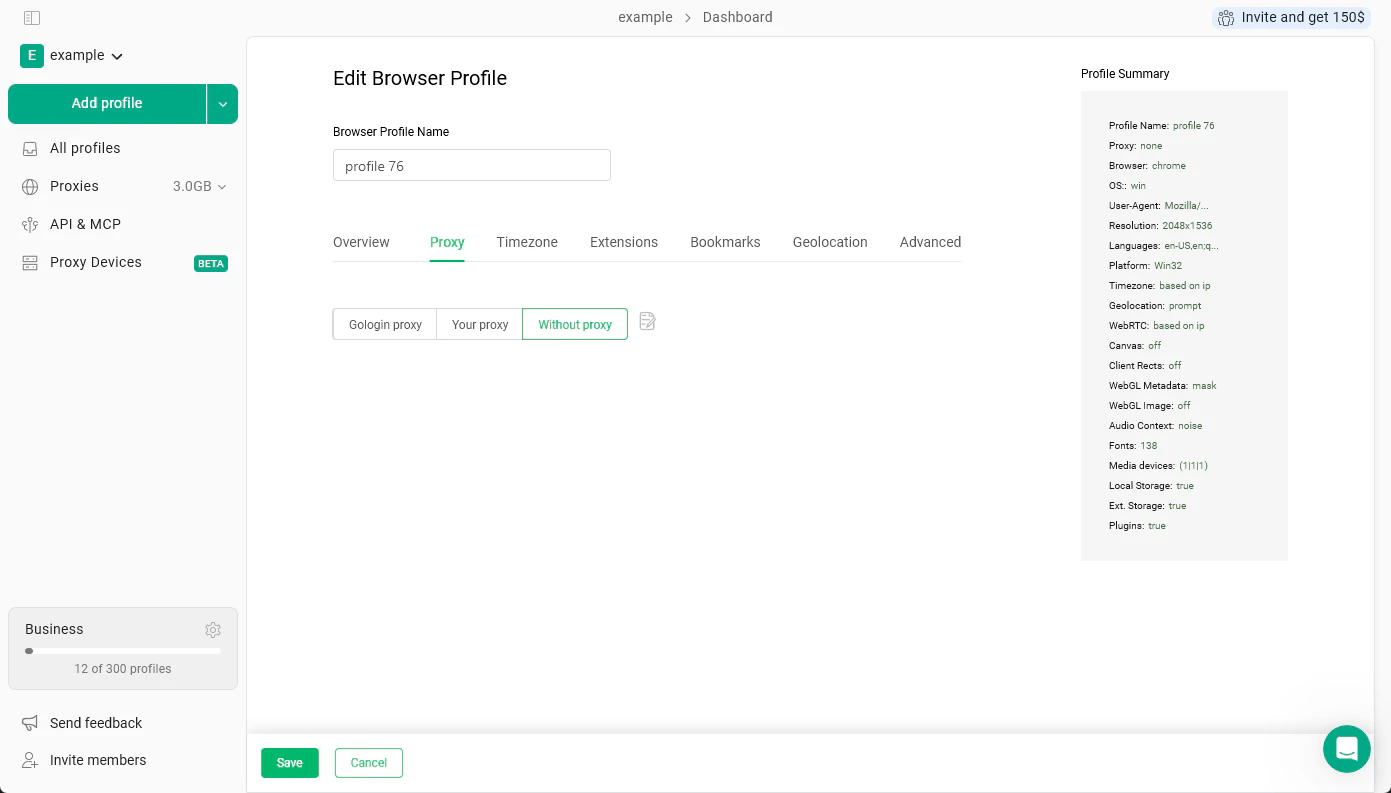
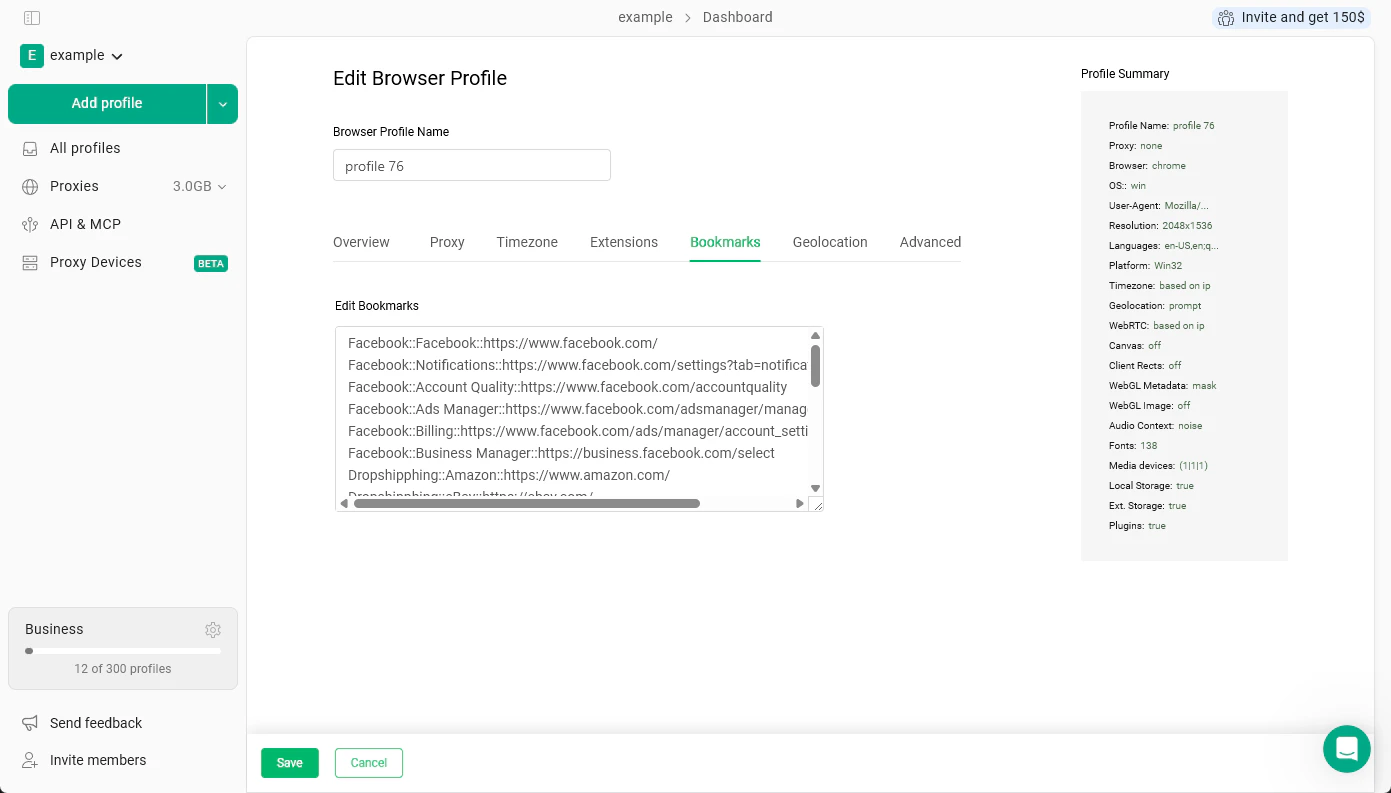
This tab lets you add bookmarks to the profile’s bookmarks bar. Paste them into the text field using one of these formats:folder::name::url- creates a bookmark inside a named foldername::url- creates a named bookmark directly on the barurl- adds the URL directly with no custom name
Geolocation
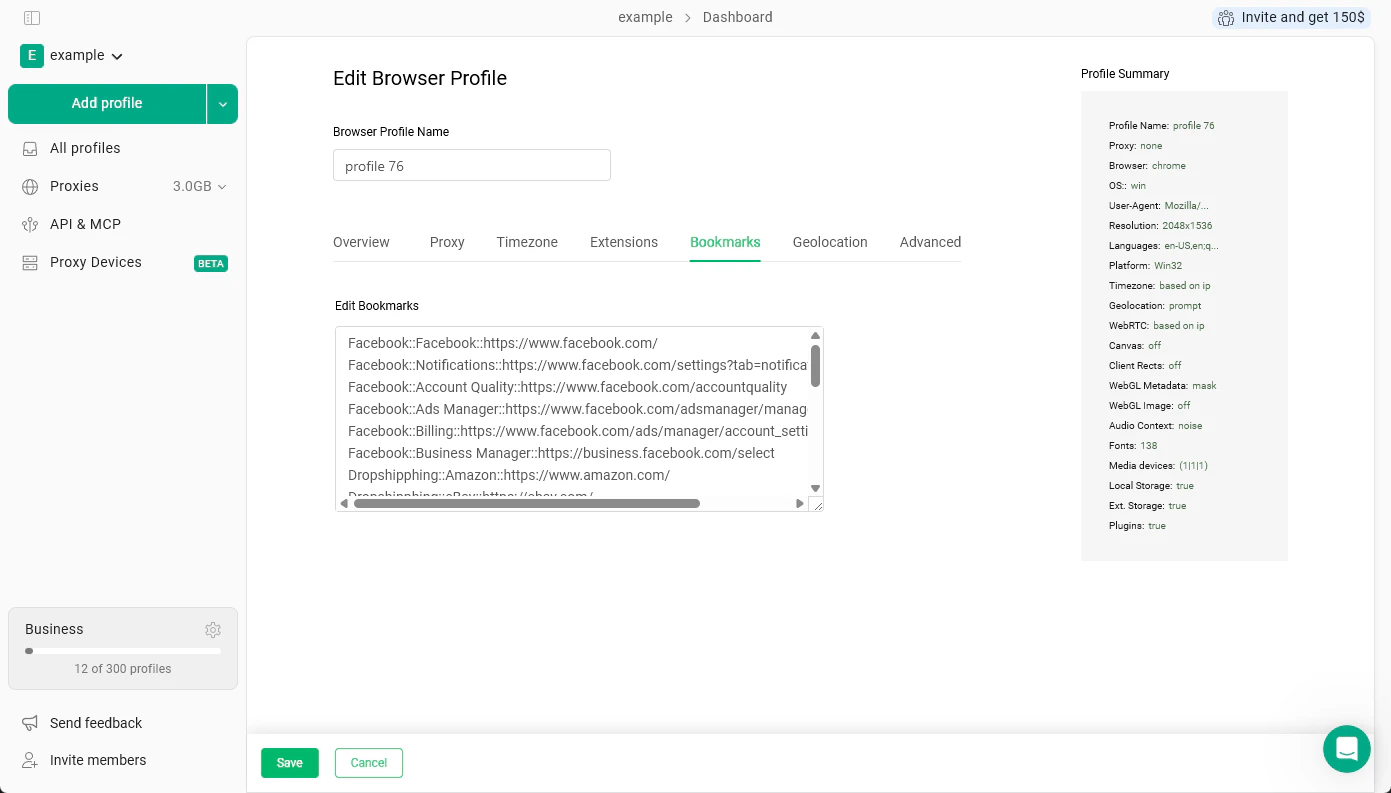
This tab controls what happens when a website asks for your location - for example, a maps app asking “Allow this site to know your location?” There are three options:- Prompt - The browser asks you each time a site requests location access. This is the default and mimics how a real browser behaves.
- Allow - Location access is automatically granted to any site that requests it.
- Block - All location requests are silently denied.
It’s recommended to leave this toggle on. If you turn it off and the geolocation doesn’t match the proxy IP, the mismatch can be a signal to detection systems. Only adjust this manually if you know what coordinates you want to use and why.