
TL;DR Watch the short video version of this post – GPT is used as an example here, but it works the same way for Google Workspace:
Most businesses use Google Workspace for team collaborations and streamlining operations. This includes access to the Gemini assistant to help your team write emails, generate slides, collaborate on content, jump to team meetings with a bigger time and audience limit, a custom email address and so much more.
In short, if you use Google’s business tools every day, getting a Google Workspace subscription for your whole team is a no-brainer. The downside? Cost.
As someone who uses Google Workspace for business, I realized that every new member, freelancer, or client meant an additional Google Workspace subscription for them.
As a small business, I don’t want to spend hundreds of dollars on just one subscription, keeping in mind that I am also paying for so many other tools. So, we found workarounds. In this article, I’ll share all the methods I’ve tried to share a Google Workspace account with multiple people in my team.
Guide: How to Share a Google Workspace Account via Gologin
Here’s a step-by-step guide to sharing your Google Workspace account without revealing your password, using Gologin. I’ll use our company Gmail account as an example:
1. Set Up Gologin: Sign up on Gologin and download their desktop browser app. Install it just like you would install Google Chrome or Firefox. You can also install the mobile browser to run and manage profiles from your phone.
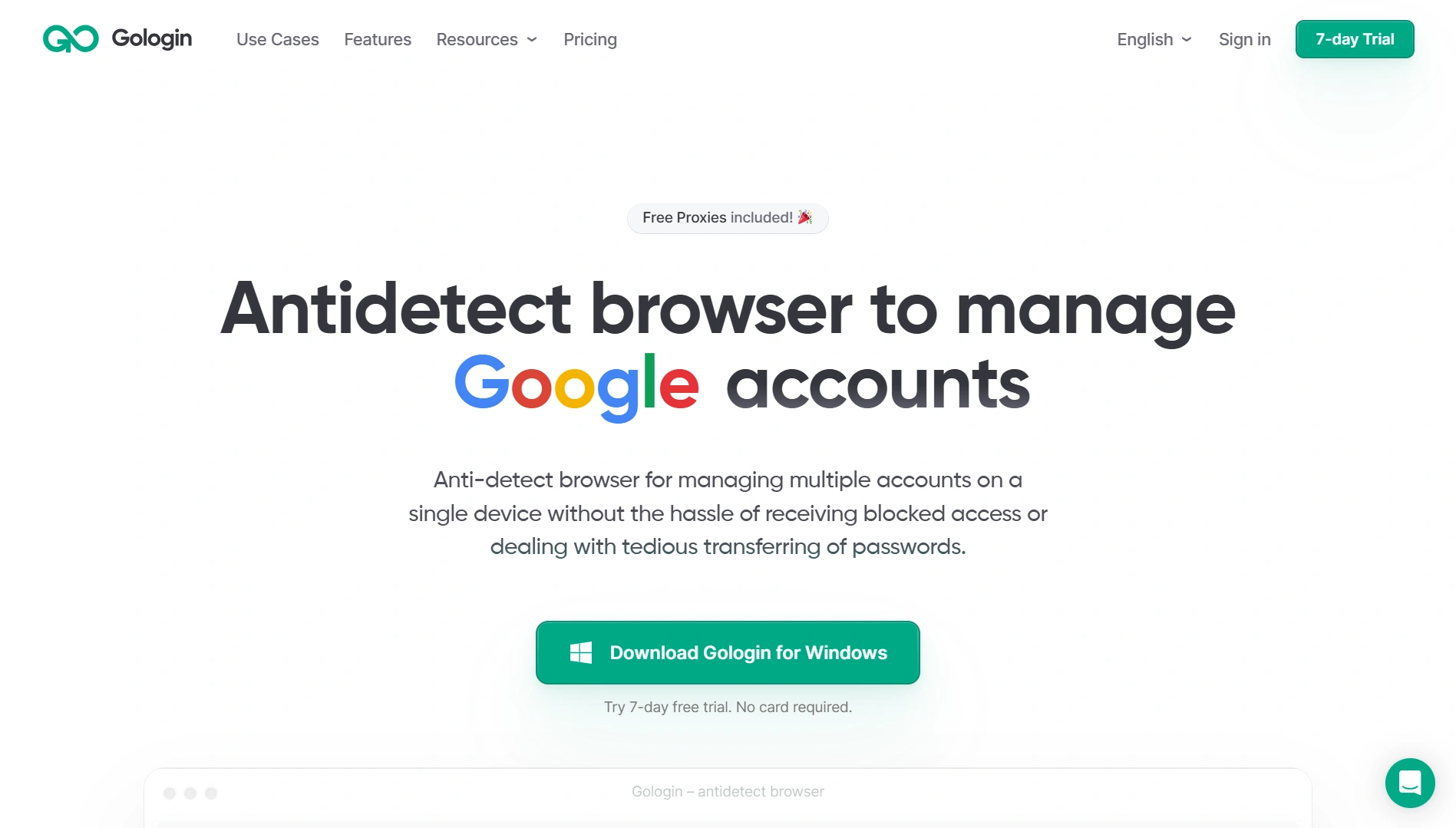
2. Create a Browser Profile: Open the Gologin app and create a profile using the ‘Create profile’ button on the top right. You will see some existing example profiles as well that you can use. Here, create a profile named “Google Workspace”, choose your location (IP), and other settings if you want. The default settings are already perfect, so you don’t need to set anything up.
3. Log In to Google Workspace: When you create a profile, click the “Run” button, and an isolated browser profile will be launched. It will look and feel like a regular Chrome/Firefox (depending on what you choose). In that browser, log in to your Google account, set up Google Workspace, and MFAs. Now close the profile, and everything will be saved to the cloud.
4. Share the Profile with Your Team: When you close your profile, all your cookies and accounts in the profile get saved to the cloud. Now click on the 3 dots on the profile name, click share and add the email addresses of your team and invite them. All of them will now be able to access this profile you have created and use Google Workspace hassle-free.
All the progress and work that your team does in your profile will be synced to the cloud and updated for everyone. This way, everyone uses the same account, same IP, and manages no additional apps except Gologin.
Do all users need to buy Gologin’s paid plan?
No. Your team can use Gologin’s forever free plan that includes 3 profiles and access to other people’s shared profiles. This means you only need to buy the paid plan for yourself with all the advanced privacy features and built-in proxies, and share your profile with free users. You can visit Gologin’s super affordable pricing plans here.
Do I Need To Buy The Proxy?
Yes, you can either use Gologin proxy or get your own. Gologin offers some free residential traffic upon sign up.
When you use it all, click Buy proxy in the app to buy more, or feel free to paste and use proxies from other companies.
Can I Simply Share Password To My Gologin App?
Yes, but take caution here: if your main Gologin password is changed by your teammates or employees, the team will not be able to recover it.
We recommend sharing the profiles or inviting team members so you have admin control as the account owner.
Google Workspace Pricing Plans and Why People Share Accounts
Google Workspace works just like your Google One subscription: Bigger storage, an AI assistant in Docs, Gmail, Sheets, Slides, etc., but with added productivity features for businesses like a bigger limit on Google Meets, better customization of business bookings calendar, and even your own dedicated domain email that you can use through your Gmail app.
If providing a dedicated domain email and bigger storage to all your team members is not your priority, why pay $8-$22/mo for each user? This is why most businesses end up investing in one big plan and look for ways to share that with team members who need access to it.
Google Workspace Plans
Google Workspace has four pricing plans. Business Starter costs $7.56/user with 30GB storage, custom email, and Gemini in the Gmail app. Business Standard offers way more features like 2TB storage, Gemini Assistant in all Google apps, more security, and enhanced Google Meet limits while only costing $15.2/user. Then comes the Business Plus plan at $26.40/user with 5TB storage and advanced admin management.
In my experience, the Business Standard plan is the sweet spot, offering the best value for money and all the necessary features to boost productivity. Here are some ways to share a Google Workspace subscription with your team.
5 Ways to Share a Google Workspace Account
Here are some official and clever workarounds I tried to share a Google Workspace account with my team. Let’s dig deeper into every method.
1. Add Users or Delegates via Google Workspace (Official Way)
We were initially using Google Workspace’s own team feature before, and were paying for all users every month. It’s a great way to streamline all the business data and provide security and privacy to all employees. Everyone has AI features and their own custom email.
I also loved the delegate feature, where I could provide limited access to my mailbox to one of the users from the workspace so they can read and reply to my emails to save time. This feature will not be available if you proceed with other workarounds, but for small businesses like mine, it’s not needed anyway.
The only problem with the official way of using Google Workspace was the cost. Most users didn’t even need the workspace features, but still were a part of it because they occasionally needed it.
2. Sharing Login Credentials (Not Recommended)
The second method we relied on for some time was handing out the email and password to some of our core team members. It worked for them, but I had to contact them every time they needed authentication codes for logging into the workspace account.
Moreover, since we also sometimes invite our clients and freelancers to our workspace for collaboration, handing out passwords was not only dangerous but also unprofessional.
I don’t recommend this approach if you have a bigger team size and work with clients and freelancers like we do. Moreover, this is a security risk and against Google’s policies. Although there have rarely been reports of Google flagging multi-login activity, your team can get logged out of their accounts for trying to access them through different IPs.
3. Using the Same IP or VPN for Google Workspace
This method solves the IP problem we talked about above. You still have to hand out your login credentials to your team, but by using a VPN or proxy service that can mask your IP, you avoid the trigger warnings in your workspace account about multiple logins and access through different IPs.
There are a few problems with this method.
- Your whole team needs to use the same IP address to access Google Workspace. This means that you also need the same VPN account so that everyone has access to the same IP.
- Your connection can either get dropped or rerouted to a different IP if you don’t configure the settings properly. To use a safe IP, you need a paid VPN. Why would you pay for a VPN when you’re already trying to cut down costs through workspace sharing?
- VPNs are usually slower than your own network.
This trick was suggested in an online forum, but we didn’t personally try it because it seemed like an added hassle to the process. We would either need to buy a team plan for the VPN or share its credentials as well. This method is neither cost-effective nor productivity-focused.
4. Using a Remote Desktop Tool
Remote Desktop apps like TeamViewer and Windows Remote Desktop allow others to access a specific laptop’s screen remotely. Someone from your team can access your device, use Google Workspace on it and do their tasks.
They control your device through theirs, which makes this approach a serious privacy breach, so most people install a remote desktop tool on a completely separate server/device that anyone can access remotely.
This method is technical to set up and can be slow. You need a dedicated device that is on at all times so that everyone can remotely access it which does not make sense only to use Google Workspace. If you go into complicated setups, cloud servers, or VM machines, it only makes sense if you’re using tons of enterprise-grade tools, so for this situation, definitely not something I would recommend.
5. Gologin Browser Profiles (Safe, Recommended)
The best solution in the list that worked for me and ticks all the checkboxes is Gologin Antidetect browser. Gologin eliminates the need to share passwords, use virtual machines, or buy a VPN subscription. It is an anti-detect browser that helps multiple people access the same accounts without having session-timeout issues and facing account bans.
In simpler words, Gologin is just like Google Chrome, but imagine if you could invite other people to your Chrome profile, and they can access everything you’ve logged in without ever needing passwords or authentication.
This is how Gologin works. It creates isolated browser profiles in the cloud, which are synced for all users and you can manage your team’s access to these profiles so that everyone can open that profile, use Google Workspace, and just close it.
The good thing about using this approach is that you get additional privacy features like free proxies, so you can mask your location as well and fix a single IP address for everyone. You can also manage the team’s access, leave notes for your team on multiple profiles, and manage profile fingerprints according to your needs.
Why is Gologin worth it? After my 7-day no-commitment trial ended, I switched to a paid version, which cost approximately $12. Now I can share this profile with my whole team, who are subscribed to a Forever Free plan. In these $12, I’m not only sharing my Google Workspace subscription but all other subscriptions I pay for the business.
Here is a quick guide on how you can set up and share Google Workspace using Gologin.
Sharing Google Ads and Google My Business Access
If you want to share your Google Ads and Google My Business access with your team, you can also log in to these platforms via the same Gologin profile. Although these services are not a part of Google Workspace and are free to use for everyone, it would be convenient for you to manage everyone’s access through Gologin. For Google Ads, you can also invite users via your ad account settings by adding their email.
Other Services You Can Share with Gologin
I am not just saving a few hundred dollars by paying $12 for Gologin; I also use it to manage all other tools, such as ChatGPT, MidJourney, Ahrefs, LinkedIn Sales Navigator, and many more. I have created multiple profiles (one for social media, one for SEO tools, and one for AI tools, etc) to restrict my team’s access to specific profiles. This method saves me thousands of dollars every month.
Conclusion
After testing multiple ways to share a Google Workspace subscription, Gologin came on top with its anti-detect features and cloud profile sharing. This is a very unique approach to sharing an account between multiple people and has all the features you need to ensure a smooth and productive browsing experience.
Try a 7-day no-commitment trial.