

Ever since generative AI and LLMs disrupted the world, companies have been looking for new ways to use them or create new, improved versions of the existing products. And there are still a bunch of fields we’re exploring on how to properly use AI.
Web browsers are one of the most common fields of exploration in the second half of 2025. At least from the casual users’ perspective. At the end of the year, there were almost no AI browsers on the horizon, but, by the end of the summer, there were already a dozen or so fully production-ready browsers you could use.
Companies noticed how people started to combine usual web browsing with the AI assistants inside the browsers. And then, things clicked! Both for the companies making browsers and LLM models. To stay relevant, they must make browsers that natively support AI. In short, an AI browser should run or assist AI tasks directly in the interface. But how?
What Types of AI Browsers Exist?
The best way to implement AI with web browsers is yet to be decided. Each company is trying to figure out its unique approach, but there are several categories I noticed forming:
- AI-native browsers – Run AI models inside the browser. Some even use local models when users want privacy (ChatGPT Atlas, Perplexity Comet, Opera One with Opera Aria, Brave with Leo AI)
- AI-augmented traditional browsers – Browsers with added AI tools (Microsoft Edge with Copilot)
- Antidetect browsers with support for AI/MCP – Browsers designed to hide the digital identity of a user’s browser profile, with added MCP support for communicating with AI tools like ChatGPT or Claude (Gologin)
- Agent-centric browser OS environments – Run in the cloud. They feel more like small systems than browsers (BrowserOS)
Research Methods
Most AI browsers are fairly new, so they don’t all support the same operating systems and have some features marked as “beta”. Because of this, it’s hard to create one perfect testing plan.
I still tried to make the process fair. For each browser I tried to figure out:
- Primary use case
- Unique features and integrations
- Multi-device support
- Integration with other tools
- Price
Top 9 Browsers For AI Agents
| Browser | Primary Use Cases | Key AI / Unique Features | Multi-Device Support Tool | Integrations | Price |
| Gologin | Web scraping, social media, QA testing, agent workflows | MCP profile control (create/start/stop/list), anti-detect engine, stable sessions | Windows, macOS, Linux, Web | MCP agents (Claude, ChatGPT, Cursor, Gemini), API access | From $24/mo |
| ChatGPT Atlas | Writing, research, page summaries, light automation | ChatGPT sidebar on any page, Agent Mode, selective memory, one-click actions | macOS (desktop), limited cross-device rollout | Browser-level actions across email, docs, calendars | Free; features depend on ChatGPT plan |
| Microsoft Edge Copilot | Research, writing/editing, planning, on-page analysis | Copilot Mode, Copilot Vision (screen analysis), summaries, multi-step planning | Windows, macOS, iOS, Android | Deep Microsoft 365 integrations, Windows OS features | Free; advanced features require Microsoft 365 |
| Opera One (Aria) | Everyday browsing, summaries, image tasks | Aria AI (free), Page Context Mode, image recognition, image generation, Tab Islands, Split Screen | Windows, macOS, Linux, Android, iOS | Full Aria integration, supports browser extensions | Free (AI included) |
| Perplexity Comet | Research, study planning, shopping, automation | Comet Agent & Assistant, tab auto-organization, Perplexity Search w/ citations, task shortcuts | Windows, macOS | Chrome-style extensions, bookmarks import, Perplexity Search | Free; Premium tier expected soon |
| Brave with Leo AI | Private summaries, translation, page/PDF/image analysis | No login needed, no chat retention, BYOM support, Mixtral/Claude/Llama models, local history | Windows, macOS, Linux, Android, iOS | Brave Search grounding, analysis of Docs/Sheets/PDFs | Free; Premium from $14.99/mo |
| Dia (by Arc team) | Inline writing help, learning, planning, product research | AI in every text box, tab-aware context, personalized suggestions, strong local privacy | macOS (M1+) | Works with search + AI partners; local memory | Free (no paid tier yet) |
| Kosmik | Moodboarding, visual research, creative workflows | Built-in browser, AI auto-tagging, spatial canvas, video frame capture, style-based reference search | Windows, macOS | Drag-and-drop imports, Pinterest-style imports, easy sharing | Free (beta), then $14.99/mo |
| BrowserOS | Natural-language automation, scraping, research, agent workflows | Local AI (Ollama/LM Studio), MCP servers built-in (Gmail, Docs, Notion), split view (GPT/Claude/Gemini), semantic history | Windows, macOS, Linux | Chrome extensions, imports from Chrome, any MCP server | Free, open source (API costs optional) |
1. Gologin

MCP browser Gologin is an antidetect browser that helps you manage isolated profiles without mixing data or fingerprints.I use it when I need stable sessions for work that spans many accounts or regions. It’s built for teams that run automation, multiple social media accounts, research, or agent workflows and need each profile to look like a real device. Gologin’s MCP support helps a lot in real projects. Instead of writing custom scripts for every small action, you can use MCP calls to create, start, stop, or list profiles.
The MCP server gives AI agents a clear way to control profiles. Tools like Claude, Cursor, or Copilot connect without hacks.
- Primary use cases:
- Web scraping and data collection
- Social media and marketing
- QA testing
- Unique features and integrations:
- MCP control
- Create, start, stop, list profiles
- Stable anti-detect base
- Multi-device support: Windows, macOS, Linux, Web dashboard
- Integration with other tools:
- Works with MCP agents
- Connects with Claude, ChatGPT, Cursor, Gemini…
- Price: Starts from $24/mo
2. ChatGPT Atlas

ChatGPT Atlas is a Chromium browser built around a ChatGPT sidebar that stays active on any page you visit. I use it when I need quick help without breaking my workflow. The interface keeps chat, tabs, and context in one place, so it’s easier to stay focused.It’s made for people who want to write, research, compare products.
You can even run full tasks through its agent mode, when you want the browser to take actions on pages instead of you.Its memory system lets you choose what Atlas should remember and when to use it. And the privacy controls are clear, so you can manage what it sees or switch to incognito when needed.
- Primary use cases:
- Writing, researching
- Summarizing pages
- Small agent-driven tasks
- Unique features and integrations:
- ChatGPT sidebar on any site
- Page summaries and analysis
- Agent mode for task automation
- Selective browser memory
- One-click text actions
- Multi-device support: macOS
- Integration with other tools:
- One-click help inside email, docs, and calendars (within a browser)
- Supports agent workflows across all sites
- Price: Free to download, but available features vary based on your ChatGPT plan
3. Copilot in Microsoft Edge

Copilot in Edge is an AI assistant built directly into the Microsoft Edge browser, similarly to ChatGPT Atlas, so you can use it when you want quick help without switching tabs.It’s made for people who want fast assistance in the same window.
Copilot Mode brings AI tools into a focused view that cuts distractions and keeps tasks organized.Copilot Vision can see the screen and analyze what you’re viewing to offer summaries or suggestions. And it works well for writing, planning, and everyday tasks across the Microsoft ecosystem.
- Primary use cases:
- Research, writing and editing tasks
- Planning and organizing
- On-page analysis with Copilot Vision
- Unique features and integrations:
- Copilot built into the browser
- Copilot Mode for focused browsing
- Copilot Vision for on-screen analysis
- Page summaries
- Multi-device support: Windows, macOS, iOS, Android
- Integration with other tools:
- Works with Microsoft 365 apps
- Ties into Windows features
- Supports on-page actions in Edge
- Fits into existing Microsoft workflows
- Price: Free, but extra features are tied to Microsoft 365 subscription
4. Opera One

Opera One is a browser built around Aria, Opera’s native AI assistant. It’s designed for people who want AI help without paying for extra tools.Aria can analyze images, generate new ones, explain pages, read responses out loud, and answer questions in more than 50 languages.
Opera One also adds quality-of-life features like Tab Islands, split screen, dynamic themes, and movable music and video modules that make daily browsing easier. And because Aria is free, it’s one of the few AI-integrated browsers that doesn’t lock core features behind a subscription.
- Primary use cases:
- Everyday browsing with built-in AI help
- Page summaries and explanations
- Image analysis and image generation
- Unique features and integrations:
- Aria AI assistant (free)
- Page context mode (Ctrl+/ then Tab)
- Image recognition and AI image generator
- Tab Islands, Split Screen, Tab Traces
- Movable music and video modules
- Multi-device support: Windows, macOS, Linux, Android, iOS
- Integration with other tools:
- Works with Aria across all browsing tasks
- Supports extensions and imports
- AI features tied directly into the tab system
- Price: Free, Aria AI included
5. Perplexity Comet

Perplexity Comet is another browser built around an AI assistant that can handle tasks directly in the interface, so you can use it when you want quick help without context switching.It’s aimed at people who research, plan, shop, study, or manage daily tasks and want an assistant that can act on the page.
Comet can organize tabs, draft messages, compare sources, build small projects, and even buy items when I confirm the action.It also supports extensions and imports, so switching from another browser is simple. And the privacy settings are clear, giving you control over history, storage, and what the assistant can see.
- Primary use cases:
- Research, study planning
- Task automation
- Shopping assistance
- Automating web-based workflows
- Unique features and integrations:
- AI assistant built into browser (Comet Agent & Assistant)
- Tab organization by category
- One-click shortcuts (summarize page, add classes…)
- Built-in Perplexity search engine with citations
- Privacy-first design with granular controls
- Multi-device support: Windows, macOS
- Integration with other tools:
- Supports usual browser extensions and bookmarks import
- Works with Perplexity search engine
- Price: Free version available for all users, Premium features may roll out in future tiers
6. Brave with Leo AI

Brave with Leo AI is a privacy-focused browser that gives you an AI assistant without asking for an account or storing your chats. It’s built for people who want to use AI within the browser, but don’t want their data kept on someone else’s servers.Leo can analyze webpages, PDFs, images, Google Docs, and it can create new content directly in the sidebar.
I like that Leo works with multiple models, including BYOM (Bring Your Own Model), so you can choose to use both local or remote models.And because everything runs inside Brave’s private environment, it’s one of the few AI browser tools designed to stay anonymous by default.
- Primary use cases:
- Private summaries, translations
- Page, PDF, and image analysis
- Unique features and integrations:
- Leo AI built directly into the browser
- No login required for free tier
- No chat retention or model training
- BYOM (Bring Your Own Model) support
- Access to Mixtral, Claude, and Llama models
- Local-only chat history
- Multi-device support: Windows, macOS, Linux, Android, iOS
- Integration with other tools:
- Works with Brave Search for grounded answers
- Supports analysis of Docs, Sheets, PDFs, and images
- Optional Tab Focus Mode
- Price: Free, higher limits and stronger models from $14.99/mo
7. Dia

Dia is a new AI browser built by the makers of Arc. For now, I’m experimenting with using it when I want help directly inside text boxes, tabs, or planning workflows.It’s made for people who write, study, research, compare products and want an assistant that follows their context without switching tools.
Dia edits text, suggests phrasing, explains ideas, and helps with planning right where you’re typing.It also adapts to each user, using local storage and privacy controls to keep data on the device as much as possible. And since it runs on macOS for now, it’s still early to give a verdict, but the writing and learning features already feel like they have potential.
- Primary use cases:
- Inline writing help
- Learning support and explanations
- Shopping comparisons
- Product research
- Unique features and integrations:
- AI that works directly inside text boxes
- Tab-aware suggestions
- Personalized assistance across tabs
- Privacy-aware design with local storage
- Multi-device support: macOS (M1 and newer)
- Price: Free, no paid tier announced yet
8. Kosmik
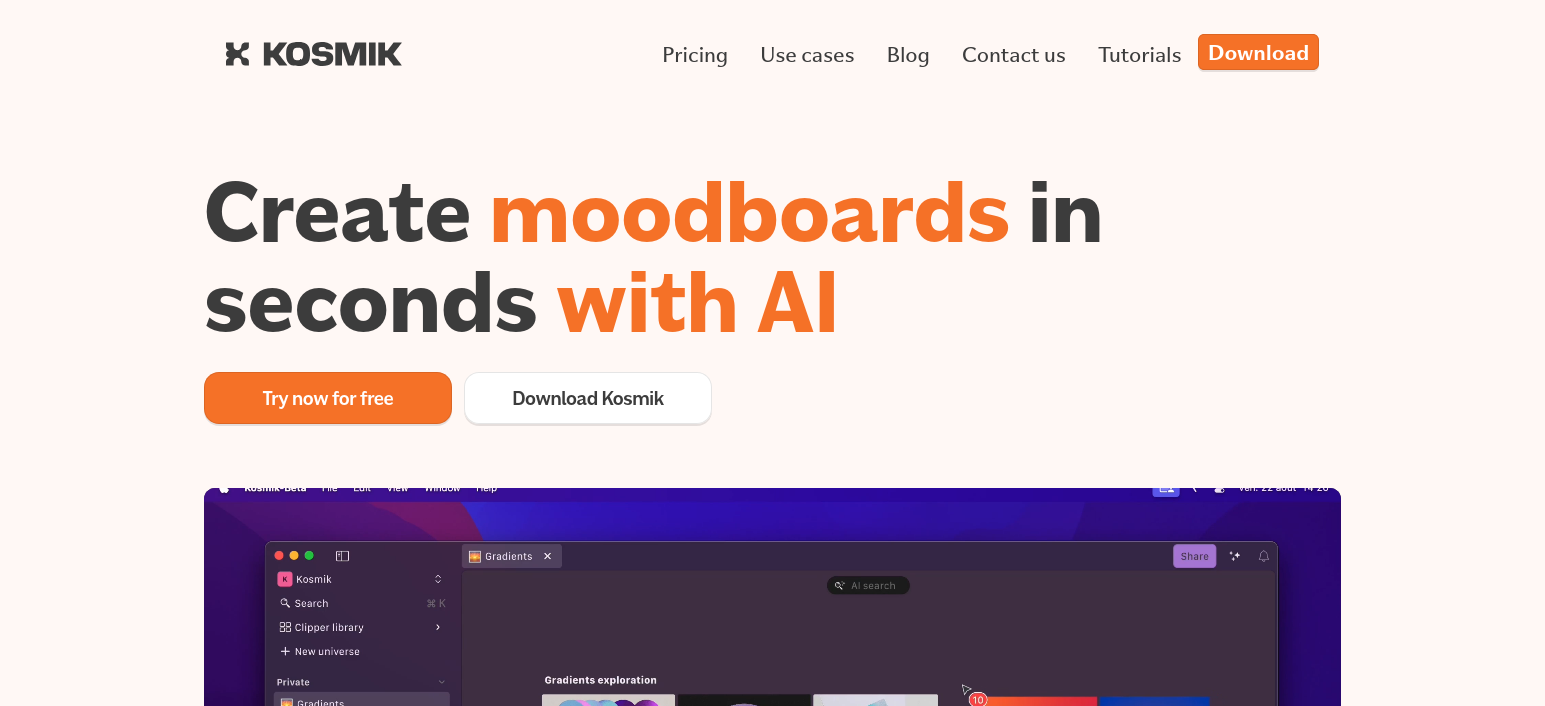
Kosmik is a browser and workspace built for designers and creatives who want a faster way to collect ideas and build moodboards.I use it when I need to capture assets from the web and pull references without using ten different tools.
It has a spatial canvas, an AI tagger, and a built-in browser that makes collecting and sorting visual material almost automatic. Kosmik also works well for collaboration, since moodboards and libraries can be shared in a click. And the app handles large folders easily, so messy desktops and scattered Pinterest boards stop getting in the way.
- Primary use cases:
- Moodboarding
- Visual research
- Collecting web assets and references
- Organizing large download folders
- Creative team collaboration
- Unique features and integrations:
- Built-in browser for quick capture
- AI auto-tagging for fast retrieval
- Spatial canvas for organizing assets
- Video playback with frame capture
- One-click sharing and collaboration
- Automatic style-based reference suggestions
- Multi-device support: Windows, macOS
- Integration with other tools:
- Supports drag-and-drop from desktop
- Works with downloads, files, and web clips
- Imports content from Pinterest-style workflows
- Easy export and sharing for teams
- Price: Free during beta, then $14.99/mo
9. BrowserOS
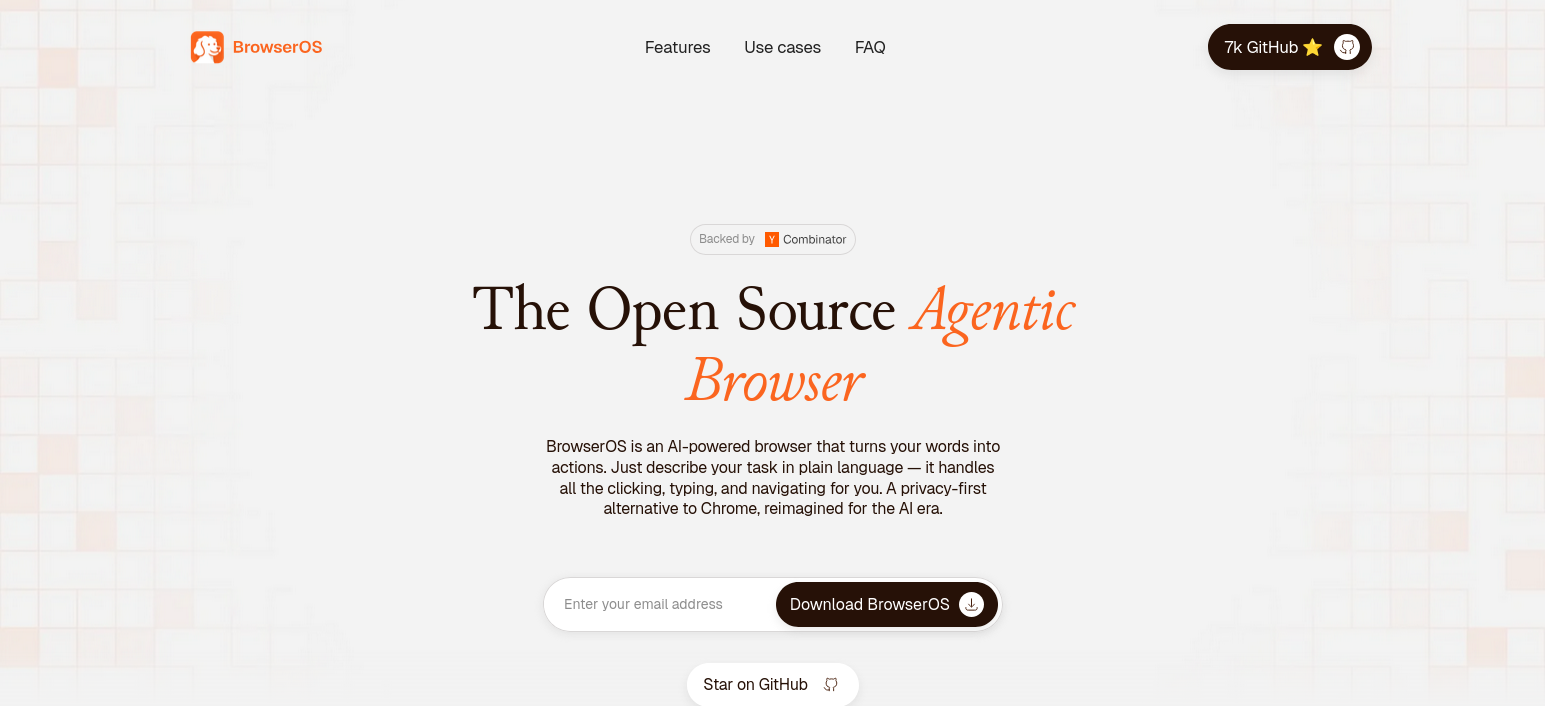
BrowserOS is an open-source AI browser that turns natural language instructions into actions, so you can use it when you want to automate tasks without writing scripts.It’s built for people who research, scrape, organize data, or manage workflows and want an assistant that can act directly in the interface.
I like that it runs local models through Ollama, but also supports GPT, Claude, and Gemini for cloud tasks when needed.BrowserOS also includes MCP servers for tools like Gmail, Calendar, Docs, Sheets, and Notion, which makes it easy to connect agents to daily work apps. And since it supports Chrome extensions, it feels familiar while still giving complete control over privacy and automation.
- Primary use cases:
- Natural-language automation
- Web scraping
- Research
- Local, privacy-first agent workflows
- Unique features and integrations:
- Built-in AI agents with natural-language task control
- Local LLM support via Ollama and LM Studio
- Split view for ChatGPT, Claude, Gemini, Grok
- Semantic search for history and bookmarks
- Built-in highlighter and “second brain” tools
- Pre-installed MCP servers (Gmail, Calendar, Docs, Sheets, Notion)
- Multi-device support: Windows, macOS, Linux
- Integration with other tools:
- Runs any MCP server with one-click install
- Works with Chrome extensions (Chromium fork)
- Imports Chrome passwords, bookmarks, and extensions
- Supports cloud AI via OpenAI, Claude, Gemini (with your own keys)
- Price: Free (open source), you only pay for API usage if using proprietary models
10. Arc Browser (Discontinued)

Arc Browser was an interesting focused alternative to Chrome that introduced features like Arc Max, an early attempt to bring AI into the browsing experience with a new way to handle and group tabs, on-page link previews, and Ask ChatGPT feature built in the browser.
Even though it had a loyal community, in 2025 The Browser Company (creator of Arc) shifted its focus to Dia, their new AI-native browser built on a faster and more secure foundation.
Arc still receives maintenance updates, but active development and all future AI work are now centered on Dia.
Top Use Cases For AI Browsers
After testing all these browsers, I noticed that each of them solves a different problem. AI browsers aren’t necessarily competing to do the same thing, many of them lean toward a specific type of AI workflow.
Here are the best use cases I’ve seen so far, based on real tasks and how each browser behaves when agents start taking action on the page.
Multi-Account Work, Automation & Agent Workflows
Some AI browsers are built to support long-running tasks and agent actions across many accounts. This is the space where Gologin and BrowserOS stand out.
Gologin works well when an AI agent needs to control multiple browser profiles through MCP. BrowserOS works when you want an agent to act inside tabs, apps, and cloud workflows.
Fast Research and Page-Aware Assistance
Browsers like Perplexity Comet and ChatGPT Atlas shine when the task is understanding or summarizing content. They feel like real research companions. The assistant stays on the page and gives fast answers without switching tabs.
Private, Local, and Anonymous AI Tasks
Brave with Leo AI is built for users who want privacy first. It avoids long-term logging, doesn’t require an account, and supports BYOM and local models for sensitive work. This makes it ideal for users who want AI help but do not want their content to leave the browser.
Everyday Browsing With Casual AI Help
Opera One, Dia, and Atlas are intended for everyday AI use. These browsers help with writing, drafting, summarizing, comparing, or translating on any page. Most of the AI access happens in a sidebar or inside the input box you are typing into.
Creative and Visual Workflows
Kosmik is in its own category. It’s designed for people who collect references, images, videos, or design assets while browsing the web.
Potential Risks of AI Browsers
AI browsers give assistants deep access to tabs, files, and personal data, but that also introduces serious privacy risks. Some tools like ChatGPT Atlas request permission to read emails, calendars, or screen content to act on your behalf.
If mishandled, this creates a single point of failure. A browser that sees everything. Researchers warn this centralization becomes a prime target for attackers and a potential leak source.
Another issue is how long these tools remember what you type. Some AI browsers log your prompts or browsing activity to “improve performance.” OpenAI and Google store this data unless you opt out, while Opera claims it doesn’t feed Aria chats into model training.
But past incidents show logs aren’t always safe: OpenAI once leaked user chats by accident, and thousands of ChatGPT links were indexed by search engines in July 2025 (Source).

There are also risks with browser extensions and AI agents acting on your behalf. Malicious plugins have stolen cookies or hijacked accounts, and prompt injection attacks – where hidden instructions on a webpage manipulate your assistant- are already real. If your browser can act like you, one tricked click could leak credentials, buy something, or share data. The trade-off is simple here: more power means more exposure to risks.
How To Choose The Right AI Browser (Checklist)
You saw that most AI browsers solve similar problems, but with a different approach. Some help agents run actions, some help with research, and some focus on privacy or creative work. When I test a new browser now, I look at the core task first. Once I know the primary use case, I can weigh out the pros and cons of each contender to choose the best one to fit my needs. Here’s a quick checklist that can help you pick the right one for you:
- Define the main job – Is it automation, research, privacy, or creative work?
- Match it to a category – AI-native, AI-augmented, antidetect with MCP, or browser OS?
- Check device support – Does it run on all systems you actually use?
- Look at AI and automation – Does it support agents, MCP, or local models if you need them?
- Review privacy controls – Can you control logging, data sharing, and local vs cloud use?
- Compare costs and limits – Free tier, usage caps, and team pricing if you work in a group.
- Run one real task – Try a small workflow you do every week and see if it holds up.
- Decide on a main and a backup – I usually keep one browser for heavy workflows and one for light tasks.