> ## Documentation Index
> Fetch the complete documentation index at: https://gologin.com/docs/llms.txt
> Use this file to discover all available pages before exploring further.
# Navigation
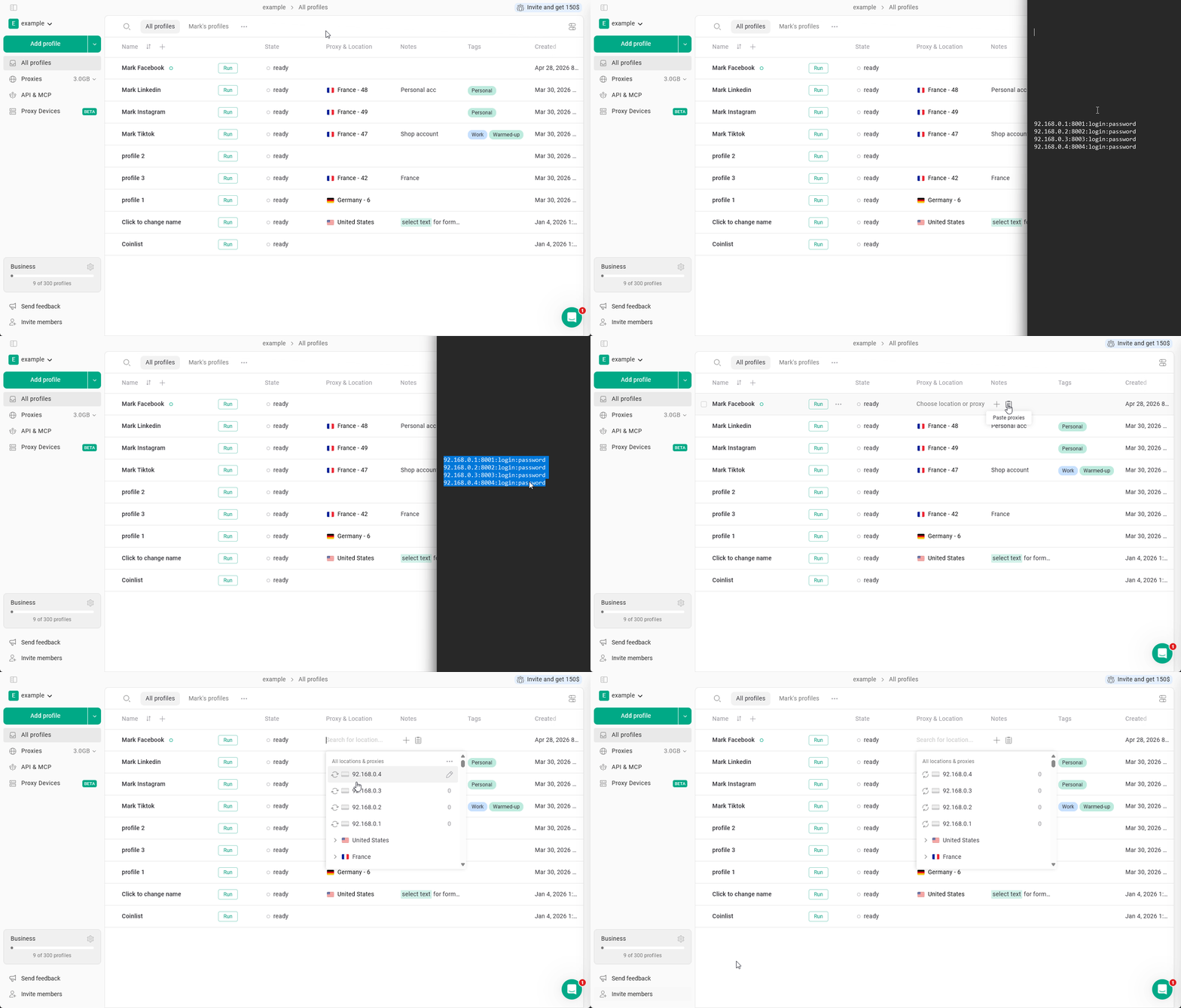
All the proxy navigation is available right from the **All profiles** page. Just click on the **Proxy & Location field** of the profile and start editing.
### Adding a proxy
To add a single or multiple proxies:
1. Copy your proxy
2. Hover over the **Proxy & Location** column on your profile
3. Click the **Paste proxies** button
* you can also use the system **hot keys** to paste the proxies
 ### Checking a proxy
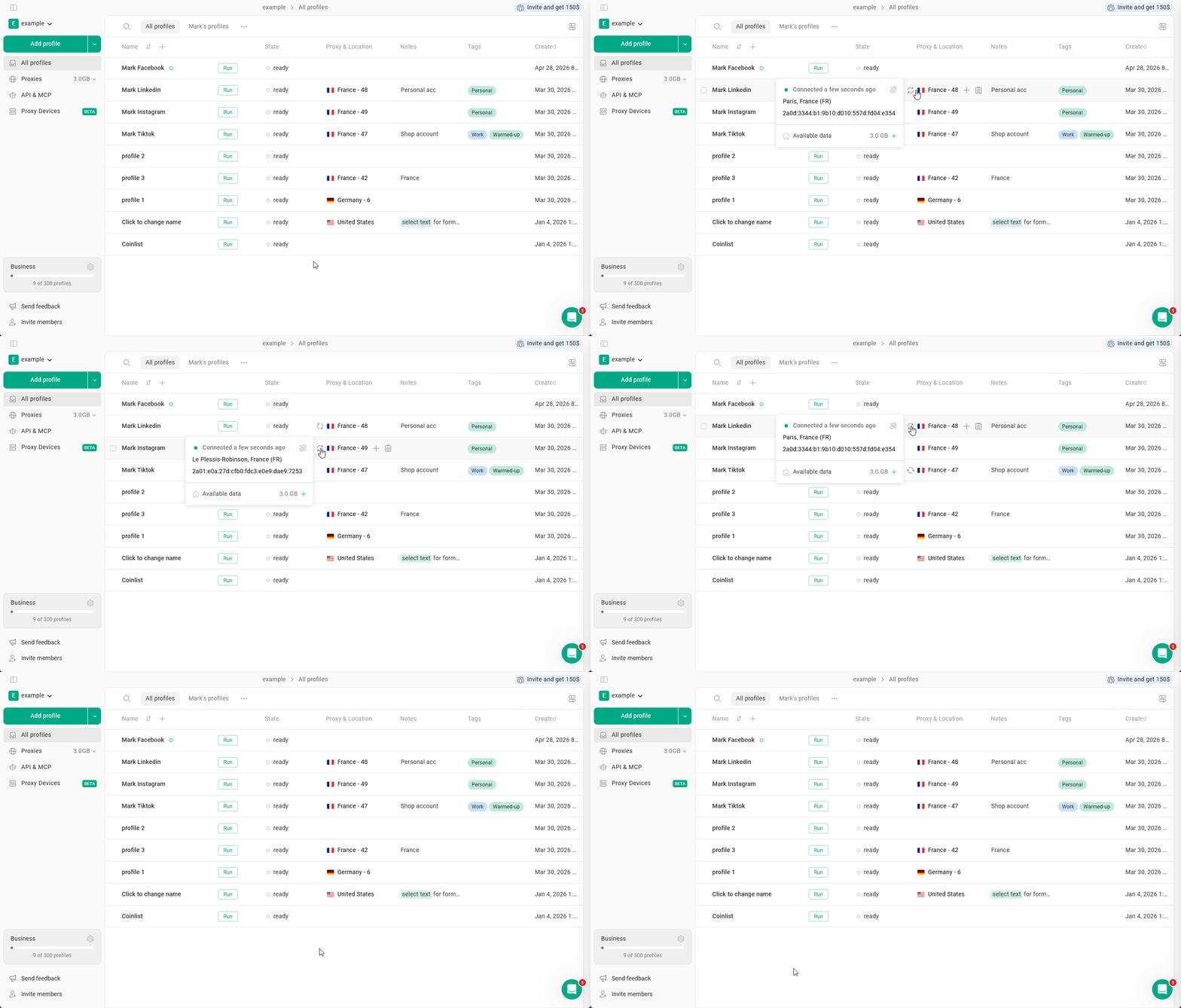
To check if the proxy is working: just **click the arrows** next to the proxy name on the **All Profiles** page.\
It will show the proxy country and the current outgoing IP.
### Checking a proxy
To check if the proxy is working: just **click the arrows** next to the proxy name on the **All Profiles** page.\
It will show the proxy country and the current outgoing IP.
 ### Editing proxy settings
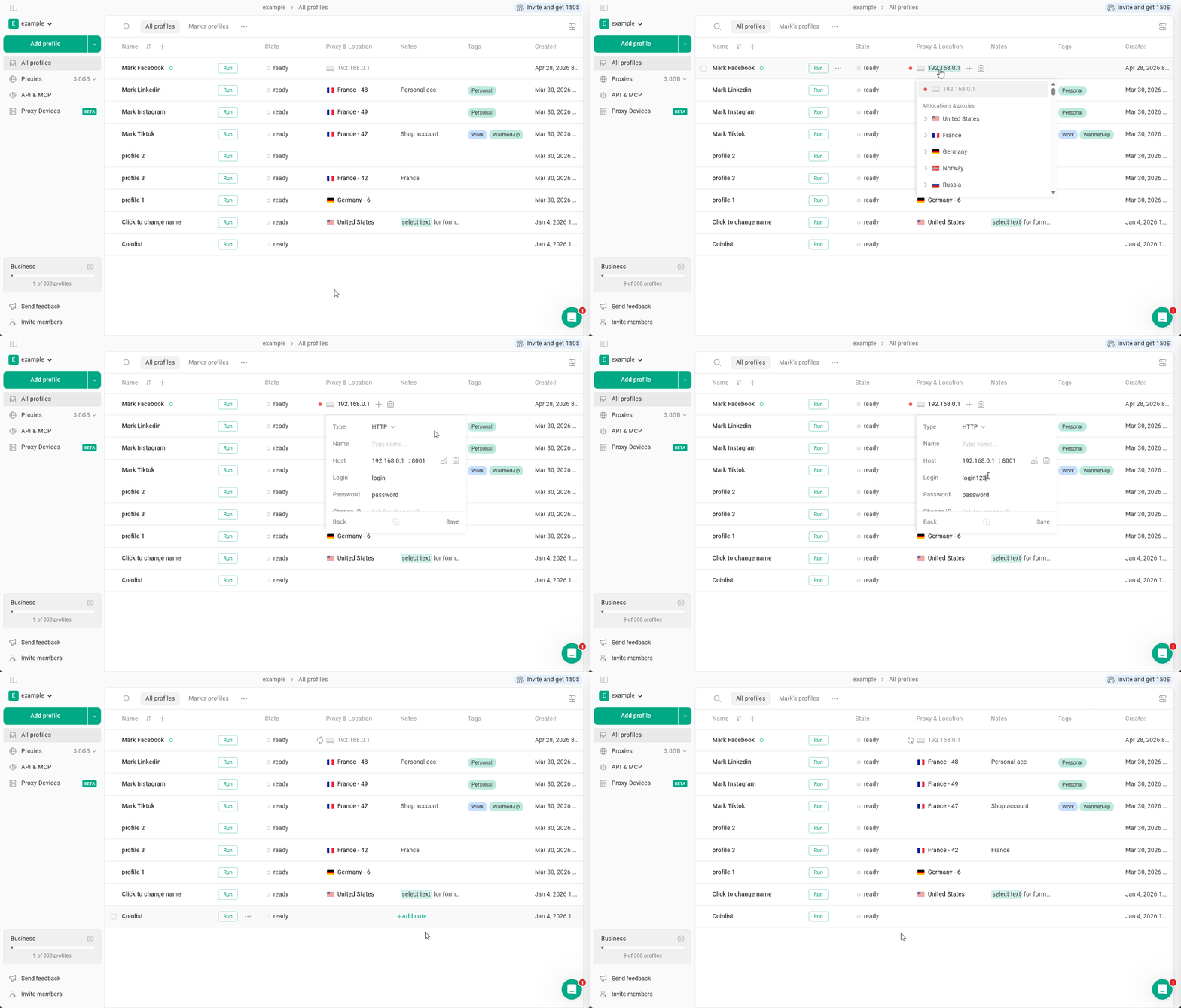
To edit the proxy settings such as IP or password: **click on the proxy** > **click the pencil icon** > click **Save** after making changes.
### Editing proxy settings
To edit the proxy settings such as IP or password: **click on the proxy** > **click the pencil icon** > click **Save** after making changes.
 ### Unlinking proxy from profile
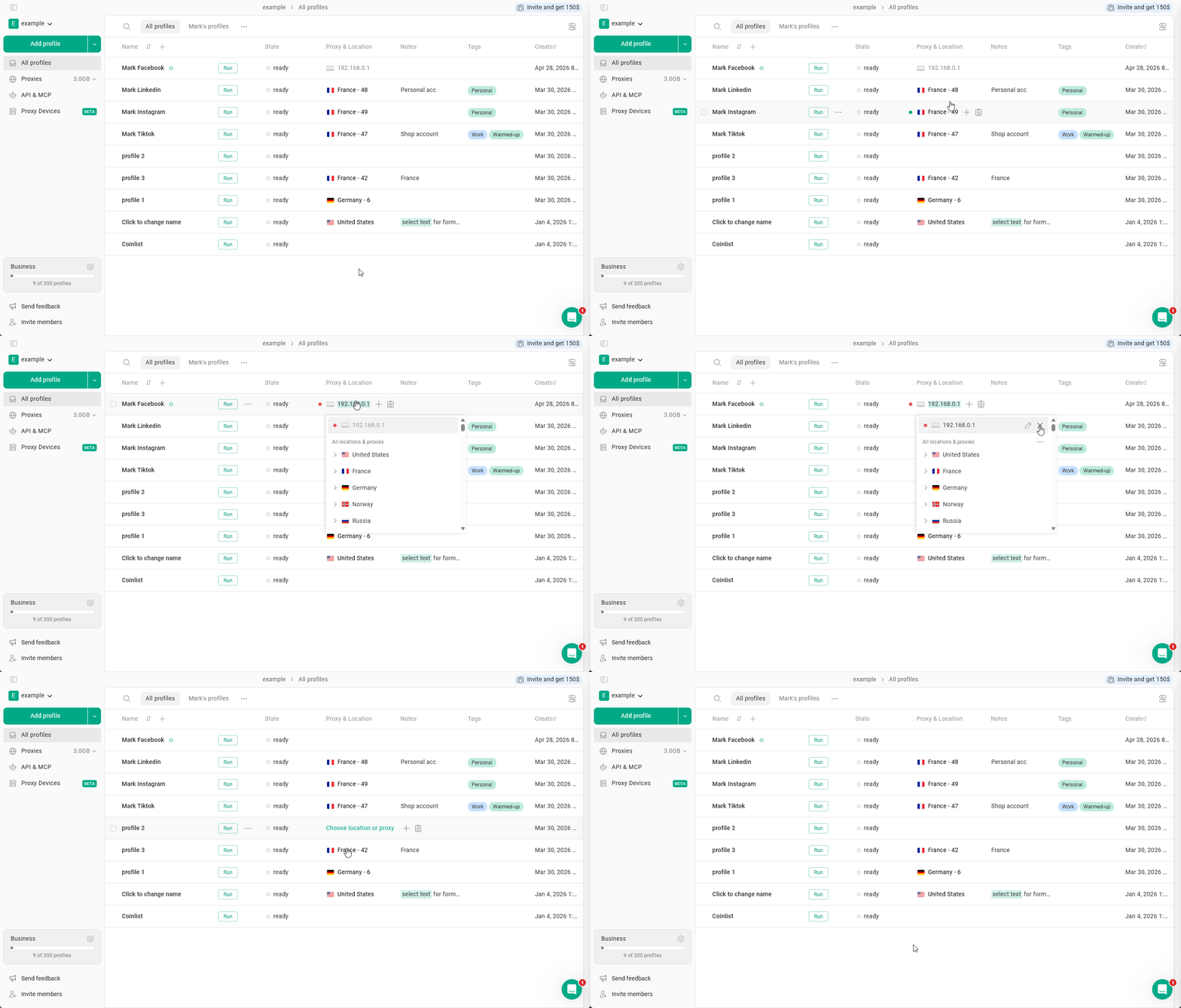
To remove a proxy from the profile without deleting it: **click on the proxy**, then **click the X to unlink** it.
### Unlinking proxy from profile
To remove a proxy from the profile without deleting it: **click on the proxy**, then **click the X to unlink** it.
 ### Deleting a proxy
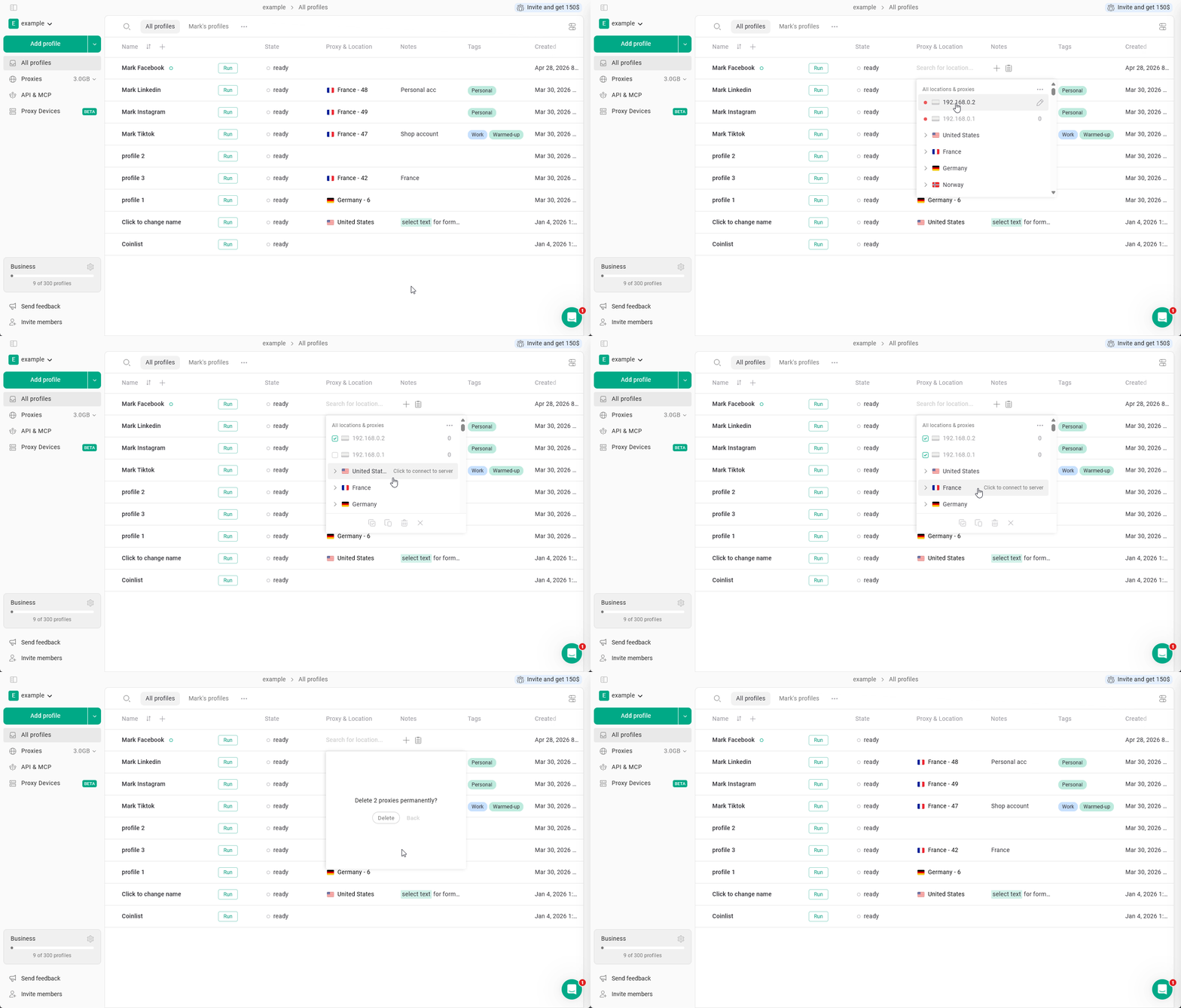
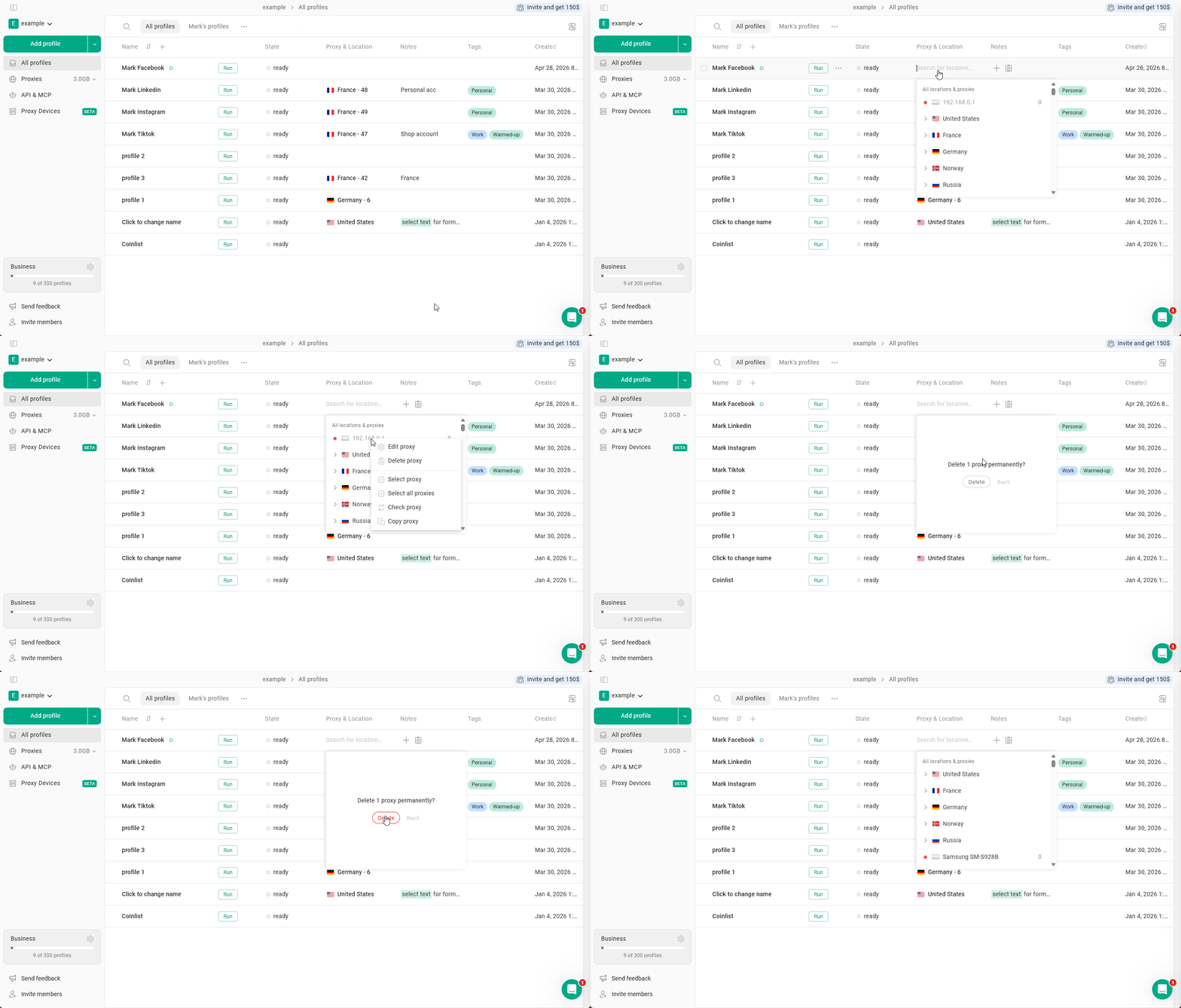
To delete a proxy, **click on any proxy** to open the proxy manager > **right-click** on the proxy you want to delete > click **Delete proxy** > **confirm** your choice.
### Deleting a proxy
To delete a proxy, **click on any proxy** to open the proxy manager > **right-click** on the proxy you want to delete > click **Delete proxy** > **confirm** your choice.
 ### Copying proxies
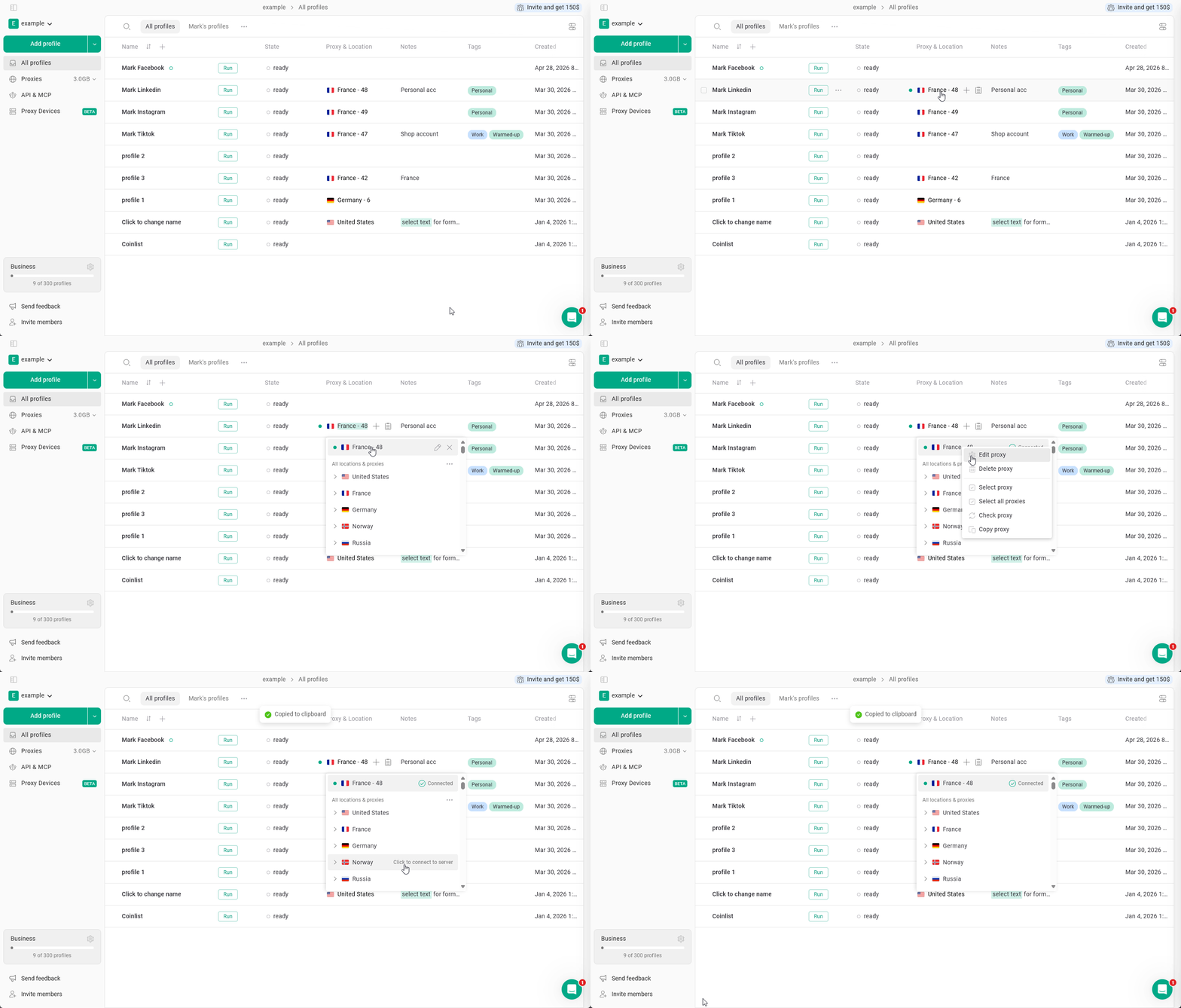
To copy a proxy, **click on any proxy** to open the proxy manager > **right-click** on the proxy you want to copy > click **Copy proxy**.
### Copying proxies
To copy a proxy, **click on any proxy** to open the proxy manager > **right-click** on the proxy you want to copy > click **Copy proxy**.
 ### Bulk proxy actions
You can copy or delete **multiple proxies at a time**. Just click anywhere on the **Proxy & Location** column to enter the proxy manager > **right-click on the proxy** > **Select proxy** > keep selecting the proxies you want to act on > click **Copy** or **Delete** at the bottom of the Proxy Manager window.
### Bulk proxy actions
You can copy or delete **multiple proxies at a time**. Just click anywhere on the **Proxy & Location** column to enter the proxy manager > **right-click on the proxy** > **Select proxy** > keep selecting the proxies you want to act on > click **Copy** or **Delete** at the bottom of the Proxy Manager window.