> ## Documentation Index
> Fetch the complete documentation index at: https://gologin.com/docs/llms.txt
> Use this file to discover all available pages before exploring further.
# Gologin proxy navigation
## Available proxy settings
If you need to configure specific proxy parameters, you must **create a new proxy connection**.
Note: You cannot change the settings of an existing proxy connection.
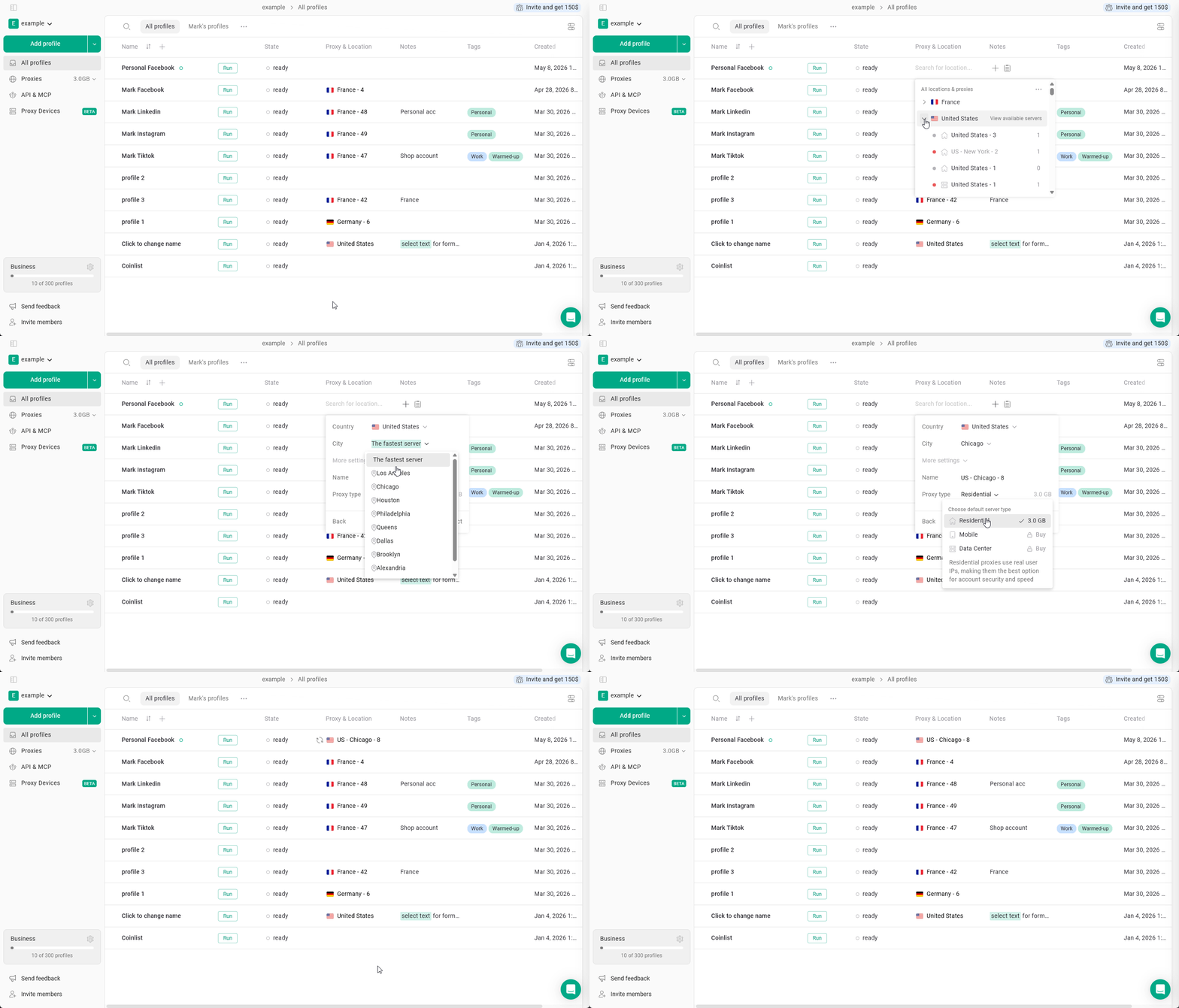
To create a new custom Gologin proxy:
1. Click **Choose location or proxy** in the browser profile.
2. Click the **arrow** next to the selected proxy country.
3. Select **Add new server**.\
Here, you can configure the following parameters:
* **City** - available for some of the most popular countries
* **Name** - a custom name for the proxy connection
* **Proxy type** - residential, mobile, or datacenter
4. Click **Connect** to apply the new proxy.
 ## Checking connection and viewing proxy info
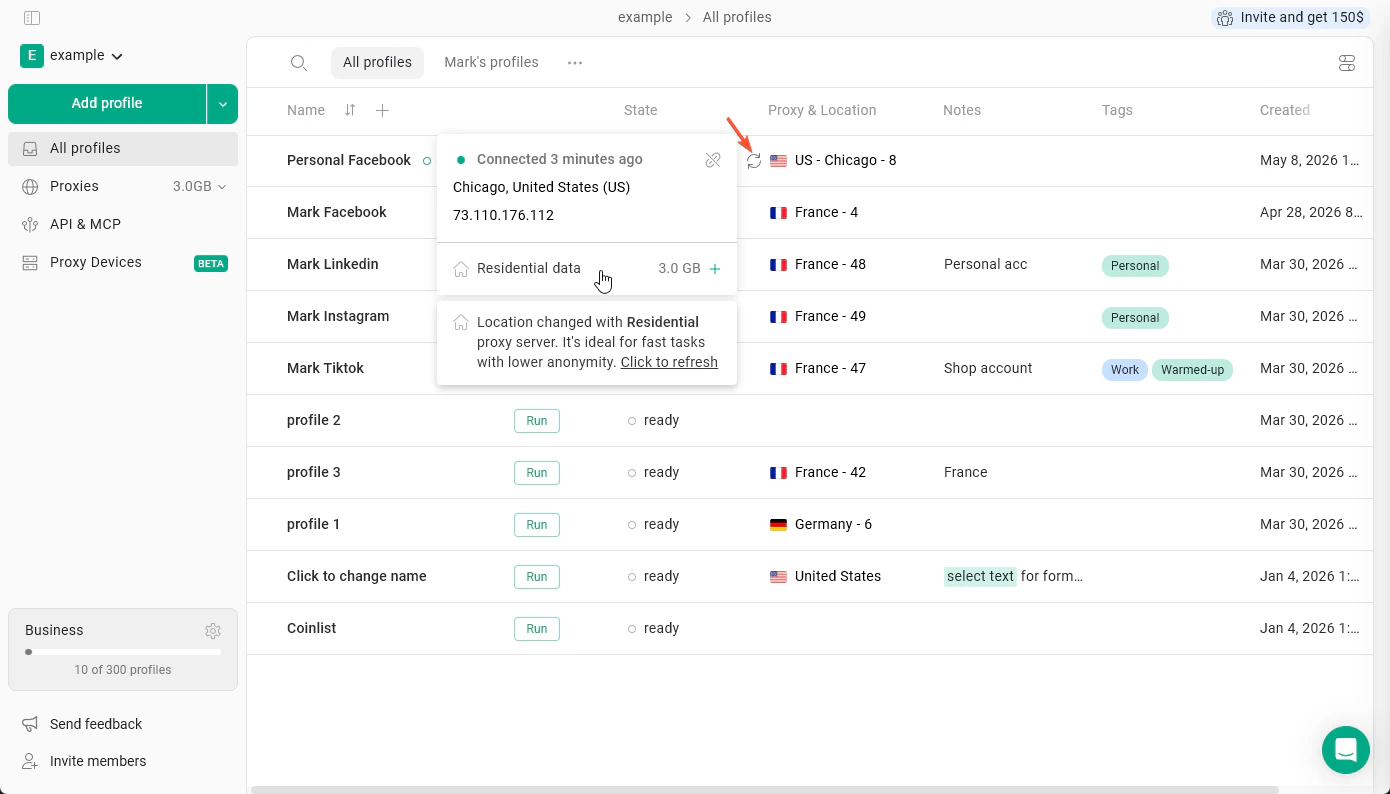
To verify that the proxy is working correctly and that you have enough available traffic, click the **circular arrows** icon next to the proxy flag. From this menu, you can also view:
* **City**
* **IP address**
* **Proxy type**
* **Remaining traffic**
This helps you quickly confirm that the proxy is active and configured as expected.
## Checking connection and viewing proxy info
To verify that the proxy is working correctly and that you have enough available traffic, click the **circular arrows** icon next to the proxy flag. From this menu, you can also view:
* **City**
* **IP address**
* **Proxy type**
* **Remaining traffic**
This helps you quickly confirm that the proxy is active and configured as expected.
 ## Unlinking a proxy
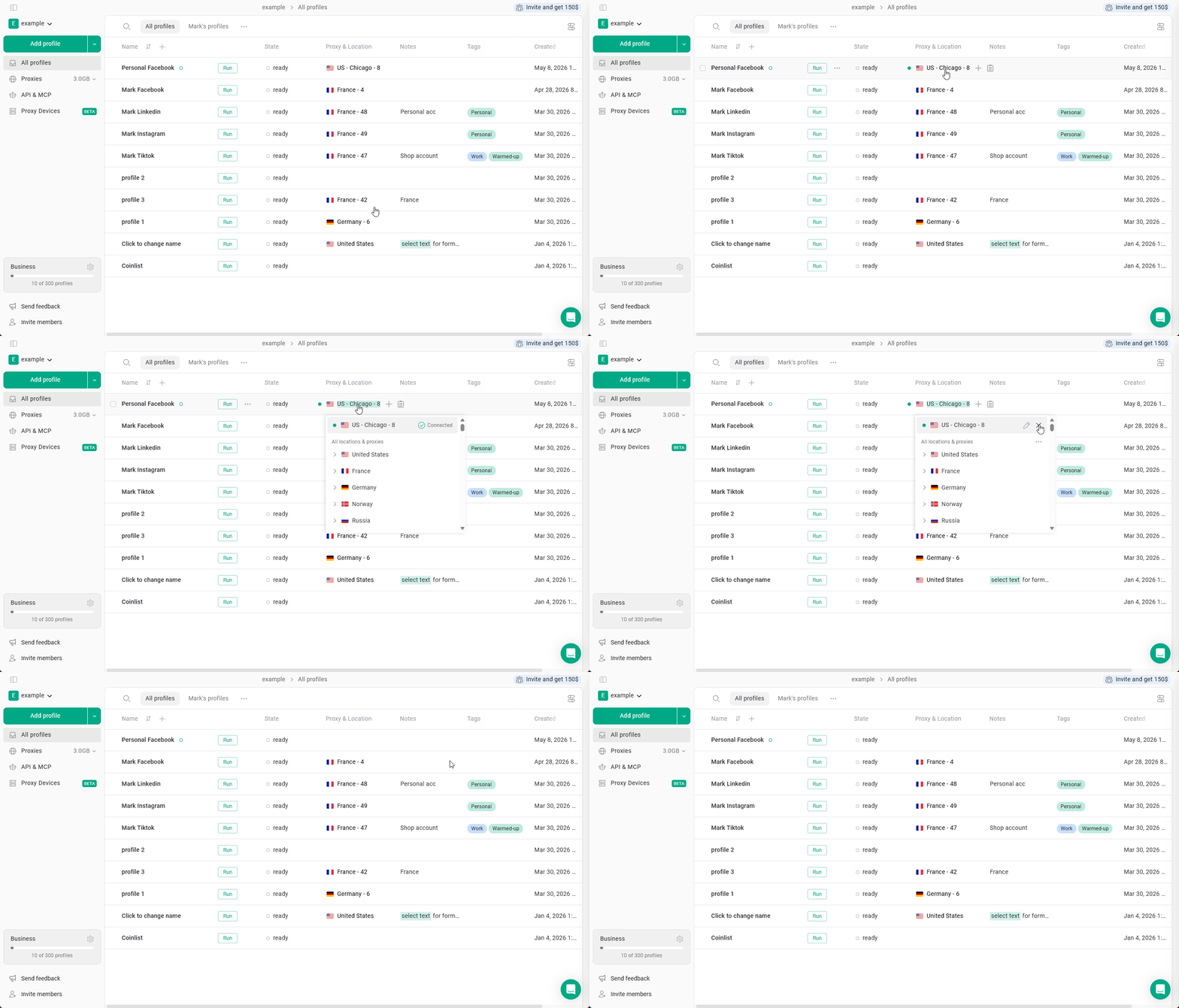
If you want to unlink a Gologin proxy from the profile: **click on the proxy** once and **click X** on it. The proxy will be unlinked from the profile but will stay in the proxy manager list.
## Unlinking a proxy
If you want to unlink a Gologin proxy from the profile: **click on the proxy** once and **click X** on it. The proxy will be unlinked from the profile but will stay in the proxy manager list.
 ## Deleting a proxy
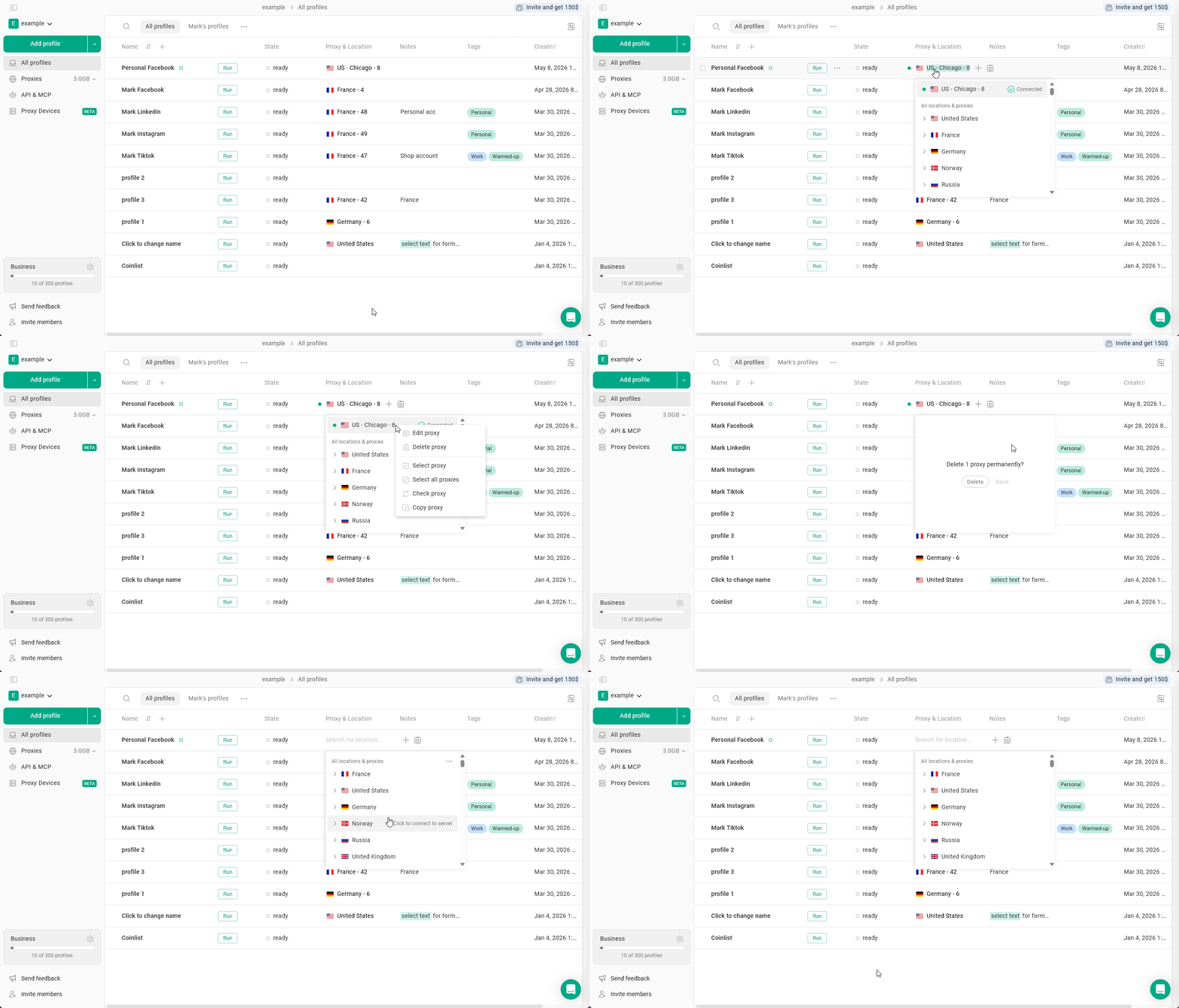
To delete a proxy: just **click the proxy on a profile** once to enter the proxy manager, then **right-click it** > **Delete proxy** > **confirm the choice**. It will be deleted from your proxy list, available for restoring from the [Proxy Archive](/proxy/proxy-management/proxy-manager/proxy-archive).
## Deleting a proxy
To delete a proxy: just **click the proxy on a profile** once to enter the proxy manager, then **right-click it** > **Delete proxy** > **confirm the choice**. It will be deleted from your proxy list, available for restoring from the [Proxy Archive](/proxy/proxy-management/proxy-manager/proxy-archive).
 ## Copying proxy credentials
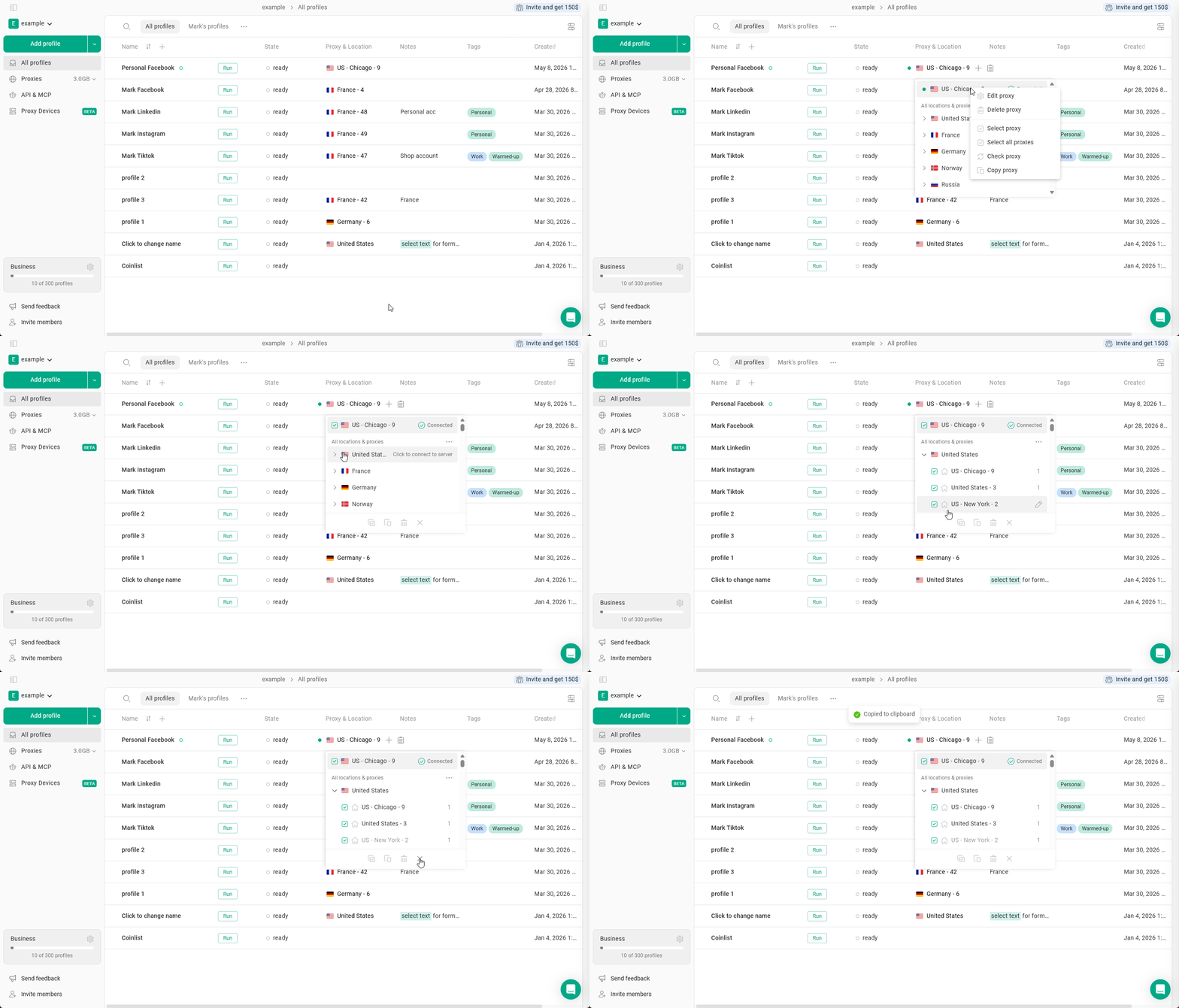
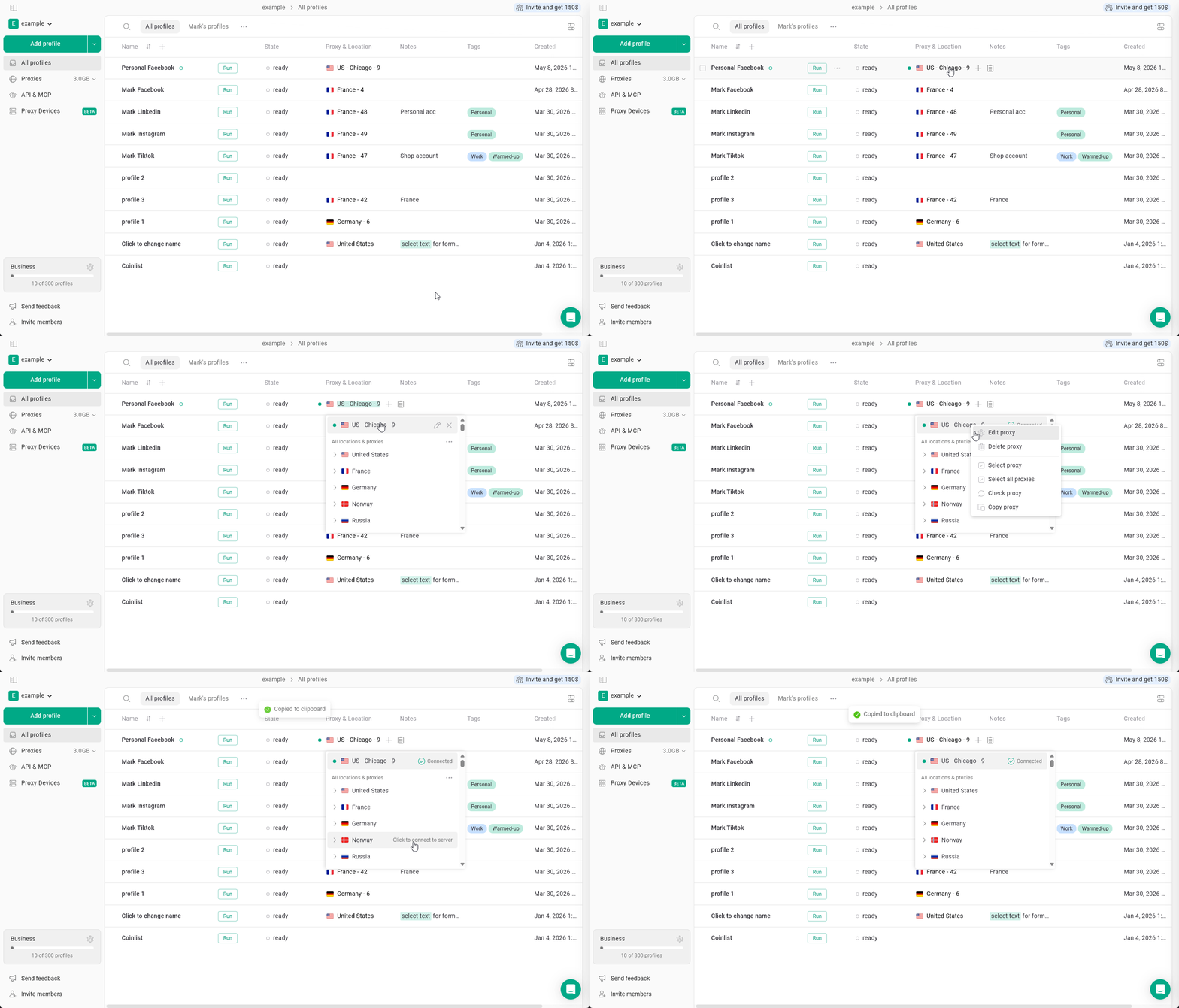
You can copy Gologin proxy credentials (host, port, login, password) to use them elsewhere. To do that: **click on a proxy** to enter the proxy manager > **right-click it** > **Copy proxy**.
## Copying proxy credentials
You can copy Gologin proxy credentials (host, port, login, password) to use them elsewhere. To do that: **click on a proxy** to enter the proxy manager > **right-click it** > **Copy proxy**.
 ## Bulk proxy actions
You can select multiple proxies in the proxy manager and perform actions, such as:
* select all proxies
* copy proxies
* delete proxies
To do that: **click on any proxy on the All profiles page** > **right-click it** > click **Select proxy**. You can then start ticking the proxies and perform actions using buttons at the bottom of the proxy manager.
## Bulk proxy actions
You can select multiple proxies in the proxy manager and perform actions, such as:
* select all proxies
* copy proxies
* delete proxies
To do that: **click on any proxy on the All profiles page** > **right-click it** > click **Select proxy**. You can then start ticking the proxies and perform actions using buttons at the bottom of the proxy manager.