> ## Documentation Index
> Fetch the complete documentation index at: https://gologin.com/docs/llms.txt
> Use this file to discover all available pages before exploring further.
# Proxy Devices
**Proxy Devices** lets you route your browser profile traffic through your own Android phone instead of a traditional proxy server.
In simple terms, your phone becomes the internet connection for your profile.
## Why use it?
This feature is useful when you want:
* A **real mobile IP address** (instead of datacenter or residential proxies)
* A **more trustworthy** IP for websites
* To reduce reliance on third-party proxy providers
* To appear as a **real mobile user** from your device’s network
## How it works?
* You install a companion app on your Android device
* The app shares your phone’s internet connection
* Your profile connects to that device as a proxy
* All traffic goes through your phone’s IP
Do not use the same proxy device on different profiles at the same time. The IP will be the same, which is suspicious for websites.
## Setup guide
### Install the Gologin Devices mobile app
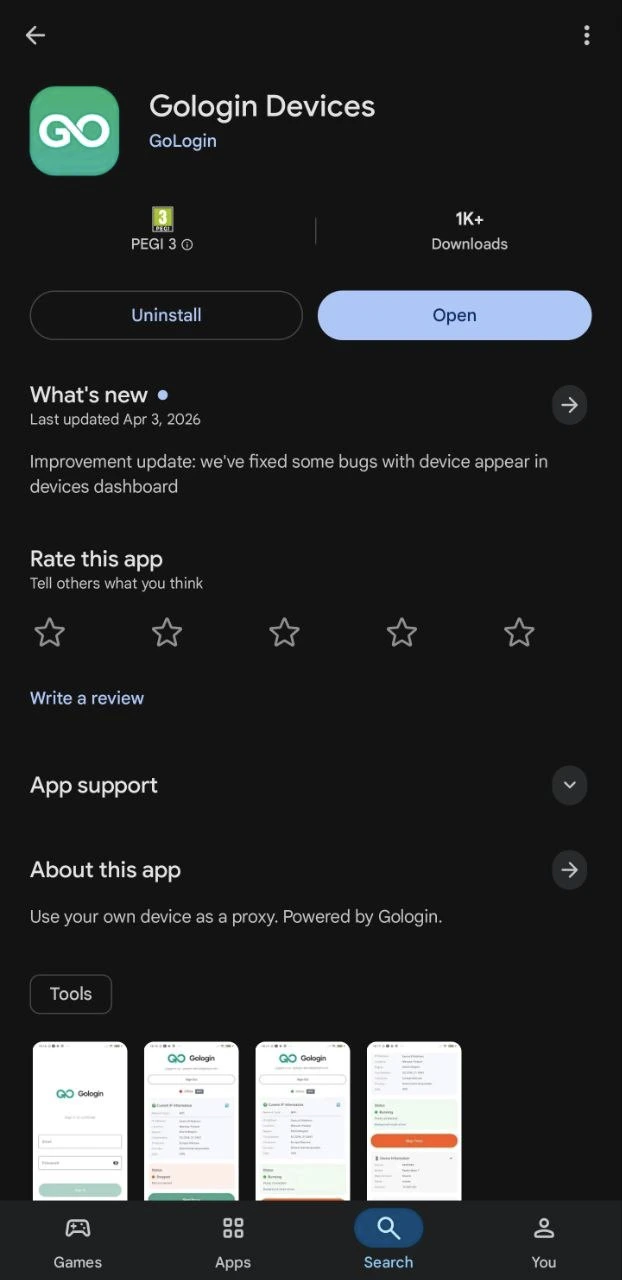
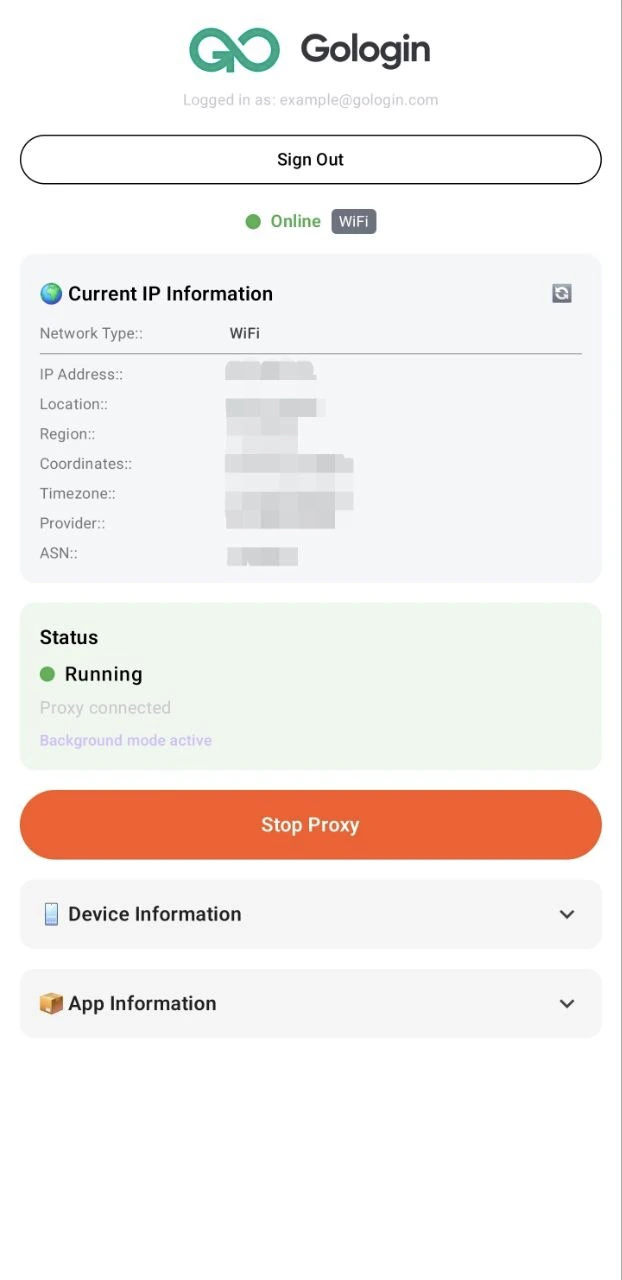
1. **Download and install** the Gologin Devices app from Google Play on your Android phone
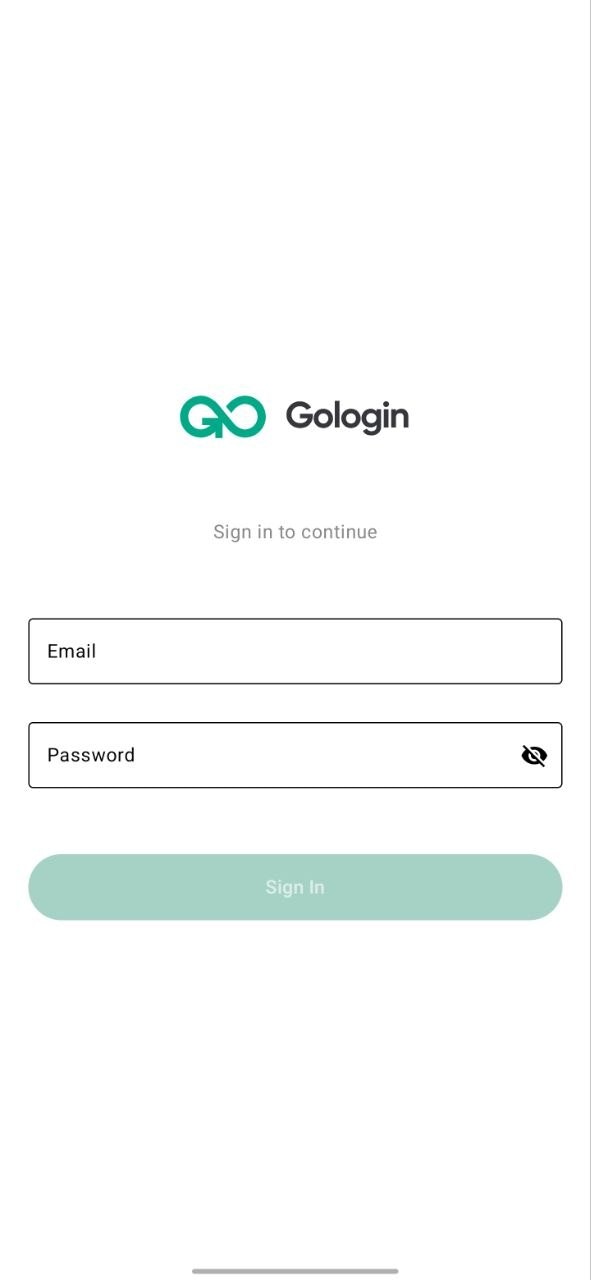
2. **Log in** to your Gologin account
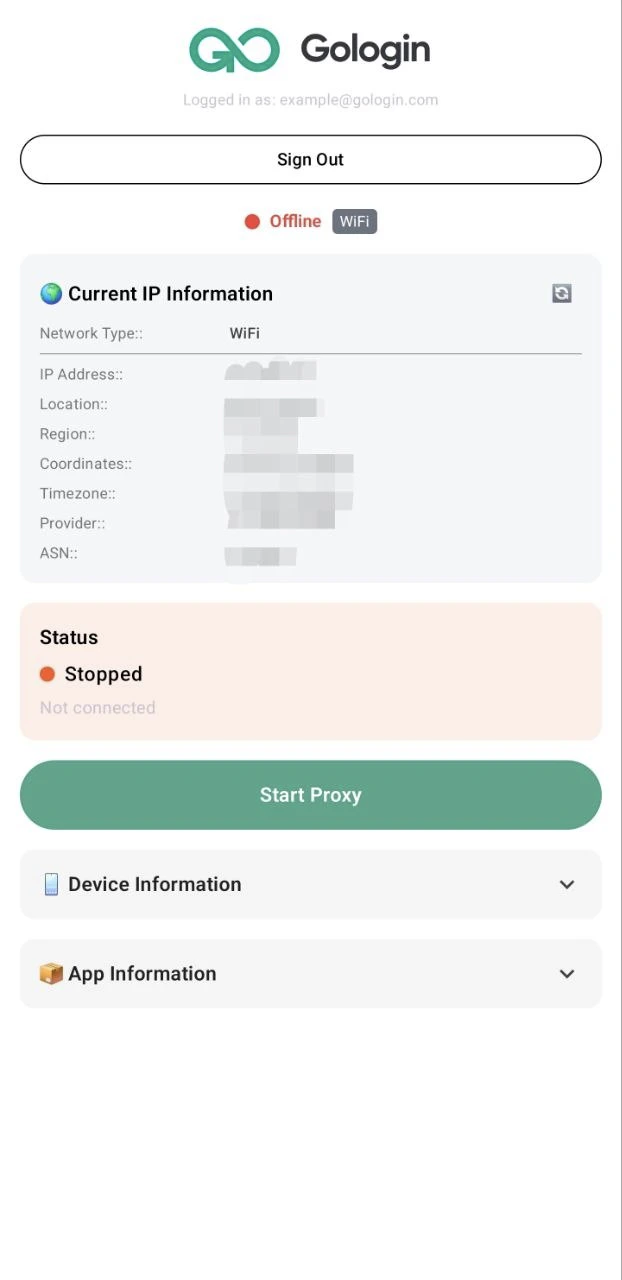
3. Press **Start proxy**
 ### Continue in the Gologin Desktop app
1. In the Gologin app, **go to Proxy Devices** and verify the new device has appeared after you've logged in on Android
### Continue in the Gologin Desktop app
1. In the Gologin app, **go to Proxy Devices** and verify the new device has appeared after you've logged in on Android
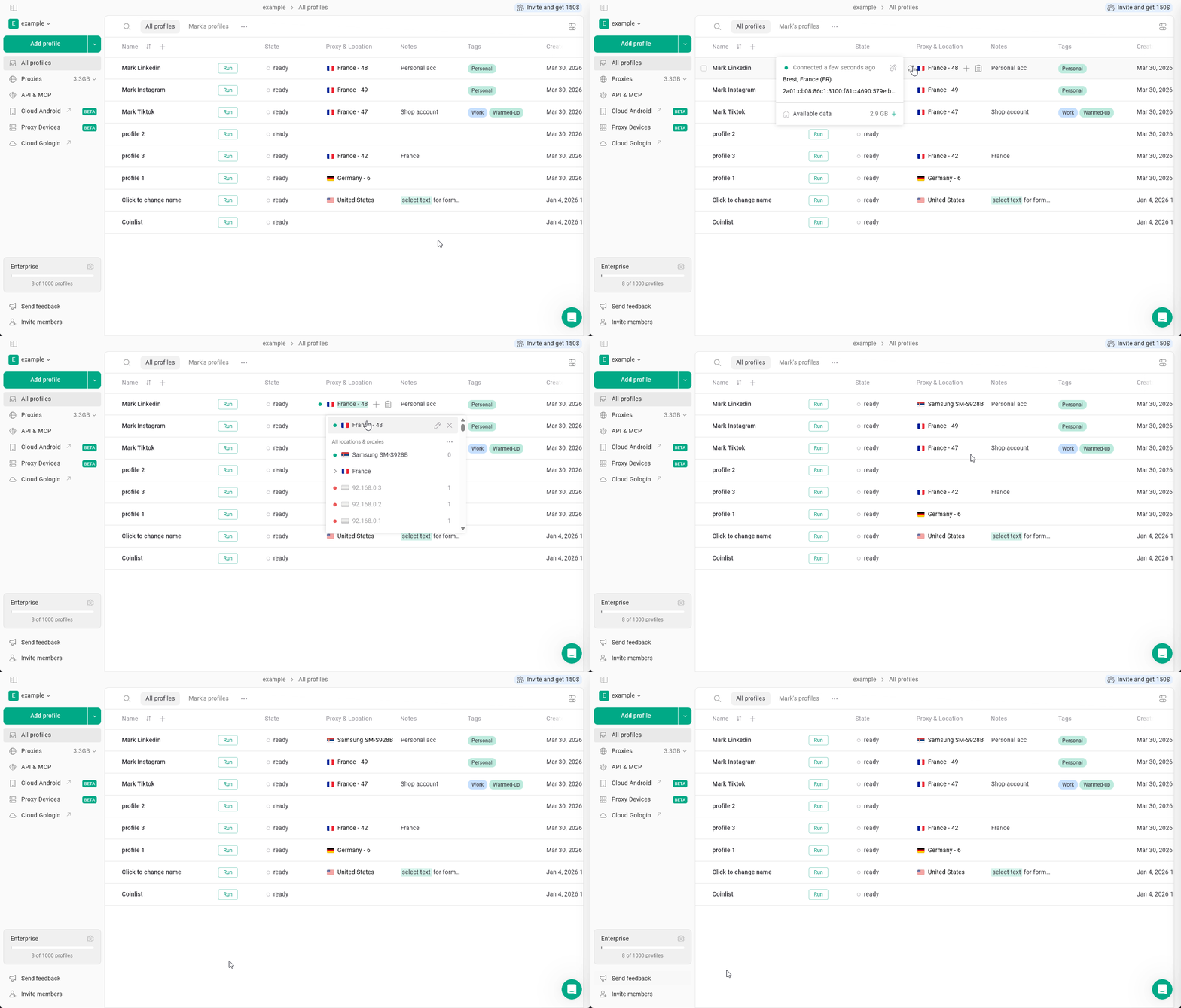
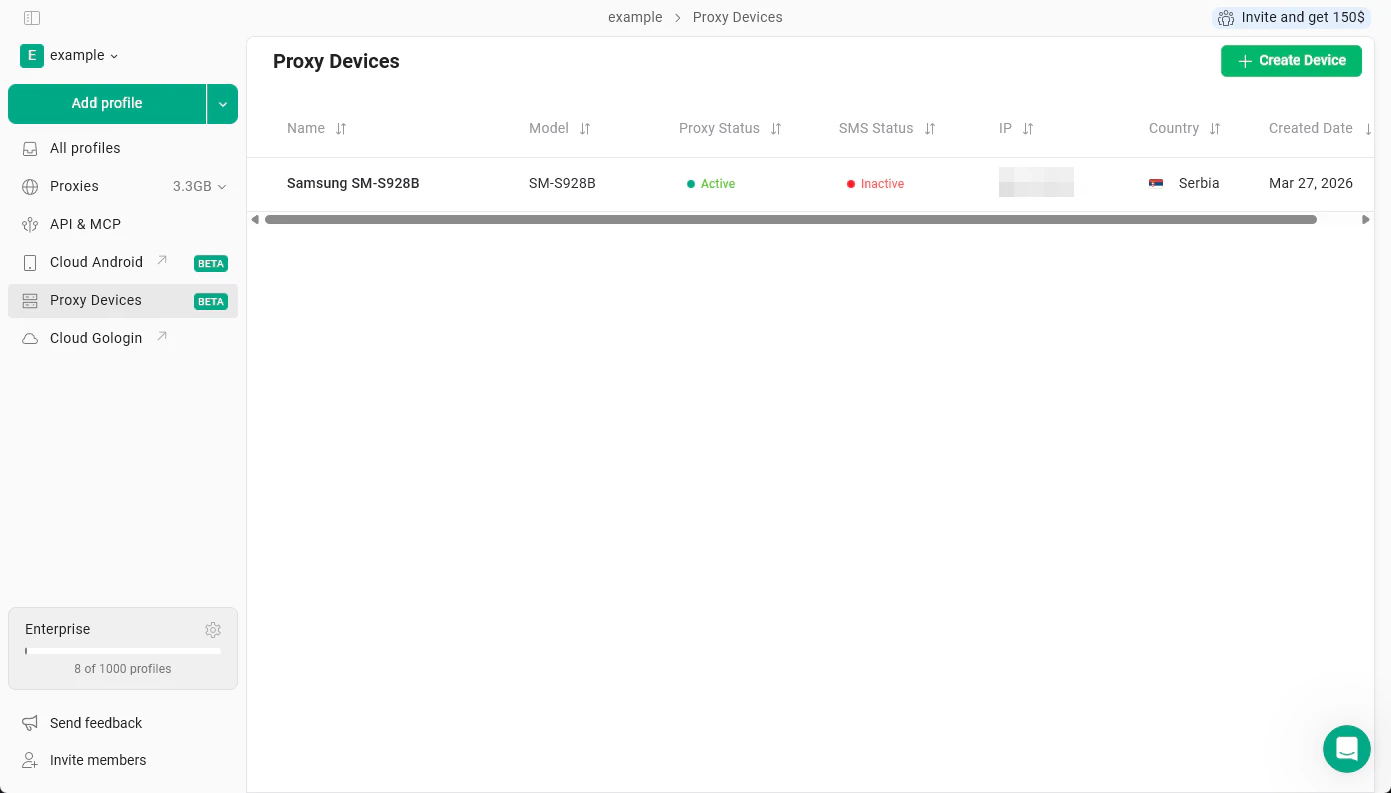 2. Go to **All profiles** > click **Proxy & Location** on your profile > choose your new Proxy Device from the proxy list