> ## Documentation Index
> Fetch the complete documentation index at: https://gologin.com/docs/llms.txt
> Use this file to discover all available pages before exploring further.
# Sharing Workspace and Folder access
## How to invite team members
**Note:** if you choose to share the workspace access, the team member will have access to **all** the included profiles and folders.
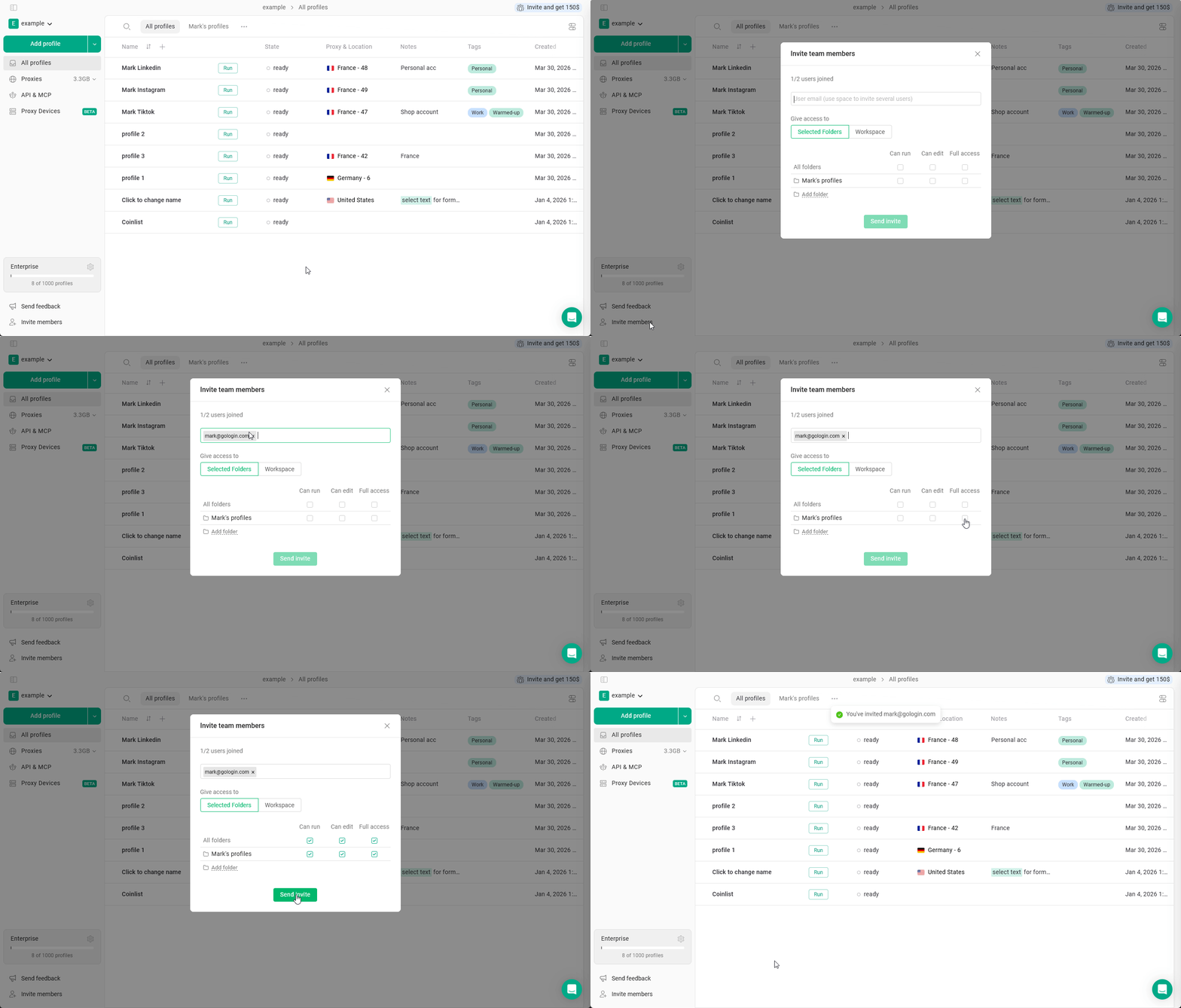
To start collaborating with your team and add members:
1. Click **Invite members** at the bottom-left
2. Enter the **teammate's email address**
3. Select the access type: **Workspace** or **Selected Folders**
4. Choose the role: **Can run**, **Can edit** or **Full access**
5. Click **Send invite**
 The invited person will receive an email invitation in their inbox.\
If they have questions about accessing the workspace, show them [this article](/general/team-collaboration/accessing-shared-workspace-or-folders).
## Changing and revoking access
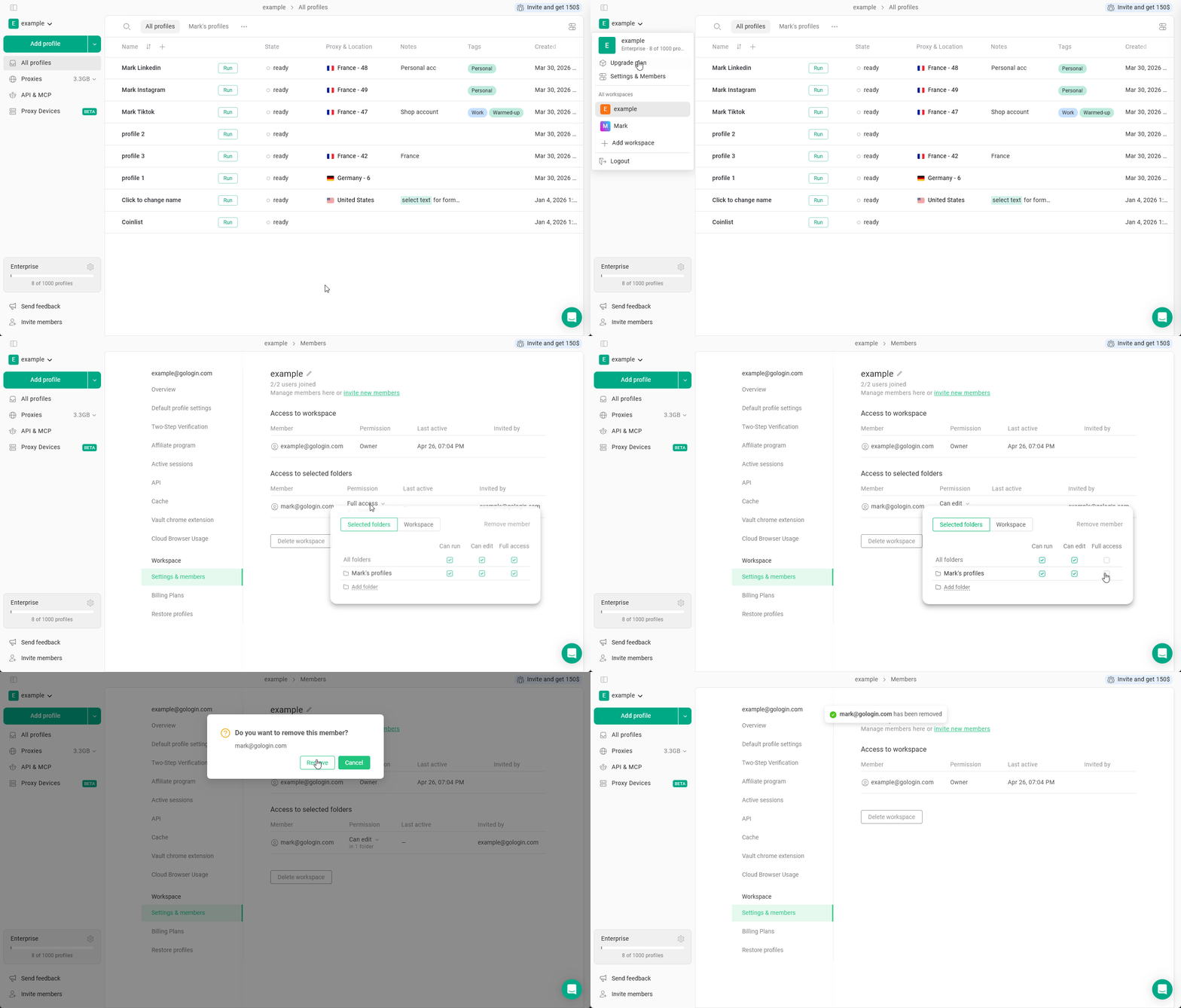
To change or revoke the workspace access:
1. Navigate to the **main menu** at the top-left > **Settings & Members**
2. **Locate the member** In the Settings & Members tab > **click at their permission**
3. **Change the permission** as needed
4. To revoke the workspace access click **Remove member** in the access menu
The invited person will receive an email invitation in their inbox.\
If they have questions about accessing the workspace, show them [this article](/general/team-collaboration/accessing-shared-workspace-or-folders).
## Changing and revoking access
To change or revoke the workspace access:
1. Navigate to the **main menu** at the top-left > **Settings & Members**
2. **Locate the member** In the Settings & Members tab > **click at their permission**
3. **Change the permission** as needed
4. To revoke the workspace access click **Remove member** in the access menu