> ## Documentation Index
> Fetch the complete documentation index at: https://gologin.com/docs/llms.txt
> Use this file to discover all available pages before exploring further.
# Team Members
The **Team Members** feature lets you invite other people into your Gologin workspace so they can work with your profiles - without sharing your account password or login credentials.
Each person you invite uses one **team member slot** from your subscription.
## Purchasing team member seats
By default, the **Business**, **Enterprise**, and **Custom** plans include one additional team member seat. If you're working as a team and need more seats for collaboration, you can purchase additional ones:
1. Open the **main menu** by clicking the workspace name on the top-left
2. Go to **Settings & Members**
3. Open the **Billing Plans** tab
4. Click **Change plan**
5. Find your current plan
6. Specify the new team member seat number
7. Click **Upgrade plan** and complete the payment
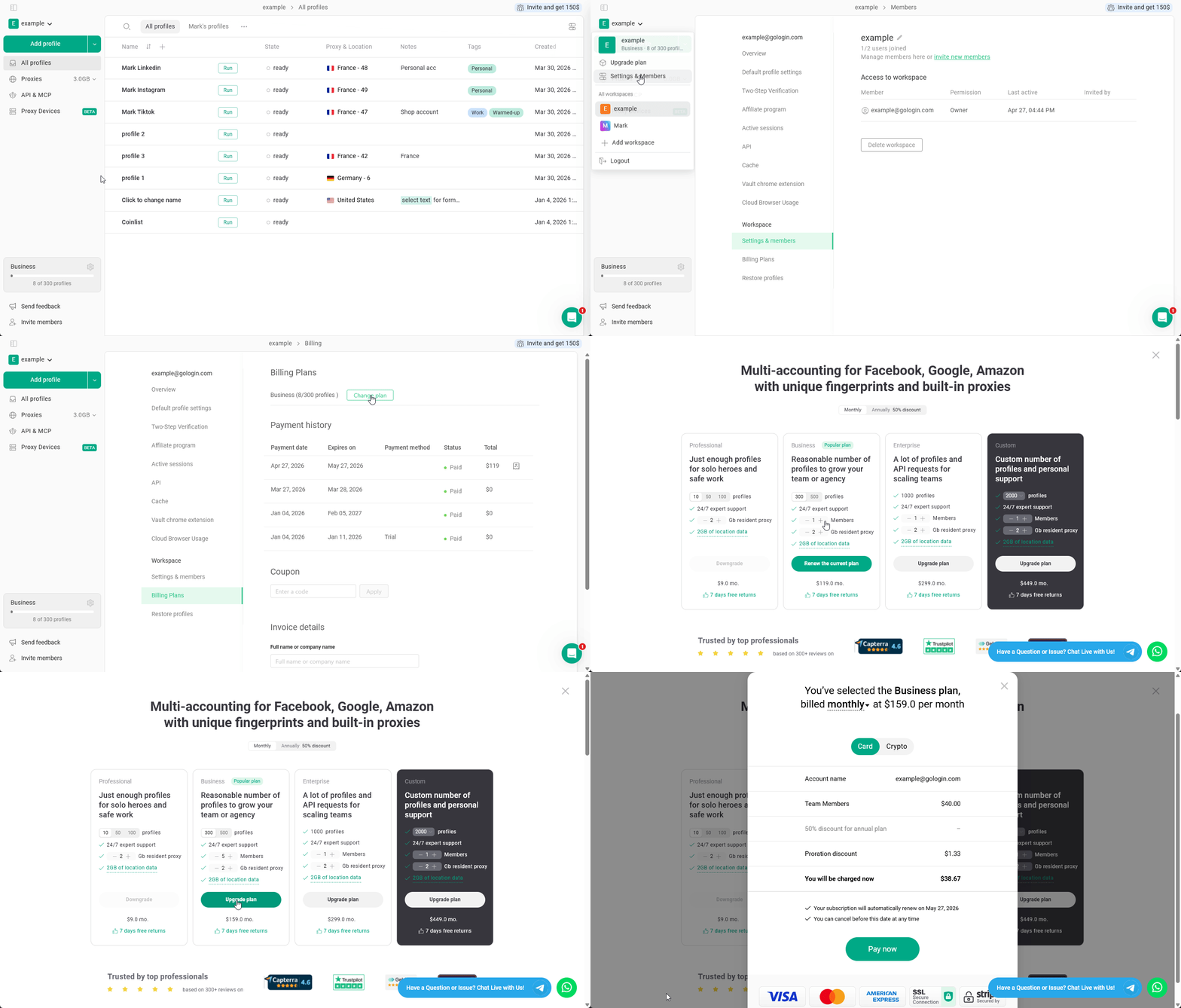 After the purchase, new team members can be invited to the Workspace.
## Access options
You can share access to the either the entire Workspace or only to the specific folders:
* **Workspace access** - provides access to your whole workspace, including all the profiles and folders.
* **Selected folders** - grants access to the selected folders only. The team member will not be able to manage folders.
## Roles & Permissions
### Roles
Whether you are giving access to **folders** or to a **workspace**, there is a set of roles and permissions available:
| Role | View, Run | Create, Edit, Clone, Delete | Share, Transfer | Share and Transfer Folders | Invite Team Members |
| :-------------------- | :-------: | :-------------------------: | :-------------: | :------------------------: | :-----------------: |
| Can run | ✅ | 🚫 | 🚫 | 🚫 | 🚫 |
| Can edit | ✅ | ✅ | 🚫 | 🚫 | 🚫 |
| Folder full access | ✅ | ✅ | ✅ | 🚫 | 🚫 |
| Workspace full access | ✅ | ✅ | ✅ | ✅ | ✅ |
As you can see, your team member will gain control over your folders and members only if they have workspace-wide access.
### Permissions in depth
**View, Run profiles** - can view the profiles and profile settings, run profiles.
**Create, Edit, Clone, Delete profiles** - can create new profiles, edit existing profiles, clone the profiles within the same space, delete existing profiles.
**Share, Transfer profiles** - can share existing profiles one by one and transfer profiles to another workspaces.
**Share and Transfer folders** - can share and transfer folders to another workspaces.
**Invite Team Members** - invite new Team Members to the current workspace. They will not gain access to managing the team beyond that point.
After the purchase, new team members can be invited to the Workspace.
## Access options
You can share access to the either the entire Workspace or only to the specific folders:
* **Workspace access** - provides access to your whole workspace, including all the profiles and folders.
* **Selected folders** - grants access to the selected folders only. The team member will not be able to manage folders.
## Roles & Permissions
### Roles
Whether you are giving access to **folders** or to a **workspace**, there is a set of roles and permissions available:
| Role | View, Run | Create, Edit, Clone, Delete | Share, Transfer | Share and Transfer Folders | Invite Team Members |
| :-------------------- | :-------: | :-------------------------: | :-------------: | :------------------------: | :-----------------: |
| Can run | ✅ | 🚫 | 🚫 | 🚫 | 🚫 |
| Can edit | ✅ | ✅ | 🚫 | 🚫 | 🚫 |
| Folder full access | ✅ | ✅ | ✅ | 🚫 | 🚫 |
| Workspace full access | ✅ | ✅ | ✅ | ✅ | ✅ |
As you can see, your team member will gain control over your folders and members only if they have workspace-wide access.
### Permissions in depth
**View, Run profiles** - can view the profiles and profile settings, run profiles.
**Create, Edit, Clone, Delete profiles** - can create new profiles, edit existing profiles, clone the profiles within the same space, delete existing profiles.
**Share, Transfer profiles** - can share existing profiles one by one and transfer profiles to another workspaces.
**Share and Transfer folders** - can share and transfer folders to another workspaces.
**Invite Team Members** - invite new Team Members to the current workspace. They will not gain access to managing the team beyond that point.