> ## Documentation Index
> Fetch the complete documentation index at: https://gologin.com/docs/llms.txt
> Use this file to discover all available pages before exploring further.
# How to share profiles
If you need to share just one or a couple of profiles, you don't have to use Team members for that: you can use the **Share profile** feature directly from your profile list!
## What counts as a profile share
**1 share = 1 instance of a shared profile.**\
For example: if you share **2 profiles to 5 people** or **10 profiles to a single colleague**, in both cases it will use up **10 shares**.
Only the existing shares are counted towards the limit. If you remove some of the unnecessary shares, you will regain back the sharing slots.
## How to share a profile
**Note**: you can share multiple profiles at once using the [bulk actions](/browser-profiles/profile-management/bulk-actions).
1. Hover over the **three dots** on a profile > **Share**
2. Enter the **user email**
3. Select a role:
1. **Can run** - can **view** and **run** the profiles you shared
2. **Can edit** - can **run**, **clone**, and **edit** the settings of the profiles you shared
3. **Full access** - the same as **edit** but also can **share** profiles
4. Click **Share** to apply changes
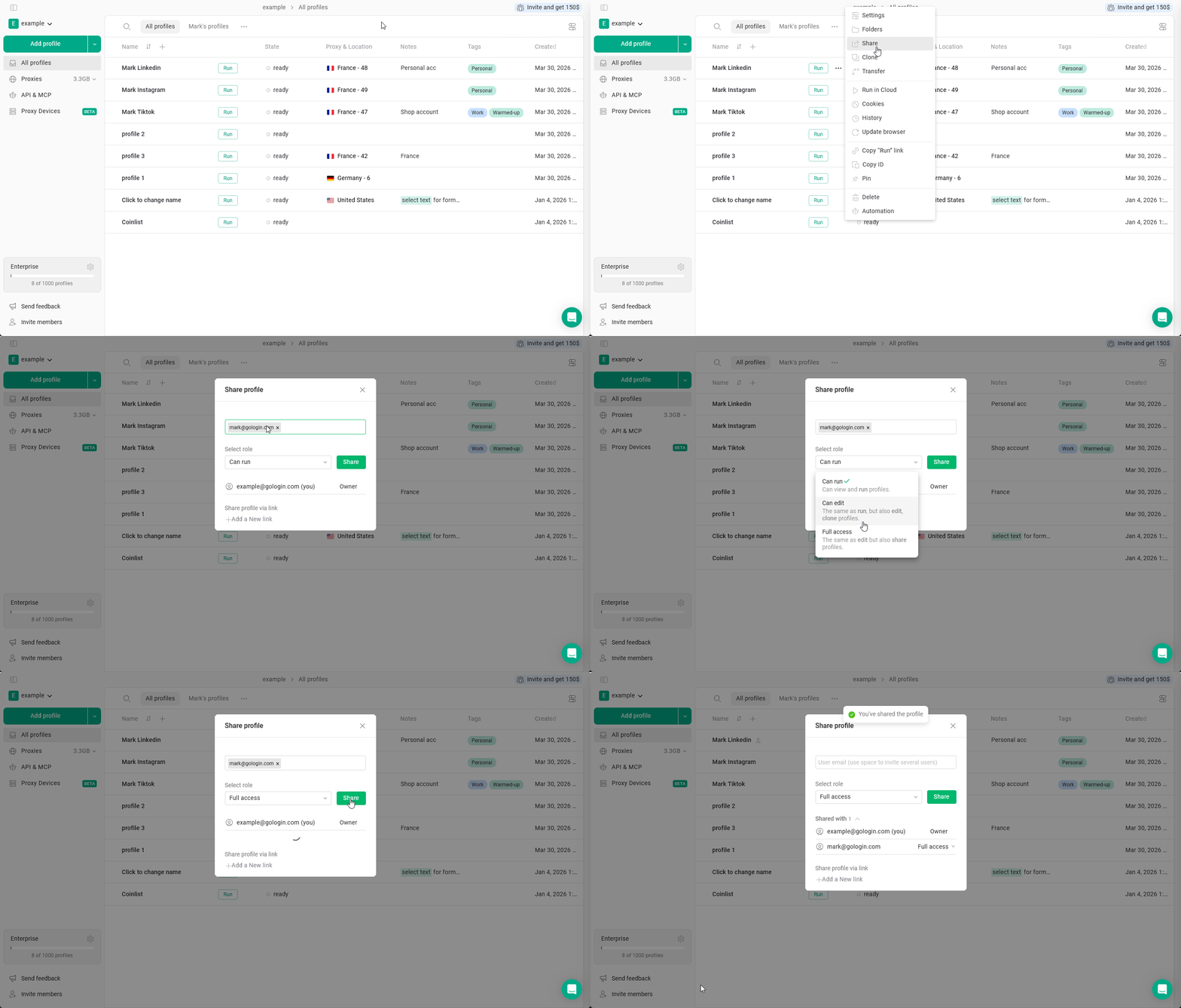 After the share is applied, the profile will appear in the colleague's profile list.
To remove a share you can **click on the role** > **Remove** in the same menu.
After the share is applied, the profile will appear in the colleague's profile list.
To remove a share you can **click on the role** > **Remove** in the same menu.