> ## Documentation Index
> Fetch the complete documentation index at: https://gologin.com/docs/llms.txt
> Use this file to discover all available pages before exploring further.
# Workspace settings
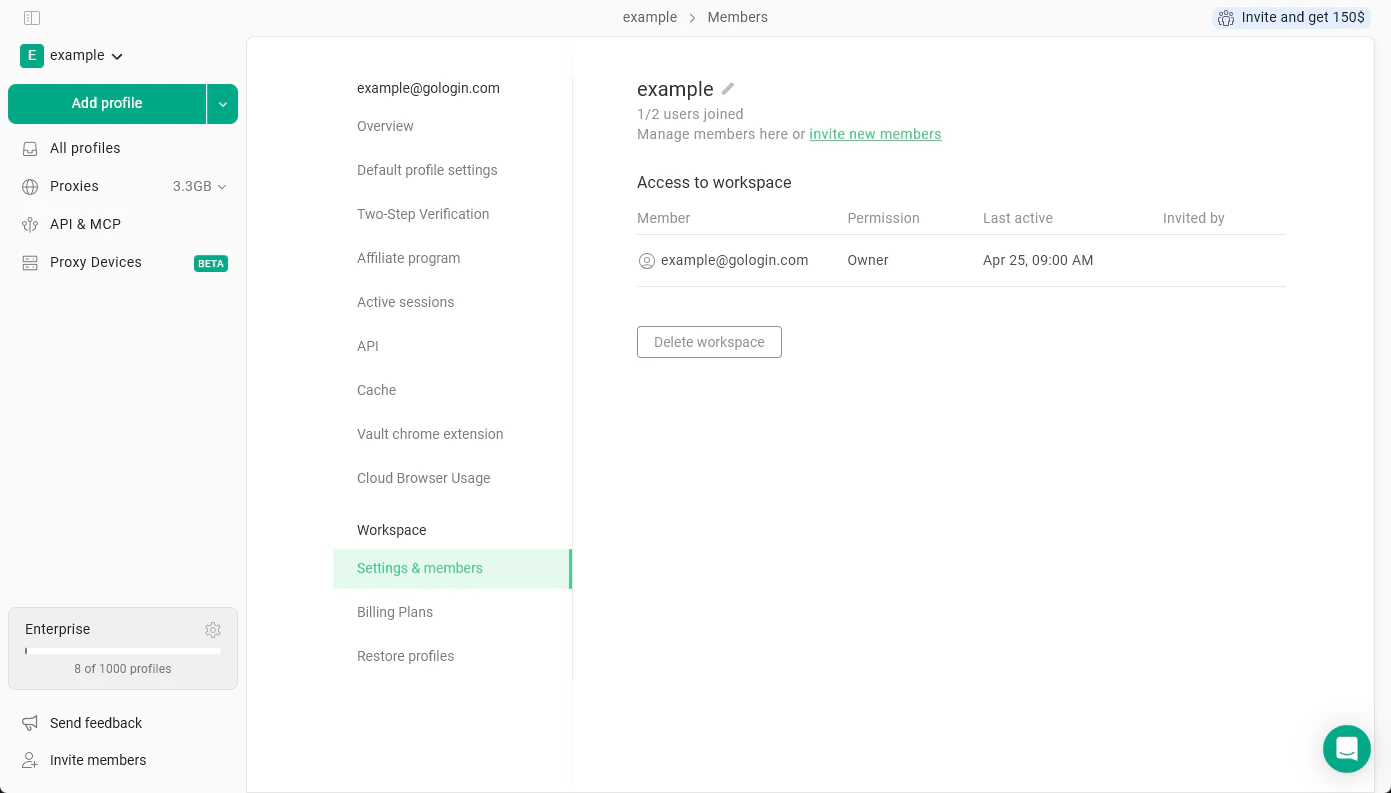
To reach the workspace settings, click on your **workspace name** at the top-left and hit **Settings & Members.**
All your workspace-specific settings will be under the **Workspace section**.
## Settings & Members
Here you can:
* change your workspace name
* see the team member count of the taken and available slots
* manage or invite new [team members](/general/team-collaboration/team-members)
* delete the workspace
To learn about managing team members, see the [Team members](/general/team-collaboration/team-members) article
 ### Renaming your workspace
To rename your workspace:
1. Click on your **workspace name** in the top-left corner
2. Navigate to **Settings & Members**
3. Locate the **workspace name** at the top of the page
4. Click the **pencil icon** next to it
5. Type the new name and hit Enter
### Renaming your workspace
To rename your workspace:
1. Click on your **workspace name** in the top-left corner
2. Navigate to **Settings & Members**
3. Locate the **workspace name** at the top of the page
4. Click the **pencil icon** next to it
5. Type the new name and hit Enter
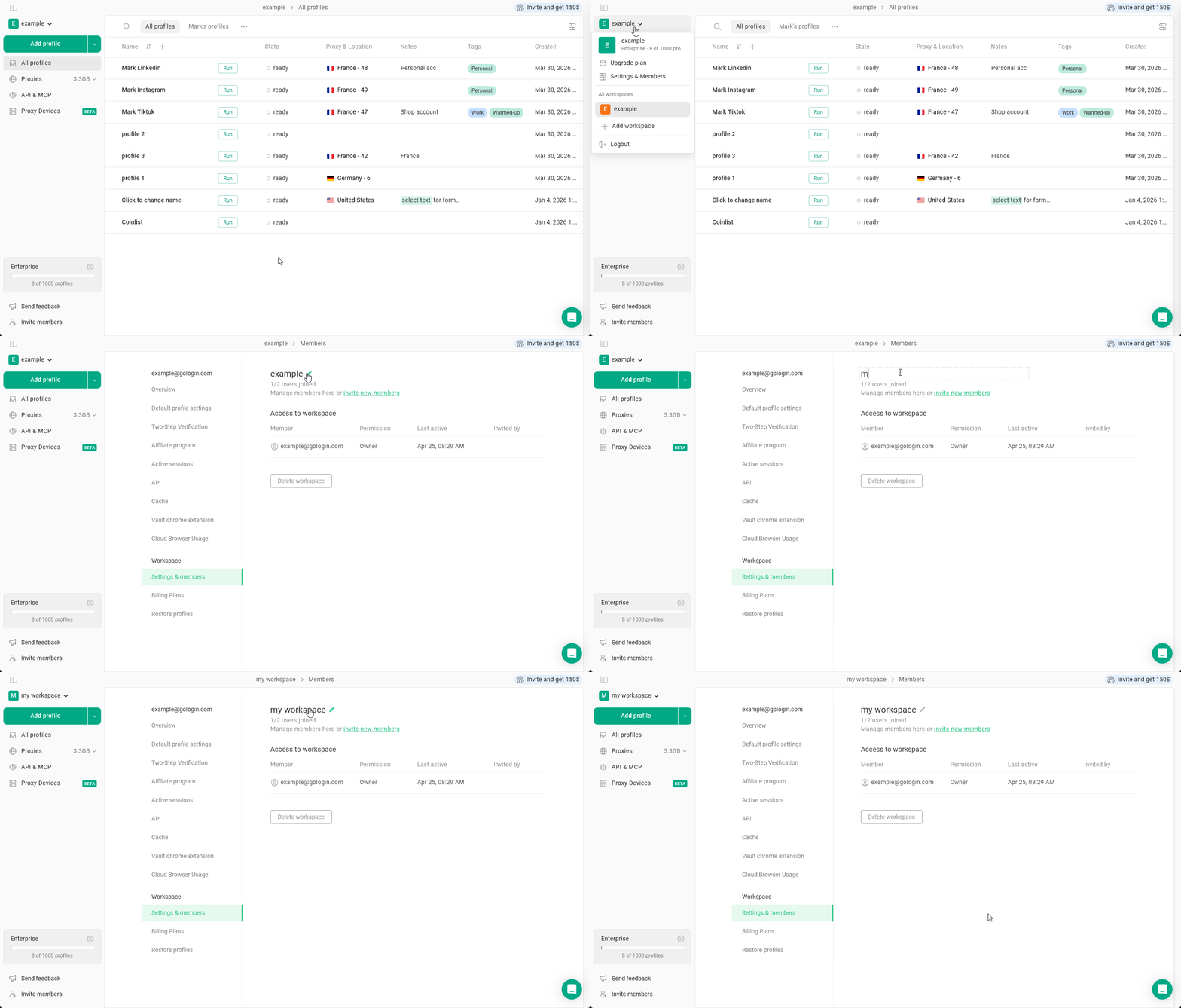 This workspace name is universal, and your team members will also see the name you specify.
### Deleting a workspace
Please be mindful of what you're doing. Do not remove your main workspace as you will lose access to your profiles and subscription at least temporary. In some cases, your profiles might not get restored.
In case you've accidentally removed a workspace and need it back, reach out to the support team as soon as possible.
To remove a workspace:
1. Click on your **workspace name** in the top-left corner
2. **Crucial: select a workspace that you choose to remove or verify you're inside it**
* the workspace name should be outlined in gray in the workspace list and you should see it's profiles in the profile list
3. In the main menu on the top-left, click **Settings & Members**
4. Click the **Delete workspace** button
5. Confirm the workspace parameters and **verify that it's the one you want to delete**.\
Type **Delete**
6. Click the **Delete** button
This workspace name is universal, and your team members will also see the name you specify.
### Deleting a workspace
Please be mindful of what you're doing. Do not remove your main workspace as you will lose access to your profiles and subscription at least temporary. In some cases, your profiles might not get restored.
In case you've accidentally removed a workspace and need it back, reach out to the support team as soon as possible.
To remove a workspace:
1. Click on your **workspace name** in the top-left corner
2. **Crucial: select a workspace that you choose to remove or verify you're inside it**
* the workspace name should be outlined in gray in the workspace list and you should see it's profiles in the profile list
3. In the main menu on the top-left, click **Settings & Members**
4. Click the **Delete workspace** button
5. Confirm the workspace parameters and **verify that it's the one you want to delete**.\
Type **Delete**
6. Click the **Delete** button
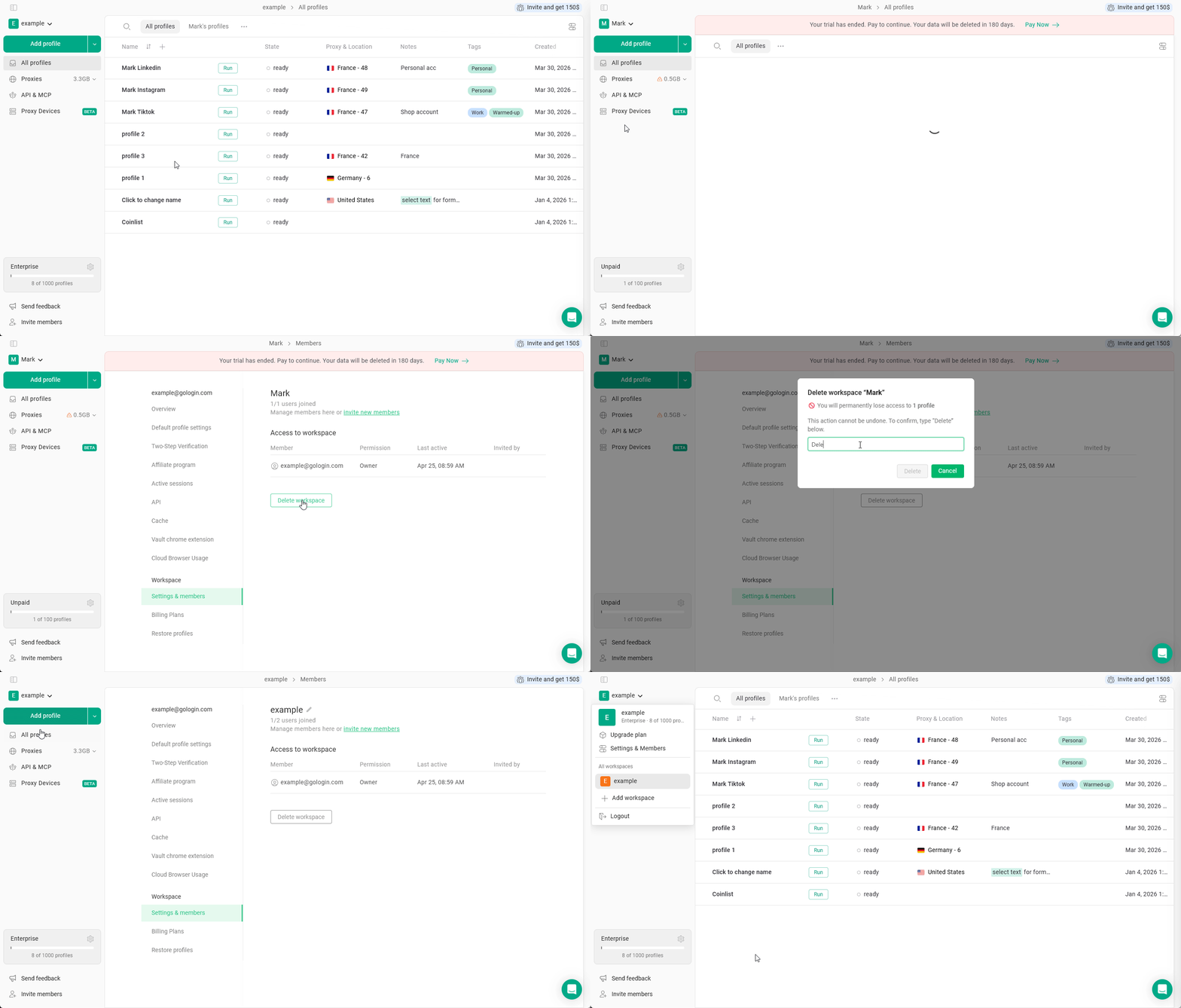 Gologin will remove the workspace and forward you to the settings of one of the workspaces you currently have.
## Billing plans & Restore profiles
These sections of menu allow you to:
* [upgrade your subscription plan](/general/account-and-billing/change-plan) or add more team members and proxy traffic
* control your [payment method](/general/account-and-billing/payment-methods)
* examine your payment history and the date when current subscription expires
* [input promo codes](/general/account-and-billing/promo-codes)
* [restore your accidentally deleted profiles](/browser-profiles/profile-management/restore-deleted-profiles)
Please click the respective links to learn about the features.
Gologin will remove the workspace and forward you to the settings of one of the workspaces you currently have.
## Billing plans & Restore profiles
These sections of menu allow you to:
* [upgrade your subscription plan](/general/account-and-billing/change-plan) or add more team members and proxy traffic
* control your [payment method](/general/account-and-billing/payment-methods)
* examine your payment history and the date when current subscription expires
* [input promo codes](/general/account-and-billing/promo-codes)
* [restore your accidentally deleted profiles](/browser-profiles/profile-management/restore-deleted-profiles)
Please click the respective links to learn about the features.