> ## Documentation Index
> Fetch the complete documentation index at: https://gologin.com/docs/llms.txt
> Use this file to discover all available pages before exploring further.
# Two-Factor Authentication
**Two-factor authentication** or **2FA** is a user identification method that requires you to input a 6-digit code from your Authenticator app every time you login to your Gologin account. That enhances your account security by a mile!
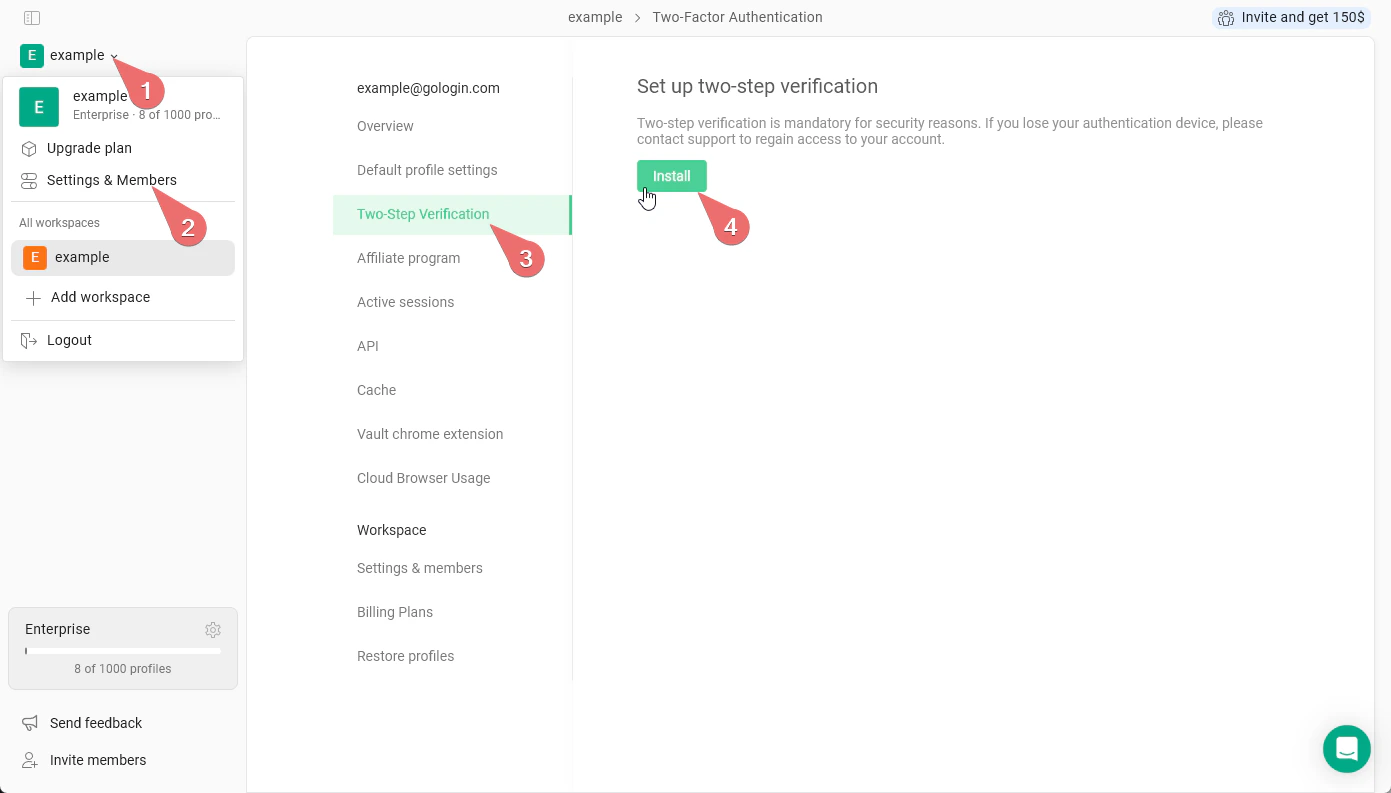
To enable the two-step verification feature in your Gologin account, follow the instructions below:
1. Go to the **main menu at the top-left** > **Settings & Members**
2. Click the **Two-Step Verification** tab
3. Click **Install** and **enter your account password**. You will get the **2FA QR code**
4. On your iOS or Android phone, install the **Google Authenticator** app
5. Tap **+** > **Scan the QR code**
6. As soon as the code is scanned, give a name to your new 2FA authentication method and **confirm the changes**
 Done! Once completed, your Gologin account will require a verification code from the Google Authenticator app during login, significantly enhancing your account's security.