> ## Documentation Index
> Fetch the complete documentation index at: https://gologin.com/docs/llms.txt
> Use this file to discover all available pages before exploring further.
# Changing your email and password
If you are registered with Google, you may not be able to change the email or password right away. Check the Google Authentication section below to learn more.
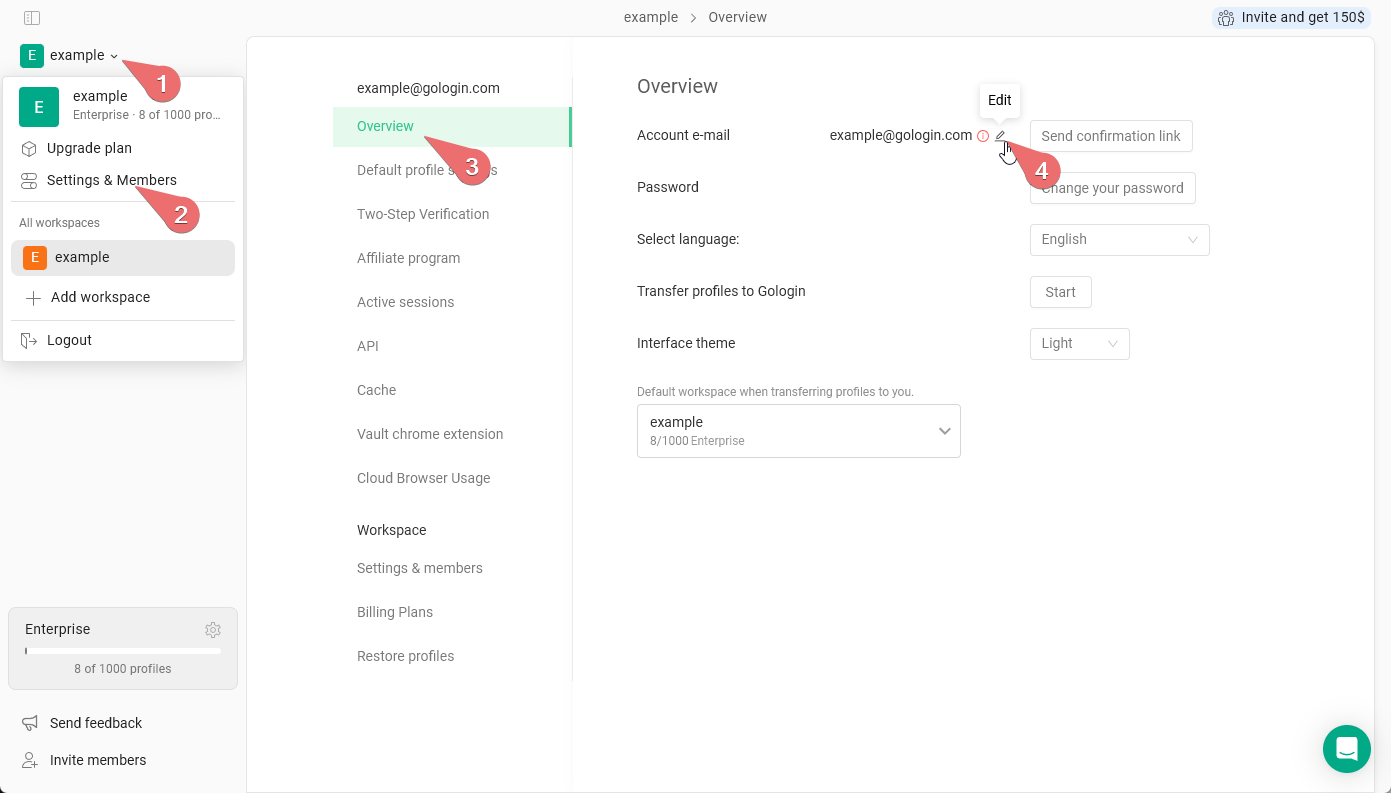
## Changing email address
1. Click on the **workspace name** in the top-left > **Settings & Members**
2. Click **Overview**
3. Click the **Edit** button next to your current email
4. Input your **new email** address and the **current password**
5. Click **Submit** and you're done
 ## Changing your password
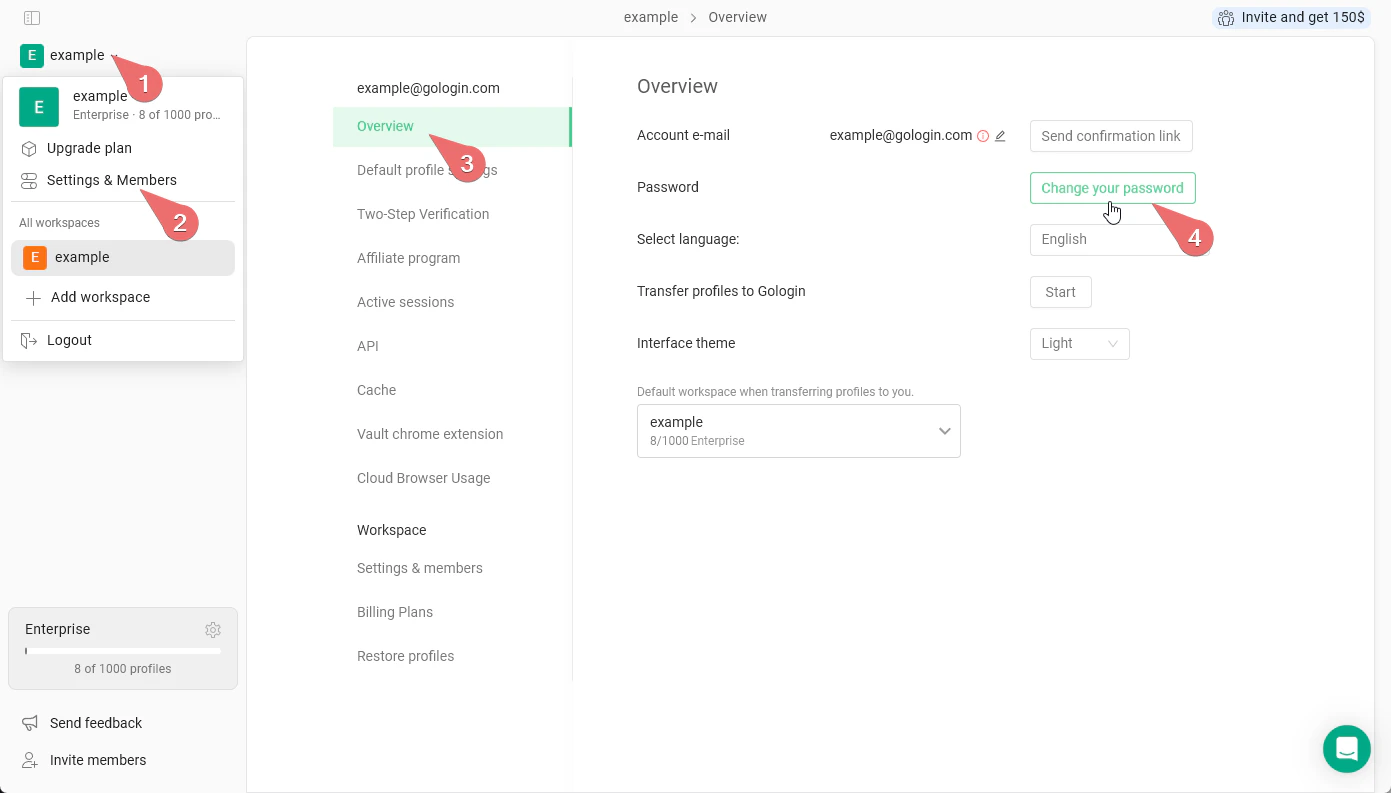
1. Click on the **workspace name** in the top-left > **Settings & Members**
2. Click **Overview**
3. Hit the **Change your password** button
4. Input your **current password once and the new password twice**
5. Click **Submit** so the changes are saved
## Changing your password
1. Click on the **workspace name** in the top-left > **Settings & Members**
2. Click **Overview**
3. Hit the **Change your password** button
4. Input your **current password once and the new password twice**
5. Click **Submit** so the changes are saved
 ## Resetting your forgotten password
Use this method to get your password instead of Sign in with Google
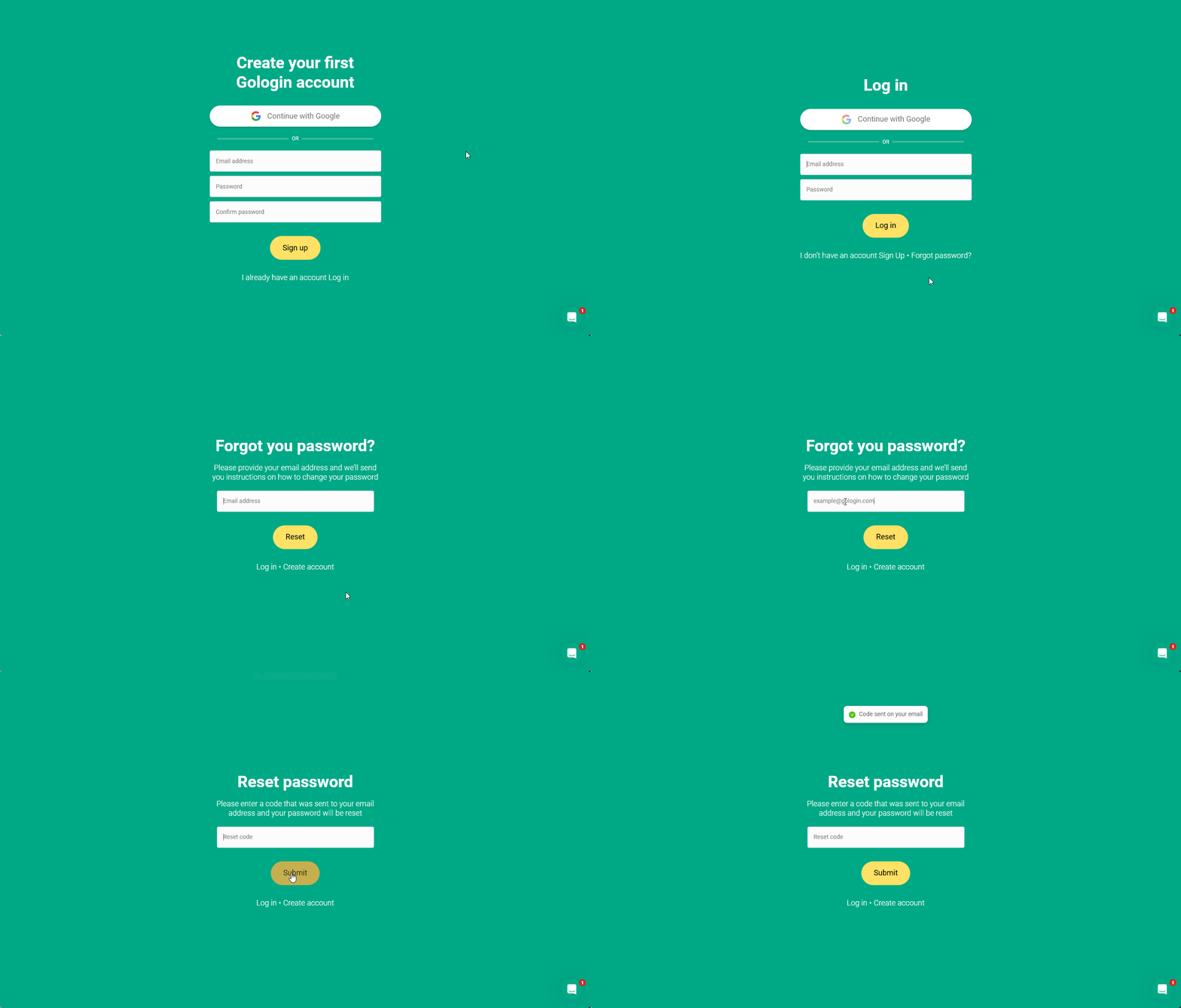
To reset a password when you are not logged in:
1. **At the login page**, go to **Forgot password**
2. Enter your **current email address** and click **Reset**. Don't leave the page yet!
3. Access your email and check your recent messages, open the new one with the **recovery code**
4. Get back to the recovery page > **paste the code** > **Submit**
5. Create a new password for your account
## Resetting your forgotten password
Use this method to get your password instead of Sign in with Google
To reset a password when you are not logged in:
1. **At the login page**, go to **Forgot password**
2. Enter your **current email address** and click **Reset**. Don't leave the page yet!
3. Access your email and check your recent messages, open the new one with the **recovery code**
4. Get back to the recovery page > **paste the code** > **Submit**
5. Create a new password for your account
 ## Google Authentication
If you created your Gologin account using **Sign in with Google**, you won't be able to use a login and password to enter the account at first.
To get your login and password, follow the steps from **Resetting your forgotten password** guide just above. It will let you use the login-password authentication instead of Continue with Google.
You might want to set up a login and password if you:
* Need to change your Gologin password without altering your Google account password
* Want to update the email associated with your Gologin account
* Need to enable two-factor authentication for your Gologin account
* Find it more convenient
## Google Authentication
If you created your Gologin account using **Sign in with Google**, you won't be able to use a login and password to enter the account at first.
To get your login and password, follow the steps from **Resetting your forgotten password** guide just above. It will let you use the login-password authentication instead of Continue with Google.
You might want to set up a login and password if you:
* Need to change your Gologin password without altering your Google account password
* Want to update the email associated with your Gologin account
* Need to enable two-factor authentication for your Gologin account
* Find it more convenient