> ## Documentation Index
> Fetch the complete documentation index at: https://gologin.com/docs/llms.txt
> Use this file to discover all available pages before exploring further.
# Active sessions
The **Active Sessions** page gives you a complete view of every device and location currently logged into your GoLogin account. Use it to monitor account access, investigate suspicious logins, and revoke sessions you don't recognize - all from one place.
## How to get there
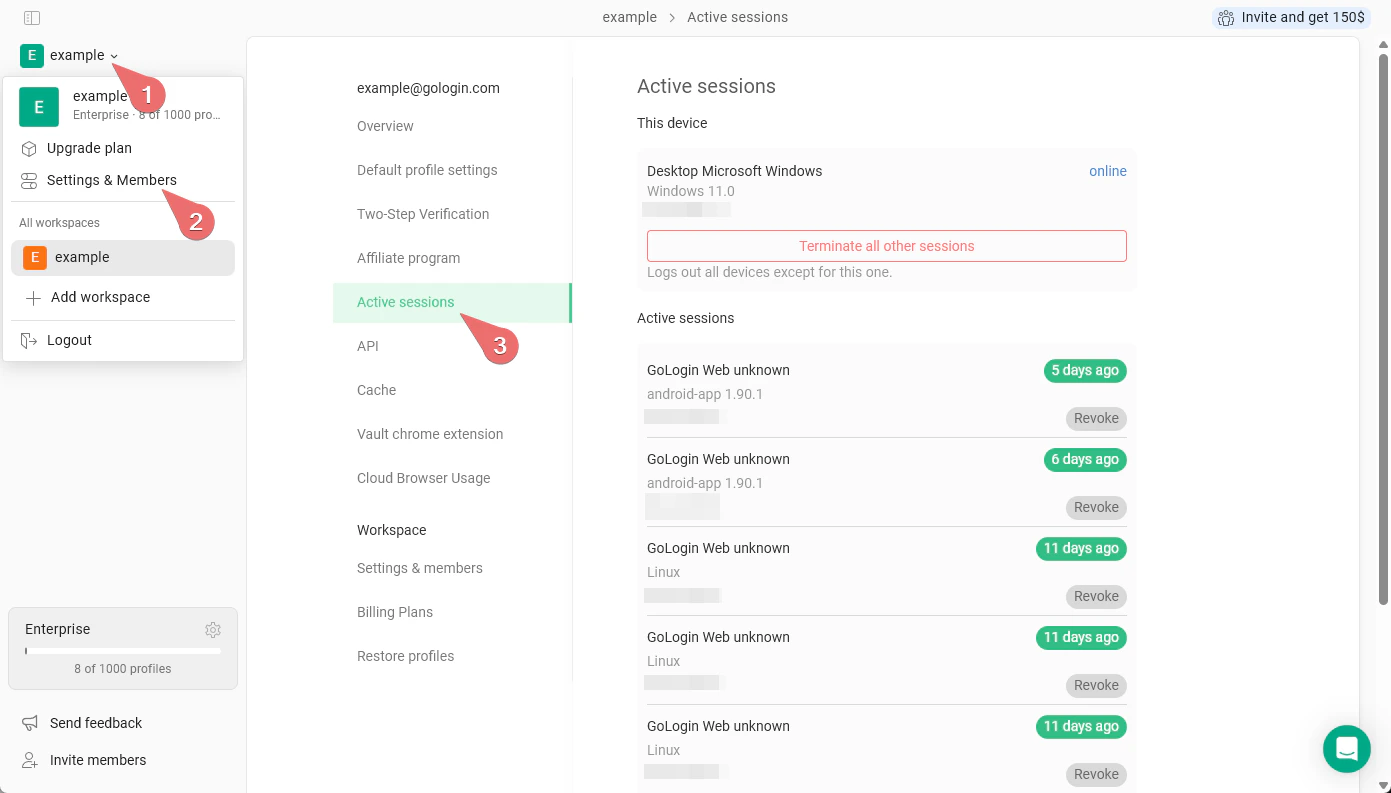
1. Click your **workspace name** in the top-left corner of the Gologin app
2. Select **Settings & Members** from the dropdown menu
3. In the left sidebar, click **Active sessions**
 ## What You'll see
**This Device**
At the top of the page, GoLogin highlights the session you're currently using and marks it as **online**. Your current IP address is displayed beneath the device name.
This section also contains the **Terminate all other sessions** button.
**Active Sessions List**
Below your current device, all other active sessions are listed. Each entry shows:
| Field | Description |
| :-------------------- | :------------------------------------------------------------------- |
| **Device / Platform** | The platform used to log in (e.g., GoLogin Web, Android app, Linux). |
| **App version** | The GoLogin client version at the time of login. |
| **IP address** | The IP address associated with that session. |
| **Last active** | How long ago the session was last used. |
| **Revoke button** | A per-session button to immediately log out that specific session. |
## Actions you can take
**Terminate All Other Sessions**
Click the **Terminate all other sessions** button to instantly log out every device except the one you're currently using. This is the fastest way to lock down your account if you suspect unauthorized access.
**Revoke a Single Session**
Each session in the list has its own **Revoke** button. Use this to log out a specific device without affecting any others. This is useful when you recognize most sessions but want to remove one unfamiliar entry.
## What You'll see
**This Device**
At the top of the page, GoLogin highlights the session you're currently using and marks it as **online**. Your current IP address is displayed beneath the device name.
This section also contains the **Terminate all other sessions** button.
**Active Sessions List**
Below your current device, all other active sessions are listed. Each entry shows:
| Field | Description |
| :-------------------- | :------------------------------------------------------------------- |
| **Device / Platform** | The platform used to log in (e.g., GoLogin Web, Android app, Linux). |
| **App version** | The GoLogin client version at the time of login. |
| **IP address** | The IP address associated with that session. |
| **Last active** | How long ago the session was last used. |
| **Revoke button** | A per-session button to immediately log out that specific session. |
## Actions you can take
**Terminate All Other Sessions**
Click the **Terminate all other sessions** button to instantly log out every device except the one you're currently using. This is the fastest way to lock down your account if you suspect unauthorized access.
**Revoke a Single Session**
Each session in the list has its own **Revoke** button. Use this to log out a specific device without affecting any others. This is useful when you recognize most sessions but want to remove one unfamiliar entry.