> ## Documentation Index
> Fetch the complete documentation index at: https://gologin.com/docs/llms.txt
> Use this file to discover all available pages before exploring further.
# Downloading and uploading files
When you run a profile in the cloud, the browser is not running on your computer - it runs on a remote server. Because of this, downloading and uploading files works a bit differently than in a local browser. Files go through an intermediate step via the cloud container.
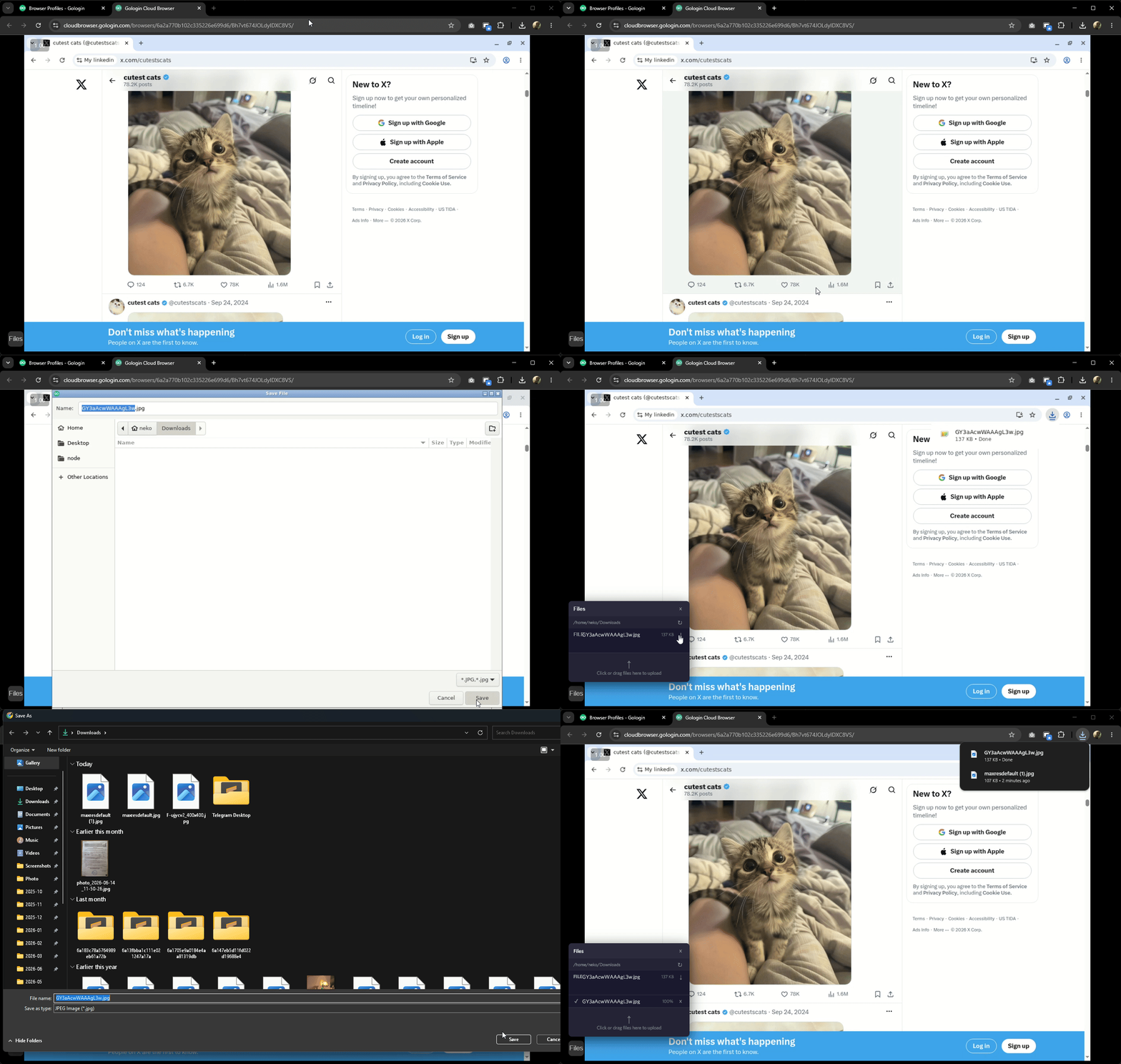
### Downloading a file to your computer
1. Download the file from the website as you normally would. The file will be saved to the cloud container, not your local machine
2. Click the **Files** icon in the bottom-left corner of the cloud browser window
3. Click the **↓** button next to the file name
4. A file explorer window will open on your local computer. Choose a folder and save the file
 ### Uploading a file to a website
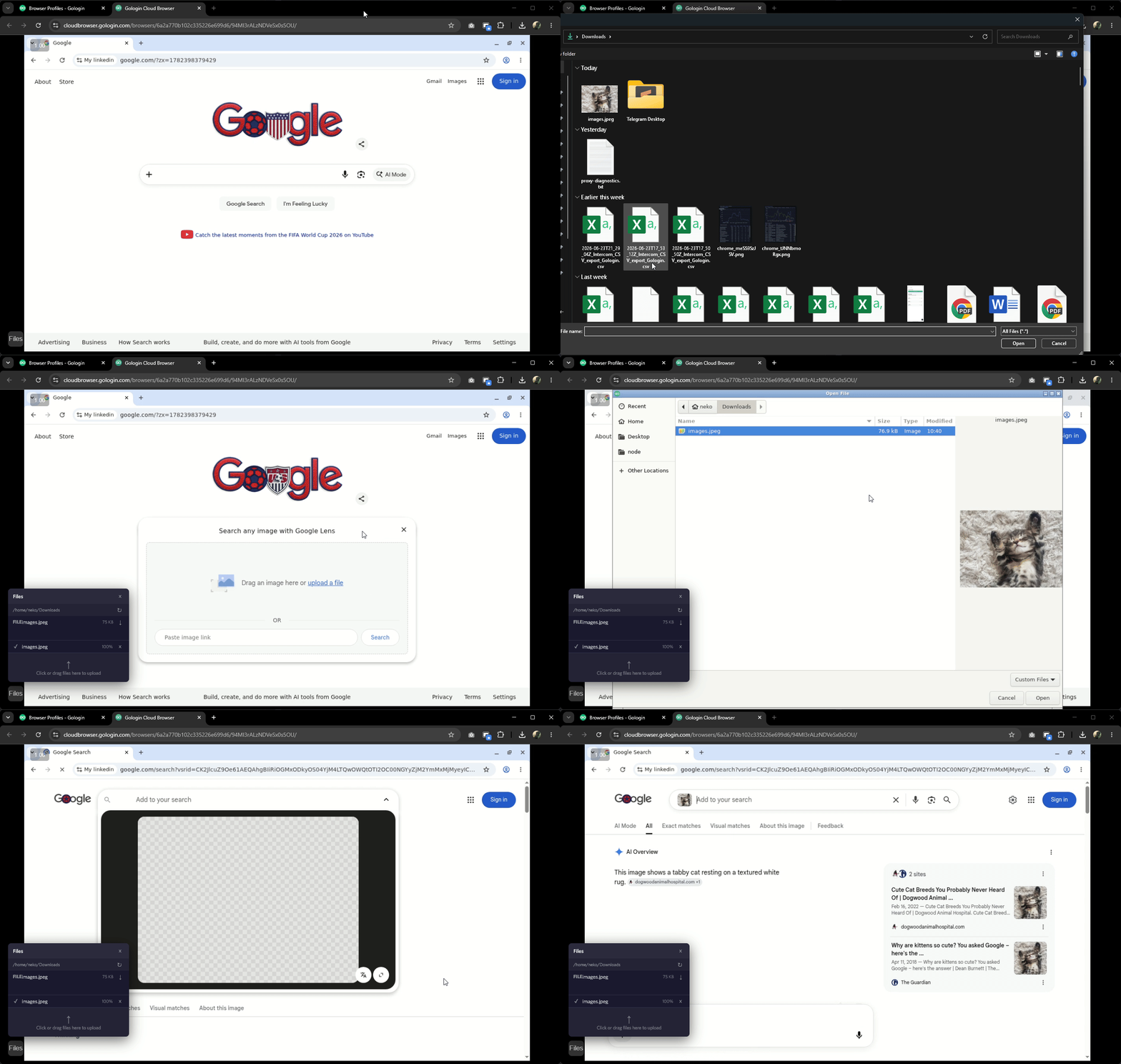
1. Click the Files icon in the bottom-left corner of the cloud browser window
2. Choose **Click or drag files here** and select the file from your local computer. The file will be uploaded to the cloud container
3. On the target website, click the upload button
4. A file explorer on the remote container will open. Go to the **Downloads** folder, select the file you uploaded, and click **Open**
### Uploading a file to a website
1. Click the Files icon in the bottom-left corner of the cloud browser window
2. Choose **Click or drag files here** and select the file from your local computer. The file will be uploaded to the cloud container
3. On the target website, click the upload button
4. A file explorer on the remote container will open. Go to the **Downloads** folder, select the file you uploaded, and click **Open**