> ## Documentation Index
> Fetch the complete documentation index at: https://gologin.com/docs/llms.txt
> Use this file to discover all available pages before exploring further.
# Notes, Tags and Status
These text profile fields help users to differentiate, filter and find profiles with ease.
## Notes
**Notes** in Gologin allow you to store additional information directly within each browser profile. This is useful for keeping track of account details, reminders, or any context related to a specific profile.
To **add a note to the profile**, simply click on the notes of the profile and start typing.
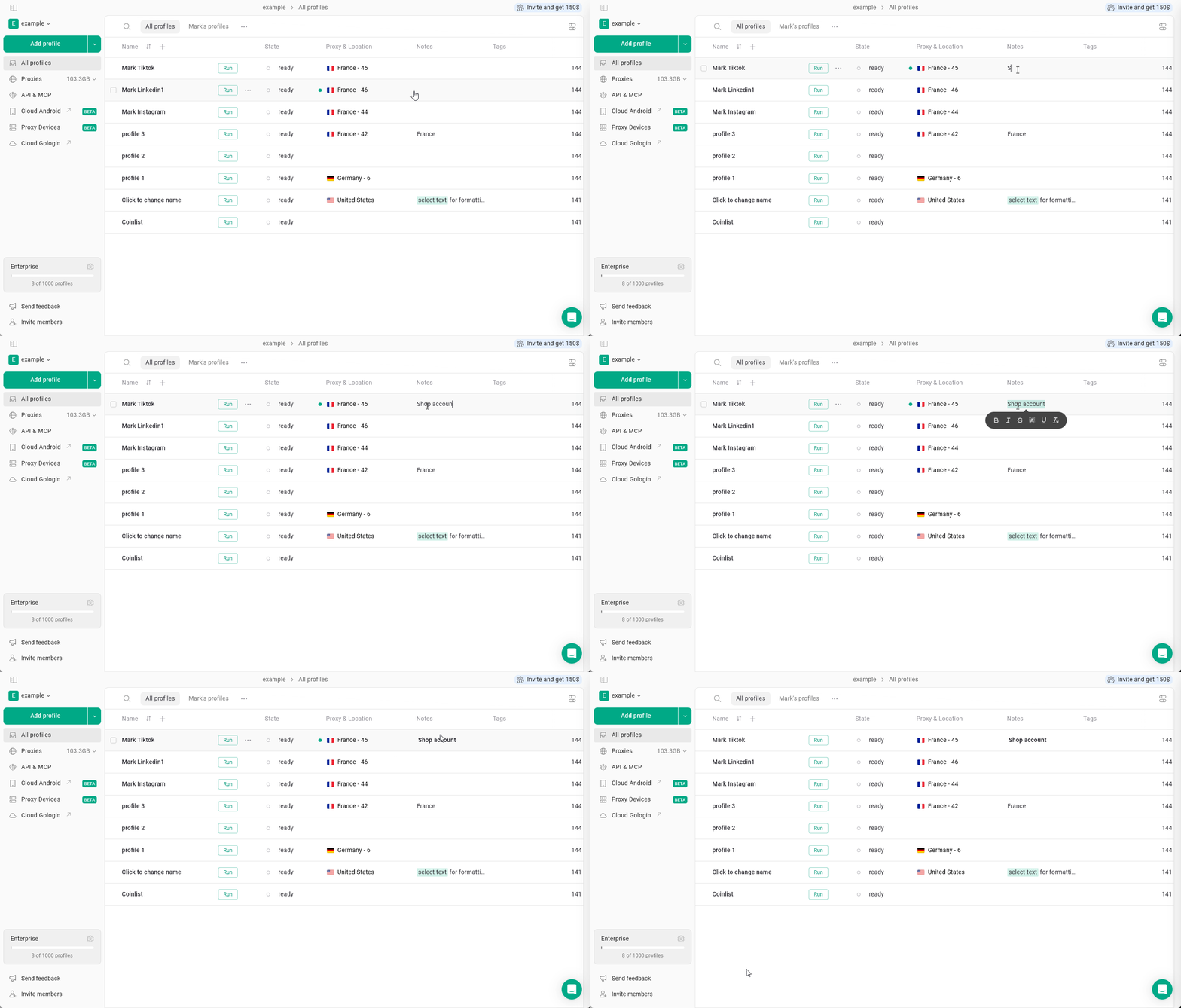 Notes support basic **formatting**, including **bold**, *italic*, ~~striketrough~~, background color, underline.
Select the text and apply it!
## Tags and Status
**Tags** allow you to label profiles with keywords to help categorize and filter them by account type, platform or project, while **Status** displays the workflow state.
These fields are hidden by default. Visit [this page](/browser-profiles/profile-management/add-more-info-columns) to learn how to enable them in the settings.
The key difference is that a profile can have multiple tags, but only one status.
### Create or add
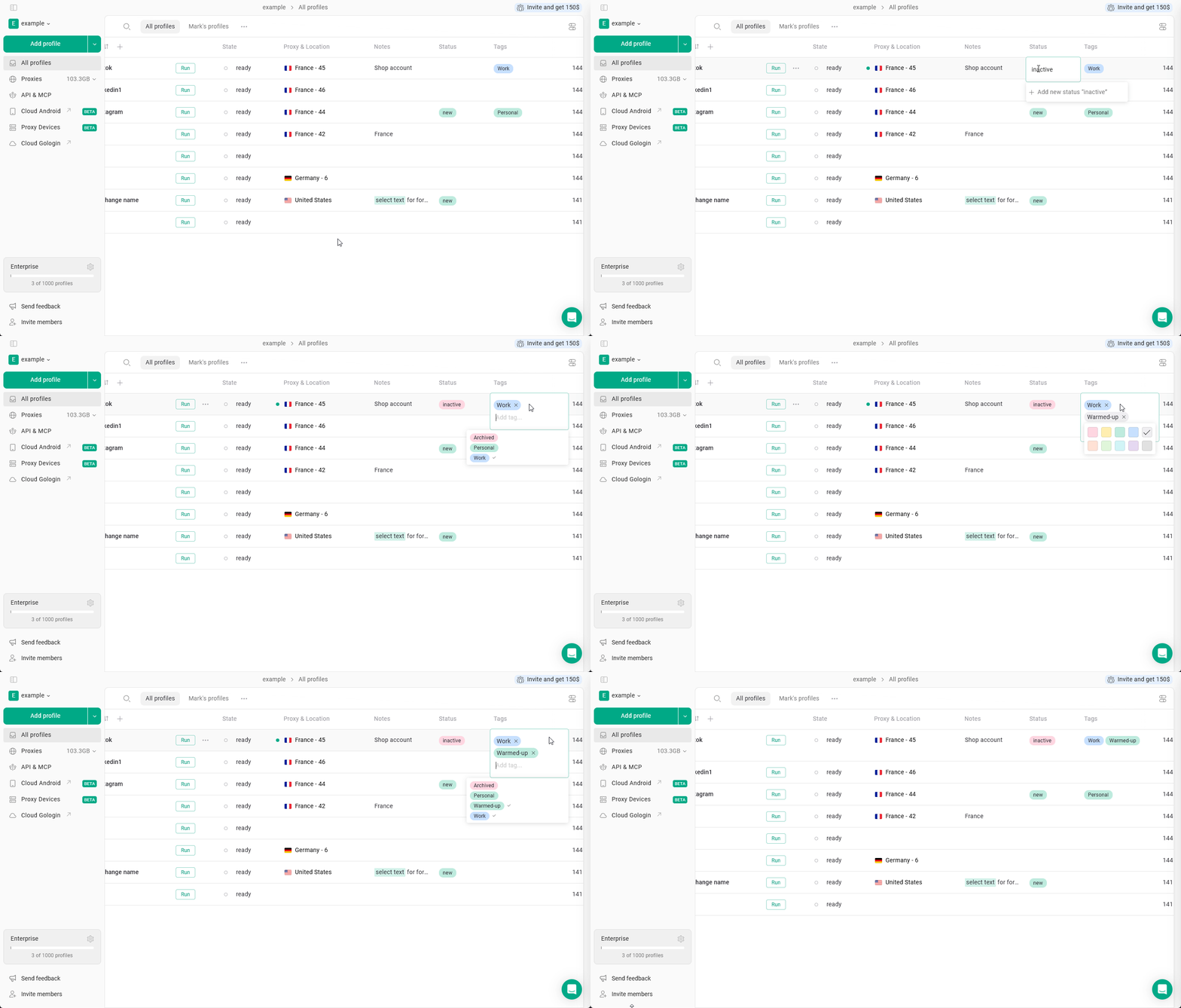
To **create a new tag or status**, click on the respective field in the profile and start typing. You can also choose **a color** while creating or editing it.
You can **assign existing tags** to a profile by selecting them from the list.
 ### Filter by
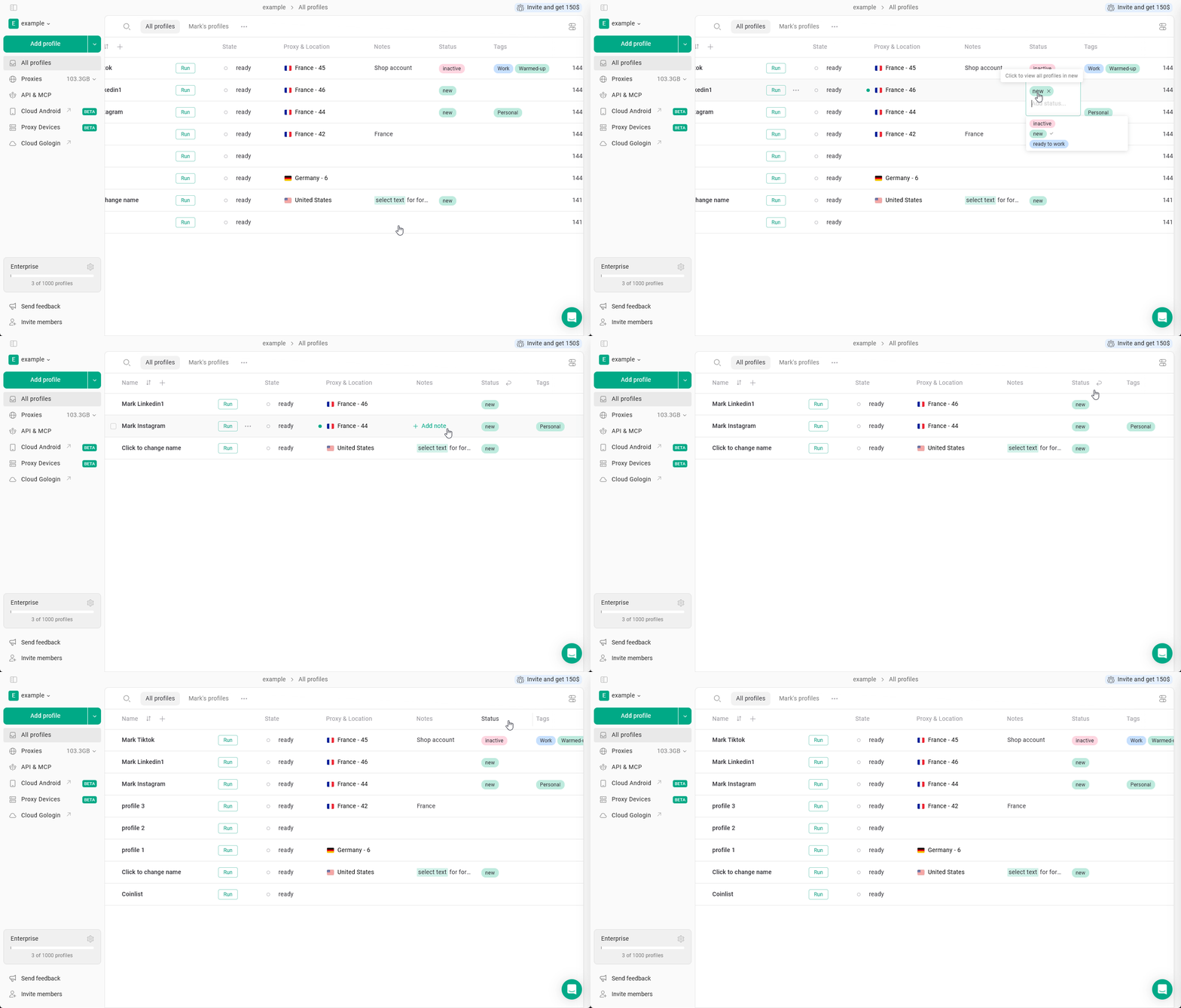
You can filter profiles by status or tags. To do this, click on the corresponding field and select the tag or status you want to filter by.
To clear the filter, click the arrow next to the field category.
### Filter by
You can filter profiles by status or tags. To do this, click on the corresponding field and select the tag or status you want to filter by.
To clear the filter, click the arrow next to the field category.
 ### Modify tags and status
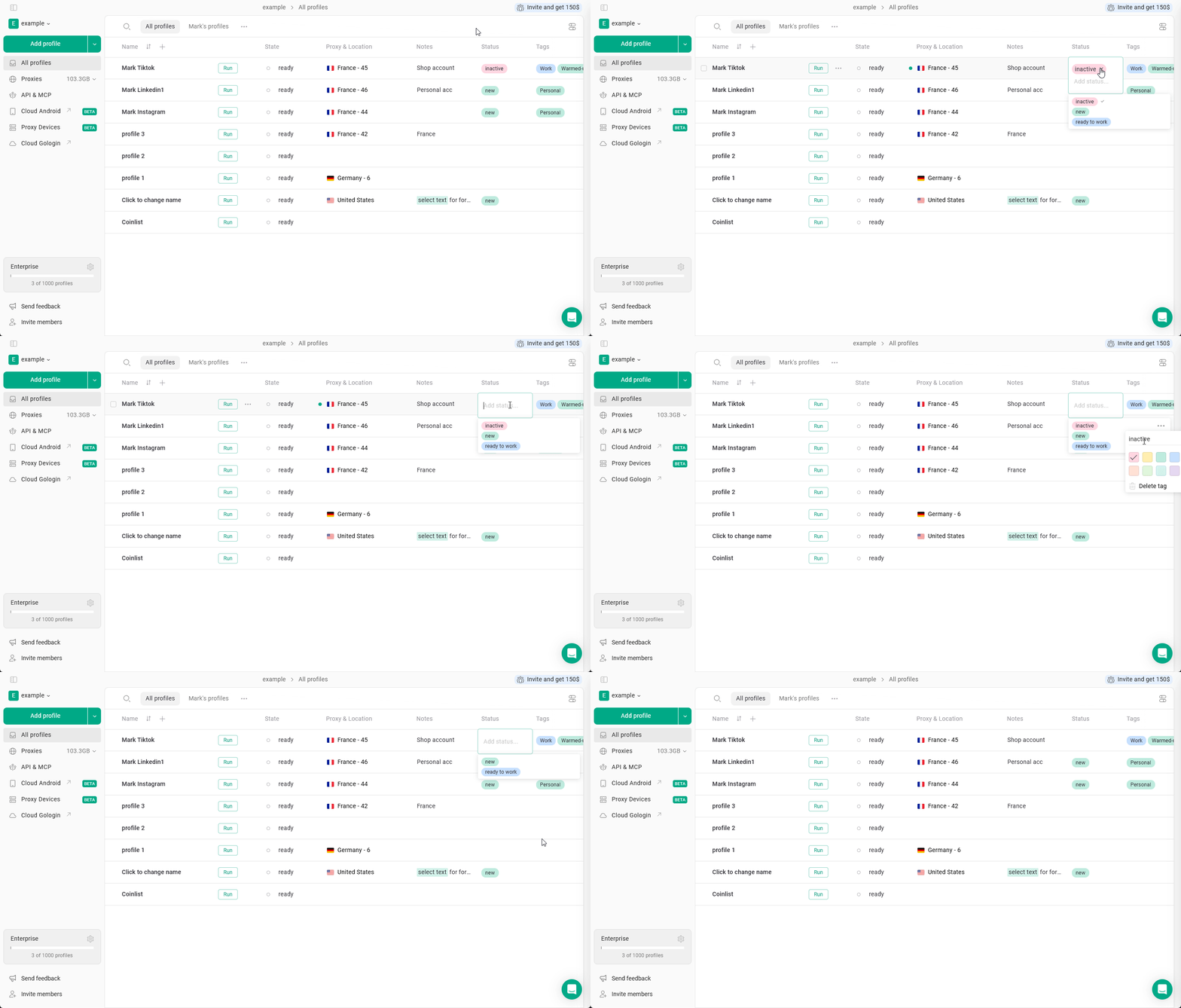
* To **remove** a tag or status from a profile:
### Modify tags and status
* To **remove** a tag or status from a profile:
Click the field → click **X** next to the item
* To **delete** a tag or status entirely:
Click the field → click the **three dots** next to the item in the list → **Delete**
You can also change tag and status colors from this list.
 ## Teamwork
These fields behave differently when working with shared profiles, folders, and workspaces.
* **Notes are fully synced**. Any changes made to notes will be visible to all team members.
* **Tags and Status are user-specific**. When you share a profile, recipients will not see your tags or status and can assign their own based on their workflow.
Team members need "can edit" access to change profile notes, status, and tags
## Teamwork
These fields behave differently when working with shared profiles, folders, and workspaces.
* **Notes are fully synced**. Any changes made to notes will be visible to all team members.
* **Tags and Status are user-specific**. When you share a profile, recipients will not see your tags or status and can assign their own based on their workflow.
Team members need "can edit" access to change profile notes, status, and tags