> ## Documentation Index
> Fetch the complete documentation index at: https://gologin.com/docs/llms.txt
> Use this file to discover all available pages before exploring further.
# Profile fields
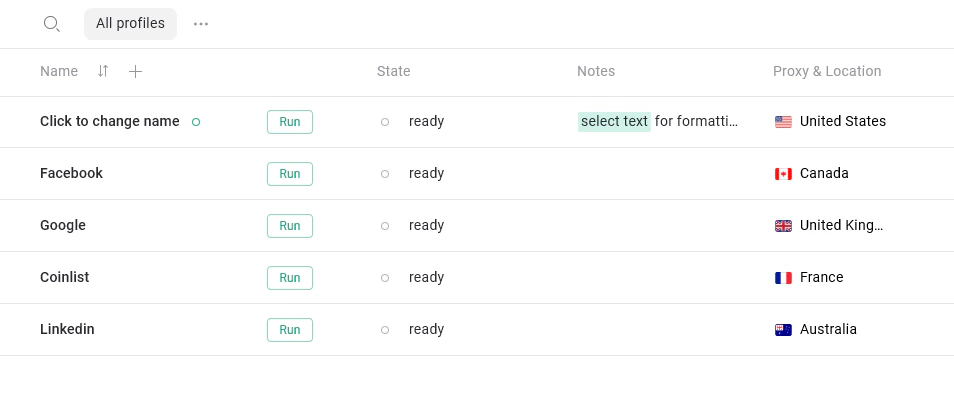
Profile fields are the columns displayed in the **All profiles** table. They provide key information about each profile at a glance.
## Default profile fields
By default, you may see fields like:
* **State** – current profile status (e.g. *ready*, *running*)
* **Proxy & Location** – assigned proxy
* **Notes** – additional information you’ve added
 ## Customizing profile fields visibility
You can show or hide any fields depending on what you need.
To open field settings:
1. Go to **All profiles**
2. Click the **column settings icon** in the top-right corner of the table (as shown below)
3. The **Column Settings** panel will open
## Customizing profile fields visibility
You can show or hide any fields depending on what you need.
To open field settings:
1. Go to **All profiles**
2. Click the **column settings icon** in the top-right corner of the table (as shown below)
3. The **Column Settings** panel will open
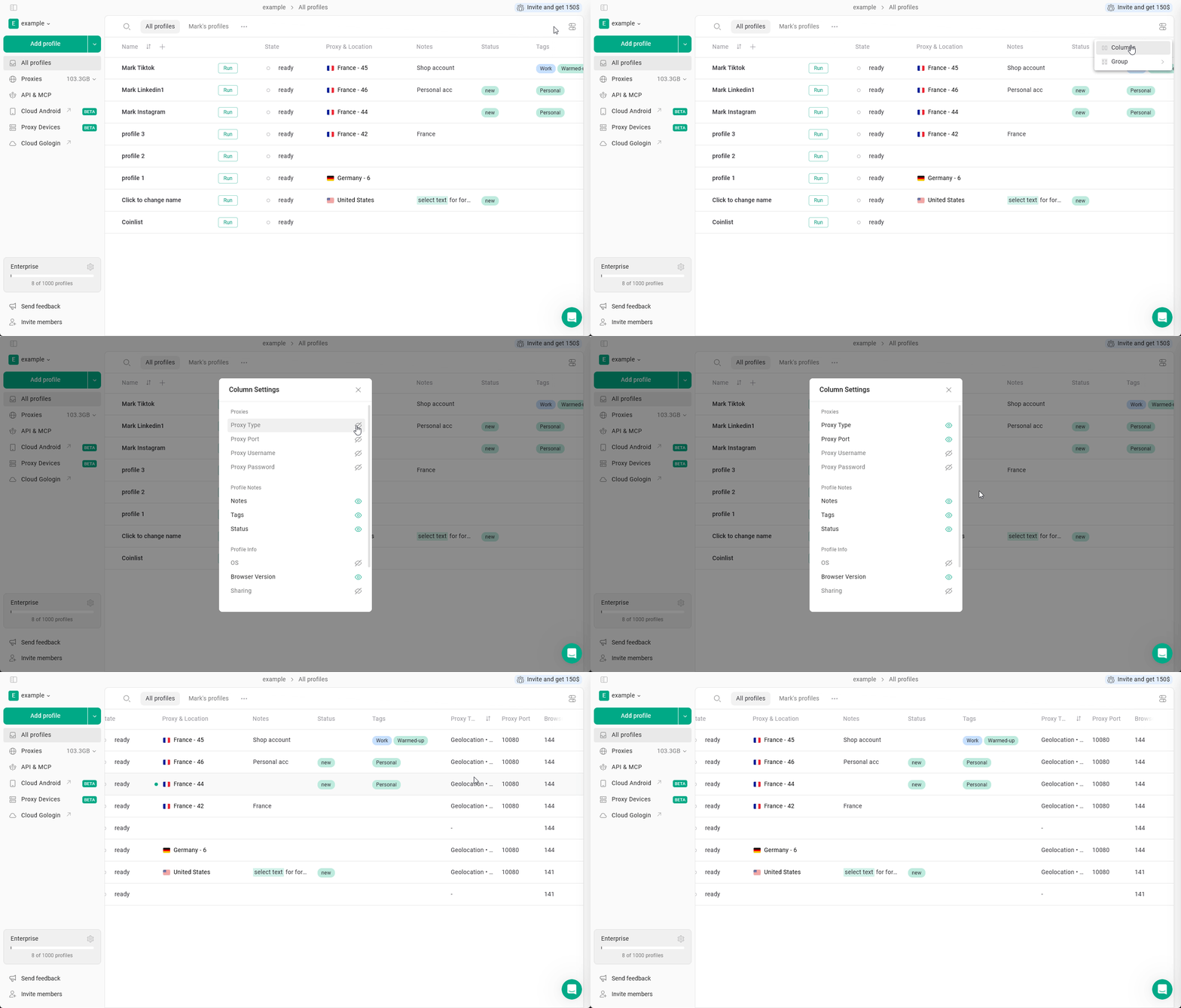 There you can choose from such fields as:
* Proxies - useful when working with different proxy configurations
* **Proxy Type** - HTTPS, SOCKS or Gologin proxy (geolocation)
* **Proxy Port**
* **Proxy Username**
* **Proxy Password**
* Profile Notes - mark, note or categorize profiles
* **Notes** - keep track of account details, reminders, etc
* **Tags** - helps to categorize and filter profiles by account type, platform or project
* **Status** - usually used to display the workflow state
* Profile info - helpful for technical management and team workflows
* **OS** - operating system set in the profile
* **Browser Version** - profile's browser version
* **Sharing** - number of users with access to the profile
* Date & Time - useful for tracking activity and identifying stale or unused profiles
* **Last update** – when the profile was last modified
* **Last launch** – last time the profile was started
* **Created** – when the profile was created
## Rearranging columns
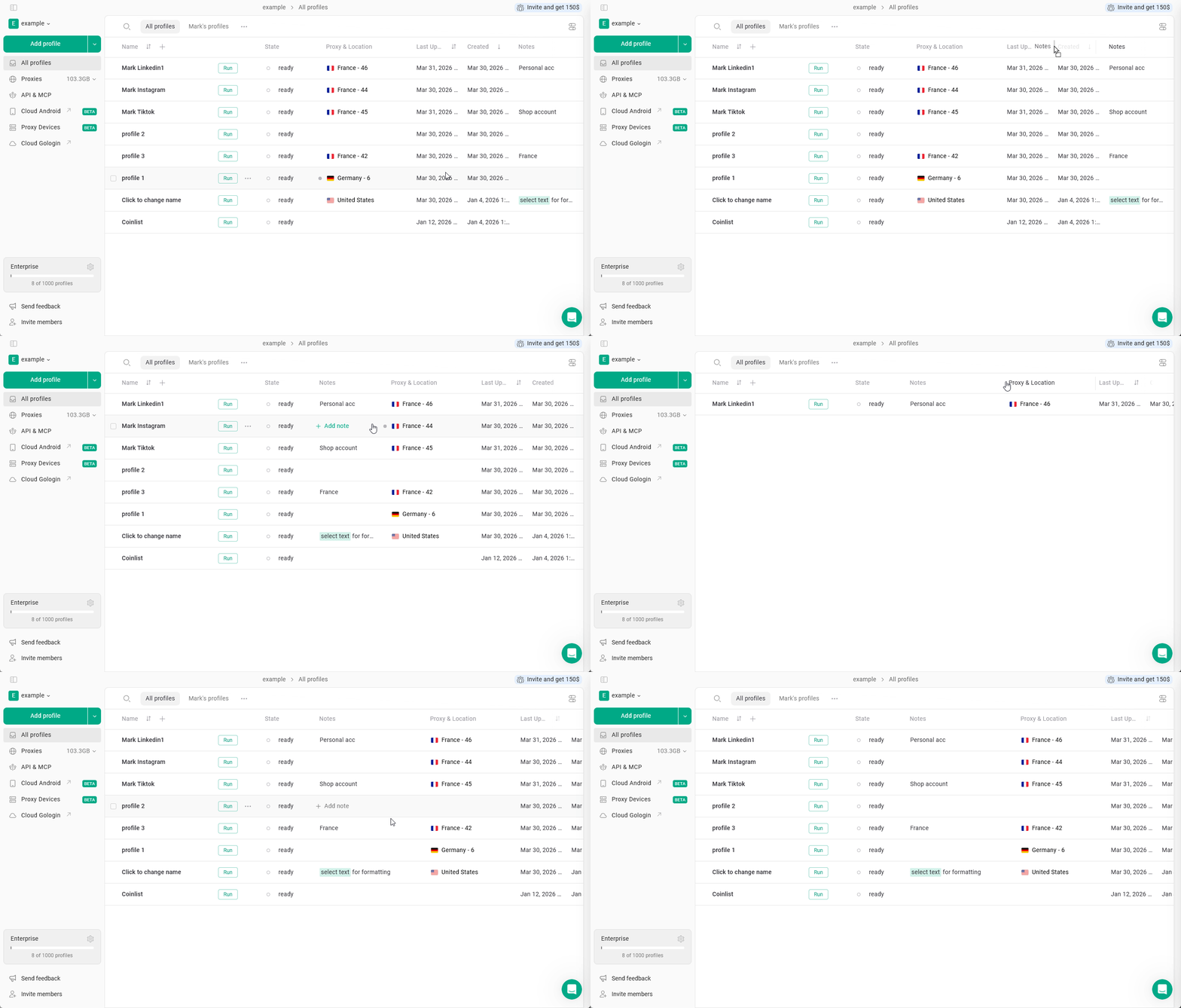
You can also **move** columns between each other and **resize them**.
To **move** the profile fields column, just hold it and drag across other columns.
To **resize** the column, hover over the column name and drag the vertical column divider.
There you can choose from such fields as:
* Proxies - useful when working with different proxy configurations
* **Proxy Type** - HTTPS, SOCKS or Gologin proxy (geolocation)
* **Proxy Port**
* **Proxy Username**
* **Proxy Password**
* Profile Notes - mark, note or categorize profiles
* **Notes** - keep track of account details, reminders, etc
* **Tags** - helps to categorize and filter profiles by account type, platform or project
* **Status** - usually used to display the workflow state
* Profile info - helpful for technical management and team workflows
* **OS** - operating system set in the profile
* **Browser Version** - profile's browser version
* **Sharing** - number of users with access to the profile
* Date & Time - useful for tracking activity and identifying stale or unused profiles
* **Last update** – when the profile was last modified
* **Last launch** – last time the profile was started
* **Created** – when the profile was created
## Rearranging columns
You can also **move** columns between each other and **resize them**.
To **move** the profile fields column, just hold it and drag across other columns.
To **resize** the column, hover over the column name and drag the vertical column divider.
 ## Tips
* Use **Tags and Status** for better organization
* Enable **Last launch** to track inactive profiles and profile sorting
If you manage many profiles, setting up the right combination of fields can significantly speed up your workflow.
## Tips
* Use **Tags and Status** for better organization
* Enable **Last launch** to track inactive profiles and profile sorting
If you manage many profiles, setting up the right combination of fields can significantly speed up your workflow.