> ## Documentation Index
> Fetch the complete documentation index at: https://gologin.com/docs/llms.txt
> Use this file to discover all available pages before exploring further.
# Cookie Bot
Cookie Bot is a built-in Gologin tool that automatically generates browsing cookies for a profile. This tool can help you automate your warmup process.
It simulates natural browsing behavior by visiting popular websites and performing simple actions such as scrolling and clicking. This helps create a more realistic browser environment before logging into accounts.
Using Cookie Bot can help:
* generate initial browsing history
* create natural cookies for websites
* warm up new browser profiles
* prepare profiles for account login or automation
## How Cookie Bot works
Cookie Bot visits a list of common websites and simulates basic user interactions.
These actions may include:
* loading pages
* scrolling through content
* clicking buttons
* loading images
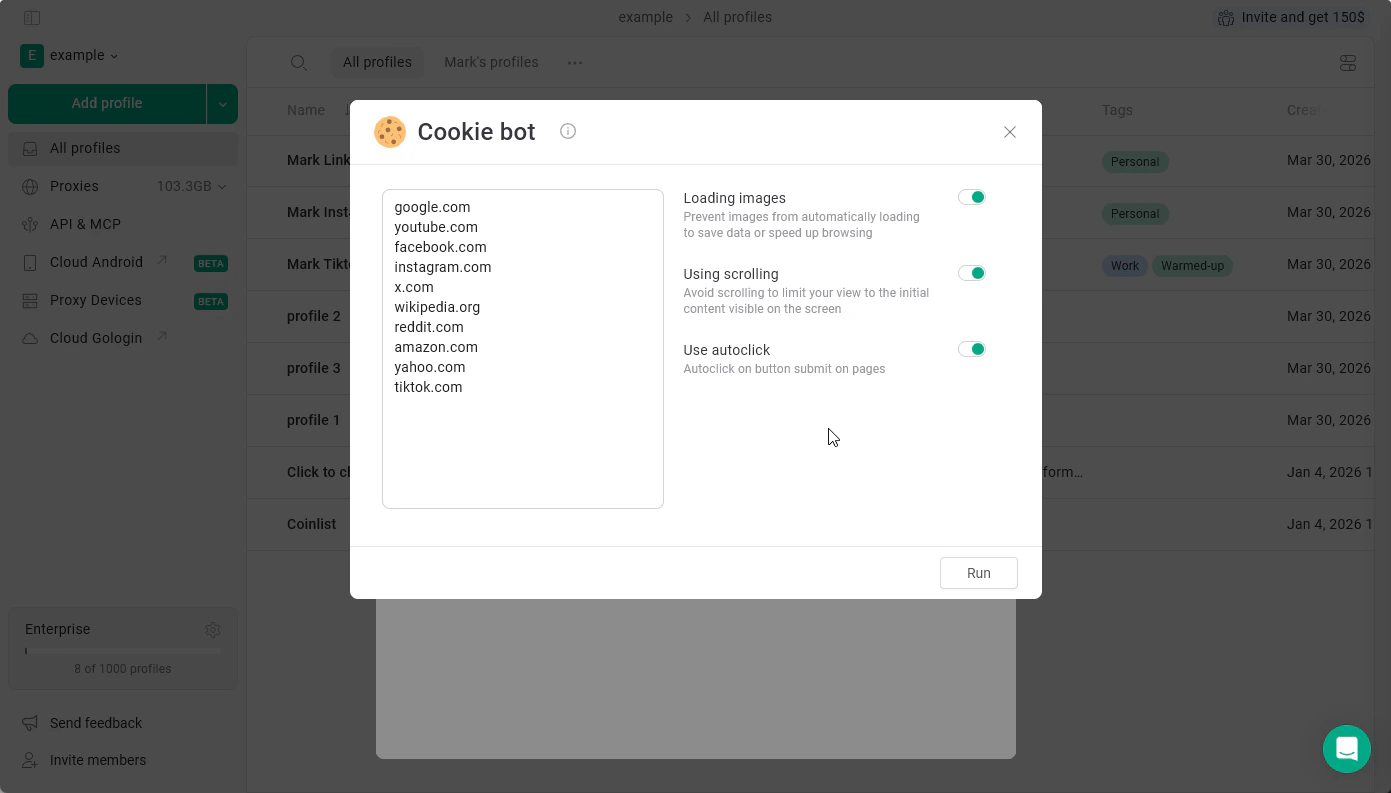 This activity creates cookies and browsing data inside the profile, making the browser session look more natural.
## Cookie Bot features and settings
The settings you can set up now:
* **Loading images**\
ON - images will get loaded\
OFF - images won't get loaded, saving your proxy data
* **Using scrolling**\
ON - the bot will scroll through pages, imitating human behavior\
OFF - bot will not scroll pages, continuing to the next step
* **Use autoclock**\
ON - will **accept cookie requests** for you\
OFF - won't click on anything
What it doesn't support yet:
* Manually recording workflows for the bot to perform
* Customizing what the bot clicks
## Running Cookie Bot
### To run Cookie Bot for a single profile
1. Go to the **All profiles** page.
2. Click **3 dots** on the profile.
3. Select **Automation**.
4. Review the list of websites the bot should visit.
5. Adjust optional settings if needed.
6. Click **Run**.
This activity creates cookies and browsing data inside the profile, making the browser session look more natural.
## Cookie Bot features and settings
The settings you can set up now:
* **Loading images**\
ON - images will get loaded\
OFF - images won't get loaded, saving your proxy data
* **Using scrolling**\
ON - the bot will scroll through pages, imitating human behavior\
OFF - bot will not scroll pages, continuing to the next step
* **Use autoclock**\
ON - will **accept cookie requests** for you\
OFF - won't click on anything
What it doesn't support yet:
* Manually recording workflows for the bot to perform
* Customizing what the bot clicks
## Running Cookie Bot
### To run Cookie Bot for a single profile
1. Go to the **All profiles** page.
2. Click **3 dots** on the profile.
3. Select **Automation**.
4. Review the list of websites the bot should visit.
5. Adjust optional settings if needed.
6. Click **Run**.
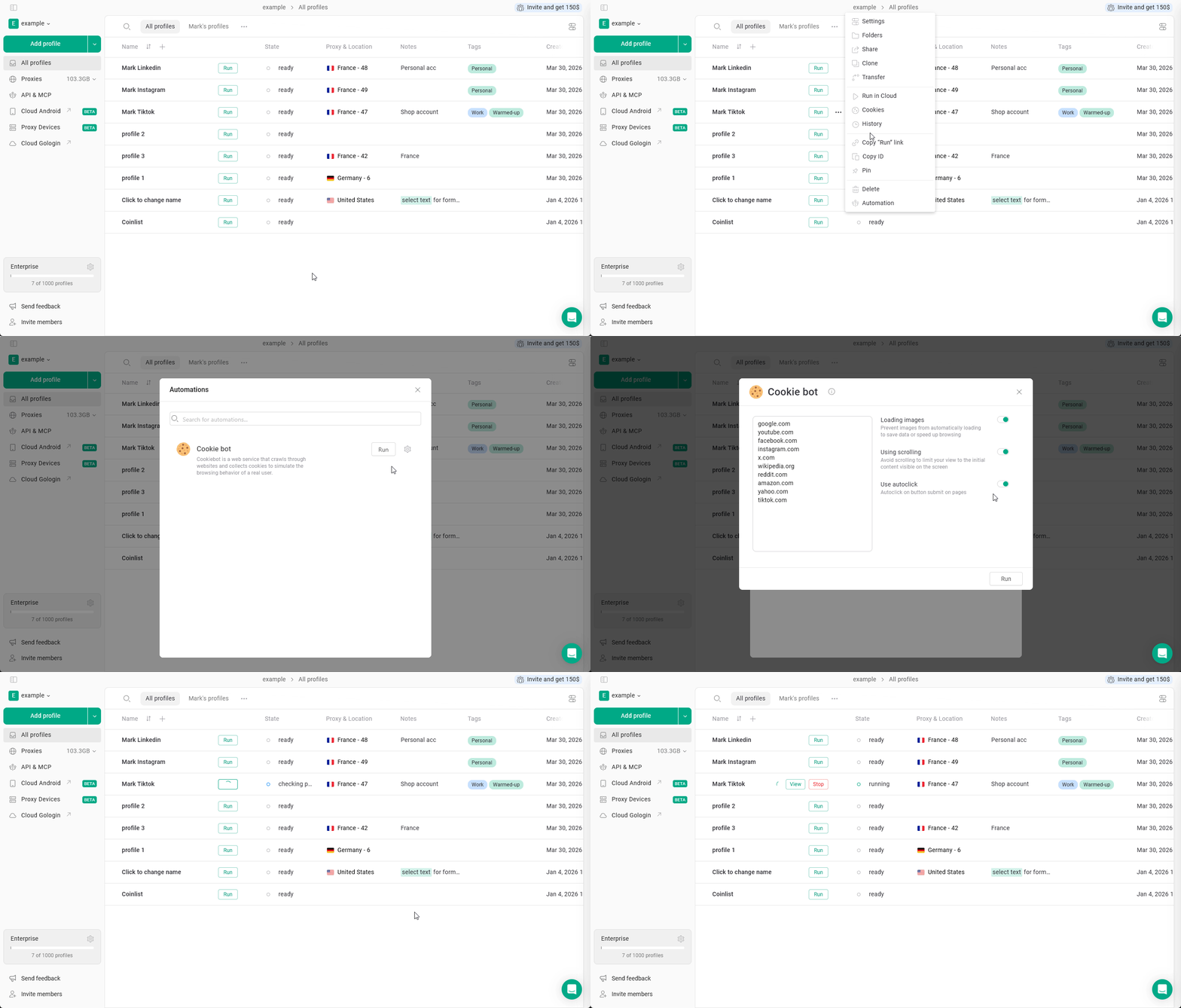 Cookie Bot will simulate browsing activity and generate cookies for the profile.
### Running Cookie Bot for multiple profiles
Gologin also allows you to run Cookie Bot **for several profiles at once**.
To do this:
1. Select multiple profiles in the profiles table.
2. Choose **Automation**.
3. Configure the settings.
4. Click **Run**.
Cookie Bot will simulate browsing activity and generate cookies for the profile.
### Running Cookie Bot for multiple profiles
Gologin also allows you to run Cookie Bot **for several profiles at once**.
To do this:
1. Select multiple profiles in the profiles table.
2. Choose **Automation**.
3. Configure the settings.
4. Click **Run**.
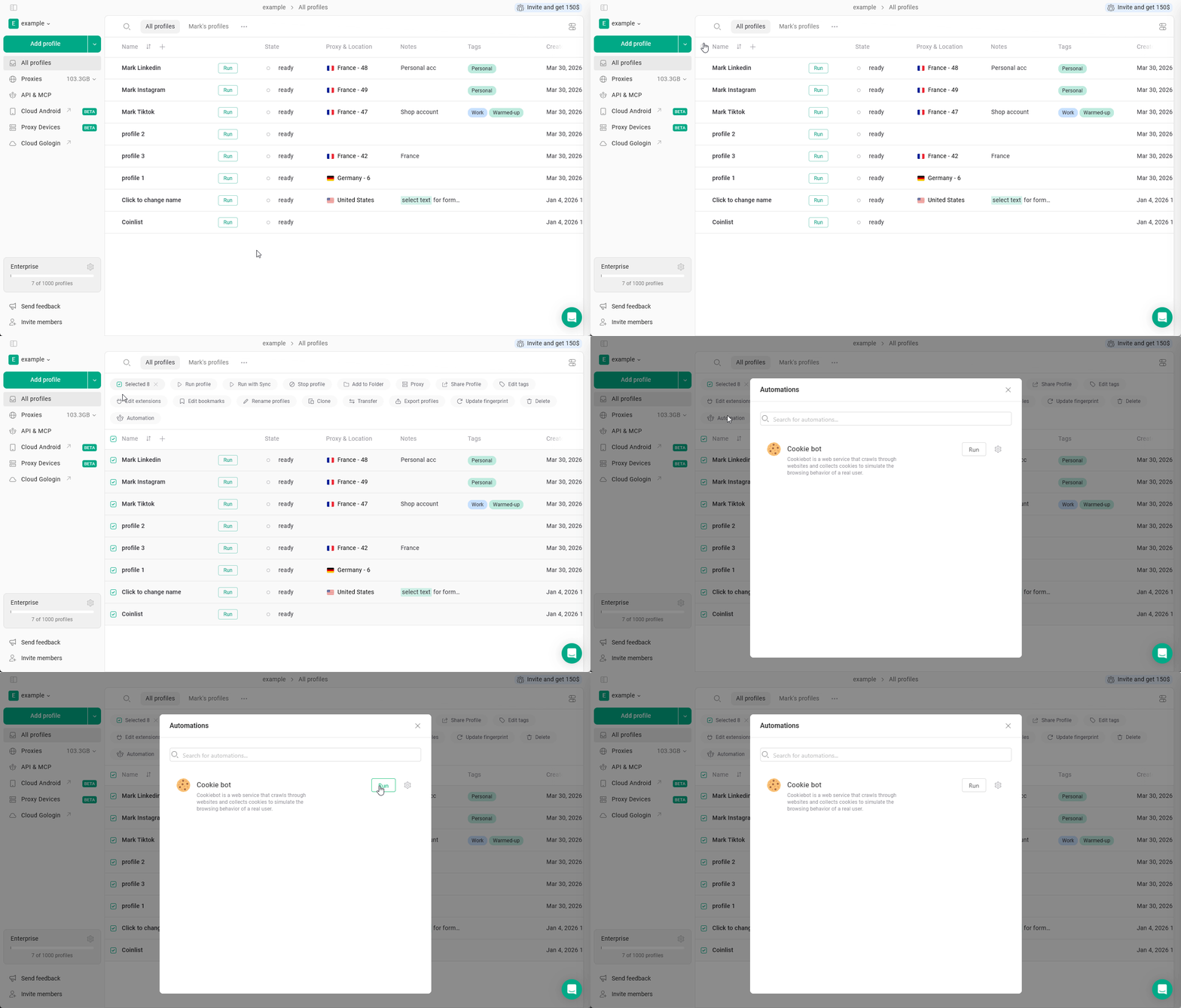 The process will start for all selected profiles.
## Best practices
For best results:
* run Cookie Bot before logging into new accounts
* keep the profile proxy enabled during the process
* avoid running Cookie Bot too frequently on the same profile
This helps maintain a natural browsing environment.
## See also
* [Run with Sync](https://gologin.com/docs/browser-profiles/profile-features/run-with-sync)
* [Creating new accounts safely](https://gologin.com/docs/creating-new-accounts-safely)
* [Maintaining trust score](https://gologin.com/docs/maintaining-trust-score)
* [Migrating from other anti-detect browsers](https://gologin.com/docs/general/migration-from-other-tools)
The process will start for all selected profiles.
## Best practices
For best results:
* run Cookie Bot before logging into new accounts
* keep the profile proxy enabled during the process
* avoid running Cookie Bot too frequently on the same profile
This helps maintain a natural browsing environment.
## See also
* [Run with Sync](https://gologin.com/docs/browser-profiles/profile-features/run-with-sync)
* [Creating new accounts safely](https://gologin.com/docs/creating-new-accounts-safely)
* [Maintaining trust score](https://gologin.com/docs/maintaining-trust-score)
* [Migrating from other anti-detect browsers](https://gologin.com/docs/general/migration-from-other-tools)