> ## Documentation Index
> Fetch the complete documentation index at: https://gologin.com/docs/llms.txt
> Use this file to discover all available pages before exploring further.
# Installing custom extensions
**Custom extensions** allow you to use private, modified, or locally developed tools inside your Gologin profiles. Unlike public extensions, custom extensions are installed manually using extension files.
## Ensuring your extension is compatible
**Gologin doesn't support .crx or .zip archives.** However, you can convert such files to an **unpacked folder**, which is supported by Gologin.
If you have a **.zip** archive, just extract it - the resulting folder can be added as a custom extension.
In case you have a **.crx** file:
1. Rename your extension.crx to extension.zip
2. Extract it using the 7-zip app or your operating system's built-in extractor
Make sure the extracted folder contains **manifest.json** and other extension assets (js, html, icons, etc.). \
If you're unable to add the extension, check for the manifext.json
## Installing an unpacked extension
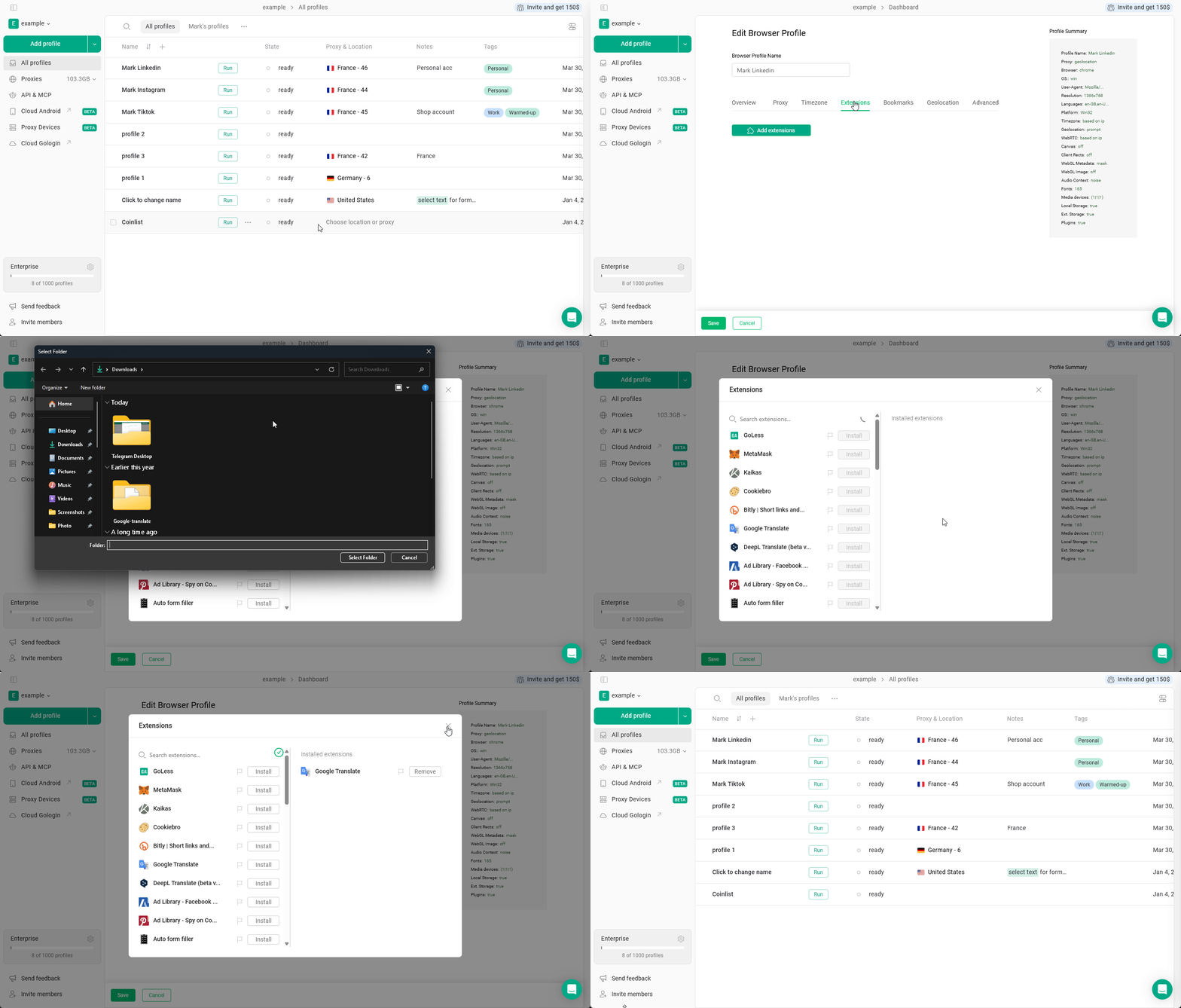
Gologin supports extensions as **unpacked folders**. To install such an extension:
1. **Click 3 dots on the profile** you want to install the extension on, then click **Settings**
2. Navigate to the **Extensions** tab and click **Add extensions**
3. Click the **Upload custom extension** button
4. Open the folder that contains the extension and click **Select folder**
5. Hit **Save** to apply the changes