> ## Documentation Index
> Fetch the complete documentation index at: https://gologin.com/docs/llms.txt
> Use this file to discover all available pages before exploring further.
# Adding browser extensions to profiles
In Gologin, you can add public extensions using two different methods.
## Adding via the Extensions tab
You can add extensions to your browser profile **directly from the profile settings**, without interacting with the Chrome Web Store:
1. On the All Profiles page, **click 3 dots on the profile** you want to install the extension on, then click **Settings**
2. Navigate to the **Extensions** tab
3. Click **Add extensions**
4. Search for the required extension using the search bar and click **Install**
5. Don't forget to hit **Save** to apply the change
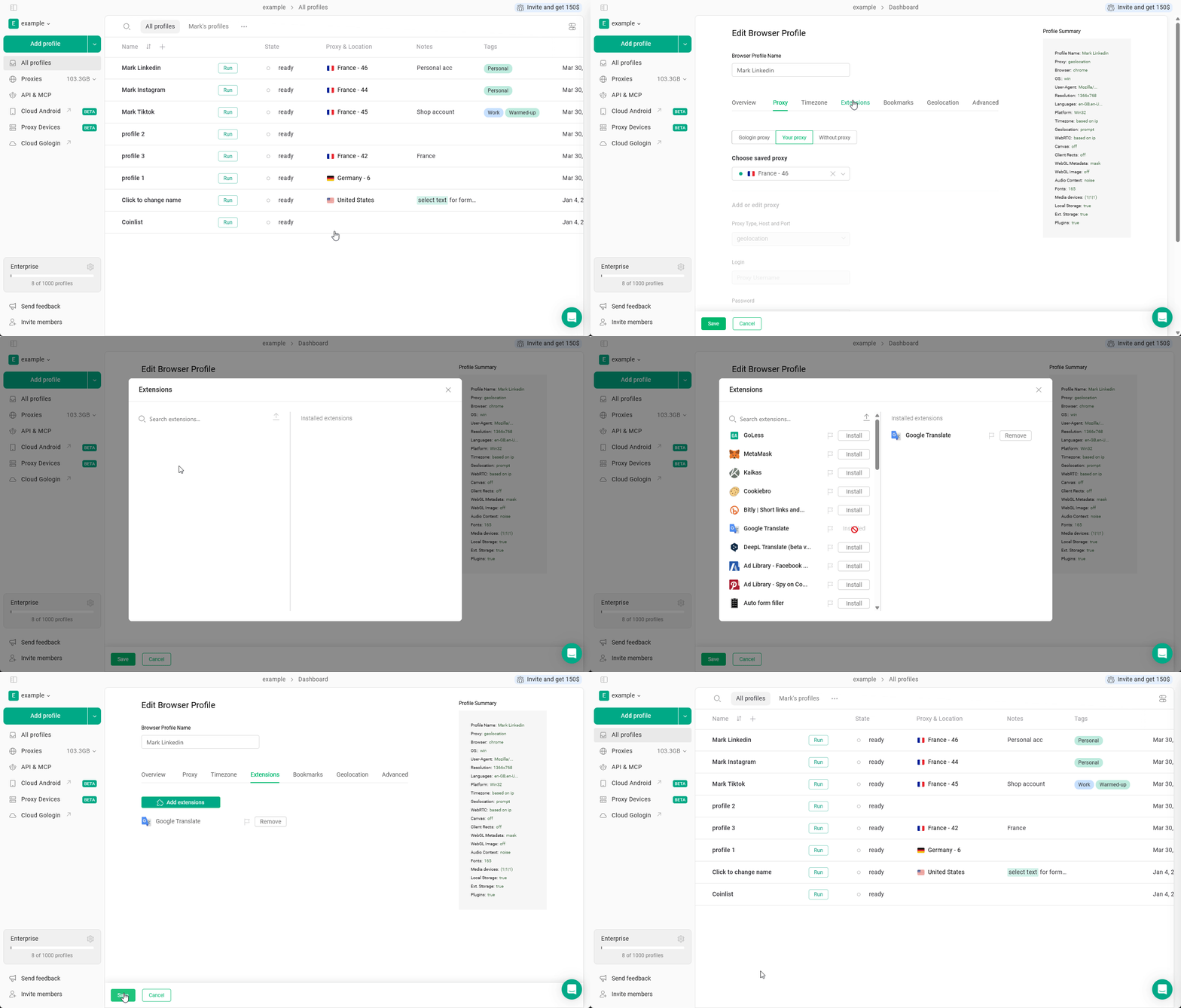 To delete the extension, just click **Remove** in the same menu.
If you can't find the required extension in the list, just install it at least once using the Chrome Web Store. The installed extension will appear in the list within 24 hours.
### Adding extensions to every new profile
If you know that you will need specific extensions on each of your profiles, you can click the **Flag icon** next to the extension to have it appear on every new profile.
To delete the extension, just click **Remove** in the same menu.
If you can't find the required extension in the list, just install it at least once using the Chrome Web Store. The installed extension will appear in the list within 24 hours.
### Adding extensions to every new profile
If you know that you will need specific extensions on each of your profiles, you can click the **Flag icon** next to the extension to have it appear on every new profile.
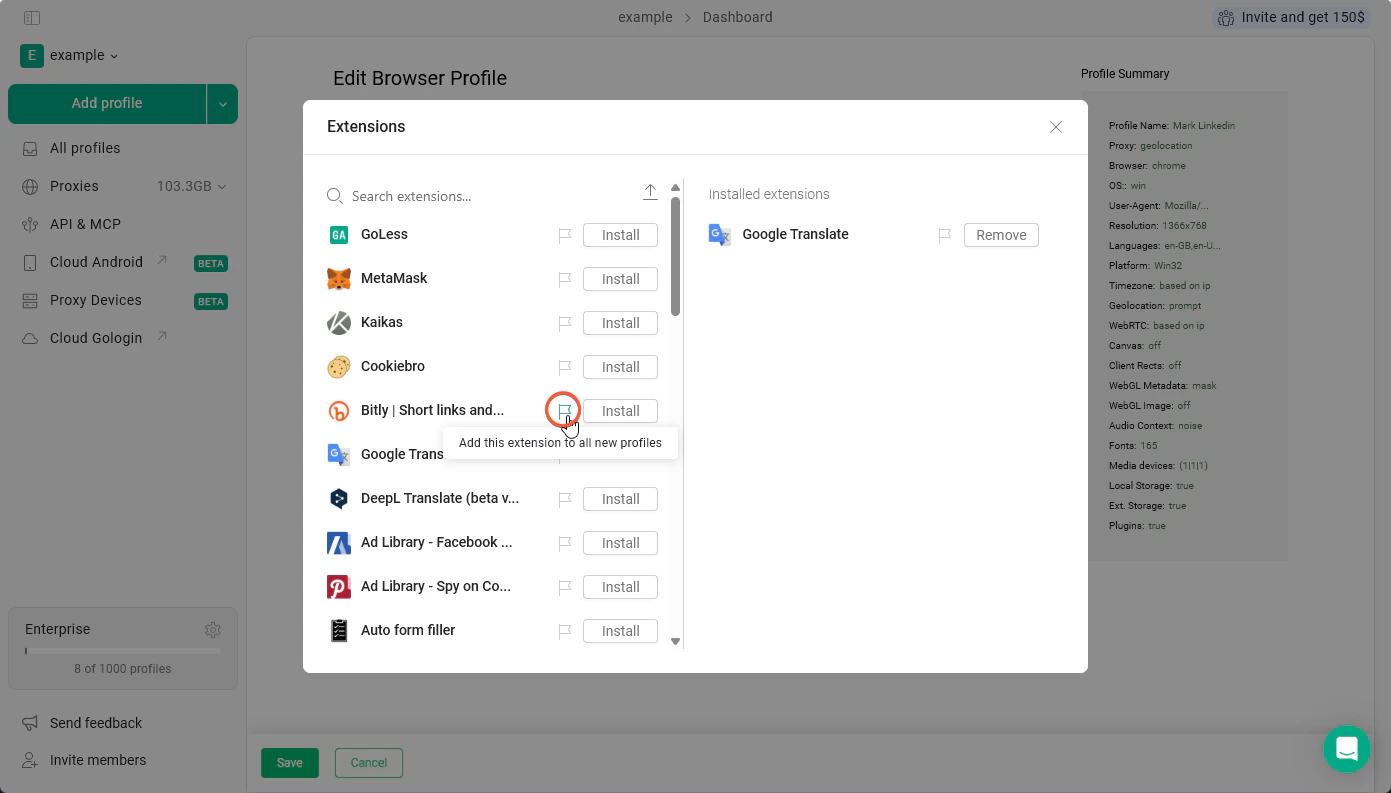 Such extensions won't appear in the profiles you've already created. They'll be added only to the profiles you create after the change.
## Installing via the Chrome Web Store
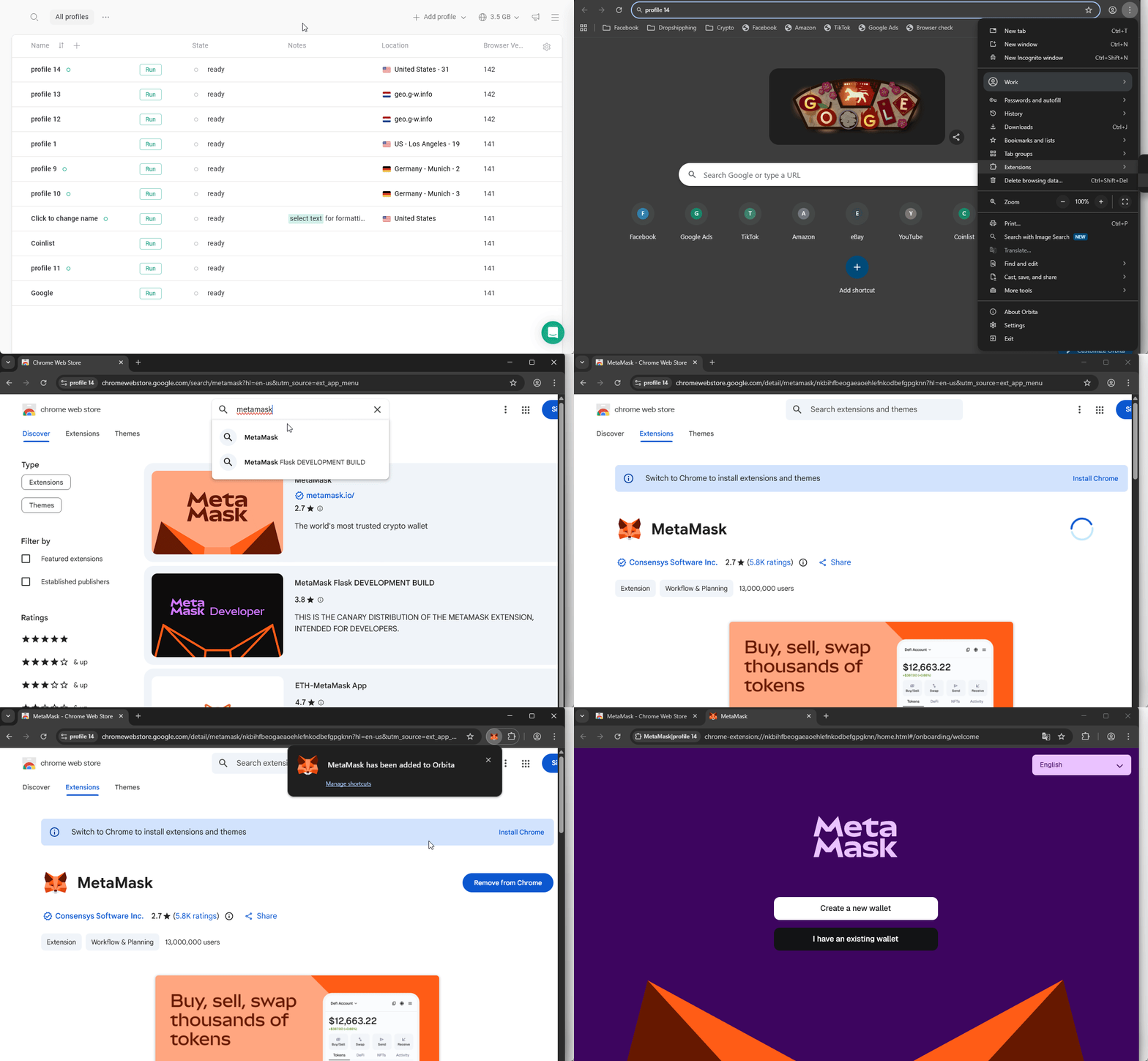
In case you don't find the extension in the Extensions tab of the profile settings, you can use the **Chrome Web Store** in the browser profile. To do this:
1. **Launch the browser profile** that needs a new extension
2. Click **3 dots in the top-right** > **Extensions** > **Visit Chrome Web Store** in the browser
3. Find the needed extension
4. Click **Add to Chrome** and wait for the installation process to finish
Such extensions won't appear in the profiles you've already created. They'll be added only to the profiles you create after the change.
## Installing via the Chrome Web Store
In case you don't find the extension in the Extensions tab of the profile settings, you can use the **Chrome Web Store** in the browser profile. To do this:
1. **Launch the browser profile** that needs a new extension
2. Click **3 dots in the top-right** > **Extensions** > **Visit Chrome Web Store** in the browser
3. Find the needed extension
4. Click **Add to Chrome** and wait for the installation process to finish