> ## Documentation Index
> Fetch the complete documentation index at: https://gologin.com/docs/llms.txt
> Use this file to discover all available pages before exploring further.
# Cookies import and export
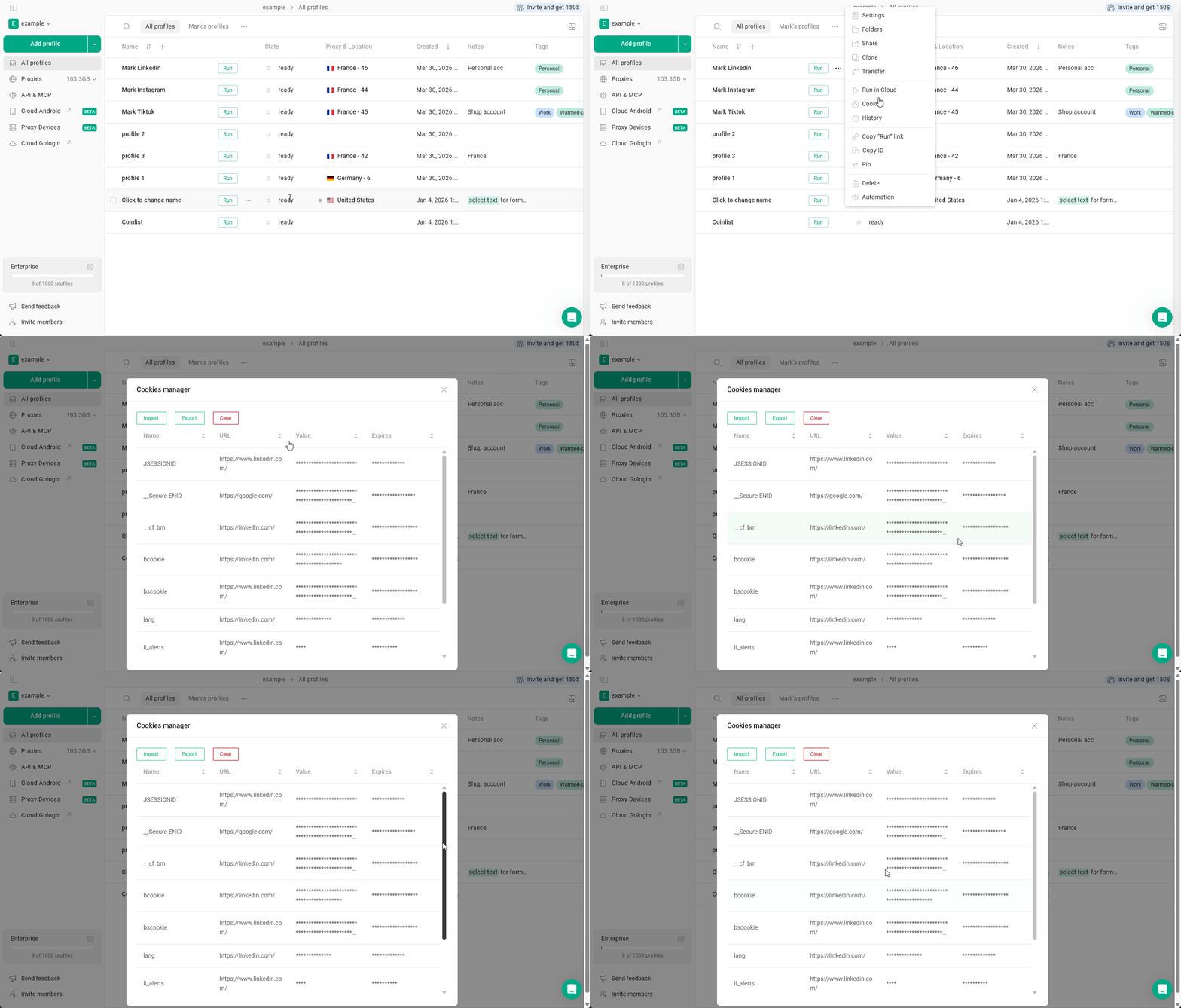
To see if you have any cookies in the profile, just click **3 dots** on it > **Cookies**.
Here you can **import**, **export** or **delete** cookies.
 ## How to import cookies into Gologin profile
Gologin supports **JSON**, **Netscape** and **plain text** formats. It will accept cookies exported from **Gologin directly** and cookie files created by **third-party Chrome extensions**, such as: EditThisCookie, Swap My Cookies, Cookie Editor, etc.
If you have any issues during import, verify if the supplied cookies are in the supported format.
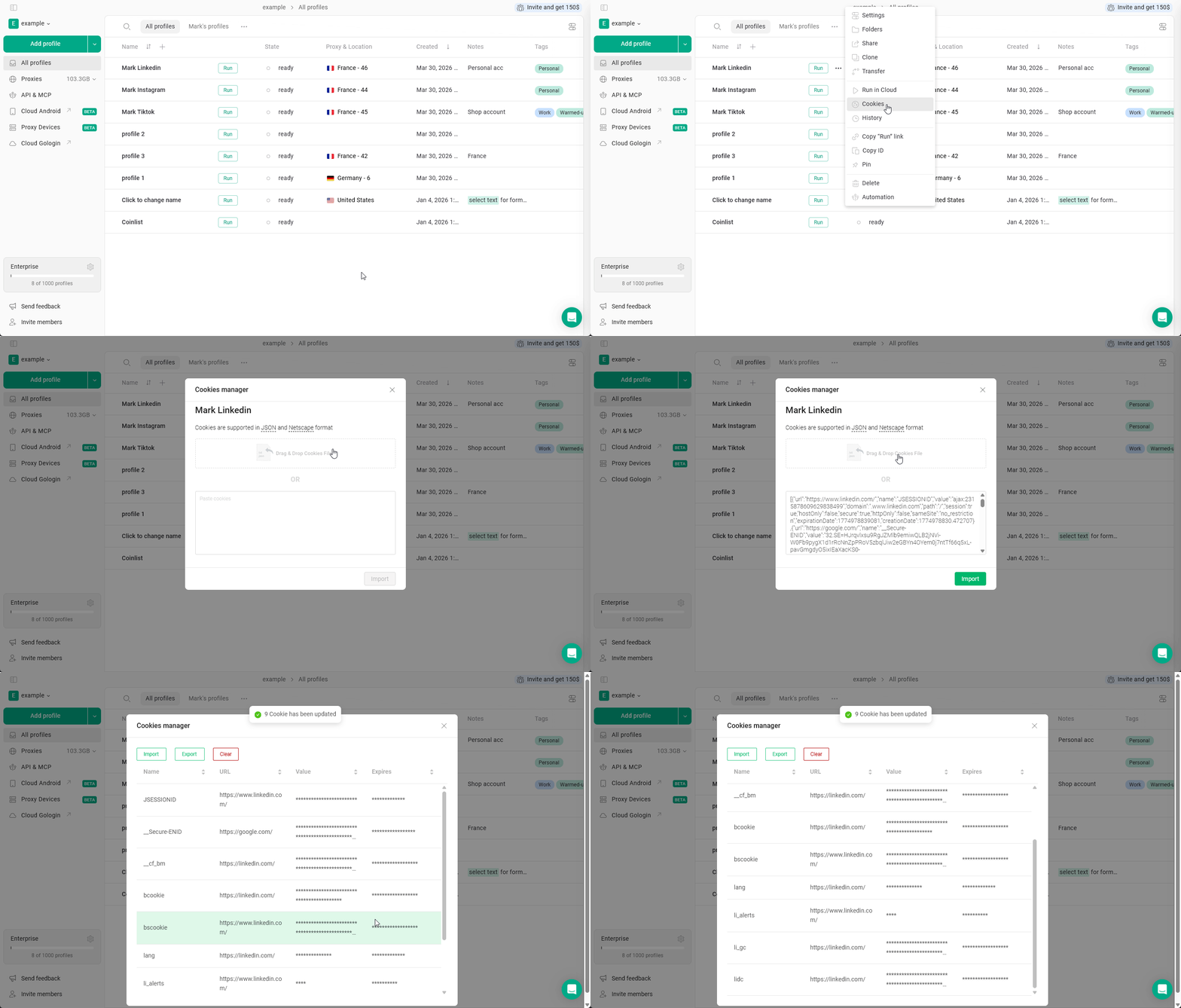
To make the import:
1. Click **3 dots on the profile** > **Cookies**
2. Hit **Import cookies**
3. Click the **file image** or **drag your cookie file** to it\
you can also copy-paste cookies as a plain text using the field below it
4. Click **Import**
## How to import cookies into Gologin profile
Gologin supports **JSON**, **Netscape** and **plain text** formats. It will accept cookies exported from **Gologin directly** and cookie files created by **third-party Chrome extensions**, such as: EditThisCookie, Swap My Cookies, Cookie Editor, etc.
If you have any issues during import, verify if the supplied cookies are in the supported format.
To make the import:
1. Click **3 dots on the profile** > **Cookies**
2. Hit **Import cookies**
3. Click the **file image** or **drag your cookie file** to it\
you can also copy-paste cookies as a plain text using the field below it
4. Click **Import**
 Your profile is ready for the launch 👍
## Cookie export
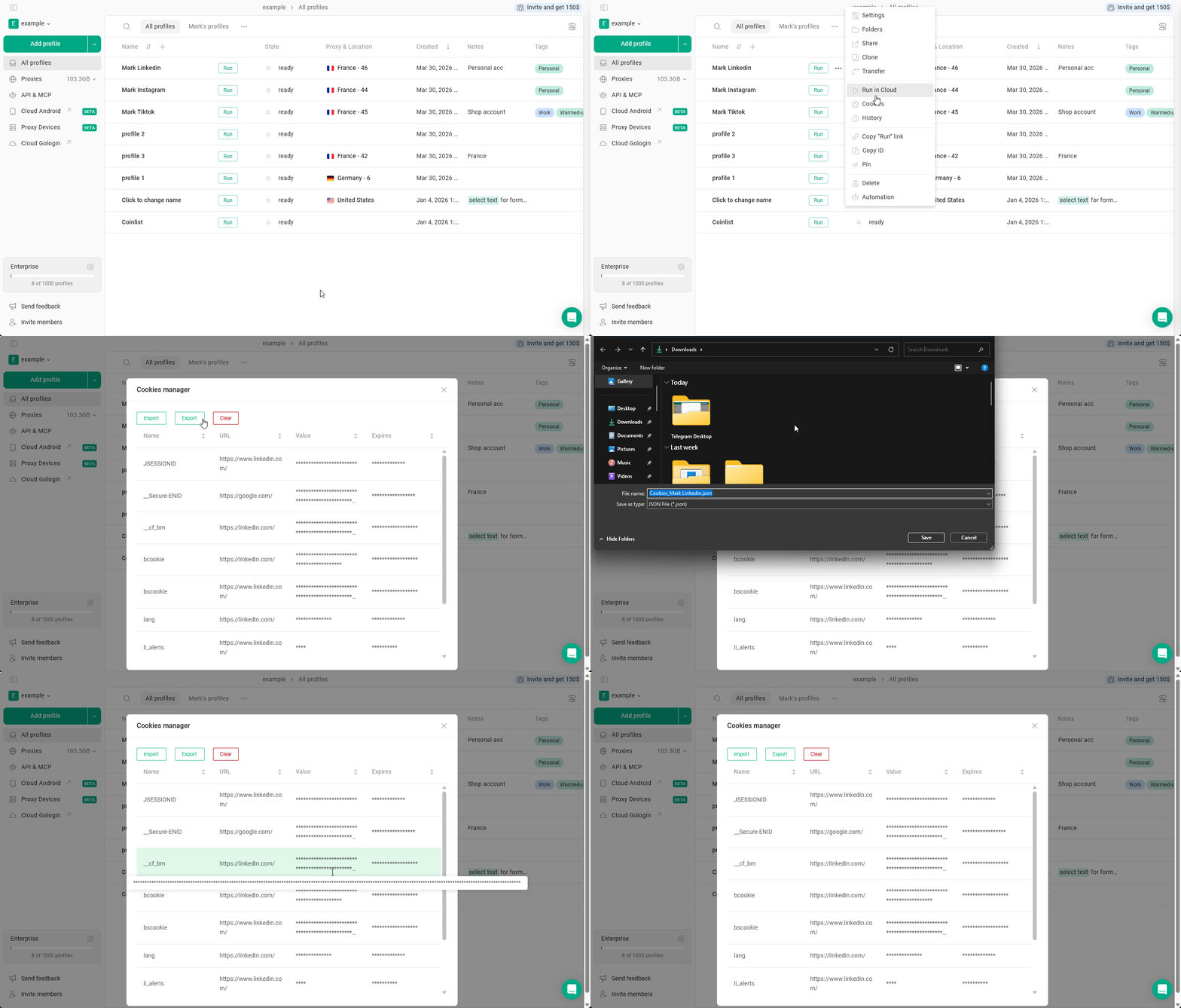
To export cookies using the built-in menu:
1. Click **3 dots on the profile** > **Cookies**
2. Hit **Export**
3. Choose the **folder** and click **Save**
Your profile is ready for the launch 👍
## Cookie export
To export cookies using the built-in menu:
1. Click **3 dots on the profile** > **Cookies**
2. Hit **Export**
3. Choose the **folder** and click **Save**